
A WSUS installation on Windows Server involves more than adding the role. To install WSUS correctly, you choose WID or SQL Server, select the content directory, complete post-installation, run the WSUS Configuration Wizard, and confirm the first synchronization succeeds. This guide covers the process with either Server Manager or PowerShell.
It stops once the server is installed, synchronized, and verified as healthy. For what WSUS is and its deprecation status, see WSUS on Windows Server. Client Group Policy, computer groups, and approvals are the next phase, covered in WSUS Configuration.
WSUS Installation Requirements and Prerequisites
- Windows Server with the WSUS role available (this guide covers Server 2016 through 2025); for new deployments, use a release still within its supported lifecycle
- Domain-joined (workgroup acceptable for isolated deployments), with no existing WSUS configuration or SUSDB to preserve
- Local administrator rights, current cumulative updates installed, and no pending reboot
- 1.4 GHz x64 CPU minimum (2 GHz+ recommended), 2 GB RAM beyond the OS and other roles, 100 Mbps network (1 Gbps recommended)
- A dedicated non-C: NTFS volume for WSUS content, with free space confirmed
- Outbound 80/443 to Microsoft Update for a top-level server, or the upstream’s WSUS ports (typically 8530/8531) for a downstream server
- Decide the database backend in advance, and whether update payloads will be stored locally or downloaded by clients from Microsoft
Microsoft documents 20 GB as the minimum free space for storing updates and recommends at least 40 GB; real deployments often need more depending on products, languages, and classifications. For Windows releases serviced through on-premises Unified Update Platform content, plan for roughly 10 GB of additional storage per Windows version and processor architecture. A narrowly scoped content store stays far smaller than a broadly configured one, so monitor actual growth rather than treating one estimate as a design limit.
Check the current state before the WSUS installation starts:
Get-ComputerInfo |
    Select-Object WindowsProductName, WindowsVersion, OsBuildNumber

Get-Volume |
    Select-Object DriveLetter, FileSystem, SizeRemaining, Size

Get-WindowsFeature -Name UpdateServices*
Confirm the OS build reflects a current cumulative update, the content volume is NTFS with adequate free space, and no reboot is already pending. If Get-WindowsFeature shows any UpdateServices component as installed, you are not starting from a clean server.
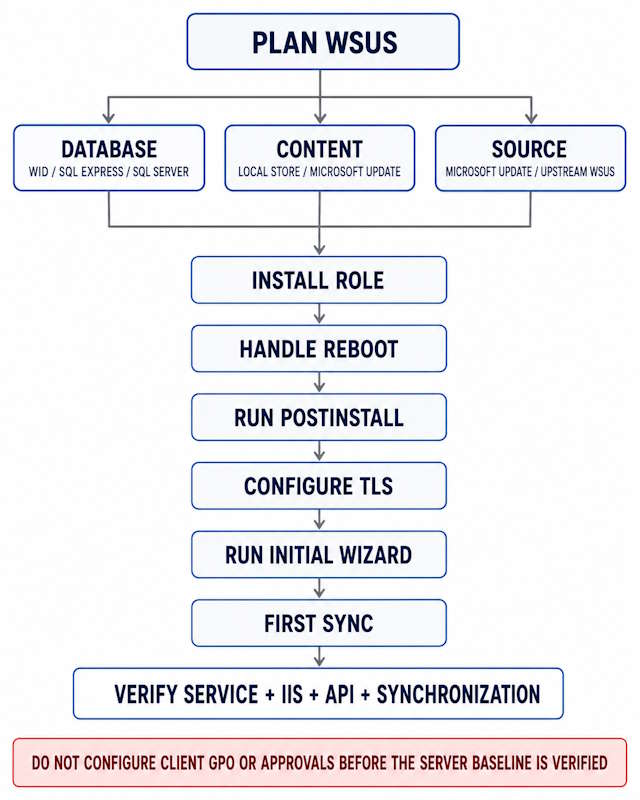
Step 1: Choose the WSUS Database and Content Directory
Two decisions shape the rest of the WSUS installation: where SUSDB lives and where update files are stored. Both affect the deployment design, so decide them before you install the role.
WID or SQL Server
Microsoft supports WID and supported editions of SQL Server Standard, Enterprise, or Express as the WSUS database.
- WID (Windows Internal Database) is the default and the right choice for most single-server deployments. It installs with the role, needs no separate SQL license, and does not have SQL Express’s 10 GB per-database limit. It is local-access only and cannot be used for network load-balanced WSUS.
- SQL Server Express is supported but enforces a 10 GB per-database limit, and Microsoft notes no appreciable single-server performance gain over WID. Don’t pick it just because WID is deprecated.
- SQL Server Standard or Enterprise fits when the team already runs a managed SQL platform, or when NLB/shared SUSDB is a requirement. NLB WSUS needs full SQL Server, not WID.
Windows Server 2025: WID remains available with WSUS, but WID itself is deprecated and Microsoft says it will be removed in a future release. Document why WID is acceptable for the planned server lifetime. Existing deployments can be moved from WID to SQL later, but that is a separate operational task, not part of a new WSUS installation.
| Scenario | Direction |
|---|---|
| Single WSUS server | WID |
| Existing SQL platform | Supported SQL Server |
| NLB or shared SUSDB | Full SQL Server |
| Small database with a SQL tooling requirement | SQL Express can be considered |
| Server 2025 with WID | Supported today; document a future replacement plan |
Choose the WSUS Content Directory
There is no single default content path that applies to every WSUS installation. You enter the content directory during setup in Server Manager, or pass it as CONTENT_DIR to WsusUtil.exe postinstall. A dedicated data drive, such as D:\WSUS, is a practical choice for most deployments.
- Use a dedicated non-C: NTFS volume where practical. WSUS can technically use C:, but a growing content store can consume the system volume and complicate recovery.
- Avoid NTFS compression on the content volume.
- Size for growth, not for the first sync.
- Let WSUS create and manage the folder structure. If you create or restore the directory manually, verify the documented service-account permissions instead of applying broad ACLs.
The second choice is whether the server stores payloads at all:
| Model | Server stores payloads | Clients download from |
|---|---|---|
| Local WSUS storage | Yes | WSUS |
| Metadata-only / Microsoft-hosted payloads | No | Microsoft Update, after approval |
The metadata-only model still requires SUSDB and metadata synchronization, and clients must be able to reach Microsoft Update directly. It is set after installation under Options -> Update Files and Languages -> Update Files. If files later fail to download, see WSUS Not Downloading Updates.
Choose the Update Source
A top-level server synchronizes from Microsoft Update. A downstream server synchronizes from an upstream WSUS server over its configured ports, typically 8530/8531. You select this in the Configuration Wizard in Step 6.
Step 2: Install WSUS with Server Manager
- Open Server Manager -> Manage -> Add Roles and Features.
- Choose Role-based or feature-based installation on the local server.
- Select Windows Server Update Services and accept the required IIS features.
- In role services, keep WSUS Services checked.
- Keep WID Connectivity for WID, or clear it and select SQL Server Connectivity for SQL. Select the connectivity option that matches your backend; conflicting or incorrect selections can cause post-installation failure.
- Enter the content directory, for example
D:\WSUS. - Click Install.
- When it finishes, click Launch Post-Installation Tasks and wait for “Configuration successfully completed”.
Restart only if Server Manager reports that a restart is required. The role install alone does not finish the WSUS installation – post-installation creates SUSDB and the content structure, covered in Step 4.
Step 3: Install WSUS with PowerShell
PowerShell is the most repeatable installation path for Server Core and standardized deployments.
Install the WSUS role
Use Microsoft’s parent-role command rather than listing child features one by one. For a WID-based server it installs WSUS Services, WID Connectivity, and the management tools:
$result = Install-WindowsFeature `
    -Name UpdateServices `
    -IncludeManagementTools

$result | Select-Object Success, RestartNeeded, FeatureResult
If RestartNeeded is Yes, restart before running post-install. Or let the command handle it:
Install-WindowsFeature -Name UpdateServices -IncludeManagementTools -RestartComplete WSUS post-installation
After any pending restart, run post-install with the content path. For WID:
& "$env:ProgramFiles\Update Services\Tools\WsusUtil.exe" `
    postinstall `
    CONTENT_DIR=D:\WSUS
Step 4 explains what this command does and how to confirm it worked.
Use SQL instead of WID
For a SQL backend, install UpdateServices-Services and UpdateServices-DB instead of the WID role service. Confirm the names with Get-WindowsFeature UpdateServices* on your target server:
Install-WindowsFeature `
    -Name UpdateServices-Services, UpdateServices-DB `
    -IncludeManagementTools
Then point post-install at the instance:
& "$env:ProgramFiles\Update Services\Tools\WsusUtil.exe" `
    postinstall `
    SQL_INSTANCE_NAME="SERVERNAME\INSTANCENAME" `
CONTENT_DIR=D:\WSUSRemote SQL, in short: create the instance first. WSUS uses Windows authentication only, so grant the WSUS computer account (DOMAIN\WSUSSERVER$) access. Enable TCP/IP and open the firewall path. Microsoft documents this connection as not TLS-protected, so keep it on a trusted segment.
Step 4: Complete WSUS Post-Installation Tasks
Post-installation is the point where the WSUS role becomes a working server. In Server Manager it appears as the post-deployment task; in PowerShell it is WsusUtil.exe postinstall. Either path creates or connects SUSDB, creates the content directory structure, and configures the WSUS Administration site in IIS.
CONTENT_DIRsets the local content path. Omit it only for a metadata-only deployment.SQL_INSTANCE_NAMEis used only with a SQL backend. Pass the server name for a default instance, orSERVER\INSTANCEfor a named one. Leave it out entirely for WID.- Restart first if the role install reported
RestartNeeded. Running post-install against a server that still needs a reboot is a common source of confusing partial failures.
Expected success state: Server Manager shows “Configuration successfully completed”, or WsusUtil.exe reports post-install completed successfully. The console then opens without a connection error.
If it fails, don’t rerun it repeatedly against an unknown partial state. Open the log path reported in the error output, then check %ProgramFiles%\Update Services\LogFiles\SoftwareDistribution.log and the Application event log. Confirm the installed role services and database connectivity before retrying.
Step 5: Configure WSUS Ports and TLS
By default the WSUS Administration site uses 8530 for HTTP and 8531 for HTTPS. On a non-TLS server, 8530 carries everything. With TLS, metadata and service traffic move to 8531, while update payloads and specific virtual roots stay on 8530. Payloads are protected by signed hash verification, not transport encryption.
| Connection | Direction | Ports |
|---|---|---|
| Clients to WSUS | Outbound from client | Configured HTTP port (commonly 8530); HTTPS port (commonly 8531) with TLS |
| Downstream to upstream WSUS | Outbound from downstream | Upstream’s configured WSUS ports |
| WSUS to Microsoft Update | Outbound from WSUS | 80 and 443 (no inbound needed) |
Use Microsoft’s current documentation for the Microsoft Update FQDNs rather than a static list. For TLS, pick one canonical WSUS DNS name. The certificate SAN must include it, and the issuing CA must be trusted in the Local Computer store on clients and downstream servers – not the user store.
- Install the certificate and bind it to the WSUS Administration site on port 8531.
- Keep the HTTP binding on 8530 – removing it breaks payload downloads.
- Set Require SSL on these five virtual directories only:
ApiRemoting30,ClientWebService,DSSAuthWebService,ServerSyncWebService,SimpleAuthWebService. - Do not enable Require SSL on
Content,Inventory,ReportingWebService, orSelfUpdate. - Run
& "$env:ProgramFiles\Update Services\Tools\WsusUtil.exe" configuressl wsus.contoso.comwith the DNS name clients will use, not a thumbprint.
Verify the bindings and the TLS API connection:
Get-WebBinding -Name 'WSUS Administration'

Get-WsusServer -Name wsus.contoso.com -PortNumber 8531 -UseSsl
A common problem is that the CA is trusted only in the administrator’s Current User store. The admin’s browser shows a valid certificate while the computer account, clients, and downstream servers reject it. Check with certlm.msc, not certmgr.msc.
Step 6: Run the WSUS Configuration Wizard
Open the console via Server Manager -> Tools -> Windows Server Update Services. The WSUS Configuration Wizard launches on first open. The goal here is a minimum working scope for the first sync, not a final product strategy.
Choose the upstream source
Select “Synchronize from Microsoft Update” for a standalone or top-level server. For a downstream server, select “Synchronize from another Windows Server Update Services server” and enter the upstream FQDN and port. Check “This is a replica of the upstream server” only when Replica mode is deliberate.
Configure proxy if required
Fill in this page only if the server needs a proxy to reach Microsoft Update. Then click Start Connecting; it retrieves available products, classifications, and languages and takes a few minutes.
Choose languages
Select only the languages you need, and always include English. Each extra language adds metadata and, with local storage, content.
Choose products
Add only the Windows client and server products you actually manage, and don’t select a top-level Windows product family unless you want every product under it. Windows 10 version 22H2 reached end of support on October 14, 2025, so select Windows 10 products only for LTSC editions, ESU devices, or a documented legacy need.
Selecting a product adds metadata. It doesn’t queue every update file for download.
Choose classifications
A practical starting baseline:
- Critical Updates, Security Updates, Updates
- Definition Updates, if WSUS distributes Microsoft Defender intelligence
- Drivers only with a tested driver process – driver sync remains available after Microsoft reversed its planned April 2025 removal, but it adds heavy metadata volume
- Upgrades only when feature upgrades through WSUS are intentional
Keep the initial scope narrow. Long-term product and classification strategy belongs in the WSUS Configuration guide linked above.
Configure synchronization schedule
Set automatic synchronization for an off-peak time, such as daily at 3:00 AM. On the final page, select Begin initial synchronization, then finish the wizard.
Step 7: Run the First WSUS Synchronization
The first synchronization is the final installation step. It downloads the full metadata catalog for the selected products, classifications, and languages. Microsoft states it can take more than an hour; broad product selection and slow proxies stretch that further.
- Leave the WSUS service, IIS, and the server running until it completes.
- You can close the console – synchronization continues on the server.
- Success means metadata has synchronized. With local storage, approved payloads download later, after approvals.
An interrupted first sync is recoverable, but it delays validation of the installation. If it fails repeatedly, the endpoint, TLS, proxy, and firewall diagnosis lives in WSUS Sync Failed.
Verify the WSUS Installation
Run these checks in order before calling the WSUS installation complete.
1. Role services and service state:
Get-WindowsFeature -Name UpdateServices* | Where-Object Installed
Get-Service WsusService
2. IIS application pool and site:
Import-Module WebAdministration

Get-WebAppPoolState -Name WsusPool
Get-Website -Name 'WSUS Administration'
Get-WebBinding -Name 'WSUS Administration'
Confirm WsusPool is started. Queue length, memory limits, and recycling tuning belong to WSUS Console Slow or Crashing, not to installation.
3. WSUS API connection:
Import-Module UpdateServices
Get-WsusServer -Name localhost -PortNumber 8530
A successful connection confirms that the administration service responds. It doesn’t prove synchronization, content download, or client reporting.
4. Optional configuration dump (confirm property names on your release):
$config = (Get-WsusServer).GetConfiguration()

$config | Select-Object SyncFromMicrosoftUpdate,
                         UpstreamWsusServerName,
                         LocalContentCachePath,
                         HostBinariesOnMicrosoftUpdate
5. Console checks: the content directory exists at the path you chose, the Synchronizations view shows the latest entry as “Succeeded”, and Updates -> All Updates is populated with metadata. For server-side errors, read SoftwareDistribution.log and the Application log; Windows Server Event Log Troubleshooting covers log-reading technique.
Common WSUS Installation Problems
These failures surface during WSUS installation or post-install. Recurring sync errors, missing payloads, and console performance have their own guides linked above.
Reboot and retry. If it persists after a confirmed clean reboot, check the event logs and servicing state before looking for a permissions cause.
For WID, confirm UpdateServices-WidDB is installed. For SQL, check the exact server and instance name, SQL service state, TCP/IP, SQL Browser or static port, DNS, firewall, and the UpdateServices-DB role service. Then rerun WsusUtil.exe postinstall with the correct parameters.
netstat -ano | findstr :8530to see what’s listening. PID 4 is the System process hosting HTTP.sys – don’t stop it.netsh http show servicestateandnetsh http show urlaclto find the owning registration.Get-WebBindingto check IIS site bindings.- Fix the conflicting binding or URL reservation through the application that owns it.
Console reports “cannot connect to WSUS server” right after install? Confirm WsusService is running, WsusPool is started, and the console points to the right hostname and port – a fresh server defaults to localhost.
For a post-install 0x80070003 IIS COMException, or a .NET Framework 3.5 / Features on Demand error while adding prerequisites, capture the full post-install log and event message and identify the missing path. A servicing-source error while adding roles is a server servicing problem, not a WSUS misconfiguration; fix the source before continuing.
What to Configure After WSUS Installation
Once the WSUS installation is verified and the first sync succeeds, the server is ready for client configuration. The next phase is Group Policy, computer groups, targeting, approval rules, deployment rings, and deadlines – all covered in WSUS Configuration. Ongoing SUSDB cleanup and disk reclamation follow in WSUS Maintenance.
FAQ
Is WSUS installation still supported on Windows Server 2025?
Yes. WSUS is deprecated and gets no new features, but the role is available on Windows Server 2025 and supported for production use under the Windows Server lifecycle.
Should I use WID or SQL Server?
Use WID for a single server without an existing SQL or NLB requirement. Use SQL Server when the team already operates it or needs NLB/shared SUSDB. Don’t choose SQL Express as a performance upgrade – it isn’t one, and it caps the database at 10 GB.
What is the default WSUS content directory?
There isn’t one universal default. The WSUS installation asks for the content path in Server Manager, or you pass it as CONTENT_DIR to WsusUtil.exe postinstall. Use a dedicated NTFS volume such as D:\WSUS.
How do I install WSUS with PowerShell?
Run Install-WindowsFeature -Name UpdateServices -IncludeManagementTools, restart if required, then run WsusUtil.exe postinstall CONTENT_DIR=D:\WSUS.
What does WsusUtil.exe postinstall do?
It completes the WSUS installation after the role is added. It creates or connects SUSDB on WID or SQL Server, sets up the content directory, and configures the WSUS Administration site in IIS. Without it, the console can’t connect.
How long does the first WSUS synchronization take?
Microsoft notes that the initial synchronization can take more than an hour. Actual duration depends on selected products, classifications, languages, proxy, hierarchy, and bandwidth to Microsoft Update.
Does enabling TLS remove the need for port 8530?
No. TLS moves metadata and service traffic to 8531, but payloads and the HTTP virtual roots stay on 8530.
Can WSUS clients download approved update files directly from Microsoft?
Yes, if you use the metadata-only storage model. WSUS still holds SUSDB and approvals, but clients pull approved payloads from Microsoft Update and need direct internet access to its endpoints.
Official Microsoft Sources
WSUS on Windows Server
Installation & Configuration · Maintenance · Sync Failures · Content Download · Client Reporting · Console Recovery