
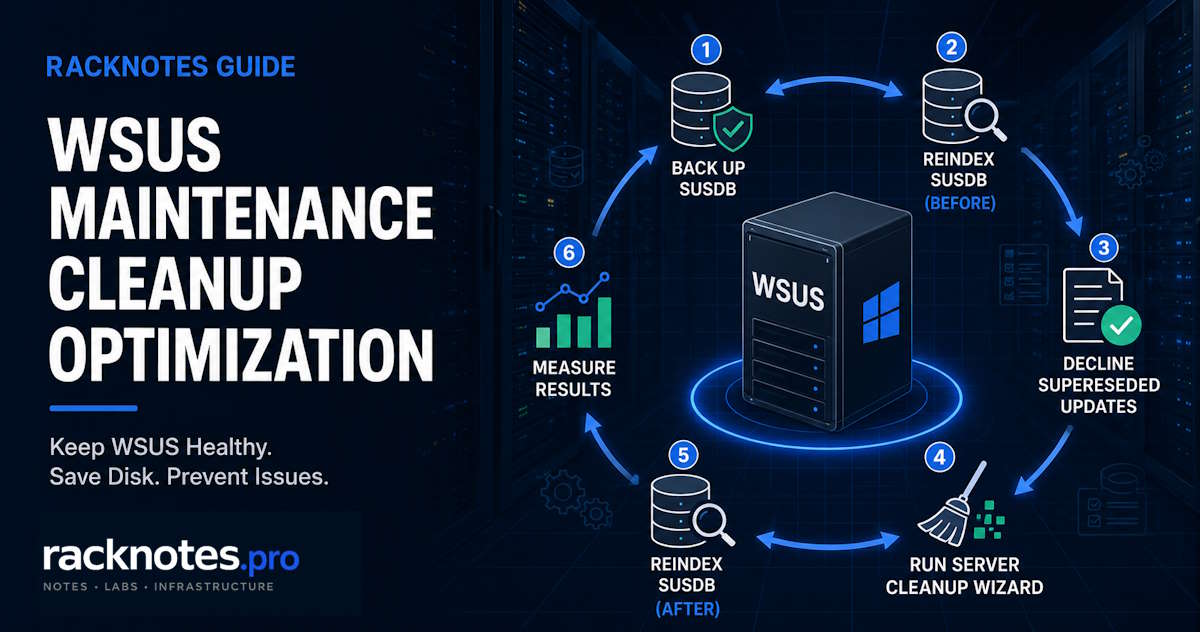
WSUS maintenance has no built-in scheduler: the Server Cleanup Wizard doesn’t run on its own, SUSDB doesn’t reindex itself, and WsusPool isn’t tuned automatically for your environment. This guide covers the recurring maintenance workflow for a healthy, standalone WSUS server – SUSDB backup and reindexing, safe superseded-update cleanup, the Server Cleanup Wizard, and PowerShell automation – in the order Microsoft’s guidance recommends. It assumes WSUS is healthy enough to open the console, synchronize, and complete cleanup tasks. If it isn’t, that’s a recovery problem rather than a routine maintenance task.
- Back up SUSDB before any bulk decline or major cleanup, and pause scheduled synchronization for the maintenance window
- Reindex SUSDB before a heavy cleanup, audit and decline superseded updates with an exclusion period, then reindex again immediately after the decline
- Run the Server Cleanup Wizard after the reviewed decline and post-decline reindex – it removes obsolete revisions, stale computers, and unneeded content files, and applies its own built-in decline rules to remaining expired or superseded updates
- Verify disk, database size, and console health before restoring the synchronization schedule
- Automate only after at least two clean manual cycles, and stop the automation on any failed step rather than continuing
WSUS Maintenance Checklist
| Task | Why | Frequency / Trigger |
|---|---|---|
| Capture baseline | Gives before/after numbers to judge whether the run actually helped | Start of every run |
| Back up SUSDB | Safest rollback path before destructive changes | Before every bulk decline or major cleanup |
| Reindex / update statistics | Faster cleanup and console queries | Before heavy cleanup, and again right after mass decline |
| Decline superseded/expired updates | Makes a larger reviewed set eligible for the wizard | Monthly, with an exclusion period |
| Server Cleanup Wizard | Actual obsolete-update, revision, computer, and content-file cleanup | Monthly, after decline and reindex |
| Content/disk review | Confirms reclaimed space and catches abnormal growth | Monthly |
| Products/classifications audit | Removes subscriptions no longer needed | Quarterly |
| WsusPool/log review | Catches recycle patterns before they cause outages | Monthly |
Before You Start: Identify WID or SQL Server
Check this registry value before any database work – backup syntax, reindex syntax, and automation approach all differ by backend:
HKLM\Software\Microsoft\Update Services\Server\Setup\SqlServerNameA value containing ##WID or ##SSEE means Windows Internal Database. A SQL Server instance name means SQL Server or SQL Express. WID has no SQL Agent and doesn’t appear as a normal discoverable SQL Server instance. WID and SQL Express therefore rely on Windows Task Scheduler rather than SQL Agent jobs for recurring maintenance.
Back Up SUSDB Before Maintenance
Back up SUSDB before every bulk decline, major cleanup, or schema change. Restoring the database is the safest rollback path because mass-decline operations aren’t easily reversible through the console. Keep the backup on a separate volume; the database engine’s service account, not just the interactive administrator, needs write permission to the destination.
WID:
sqlcmd -b -S np:\\.\pipe\MICROSOFT##WID\tsql\query -E -Q "BACKUP DATABASE SUSDB TO DISK='D:\Backup\SUSDB.bak' WITH INIT, STATS=10"The -b switch returns a failing exit code on a SQL error, which makes scheduled-task failures visible in Task Scheduler history. Verify afterward:
sqlcmd -b -S np:\\.\pipe\MICROSOFT##WID\tsql\query -E -Q "RESTORE VERIFYONLY FROM DISK='D:\Backup\SUSDB.bak'"RESTORE VERIFYONLY doesn’t replace a real restore test, but it’s stronger evidence than a .bak file simply existing.
SQL Server Express:
BACKUP DATABASE SUSDB
TO DISK = 'D:\Backup\SUSDB.bak'
WITH INIT, STATS = 10;
SQL Server Express doesn’t support backup compression – leave COMPRESSION out of the command.
Full SQL Server (Standard, Enterprise, Developer):
BACKUP DATABASE SUSDB
TO DISK = 'D:\Backup\SUSDB.bak'
WITH INIT, COMPRESSION, STATS = 10;
Full SQL Server also has SQL Agent for scheduling; WID and SQL Express need Windows Task Scheduler calling sqlcmd instead.
WSUS Database Maintenance: Reindex SUSDB and Update Statistics
Microsoft documents two optional nonclustered indexes for SUSDB as a separate, one-time operation – back up SUSDB first and use the current script from Microsoft’s WSUS maintenance guide rather than a locally-saved copy. They can meaningfully speed up cleanup on larger databases, at the cost of some storage and write overhead.
The recurring task is different: the WSUSDBMaintenance script reorganizes or rebuilds existing indexes and updates statistics.
# SQL Server (full or Express)
sqlcmd -S .\WSUS -E -i WSUSDBMaintenance.sql

# WID
sqlcmd -S np:\\.\pipe\MICROSOFT##WID\tsql\query -E -i WSUSDBMaintenance.sql
Reindex before a heavy cleanup for faster queries, then again immediately after a mass decline and before the wizard. That’s the order Microsoft’s guidance documents and the point at which SUSDB benefits most. A small, healthy database may not need both passes every month; a neglected one benefits from both.
Neither WID nor SQL Express has SQL Agent, so schedule through Task Scheduler: New Task, Action, Program sqlcmd.exe, with arguments such as:
-S np:\\.\pipe\MICROSOFT##WID\tsql\query -E -i C:\Scripts\WSUSDBMaintenance.sql -o C:\Logs\wsus-reindex.logSet the trigger monthly, after your typical Patch Tuesday cleanup window. Full SQL Server can use a maintenance plan instead.
Clean Up Superseded and Expired Updates Safely
The Server Cleanup Wizard’s decline logic is deliberately conservative. Per Microsoft’s documentation, a superseded update is only wizard-eligible once it’s not mandatory, has been on the server 30+ days, isn’t currently reported as needed by any client, hasn’t been explicitly deployed to a group for 90+ days, and its superseding update is approved. In environments with many broadly-approved superseded updates, those conditions can leave a substantial backlog, which is why an audited manual decline step comes before the wizard.
Check the current backlog first:
SELECT COUNT(UpdateID) FROM vwMinimalUpdate WHERE IsSuperseded=1 AND Declined=0Microsoft’s Decline-SupersededUpdatesWithExclusionPeriod.ps1 script protects recently-superseded updates that haven’t been widely tested yet. The examples below use HTTP on port 8530 – if the WSUS server uses SSL, use its HTTPS port (commonly 8531) and the script’s own -UseSSL switch instead. Dry-run it first with -SkipDecline:
.\Decline-SupersededUpdatesWithExclusionPeriod.ps1 -UpdateServer wsus-server -Port 8530 -ExclusionPeriod 60 -SkipDeclineReview the count, then run it again without -SkipDecline. Don’t blindly mass-decline everything outside this workflow; the exclusion period protects updates that were superseded recently but haven’t had enough time in production. Verify afterward: confirm the declined count in the script output, rerun the backlog query, and spot-check a few recently-superseded updates that should still be protected.
How to Run the WSUS Server Cleanup Wizard
Run this after the audited decline and the post-decline reindex, not before – it now has a populated declined list to work from. In the WSUS console: Options > Server Cleanup Wizard. On a healthy, regularly-maintained server, check all boxes:
- Unused updates and update revisions – obsolete revisions identified through the wizard’s own database logic; the prior decline enlarges the eligible set but doesn’t drive this option alone
- Computers not contacting the server – removes computers that haven’t checked in within 30 days
- Unneeded update files – the actual disk-reclamation step, removing content for declined, expired, or unapproved updates
- Expired updates and Superseded updates – decline anything still meeting the wizard’s own conservative built-in conditions
A large SUSDB can take a while to complete this; a neglected one, longer still.
After a clean run: confirm no timeout occurred, record reclaimed disk space, check the Application and Windows Server Update Services event logs, and reload the same update view used for the baseline.
WSUS Cleanup with PowerShell
The WSUS PowerShell module exposes the same cleanup operations as the console wizard, through Get-WsusServer and Invoke-WsusServerCleanup. If the server uses SSL, add -UseSsl to Get-WsusServer along with its HTTPS port. Run with only decline switches, this performs decline operations alone:
Invoke-WsusServerCleanup -UpdateServer (Get-WsusServer -Name wsus-server -PortNumber 8530) -DeclineSupersededUpdates -DeclineExpiredUpdatesIt won’t touch obsolete-update, revision-compression, obsolete-computer, or content-file cleanup unless those switches are also supplied. The full set, for a healthy and already-maintained server, not as a cold first pass on a neglected one:
$wsus = Get-WsusServer -Name "wsus-server" -PortNumber 8530

Invoke-WsusServerCleanup `
    -UpdateServer $wsus `
    -DeclineExpiredUpdates `
    -DeclineSupersededUpdates `
    -CleanupObsoleteUpdates `
    -CompressUpdates `
    -CleanupObsoleteComputers `
    -CleanupUnneededContentFiles
A single call like this is not a complete production maintenance solution. It still needs the backup, reindex sequencing, logging, and error handling described in the rest of this guide. Treat it as one step in the sequence, not a replacement for it.
Automate WSUS Maintenance Safely
Automation should cover the full sequence, not just the cleanup command, and it should be broader than a single scheduled task calling one cmdlet:
- Start a log for the run
- Confirm the server’s role and database backend
- Pause scheduled synchronization
- Verify free space for the backup
- Back up SUSDB
- Verify the backup
- Run database maintenance (reindex/statistics)
- Audit and decline superseded updates
- Reindex SUSDB again after the mass decline
- Run the cleanup wizard or
Invoke-WsusServerCleanup - Capture result counters
- Validate console and services are healthy
- Restore the synchronization schedule
- Rotate logs and old backups
The automation should stop on failure rather than continue. A failed backup must never be followed by a decline or cleanup step, exit codes should be logged, and the script shouldn’t run automatically on a replica or hierarchy role it isn’t verified to support. If something goes wrong, don’t let the automation trigger a recovery workflow on its own; that decision needs a human.
Third-party WSUS maintenance tools exist, but a third-party tool isn’t automatically a safe drop-in. Before adopting one, check its current maintainer and source, supported WSUS/Windows Server versions, whether the code is reviewable, its rollback and hierarchy behavior, and its credential model. Native PowerShell and Task Scheduler remain the safer default when in doubt.
WSUS Content and Disk Cleanup
Content growth that consistently outpaces cleanup usually traces to subscription scope rather than a WSUS defect. Too many subscribed languages add content and metadata for language-specific updates; unsubscribing stops new downloads, and the next cleanup run removes content that is no longer needed. The Drivers classification is another common source of unexpected growth because driver updates are numerous and often large. Unsubscribe it under Options > Products and Classifications if it isn’t genuinely needed, then run cleanup. Subscribing to every sub-product of a platform you only manage partially has the same effect, so audit products and classifications periodically and remove what’s unused.
Never manually delete files from WsusContent – use the Server Cleanup Wizard or Invoke-WsusServerCleanup with -CleanupUnneededContentFiles, which reclaims space through WSUS’s own tracked metadata rather than an untracked filesystem delete, per Microsoft’s guidance on managing updates in WSUS.
wsusutil reset is not a cleanup command – it validates approved content against SUSDB and can re-download missing or inconsistent files, which increases rather than reclaims disk usage. Use it only when clients report content download failures, not as a space-reclamation step. For that scenario, see WSUS Server Not Downloading Updates. If disk or volume issues extend beyond the WSUS content store itself, see Windows Server Storage Troubleshooting.
WsusPool Checks During Routine Maintenance
WsusPool is the IIS application pool handling WSUS client communication, and its metadata cache is memory-intensive – Microsoft’s current WSUS best practices guidance recommends disabling both the private and virtual memory limits (set to 0) on a dedicated WSUS server, along with the Idle Time-out and Ping, since hitting a memory limit forces a recycle that clients see as failed scans or HTTP 503 errors. On a co-located server, that changes: validate available RAM before disabling limits, since the cache alone can require well over 10 GB in larger environments, and consider a monitored cap instead of unlimited.
As part of routine maintenance, check the Windows event log for WsusPool recycles or stops, and compare current pool settings with current Microsoft guidance rather than values copied from an old article. If the pool repeatedly fails or produces HTTP 503 errors, that’s beyond routine maintenance. Use the recovery handoff below instead of repeatedly retuning IIS.
Recommended WSUS Maintenance Schedule
| Task | Suggested cadence | Trigger / Notes |
|---|---|---|
| SUSDB backup | Before destructive/bulk maintenance | Verify the backup, don’t just confirm the file exists |
| SUSDB maintenance (reindex) | Monthly, or based on DB condition | Adjust for environment size and fragmentation |
| Superseded/expired update review | Monthly | Use the reviewed/exclusion-period workflow |
| Server Cleanup Wizard | Monthly | Healthy server only |
| Products/classifications audit | Quarterly | Remove unused scope |
| Disk/content trend review | Monthly | Compare against the prior month |
| WsusPool/log review | Monthly | Investigate recurring failures elsewhere in this guide |
| Automation/log review | Each scheduled run | Confirm success, don’t assume it from a lack of complaints |
Monthly maintenance in the week following Patch Tuesday, after approvals have been applied, is a practical default. No single cadence fits every environment, and a larger or previously neglected deployment may need more frequent attention.
Verify WSUS After Maintenance
Before restoring the synchronization schedule, confirm:
- Free disk on the WsusContent volume improved or held steady against trend
- SUSDB size trend, not just the raw number
- Declined/superseded count dropped where that was the goal
- The cleanup wizard or PowerShell run reported success, not just completion
- The console opens and loads update views normally
- Synchronization can resume and complete
- WsusPool stays started, not just started at the moment of checking
- Client scans and reporting remain normal
- Event logs show no new maintenance-related errors
Focus on trends and operational health rather than fixed universal thresholds. What counts as healthy varies by environment size, subscription scope, and how long maintenance was deferred before the current run.
When This Is No Longer Routine Maintenance
Stop treating it as routine maintenance if cleanup repeatedly times out, the console crashes or hangs, Reset Server Node appears, WsusPool repeatedly stops, HTTP 503 errors show up, or database maintenance itself can’t complete. At that point IIS or SUSDB needs stabilizing before anything destructive is attempted again. See the WSUS console recovery guide linked above for the staged sequence. For sync failures unrelated to database or disk state – certificate errors, proxy rejections, upstream server failures – see WSUS Sync Failed instead; those are outside the maintenance path even when they surface during a maintenance window.
FAQ
How often should WSUS maintenance run?
Monthly is a practical default, typically in the week after Patch Tuesday once approvals have been applied. Increase the frequency for larger environments or a server that was neglected before the current maintenance cycle.
What does the WSUS Server Cleanup Wizard remove?
Obsolete update revisions, computers that haven’t contacted the server in 30+ days, unneeded content files for declined/expired/unapproved updates, and it declines expired and superseded updates that meet its own conservative built-in conditions.
Can WSUS cleanup be automated with PowerShell?
Yes, through Invoke-WsusServerCleanup, but production automation also needs backup, verification, logging, and failure handling. A bare cleanup call is not a complete solution, and the automation should stop rather than continue past a failed step.
How do I maintain SUSDB on WID?
sqlcmd against the named pipe np:\\.\pipe\MICROSOFT##WID\tsql\query handles both backup and the WSUSDBMaintenance reindex script. WID has no SQL Agent, so schedule recurring runs through Windows Task Scheduler.
Should I reindex SUSDB before WSUS cleanup?
Yes, and again immediately after a mass decline, before running the wizard – that’s the order Microsoft’s guidance documents, since that’s when the database benefits most. A small, well-maintained database may not need both passes every cycle; a neglected one benefits from both.
Why is WSUS cleanup taking too long?
On a healthy server, database size, fragmentation, and accumulated metadata can extend runtime. If the wizard hangs, times out, or crashes rather than simply running for a long time, move to the recovery guide instead of retrying or waiting indefinitely.
Is wsusutil reset a cleanup command?
No. It validates content against SUSDB and re-downloads anything missing or inconsistent, which can increase disk usage rather than reclaim it. Use the Server Cleanup Wizard or Invoke-WsusServerCleanup for actual cleanup.
WSUS on Windows Server
Installation & Configuration · Maintenance · Sync Failures · Content Download · Client Reporting · Console Recovery