
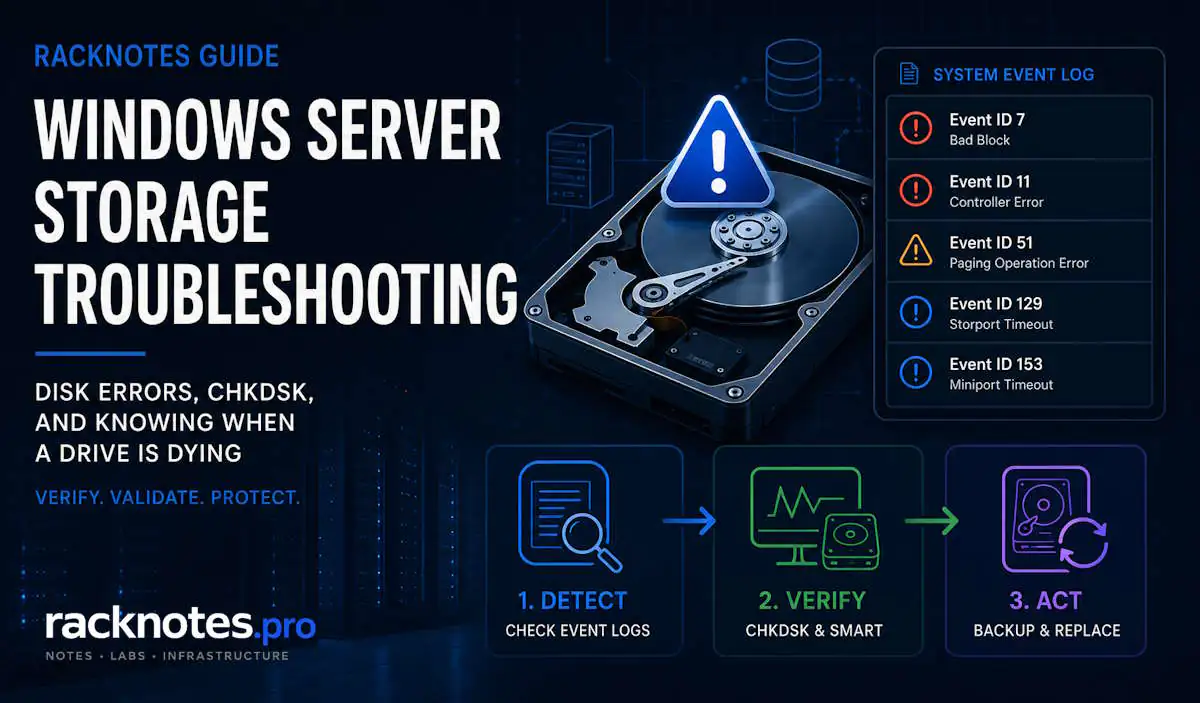
- Event ID 7 (bad block) means physical media damage – run SMART immediately, do not wait for CHKDSK
- Event ID 51 is logged on buffered I/O only – a single occurrence after a USB removal or media change is not a dying disk
- Event IDs 129 and 153 are different: 129 is an adapter-level reset, 153 is a disk-level timeout – the distinction matters before chasing hardware
- Check SMART before running CHKDSK – a drive showing Predictive Failure should be imaged, not scanned
Get-PhysicalDisk | Select FriendlyName, HealthStatus, OperationalStatusis the fastest SMART triage on directly attached disks- CHKDSK is a file system tool, not a hardware repair tool – a clean pass on a failing drive only buys time
- On hardware RAID systems, Windows event log shows symptoms only – the RAID console gives the actual diagnosis
A disk throwing errors is not always a dying disk. Event ID 51 fires after a USB removal. CHKDSK completes with zero errors on a drive that fails completely two weeks later. The hard part of windows server storage troubleshooting is not running the tools – it is interpreting what they tell you and making the right call: investigate further, schedule replacement, or image and replace immediately.
This windows server storage troubleshooting guide covers the event IDs that matter for disk health, how to read them correctly, SMART verification with Get-PhysicalDisk, the CHKDSK workflow and its limits, and the judgment calls operators get wrong most often. For network-related storage issues such as iSCSI path failures, see the Windows Server Network Troubleshooting article. For performance counters related to disk latency, see Windows Server Performance Troubleshooting.
The Judgment Call at the Core of Windows Server Storage Troubleshooting
Most windows server storage troubleshooting guides stop at “run CHKDSK /r and reboot.” That advice is incomplete – and in some cases actively harmful.
CHKDSK repairs file system structures. It can mark bad sectors and recover readable data from them. What it cannot do is fix a drive with deteriorating platters, a failing read head, or growing reallocated sector counts. A CHKDSK pass that completes with zero errors means the file system is intact. It says nothing about whether the drive will survive the next six months.
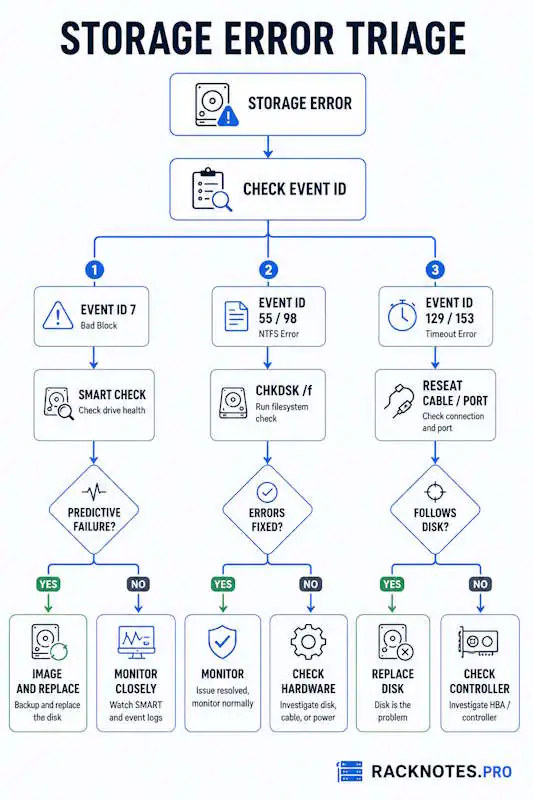
The judgment call is: distinguish between a file system problem (CHKDSK fixes it) and a hardware problem (image and replace). The event IDs and SMART data tell you which one you are dealing with. Running CHKDSK on a hardware-failing drive wastes the time you could have used to copy the data off.
Event IDs for Windows Server Storage Troubleshooting
Windows logs disk and storage errors in the System event log. The source is either disk (physical disk driver), Ntfs (file system), or Storport (storage port driver). Each tells a different part of the story.
Event ID 7 – Bad Block (Source: disk)
The device, \Device\Harddisk0\DR0, has a bad block.This is a hard read failure. The disk returned an unrecoverable read error on a specific sector. Bad blocks on a modern drive indicate physical media damage – the drive’s internal remapping has been exhausted for that area, or the drive is failing to remap fast enough. A single Event ID 7 warrants immediate SMART check. Multiple Event ID 7s across different sessions mean the drive is deteriorating. Do not wait for CHKDSK – image first.
Event ID 11 – Controller Error (Source: disk)
The driver detected a controller error on \Device\Harddisk1\DR1.Ambiguous by design. Could be the disk controller, the cable, the HBA, or the drive firmware. First step: reseat the SATA/SAS cable and test with a different port on the controller. If Event ID 11 follows the disk to a new port – the disk is the problem. If it stays on the original port – suspect the cable or controller. Event ID 11 on a RAID controller usually means the controller is reporting the error, not the underlying disk – check the RAID event log separately.
Event ID 51 – Paging Operation Error (Source: disk)
An error was detected on device \Device\Harddisk2\DR2 during a paging operation.This one gets misread constantly. Event ID 51 is logged on buffered I/O only – reads and writes that go through the file system cache, memory-mapped files, and paging file activity. It is not logged on nonbuffered (direct) I/O.
Practical implication: a single Event ID 51 occurrence after inserting blank media, removing a USB drive, or a brief power fluctuation is not a hardware failure. The event fires because the I/O to the paging file or a memory-mapped file was interrupted – not because the disk has bad sectors. When Event ID 51 becomes a concern: multiple occurrences on the same disk during normal operation with no recent hardware changes. At that point, treat it like Event ID 7 and run SMART verification.
Event IDs 55 and 98 – NTFS File System Corruption (Source: Ntfs)
The file system structure on the disk is corrupt and unusable. Please run the chkdsk utility on the volume.Event ID 55 means NTFS detected a structural inconsistency – a directory entry, MFT record, or metadata structure does not match expectations. Event ID 98 is the volume dirty bit – set when Windows did not flush properly and cleared after a successful CHKDSK pass. These are file system events, not hardware events. They often follow a hard power loss or improper shutdown. CHKDSK /f is the correct response. If CHKDSK finds and fixes the issues cleanly – done. If CHKDSK reports uncorrectable errors – the underlying hardware may be the real cause.
Event IDs 129 and 153 – Storport Timeouts (Source: Storport)
Reset to device, \Device\Scsi\storport1, was issued.              (Event ID 129)
The IO operation at logical block address X for Disk Y timed out. (Event ID 153)
Event ID 129 is a Storport-level reset – the storage port driver reset the entire adapter because a command did not complete in time. Event ID 153 is a miniport-level timeout – a specific command to a specific disk timed out. The distinction matters: Event ID 129 on a RAID controller points to the controller or its bus connection. Event ID 153 on a specific disk points to that disk or its cable and port. If you see 153 on one disk and 129 on the controller in the same time window – the disk timeout triggered the controller reset. Under heavy I/O load, occasional 129/153 events on spinning disks are not immediately alarming. Sustained occurrences under light load mean the disk or controller is struggling.
Event ID Reference Table
| Event ID | Source | What It Means | Urgency |
|---|---|---|---|
| 7 | disk | Hard read failure – unrecoverable bad block | High – SMART check immediately |
| 11 | disk | Controller error – disk, cable, or HBA | Medium – reseat cable, test port |
| 51 | disk | Paging I/O error – buffered I/O only | Low (single) / High (repeated) |
| 55 | Ntfs | NTFS structure corrupt – run CHKDSK /f | Medium – CHKDSK, monitor hardware |
| 98 | Ntfs | Volume dirty – CHKDSK queued on next boot | Low – normal after improper shutdown |
| 129 | Storport | Adapter-level reset – controller or bus | Medium-High – check controller |
| 153 | Storport | Disk-level command timeout | Medium – check disk and cable |
For filtering these events by time window and correlating them with other system activity, see the Windows Server Event Log Troubleshooting article. Microsoft Learn documents the full CHKDSK command reference and exit codes including switch behavior across file system types.
SMART Verification: First Step in Windows Server Storage Troubleshooting
Before running CHKDSK, check SMART status. A drive in Predictive Failure state should not get a CHKDSK – it should get imaged and replaced. This is the step most operators skip, and it is where the worst data loss scenarios begin.
# Quick health overview - run this first
Get-PhysicalDisk | Select-Object FriendlyName, HealthStatus, OperationalStatus, Size

# Detailed reliability counters
Get-PhysicalDisk | Get-StorageReliabilityCounter |
  Select-Object DeviceId, ReadErrorsTotal, WriteErrorsTotal, Temperature, Wear
HealthStatus values:
- Healthy – no issues reported
- Warning – SMART thresholds crossed but not failed; schedule replacement
- Unhealthy – drive is failing or has failed; do not write new data, image immediately
- Unknown – disk is behind a hardware RAID controller that abstracts SMART; check the RAID management console directly
OperationalStatus values to watch:
- Predictive Failure – SMART predicts imminent failure; image and replace
- Lost Communication – disk disappeared from the bus; check cable and power
- Removed – disk was removed or failed; offline state
Get-StorageReliabilityCounter requires the disk to be managed through Windows Storage Spaces or directly attached without a hardware RAID controller abstracting it. On systems with hardware RAID, SMART data is only accessible through the vendor management utility.
SSD and NVMe Considerations
SMART interpretation differs between spinning disks and SSDs. On SSDs, reallocated sector counts are less meaningful – SSDs handle wear leveling internally and expose different attributes. The key indicators for SSD health in windows server storage troubleshooting are wear level (reported as Wear in Get-StorageReliabilityCounter, where 0 means new and 100 means end of life on most implementations) and media errors rather than reallocated sectors.
Event ID 157 (disk was surprised removed) can appear on NVMe drives under driver stress or slot instability – not always a physical removal. NVMe failures also surface through Event ID 129/153 in the Storport log, same as SAS/SATA. If Get-PhysicalDisk shows Unknown for an NVMe drive, the driver may not be exposing health data – check Device Manager for driver warnings first.
Vendor SMART Tools
When Windows reporting shows Unknown or when hardware RAID abstracts disk identity, vendor tools are the only path to disk-level SMART data. The relevant tools by platform: HP/HPE environments use HPE Smart Storage Administrator (SSA); Dell environments use OpenManage Server Administrator (OMSA) or the iDRAC storage page; Broadcom/LSI RAID controllers use MegaRAID Storage Manager; for directly attached consumer or enterprise SSDs, Samsung Magician and Intel MAS (Memory and Storage Tool) expose manufacturer-specific attributes that Windows does not surface. None of these replace Get-PhysicalDisk for quick triage – they supplement it when Windows reporting is limited.
CHKDSK in Windows Server Storage Troubleshooting: What It Fixes and What It Cannot
CHKDSK operates at the file system layer. It verifies and repairs MFT integrity, directory structure consistency, cluster allocation, and file system metadata. It does not repair physical media. When CHKDSK marks a bad sector, it moves the data elsewhere and flags that sector as unusable. The sector is still physically on the disk – just avoided. If the drive continues to develop bad sectors, CHKDSK will keep marking them until there is nowhere left to move data.
When to Run CHKDSK
- After Event ID 55 or 98 following a power loss or improper shutdown
- After a clean SMART check with no hardware error events
- As part of a scheduled health check on volumes not verified recently
When NOT to Run CHKDSK
- When SMART shows Predictive Failure or Unhealthy – image first
- When Event ID 7 is firing repeatedly – the drive may fail during a multi-hour CHKDSK scan
- When the volume is needed immediately – CHKDSK /r on a system volume requires a reboot and exclusive access
# Read-only scan - reports errors, fixes nothing (can run online)
chkdsk C:

# Fix file system errors - requires dismount or scheduled reboot for system volume
chkdsk C: /f

# Fix errors and scan for bad sectors (slow - hours on large spinning disks)
chkdsk C: /r

# Schedule on next reboot for system volume - answer Y when prompted
chkdsk C: /f /r
On a 4TB spinning disk, chkdsk /r can take 8-12 hours. On SSDs, CHKDSK /f (file system check only) is typically sufficient – CHKDSK /r on an SSD reads every sector but does not recover data the same way spinning disk recovery works.
Reading CHKDSK results after completion:
Get-WinEvent -LogName Application |
  Where-Object { $_.Id -eq 26214 -and $_.ProviderName -eq 'Microsoft-Windows-Chkdsk' } |
  Select-Object -First 5 | Format-List TimeCreated, Message
Or in Event Viewer: Applications and Services Logs Or in Event Viewer: Applications and Services Logs > Microsoft > Windows > Chkdsk > Operational.
gt; Microsoft Or in Event Viewer: Applications and Services Logs > Microsoft > Windows > Chkdsk > Operational.gt; Windows Or in Event Viewer: Applications and Services Logs > Microsoft > Windows > Chkdsk > Operational.gt; Chkdsk Or in Event Viewer: Applications and Services Logs > Microsoft > Windows > Chkdsk > Operational.gt; Operational. For SMART attribute definitions and OperationalStatus values, the Get-StorageReliabilityCounter reference on Microsoft Learn lists all exposed counters.The Decision Tree: Investigate, Schedule, or Replace
When windows server storage troubleshooting surfaces errors, the question is always timing and risk. The signals map to three responses:
Image and replace immediately:
- SMART HealthStatus: Unhealthy or Predictive Failure
- Multiple Event ID 7 errors across different sessions
- ReadErrorsTotal or WriteErrorsTotal climbing across daily Get-StorageReliabilityCounter checks
- CHKDSK completes but reports uncorrectable errors
- Event ID 11 follows the disk to a different cable and port
Investigate and monitor closely:
- Single Event ID 51 with no corroborating events
- Event ID 11 that does not follow the disk to a new port
- SMART shows Warning but no Predictive Failure
- Event ID 129/153 only under sustained heavy I/O
CHKDSK and monitor:
- Event ID 55 or 98 after power loss or improper shutdown
- SMART shows Healthy, no hardware error events in the log
- One-time NTFS inconsistency with no repeat
What Breaks: Windows Server Storage Troubleshooting Failure Modes
- Run
Get-PhysicalDisk | Get-StorageReliabilityCounterand check ReadErrorsTotal and WriteErrorsTotal - Pull the same counters again after 3 days and compare – a rising count is the signal CHKDSK does not expose
- Check for Event ID 7 entries in the System log that may have appeared between the CHKDSK run and now
- If counters are rising or Event ID 7 appears, treat as hardware failure regardless of the clean CHKDSK result
- Image the volume before the next scheduled check – do not wait for Predictive Failure state
- Confirm whether the server uses a hardware RAID controller – Unknown is expected behavior behind HP Smart Array, Dell PERC, or Broadcom MegaRAID
- On hardware RAID, open the vendor management console (HPE SSA, Dell OMSA, MegaRAID Storage Manager) for actual disk health
- If the server uses direct-attached disks without RAID and Unknown is showing, check the storage driver in Device Manager for warnings
- On NVMe drives showing Unknown, update the NVMe driver and retest – some inbox drivers do not expose health attributes
- Confirm CHKDSK was actually scheduled:
reg query "HKLM\SYSTEM\CurrentControlSet\Control\Session Manager" /v BootExecute - The value should contain
autocheck autochk *– if empty or modified, AutoChk has been disabled - Restore the default value:
reg add "HKLM\SYSTEM\CurrentControlSet\Control\Session Manager" /v BootExecute /t REG_MULTI_SZ /d "autocheck autochk *" /f - Reschedule CHKDSK and reboot again
- If AutoChk runs but skips the volume, the dirty bit may have been cleared by another process before boot completed
- Check the time window – if all 51 events appear within 30-60 seconds, correlate with any change window or SAN/iSCSI maintenance
- If iSCSI or FC multipath is in use, path failover during a switch or storage maintenance generates Event ID 51 bursts – this is expected behavior
- If events are ongoing and unpredictable with no maintenance correlation, check Storport for accompanying Event ID 129/153
- Run
Get-PhysicalDisk | Select HealthStatus, OperationalStatusto confirm the disk is not already in Warning or Unhealthy state - If SMART is clean and 51s are isolated to a specific time pattern matching paging activity under load, check the pagefile disk for I/O saturation in Performance Monitor (Avg. Disk sec/Transfer > 25ms is the threshold for investigation)
Windows Server Storage Troubleshooting: Verification Checklist Before Escalating
Run through this windows server storage troubleshooting checklist and document the output before opening a hardware ticket or ordering a replacement disk. Having this data ready shortens vendor escalation significantly.
# 1. SMART health overview
Get-PhysicalDisk | Select-Object FriendlyName, HealthStatus, OperationalStatus

# 2. Reliability counters - run on days 1, 3, and 7 and compare
Get-PhysicalDisk | Get-StorageReliabilityCounter |
  Select-Object DeviceId, ReadErrorsTotal, WriteErrorsTotal, Temperature, Wear

# 3. Disk error events - last 7 days
Get-WinEvent -LogName System -MaxEvents 1000 |
  Where-Object { $_.Id -in @(7, 11, 51, 129, 153) } |
  Select-Object TimeCreated, Id, Message | Sort-Object TimeCreated

# 4. NTFS events
Get-WinEvent -LogName System -MaxEvents 500 |
  Where-Object { $_.Id -in @(55, 98) -and $_.ProviderName -eq 'Ntfs' } |
  Select-Object TimeCreated, Id, Message

# 5. Volume dirty status
fsutil dirty query C:

# 6. Volume health and free space
Get-Volume | Select-Object DriveLetter, FileSystemLabel, HealthStatus, SizeRemaining, Size
Scope: What This Windows Server Storage Troubleshooting Guide Does Not Cover
- Hardware RAID rebuild and degraded array recovery – requires vendor-specific tooling and is out of scope here
- Storage Spaces pool degradation and virtual disk repair – separate topic planned for a future article
- iSCSI and SAN path troubleshooting – multipath I/O, path failover, iSCSI initiator errors: planned for a future article
- Boot disk failure recovery – if the system disk is failing and Windows will not boot, see the Windows Server Boot Failure Recovery article (planned). Microsoft Learn covers disk management and volume troubleshooting for additional reference.
- Windows Server Backup and restore – see the Windows Server Backup and Recovery article (planned)
- WSUS content store and SUSDB disk growth – if a volume is filling because Windows Server Update Services content or its database is growing unchecked, that has its own diagnostic and cleanup path in WSUS Maintenance and, for the console/IIS performance angle specifically, WSUS Console Slow or Crashing
Windows Server Storage Troubleshooting: Frequently Asked Questions
Can CHKDSK repair a failing hard drive?
No. In windows server storage troubleshooting, CHKDSK repairs file system structures – MFT entries, directory records, and allocation tables. It can mark bad sectors as unusable and move data away from them, but it cannot fix deteriorating hardware. A clean CHKDSK pass on a failing drive means the file system is intact. It does not mean the drive is healthy.
What does Event ID 51 actually mean?
It means a buffered I/O operation to a paging file or memory-mapped file was interrupted. Because it only fires on buffered I/O and not on direct I/O, a single occurrence – especially after a USB removal or media change – is not a reliable indicator of a failing disk. Multiple occurrences on the same disk during normal operation are a different story and warrant SMART investigation.
Should I run CHKDSK before checking SMART?
No. Check SMART first. If the drive shows Predictive Failure or Unhealthy, image it before running anything. CHKDSK on a failing drive can take hours and the drive may not survive the scan. SMART takes 30 seconds and tells you whether CHKDSK is even the right tool.
What is the difference between Event ID 129 and 153?
Event ID 129 is an adapter-level reset – the Storport driver reset the entire storage adapter because a command did not complete. Event ID 153 is a disk-level timeout – a specific command to a specific disk timed out. If you see 153 on a disk and 129 on the controller in the same time window, the disk timeout triggered the controller reset. Isolate them by checking which physical disk the 153 event references.
Does Get-PhysicalDisk work on hardware RAID systems?
Partially. Get-PhysicalDisk sees the RAID logical drive, not the individual physical disks behind it. HealthStatus will show Unknown for the underlying disks because the RAID controller abstracts them from Windows. For actual disk health on hardware RAID, use the vendor management utility – HPE SSA, Dell OMSA, or MegaRAID Storage Manager depending on the platform.
Final Thoughts
Effective windows server storage troubleshooting follows a clear hierarchy: event log first, SMART second, CHKDSK third. Running them in the wrong order wastes time at best and destroys data at worst.
The event IDs are precise if you read them correctly. Event ID 7 is a hardware problem. Event ID 51 might not be. Event ID 55 is a file system problem that CHKDSK can fix. The difference between those three outcomes determines whether you are rebooting for a CHKDSK pass or imaging a drive at 2 AM before it dies completely.
CHKDSK gets asked to do hardware triage. It cannot. Know the difference, run SMART before CHKDSK, and treat “image and replace” as the conservative call – not the dramatic one.
Windows Server Operations Series
8 articles — Event Logs · Performance · Services · Remote Access · Network · Storage · Backup · Boot Recovery