
- Start with
Test-NetConnection -ComputerName <hostname> -Port <port>– it tells you whether the problem is DNS, routing, or the service itself in one command - Test by hostname vs by IP to isolate DNS from routing – if hostname fails but IP succeeds, the problem is DNS
- Before resetting the network stack, back up config:
netsh -c interface dump > C:\netConfig.txt - Stack reset sequence:
netsh int ip resetthennetsh winsock resetthen reboot – in that order - Never run Winsock reset on a domain controller – DNS listener bindings can break
Get-NetIPConfiguration,Get-NetRoute, andGet-NetNeighborreplaceipconfig,route print, andarp -ain PowerShell workflows
Most windows server network troubleshooting calls have nothing to do with the network. The cable is fine. The switch is fine. DNS is answering. The problem is a corrupted Winsock stack, a stale ARP entry, a misconfigured default gateway, or a firewall rule applied silently during a policy update. Knowing which one – and in what order to check – is the difference between a 10-minute fix and a 2-hour archaeology session.
This article covers windows server network troubleshooting for client-side and server-side connectivity problems using built-in tools: Test-NetConnection, ipconfig, netsh, and the modern NetTCPIP cmdlets. AD DNS server configuration, DNS zone management, replication, and time sync are out of scope – those belong to the Active Directory DNS Problems article.
Why Windows Server Network Troubleshooting Goes Wrong
The most common mistake is starting at the wrong layer. An operator sees “can’t reach the server” and immediately checks firewall rules or calls the network team. Meanwhile, ipconfig /flushdns would have fixed it in 10 seconds.
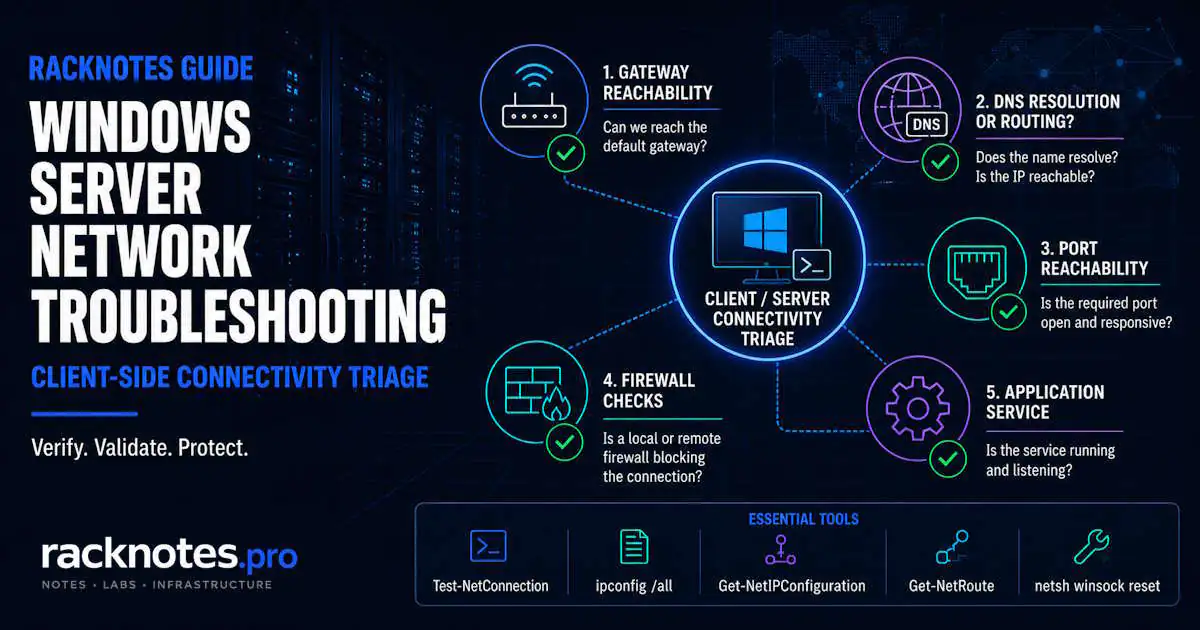
Layered triage – gateway reachability first, then DNS resolution, then port reachability, then application – eliminates that wasted time. Each layer confirms or rules out an entire category of failure before moving to the next. Skipping layers doesn’t save time – it just makes the diagnosis take longer.
The second most common mistake: running netsh winsock reset on a domain controller. Winsock reset clears provider registrations, and on a DC running DNS, this can disrupt listener bindings for the DNS service. Verify the server role before touching the stack.
Common Symptoms and Likely Causes
Before running any commands, match the symptom to the most likely cause. Windows server network troubleshooting becomes much faster when the starting layer is already narrowed.
| Symptom | Likely Cause | Start Here |
|---|---|---|
| Hostname fails, IP succeeds | DNS – stale cache or wrong record | Resolve-DnsName, ipconfig /flushdns |
| Ping works, port connection fails | Firewall rule or service not running | Test-NetConnection -Port, netstat -ano |
| Intermittent drops, works after reboot | ARP cache stale, driver issue, DHCP conflict | arp -a, Event Viewer NetworkProfile |
| No gateway access, APIPA address shown | NIC disconnected, DHCP failure, IP misconfiguration | Get-NetAdapter, Get-NetIPConfiguration |
| Some destinations reachable, others not | Routing table – wrong metric or missing route | Get-NetRoute, route print |
| Works fine, then drops under load | Duplex mismatch, driver instability | Get-NetAdapter, Event ID 27 in System log |
| TCP connects but application errors | Application-layer auth, NLA, TLS version mismatch | Application event log, RDP/WinRM article |
Layer 1 – Is the Gateway Reachable?
Confirm the server can reach its default gateway before anything else. If it can’t, the problem is local – NIC, driver, or IP config – rather than network or application. This is the fastest layer to rule out and gets skipped constantly.
ipconfig /all
ping <default-gateway-IP>
If ipconfig /all shows an APIPA address (169.254.x.x), the NIC failed to get a DHCP lease. The server either lost connectivity to the DHCP server or the NIC itself has a problem.
Get-NetIPConfiguration
Get-NetAdapter | Select-Object Name, Status, LinkSpeed
A NIC showing Status: Disconnected or LinkSpeed: 0 bps is a physical or driver issue. No stack reset will fix it. If the gateway pings fine but downstream connectivity fails, move to DNS.
Layer 2 – DNS Resolution or Routing?
This is where most windows server network troubleshooting time gets lost. “Can’t reach server.contoso.com” could mean DNS isn’t resolving the name, DNS resolves it but the IP is unreachable, or the IP is reachable but the port is blocked. One command split DNS from routing:
# Test by hostname - exercises DNS + routing + port
Test-NetConnection -ComputerName server.contoso.com -Port 443

# Test by IP - bypasses DNS entirely
Test-NetConnection -ComputerName 192.168.1.50 -Port 443
Hostname test fails but IP test succeeds: DNS problem. Both fail: routing or firewall. Both succeed: the application on the remote end isn’t listening on that port. That one distinction eliminates half the possible failure categories immediately.
For DNS-specific diagnosis:
Resolve-DnsName server.contoso.com
Resolve-DnsName server.contoso.com -Server 8.8.8.8   # compare against external resolver
ipconfig /displaydns                                   # check local resolver cache
ipconfig /flushdns                                     # clear stale cache
A stale DNS cache entry pointing to an old IP is a common cause of “suddenly can’t reach X” after a server migration or IP change. Resolve-DnsName also shows which DNS server answered – useful when multiple DNS servers are configured and one is returning wrong records. The full Resolve-DnsName parameter reference on Microsoft Learn covers filtering by record type and querying specific DNS servers.
Layer 3 – Port Reachability and Firewall
Once the IP is reachable, confirm the specific port the application uses. This is the core of windows server network troubleshooting for service-specific failures:
Test-NetConnection -ComputerName 192.168.1.50 -Port 445
Test-NetConnection -ComputerName 192.168.1.50 -Port 3389
Test-NetConnection -ComputerName 192.168.1.50 -Port 5985   # WinRM HTTP
TcpTestSucceeded: True means the port is open and a process is listening. TcpTestSucceeded: False with PingSucceeded: True means the IP is reachable but the port is blocked or the service isn’t running. At this point the problem is one of: the service isn’t running, Windows Firewall is blocking the port, or a network-level device is blocking it.
# Check firewall rules for a specific port
Get-NetFirewallRule | Where-Object { $_.Enabled -eq 'True' } |
  Get-NetFirewallPortFilter | Where-Object { $_.LocalPort -eq '445' }

# Check if the port is actually listening locally
netstat -ano | findstr :445
netstat -ano | findstr LISTENING
If temporarily disabling Windows Firewall restores connectivity – Windows Firewall is the culprit. If not, look upstream at physical firewalls or ACLs. Cross-reference the listening PID with tasklist | findstr <PID> to confirm which process owns the port.
netstat -ano | findstr :3389 shows nothing listening. TermService is stopped, or the RDP port was changed in the registry at HKLM\SYSTEM\CurrentControlSet\Control\Terminal Server\WinStations\RDP-Tcp\PortNumber. The RDP and WinRM troubleshooting article covers the full listener recovery workflow.
Routing Table – When Traffic Goes the Wrong Way
After a NIC addition, VLAN change, or static route misconfiguration, traffic can exit through the wrong interface. A frequent source of windows server network troubleshooting confusion after infrastructure changes.
Get-NetRoute -AddressFamily IPv4 | Sort-Object RouteMetric | Format-Table
# or
route print
Look for multiple default routes (0.0.0.0/0) with identical or similar metrics – traffic may route through the wrong gateway. Also check for missing routes to specific subnets and stale persistent routes left from decommissioned NICs or old VLAN configs.
# Add a temporary route (survives until reboot)
route add 10.20.0.0 mask 255.255.255.0 192.168.1.1

# Add a persistent route (survives reboots, not NIC replacements)
route add -p 10.20.0.0 mask 255.255.255.0 192.168.1.1
Persistent routes don’t survive NIC replacements. Document them – they’re easy to forget and hard to diagnose six months later when “everything worked until we swapped the NIC.”
ARP Cache – The Silent Connectivity Killer
ARP cache entries go stale when a NIC is replaced, a VM is migrated, or an IP is reassigned. The server holds an IP-to-MAC mapping. If that mapping is wrong, packets go to the old MAC and disappear silently – no error, no event, just nothing.
arp -a                    # display ARP cache
Get-NetNeighbor           # PowerShell equivalent
arp -d <IP>              # delete specific entry
arp -d *                  # flush entire ARP cache
After clearing the entry, the next connection attempt triggers a new ARP request and gets the correct MAC. This fixes “worked yesterday, failing today after a network change” and takes 30 seconds. It gets skipped constantly because it sounds too simple.
Event Log – Networking Event Sources
The Windows event log has several sources relevant to windows server network troubleshooting. Intermittent drops and NIC instability show up here before they show up anywhere else.
| Event Source | Log Location | What It Covers |
|---|---|---|
| Tcpip | System | TCP/IP stack errors, duplicate IP detection (Event ID 4199) |
| DNS Client Events | Apps and Services Logs > Microsoft > Windows > DNS Client Events > Operational | DNS resolution attempts, failures, NXDOMAIN responses |
| NetworkProfile | Apps and Services Logs > Microsoft > Windows > NetworkProfile > Operational | Network category changes, NIC connect/disconnect (Event ID 10000, 10001) |
| Netlogon | %SystemRoot%\debug\netlogon.log | Domain connectivity, DC discovery failures – not in Event Viewer by default |
# Check for duplicate IP conflicts (Event ID 4199)
Get-WinEvent -LogName System |
  Where-Object { $_.Id -eq 4199 } | Select-Object -First 10 TimeCreated, Message

# Check DNS Client Events operational log
Get-WinEvent -LogName 'Microsoft-Windows-DNS-Client/Operational' -MaxEvents 50 |
  Where-Object { $_.LevelDisplayName -in @('Error','Warning') } |
  Select-Object TimeCreated, Id, Message

# Check NIC connect/disconnect events
Get-WinEvent -LogName 'Microsoft-Windows-NetworkProfile/Operational' -MaxEvents 20 |
  Select-Object TimeCreated, Id, Message
Event ID 4199 (duplicate IP address) generates an ARP conflict and causes intermittent connectivity failures that look like random drops. It gets consistently misdiagnosed as a driver or switch problem until the event log is checked. For a deeper walkthrough of event log filtering and incident hygiene, see the Windows Server Event Log Troubleshooting article.
Network Stack Reset – When and How
Winsock corruption still happens – usually after failed VPN client uninstalls, antivirus stack components, or botched driver updates. Symptoms: TCP connections drop randomly while ping works, or netsh winsock show catalog shows unexpected LSP entries. This is a last resort in windows server network troubleshooting, not a first move. Microsoft Learn documents the full netsh command reference including interface and Winsock context syntax.
Before resetting anything, back up the current config:
netsh -c interface dump > C:\netConfig.txt
netsh winsock show catalog > C:\winsock-before.txt- Back up current config:
netsh -c interface dump > C:\netConfig.txt - Reset IP stack:
netsh int ip reset - Reset Winsock:
netsh winsock reset - Reboot – both resets require a reboot to take effect
- After reboot, verify with
Get-NetIPConfigurationandTest-NetConnection -ComputerName 8.8.8.8 -Port 53 - If a static IP was configured manually, re-apply it – the IP reset clears static assignments
netsh winsock show catalog before resetting and check with the vendor if unfamiliar entries appear.
Packet Capture – When Connectivity Tests Aren’t Enough
Test-NetConnection and netstat confirm whether connections succeed or fail. They don’t show why a connection is being reset mid-session, what’s in the packets, or whether an upstream device is sending RSTs. When the layer tests are inconclusive, a packet capture is the next step in windows server network troubleshooting.
Windows Server has two built-in capture tools that require no installation:
# netsh trace - full packet capture (all Windows Server versions)
netsh trace start capture=yes tracefile=C:\capture.etl maxsize=500

# Reproduce the problem, then stop
netsh trace stop
# Open the .etl file in Microsoft Network Monitor or convert for Wireshark
# pktmon - lightweight built-in capture (Windows Server 2019+)
pktmon start --capture --comp nics --pkt-size 0 -f C:\pktmon.etl
# Reproduce the problem, then stop
pktmon stop
# Convert to pcap format for Wireshark
pktmon etl2pcap C:\pktmon.etl --out C:\pktmon.pcappktmon is available on Windows Server 2019 and later. On Server 2016, use netsh trace. Neither tool requires a reboot or affects running services. What to look for in captures: TCP RST packets from an unexpected source (upstream firewall blocking mid-session), retransmissions indicating packet loss, or SYN packets that receive no response (port blocked at a network device, not at the server). Microsoft Learn documents the full pktmon reference and output format for Windows Server 2019 and later.
Modern NetTCPIP Cmdlets vs Legacy Commands
The legacy commands still work on Server 2025. The PowerShell equivalents return objects rather than text, making them better for scripting and scheduled health checks as part of any windows server network troubleshooting workflow.
| Task | Legacy | PowerShell |
|---|---|---|
| Show IP configuration | ipconfig /all |
Get-NetIPConfiguration |
| Show routing table | route print |
Get-NetRoute |
| Show ARP cache | arp -a |
Get-NetNeighbor |
| Show active connections | netstat -ano |
Get-NetTCPConnection |
| Show DNS cache | ipconfig /displaydns |
Get-DnsClientCache |
| Flush DNS cache | ipconfig /flushdns |
Clear-DnsClientCache |
| Test connectivity and port | telnet <host> <port> |
Test-NetConnection -Port |
| Resolve DNS name | nslookup |
Resolve-DnsName |
| Show NIC status and speed | ipconfig |
Get-NetAdapter |
What Breaks: Common Windows Server Network Troubleshooting Failures
- Confirm the port result is
TcpTestSucceeded: True– not justPingSucceeded: True - Test-NetConnection only confirms the TCP handshake – it does not validate application-layer authentication
- For RDP: check NLA requirements, Remote Desktop Users group membership, and active session count with
qwinsta - For WinRM: check TrustedHosts with
Get-Item WSMan:\localhost\Client\TrustedHosts - Check the application event log on the remote server for authentication failures
- Run
netsh winsock show catalogto see currently registered providers - A third-party LSP (VPN client, DLP agent, endpoint security tool) was registered and not reinstalled after reset
- Identify the missing provider from the pre-reset catalog backup at
C:\winsock-before.txt - Reinstall the relevant software, or contact the vendor for the LSP reinstall procedure
- If no backup exists, check the installed software list for VPN clients or security tools that inject into the network stack
- Check for duplicate IP:
Get-WinEvent -LogName System | Where-Object { $_.Id -eq 4199 } - On a working machine in the same subnet, run
arp -aand check whether the MAC for the conflicting IP matches - On multi-homed servers, check
Get-NetRoutefor metric conflicts – traffic may exit through the wrong NIC - Check NIC binding order in Network Connections advanced settings if multiple NICs serve the same subnet
- Run
Resolve-DnsName <hostname>and confirm the returned IP is the expected one - After a server migration or IP reassignment, DNS may still return the old IP
- Test the resolved IP directly with
Test-NetConnection -ComputerName <IP> -Port <port> - If the IP test also fails, the target server or its upstream path is the problem – not DNS
- If the IP test succeeds but the hostname test fails, clear the DNS cache:
Clear-DnsClientCache
Verification Workflow Before Escalating
Before calling the network team or opening a ticket, run through this sequence and document the results. The escalation will ask for this output anyway – run it first.
# 1. IP configuration and gateway
ipconfig /all

# 2. Gateway reachability
ping <default-gateway-IP>

# 3. DNS resolution - which server answered, what IP returned
Resolve-DnsName <hostname>

# 4. TCP reachability by name (DNS + routing + port)
Test-NetConnection -ComputerName <hostname> -Port <port>

# 5. TCP reachability by IP (bypasses DNS)
Test-NetConnection -ComputerName <IP> -Port <port>

# 6. Is the port listening locally?
netstat -ano | findstr :<port>

# 7. Routing table anomalies
Get-NetRoute -AddressFamily IPv4 | Sort-Object RouteMetric | Format-Table

# 8. ARP cache for relevant IPs
arp -a

# 9. Recent network-related events
Get-WinEvent -LogName System -MaxEvents 200 |
  Where-Object { $_.Id -in @(4199, 27) } |
  Select-Object TimeCreated, Id, Message
Scope: What This Article Does Not Cover
- AD DNS server configuration – SRV records, zone types, forwarders, conditional forwarders: see Active Directory DNS Problems
- AD replication over site links – site link costs, replication schedules, KCC: see Active Directory Replication Not Working
- RDP and WinRM recovery – listener repair, port conflicts, error 0x80338012: see the RDP and WinRM troubleshooting article
- NIC teaming and SET – covered in the Hyper-V Networking article
- Storage troubleshooting – disk errors, CHKDSK, SMART: see the Windows Server Storage Troubleshooting article
Final Thoughts
Effective windows server network troubleshooting is mostly a discipline problem, not a knowledge problem. The tools are simple and haven’t changed much. What changes the outcome is running them in the right order and not skipping layers.
The layered approach – gateway, then DNS, then port, then application – handles 90% of connectivity complaints without needing the network team. The 10% that genuinely requires upstream investigation becomes much easier to scope when you can hand over exact Test-NetConnection output, a routing table dump, and a packet capture showing RSTs from an upstream device rather than from the server itself.
Stack resets are the last resort, not the first move. Most windows server network troubleshooting resolves at the ARP cache or DNS cache layer. Winsock corruption is real but uncommon – and resetting it on the wrong server creates more problems than it solves.
Windows Server Operations Series
8 articles — Event Logs · Performance · Services · Remote Access · Network · Storage · Backup · Boot Recovery