
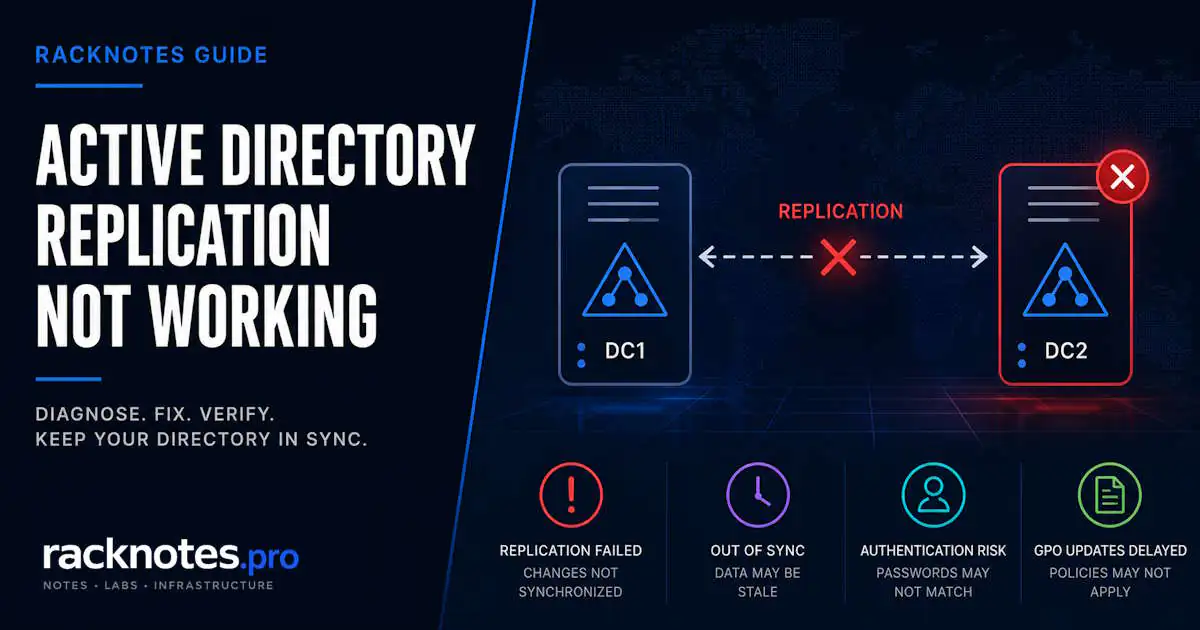
Check Active Directory replication with repadmin /replsummary first to identify which domain controllers are showing failures, then use repadmin /showrepl and dcdiag /test:replications to find the exact naming context and error code behind the failure. From there, the error code tells you whether to investigate DNS, RPC connectivity, permissions, or another part of the replication path.
Replication failures can be broader than the first symptom suggests. In a single-DC environment a broken replication engine has no visible effect at all since there is nothing to replicate to. In a multi-DC environment, it can run silently for hours or days before something visible breaks: a user authenticates against DC2, which never got a password change from DC1; a GPO update from Monday hasn’t reached half the site by Tuesday; an account created on DC1 doesn’t exist on DC2. The blast radius is usually wider than the symptom that first exposed the problem.
- To check Active Directory replication, run
repadmin /replsummaryfirst. It groups failures by Source DSA and Destination DSA; userepadmin /showrepl <DC>or the CSV export to find the exact naming context and error code. - DNS and network connectivity are common root causes, while permissions failures (Error 8453) and preempted operations (Error 8461) can point to different diagnostic paths.
- Error 1722 (RPC Server Unavailable) points to an underlying connectivity failure. Error 8453 (Access Denied) is a permissions problem more often than a time-skew problem.
- Lingering objects need the correct reference DC’s DSA GUID in the removal command, not just another DC’s name, and should not be assumed universally safe to remove without checking.
- Event ID 2095 is a USN rollback indicator; that is a separate recovery path, not something to fix with the checks in this guide.
- Force replication only after the root cause is understood, not as a diagnostic step:
/syncallfor broad convergence,/replicatefor a specific partner and naming context,Sync-ADObjectonly when one object needs immediate replication.
repadmin /replsummaryshows zero failures in the Source DSA and Destination DSA summariesdcdiag /test:replicationspasses on every DCdcdiag /test:DNS /vpasses with no SRV record failures- No Event ID 1865 or 1925 in the Directory Service log
- All DCs synchronized to domain time,
w32tm /query /statusshows no meaningful skew - A test object created on one DC appears on its replication partners within the expected interval for the site topology
What Breaks When Active Directory Replication Fails
Replication carries more than user accounts. When it stops, the following stop synchronizing across DCs:
- Password changes. A user changes their password on DC1; DC2 still has the old hash. Authentication against DC2 fails or succeeds with the wrong credentials depending on timing and Kerberos ticket state.
- Group Policy. GPO updates require both AD replication (for the GPO object) and DFSR replication (for the SYSVOL share). Broken AD replication stops the object half of that pair.
- New accounts and group memberships. Accounts created or modified on DC1 don’t exist or don’t update on DC2 until replication runs.
- Kerberos service tickets. Changes to service accounts and SPNs don’t propagate, which can break application authentication silently.
The earlier you catch a replication failure, the smaller the cleanup. A DC that’s been out of sync for a week needs careful remediation before you force replication because stale data may be moving in the wrong direction.
AD DS Replication vs SYSVOL Replication
This distinction is easy to miss during troubleshooting. AD DS replication (the pipeline monitored with repadmin) carries AD objects: users, groups, GPO metadata, computer accounts. SYSVOL replication carries the actual GPO files and logon scripts stored in the SYSVOL share. Modern, fully migrated domains use DFSR for that job; a legacy environment that was never migrated off the old File Replication Service needs separate handling and isn’t covered here.
A healthy repadmin /replsummary does not confirm SYSVOL is healthy. Both pipelines can fail independently. If authentication is working but Group Policy isn’t applying, DFSR is the more likely culprit even when AD replication looks clean.
Check DFSR status separately:
dfsrdiag ReplicationState
dfsrdiag backlog /RGName:"Domain System Volume" /RFName:SYSVOL /SendingMember:DC1 /ReceivingMember:DC2
ReplicationState shows the current active replication state; the separate backlog command is what actually checks for a backlog. If either points to a problem, SYSVOL replication has its own failure path. The SYSVOL replication troubleshooting guide covers DFSR diagnostics in detail.
How to Check Active Directory Replication Status
repadmin /replsummaryThis is the fastest triage command. It summarizes results by Source DSA and Destination DSA rather than showing a simple row for each DC pair. AD replication is pull-based: the destination DC pulls changes from the source. The summary tells you which DCs are participating in failures; it does not, by itself, tell you the direction of the underlying problem. A failure appearing in the Destination DSA summary does not automatically mean the source can’t reach the destination; confirm the actual link with repadmin /showrepl <DC> or the CSV export below.
Check Active Directory Replication Errors with Repadmin
repadmin /showrepl * /csv > repl.csvThe CSV output captures every replication link across every naming context: Domain, Schema, Configuration, ForestDNSZones, DomainDNSZones. Sort by “Last Failure Status”; non-zero values give the exact error code for each failing link. In environments with more than two DCs, this is more useful than /replsummary for isolating the specific DC-to-DC links that are failing and the error returned by each one.
To see what’s currently queued for replication on a DC, run:
repadmin /queueThis shows replication tasks currently queued on the target DC, not a literal queue of AD objects. A large or steadily growing queue supports a diagnosis of delayed replication, but queue size alone does not identify the root cause. An empty queue also does not prove that a connection cannot be established.
Run DCDiag for Replication Errors
dcdiag /test:replications /vVerbose output identifies failures in the Directory Service log and correlates them with the replication topology. The lines to look for:
.....[DC name] passed test Replications: clean.....[DC name] failed test Replications: broken; the lines below include the error code
DCDiag also surfaces issues repadmin won’t catch directly, including naming contexts that are failing independently of others. If replication was healthy at deployment, comparing current DCDiag output against the Active Directory post-install checklist baseline narrows the scope of what changed.
Common Active Directory Replication Error Codes
These codes appear in the CSV from the repadmin step and in DCDiag output. A replication error can have more than one underlying cause, so treat this as a branching map rather than a one-to-one lookup.
| Error | Exact Meaning | Common Diagnostic Direction | First Verification |
|---|---|---|---|
| 1722 | RPC server unavailable | An underlying connectivity failure: DNS, routing, firewall, IPSec/network authentication, or resource limits | Test-NetConnection -ComputerName DC2 -Port 135 |
| 1256 | The remote system is not available | Usually secondary to an earlier RPC bind failure on a higher-priority partition (Schema or Configuration). Find the non-1256 error for the same source/destination pair rather than troubleshooting 1256 itself. | repadmin /showrepl DC-NAME, check every naming context for the same partner |
| 8453 | Replication access was denied | Missing Replicating Directory Changes permission on the naming context, a UserAccountControl flag missing on the destination DC’s computer account, or an RODC that wasn’t prepared correctly | dcdiag /test:CheckSecurityError |
| 8461 | The replication operation was preempted | Normal and usually transient: a higher-priority replication request (including a manual sync) interrupted this one. Not a failure condition by itself. | repadmin /queue, look for entries marked PREEMPTED |
| 8606 | Insufficient attributes were given to create an object | A lingering object on the source, or an object already garbage-collected on the reference DC | Run /removelingeringobjects in advisory mode |
| 8589 | Cannot derive SPN | DNS or SPN misconfiguration | dcdiag /test:DNS /v |
Directory Service Event IDs for Replication Failures
| Event ID | Log | Meaning | Action |
|---|---|---|---|
| 1311 | Directory Service | No replication path found, a site topology problem | Check site link configuration in Active Directory Sites and Services |
| 1865 | Directory Service | DC cannot contact a replication partner | Check network and DNS |
| 1925 | Directory Service | Attempt to contact a DC failed | DNS resolution check |
| 1988 | Directory Service | Lingering object detected, replication blocked | Run /removelingeringobjects in advisory mode |
| 2042 | Directory Service | Tombstone lifetime exceeded, DC too far out of sync | Evaluate demote vs. force-rejoin |
| 2087 | Directory Service | DNS lookup failure, DC cannot resolve a partner | dcdiag /test:DNS /v |
| 2088 | Directory Service | DNS fallback used, replication degraded | Fix DNS; don’t rely on fallback |
| 2095 | Directory Service | USN rollback indicator | Do not force replication; see the dedicated USN rollback guide below |
Events 1865 and 1925 often appear together, since both point to a DC being unreachable. Events 2087 and 2088 indicate DNS lookup problems that may not be visible in basic connectivity tests; replication can still be succeeding via fallback while the underlying DNS issue remains unresolved. Event 2095 changes the diagnostic path: other DCs are already refusing the affected DC’s updates, so the normal checks in this guide are no longer the right recovery workflow.
Troubleshoot Error 1722: RPC Server Unavailable
Error 1722 means the RPC server on the destination DC is unreachable. That is a category of failure, not a single cause. Microsoft’s guidance for 1722 includes DNS, routing, firewalls, IPSec or network authentication problems, resource limits, and service unavailability. Before touching anything in AD, verify the network path:
# From DC1, testing connectivity to DC2:
Test-NetConnection -ComputerName DC2 -Port 135    # RPC Endpoint Mapper
Test-NetConnection -ComputerName DC2 -Port 445    # SMB
Test-NetConnection -ComputerName DC2 -Port 389    # LDAP
Test-NetConnection -ComputerName DC2 -Port 88     # Kerberos
If port 135 is open but replication still fails, check whether firewall rules allow the RPC dynamic port range (49152 to 65535 on Server 2008 and later). Firewalls that pass 135 but block the dynamic range are a common misconfiguration in environments where someone tightened rules without accounting for AD traffic.
Error 1722 that appears only by DNS name, not IP, points directly at DNS. Test name resolution before concluding it’s a firewall issue:
Resolve-DnsName DC2.ad.contoso.com
nslookup DC2.ad.contoso.com
If the name doesn’t resolve, or resolves to the wrong IP, the replication failure is a DNS failure presenting as Error 1722.
- Run
Test-NetConnectionto DC2 on ports 135, 445, 389, 88; if any fail, the network path is the problem - If all ports pass, test name resolution:
Resolve-DnsName DC2.ad.contoso.com - If DNS fails, run
dcdiag /test:DNS /vand look for SRV record failures and Event 2087 - If DNS resolves but replication still fails, check whether firewall rules allow the RPC dynamic port range
- Confirm the DC’s own DNS client configuration actually resolves the AD-integrated zones it needs
- Run
repadmin /kccto trigger the Knowledge Consistency Checker and rebuild replication topology; useful if topology looks misconfigured after a recent DC add or remove
Troubleshoot Error 8453: Replication Access Was Denied
Error 8453 is a permissions and security-context problem more often than a time-related one. Microsoft’s current guidance for 8453 centers on:
- The destination DC’s computer account missing the
SERVER_TRUST_ACCOUNTorTRUSTED_FOR_DELEGATIONflag inUserAccountControl - Missing default permissions on one or more directory partitions for scheduled replication to run in the operating system’s security context
- Missing permissions for a user triggering ad-hoc replication (Replicate Now,
repadmin /replicate,repadmin /syncall) - An RODC that never had the required preparation completed, missing Replicating Directory Changes permission on the naming context
Start diagnosis with:
dcdiag /test:replications
dcdiag /test:CheckSecurityError
Excessive time skew can produce Kerberos authentication failures that surface as access-denied style errors, so time sync is worth checking as a secondary step, not the primary explanation for 8453.
Check Time Synchronization
Windows domain members follow a time hierarchy. The PDC Emulator in the forest-root domain sits at the top of that hierarchy and is normally configured to sync against a reliable external source, but individual DCs don’t necessarily synchronize directly from the PDC Emulator; they follow the hierarchy through their own time source configuration. Kerberos rejects tickets when the time difference between two DCs exceeds five minutes by default, which can cause authentication failures that look like replication or access problems.
# Run on each DC:
w32tm /query /status

# Compare across all DCs:
w32tm /monitor /computers:DC1,DC2,DC3
If a DC has drifted, force a resync:
w32tm /resync /forceAfter correcting time skew, wait several minutes and re-run repadmin /replsummary; Kerberos tickets have a short lifetime, so replication issues caused purely by clock drift often recover once time is synchronized. In virtual environments, if the DC’s VM host has incorrect time, w32tm will fight a losing battle against the hypervisor’s own time sync service. On Hyper-V, verify that VM Integration Services time sync is either properly deferred to the PDC Emulator hierarchy or disabled so w32tm manages time independently.
Check DNS and Network Dependencies
DNS and network connectivity are common causes of replication failures, including failures that present as Error 1722 or Event IDs 2087 and 2088 rather than an explicit DNS error. DNS is one of the first dependencies worth verifying, because AD replication relies on partner name resolution to even establish a connection.
# Full DNS diagnostic:
dcdiag /test:DNS /v

# Check SRV records manually:
nslookup -type=SRV _msdcs.ad.contoso.com
nslookup -type=SRV _ldap._tcp.ad.contoso.com
dcdiag /test:DNS flags missing SRV records, incorrect delegations, incorrect forwarder configuration, and DCs not registering their records. Event IDs 2087 and 2088 in the Directory Service log indicate DNS lookup failures that may not be visible in basic connectivity tests.
Configure DCs to use DNS servers that host and can resolve the AD-integrated zones. Avoid public DNS servers in the DC’s NIC configuration for the AD namespace; that’s the genuinely unsafe pattern, not a DC pointing to itself. Whether a DC should list itself as primary or secondary DNS depends on the number of DNS-capable DCs, zone availability, and startup behavior in that environment. Microsoft documents valid configurations for both approaches. In multi-DC environments, use redundant AD-aware DNS resolvers and verify the chosen order doesn’t create an island-DNS condition where a DC effectively can’t see the rest of the forest.
For deeper DNS failure investigation, zone delegation, conditional forwarders, and SRV record repair, the Active Directory DNS problems guide covers those workflows.
Lingering Objects: Error 8606 and Event ID 1988
A lingering object is an AD object that exists on one DC but was deleted on others while that DC was offline, with the deletion aging past the tombstone lifetime before the DC came back. Error 8606 or Event ID 1988 is the typical presentation. When the DC comes back online, it still holds the old object and tries to replicate it.
Detection and removal both use the same command, with the reference DC’s DSA GUID as the second parameter, not simply another DC’s name:
repadmin /removelingeringobjects <DestDC> <ReferenceDC-DSA-GUID> <NamingContext> /advisory_modeGet the reference DC’s DSA GUID from repadmin /showrepl on a DC you know holds an up-to-date, writable copy of the naming context, or from the Event ID 1988 text itself, which names the source DC involved. Run advisory mode first for each naming context that might be affected: Domain NC, Configuration NC, Schema NC. It reports what would be removed without removing anything.
repadmin /removelingeringobjects <DestDC> <ReferenceDC-DSA-GUID> <NamingContext>Review the advisory output before running the command without the flag. Lingering objects are not automatically safe to remove just because they’re flagged: confirm the reference DC is genuinely authoritative for that naming context, and review the object state before removal, since Error 8606 can also involve transient conditions or objects near tombstone expiration rather than a straightforward permanent lingering object.
Prevention: a DC offline for longer than the forest’s actual tombstone lifetime is the condition that creates this risk, not a fixed universal number. Check the real value for the forest rather than assuming a default, and decommission a DC that’s going to be offline for an extended period rather than leaving it idle indefinitely. Event ID 2042 (tombstone lifetime exceeded) is the signal that a DC has been offline too long to cleanly rejoin; evaluate demote vs. force-rejoin at that point.
USN Rollback: Event ID 2095
Event ID 2095 is a strong indicator of USN rollback, and it takes this article’s checks off the table. When AD DS detects the condition, it can quarantine the affected DC, disabling replication in both directions until the issue is resolved. Do not force replication or manually clear the protection to make the warning go away; that removes the safeguard without fixing the underlying inconsistency.
A DC comes back from an unsupported restore, snapshot revert, or disk-level rollback with an older Update Sequence Number than its partners already have on record. Partner DCs detect the mismatch and stop trusting the affected DC’s updates. Event ID 2095 appears in the Directory Service log, and this is no longer an ordinary replication-troubleshooting case.
VM-Generation ID changes the safety boundary for supported virtualized DC restores on modern Windows Server and hypervisor combinations, but it doesn’t cover every restore path. Detection, the full recovery decision path, and the exact boundaries of what’s protected are covered in the dedicated USN rollback guide.
When to Force Active Directory Replication After a Fix
Force Active Directory replication only after the failure cause is understood and corrected. Manual synchronization is a convergence tool for that point in the workflow, not a diagnostic step.
How to Force Active Directory Replication Throughout the Domain
repadmin /syncall DC1 /AdeP/syncall starts synchronization from the target DC (DC1 in the example) against its own replication partners, across the naming contexts it holds. It is not a single global command that reaches into every DC pair in the forest independent of which DC you run it from; the DC you specify is the center of the operation. Flags: /A synchronizes all naming contexts held by the target DC, not just the default partition, /d identifies servers by distinguished name in the output instead of GUID, /e extends the operation across sites (without it, the scope is the target DC’s home site only), and /P pushes changes outward from the target DC instead of the default pull direction. Use this when a known-good DC needs broader convergence after a fix. In larger environments, the operation can take several minutes.
Force Replication Between Two Domain Controllers
Use /syncall when broad convergence is the goal. Use repadmin /replicate when a specific destination DC needs to pull a specific naming context from a specific source DC, and nothing broader:
repadmin /replicate DestinationDC SourceDC "DC=ad,DC=contoso,DC=com"This targets one link and one naming context instead of the broader topology, which is useful when you already know which DC pair and partition are behind.
Force Active Directory Replication with Sites and Services
The GUI path: Active Directory Sites and Services > Sites > <Site> > Servers > <DC> > NTDS Settings, right-click the relevant connection object, and choose Replicate Now. This manually triggers replication over that specific connection. It is useful for confirming a single partner relationship interactively, but it still uses the existing connection topology and does not bypass DNS, RPC, or authentication failures. If the connection itself is broken, Replicate Now just surfaces the same failure through a dialog box instead of a command-line error.
Force Replication for a Single AD Object with PowerShell
Sync-ADObject -Object "CN=jdoe,OU=Users,DC=ad,DC=contoso,DC=com" -Source DC1 -Destination DC2Sync-ADObject is not the PowerShell equivalent of /syncall. It replicates one specific object between two DCs that share the relevant partition; those two DCs don’t even need to be direct replication partners. Use it when a single user, group, computer object, or urgent attribute change needs immediate replication, not when the goal is broader convergence.
What Repadmin /kcc Does and Does Not Do
The Error 1722 sequence above uses repadmin /kcc to trigger the Knowledge Consistency Checker. It recalculates and rebuilds replication connection objects based on current site and site-link configuration. It does not directly force directory data to replicate; it is a topology tool, not a data-sync tool. Run it when connections look stale or missing after a DC was added or removed, then follow up with an actual sync command for the data itself.
Forcing Replication Across Sites
Inter-site replication normally follows the site link’s configured schedule, not a fixed short interval. Manual replication triggers convergence before the next scheduled window; it doesn’t rewrite the schedule itself, so the next automatic run still happens on the original timing. /e on /syncall is what extends the operation across sites, without it the scope stays limited to the target DC’s home site. WAN bandwidth and site topology still apply to a manually triggered sync just as they do to a scheduled one.
When You Should Not Force Replication
- DNS resolution is still failing: see Check DNS and Network Dependencies above
- RPC connectivity is still failing: see the Error 1722 diagnostic sequence above
- Error 8453 permissions or security context is unresolved: see the Error 8453 section above
- Event ID 2095 or another USN rollback indicator is present: see the USN Rollback handoff above, do not force replication here at all
- Lingering objects (Error 8606, Event 1988) haven’t been validated and handled: see the lingering objects section above
- The replication topology is broken and the path you’re expecting doesn’t actually exist: check with
repadmin /showreplandrepadmin /kccbefore assuming a sync command will find a route
What to Do If Forced Replication Fails
A failed forced sync provides diagnostic information. Use the returned error to branch back into the relevant section on this page:
- If
/syncallreturns RPC errors, go back to Error 1722 and the DNS and network checks - If manual replication returns Access Denied, go back to Error 8453
- If Replicate Now fails immediately, the same DNS, RPC, authentication, or topology problem is still underneath it; triggering the same connection manually doesn’t bypass that
- If the command completes without an error but data still doesn’t converge, verify the exact naming context, the source/destination direction, and whether the object in question belongs to AD DS or SYSVOL, since forced AD replication doesn’t touch DFSR
| Method | Scope | Best Use Case | Important Limitation |
|---|---|---|---|
repadmin /syncall |
Multiple naming contexts across the target DC’s topology | Broad convergence after a fix | Not a diagnostic substitute |
repadmin /replicate |
Specific source, destination, naming context | Targeted replication | Requires knowing the correct source/destination/NC |
| Sites and Services Replicate Now | One connection | Manual GUI trigger for a specific partner | Uses existing connection topology, doesn’t bypass a broken path |
Sync-ADObject |
Single AD object | Urgent single-object convergence | Does not replicate the rest of the directory |
repadmin /kcc |
Topology | Recalculate connection objects | Does not replicate data itself |
After any manual replication trigger, verify with repadmin /showrepl, repadmin /replsummary, and the low-risk test-object check where appropriate. The full post-fix verification sequence is covered next.
Verify Active Directory Replication After a Fix
After resolving the root cause and triggering the appropriate replication method, confirm replication is clean before closing the incident. Re-running repadmin /replsummary once is not sufficient on its own.
- Run
repadmin /replsummary; verify zero failures in the Source DSA and Destination DSA summaries - Run
repadmin /showrepl; confirm “Last attempt was successful” for each naming context on each DC pair - Run
dcdiag /test:replications /v; confirm all DCs show “passed test Replications” - Run
dcdiag /test:DNS /v; DNS health and replication health are linked, confirm both are clean - Create or modify a low-risk test object and confirm it appears on the expected replication partner within the interval appropriate to that site’s topology
- Run
dfsrdiag ReplicationState; confirm SYSVOL replication is also healthy, since AD and DFSR are separate pipelines
The test-object check in step 5 is a strong end-to-end validation because it confirms the full pipeline rather than only the reporting layer. It’s not the only possible validation, and for inter-site replication the expected interval depends on the site link schedule, not a fixed number of seconds.
AD replication and SYSVOL replication can fail independently. If the AD side is healthy but DFSR is still lagging, Group Policy may still fail, so verify both before closing the incident.
Frequently Asked Questions
How do I check Active Directory replication?
Run repadmin /replsummary for a fast overview of which DC pairs are failing. Follow up with repadmin /showrepl <DC> or a full CSV export to see the exact naming context and error code, then dcdiag /test:replications /v for a verbose, event-correlated view.
How do I check Active Directory replication status across multiple DCs?
repadmin /showrepl * /csv > repl.csv exports every replication link across every naming context in one pass, which is more practical than reading /replsummary alone once you have more than two DCs.
What command shows Active Directory replication errors?
repadmin /showrepl and the CSV variant show the exact error status per link. dcdiag /test:replications /v correlates the same failures with the Directory Service event log.
What does Error 1722 mean?
RPC Server Unavailable. It points to an underlying connectivity failure: DNS, routing, firewall, or service availability. Start with Test-NetConnection on ports 135, 445, and 389 before assuming it’s any one specific cause.
What does Error 8453 mean?
Replication Access Was Denied. Most often a permissions or security-context issue: missing Replicating Directory Changes permission, a missing UserAccountControl flag, or an unprepared RODC. Time skew can contribute to related authentication failures, but it isn’t the primary explanation.
When is it safe to force Active Directory replication?
Only after the root cause is identified and fixed. Running repadmin /syncall /AdeP before that just reproduces the same failure faster, or in the case of USN rollback or lingering objects, makes recovery riskier.
How do I force Active Directory replication?
Use repadmin /syncall /AdeP for broad convergence after the root cause is fixed, repadmin /replicate for a specific source, destination, and naming context, Sites and Services Replicate Now for a GUI-triggered connection, or Sync-ADObject when only one object needs to move immediately.
Does healthy AD replication mean SYSVOL is also healthy?
No. AD replication carries AD objects; SYSVOL replication (DFSR) carries GPO files and logon scripts, and the two pipelines can fail independently. repadmin /replsummary says nothing about DFSR. Run dfsrdiag ReplicationState separately to confirm SYSVOL.
What should I do if Event ID 2095 appears?
Stop treating it as an ordinary replication failure. Event 2095 indicates USN rollback, which has its own detection and recovery path, covered in the dedicated USN rollback guide above. Do not force replication or manually clear the protective state.
External References
Microsoft Learn documentation used as primary reference for this guide:
- Troubleshooting Active Directory replication problems
- Active Directory replication error 8453
- Active Directory replication error 8461
- Active Directory replication error 1722
- Active Directory replication error 1256
- Lingering objects: Event ID 1388 or 1988
- Firewall configuration for AD domains and trusts
- DNS server becomes an island
- Repadmin /syncall
- Sync-ADObject
Final Thoughts
Check Active Directory replication with a repeatable sequence: run replsummary, isolate the exact link and error with showrepl or the CSV export, then branch into DNS, RPC, permissions, or topology based on the error code. DNS and network connectivity are common starting points, but Error 8453 is a reminder to check permissions first and time synchronization as a secondary factor.
Lingering-object cleanup requires the correct reference DC before removal. USN rollback is the one case that exits this whole workflow entirely; if Event 2095 shows up, stop here and go to the dedicated recovery guide instead of trying to force things back to normal.
The diagnostic workflow above works the same on a two-DC homelab as it does on a twenty-DC enterprise. The commands stay the same; what changes is the blast radius and the urgency of the response. In larger environments, alerting on Event ID 1865 and repadmin failure counts early is easier than diagnosing a replication failure that has been running unnoticed for two days.
Active Directory Series
25 articles – Windows Server 2025 · Forest & Domain · FSMO · GPO · Replication · DNS · Security · Backup & Recovery