
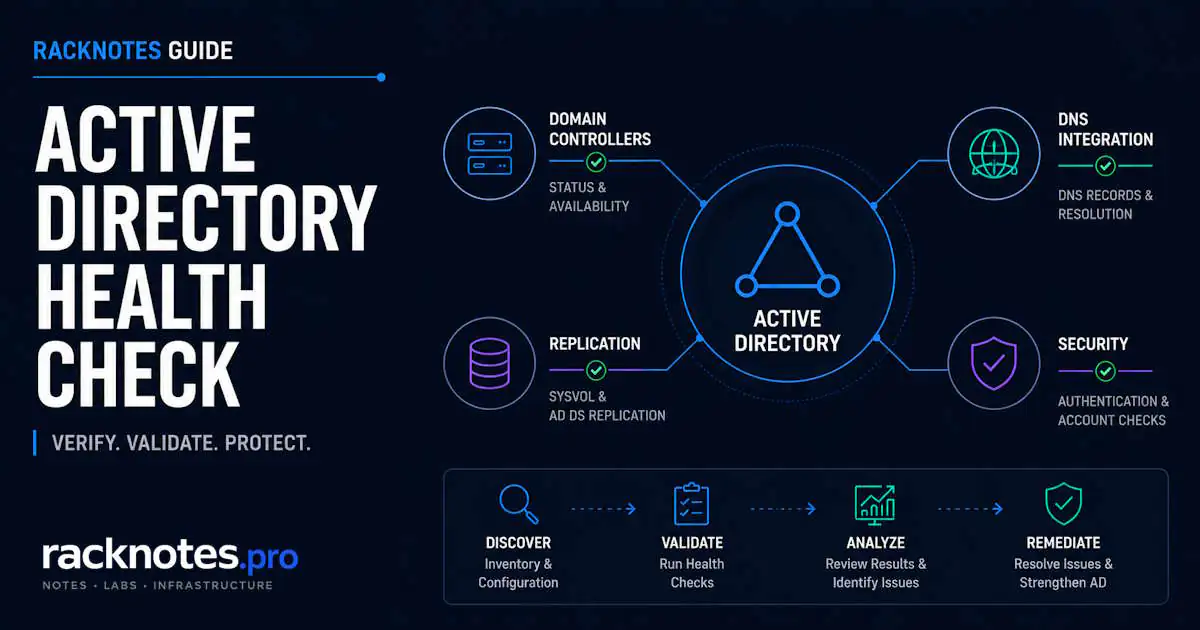
Active Directory failures rarely arrive without warning. Replication errors accumulate quietly for days before authentication stops working. DNS misconfiguration sits undetected until a DC promotion fails. SYSVOL backlogs grow in the background while Group Policy keeps applying from cache until it doesn’t.
A structured active directory health check catches those signals before they become incidents. This guide covers the full diagnostic surface: DCDiag, replication, DNS, SYSVOL, core services, time and Kerberos, FSMO, event logs, and the AD database. It’s organized so you run the right check at the right frequency instead of the same heavy scan every day.
Short version: run dcdiag /q /skip:systemlog and repadmin /replsummary first. They cover two high-value starting points: general DC state and replication. Follow with repadmin /showrepl * /errorsonly, dcdiag /test:DNS /v, a SYSVOL/NETLOGON reachability check, and w32tm /monitor /domain:yourdomain.com. Any failure there points straight at one of the sections below.
- Run dcdiag /q /skip:systemlog and repadmin /replsummary after every change, not just on a schedule.
- Do not judge “largest delta” against a fixed 60-minute rule. Intra-site changes propagate in seconds via change notification; inter-site follows the site-link schedule (default 180 minutes).
- Verify the services each DC’s roles actually need are running, not a hard-coded list identical across every DC.
- On Windows Server 2025, wmic is being phased out (available only as a Feature on Demand). Use Get-CimInstance in any new health scripts.
- Run the latest cumulative update on WS2025 DCs, and after a restart verify the active firewall profile and remote reachability, not just local green checks.
- The default Kerberos clock-skew tolerance is five minutes and is policy-configurable. Keep domain offsets far below it.
Several thresholds in this checklist (10% free space, plus or minus 2 minutes time drift, daily/weekly cadence) are conservative RackNotes operational alerting baselines, not Microsoft product limits. Adapt them to your site-link schedules, forest size, backup policy, storage growth, and business SLA. Where a number is a Microsoft default, it’s called out as such with a source link.
Quick Active Directory Health Check Commands
Run these six checks first. Each maps to a full section below if something comes back wrong.
| Check | Command | Healthy signal | If it fails, go to |
|---|---|---|---|
| DC diagnostics | dcdiag /q /skip:systemlog |
No FAILED lines | How to Check Domain Controller Health with DCDiag |
| Replication summary | repadmin /replsummary |
0 in the Fail column; deltas consistent with topology | Check Active Directory Replication with Repadmin |
| Replication detail | repadmin /showrepl * /errorsonly |
No entries returned | Check Active Directory Replication with Repadmin |
| DNS | dcdiag /test:DNS /v |
All PASS, or a documented WARN | Check DNS Health on a Domain Controller |
| SYSVOL / NETLOGON | Reachability test across every DC (script in the PowerShell section) | Both shares reachable everywhere | Check SYSVOL and NETLOGON |
| Time | w32tm /monitor /domain:yourdomain.com |
Offsets well under the Kerberos ceiling | Check Time Synchronization and Kerberos |
dcdiag /q checks the local DC only. Add /e for enterprise-wide DCDiag coverage, or run the local check on each DC individually. A clean local result does not mean the forest is clean.
These six checks surface several failure classes that cause major AD incidents: broken replication, DNS misconfiguration, stale SYSVOL, and time drift. A clean run across all six is a strong signal, not a guarantee. FSMO reachability, event log patterns, and database/backup state still need the checks further down this active directory health check.
Before You Start
Required access: Domain Admins or delegated diagnostic permissions. Run commands from an elevated PowerShell or CMD prompt on a DC. For enterprise-wide dcdiag /e, run from a DC with network visibility to every site.
Scope matters throughout this active directory health check: unless a command explicitly uses /e, an asterisk (*), -Scope Forest, or a forest-wide DC list built with Get-ADForest, assume it’s scoped to the local DC or the current domain only, not the whole forest.
The tools used throughout are built into Windows Server or available via RSAT: dcdiag, repadmin, netdom, nltest, w32tm, and the ActiveDirectory PowerShell module (Get-ADReplicationFailure, Get-ADReplicationPartnerMetadata, requires RSAT AD DS Tools). Get-DfsrBacklog additionally requires the DFSR PowerShell module, installed with the DFS Management Tools feature (RSAT-DFS-Mgmt-Con), separate from the ActiveDirectory module. The full repadmin and dcdiag references on Microsoft Learn cover every flag used below.
In Windows Server 2025 environments, operators have hit a case where a restarted DC comes back on the wrong firewall profile and becomes unreachable on the domain network, while local diagnostic tools still report green. Microsoft fixed this in KB5060842 and later cumulative updates. The lesson generalizes: on a recently restarted WS2025 DC, don’t trust local checks alone. Confirm the DC is on the latest cumulative update and verify the active network profile and remote LDAP/RPC/DNS/SMB reachability from another machine.
What Healthy Looks Like
A quick reference for what each area should show once the checks above come back clean.
| Area | Healthy state |
|---|---|
| Services | Required services for each DC’s installed roles are running or start cleanly; no unexpected Disabled state |
| Replication | No errors in repadmin /showrepl * /errorsonly; last-success timestamps match the intra-site or inter-site schedule; no delta growing across repeated checks |
| SYSVOL | SYSVOL and NETLOGON reachable on every DC; DFSR state normal; pairwise backlog within baseline; no unresolved 2213 or 4012 |
| DNS | SRV records registered; authoritative internal DNS configured; dcdiag /test:DNS clean or documented; no stale A records for decommissioned DCs |
| Time | Forest-root PDC uses an approved authoritative source; other DCs follow the hierarchy; offsets well under the effective Kerberos tolerance |
| FSMO | All five role holders online, replicating, and reachable; all DCs agree on role placement |
| Kerberos | No persistent 0x25 clock-skew pattern in Event 4769; secure channel healthy on all DCs |
| Event logs | No current unresolved 1311, 1864, 2042 (Directory Service) or 5719, 5783 (System) correlated with present symptoms |
| dcdiag | dcdiag /e /c /q /skip:systemlog returns no unexplained failures |
| Recoverability | Recent valid system-state backup, documented restore procedure, adequate NTDS/log/SYSVOL free space, Recycle Bin enabled where approved |
Note the last row: recoverability is separate from health. A forest can be perfectly healthy and still be one failed DC away from a painful recovery if backups are stale.
How to Check Domain Controller Health with DCDiag
dcdiag is the broadest single-command check on Windows Server. For a fast domain controller health check, it’s the natural starting point. Run it at least weekly and after any structural change (DC promotion or demotion, site-link changes, schema updates).
dcdiag /e /c /q /skip:systemlog /f:dcdiag-output.txtThe SystemLog test often produces unrelated failures in production because it evaluates recent System-log warnings and errors regardless of whether they relate to AD. Skip it for routine scans and review the System log separately when investigating a specific incident.
After any DC promotion, run the focused set that confirms the new DC advertises, has replicated, and has healthy SYSVOL before clients start using it:
dcdiag /test:Advertising /test:Replications /test:SysVolCheck /test:DFSREvent /test:DNS /vRun: dcdiag /e /c /q /skip:systemlog
Healthy: no unexplained failures across roughly 20 test areas.
Failing: any FAIL line, treated as actionable, not skipped as noise.
Next: a clean dcdiag is necessary but not sufficient. It doesn’t check disk space, backup recency, GPO content correctness, absolute time accuracy, or security posture. That’s what the rest of this checklist covers. For a full test-by-test breakdown, see DCDIAG Explained: How to Read and Interpret Domain Controller Diagnostics.
Check Active Directory Replication with Repadmin
Replication is one of the first areas to verify when anything feels off, because everything else in AD depends on it.
repadmin /replsummary
repadmin /showrepl * /errorsonly
repadmin /queue
Don’t evaluate “largest delta” against a universal 60-minute rule. Within a site, AD uses change notification, roughly 15 seconds to the first partner and 3 seconds between subsequent partners, so intra-site changes normally propagate in seconds. Across sites, replication follows the configured site-link schedule, which defaults to 180 minutes (15 minutes is the shortest configurable interval); environments that explicitly enable inter-site change notification replicate sooner. A 45-minute delta may be perfectly normal on an inter-site link and abnormal for an actively changing intra-site partner. Interpret the value against your own topology.
Investigate when an error appears in errorsonly output, last-success time exceeds the expected schedule for that link, the delta keeps increasing across repeated checks, a partner or naming context stops advancing, or the queue doesn’t drain over time. A persistent or growing queue, especially when paired with errors or stale last-success timestamps, means the destination DC isn’t processing replication normally. That’s how you distinguish “slow” from “broken.”
If errorsonly returns codes, the code drives the next step: 1722 (RPC unavailable, usually firewall or DNS), 8453 (access denied, permissions or secure channel), 8606/8614 (lingering objects or replication stalled past the tombstone lifetime). For structured investigation, Get-ADReplicationFailure returns the same failures as objects. Its -Target parameter doesn’t accept a wildcard. Pass the forest name explicitly for forest scope:
$forestName = (Get-ADForest).Name

Get-ADReplicationFailure -Target $forestName -Scope Forest |
  Sort-Object FailureCount -Descending |
  Select-Object Server, Partner, FirstFailureTime, FailureCount, LastError
Run: repadmin /replsummary
Healthy: zero failures, deltas consistent with topology and schedule.
Investigate: failures, stale last-success timestamps, or growing deltas.
Next: repadmin /showrepl * /errorsonly for the specific error code, then Active Directory Replication Not Working: How to Diagnose and Fix for full recovery by error code.
Check DNS Health on a Domain Controller
DNS and AD are tightly coupled, so checking DNS health is a core part of any AD diagnostic pass. DNS is a common cause of replication error 1722, but RPC endpoint mapping, dynamic-port filtering, routing, service availability, and security controls are separate branches. Don’t assume every 1722 is DNS.
dcdiag /test:DNS /vThis runs several sub-tests and prints a summary table: columns Auth/Basc/Forw/Del/Dyn/RReg/Ext, one row per DC. Treat every FAIL as actionable. Treat a WARN as a documented exception only after reading the detailed sub-test output and confirming it matches the intended design (external resolution tests, for example, can fail by design in isolated networks). Add /e for full enterprise coverage.
nslookup -type=SRV _ldap._tcp.dc._msdcs.yourdomain.comIf SRV records are missing, force re-registration with nltest /dsregdns, then restart Netlogon. On DNS design: a DC must point at authoritative internal AD DNS. Pointing a DC at itself is supported and often recommended once replication is healthy. It isn’t automatically an error. The real risk is a DC relying only on a stale or isolated local copy, which creates a DNS island. During promotion and troubleshooting, verify both local and partner DNS paths rather than assuming self-reference is the fault.
Run: dcdiag /test:DNS /v /e
Healthy: all PASS, or WARN with a documented, design-confirmed cause.
Failing: any FAIL, or an unexplained WARN.
Next: Active Directory DNS Problems: SRV Records, Zones, and Resolution Failures.
Check SYSVOL and NETLOGON
SYSVOL and NETLOGON must be shared and reachable on every DC. When they’re not, Group Policy stops applying, sometimes silently, because clients use cached policy until it expires.
# Forest-wide, not just the current domain - Get-ADDomainController -Filter *
# without -Server only enumerates the default domain
$allDCs = (Get-ADForest).Domains | ForEach-Object {
    Get-ADDomainController -Filter * -Server $_
}

$allDCs | ForEach-Object {
    [pscustomobject]@{
        DC       = $_.HostName
        SYSVOL   = Test-Path "\\$($_.HostName)\SYSVOL"
        NETLOGON = Test-Path "\\$($_.HostName)\NETLOGON"
    }
}
This confirms share reachability, not content equality. A share can be present while its Group Policy content is stale on that specific DC. To check whether SYSVOL members are actually synchronized, you need a pairwise backlog check, not a state snapshot:
# Backlog is directional - check both ways between each pair
Get-DfsrBacklog -GroupName "Domain System Volume" `
  -FolderName "SYSVOL Share" `
  -SourceComputerName DC01 `
  -DestinationComputerName DC02 -Verbose
dfsrdiag replicationstate (and Get-DfsrState) shows what’s replicating right now and what’s queued next. It doesn’t give a total pairwise backlog. For “are these members fully in sync,” use Get-DfsrBacklog / dfsrdiag backlog, a DFSR diagnostic report, or a propagation test. Two caveats on Get-DfsrBacklog: the object output lists at most the first 100 pending updates, so use the verbose total (or a structured wrapper) when you need the real count; and in a large domain, check the actual DFSR partner directions rather than running blind checks between every DC pair.
$start = (Get-Date).AddDays(-7)
Get-WinEvent -FilterHashtable @{
    LogName   = 'DFS Replication'
    StartTime = $start
} | Where-Object { $_.Id -in 2213,4012,5002,2214 } |
  Select-Object TimeCreated, Id, Message | Format-List
Event 2213 signals that a dirty shutdown paused DFSR; it does not automatically call for a non-authoritative restore. Follow the event-specific recovery instruction, preserve the replicated data, resume DFSR, and confirm recovery via Event 2214. The historical wmic resume command referenced in the event body is deprecated and disabled by default on Windows Server 2025; use the CIM equivalent (Invoke-CimMethod against DfsrVolumeConfig with -MethodName ResumeReplication) instead.
Event 4012 is a content-freshness block, not merely a large backlog: a member was offline longer than MaxOfflineTimeInDays, and DFSR stopped replicating to prevent stale content from propagating. Identify which member holds authoritative SYSVOL content and review offline duration and topology before running any synchronization procedure. Only escalate to a D2/D4-style SYSVOL reinitialization if normal recovery fails or a documented procedure requires it.
Run: SYSVOL/NETLOGON reachability + pairwise Get-DfsrBacklog.
Healthy: both shares reachable everywhere, backlog within baseline both directions.
Failing: unreachable share, growing backlog, or unresolved 2213/4012.
Next: SYSVOL Replication Issues in Active Directory: DFSR Troubleshooting for full event-by-event recovery, including the CIM resume commands and D2/D4 reinitialization procedure.
Check Core Domain Controller Services
If core AD services are stopped, nothing else in this checklist matters until they’re back. But which services must run depends on the DC’s roles, not a fixed list applied identically to every DC.
$core = 'NTDS','Netlogon','KDC','ADWS','W32Time'
Get-Service $core | Select-Object Name, Status, StartType

# Role/topology-dependent - check where applicable:
# DNS      (only on DCs running the DNS Server role)
# DFSR     (for DFSR-replicated SYSVOL)
# Dnscache (DNS client resolver)
Core AD services (NTDS, Netlogon, KDC, ADWS, W32Time) should be present on every DC. DNS is required only where the DC runs the DNS Server role. DFSR matters where SYSVOL uses DFSR rather than legacy FRS. Startup types can legitimately differ by OS build and trigger-start configuration, so verify against the DC’s intended service configuration rather than demanding an identical StartType everywhere.
| Service | What it does | What breaks when stopped |
|---|---|---|
| NTDS | Active Directory database engine | Everything; the DC stops functioning as a DC |
| Netlogon | Secure channel, SYSVOL/NETLOGON shares, SRV records | Domain authentication, Group Policy delivery |
| KDC | Kerberos ticket issuance | Kerberos authentication across the domain |
| ADWS | AD Web Services / PowerShell AD module | PowerShell AD cmdlets fail against that DC |
| W32Time | Time synchronization | Kerberos fails once skew exceeds tolerance |
| DNS (role-dependent) | Name resolution for clients and DCs | DC locator, domain joins, and replication on DCs that serve DNS |
| DFSR (topology-dependent) | SYSVOL replication between DCs | Group Policy content replication stops |
If DFSR is absent and SYSVOL still relies on FRS, you’re on legacy replication. Windows Server 2016 was the last release to support FRS for SYSVOL, so a domain still on FRS must migrate to DFSR before adding any newer domain controller.
Run: Get-Service against the core service list for that DC’s role.
Healthy: all required services Running, StartType matches the DC’s intended configuration.
Failing: a required service Stopped or unexpectedly Disabled.
Next: check dependent services and the System event log for the specific service before restarting it blindly. A stopped NTDS in particular can indicate a database or disk problem rather than a simple crash.
Check Time Synchronization and Kerberos
Time drift is where an active directory health check catches Kerberos failures before users report them. The default Kerberos maximum clock-skew tolerance is five minutes, and it’s configurable by policy. Exceeding the effective value causes authentication failures between the affected client, service, and KDC. It doesn’t necessarily break the entire domain at once. Keep domain offsets far below the limit rather than treating five minutes as a safe operating point.
w32tm /query /status
w32tm /monitor /domain:yourdomain.com
w32tm /query /configuration
Key fields in the status output: Source (should be the forest-root PDC emulator’s approved external source, or the hierarchy above the local DC), Last Successful Sync Time, and Poll Interval. A Source of Local CMOS Clock means the DC is currently relying on its own local clock rather than a usable upstream source, most often because the upstream source is missing or unreachable, though manual or misconfigured settings can also land it there. On a domain time hierarchy, verify configuration and upstream reachability rather than assuming loss of contact is the only cause. On the forest-root PDC emulator, verify Type = NTP with an approved external server; on other DCs, Type should be NT5DS following the domain hierarchy. A plus or minus 2-minute spread between DCs is a conservative internal alert threshold, not a Microsoft limit. It just keeps you well clear of the five-minute Kerberos ceiling.
Run: w32tm /monitor /domain:yourdomain.com
Healthy: offsets well under the Kerberos ceiling; Source resolves to the expected hierarchy on every DC.
Failing: growing offsets, or any DC reporting Local CMOS Clock.
Next: Active Directory Time Synchronization: Fix PDC Emulator, W32Time, and Kerberos Clock Skew.
Kerberos and secure channel
Services and event logs can look normal while Kerberos or the secure channel is broken, so no active directory health check is complete without checking them directly.
For routine, automation-friendly verification, use a passive check that only reports state:
netdom verify DC01 /domain:contoso.com
nltest /sc_query:contoso.com
nltest /sc_verify is different: Microsoft documents it as checking the secure channel and, if the channel doesn’t work, tearing down the existing channel and building a new one. That makes it a repair action, not a passive read, and it can mask the fact that the channel was broken before the run. Reserve /sc_verify for targeted troubleshooting when you’re prepared for it to reset the channel, not for a scheduled weekly health check:
nltest /sc_verify:yourdomain.comDon’t use Test-ComputerSecureChannel on a domain controller for this check. Microsoft documents false-positive results on DCs; the cmdlet is meant for domain member computers. Correlate whichever check you run with Netlogon events, replication status, DNS resolution, and actual authentication symptoms. A genuinely broken secure channel causes sporadic authentication failures and 8453 access-denied replication errors, usually from a computer-account password out of sync.
$start = (Get-Date).AddHours(-24)
Get-WinEvent -FilterHashtable @{
    LogName   = 'Security'
    Id          = 4769
    StartTime = $start
} -ErrorAction Stop | ForEach-Object {
    $xml  = [xml]$_.ToXml()
    $data = @{}
    foreach ($item in $xml.Event.EventData.Data) { $data[$item.Name] = $item.'#text' }
    if ($data.Status -eq '0x25') {
        [pscustomobject]@{
            TimeCreated   = $_.TimeCreated
            AccountName   = $data.TargetUserName
            ServiceName   = $data.ServiceName
            ClientAddress = $data.IpAddress
        }
    }
}
Event 4769 with failure code 0x25 is a clock-skew failure (KRB_AP_ERR_SKEW). A persistent flood points at broken time sync; check the PDC emulator hierarchy first. Parse the named Status field from the event XML rather than a fixed property index: Microsoft has changed 4769’s field order across cumulative updates, so index-based parsing (Properties[6]) is brittle. This query requires Kerberos service-ticket auditing to be enabled and can be high-volume. A handful of isolated 0x25 events isn’t the same signal as a sustained pattern.
Event 4769 is a general Kerberos service-ticket audit event, so the event ID alone does not indicate a health failure. In this check, only entries with a relevant failure status, such as 0x25 for clock skew, are actionable.
Check FSMO Role Holders
Every active directory health check needs to confirm all five FSMO roles are held by reachable, functional DCs. The outage impact is role-specific and often delayed, not immediate:
- RID Master down: blocks new RID-pool allocation, but DCs keep creating security principals while their local RID pools last. Account creation doesn’t stop the instant the role holder goes offline.
- PDC Emulator down: affects authoritative time, urgent password-change propagation, lockout coordination, and several administrative operations, but existing authentication and cached state continue.
- Schema Master down: only needed for schema changes.
netdom query fsmo
dcdiag /test:KnowsOfRoleHolders /e /v
# Resolve and reach each role holder specifically:
Get-ADForest | Select-Object SchemaMaster, DomainNamingMaster
Get-ADDomain  | Select-Object PDCEmulator, RIDMaster, InfrastructureMaster
Resolve the actual holders with Get-ADForest and Get-ADDomain, then reach each one specifically. netdom query fsmo lists placement but doesn’t confirm each holder is responding. Run KnowsOfRoleHolders with /e to compare knowledge across all DCs; if they disagree on role placement, replication is broken between them. (nltest /dsgetdc tests DC Locator, not FSMO-holder availability; it belongs in general reachability checks, not here.)
Run: dcdiag /test:KnowsOfRoleHolders /e /v
Healthy: all DCs agree on role placement, each holder reachable.
Failing: disagreement between DCs, or a holder that doesn’t respond.
Next: FSMO Roles Active Directory: What They Do and How to Manage Them for transfer, seize, and role-holder-failure procedures.
Check Active Directory Event Logs
Event logs surface slow-developing problems that commands alone don’t expose, such as a DC drifting toward tombstone lifetime. Always query with a time window. An old, already-resolved event shouldn’t mark the environment unhealthy forever.
$start = (Get-Date).AddDays(-1)
Get-WinEvent -FilterHashtable @{
    LogName   = 'Directory Service'
    Id          = 1311,1864,2042
    StartTime = $start
} -ErrorAction SilentlyContinue |
Select-Object TimeCreated, Id, Message | Format-List| Event ID | Source | Meaning | Action |
|---|---|---|---|
| 1311 | NTDS KCC | KCC can’t build a replication spanning tree; a path is broken | Investigate the unreachable DC or site link |
| 1864 | NTDS Replication | One or more partitions haven’t replicated within expected ranges; read the body for the affected NC and age | Correlate with current replication metadata |
| 2042 | NTDS Replication | A partner exceeded the forest’s effective tombstone lifetime; lingering-object protection engaged | Urgent, replication blocked for that partner |
| 5719 | NETLOGON | NETLOGON could not establish the expected DC or secure-session path; a single startup event can be transient, but repeated or symptom-correlated 5719 events require investigation | Check full message, DNS/DC Locator, network readiness, Netlogon, and secure channel |
| 5783 | NETLOGON | Secure channel to a DC is broken | nltest /sc_verify to confirm and rebuild the channel |
| 40960 | LSASRV | Kerberos/negotiate failure; time skew or KDC unreachable | Check W32Time hierarchy and KDC service |
Events 1864/2042 reference the tombstone lifetime, which you should read from the directory rather than assume. See the database section below.
Event ID 5719 (NETLOGON): Domain Controller or Secure Session Failure
Event ID 5719 from NETLOGON means Windows could not establish the expected domain-controller or secure-session path at that moment. A single 5719 during startup can be transient if networking is not ready yet. Repeated 5719 events, or events that correlate with logon, Group Policy, or secure-channel symptoms, require investigation.
Event 5719 is a Netlogon connectivity or secure-session signal whose significance depends on the full message, timing, and whether the condition persists. Read the full event message because the exact wording and context vary by Windows version and scenario. Secure-session failures, DC availability problems, startup network readiness, Group Policy startup timing, and general domain connectivity failures can all surface under this ID. Judge it inside a defined time window and correlate it with current symptoms. An isolated historical startup event is not evidence of an active domain failure.
If it appears only once during boot: check whether the machine later establishes the secure channel normally, domain logon works, Group Policy applies, and subsequent Netlogon events are clean. If all of those are normal, treat the isolated startup event as potentially transient.
If it repeats or correlates with symptoms: work through the checks already covered earlier in this guide rather than using a separate command set:
- DNS client configuration and DC Locator (see Active Directory DNS Problems).
- Network readiness and connectivity to a DC.
- Netlogon service state (Check Core Domain Controller Services, above).
nltest /dsgetdc:domain /force.- Run the passive secure-channel checks already covered above,
netdom verifyornltest /sc_query. Don’t usenltest /sc_verifyas the first step here because it can rebuild the channel rather than just check it. Confirm the channel is actually broken first. - Replication and DNS health on the target DC.
- The full 5719 message and surrounding System log events.
Active Directory Health Check with PowerShell
The script below is a fast triage script, not a complete AD health report. It surfaces the few things worth checking in seconds when something feels off: service state, replication failures as objects, SYSVOL reachability, and recent Directory Service errors within a time window. It deliberately doesn’t validate DNS SRV records, pairwise SYSVOL backlog, time offsets, FSMO reachability, Kerberos, backups, or the database. For those, use the checks above.
#Requires -Modules ActiveDirectory
# AD triage - run elevated on a DC. Structured output, not a verdict.
# Core services are checked on the LOCAL DC; SYSVOL reachability spans every DC in the forest.

$results = [System.Collections.Generic.List[object]]::new()
function Add-Result($area, $state, $detail) {
    $results.Add([pscustomobject]@{ Area=$area; State=$state; Detail=$detail })
}

# 1. Core services on the local DC
foreach ($svc in 'NTDS','Netlogon','KDC','ADWS','W32Time') {
    $s = Get-Service $svc -ErrorAction SilentlyContinue
    if (-not $s)                { Add-Result 'Services' 'Unknown' "$svc not found" }
    elseif ($s.Status -ne 'Running')  { Add-Result 'Services' 'Failed'  "$svc is $($s.Status)" }
    else                    { Add-Result 'Services' 'Healthy' "$svc running" }
}

# 2. Replication - objects, with a catch so a failed query never reads as Healthy
try {
    $forestName = (Get-ADForest -ErrorAction Stop).Name
    $replFail = Get-ADReplicationFailure -Target $forestName -Scope Forest -ErrorAction Stop
    if ($replFail) {
        foreach ($f in $replFail) { Add-Result 'Replication' 'Failed' "$($f.Server) -> $($f.Partner): $($f.LastError)" }
    } else {
        Add-Result 'Replication' 'Healthy' 'No current replication failures returned'
    }
} catch {
    Add-Result 'Replication' 'Unknown' "Query failed: $($_.Exception.Message)"
}

# 3. SYSVOL/NETLOGON reachability across every DC in every domain in the forest
try {
    $allDCs = (Get-ADForest -ErrorAction Stop).Domains | ForEach-Object {
        Get-ADDomainController -Filter * -Server $_ -ErrorAction Stop
    }
    foreach ($dc in $allDCs) {
        foreach ($share in 'SYSVOL','NETLOGON') {
            if (Test-Path "\\$($dc.HostName)\$share") { Add-Result 'SYSVOL' 'Healthy' "$($dc.HostName) $share reachable" }
            else { Add-Result 'SYSVOL' 'Failed' "$($dc.HostName) $share unreachable" }
        }
    }
} catch {
    Add-Result 'SYSVOL' 'Unknown' "DC enumeration failed: $($_.Exception.Message)"
}

# 4. Recent Directory Service errors on the local DC - time-windowed
$start = (Get-Date).AddDays(-1)
try {
    $events = Get-WinEvent -FilterHashtable @{ LogName='Directory Service'; Id=1311,1864,2042; StartTime=$start } -ErrorAction Stop
    foreach ($e in $events) { Add-Result 'Events' 'Warning' "Event $($e.Id) at $($e.TimeCreated)" }
} catch [Exception] {
    if ($_.Exception.Message -match 'No events were found') {
        Add-Result 'Events' 'Healthy' 'No 1311/1864/2042 in last 24h (local DC)'
    } else {
        Add-Result 'Events' 'Unknown' "Event query failed: $($_.Exception.Message)"
    }
}

# Structured output - pipe to Format-Table, Export-Csv, or ConvertTo-Json
$results | Sort-Object Area, State
This is safer than the usual checklist script because it wraps each query in try/catch, so a failed lookup returns Unknown instead of a false Healthy; resolves the forest and enumerates every DC in every domain for SYSVOL reachability rather than defaulting to one domain; limits event queries to a time window so an old resolved event doesn’t read as a current failure; and emits objects with explicit Healthy/Warning/Failed/Unknown states instead of colored console strings you can’t pipe anywhere. It also avoids classifying informational repadmin text as an error. Core services and the event query in this script are local to the DC it runs on. Run it on every DC, or centralize through Windows Event Forwarding/SIEM, since a clean local log doesn’t describe the whole forest.
In Windows Server 2025 environments, any inherited health script that still calls wmic will fail. wmic is no longer a built-in dependency you can assume is present on WS2025; it’s available only as a Feature on Demand. A community script written before mid-2025 either errors out or silently skips its WMI checks, leaving you with a green report that never actually ran those tests. Review any third-party script for wmic before trusting it on a WS2025 DC, and replace WMIC calls with Get-CimInstance.
Active Directory Health Check Tools
Built-in tools cover most of what this checklist needs: dcdiag, repadmin, w32tm, nltest, and the ActiveDirectory PowerShell module. They require nothing beyond RSAT and produce the outputs referenced throughout this checklist.
For a fuller HTML report that covers areas this article doesn’t attempt, including security posture, object inventory, and schema version, two community tools are widely used in SMB environments: ADxRay by Claudio Merola, and ALI TAJRAN’s Get-ADHealth.ps1. Both are externally maintained. Review the source code, update history, required privileges, and how each tool handles the data it collects before running either with Domain Admin rights.
Active Directory Health Check Checklist and Cadence
Use this as an operational template. The goal is the right check at the right frequency, not the same full scan every day. Microsoft’s replication troubleshooting documentation covers the underlying topology and scheduling model behind these intervals.
Daily (automate where possible)
| Check | Command | Healthy signal |
|---|---|---|
| Core services | Get-Service NTDS,Netlogon,KDC,ADWS,W32Time (+ role services) | All running |
| Replication errors | repadmin /replsummary | No errors; deltas match the schedule for each link |
| Critical events | Directory Service log, 1311/1864/2042, last 24h | None in the window |
| DC reachability | nltest /dsgetdc:domain /force | Returns a DC without error |
After every change
| Check | Command | What to verify |
|---|---|---|
| Replication errors | repadmin /showrepl * /errorsonly | No failure entries returned |
| dcdiag core tests | dcdiag /test:Advertising /test:Replications /test:SysVolCheck /test:DNS /v | All PASSED |
| SYSVOL shares | Reachability across affected DCs | SYSVOL and NETLOGON present |
| FSMO knowledge | dcdiag /test:KnowsOfRoleHolders /e | All DCs agree on role holders |
Weekly
| Check | Command | What to verify |
|---|---|---|
| Full replication detail | repadmin /showrepl * /errorsonly | No failure entries returned |
| DFSR backlog | Get-DfsrBacklog (pairwise, both directions) | Within environment baseline |
| DNS test suite | dcdiag /test:DNS /v /e | All PASS, or WARN with a documented cause |
| dcdiag full pass | dcdiag /e /c /q /skip:systemlog /f:dcdiag-weekly.txt | No unexplained failures |
| Time hierarchy | w32tm /monitor /domain:yourdomain.com | Offsets well under the Kerberos ceiling |
| Secure channel | netdom verify DC01 /domain:contoso.com or nltest /sc_query:domain | Secure channel valid (passive check; use /sc_verify only in targeted troubleshooting since it can rebuild the channel) |
Quarterly
| Check | Command / action | What to verify |
|---|---|---|
| NTDS/log/SYSVOL free space | Check each volume separately | Adequate free space for growth and defrag |
| Backup recency | Check the actual backup platform | Valid system-state backup well within TSL |
| Tombstone lifetime | Query tombstoneLifetime from the directory | Known value; backup age well within it |
| AD Recycle Bin | Get-ADOptionalFeature “Recycle Bin Feature”, check EnabledScopes.Count | Enabled (scopes present) where approved |
| Trust health | Per trust: netdom trust … /verify | Each trust verified (enumeration alone is not verification) |
| FSMO placement | netdom query fsmo | Roles distributed per design |
Database and recoverability
This part of an active directory health check rarely finds a problem, but when NTDS.dit does fail, the recovery path is painful.
$ntdsPath = (Get-ItemProperty "HKLM:\System\CurrentControlSet\Services\NTDS\Parameters")."DSA Database file"
$drive = Split-Path $ntdsPath -Qualifier
Get-PSDrive $drive.TrimEnd(':') | Select-Object Name, Used, Free
Flag any volume below roughly 10% free (a RackNotes operational threshold; adjust to your database/log growth rate and recovery needs), and check the NTDS path, log path, SYSVOL volume, and backup staging space separately rather than assuming they share a disk. NTDS.dit grows and never shrinks automatically; AD runs online defragmentation as part of garbage collection every 12 hours by default, reclaiming space internally without reducing the file size. Offline defrag with ntdsutil reduces file size but requires stopping AD DS, a maintenance-window operation worth doing only if the file is significantly oversized for your object count.
The default tombstone lifetime for forests created on modern Windows Server versions is 180 days, but older forests can still carry 60 days, and upgrading a DC’s OS doesn’t change an existing forest’s value. Never infer it from the OS. Read it from the directory:
$root = Get-ADRootDSE
$ds = Get-ADObject -Identity "CN=Directory Service,CN=Windows NT,CN=Services,$($root.ConfigurationNamingContext)" `
  -Properties tombstoneLifetime

# Unset attribute means AD uses the internal 60-day default
$effectiveTSL = if ($null -eq $ds.tombstoneLifetime) { 60 } else { [int]$ds.tombstoneLifetime }
$effectiveTSL
Backup guidance follows from that value: keep at least one valid system-state backup per domain well within the actual tombstone lifetime. Microsoft’s guidance is to investigate when backup age exceeds half the TSL, but “once every 180 days” is not a recovery strategy. The real question is: if a DC failed right now, how old would your backup be? Most shops target daily or weekly system-state backups on at least one DC per domain, plus a documented restore procedure and the AD Recycle Bin enabled where approved. Recycle Bin is strongly recommended for recoverability, not a health requirement. A forest without it can still be operationally healthy.
Windows Server 2025 Considerations
If any DC in your environment runs Windows Server 2025, these changes affect your existing AD health check procedures now.
WMIC. It is no longer a built-in dependency you can assume is present. Beginning with Windows Server 2025, wmic is available only as a Feature on Demand, and PowerShell/CIM is the replacement path Microsoft documents going forward. Any legacy script using wmic fails silently or with an error unless the FoD is explicitly installed. Replace with Get-CimInstance. This includes popular community scripts and some monitoring agents not yet updated.
VBScript. It is available as a preinstalled Feature on Demand in Windows Server 2025, ahead of removal in a later release. Don’t assume it’s absent by default, but don’t build new tooling on it either. VBS-based AD monitoring wrappers need to migrate to PowerShell.
PowerShell 2.0 engine removed (September 2025 update and later). Any tool depending specifically on the PS 2.0 engine stops working on updated WS2025 systems.
Credential Guard. Enabled by default on Windows Server 2025, but only on qualifying domain-joined systems that are not domain controllers. Domain controllers are excluded from that default-enablement rule. It doesn’t belong in a DC health check as a DC-side change. The practical impact is on separate management servers and monitoring agents: verify NTLM-dependent monitoring tooling on those systems before assuming Credential Guard is the cause of a new failure.
New functional level and 32K database pages. Windows Server 2025 introduces a functional level that enables an optional 32K database page size, the first ESE page-size change since Windows 2000. Three separate conditions have to line up, not just “every DC is on WS2025”:
- every DC must run Windows Server 2025 or later;
- domain and forest functional levels must be raised to Windows Server 2025;
- every DC needs a 32K-page-capable database; an in-place-upgraded DC can still be running the older 8K format even after the OS upgrade.
The feature itself is forest-wide, must be enabled explicitly, and is irreversible once turned on. Don’t enable it under time pressure, and don’t assume “all DCs show Windows Server 2025” is sufficient by itself.
Cumulative-update currency. Rather than pinning to one KB forever, keep WS2025 DCs on the latest cumulative update and check the Windows Server 2025 release-health page. The firewall-profile reachability issue described earlier was fixed in KB5060842 and later; verify OS build and CU status, then confirm the active network profile after a restart:
Get-ComputerInfo | Select-Object WindowsProductName, OsBuildNumber
Get-NetConnectionProfile
Common Active Directory Health Check Mistakes
These patterns cause operators to miss real problems or waste time on non-problems.
Checking only one DC. Replication failures are asymmetric. A problem between DC01 and DC03 won’t show up if you only run diagnostics on DC01 and DC02. Always use the asterisk (repadmin /showrepl *) and dcdiag /e to cover the whole forest.
Treating a 45-minute delta as a failure. This is a common misread. Intra-site changes propagate in seconds via change notification; the KCC builds and maintains topology but doesn’t impose a 60-minute wait on normal intra-site changes. A 45-minute delta may be expected on an inter-site link and unusual for an active intra-site partner. Compare against topology and repeated observations, not a fixed number.
Assuming DNS is healthy because name resolution works. Client-facing resolution can work fine while SRV registration is broken, dynamic updates are disabled, or stale DC records cause RPC failures between DCs. Run dcdiag /test:DNS /v regardless.
Trusting event logs alone without running repadmin. The Directory Service log tells you something went wrong; it often won’t tell you which partner, which naming context, or the exact code. repadmin /showrepl * /errorsonly gives the specific failure. The event log is a signal to look, not a complete diagnosis.
Running dcdiag without /skip:systemlog and treating every failure as AD-related. The SystemLog test evaluates System-log errors and warnings from roughly the last 60 minutes, regardless of whether they’re AD-related. In production it often produces output with several apparent failures where most are noise. Use /skip:systemlog for routine scans.
FAQ
How often should I perform an Active Directory health check?
Replication and service state: daily, ideally automated. A full active directory health check covering DNS, SYSVOL, time, FSMO, and dcdiag: weekly and after every structural change. Database, backup recency, tombstone lifetime, and trust health: quarterly. The cadence tables above map each command to its frequency.
What is the most important Active Directory health check?
Replication. Everything else (DNS records, Group Policy, Kerberos, SYSVOL) depends on it. A clean repadmin /showrepl * /errorsonly is one of the strongest signals that AD DS replication has no reported partner failures right now, though it’s not proof the entire environment is healthy. Fix replication errors before chasing anything else.
Can dcdiag detect all Active Directory problems?
No. dcdiag tests configuration and state across about 20 areas, but it doesn’t check disk space, backup recency, GPO content correctness, absolute time accuracy, or security posture. A clean dcdiag is necessary, not sufficient. See DCDIAG Explained for exactly what it does and doesn’t cover.
How do I know if SYSVOL replication is healthy?
Three signals together: SYSVOL and NETLOGON reachable on every DC; a pairwise Get-DfsrBacklog check (both directions) within your baseline; and no unresolved 2213 or 4012 in the DFS Replication log. dfsrdiag replicationstate shows current activity, not total backlog. It’s not a substitute for the backlog check. SYSVOL can be shared while Group Policy content is stale on a specific DC, which is exactly what the backlog check catches.
What causes Active Directory replication failures?
Investigation priority, not a statistical ranking: DNS misconfiguration so DCs can’t resolve each other (error 1722), firewall blocking the RPC endpoint mapper on TCP 135 or the dynamic port range (also 1722), and permissions or secure-channel problems (error 8453). Longer-standing failures past the tombstone lifetime produce 8606 or 8614 and need more involved recovery. Start with repadmin /showrepl * /errorsonly to get the code, then follow it to the cause.
Is the default tombstone lifetime 60 or 180 days?
For forests created on modern Windows Server versions, 180 days. Older forests can still carry 60 days, and upgrading a DC’s OS doesn’t change the existing forest value. There’s a subtlety: if the tombstoneLifetime attribute is unset (common in legacy forests), AD falls back to an internal 60-day default rather than reporting a value, so the query has to handle null. Don’t assume it from the OS. Read it from the Directory Service object in the configuration partition.
What tools can I use for an Active Directory health check?
Built-in options include dcdiag, repadmin, w32tm, nltest, and the ActiveDirectory PowerShell module; they require no installation beyond RSAT. For a fuller report with HTML output, community options like ADxRay and Get-ADHealth.ps1 add coverage this checklist doesn’t attempt (security posture, object inventory, schema version). Review the source and required privileges before running any third-party script with Domain Admin rights.
Final Thoughts
A structured active directory health check is more than diagnostic housekeeping. Replication errors left unchecked for weeks become lingering-object problems. DNS misconfigurations that seem minor can surface as replication failures on the next DC promotion. Unmonitored SYSVOL backlogs can leave some users on stale Group Policy long after the problem started.
The cadence tables turn this into a routine built to catch those patterns early: daily automated checks on services and replication take seconds, the weekly dcdiag pass catches slow-developing failures, and the quarterly checks cover the less frequent but high-impact areas. The most valuable habit is interpreting signals against your own topology and schedule rather than fixed numbers copied from a checklist. That’s the difference between a health check that reflects reality and one that just prints green.
When something does fail, these guides cover remediation for each area: Active Directory Replication Not Working, SYSVOL Replication Issues (DFSR), Active Directory DNS Problems, Active Directory Time Synchronization, FSMO Roles, Group Policy in Active Directory, and DCDIAG Explained.
Last technically reviewed: August 2026.
Active Directory Series
25 articles – Windows Server 2025 · Forest & Domain · FSMO · GPO · Replication · DNS · Security · Backup & Recovery