
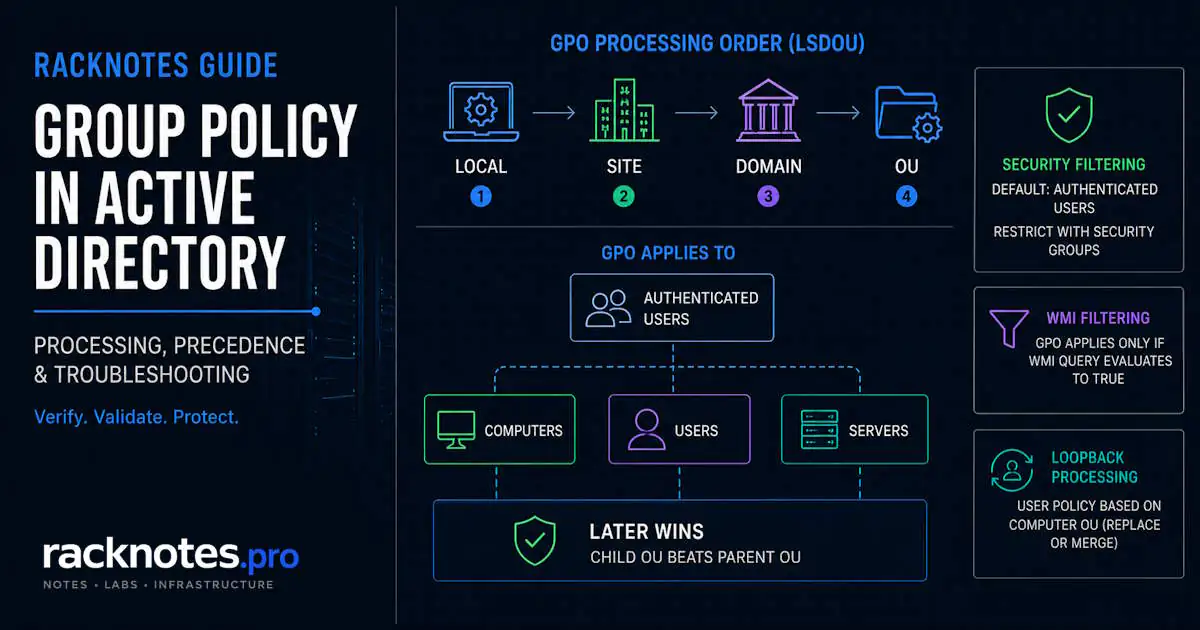
Active Directory Group Policy is the centralized configuration system administrators use to apply computer and user settings across targeted domain-joined Windows computers and users without configuring endpoints individually. Administrators create GPOs, link them to Sites, Domains, or Organizational Units, and control scope through AD structure, permissions, and filtering.
Each GPO consists of two synchronized components: a Group Policy Container (GPC) stored in Active Directory and a Group Policy Template (GPT) stored in SYSVOL. The Group Policy Management Console (GPMC) is the primary management interface, and the GroupPolicy PowerShell module supports automation. Processing order and conflict resolution are covered separately in the dedicated precedence guide; this article focuses on what Group Policy is, how a GPO is structured, where it’s linked, and how it’s managed day to day.
- Active Directory Group Policy centralizes user and computer configuration – a GPO applies wherever it’s linked, not just where it was created
- A GPO is two synchronized halves: a Group Policy Container (GPC) in Active Directory and a Group Policy Template (GPT) in SYSVOL
- GPOs are linked to Sites, Domains, and OUs – link placement determines scope, and creating a GPO doesn’t link it anywhere by default
- Security filtering and WMI filtering narrow who or what actually receives a linked, enabled GPO
- GPMC is the primary management interface; the
GroupPolicyPowerShell module (Get-GPO,New-GPO,Get-GPResultantSetOfPolicy) supports automation - Processing order and precedence are a separate topic once scope is right – confirm what actually applied with an elevated
gpresult /h
What Is Group Policy in Active Directory?
Active Directory Group Policy is the mechanism Windows domains use to push configuration to computers and users centrally instead of touching each machine by hand. Administrators create Group Policy Objects (GPOs), link them to Sites, Domains, or Organizational Units, and control which computers and users actually receive them through scope, security filtering, and inheritance. Password requirements, software deployment, mapped drives, desktop restrictions, and firewall rules all run through this same mechanism.
Managing configuration one endpoint at a time doesn’t scale past a handful of machines. Once a GPO is linked and scoped correctly, its changes reach targeted computers or users on the next applicable refresh cycle without per-machine work. A badly scoped GPO can spread just as efficiently, which is why link placement and filtering matter as much as the settings inside the GPO itself.
What a Group Policy Object (GPO) Is
A Group Policy Object is a container of settings that Active Directory applies to computers and/or users within a defined scope. A GPO’s initial scope starts with where it is linked – Site, Domain, or OU – while filtering, inheritance, link options, and the enabled GPO sections determine which users and computers ultimately receive it. Every GPO has two synchronized parts; confusing them is a common source of replication and version-mismatch problems. Microsoft’s Group Policy overview documents both in detail.
Group Policy Container (GPC)
The GPC is an Active Directory object that holds GPO metadata such as its identity, version information, and other references used by Group Policy, and it replicates through standard AD replication between domain controllers. The links themselves are stored separately, as the gpLink attribute on the Site, Domain, or OU containers that reference the GPO. GPMC reads both to show which GPOs exist, where each one is linked, and its current version.
Group Policy Template (GPT)
The GPT is the actual settings payload – a folder in SYSVOL, replicated between domain controllers via DFSR. A GPO isn’t “just a SYSVOL folder,” and it isn’t “just an AD object” – it’s both, and both halves need to stay in version sync or clients can get inconsistent results depending on which DC they authenticate against. Normal Active Directory Group Policy management through GPMC or the GroupPolicy PowerShell module keeps GPC and GPT changes coordinated. Editing SYSVOL files directly outside GPMC bypasses the GPC’s version counter and can create that mismatch.
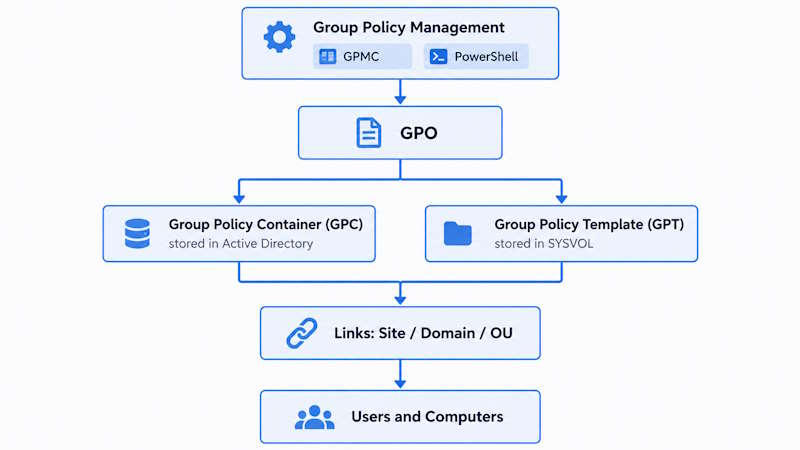
A GPO’s link tells you where it starts, not who ends up with it. Filtering, inheritance, and Enforced flags decide the rest.
Computer Configuration vs User Configuration
Every GPO splits into two halves that apply, refresh, and can be disabled independently:
| Computer Configuration | User Configuration | |
|---|---|---|
| Applies to | Computer object in AD | User object in AD |
| Initial processing | Computer startup, before logon | User sign-in |
| Background processing | Normally every 90 minutes plus a random offset; 5 minutes on domain controllers | Normally every 90 minutes plus a random offset |
| Foreground-only examples | Software installation, startup/shutdown scripts | Folder Redirection, software installation, logon/logoff scripts |
| Can be disabled | Yes, independently | Yes, independently |
Either half can be disabled if it’s unused, which reduces processing overhead and makes a GPO’s intent explicit. An operator opening GPMC can immediately see whether a GPO is computer-only, user-only, or both. A common computer-side example is pointing clients to a centralized update server before user logon; see WSUS Configuration for the specific policy values. Foreground processing can also be synchronous or asynchronous: some client-side extensions detect that they need synchronous processing and defer completion to a later startup or sign-in rather than block the current one.
Where GPOs Are Linked: Site, Domain, and OU
Creating a GPO and linking a GPO are separate operations. A GPO can exist in the domain without being linked anywhere – it has no effect at all until it’s linked somewhere. Where you link it determines scope:
- Domain root link – places users and computers in the domain within the GPO’s inherited scope, subject to filtering and other applicability rules. Link here only when a setting genuinely needs domain-wide scope; domain account policies (Password, Account Lockout, Kerberos) are the deliberate exception. Workstation, server, department, application, and role-specific settings normally belong on the relevant OUs instead.
- OU link – places users and computers in that OU and its child OUs within scope (unless inheritance is blocked). The correct default for most GPOs.
- Site link – applies to users and computers in that AD site, potentially across domains. Used for bandwidth-sensitive or location-specific settings. Rare in most SMB environments.
OU structure and Active Directory Group Policy scope are directly connected. A well-designed OU hierarchy makes GPO targeting precise and auditable – the Active Directory structure guide covers forest, domain, and OU hierarchy in detail. Linking a GPO doesn’t move it anywhere: the GPO still exists once in the domain, and the link is just a pointer from a Site, Domain, or OU container back to it.
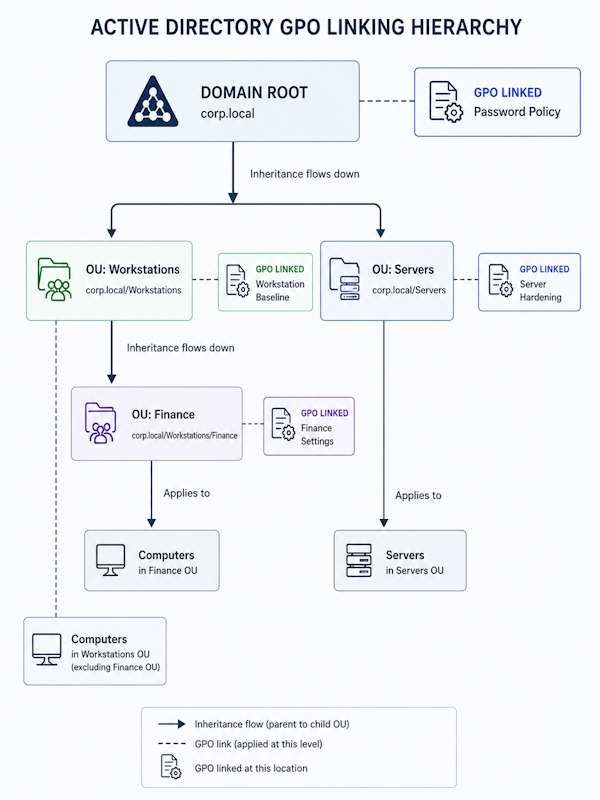
Many “wrong GPO applied” tickets turn out to be an OU move rather than a policy problem. An account or computer object gets relocated for an unrelated reason – a reorg, naming cleanup, or delegation change – and nobody rechecks which GPOs reach the new location. The object still appears in the expected security groups, so the mismatch may not surface until someone notices a missing drive map or an unexpected setting later.
How Active Directory Group Policy Scope Works
Being in a linked container is necessary but not sufficient. Security filtering, WMI filtering, Block Inheritance, Enforced links, and whether the relevant GPO half is even enabled all affect whether a specific computer or user actually receives a setting – link placement alone doesn’t guarantee application. Block Inheritance and Enforced links exist to override the normal inheritance flow, and both are frequently overused: when Block Inheritance feels necessary on every second OU, the underlying problem is usually GPO scope that’s too broad at the domain level, and the fix is better OU structure – see the OU design guide – not more inheritance overrides. Loopback processing is a related mechanism worth knowing exists: it changes which OU supplies user policy on shared computers like RDS or Citrix hosts, and it gets its own dedicated troubleshooting article rather than a deep treatment here.
Security Filtering
By default, Authenticated Users has Read and Apply Group Policy permissions on a GPO. Security filtering narrows that down to specific security groups or computers. Since the MS16-072 behavior change, user Group Policy is retrieved in the computer account’s security context. If the computer itself can’t read the GPO, user settings can fail even when the user is in the correct security group. This commonly happens when Authenticated Users is removed without restoring Read for the relevant computers. An explicit Deny always overrides an Allow, regardless of which other permissions are present.
Practical uses: pilot deployments before a broad rollout, role-specific settings in a mixed OU, department-specific software restrictions. For the exact permission model, the denied-vs-unknown distinction in gpresult, and the full remediation sequence, see GPO Security Filtering.
WMI Filtering
WMI filters add a query-based condition to GPO application. Before a GPO applies, the filter runs a query against the target machine – if the WMI filter evaluates false for that computer, the GPO doesn’t pass the filter for that processing cycle. A common use case is applying a GPO only to specific Windows client builds within an OU that contains mixed OS versions:
SELECT * FROM Win32_OperatingSystem
WHERE ProductType = 1 AND BuildNumber >= "22000"
Each WMI filter runs a live query at every policy refresh, and accumulating them across many GPOs creates measurable logon latency on slow hardware or in large environments. Where possible, prefer stable OU design, security groups, or Group Policy Preference item-level targeting over stacking broad WMI filters.
Active Directory Group Policy Management
Two tools cover day-to-day Group Policy management in Active Directory: GPMC for most administrative work and PowerShell for scripted or repeatable operations.
Group Policy Management Console (GPMC)
GPMC is the primary interface for creating GPOs, editing their settings, linking them to Sites/Domains/OUs, managing scope through security and WMI filtering, and reviewing inheritance through Group Policy Modeling (test a hypothetical user/computer combination before making a change) and Group Policy Results (see what actually applied). Microsoft’s Group Policy Modeling and Results documentation covers both wizards. GPMC also handles GPO backup and restore, which matters before any bulk edit to a widely-linked GPO.
PowerShell GroupPolicy Module
The GroupPolicy PowerShell module supports the same operations from a script: Get-GPO to inspect a GPO, New-GPO to create one, Get-GPInheritance to check what a given OU actually inherits, and Get-GPResultantSetOfPolicy to generate an RSoP report remotely. It provides the automation layer for changes that need to run consistently across many OUs or as part of a documented change process rather than a series of manual GPMC clicks.
How to Create and Link a GPO in Active Directory
- Open GPMC and create the new GPO (unlinked, in the domain’s Group Policy Objects container)
- Edit the GPO’s settings in the Group Policy Management Editor
- Link the GPO to the target Site, Domain, or OU
- Apply security filtering and/or a WMI filter to scope who or what actually receives it
- Wait for the next background refresh, or force one with
gpupdate /forceon a test machine - Verify with
gpresult /hthat the GPO applied where expected and nowhere else
How Active Directory Group Policy Is Stored and Replicated
A GPO’s two components live in two separate locations, replicated through two different mechanisms. GPO metadata in the GPC – existence, GUID, version number – is stored in the AD database and replicated via standard AD replication between domain controllers. The links to the GPO are stored separately, on the Site, Domain, or OU objects that reference it. GPO settings files – the GPT: the actual policy templates and configuration – are stored in SYSVOL on each DC and replicated via DFSR.
When these two paths diverge, policy behavior becomes inconsistent: a computer authenticating against DC1 may receive different settings than one authenticating against DC2, because the SYSVOL files are out of sync even though AD metadata looks correct in GPMC. repadmin only validates AD replication – it doesn’t prove SYSVOL files are replicating correctly. If clients get inconsistent policy depending on which DC they authenticated against, validate AD replication and SYSVOL/DFSR separately: see the Active Directory replication troubleshooting guide for the AD side and the SYSVOL replication troubleshooting guide for DFSR-specific failures.
Active Directory Group Policy Refresh and Application
Active Directory Group Policy doesn’t apply only at startup and sign-in. After the initial application, policies refresh in the background at regular intervals – though not every setting can process that way.
| Scenario | Default interval | Notes |
|---|---|---|
| Workstations | 90 minutes + 0-30 min random offset | Random offset prevents all machines refreshing simultaneously |
| Domain Controllers | 5 minutes | Faster refresh – DCs need current policy for authentication operations |
| Security settings | Every 16 hours regardless of changes | Applies even if no GPO changes detected |
| Foreground-only extensions | Startup, shutdown, logon, or logoff only | Software installation, Folder Redirection, scripts – not refreshed in the background |
Group Policy Preference Drive Maps are a partial exception: they can process during background refresh, subject to their configured action and item-level targeting. The Replace action can disconnect and recreate mappings repeatedly, so Update is often the safer choice when the existing connection should remain available. gpupdate /force reapplies all settings immediately on the local machine:
gpupdate /force/logoff and /boot only matter for the specific extensions that require a logoff or restart to complete – they aren’t reflexive additions for every refresh, and interrupting a user’s active session should come with a warning first.
Processing Order and Precedence
Once scope, linking, and filtering are correct, one more layer decides the outcome when settings conflict: processing order. The baseline sequence is Local, Site, Domain, then OU (LSDOU), with later layers normally taking precedence over earlier ones for the same setting. Within a single container, link order breaks ties between multiple GPOs. Enforced links and Block Inheritance can both override the default flow, and loopback processing can redirect which OU supplies user policy entirely on shared computers.
This overview is intentionally brief. The full LSDOU model, link-order examples, Enforced and Block Inheritance interactions, and worked conflict scenarios are covered in depth in Group Policy Precedence. Loopback specifically, including Merge vs Replace, is covered in Group Policy Loopback Processing. Use those guides once a GPO is confirmed to be in scope but the wrong value is winning.
Resultant Set of Policy: Verify What Applied
Resultant Set of Policy (RSoP) is the effective Active Directory Group Policy calculated for a specific user on a specific computer, after scope, filtering, inheritance, and processing order have all been applied. It shows which GPOs applied, which were denied, and why – it doesn’t confirm that every downstream workload is behaving correctly as a result, just what Group Policy itself computed.
gpresult is the primary tool for viewing RSoP. Run it elevated to reliably include computer-scope data:
gpresult /h C:\GPOReport.html /fThe full command reference, scope-specific flags, and remote usage via Get-GPResultantSetOfPolicy are covered in GPResult Command. When RSoP shows a GPO missing entirely – not denied, just absent from the report – that’s a different problem than a precedence conflict, and the full symptom-based diagnosis lives in GPO Not Applying.
Common Group Policy Design Mistakes
Most Active Directory Group Policy design problems trace back to a small set of recurring mistakes rather than unusual edge cases.
Default Domain Policy trap. Microsoft recommends using Default Domain Policy only for the domain’s default Account Policies – Password Policy, Account Lockout Policy, and Kerberos Policy – and limiting Default Domain Controllers Policy to domain-controller user rights and audit policy. In practice, both accumulate years of miscellaneous settings added for convenience: software restrictions, registry tweaks, security baselines. The result is a GPO that can’t be safely edited, can’t be scoped, and applies to everything. Recovery means auditing every setting it contains, which in a mature environment is a significant project with real rollback risk. Different password and lockout requirements for selected users or groups belong in fine-grained password policies, not GPOs linked to their OUs. Create a separate GPO for each distinct purpose and link it at the appropriate OU level. If Default Domain Policy needs to be reset to its original state, Microsoft’s dcgpofix documentation covers the supported recovery tool and the intended scope of both default GPOs.
Linking GPOs at domain root for convenience. GPOs linked at the domain root can affect users and computers throughout the domain. Most settings don’t belong there – domain account policies are the deliberate exception. When a GPO should apply to workstations only, link it to the Workstations OU. Domain-root links are hard to revoke cleanly later and create broad, hard-to-audit scope that shows up in every future GPO review.
Creating a GPO and assuming it’s already doing something. A newly created GPO sits in the domain’s Group Policy Objects container with zero effect until it’s linked somewhere. Operators occasionally build out an entire GPO, walk away satisfied, and only discover weeks later – usually while troubleshooting an unrelated issue – that it was never linked to anything. gpresult won’t show a GPO that isn’t in scope; it simply won’t appear in the report, which looks identical to “not applicable” rather than “not linked.”
Final Thoughts
Active Directory Group Policy becomes easier to reason about once the model is clear: a GPO has two synchronized parts, links establish its starting scope, and filtering plus processing rules determine what a given computer or user ultimately receives. Common management problems usually come from overly broad links, security filtering that removed Read along with Apply Group Policy, or a Default Domain Policy that accumulated unrelated settings over time. The post-install checklist covers baseline GPO verification after DC promotion, while the dedicated precedence guide covers cases where scope and linking are correct but the wrong GPO wins.
FAQ
What is Group Policy in Active Directory?
Active Directory Group Policy is the centralized configuration system used to apply computer and user settings across domain-joined devices and accounts. Administrators create Group Policy Objects (GPOs), link them to Sites, Domains, or Organizational Units, and control scope through permissions and filtering, rather than configuring each machine individually.
What is a Group Policy Object (GPO)?
A GPO is a container of settings Active Directory applies within a defined scope. It has two synchronized parts: a Group Policy Container (GPC) holding metadata in Active Directory, and a Group Policy Template (GPT) holding the actual settings files in SYSVOL. Both need to stay in sync, or clients authenticating against different domain controllers can see inconsistent results.
Where can a GPO be linked?
A Site, a Domain, or an Organizational Unit. The link determines the starting scope: a domain root link reaches users and computers throughout the domain, an OU link reaches that OU and its children, and a site link reaches users and computers in that AD site regardless of domain.
What is the difference between Computer Configuration and User Configuration?
They’re independent halves of the same GPO. Computer Configuration applies to computer objects starting at boot, before logon; User Configuration applies to user objects at sign-in. Either half can be disabled on its own, and some extensions – like software installation or Folder Redirection – only run during foreground processing, not the background refresh.
How do you manage Active Directory Group Policy?
Two tools: the Group Policy Management Console (GPMC) for day-to-day creation, editing, linking, and reviewing Group Policy Results, and the GroupPolicy PowerShell module for scripted or repeatable changes across many OUs. GPMC also handles backup and restore before a bulk edit to a widely-linked GPO.
How do you create a Group Policy in Active Directory?
Create the GPO in GPMC, edit its settings, link it to the target Site, Domain, or OU, apply security or WMI filtering to narrow the scope, then verify with gpresult /h that it applied where intended. The sequence is short, but linking and filtering are the steps most often skipped or misconfigured.
How does Group Policy precedence work?
Short answer: Local, Site, Domain, then OU, with link order breaking ties within the same container, and Enforced or Block Inheritance able to override the default flow. The full model, including worked conflict examples, lives in the dedicated Group Policy Precedence guide linked above.