
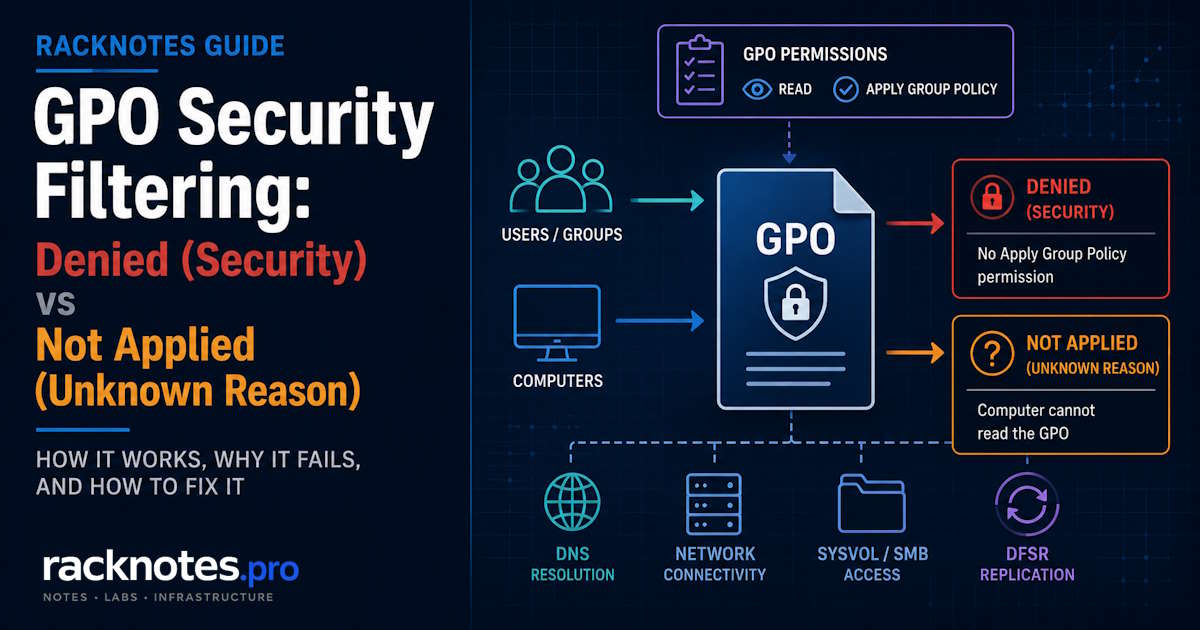
GPO security filtering decides which users and computers a linked Group Policy Object actually applies to, and it fails in ways that look identical from the desktop: the policy simply is not there. The difference shows up in the report. A GPO listed as Denied (Security) and one listed as Not Applied (Unknown Reason) are telling you two different stories, and treating them as the same problem sends the investigation in the wrong direction.
This article covers the filtering mechanics, the permission model behind the GPMC checkboxes, and the diagnosis path for both statuses. If the GPO is missing from the report entirely rather than filtered out, start with the broader failure classes in GPO not applying instead – that article owns scope, links, and processing failures. This one owns the filter.
- GPO security filtering is implemented through the GPO’s ACL. The two permissions administrators work with most often are Read and Apply Group Policy, but the effective result also depends on group membership, explicit Deny entries, and – for user-side GPOs – the computer account’s ability to read the GPO.
- Since MS16-072 (2016), user policy is retrieved in the computer’s security context. Removing Authenticated Users from the Security Filtering box also removes the computer’s Read access and breaks user-side GPOs. The fix: add Authenticated Users or Domain Computers back with Read only on the Delegation tab.
- Denied (Security) means the target did not receive effective Apply Group Policy permission. Not Applied (Unknown Reason) is documented in the missing-computer-Read scenario. Treat both as clues to verify against the actual ACL and token, not as final diagnoses.
- Group changes take effect after the security context is rebuilt: sign out and back in for users, restart for computers. A gpupdate alone does not do it.
- Audit GPO permissions before changing them. Domain-wide permission one-liners are a change-management event, not a troubleshooting step.
What GPO security filtering actually controls
A Group Policy Object is a securable object with its own discretionary access control list, like a file or a registry key. The Security Filtering box on the GPMC Scope tab is a simplified view of that ACL, showing which principals the GPO is targeted to apply to.
Security filtering does not replace the link. An object must both sit inside the scope where the GPO is linked (site, domain, or OU) and pass the filter. A user in the right filtering group but outside the linked OU gets nothing, and no amount of permission work will change that. Verify the link scope first – it takes seconds and eliminates a whole class of false leads.
When you add a principal to the Security Filtering box, GPMC grants it Read and Apply Group Policy. When you remove a principal, GPMC strips both. That second half is what catches people. Removal is not “stop applying, keep visible” – it is full removal of both permissions, and one of those permissions matters for reasons that are not visible on the Scope tab.
Read versus Apply Group Policy
Two permissions drive GPO security filtering, and they answer different questions. Read controls whether a security context can retrieve the GPO’s contents from Active Directory and SYSVOL. Apply Group Policy controls whether the settings are processed for a given user or computer.
The part that gets missed: these do not have to be satisfied by the same principal. A GPO must be readable by the security context Windows uses to retrieve it, and the target user or computer must have Apply Group Policy permission. For computer policy, both requirements usually resolve through the computer account. For user policy, the user must be in the Apply scope while the computer account also needs Read access to retrieve the GPO – the consequence of MS16-072, covered next.
The default on every new GPO is Authenticated Users with both Read and Apply Group Policy. Authenticated Users includes authenticated computer accounts, not just users, which is why the default configuration works for both policy sides without anyone thinking about retrieval contexts.
On the Delegation tab, a principal added through Security Filtering shows as “Read (from Security Filtering)” – Microsoft’s label for “Read plus Apply Group Policy, added via the Scope tab.” A principal granted Read without Apply shows as plain “Read.” Delegation → Advanced is the complete GPMC view for inspecting the GPO’s configured Allow and Deny ACEs; effective application still depends on group membership, token state, link scope, and the other filtering layers.
Why MS16-072 changed user-side GPO retrieval
In June 2016, Microsoft shipped security update MS16-072 (KB3163622) to close a man-in-the-middle vulnerability in Group Policy retrieval. The behavioral change is permanent and applies to all supported Windows versions: user Group Policy is retrieved using the computer’s security context, not the user’s. Microsoft’s current troubleshooting article on the computer Read requirement is the reference.
The operational consequence: to process a user-side GPO, the computer account must be able to read it. Under the default Authenticated Users entry, that is automatic. But the pre-2016 GPO security filtering pattern – remove Authenticated Users, add a specific user group with Read and Apply – now breaks the GPO, because removing Authenticated Users also removed the computers’ Read access.
The correct pattern for scoping a user-side GPO to a specific group, per Microsoft’s guidance:
- Add the target user group to Security Filtering (this grants Read and Apply).
- Remove Authenticated Users from the Security Filtering box.
- On Delegation → Advanced, add Authenticated Users or Domain Computers back with Read only – without Apply Group Policy.
Either principal restores the computer’s ability to retrieve the GPO without widening who the policy applies to. This problem usually does not affect users who sign in to domain controllers, because the built-in Enterprise Domain Controllers group has Read permission on GPOs by default – though custom ACL changes or explicit Deny entries can still alter that result.
Consider a user-side drive-mapping GPO narrowed to one department. An administrator removes Authenticated Users from Security Filtering and leaves only the target user group. The users still have Apply permission, but their computers no longer have Read permission, so the GPO stops processing and can appear in the report as Not Applied (Unknown Reason). The filter looks correct on the Scope tab the entire time.
Denied (Security) versus Not Applied (Unknown Reason)
In a gpresult report, GPOs that were filtered out appear in their own list with a reason. The two reasons this article exists for:
Denied (Security) means the target did not receive effective Apply Group Policy permission. Common causes include missing membership in the allowed filtering group, an explicit Deny ACE, or another effective-permission conflict. The string does not tell you which – a plain scope exclusion and a hidden Deny render identically.
Not Applied (Unknown Reason) is documented in the post-MS16-072 missing-computer-Read scenario, especially for user-side GPOs. In that scenario the reason appears because the computer cannot read the user-side GPO. Treat the wording as a prompt to inspect Read permission and supporting logs rather than as a complete diagnosis by itself.
The wording below is what commonly appears in gpresult output and Microsoft’s documented examples. Wording can differ between console output, HTML reports, GPMC Results, language packs, and Windows builds, so use the displayed reason together with the underlying permissions and event data rather than pattern-matching on the string alone.
| Common gpresult reason | What it indicates | First check |
|---|---|---|
| Denied (Security) | No effective Apply Group Policy permission | Filter membership, then Delegation → Advanced for Deny |
| Not Applied (Unknown Reason) | Documented in the missing-computer-Read scenario; other causes require corroboration | Computer Read permission, then logs and full ACL |
| Not Applied (Empty) | The applicable configuration section has no settings | Not a filtering problem |
| Denied (WMI Filter) | The WMI filter evaluated false | The WMI query, not the ACL |
To generate the reports:
gpresult /scope user /r
gpresult /scope computer /r
gpresult /h "%TEMP%\gpresult.html" /f
Run gpresult from an elevated prompt when computer-scope data is required; without sufficient rights, the computer section may be unavailable or return Access Denied. Reading the full report – applied list, denied list, security group section – is covered in the GPResult command guide.
Check the complete ACL in Delegation → Advanced
When the report says Denied (Security) and the object looks correctly placed, the Scope tab is not enough. Open the GPO’s Delegation tab and click Advanced to see the full configured ACL, including entries the Security Filtering box will never show you.
The one that matters most: an explicit Deny on Apply Group Policy. Deny overrides Allow, so a member of a denied group will not receive the GPO even when another membership grants Apply. And a Deny ACE does not appear in the Scope tab’s Security Filtering list – it is visible only under Delegation → Advanced. An administrator troubleshooting from the Scope tab alone sees the target group present in the filter, concludes the filter is correct, and never finds the entry that is actually blocking application.
Deny has legitimate uses – excluding a small group from a GPO that otherwise applies broadly. Use it only when the exclusion requirement is clear and documented. Where practical, prefer positive allow-group design: it is easier to audit, and it keeps the Scope tab honest about what the GPO does.
Verify the token, not just the group
Group membership in Active Directory and group membership in the running session are two different facts. Windows builds the user or computer security context during sign-in or startup, and that context contains the group SIDs used for authorization and policy evaluation. Change the group in AD, and the running context does not know about it yet.
The check is one command in the failing session:
whoami /groupsIf the filtering group’s SID is not in that output, GPO security filtering will fail regardless of what Active Directory Users and Computers shows. Delegation → Advanced shows the configured ACL, while whoami /groups shows the group SIDs present in the current security context – use both together with gpresult to confirm the effective filtering result.
Nested groups are supported: a user in GroupA, where GroupA is a member of the filtering group, passes the filter once the membership is in the token. Troubleshooting becomes harder, though, because the effective membership may not be obvious in GPMC. Confirm the SID is present with whoami /groups, and verify that the group scopes and domain relationships permit the nesting pattern.
Refresh group membership safely
The supported refresh paths are unglamorous and reliable: sign out and sign back in for a user (while the client can contact a domain controller), restart for a computer.
gpupdate /force reprocesses policy with the security context currently available to Windows; it does not rebuild the existing interactive user token or the computer startup context after a group-membership change. This is the mechanism behind “I added the computer to the group, ran gpupdate, and nothing happened.” Nothing was supposed to happen yet.
On VPN-only clients that cannot reach a domain controller during sign-in, Windows can build the user context from cached information, and the new membership will not be present. Microsoft’s supported workaround is to connect to the VPN, lock and unlock Windows, then sign out and sign back in while domain connectivity is available. A pre-logon VPN solution is the more reliable long-term design.
Advanced administrators sometimes purge the LocalSystem Kerberos ticket cache with klist -li 0x3e7 purge to force new machine tickets without a restart. Purging Kerberos tickets can refresh authorization data used for new Kerberos sessions, but it does not update the already-created local interactive token or every existing resource session, and it is not a universal replacement for a restart. For a predictable result on a production machine, restart.
Audit permissions with PowerShell before changing them
The GroupPolicy module (RSAT) exposes the documented cmdlets Get-GPPermission and Set-GPPermission. Run these from an elevated PowerShell session on a management host with the Group Policy Management tools installed, using an account that can read GPO permissions. Audit first – a report of where computer Read is missing costs nothing and shows the real blast radius:
Get-GPO -All | ForEach-Object {
    $gpo = $_
    $permissions = Get-GPPermission -Guid $gpo.Id -All

    $authenticatedUsers = $permissions |
        Where-Object { $_.Trustee.Name -eq 'Authenticated Users' }

    $domainComputers = $permissions |
        Where-Object { $_.Trustee.Name -eq 'Domain Computers' }

    [pscustomobject]@{
        GPO                = $gpo.DisplayName
        AuthenticatedUsers = $authenticatedUsers.Permission
        DomainComputers    = $domainComputers.Permission
    }
}
Well-known group names are localized. In non-English domains, adapt the trustee names or identify the trustees by SID rather than assuming the English display name.
Review which GPOs contain user settings and which computer objects need to read each GPO. Grant Read only to the appropriate computer population – Authenticated Users, Domain Computers, a dedicated computer group, or specific computer objects – according to the intended design. Some GPOs are intentionally restricted; adding Domain Computers Read to every GPO in the domain is not universally appropriate. Changing permissions requires rights to modify the target GPO. Fix one GPO at a time, previewing first:
Set-GPPermission -Name "User Policy" -TargetName "Authenticated Users" -TargetType Group -PermissionLevel GpoRead -WhatIfVerify the preview output and test the change on a single noncritical GPO before wider remediation. The preview does not replace documenting the current ACL or confirming the resulting permission in GPMC afterward.
Do not use -Replace casually. Without -Replace, Set-GPPermission does not downgrade a higher existing permission to GpoRead. With -Replace, it can remove that higher permission and substitute the requested level – on a GPO where Authenticated Users held Apply, that silently changes who receives the policy. Document the original ACL before any broad remediation.
Common GPO security filtering mistakes
In practical investigation order – the sequence most likely to find the actual cause fastest, not a statistical ranking:
- Authenticated Users removed without restoring computer Read. User-side GPO stops processing; the report can show Not Applied (Unknown Reason). Fix per the MS16-072 pattern above.
- Wrong object type in the filter. A GPO carrying computer settings filtered to a user group does nothing useful, and vice versa. Match the filtered principal type to the settings section the GPO actually contains.
- Stale context after a group change. Membership is correct in AD but absent from the token. Sign out and in, or restart, then re-test.
- Explicit Deny hidden on the Delegation tab. Invisible from the Scope tab; found only under Delegation → Advanced.
- Filter correct, scope wrong. The object is not under the OU where the GPO is linked, or inheritance is blocked at a child OU. The filter never gets a chance to matter.
Two mechanisms get conflated with security filtering and belong to different layers. A WMI filter is a machine-state condition (OS version, hardware class) evaluated separately – its failure reads Denied (WMI Filter), and the fix is the query. And applying user settings based on which computer the user signs into is loopback processing, a separate mechanism with its own article planned – security filtering cannot do that job.
To test a GPO security filtering change before touching production, GPMC’s Group Policy Modeling simulates the result for a hypothetical user, computer, and group membership. Modeling does not evaluate local GPOs and reflects the scenario selected in the wizard rather than live processing, so confirm any change afterward with Group Policy Results or gpresult on the real machine.
Advanced edge case: token size
Rarely, filtering fails for one heavily-grouped user while a clean test account works. Windows flattens nested memberships into the security context, and per Microsoft’s Kerberos guidance, users with more than roughly 120 universal-group memberships can exceed the default token buffer in some environments (MaxTokenSize: 48,000 bytes on Windows 8 / Server 2012 and later, 12,000 before that). The actual size depends on the full SID set, group types, nesting, and resource-domain information. Symptoms range from authentication errors to Group Policy not applying for that user.
Treat this as a later-stage hypothesis, not a first check. If it fits – one over-grouped user failing where others succeed – the sustainable fix is membership cleanup, not registry tuning.
Final thoughts
GPO security filtering is a small ACL surface with a large blast radius. Many filtering investigations reduce to three checks: whether the expected Apply permission exists, whether a hidden Deny overrides it, and whether the current user or computer security context contains the expected group membership. The report string tells you which neighborhood to search; Delegation → Advanced, whoami /groups, and gpresult together confirm the effective result.
The habit worth building: audit before editing. A permission report across GPOs takes a minute and turns “fix filtering” from a guess into a scoped change. When the report reason does not match what the ACL and token show, escalate to the log-driven workflow in the Group Policy troubleshooting guide rather than iterating on permissions blind.
FAQ
What is GPO security filtering?
It is the mechanism that narrows which users and computers a linked GPO applies to, implemented through the GPO’s access control list. The Security Filtering box in GPMC manages the Read and Apply Group Policy permissions for the principals you add or remove.
Why does my user-side GPO show Not Applied (Unknown Reason)?
A documented cause is the computer account lacking Read permission, commonly after Authenticated Users was removed from Security Filtering. Restore Read for Authenticated Users or Domain Computers on the Delegation tab and re-test. Confirm the GPO’s effective permissions and logs before assigning the cause, because the report reason is not unique to one configuration error.
What is the difference between Denied (Security) and Denied (WMI Filter)?
Denied (Security) is a permission result: the target lacked effective Apply Group Policy permission. Denied (WMI Filter) means the GPO’s WMI filter evaluated false on that machine. Different layers, different fixes.
I added the computer to the filtering group. Why doesn’t gpupdate apply the GPO?
Because the computer’s security context still lacks the new group SID, and gpupdate reprocesses policy with the context that already exists. Restart the computer, then verify with whoami /groups and gpresult.
Should I remove Authenticated Users from GPO security filtering?
Only with the MS16-072 pattern: after adding your target group to the filter, restore Authenticated Users or Domain Computers with Read-only permission on the Delegation tab. Removing Authenticated Users outright strips the computer Read access that user-side policy retrieval depends on.
Does an explicit Deny show up in the Security Filtering box?
No. Deny ACEs are visible only under Delegation → Advanced. That is why a GPO can refuse to apply to someone who appears correctly listed in the filter – check the full ACL when the Scope tab looks right but the result says Denied (Security).
Group Policy Troubleshooting Series
8 articles – Workflow · Precedence · GPResult · GPUpdate · Filtering · Loopback · Events