
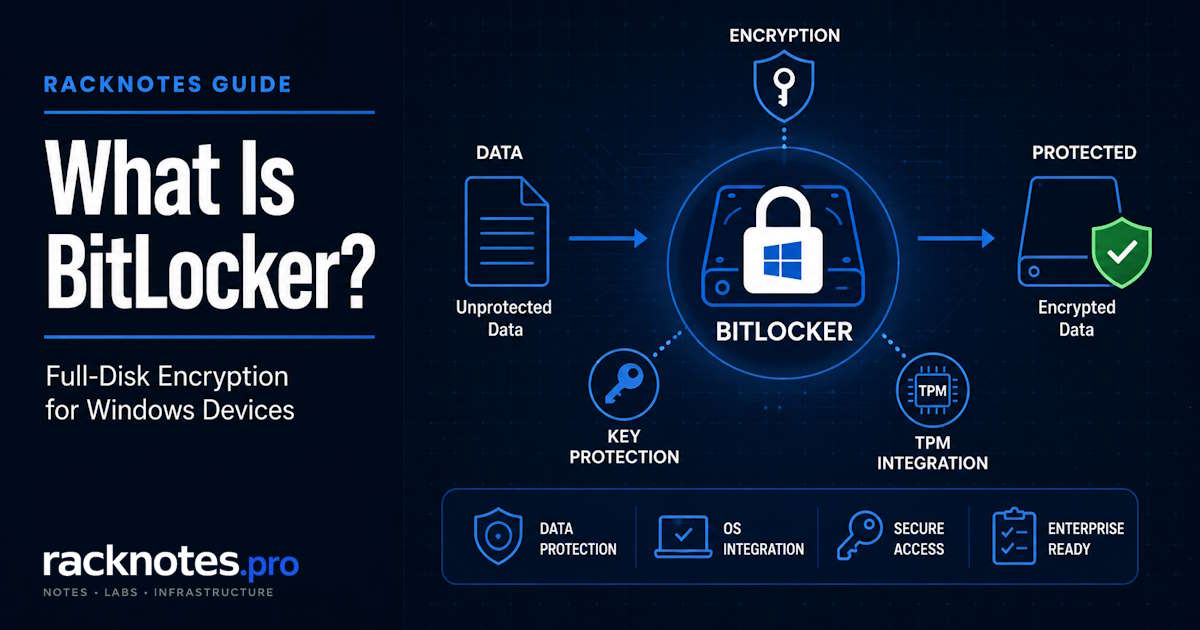
What is BitLocker? It’s Microsoft’s full-volume encryption feature, available on supported Windows editions including current Pro, Enterprise, and Education releases. It encrypts an entire Windows volume, not just selected files, so the contents stay unreadable if the drive is pulled and read from another system. Under normal conditions, the configured key protector unlocks the operating system volume during startup. On TPM-based systems, that usually happens silently after the TPM validates the expected boot state. If normal unlocking cannot proceed, Windows requires the BitLocker recovery key instead of loading the desktop.
That’s the short version. The rest of this guide covers what BitLocker encrypts, how key protectors and TPM fit together, why recovery mode appears, and how BitLocker differs from Device Encryption.
This guide explains BitLocker at a conceptual level: what it encrypts and how it behaves under normal and recovery conditions. Step-by-step recovery-key retrieval, recovery-screen troubleshooting, disable and decrypt procedures, and full manage-bde command reference each get their own dedicated guide rather than a compressed summary here.
What Is BitLocker?
BitLocker is full-volume encryption. Once enabled, everything written to the volume gets encrypted on disk, and everything read from it gets decrypted on the way out. That happens transparently, as long as Windows can prove it’s still the same trusted environment that encrypted the volume in the first place. That trust check is what the TPM section below covers.
The problem BitLocker solves is data-at-rest exposure. A laptop that’s lost, stolen, or decommissioned without wiping still has a physical drive on it. Without encryption, that drive can be pulled and read on another machine. BitLocker closes that specific gap.
What BitLocker does not do:
- It doesn’t stop malware from running once Windows has been legitimately unlocked. Encryption protects the drive, not the running session.
- It doesn’t replace file permissions, multi-factor authentication, endpoint protection, or backups. Those solve different problems.
- It doesn’t lock a signed-in user out of their own unlocked session. Once BitLocker releases the key, the volume behaves like any unencrypted drive to Windows and to the person using it.
BitLocker is a data-at-rest control, not a general-purpose security product. Treating it as a substitute for the rest of an endpoint security stack leaves gaps.
How Does BitLocker Work?
BitLocker encrypts volume data with a Full Volume Encryption Key (FVEK). The FVEK is protected by the Volume Master Key (VMK), and the VMK is protected by one or more configured key protectors, such as TPM, TPM+PIN, a startup key, password, or recovery password. A key protector is the mechanism that releases the VMK, which in turn unlocks the FVEK and the volume itself.
On a typical TPM-based business laptop, Windows starts, the TPM validates boot state, the key protector releases the VMK, the VMK unlocks the FVEK, and the volume decrypts before Windows finishes booting. If the TPM’s validation doesn’t match what it expected, BitLocker won’t release the key automatically, and the machine stops at the recovery screen asking for the recovery key instead.
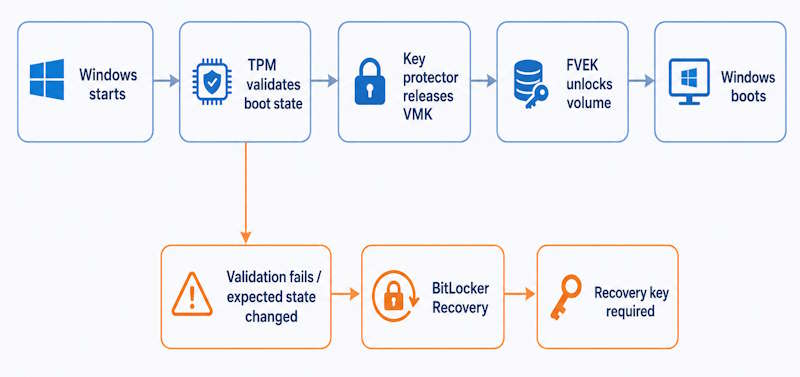
In practice, BitLocker is invisible when the protector conditions still match what was measured at setup and blocking when they do not. Nothing about the encryption itself changes between those two states.
What Does BitLocker Encrypt?
BitLocker distinguishes between a few volume types, and the distinction matters for how it gets deployed:
- Operating system volume – the drive Windows boots from. This is the volume TPM-based protection is built around.
- Fixed data volumes – other internal drives or partitions, usually protected with a separate protector such as auto-unlock tied to the OS volume, or a password.
- Removable drives (BitLocker To Go) – USB drives and other removable media get their own BitLocker variant, typically password- or smart-card-protected rather than TPM-bound, since TPM validation is tied to a specific machine’s hardware.
Encryption applies to the entire volume, not to a chosen subset of files. Once unlocked, applications and the file system see the volume exactly as they would an unencrypted drive, with no per-file decryption step involved. That’s also why BitLocker isn’t the tool for encrypting a handful of sensitive files inside an otherwise unencrypted volume. It’s an all-or-nothing control at the volume level.
BitLocker and TPM
TPM (Trusted Platform Module) is a small hardware security chip, either discrete or firmware-based (fTPM), that stores keys and measures early boot state. BitLocker on an operating system volume commonly binds to the TPM because it can attest that boot happened correctly: right firmware, right boot loader, no unexpected changes to boot configuration.
On supported UEFI systems, BitLocker can use Secure Boot state measured in TPM PCR 7 as part of platform integrity validation. Automatic Device Encryption has additional TPM and Secure Boot requirements, but standard BitLocker can also operate with other supported PCR profiles.
BitLocker can protect an operating system volume without a TPM when policy allows it. In that configuration, startup authentication can use either a USB startup key or a password. Microsoft discourages the password-only option because preboot password authentication has no lockout mechanism, and it’s disabled by default. Neither option provides the TPM-based preboot integrity verification available on a TPM-equipped system. Whether TPM is in play at all depends on Windows edition, deployment method (manual BitLocker vs. automatic Device Encryption), and organizational policy.
Firmware or platform changes are what most often knock a TPM-bound protector out of sync with what BitLocker expects: a BIOS/UEFI update, a change to Secure Boot state, a TPM clear or reset, or certain boot-order changes can all alter the values the TPM measured at encryption time. When that happens, BitLocker can’t confirm the boot state matches, so it falls back to recovery rather than guessing.
For the full set of TPM and PIN configuration options, see Microsoft’s Configure BitLocker documentation.
What Is a BitLocker Recovery Key?
The recovery key is a 48-digit numerical password, generated when BitLocker is first enabled, that unlocks the volume when the normal protector (TPM, PIN, startup key) can’t. It’s the fallback of last resort, not a routine login method, and it’s meant to be stored somewhere other than the encrypted device itself.
The Recovery Key ID is a separate, shorter identifier tied to a specific recovery key. It’s not the key itself and won’t unlock anything on its own. It identifies the correct key when multiple recovery keys are stored. A Microsoft account, Active Directory, or Entra ID can hold more than one key over a device’s lifetime, so the ID tells the operator which specific key to retrieve.
Confusing the Recovery Key ID with the actual recovery key is a recurring support-desk mistake. Searching a key-escrow location by the wrong identifier wastes time during an active lockout, when time matters most.
For the full procedure on locating a recovery key across Microsoft account, Active Directory, and Entra ID storage locations, see finding a BitLocker recovery key. Microsoft’s own guidance on finding a BitLocker recovery key covers the consumer-account retrieval path in detail.
Operational rule: Do not consider a BitLocker deployment complete until recovery-key escrow has been verified.
Why Does BitLocker Enter Recovery Mode?
Recovery mode appears when the startup state BitLocker expects no longer matches what it sees. The main trigger categories are:
- Firmware or BIOS/UEFI configuration changes, including some vendor firmware updates.
- TPM changes, resets, or ownership clears.
- Boot configuration data (BCD) changes, including some dual-boot setups.
- Hardware changes on certain configurations, particularly anything touching the boot chain.
- Some Windows update or servicing scenarios, though this isn’t universal and depends heavily on the update, the hardware, and the existing protector configuration.
- Administrative changes to BitLocker policy or protectors, including a PIN reset gone wrong.
Not every BIOS update or Windows update triggers recovery. Most don’t. The pattern is specific: whatever changed has to alter one of the values BitLocker measured when it set up the protector, and most routine patching doesn’t touch those values at all.
Diagnosing which of these categories applies to a specific recovery prompt, reading the actual event log evidence, and working through the decision tree is covered in the dedicated guide on the BitLocker recovery screen.
BitLocker vs Device Encryption
Both encrypt Windows volumes and both commonly rely on a TPM, but they’re not interchangeable, and the distinction matters most for Windows 11 readers trying to figure out what their own machine is actually running.
BitLocker Drive Encryption is the full feature set: configurable protectors, PIN support, Group Policy control, manual enablement on any supported drive, and integration with Active Directory or Entra ID for centralized key escrow. It’s available on Pro, Enterprise, and Education editions.
Automatic Device Encryption can initialize during Windows setup, but protection is armed only after the required protector is created and the recovery key is backed up. On consumer devices, this commonly happens after sign-in with a Microsoft account. Organizational devices can use Microsoft Entra ID or other managed recovery-key escrow instead. A local-account-only setup should not be treated as a normally protected automatic Device Encryption deployment, since there’s no place configured yet to store the key.
Historically, Device Encryption required Modern Standby or HSTI compliance. Starting with Windows 11 24H2, Microsoft removed those specific hardware gates for automatic device encryption, so more machines qualify than before. See Microsoft’s BitLocker drive encryption in Windows 11 for OEMs documentation for the current hardware requirements.
It’s not accurate to call these completely different technologies. Device Encryption is closer to a pre-configured, less flexible mode of the same underlying mechanism than a separate product.
Is BitLocker Enabled Automatically?
It depends on the device and how Windows was set up. Automatic encryption behavior depends on:
- Windows version and edition (Home gets Device Encryption at most; Pro and above can run full BitLocker).
- Device hardware, specifically TPM presence and Secure Boot state.
- Account type at first sign-in, since Microsoft account vs. local account changes whether the recovery key gets escrowed anywhere.
- OEM setup and factory configuration.
- Organizational management, where Intune, Group Policy, or Configuration Manager can enforce BitLocker regardless of the device’s own default behavior.
It is not accurate to say every Windows 11 PC automatically encrypts itself. An eligible device is not necessarily protected just because automatic encryption was initialized, either: account type, recovery-key backup, device eligibility, OEM configuration, and organizational policy all determine whether protection is actually armed.
How to Check Whether BitLocker Is Enabled
A few quick methods, without turning this into a command reference:
- Settings / Control Panel – the BitLocker or Device Encryption management page shows per-volume status directly.
- manage-bde -status – run from an elevated command prompt to check protection status, protector type, and encryption percentage for every volume on the machine. This is usually the fastest check on a machine already remoted into.
- PowerShell –
Get-BitLockerVolumereturns the same status information as a scriptable, per-volume object, more useful when checking status across more than one machine.
manage-bde -statusGet-BitLockerVolumeSettings shows a simplified on/off state. Per-volume protector type, encryption progress, and suspension state show up in manage-bde -status or Get-BitLockerVolume output, not the Settings summary tile.
For the full command reference, status output interpretation, and protector management syntax, see the dedicated manage-bde commands guide. Microsoft’s manage-bde protectors reference documents the full protector management syntax.
How Is BitLocker Managed?
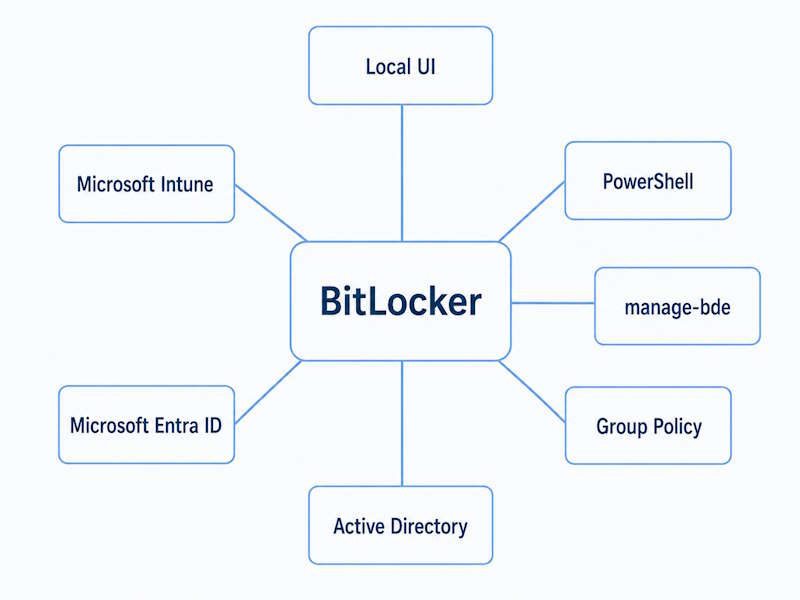
BitLocker administration spans a handful of paths depending on scale:
- Local Windows UI for one-off, single-machine changes.
- PowerShell, using the BitLocker module cmdlets, for scripted status checks and automation.
- manage-bde, the command-line tool that predates the PowerShell module and still covers some edge cases the cmdlets don’t.
- Group Policy, for organization-wide BitLocker configuration: encryption method, protector requirements, and recovery-key backup behavior all live under Computer Configuration > Administrative Templates > Windows Components > BitLocker Drive Encryption.
- Active Directory Domain Services (AD DS), which can store BitLocker recovery information in recovery objects associated with the computer account, giving authorized administrators a centralized lookup path.
- Microsoft Entra ID, the equivalent recovery-key escrow path for Entra-joined and hybrid-joined devices.
- Microsoft Intune, for policy-driven BitLocker enforcement and reporting across a managed fleet, using the BitLocker configuration service provider (CSP).
This pillar stays at the overview level. PowerShell workflows, Active Directory recovery-key lookup, Group Policy settings, and Intune configuration each get their own procedural guide.
How to Turn Off BitLocker
Turning off BitLocker can mean two different things: suspending protection or decrypting the volume. They have very different effects and time costs.
Suspending protection pauses the TPM check without decrypting anything. This is what’s needed before certain firmware updates, BIOS changes, or hardware maintenance that would otherwise trip BitLocker into recovery mode. It resumes automatically, by default after the next restart, and the volume never actually decrypts.
Decrypting removes encryption from the volume entirely. This can take anywhere from minutes to several hours depending on volume size, drive speed, and how busy the machine is while it runs. It is not instantaneous, and interrupting it partway isn’t something to do casually.
Confusing the two is a common operator mistake: suspending is the right call for a one-time maintenance window, and full decryption is a much bigger, slower operation that most maintenance scenarios don’t actually need.
The full walkthrough for both paths, GUI, PowerShell, and command line, lives in the dedicated disable BitLocker guide.
When Should You Use BitLocker?
BitLocker earns its keep on:
- Business laptops and any device that leaves the building.
- Devices holding sensitive organizational data, regardless of form factor.
- Systems at real risk of physical loss or theft.
- Managed Windows fleets where consistent, policy-enforced encryption matters more than per-device convenience.
- Fixed drives that need data-at-rest protection independent of network security controls.
BitLocker is not a backup. It’s easy to conflate an encrypted drive with a safe one, but encryption and data durability solve different problems. A drive can be fully encrypted and still fail, get formatted by mistake, or lose its only stored recovery key along with the device. Deploying encryption without verified recovery-key escrow and real backups can leave an organization with encrypted data it can’t recover. Microsoft’s support process cannot recreate a recovery key that was never backed up anywhere.
Common BitLocker Problems
Most day-to-day BitLocker issues map to a handful of predictable symptoms:
| Symptom | Likely next step |
|---|---|
| Windows asks for a recovery key at startup | Work through the BitLocker recovery screen guide |
| User can’t locate the recovery key | Use the BitLocker recovery key guide |
| Need to check current BitLocker state | Run manage-bde -status, or see the manage-bde guide |
| Need to decrypt a volume | Follow the disable BitLocker guide |
| Recovery prompt keeps returning after each restart | See the recovery screen guide’s persistent-loop section |
BitLocker FAQ
What is BitLocker used for?
Protecting data on a Windows drive if the device is lost, stolen, or accessed outside its normal boot environment. It encrypts the volume so the contents are unreadable without the correct key protector or recovery key.
Is BitLocker full-disk encryption?
Close, but the precise term matters: BitLocker encrypts Windows volumes, not the physical disk as a single unit. A disk with multiple volumes can have some encrypted and others not. A BitLocker-protected Windows operating system drive uses a separate unencrypted system partition for preboot components alongside the encrypted OS volume. Additional fixed or removable data volumes can be protected independently.
What is a BitLocker recovery key?
A 48-digit numerical password generated when BitLocker is enabled, used to unlock the volume when the normal protector can’t validate. Don’t confuse it with the Recovery Key ID, which only identifies which stored key to use.
Why is my computer asking for a BitLocker recovery key?
Something BitLocker measured at setup, such as firmware state, TPM status, or boot configuration, no longer matches the expected state. See the section above on why recovery mode appears, or the dedicated recovery screen guide for the full diagnostic path.
Does BitLocker slow down a computer?
It depends on hardware, encryption method, and workload. Modern CPUs with AES-NI acceleration handle BitLocker’s overhead with minimal noticeable impact for most everyday use. Heavy, sustained disk I/O on older or slower storage is where the overhead is most likely to be noticeable.
Can BitLocker work without TPM?
Yes. When policy allows BitLocker without a compatible TPM, an operating system drive can use a USB startup key or a preboot password. Microsoft discourages the password-only option, and neither method provides TPM-based platform integrity verification.
Is BitLocker the same as Device Encryption?
No. Device Encryption is a simplified, largely automatic subset of BitLocker technology, available more broadly across editions, while full BitLocker offers configurable protectors, PIN support, and Group Policy control. See the comparison section above for the full breakdown.
Can BitLocker recovery keys be stored in Active Directory or Entra ID?
Yes. Recovery-key backup behavior depends on how the device is joined, enrolled, and encrypted. AD DS deployments can enforce escrow through policy, while Microsoft Entra-joined or automatically encrypted devices can back up recovery information through their identity and management configuration.
BitLocker at a Glance
A quick reference for how BitLocker is typically configured:
| Topic | BitLocker |
|---|---|
| Primary purpose | Protect data at rest on Windows volumes |
| Scope | Full Windows volumes (OS, fixed data, removable via BitLocker To Go) |
| Common OS-volume protector | TPM-based configuration |
| Recovery method | 48-digit recovery key or configured alternate protector |
| CLI tools | manage-bde, PowerShell BitLocker module |
| Enterprise management | Group Policy, Active Directory, Entra ID, Intune |
| Backup replacement | No |
Final Thoughts
BitLocker does one job well: it makes the contents of a Windows volume unreadable to anyone without the right key protector or recovery key. On common TPM-based Windows configurations, normal unlock happens transparently when the expected startup state is validated. Recovery is the fallback when the configured protector can’t complete normal unlock.
For most SMB and managed-fleet deployments, the practical default is TPM-based protection on the OS volume, verified recovery-key escrow to Active Directory or Entra ID before rollout, not after, and a recovery procedure tested before an actual incident. BitLocker is only a reliable data-at-rest control if the recovery path was verified before it was needed.
Start by confirming where your recovery key actually lives before you need it. The dedicated guide on finding a BitLocker recovery key covers Microsoft account, Active Directory, and Entra ID storage locations, and the BitLocker recovery screen guide walks through the diagnostic path when a machine won’t unlock on its own.
BitLocker Series
9 of 10 published – Drive Encryption · TPM & Recovery Keys · manage-bde · Disable & Decrypt · Recovery Key Backup · PowerShell · Suspend & Resume · Active Directory