
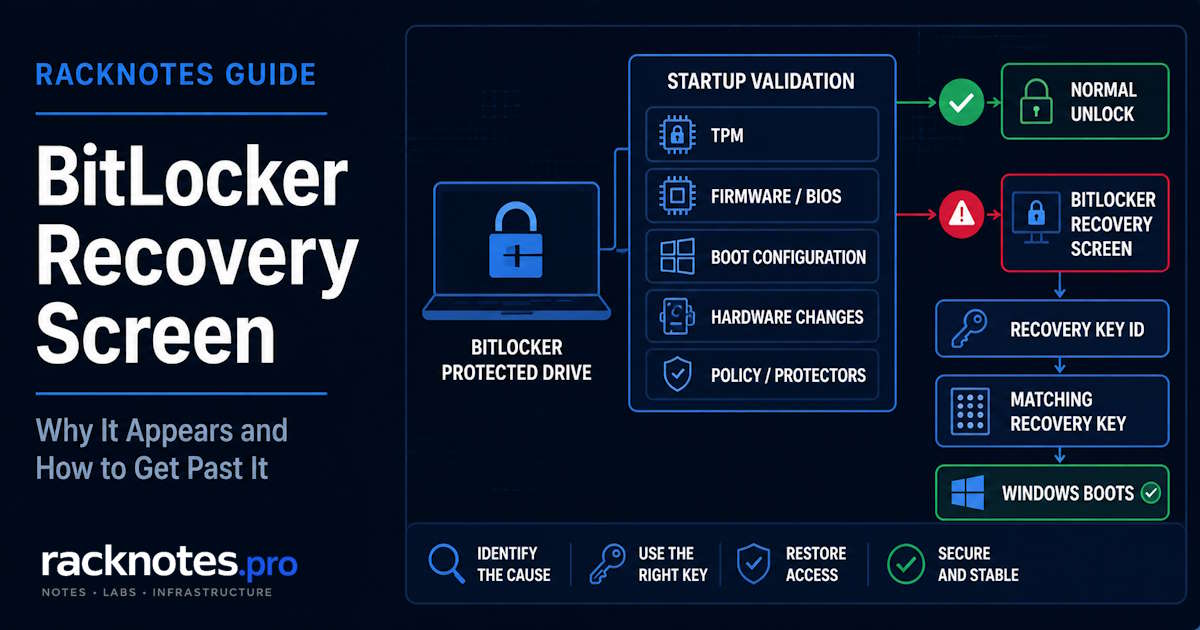
This screen means BitLocker couldn’t unlock the drive the normal way and is asking for the recovery key instead. It usually means one of two things: the normal unlock protector couldn’t complete, or the current startup/platform measurements no longer match what BitLocker expects. Avoid changing firmware or TPM settings while the device is already in recovery; that can introduce another variable before the original trigger is understood. Note the Recovery Key ID shown on screen first; that’s what identifies which key you need.
The BitLocker recovery screen appears when Windows can’t unlock the encrypted drive through its normal protector, or when the current startup/platform measurements no longer match the state BitLocker expects. Use the Recovery Key ID shown on the screen to retrieve the matching 48-digit recovery key. If the prompt returns after recovery, investigate TPM, firmware, boot configuration, policy, or hardware changes before the next restart.
If you don’t have the key yet, go find your BitLocker recovery key first. This article covers what’s happening and what to do once you’re back in Windows, not where the key is stored.
This guide covers why the recovery screen appears and what to do about it, including repeated prompts. It doesn’t cover locating the recovery key itself, full manage-bde command reference, or how to permanently disable BitLocker; those each have their own dedicated guide.
What Is the BitLocker Recovery Screen?
It’s a preboot recovery state for a BitLocker-protected volume. Because the BitLocker prompt appears before normal Windows startup, a Windows password reset, Safe Mode, or System Restore does not bypass the BitLocker recovery requirement. Windows is asking for recovery material because the configured normal unlock protector, such as TPM-based protection, TPM+PIN, or a startup key, could not complete the unlock. The screen typically shows a Recovery Key ID and asks for the matching 48-digit recovery password. The ID identifies which key you need; it isn’t the key itself, and it doesn’t unlock anything on its own.
Why Does the BitLocker Recovery Screen Appear?
BitLocker enters recovery when the normal unlock protector cannot complete or when startup/platform validation no longer matches the expected state. That can happen when:
- the TPM can’t release the expected protector;
- measured boot or platform state changes;
- boot configuration changes;
- firmware or BIOS/UEFI changes alter the startup environment;
- TPM configuration changes;
- hardware changes affect the expected platform state;
- boot files or the boot manager change;
- certain security settings change;
- protectors or BitLocker policy change;
- a normal unlock method simply isn’t available.
Any of these can trigger recovery, depending on configuration. None of them always does. A firmware update on one machine might pass through cleanly; the same update on a differently configured machine might not, because the exact protector setup, TPM configuration, and platform measurements used for validation vary by device. This is why a recovery prompt should be traced to the specific change and configuration rather than attributed to a single generic cause. Microsoft’s own BitLocker recovery overview documents these platform and TPM-related causes in more detail.
The table below groups the same causes by what actually changed and what’s worth checking first.
Common BitLocker Recovery Screen Triggers
| Trigger category | What changed | What to check |
|---|---|---|
| BIOS/UEFI firmware | Firmware version or security settings | Recent firmware update, Secure Boot, boot mode |
| TPM | TPM state, firmware, reset, or configuration | TPM health/status, recent TPM changes |
| Boot configuration | Boot order, boot manager, BCD, alternate media | Recent boot changes |
| Hardware | Motherboard or security-sensitive hardware change | Hardware service/replacement history |
| Policy/protector | BitLocker protector or policy changes | Recent admin changes |
| Update/maintenance | Firmware or platform update altered startup measurements | Update history and maintenance sequence |
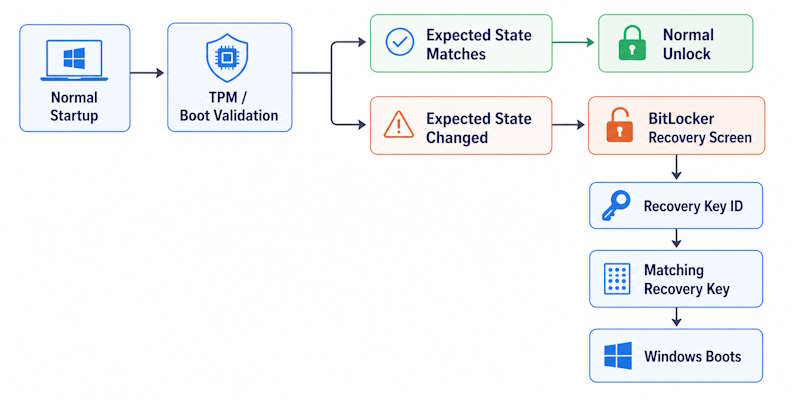
BitLocker Recovery Screen After a BIOS or UEFI Update
Firmware updates can change measured startup state, and BitLocker may require recovery on the next boot as a result. Planned firmware or BIOS maintenance may call for suspending BitLocker protection beforehand, depending on Microsoft or vendor guidance (more on that below). If recovery appears after a legitimate firmware update, use the matching recovery key first. Once you’re back in Windows, verify TPM and BitLocker status before assuming the issue is fully resolved; a successful recovery doesn’t automatically mean the underlying state is stable again.
Firmware updates do not universally trigger recovery. Many complete without a BitLocker recovery prompt.
BitLocker Recovery Screen After a Windows Update
Normal Windows updates do not universally trigger BitLocker recovery. Some updates that touch boot components, firmware interaction, security components, or platform state can coincide with a recovery prompt, but that timing is evidence to investigate, not proof of cause. If the prompt first appeared right after an update, note the timing and check what else may have changed. If the issue keeps repeating, inspect protector and platform state after recovery instead of assuming the update itself is the cause.
BitLocker Recovery Screen After a TPM Change
TPM-related changes can affect whether the normal BitLocker protector releases correctly. A TPM firmware update, a TPM clear or reset, a motherboard replacement, or a TPM configuration change can all be relevant.
Clearing the TPM is not a generic fix for a recovery prompt. Changing TPM settings while you’re already sitting at the recovery screen can make troubleshooting harder, not easier. Get back into Windows with the correct recovery key first, then diagnose.
BitLocker Recovery Screen After Hardware Changes
Relevant hardware changes include:
- motherboard replacement;
- other firmware-connected platform changes;
- storage or boot hardware changes, where relevant;
- dock, USB, or boot-media changes, but only when they actually affect boot order or startup state.
Ordinary peripheral changes such as replacing a mouse or monitor normally do not trigger BitLocker recovery. Hardware matters when the change affects boot configuration, firmware, or the trusted platform state.
What to Do When the BitLocker Recovery Screen Appears
- Stop making additional firmware or TPM changes.
- Note the Recovery Key ID shown on screen.
- Retrieve the matching recovery key. See how to find the matching BitLocker recovery key for every retrieval path, Microsoft account, work/school account, Active Directory, Entra ID, printout, or USB.
- Enter the correct 48-digit recovery password.
- Boot into Windows.
- Check BitLocker and TPM status.
- Work out what changed before the recovery event happened.
- Before rebooting again, record what changed and check BitLocker/TPM state so the next restart becomes a useful test rather than another blind recovery attempt.
How to Get Past the BitLocker Recovery Screen
The supported way to get past the BitLocker recovery screen is to satisfy a valid configured protector or provide the matching recovery material.
In practice that means: enter the matching recovery password, or use another valid configured recovery method if one applies to your setup. Once you’re inside Windows, if recovery keeps happening, fix the underlying cause rather than treating each recovery event as its own isolated problem.
This does not mean a BIOS reset bypasses BitLocker, a Windows password reset unlocks the encrypted volume, or a different recovery key can be substituted for the one this prompt requires. Formatting also does not preserve access to the encrypted data; it removes the data instead of recovering it.
Can You Bypass the BitLocker Recovery Screen Without a Key?
Not while preserving access to the encrypted data, unless another valid configured protector or recovery method is available.
These distinctions matter:
- BitLocker is designed to prevent access without valid recovery material. That’s the feature working correctly, not a flaw.
- Resetting a Windows password doesn’t decrypt the volume; the volume is still locked before Windows even loads.
- Clearing the TPM doesn’t bypass encryption. It can make the situation harder to recover from.
- BIOS changes don’t decrypt the drive.
- Reinstalling or wiping Windows can restore device usability, but it sacrifices access to the existing encrypted data. That’s not a bypass; it’s starting over without the old data.
- Tools that claim to bypass BitLocker without valid recovery material should not be treated as legitimate recovery methods.
Why BitLocker Keeps Asking for the Recovery Key
A repeated prompt usually means the condition that triggered recovery is still present, or the normal protector still cannot complete the unlock without recovery.
Common categories behind repeated prompts:
- TPM or platform validation still doesn’t match what’s expected.
- Firmware settings changed and stayed changed.
- Boot configuration is still different from what it was.
- Protector configuration is inconsistent.
- Maintenance finished without BitLocker being returned to a stable state.
- Hardware replacement changed the trusted platform permanently.
- Policy or management changes keep affecting protection.
A repeated prompt does not automatically mean TPM failure. The troubleshooting task is identifying which condition remains unresolved.
How to Stop BitLocker Recovery on Every Boot
A structured way to work through it:
1. Confirm BitLocker Status
Check via the Windows UI, or run:
manage-bde -statusGet-BitLockerVolumeThese checks are only for confirming the current state. See Microsoft’s Get-BitLockerVolume reference for the full output fields. Full command syntax and output interpretation belong in the dedicated manage-bde guide.
2. Check Protector State
A normal TPM-based protector should be present and functioning as expected. A protector can still be listed while the underlying TPM or platform condition prevents normal unlock, so presence alone does not prove the startup path is healthy. If the protector state looks wrong, investigate the cause before removing or recreating protectors.
3. Check TPM Status
Windows Security, TPM management, or PowerShell can all show TPM status. Clearing the TPM is not a default step; it should only be done as part of a specific, documented recovery procedure when it is actually required. A TPM that currently reports healthy does not rule out TPM involvement: a recent TPM change may still explain why the recovery event occurred.
4. Review Recent Firmware or BIOS Changes
Check Secure Boot state, boot mode, boot order, recent firmware updates, and TPM-related settings. Do not change firmware settings by trial and error; record the current state and reverse only changes that are understood and relevant.
5. Review Recent Hardware or Boot Changes
Identify what changed immediately before the first recovery event. That evidence is more useful than working from a generic list alone.
6. Re-Establish a Stable BitLocker State
Depending on the diagnosed cause, recovery may require restoring the expected firmware or boot state, suspending and resuming protection as part of planned maintenance, repairing or recreating the relevant protector when justified, or validating that recovery-key escrow is current. Detailed protector commands belong in the manage-bde or PowerShell guide, not here.
Should You Suspend BitLocker Before BIOS or Firmware Updates?
Before planned BIOS or firmware changes that may affect measured boot, suspend BitLocker when Microsoft or the hardware vendor’s maintenance guidance calls for it. Verify that a valid recovery key is escrowed before starting. After maintenance, confirm that protection has resumed and that normal startup works without recovery. Microsoft documents this pattern directly for suspending BitLocker protection for non-Microsoft software updates, including firmware and TPM updates.
Operational rule: verify recovery-key escrow before planned firmware maintenance, not after a machine unexpectedly lands on the recovery screen.
The suspend/resume mechanics belong in the manage-bde and PowerShell guides.
What If the Recovery Key Works but the Screen Comes Back?
If the key works but recovery returns on the next restart, the problem has stopped being “find the key” and become an unresolved startup or protector condition.
- Boot successfully with the recovery key.
- Check BitLocker and TPM status.
- Note the last firmware, BIOS, boot, hardware, or policy change.
- Confirm the normal protector is active and actually usable.
Use the structured workflow above under “How to Stop BitLocker Recovery on Every Boot.” Repeatedly entering the recovery key is not a substitute for identifying the trigger.
BitLocker Recovery Screen FAQ
Why am I suddenly seeing the BitLocker recovery screen?
Because BitLocker couldn’t complete normal unlock, or the startup/platform state no longer matched what was expected. Firmware, TPM, boot, hardware, or protector changes can all be relevant, and the specific cause usually traces back to something that changed shortly before the first prompt appeared.
Does a BIOS update cause BitLocker recovery?
It can. Firmware changes can alter measured startup state, depending on the device and how BitLocker is configured. Updates that change Secure Boot, boot configuration, firmware measurements, or TPM-related state are especially relevant to investigate.
Can Windows Update trigger BitLocker recovery?
It can coincide with recovery when an update changes boot, firmware, or security-related platform state, but normal Windows updates do not universally trigger BitLocker recovery.
Why does BitLocker keep asking for a recovery key?
Repeated prompts usually mean the underlying startup or protector condition is still unresolved.
Can I bypass the BitLocker recovery screen?
Not while preserving access to the encrypted data, unless another valid configured protector or recovery method is available.
Will clearing TPM fix the recovery screen?
Don’t treat this as a generic fix. Clearing the TPM can remove TPM-stored material and can make recovery harder if it’s done without preparation.
What if I don’t have the recovery key?
See BitLocker recovery key for every retrieval path and what to do if the key genuinely can’t be found.
What should I do after entering the recovery key?
Check BitLocker status, TPM state, and whatever changed right before the recovery event, before assuming the problem is actually resolved.
Final Thoughts
The recovery screen does not automatically mean data loss. Get the correct recovery key first. If the prompt returns, diagnose the underlying platform or protector change rather than treating recovery as routine. Do not clear the TPM or change BIOS settings blindly; both can complicate recovery before the original cause is understood. Before the next planned firmware or BIOS maintenance, confirm recovery-key escrow in advance, not after the machine is already on the recovery screen.
For background on how BitLocker works generally, see how BitLocker works.
BitLocker Series
9 of 10 published – Drive Encryption · TPM & Recovery Keys · manage-bde · Disable & Decrypt · Recovery Key Backup · PowerShell · Suspend & Resume · Active Directory