
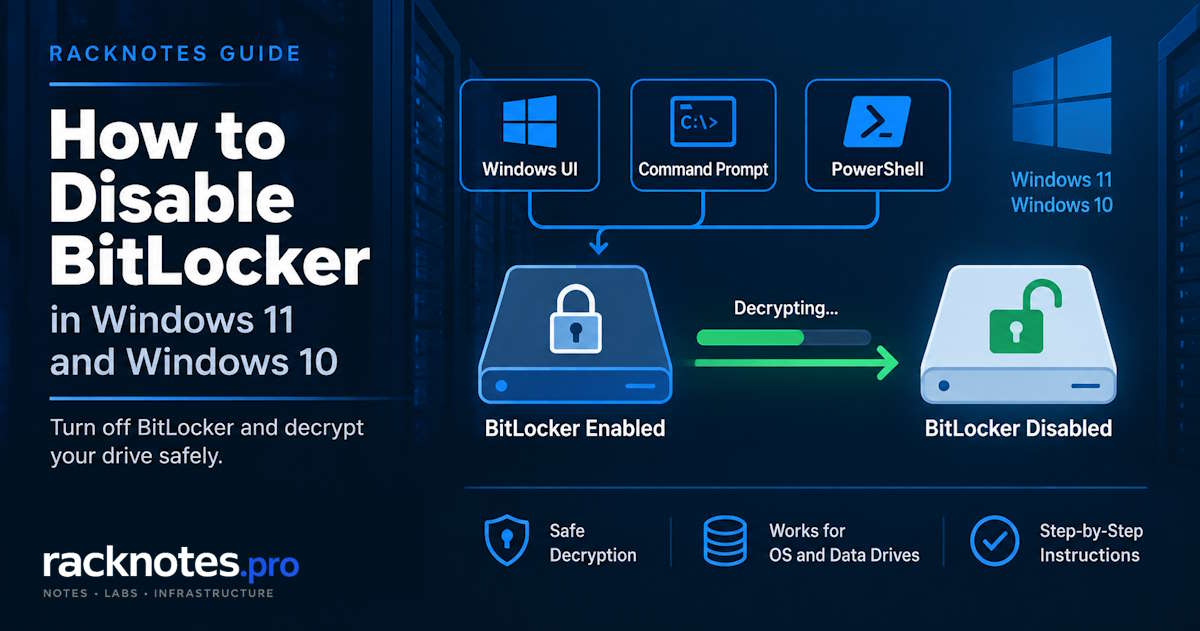
“Disable BitLocker” means starting decryption, not pausing protection. This guide covers turning BitLocker off in Windows 11 and Windows 10 through the BitLocker management interface, Command Prompt, and PowerShell, plus the external-drive case, the BIOS misconception, and what happens without a recovery key. For background on how BitLocker works, see the BitLocker overview. If the goal is temporary maintenance rather than permanent removal, read the suspend-vs-disable section before running anything.
To disable BitLocker, start decryption for the protected volume. In Windows, turn BitLocker off through the BitLocker management interface, run manage-bde -off C: from an elevated terminal, or use the matching PowerShell BitLocker cmdlet. Turning BitLocker off decrypts the drive. Suspending protection only pauses protector enforcement and leaves the data encrypted.
What Happens When You Disable BitLocker?
Turning BitLocker off is a decryption operation, not a temporary pause. Encrypted sectors convert back to unencrypted data while the volume remains usable: a data drive can continue serving reads and writes, and an OS drive can keep booting. Turning BitLocker off starts decryption and removes BitLocker protection as part of the disable process, per Microsoft’s BitLocker operations guide. The exact protector lifecycle depends on the method: manage-bde -off removes key protectors once decryption completes, while Disable-BitLocker removes the protectors when the cmdlet runs and then begins decrypting the volume.
Suspending protection is a different operation. It keeps the data encrypted and temporarily pauses protector enforcement for maintenance. Disabling removes BitLocker protection once decryption completes. You can track progress through Conversion Status and Percentage Encrypted regardless of which method starts the process.
Practical takeaway:
- When a disable operation succeeds, it initiates decryption rather than temporarily suspending protection.
- The volume stays accessible throughout, so this isn’t a maintenance-window operation by itself.
- Protector removal timing depends on the method used, not a single universal moment.
Check Whether BitLocker Is Enabled First
GUI: the BitLocker management interface or the Windows encryption settings page, depending on edition and device, shows current status per drive.
Command Prompt:
manage-bde -statusThe key fields are Conversion Status, Percentage Encrypted, and Protection Status. Protection Off does not necessarily mean the drive is decrypted; a suspended volume can sit at 100% encrypted while protection reads Off. Full command syntax and every other field this reports lives in the manage-bde commands reference; this article only needs the status check.
How to Disable BitLocker in Windows 11
Windows 11 Pro, Enterprise, and Education support the full BitLocker management experience. Windows 11 Home doesn’t include that full management surface, but eligible Home devices can use Device Encryption. Which interface a machine shows depends on its Windows edition and hardware.
Turn Off BitLocker from the BitLocker Management Interface
- Search for and open Manage BitLocker (or go through Control Panel’s System and Security section to BitLocker Drive Encryption).
- Find the protected drive in the list.
- Select Turn off BitLocker for that drive.
- Confirm the action when prompted.
- Wait for decryption to complete; the interface shows progress while it runs.
Windows 11 Home and Device Encryption
Device Encryption can be available on Windows Home; it isn’t exclusive to Pro and above. Automatic enablement depends on the account type: signing in with a Microsoft account or a work/school account can turn Device Encryption on automatically and escrow the recovery key to that account, while a local account does not trigger automatic enablement, per Microsoft’s Device Encryption documentation. Where it’s available, it’s managed through the Settings app’s Privacy & security > Device encryption page, and the toggle works the same way underneath: turning it off starts decryption.
Eligibility itself depends on the device’s security and recovery capabilities – a usable TPM, Windows Recovery Environment, and supported Secure Boot / platform configuration. On Windows 11 24H2 and later, Modern Standby is no longer a requirement for automatic device encryption, per Microsoft’s OEM BitLocker documentation – a device that doesn’t meet the current checks may not show the option.
How to Disable BitLocker in Windows 10
The underlying decryption process is the same in Windows 10. Open the BitLocker Drive Encryption Control Panel item, locate the encrypted drive, choose Turn off BitLocker, and confirm when prompted. The drive then decrypts just as it does in Windows 11.
Disable BitLocker from Command Prompt
manage-bde -off C:Run this from an elevated Command Prompt or Windows Terminal, replacing C: with the correct target volume. manage-bde -off starts decryption without the GUI confirmation dialog. Check progress with:
manage-bde -status C:The full manage-bde command reference covers protectors, unlock, and suspend/resume syntax in depth; this article sticks to the one command that matters for disabling.
Disable BitLocker on Another Drive
manage-bde -off D:The command is the same; only the target changes. Verify the drive letter before running it, especially after a reboot or after connecting removable storage.
Disable BitLocker with PowerShell
Disable-BitLocker -MountPoint "C:"This removes the key protectors and begins decrypting the volume, per Microsoft’s Disable-BitLocker reference. Check status with manage-bde -status or the equivalent PowerShell BitLocker cmdlet. PowerShell is useful when decryption needs to be scripted rather than run as a one-off interactive task. Fleet automation, protector management via cmdlets, and policy-driven deployment belong in a dedicated PowerShell BitLocker article.
How to Disable BitLocker on an External Drive
Unlock the drive first if it’s currently locked. Verify the drive letter each time, because removable-drive letter assignments can change, then run:
manage-bde -off D:or use the equivalent option in the BitLocker management interface. Decryption runs the same way it does on an internal drive; wait for it to finish before disconnecting. A locked external drive can’t be decrypted without valid access to it first; disabling BitLocker is not a way around that requirement.
Can You Disable BitLocker in BIOS?
No. BIOS or UEFI settings don’t decrypt a BitLocker volume or turn BitLocker off. Changing TPM, Secure Boot, or other firmware settings can affect BitLocker’s startup validation and trigger a recovery prompt, but that’s a side effect, not a way to disable encryption. Disabling TPM is not the same operation as disabling BitLocker, and firmware changes aren’t a substitute for actually decrypting a drive. If a firmware change already triggered an unexpected recovery prompt, that’s the territory of the BitLocker recovery screen guide, not this one, and a locked machine at that screen still needs valid recovery material before anything else, including disabling, becomes possible.
Can You Disable BitLocker Without a Recovery Key?
The answer depends on whether the volume is already unlocked or still locked.
If Windows is running and the volume is already unlocked: a recovery key isn’t necessarily required just to start normal decryption, provided the account already has authorized access to the volume and sufficient administrative rights. This isn’t universal across every managed environment; organizational policy can still require additional authorization.
If the drive is locked or the PC is sitting at the BitLocker recovery screen: disabling BitLocker is not a bypass for that state. The volume has to be unlocked first with valid recovery material or another configured protector before decryption, or anything else, can start. For the actual retrieval process, see the BitLocker recovery key guide.
Can You Disable BitLocker Without Logging In?
Yes, it can be done from a recovery environment without signing in to the normal Windows desktop, but only after the encrypted volume is unlocked with valid recovery material. Turning BitLocker off is not a way to bypass a locked volume; a preboot recovery prompt isn’t cleared by choosing “turn off BitLocker” instead of providing recovery material. In a recovery environment, valid access is still the prerequisite before the encrypted data becomes reachable at all.
Disable vs Suspend BitLocker
| Action | What happens | Drive remains encrypted? | Typical use |
|---|---|---|---|
| Disable / Turn Off | Decryption starts | No, once complete | Permanently remove BitLocker |
| Suspend | Protector enforcement pauses temporarily | Yes | Planned firmware or boot maintenance |
If the goal is a firmware update or similar planned maintenance, suspend BitLocker instead of decrypting the drive. The manage-bde commands reference covers the exact suspend and resume syntax.
If full decryption was started by mistake, check the current BitLocker conversion state before issuing another encryption or protector command. A suspend/resume command does not undo a decryption operation, because suspension and decryption are different state transitions.
How to Check BitLocker Decryption Progress
manage-bde -status C:Read Conversion Status and Percentage Encrypted together. Decryption is complete only when Conversion Status shows the volume fully decrypted, not when the percentage looks close. The GUI shows equivalent progress information while a decrypt job is running through the management interface instead of the command line.
How Long Does BitLocker Decryption Take?
There’s no reliable universal completion time. Decryption depends on drive size, how much of the volume is encrypted, drive performance, system load, and storage type. Monitor the actual conversion status instead of estimating a finish time in advance.
Should You Disable BitLocker?
Valid reasons include decommissioning or repurposing a device, compatibility or maintenance work that genuinely requires full decryption, an organizational policy change, or troubleshooting that requires removing the encryption layer.
Full decryption is usually unnecessary for a firmware update because suspension covers that case. A one-time recovery prompt is also a reason to investigate why recovery was triggered, not automatically a reason to remove encryption. On managed devices, policy may restrict BitLocker operations, or an MDM policy may require encryption. Before decrypting a managed device, verify the effective BitLocker policy and management state, per Microsoft’s BitLocker configuration documentation, rather than assuming local settings are authoritative.
BitLocker Will Not Turn Off
Work through these in order. This is a practical investigation sequence, not a ranking by frequency:
- Insufficient elevation. If a command fails with Access Denied, verify that the terminal is running elevated first, or launch the management interface as administrator.
- Organizational policy restrictions. Management policy may restrict BitLocker configuration or require encryption. Verify the effective policy on domain-joined or MDM-managed devices.
- Wrong target volume. Confirm the drive letter actually matches the drive intended, especially after a reboot or a newly attached external drive shifted the assignments.
- The drive is currently locked. Unlock it first with valid recovery material or another configured protector before attempting to disable it.
- Decryption is already in progress from an earlier attempt. Check status before starting another action instead of assuming nothing happened.
- The management UI isn’t available for that edition or device, such as Windows 11 Home without the full BitLocker surface.
- A management platform is reapplying encryption policy after decryption, making it appear that BitLocker will not stay off.
One PowerShell-specific case is worth checking: Disable-BitLocker does not proceed if the operating system volume has automatic unlocking keys configured. If PowerShell reports that as the blocker, identify which data volumes actually use auto-unlock before changing anything. Disable-BitLockerAutoUnlock removes auto-unlock for one specific volume, while Clear-BitLockerAutoUnlock clears every auto-unlock key stored on the OS volume – the two aren’t interchangeable, and reaching for the broader command when only one volume needs it changes more configuration than the problem requires.
BitLocker Keeps Re-Enabling After You Turn It Off
If BitLocker is enabled again after decryption, check whether an MDM or Intune policy requires device encryption, or whether automatic Device Encryption applies to that device, per Microsoft’s Intune BitLocker documentation. Standard BitLocker Group Policy settings should not automatically be treated as proof that encryption will restart; most GPO-based settings are enforced when BitLocker is initially turned on, not reapplied continuously on their own. Verify the effective management configuration before changing the drive again. Fixing the policy itself is outside this article’s scope.
Disable BitLocker FAQ
Does turning off BitLocker decrypt the drive?
Yes. Turning BitLocker off starts decryption and removes BitLocker protection as part of the disable process.
Can I disable BitLocker from Command Prompt?
Yes. Run manage-bde -off C: from an elevated terminal, replacing C: with the correct target volume.
Can I disable BitLocker in BIOS?
No. BIOS or UEFI settings don’t decrypt the drive or turn BitLocker off.
Can I disable BitLocker without the recovery key?
If Windows is already running and the volume is unlocked, a recovery key isn’t necessarily required just to start normal decryption. If the drive is locked or the system is at the recovery screen, turning BitLocker off doesn’t bypass the need for valid recovery material.
Does suspending BitLocker turn it off?
No. Suspension leaves the data encrypted and temporarily changes how protection is enforced.
Can I disable BitLocker on Windows 11 Home?
Device Encryption can be available on Windows 11 Home. Automatic enablement depends on signing in with a Microsoft account or work/school account; a local account won’t turn it on automatically. Where it’s available, manage it through Settings under Privacy & security > Device encryption.
How do I know when BitLocker decryption is finished?
Check the volume with manage-bde -status C: and confirm Conversion Status shows it fully decrypted, not just a high percentage.
Final Thoughts
Disabling BitLocker is a decryption operation, not simply a protection toggle. GUI, manage-bde -off, and Disable-BitLocker all start the same underlying process, though exactly when protectors are removed differs by method. Decryption time varies by volume and workload, so monitor Conversion Status rather than assuming completion. The key distinction is simple: suspend for planned maintenance, and disable only when the goal is to remove BitLocker protection entirely. Verify the target drive before running anything, and if a managed device keeps re-enabling protection, that’s a policy question to resolve at the policy level, not a reason to keep fighting the drive.
BitLocker Series
9 of 10 published – Drive Encryption · TPM & Recovery Keys · manage-bde · Disable & Decrypt · Recovery Key Backup · PowerShell · Suspend & Resume · Active Directory