
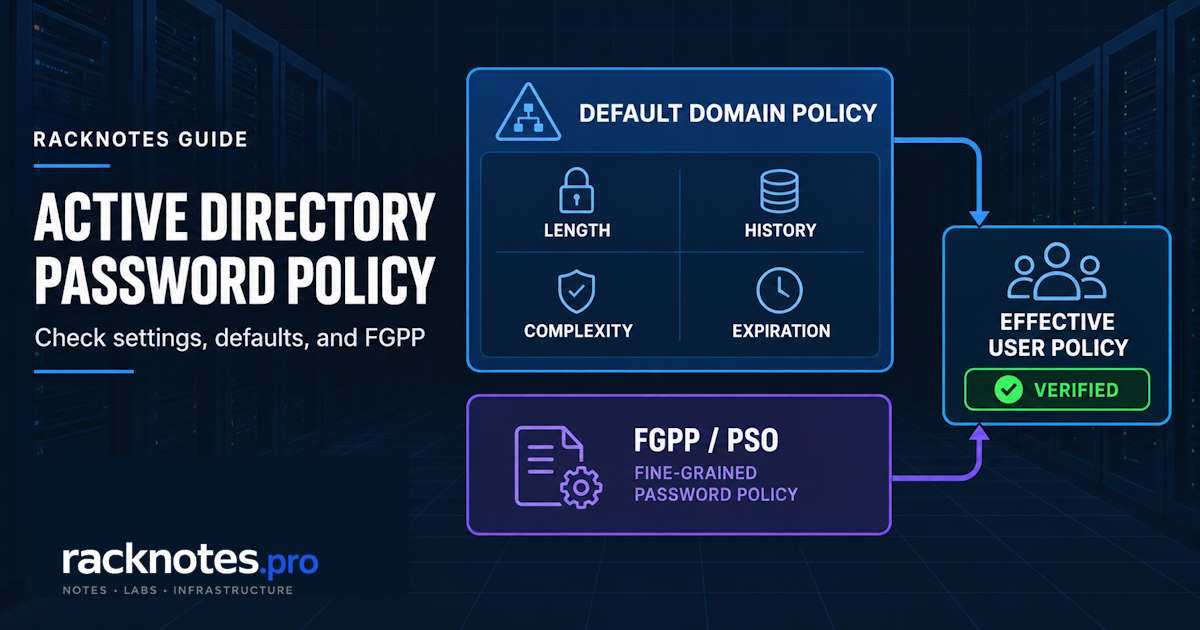
Active Directory password policy controls requirements such as password length, complexity, history, minimum age, and maximum age for domain accounts. In a standard AD domain, these settings are normally defined at the domain level, while Fine-Grained Password Policies can apply different rules to selected users or groups.
This guide shows where Active Directory password policy is configured, how to check current and effective settings, how to change them safely, and when to use FGPP instead of a single domain-wide policy.
- Active Directory password policy applies at the domain level, not per OU
- The main settings are length, complexity, history, minimum age, and maximum age
- Use GPMC or
Get-ADDefaultDomainPasswordPolicyto inspect the domain policy - Use
Get-ADUserResultantPasswordPolicyto check whether a Fine-Grained Password Policy changes the effective policy for a user - Different password rules for selected users or groups should use FGPP, not OU-linked password-policy GPOs
- Product defaults, Microsoft recommendations, and NIST guidance should be treated as separate sources of policy values
Active Directory Password Policy Settings
Six settings make up the core Active Directory password policy. Account lockout settings live under the same Account Policies branch but are a separate, adjacent category, not part of the password policy itself.
| Setting | What it controls |
|---|---|
| Enforce password history | Prevents reuse of recent passwords |
| Maximum password age | How long a password can remain valid before expiration |
| Minimum password age | How soon a password can be changed again |
| Minimum password length | Minimum number of characters |
| Password must meet complexity requirements | Applies Windows complexity rules |
| Store passwords using reversible encryption | Allows reversible storage for specific legacy compatibility cases |
Where Active Directory Password Policy Is Configured
Domain password policy is configured through a GPO with domain-level precedence, traditionally the Default Domain Policy, at:
Computer Configuration > Policies > Windows Settings > Security Settings > Account Policies > Password PolicyFor a domain user without an applicable FGPP, the effective domain password policy comes from the domain-level account policy above. Linking a password-policy GPO to an OU does not give that OU its own domain password policy for its users – Windows enforces domain account password rules at the domain level regardless of which OU the account sits in.
Need different password rules for selected users or groups? Use Fine-Grained Password Policies instead of trying to scope domain password policy by OU. See the Fine-Grained Password Policies section below, and Active Directory OU Design for what OUs are actually for.
For how this GPO is processed alongside other policies, see Group Policy in Active Directory.
Default Domain Password Policy Settings
| Setting | Default value |
|---|---|
| Enforce password history | 24 passwords remembered |
| Maximum password age | 42 days |
| Minimum password age | 1 day |
| Minimum password length | 7 characters |
| Password must meet complexity requirements | Enabled |
| Store passwords using reversible encryption | Disabled |
These are the traditional Windows domain defaults documented by Microsoft’s security policy settings reference for enforce password history, maximum password age, minimum password length, and complexity requirements. They are product defaults, not current security recommendations.
Microsoft security guidance and security baselines can recommend stronger settings than these product defaults. Use the current guidance for the Windows Server version and environment you’re securing rather than assuming a default value is also the recommended one.
NIST’s current digital identity guidelines, SP 800-63B-4, take a different position again on some of the same settings: favor a longer minimum length over composition rules, and don’t force periodic expiration unless there’s evidence the password has been compromised. That differs from the traditional 42-day Windows domain default, which reflects legacy password-policy practice rather than current NIST guidance.
Don’t treat a single search result or AI summary as the definitive minimum password length or maximum password age. Product defaults, Microsoft guidance, NIST guidance, and your own security baseline can legitimately specify different values. Check the current source you’re following before setting a number in production.
How to Check Password Policy in Active Directory
There are three practical ways to check Active Directory password policy: the GUI, PowerShell for the domain-wide policy, and PowerShell for a specific user’s effective policy.
Check the Default Domain Password Policy in GPMC
- Open Group Policy Management.
- Edit the domain-level password-policy GPO (typically Default Domain Policy).
- Navigate to
Computer Configuration > Policies > Windows Settings > Security Settings > Account Policies > Password Policy. - Review the configured values.
Check the Domain Password Policy with PowerShell
Get-ADDefaultDomainPasswordPolicyUseful returned properties include MinPasswordLength, PasswordHistoryCount, MaxPasswordAge, MinPasswordAge, ComplexityEnabled, and ReversibleEncryptionEnabled. See Microsoft’s Get-ADDefaultDomainPasswordPolicy reference for the full parameter and output list.
Check the Effective Password Policy for a User
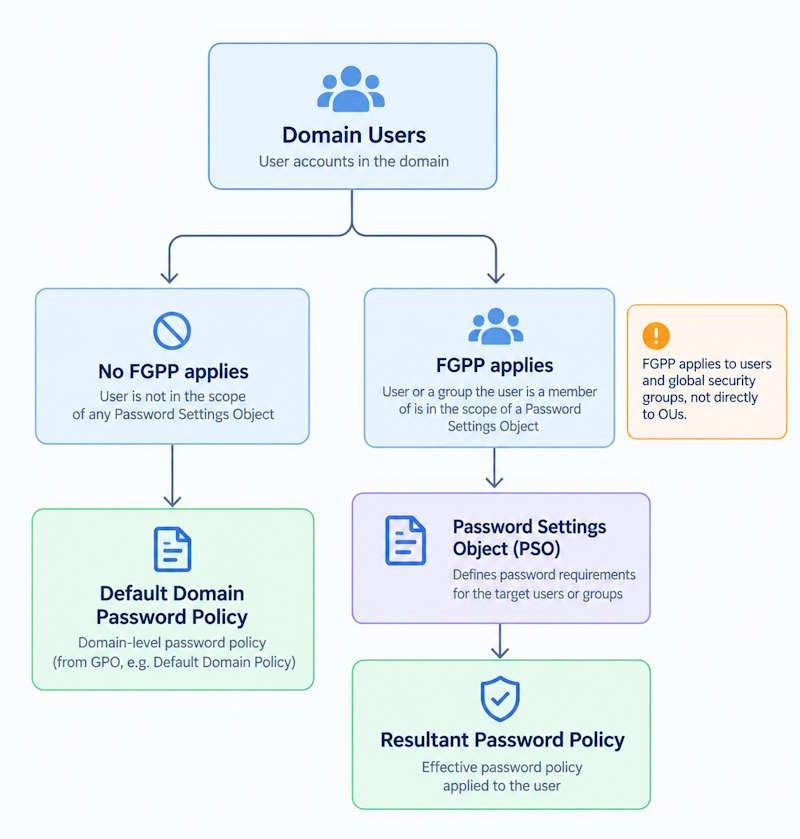
The default domain policy is not always the effective policy for a given user; if a Fine-Grained Password Policy applies, it overrides the domain policy for that user or group.
Get-ADUserResultantPasswordPolicy -Identity <user>This returns the resultant password settings object (RSoP), tracked internally on the user’s msDS-ResultantPSO attribute. If an FGPP applies, the cmdlet returns that policy’s settings; if none applies, the domain policy remains the effective one. The same check is available in the GUI: in Active Directory Administrative Center, select the user and choose View Resultant Password Settings from the Tasks pane.
Once FGPP is in use, checking only the Default Domain Policy is not enough to determine which password policy applies to a specific user.
How to Change Active Directory Password Policy
Change Password Policy in Group Policy Management
Edit the same domain-level GPO and Password Policy node used to check the settings, then change the required values. Allow Group Policy and AD replication to propagate the change across domain controllers, and verify the resulting policy afterward with GPMC or the PowerShell check above.
Change Password Policy with PowerShell
Set-ADDefaultDomainPasswordPolicy -Identity contoso.com `
  -MinPasswordLength 14 `
  -PasswordHistoryCount 24 `
  -MaxPasswordAge 90.00:00:00 `
  -MinPasswordAge 1.00:00:00 `
  -ComplexityEnabled $true `
  -ReversibleEncryptionEnabled $false
Set-ADDefaultDomainPasswordPolicy changes the domain’s default password policy directly through Active Directory; see Microsoft’s Set-ADDefaultDomainPasswordPolicy reference for the full parameter list. MaxPasswordAge and MinPasswordAge take a TimeSpan, not a plain number of days, which is why the example above uses 90.00:00:00 rather than 90 – the same format Microsoft’s own reference example uses. The values shown are illustrative, not a recommendation to copy as-is; set each one based on the defaults-vs-recommendations distinction above.
Active Directory Password Complexity Requirements
“Password must meet complexity requirements” is more specific than “uppercase, lowercase, number, symbol.” Per Microsoft’s complexity requirements reference, when enabled, a password:
- May not contain the user’s
samAccountNamevalue or their fulldisplayNamevalue (both checks are case-insensitive; thesamAccountNamecheck is skipped if it’s under three characters) - Must contain characters from at least three of these four categories: uppercase letters, lowercase letters, base-10 digits, and non-alphabetic characters (a fifth catch-all category covers other Unicode alphabetic characters, relevant for non-Latin scripts)
These rules are enforced by Passfilt.dll at the moment a password is set or changed, and they can’t be edited directly – only replaced with a custom password filter. Complexity is enabled in the traditional Default Domain Policy for a newly created domain, but disabled by default on stand-alone servers.
Complexity enabled does not automatically mean the password is strong. A password can satisfy every complexity category and still be short, predictable, or already sitting in a public breach list; complexity is a floor, not a strength guarantee.
One related detail is easy to miss: minimum password length was historically capped at 14 characters in the GPO editor. Current Windows Server releases can enforce lengths beyond that, up to 128 characters, once the Relax minimum password length limits policy is configured. This matters when your current guidance calls for a longer minimum than the classic 14-character ceiling.
Active Directory Password Policy Best Practices
Prioritize password length. Current guidance generally places more weight on length than on forcing additional character categories. Raising the minimum length can provide more value than adding another composition rule.
Avoid unnecessary forced password expiration. NIST’s current guidance doesn’t support forced periodic expiration when there’s no evidence of compromise; a password that’s never been exposed doesn’t get meaningfully safer by being changed on a calendar. This differs from the traditional 42-day AD default, so treat it as something to actively decide on, not something to leave on autopilot.
Maintain password history where rotation exists. If any expiration or forced-reset policy is in place, password history prevents the immediate cycle back to a recently used password. Password history is much easier to bypass when minimum password age is zero, because a user can cycle through changes rapidly to get back to the original.
Block weak, common, and breached passwords. Native AD complexity checks don’t detect known-compromised or common passwords by themselves. Microsoft Entra Password Protection can enforce Entra ID’s global and custom banned-password lists against on-premises AD DS through a proxy service and DC agent deployed in the domain; third-party password filters exist too, but evaluate those separately rather than treating any specific product as a default recommendation.
Protect privileged accounts more strongly. Where a genuinely different risk profile justifies it, for example admin accounts or service accounts, use FGPP for a separate, stricter policy rather than trying to force a second domain-wide standard on everyone.
Use account lockout carefully. An aggressive lockout threshold can become a denial-of-service problem during password spraying or repeated bad guesses. Avoid thresholds so low that legitimate users are routinely locked out.
Never enable reversible encryption unless an application explicitly requires it. Reversible encryption stores a form of the password that can be decrypted, which defeats the point of hashing. Treat it strictly as a legacy compatibility exception, not a setting to toggle experimentally.
Fine-Grained Password Policies (FGPP)
Fine-Grained Password Policies let you apply different Active Directory password policy and account-lockout settings to selected users or global security groups within the same domain, without creating a second domain. Each policy is represented by a Password Settings Object (PSO), stored in the Password Settings Container. When more than one PSO could apply to the same user, a precedence value decides which one wins: lower numbers win over higher numbers.
When to Use a Fine-Grained Password Policy
FGPP is justified when a specific population needs different rules, such as privileged administrator accounts, service-account groups with different rotation or length requirements, or users covered by a separate documented policy. Avoid convenience-based exceptions because every additional PSO adds another policy and precedence value to track when troubleshooting effective settings.
Create or Manage an FGPP
In Active Directory Administrative Center, go to the domain, then System, then Password Settings Container, and choose New > Password Settings to create a PSO. Microsoft’s Fine-Grained Password Policies documentation covers the full ADAC workflow, including applying a PSO to users and groups and viewing the resultant policy for a specific account.
In PowerShell, the equivalent workflow uses three cmdlets together:
# List existing PSOs
Get-ADFineGrainedPasswordPolicy -Filter *

# Create a new PSO (Name and Precedence are required)
New-ADFineGrainedPasswordPolicy -Name "Privileged-Accounts-PSO" `
  -Precedence 10 `
  -MinPasswordLength 16 `
  -PasswordHistoryCount 24 `
  -ComplexityEnabled $true `
  -ReversibleEncryptionEnabled $false

# Apply the PSO to a group
Add-ADFineGrainedPasswordPolicySubject -Identity "Privileged-Accounts-PSO" `
  -Subjects "Domain Admins"
Precedence must be set explicitly and a lower value takes priority when a user is subject to more than one PSO. Set-ADFineGrainedPasswordPolicy modifies an existing PSO the same way New-ADFineGrainedPasswordPolicy creates one.
Check Which FGPP Applies to a User
Knowing which PSOs exist is different from knowing which one actually governs a specific account.
Get-ADUserResultantPasswordPolicy -Identity <user>If this returns a policy, that PSO is the effective password policy for the user, not the Default Domain Policy. If it returns nothing, no PSO applies and the domain policy governs that account.
Common Active Directory Password Policy Mistakes
Trying to create different user password policies by linking GPOs to OUs. Domain account password policy is enforced at the domain level regardless of OU placement. Use FGPP for genuinely different rules.
Confusing the Default Domain Policy with the effective policy for every user. If any FGPP exists in the domain, some users may be running under different settings than what the Default Domain Policy shows. Always check the resultant policy for a specific account before assuming.
Copying legacy password-expiration values without checking current guidance. The 42-day default and older 90-day rotation conventions reflect legacy password-policy practice rather than current NIST guidance. Decide deliberately rather than inheriting a number from whoever set up the domain originally.
Relying on complexity alone. Complexity blocks a narrow set of weak patterns; it does nothing against a password that’s complex but already breached or predictable in a different way.
Enabling reversible encryption without a specific requirement. Leave it disabled unless a specific application explicitly requires it, and treat that as an exception to document, not a default to toggle on.
Frequently Asked Questions
What is the default password policy in Active Directory?
On the Default Domain Policy: password history of 24, maximum age of 42 days, minimum age of 1 day, minimum length of 7 characters, complexity enabled, and reversible encryption disabled. These are Windows’ product defaults, not Microsoft’s or NIST’s current recommendations.
Where is password policy configured in Active Directory?
In a GPO with domain-level precedence, typically the Default Domain Policy, under Computer Configuration > Policies > Windows Settings > Security Settings > Account Policies > Password Policy.
How do I check the password policy in Active Directory?
Open the GPO in GPMC and review the Password Policy node, or run Get-ADDefaultDomainPasswordPolicy in PowerShell for the domain-wide policy.
How do I check which password policy applies to a user?
Run Get-ADUserResultantPasswordPolicy -Identity <user>. If it returns a policy, that’s the effective one; if it returns nothing, the domain policy applies.
Can Active Directory have different password policies for different users?
Yes, through Fine-Grained Password Policies applied to users or global security groups.
Can password policy be applied by OU?
Not for ordinary domain account password rules. Linking a password-policy GPO to an OU does not create a separate domain password policy for the accounts in that OU. Use FGPP for different password rules for selected users or groups.
Should Active Directory passwords expire?
It depends on which guidance you’re following. Windows’ own default expires passwords every 42 days, and many organizational policies still require periodic expiration. NIST’s current guidance recommends against forced periodic expiration absent evidence of compromise, favoring length and breach screening instead. There’s no single universally correct answer independent of your compliance requirements and threat model.
Bottom Line
Default Active Directory password policy controls normal domain password rules, enforced at the domain level regardless of OU structure. Fine-Grained Password Policies are the actual mechanism for different password rules for selected users or groups, represented as Password Settings Objects with a precedence order. Once FGPP exists in the domain, check the resultant password policy for the specific user instead of assuming the Default Domain Policy is effective.
Product defaults, Microsoft guidance, and NIST guidance differ on several of these settings. Check the current guidance against your own compliance requirements before setting production values.
Active Directory Series
25 articles – Windows Server 2025 · Forest & Domain · FSMO · GPO · Replication · DNS · Security · Backup & Recovery