
Applies to: Windows Server 2019, Windows Server 2022, and Windows Server 2025 domain controllers.
Before you restore a domain controller from backup, check whether another healthy DC exists in the same domain. If it does, rebuilding and promoting a replacement is usually safer than restoring the failed DC. Use a non-authoritative System State restore when you must recover a specific DC from backup while the domain is otherwise healthy. Use an authoritative AD DS restore only when selected objects, such as a deleted OU, users, or groups, must override what replication partners currently hold. If the AD Recycle Bin is enabled, use it before restoring a DC backup just to recover deleted objects.
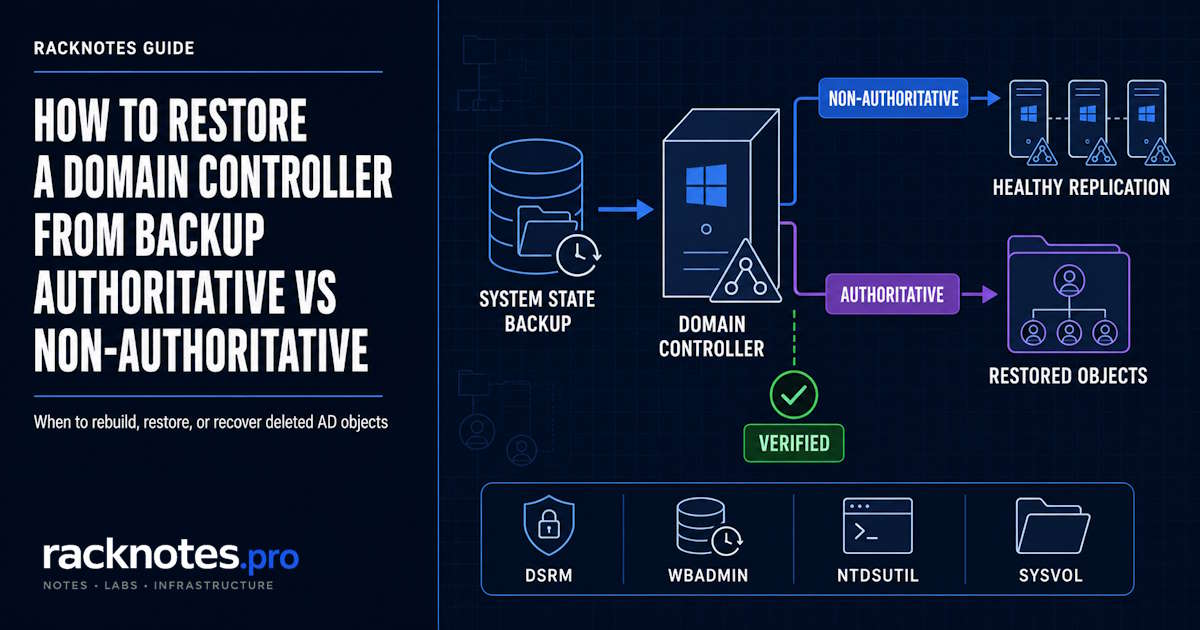
- A non-authoritative System State restore recovers a DC from backup and then lets healthy replication partners bring it current. Use it for a damaged DC in a domain with working partners.
- An authoritative AD DS restore marks selected objects with higher replication metadata so those objects propagate outward instead of being overwritten. Use it for accidental bulk deletion, not for a failing DC.
wbadmin ... -authsysvolmakes SYSVOL authoritative. It does NOT make AD DS objects authoritative. These are separate operations.ntdsutilauthoritative marking must run while the AD DS database is offline – while already in DSRM, or after stopping the NTDS service.- Do not restore a backup older than the forest’s effective tombstone lifetime. Check the actual configured value – do not assume 180 days.
- If no healthy DC remains in the domain, treat this as a domain or forest recovery scenario and follow Microsoft’s forest recovery guidance.
Restore, rebuild, or recover deleted objects?
| Situation | Recommended path |
|---|---|
| One DC failed, one or more healthy DCs remain in the domain | Rebuild or promote a replacement DC. Gracefully demote the old DC if it is still operational; if it is permanently offline, perform metadata cleanup and seize any FSMO roles it held before introducing the replacement. |
| DC must be recovered from System State and healthy partners exist | Non-authoritative System State restore |
| Deleted object or OU and AD Recycle Bin is enabled | Restore from AD Recycle Bin – no DC backup needed |
| Deleted object or OU and Recycle Bin is not available or not enabled | Non-authoritative System State restore + targeted ntdsutil authoritative object restore |
| SYSVOL must be restored to a specific state | Separate SYSVOL authoritative recovery: wbadmin -authsysvol or DFSR attribute method |
| No healthy DC remains in the domain (last DC scenario) | Domain or forest recovery escalation – follow Microsoft’s AD Forest Recovery Guide |
| Forest-wide logical failure, security compromise, or corruption propagated across DCs | Forest recovery – not covered in this article |
| Confirmed USN rollback (Event 2095, Dsa Not Writable = 4) | Do not edit the registry value. Rebuild the DC or restore from a valid pre-rollback System State backup. |
When a healthy replication partner exists, rebuilding and promoting a new DC is operationally cleaner than restoring from backup. The rebuilt DC replicates current directory state from its partners. A restore introduces backup-era state that replication must reconcile, adding recovery time and complexity that a fresh promotion avoids.
A last-remaining DC is a different problem. With no replication partner, recovery depends on a backup restore or a forest/domain recovery procedure. Microsoft routes that scenario into the forest recovery guide because the objective extends beyond repairing one replica.
Non-authoritative vs authoritative restore
Be clear on which mode you need before running any commands. These are distinct operations, and choosing the wrong one can make the original problem worse.
| Mode | What it changes | When to use |
|---|---|---|
| Non-authoritative AD DS restore | Restores the DC from backup; replication partners then update it with newer changes | DC hardware failure, OS corruption, DC must be recovered from backup while the domain is otherwise healthy |
| Authoritative AD DS restore | Restores AD DS from backup AND marks selected objects so replication propagates them outward rather than overwriting them | Accidental bulk deletion of users, groups, or an OU in a multi-DC domain where replication would otherwise remove them again |
| Authoritative SYSVOL restore | Makes the restored DC’s SYSVOL the authoritative source for DFSR replication | SYSVOL recovery during forest recovery; deliberate rollback of SYSVOL content |
| AD Recycle Bin restore | Recovers deleted AD objects without rolling back any DC’s System State | Preferred deleted-object recovery when Recycle Bin is enabled |
A common mistake is applying an authoritative AD DS restore to a DC that failed due to hardware or OS problems. A failing DC does not need its objects to win replication metadata comparisons – it needs to come back online and receive current data from its partners. Using ntdsutil in this scenario marks backup-era data as authoritative and propagates stale state forest-wide. The authoritative marking is for the deleted-object recovery scenario, not DC failure recovery.
Before you restore a domain controller
Check backup validity and tombstone lifetime
Do not assume a backup is usable because it is recent. The effective tombstone lifetime limits how old a usable backup can be. A System State backup older than the forest’s effective tombstone lifetime cannot be safely restored – objects deleted between the backup date and today may have passed through the tombstone phase and been garbage-collected. Restoring such a backup reintroduces those objects as lingering objects and can cause difficult replication inconsistencies.
Query the actual configured value:
Get-ADObject `
  -Identity "CN=Directory Service,CN=Windows NT,CN=Services,CN=Configuration,DC=contoso,DC=com" `
  -Properties tombstoneLifetime |
  Select-Object tombstoneLifetime
Modern forests created on Windows Server 2003 SP1 or later commonly use 180 days, but older configurations may differ and the value persists through OS upgrades unless changed. A null result means the forest is using the attribute default, which may not be 180 days on older environments. Use the actual value. Per Microsoft’s garbage collection documentation, a System State backup older than the effective tombstone lifetime is not a supported restore source for Active Directory.
Confirm the DSRM password
The DSRM account is local to each domain controller and does not replicate. Manage a separate recovery password for each DC as an operational and security practice. Make sure the password works before you start; it cannot be reset from inside DSRM.
Confirm or reset the password now, while the DC is running normally:
ntdsutil "set dsrm password" "reset password on server null" q qFor the full reset and rotation procedure, see the DSRM password reset guide.
For authoritative object recovery: identify the exact DN first
Before starting a System State restore for deleted-object recovery, identify the Distinguished Name of the deleted object or container. This determines the scope of the ntdsutil marking step. Restoring a broader subtree than necessary marks more objects as authoritative than intended.
Search tombstoned objects by deletion state and metadata. Name is the object’s current RDN attribute under the Deleted Objects container, not the original distinguished name:
Get-ADObject `
  -Filter 'isDeleted -eq $True -and -not (isRecycled -eq $True) -and name -like "Accounts*"' `
  -IncludeDeletedObjects `
  -Properties lastKnownParent,msDS-LastKnownRDN,whenChanged
When the former parent is known:
Get-ADObject `
  -Filter 'isDeleted -eq $True -and -not (isRecycled -eq $True) -and lastKnownParent -eq "OU=ParentOU,DC=contoso,DC=com"' `
  -IncludeDeletedObjects `
  -Properties lastKnownParent,whenChanged
Use the deleted-object metadata (lastKnownParent, msDS-LastKnownRDN) to reconstruct the original DN that existed in the backup. Do not copy the current CN=...\0ADEL:GUID,CN=Deleted Objects,... container path into the ntdsutil authoritative restore command.
How to perform a non-authoritative System State restore
Find the backup version
Run the command from an elevated command prompt on the DC or from a recovery environment with access to the backup store. For the same server’s default catalog:
wbadmin get versionsFor an explicitly selected remote or alternate backup target, use wbadmin get versions with both parameters:
wbadmin get versions -backupTarget:<BackupLocation> -machine:<ServerName>Record the version identifier in MM/DD/YYYY-HH:MM format from the output. To review only the summary from the previous System State recovery attempt, use the following command. This flag cannot be combined with other parameters:
wbadmin start systemstaterecovery -showsummaryBoot into DSRM
System State recovery to AD DS requires the NTDS database to be offline. The supported method is to boot the domain controller into Directory Services Restore Mode.
bcdedit /set safeboot dsrepair
shutdown /r /t 0
On reboot, log in as .\Administrator with the DSRM password – not a domain account. Boot-menu access varies by platform and firmware configuration, so bcdedit is the more repeatable method for a documented recovery procedure.
Run wbadmin
Non-authoritative restore from the local backup catalog:
wbadmin start systemstaterecovery -version:<MM/DD/YYYY-HH:MM>When restoring from a remote or alternate backup target, -machine is required alongside -backupTarget. See the wbadmin start systemstaterecovery reference:
wbadmin start systemstaterecovery -version:<MM/DD/YYYY-HH:MM> -backupTarget:<BackupLocation> -machine:<ServerName>Do not include -authsysvol for a normal non-authoritative restore. Do not include -autoReboot – the post-restore steps require a manual restart after clearing the safeboot setting.
Return to normal boot
After the System State recovery finishes, leave -autoReboot out so you can complete the required post-restore steps. Clear the DSRM safeboot setting and restart manually:
bcdedit /deletevalue safeboot
shutdown /r /t 0
After the DC boots normally, AD DS replication begins. The DC receives inbound changes from replication partners and its directory converges to the current domain state.
Verify replication
repadmin /replsummary
repadmin /showrepl
dcdiag /test:replications
The replication checks should show zero failures and reasonable replication latency. For replication errors reported here, the Active Directory replication troubleshooting guide covers every major error code. For a full DC health validation sequence, see the Active Directory health check guide.
How to perform an authoritative AD DS restore
An authoritative restore is specifically for recovering deleted objects – users, groups, or an OU and its contents – in a domain where other healthy DCs exist. Once the deletion has replicated, authoritative marking makes the recovered objects propagate back to replication partners.
Try the AD Recycle Bin first
If the AD Recycle Bin was enabled before the deletion and the object is still within its retention window, recovery does not require a DC backup restore at all. The Active Directory Recycle Bin guide covers the full restore procedure. Only proceed with the System State path when Recycle Bin recovery is unavailable.
Step 1: Restore System State in DSRM
Boot into DSRM and run wbadmin start systemstaterecovery as described in the non-authoritative procedure above. Do not clear safeboot or reboot to normal mode yet – the ntdsutil marking step must happen while the database is still offline.
Step 2: Mark objects authoritative with ntdsutil
With the DC still in DSRM, mark the recovered objects:
ntdsutil "authoritative restore" "restore subtree <ContainerDN>" q qFor a single object:
ntdsutil "authoritative restore" "restore object <ObjectDN>" q qFor DNs containing spaces or special characters, use escaped inner quotes as documented in Microsoft KB 840001:
ntdsutil "authoritative restore" "restore object \"CN=John Doe,OU=Accounts,DC=contoso,DC=com\"" q qFor an RDN containing an escaped comma:
ntdsutil "authoritative restore" "restore object \"CN=Doe\, John,OU=Accounts,DC=contoso,DC=com\"" q qSimple DNs without spaces or special characters can use the unescaped form. If the DN contains spaces, extended characters, or an escaped comma, use the escaped inner quotes shown above.
Restore the smallest practical scope. restore object targets one specific object; restore subtree targets a container and all its contents.
If the deleted object also had a deleted parent OU or container, the parent hierarchy must be authoritatively restored first, or included in the authoritative recovery scope. A subordinate object cannot be restored correctly when the parent container no longer exists in the recovered directory state. This situation occurs when an entire OU was deleted together with its child objects.
How the marking works: ntdsutil uses a default verinc value of 100,000. The resulting attribute version increase is calculated from that value and the age of the backup. If the same backup is restored and marked authoritative more than once, use a higher verinc value – such as verinc 150000 – so the second restore wins over the first in replication metadata comparisons. The tool reports the resulting version increment after marking.
ntdsutil also generates a text file and an LDIF file to assist with back-link (group membership and related attribute) recovery.
Step 3: Isolate the recovery DC and return to normal AD mode
Before restarting, disconnect the recovery DC from the production network so it cannot contact other domain controllers. Then clear the DSRM boot setting and restart:
bcdedit /deletevalue safeboot
shutdown /r /t 0
Keep the server network-isolated while it starts in normal AD mode.
Step 4: Disable inbound replication, reconnect, and propagate the restore
After normal AD DS startup, while the recovery DC is still network-isolated, disable inbound replication:
repadmin /options <RecoveryDC> +DISABLE_INBOUND_REPLReconnect the DC to the production network. Then push the authoritatively restored objects through the replication topology:
repadmin /syncall /d /e /P <RecoveryDC> <NamingContext>After the restored objects and required link data have been verified on replication partners, re-enable inbound replication:
repadmin /options <RecoveryDC> -DISABLE_INBOUND_REPLThen allow normal bidirectional replication to complete. This network-isolation sequence follows Microsoft KB 840001. The exact replication control steps depend on the environment; for bulk deleted-user or deleted-group recovery, follow the current KB 840001 procedure.
Group memberships and back-links
Authoritative restore does not always recover every membership relationship. For deleted security principals, especially across domains, the following linked attributes may require separate recovery:
memberandmemberOf- nested group memberships
- cross-domain group membership
managedByand other linked attributes
Use the LDIF file that ntdsutil generates and follow the link-recovery procedure in Microsoft KB 840001 when group memberships were affected by the deletion.
SYSVOL: -authsysvol is different from AD DS authoritative restore
wbadmin ... -authsysvol makes the restored DC’s SYSVOL the authoritative source for DFSR replication. It does not make the restored AD DS objects authoritative. SYSVOL content is managed by DFSR, not by AD DS replication metadata.
ntdsutil authoritative restore marks AD DS objects with higher replication version numbers. SYSVOL content is not affected by ntdsutil.
Use -authsysvol only when you are restoring the first DC in a forest recovery sequence and need that DC’s SYSVOL to be the authoritative reference for all others, or when you need to deliberately roll SYSVOL back to the backup state and propagate it to DFSR partners. For a normal DC recovery where other DCs hold current SYSVOL content, omit -authsysvol and let DFSR sync inbound normally.
When an explicit SYSVOL authoritative restore is required, the alternative to -authsysvol is setting the msDFSR-Options attribute to 1 on the SYSVOL Subscription object in AD, then restarting the DFSR service. That method is required for bare-metal restores where wbadmin is not the restore vehicle. The full procedure is in Microsoft’s authoritative DFSR SYSVOL synchronization documentation.
Verify SYSVOL recovery separately from AD DS replication. repadmin does not report DFSR health. Use DFSR event logs and dfsrdiag ReplicationState to confirm DFSR has synchronized. Event 4602 indicates the DC initialized SYSVOL as the authoritative or primary member. Event 4604 indicates completion of a normal non-authoritative initial sync. Event 4614 means the DC is still waiting for initial replication to complete.
Verify the restored domain controller
Use these checks after returning to normal boot. Do not consider the restoration complete until the results are clean.
AD DS replication:
repadmin /replsummary
repadmin /showrepl
dcdiag /test:replications
Pull changes from all replication partners if needed:
repadmin /syncall <RestoredDC> /AdeDNS:
dcdiag /test:dnsFSMO roles visible:
netdom query fsmoIf roles appear to be on the wrong DC after a restore, verify FSMO role placement and current ownership before transferring anything. The roles may have been seized by another DC during the outage.
SYSVOL and NETLOGON shares present:
net shareBoth SYSVOL and NETLOGON must appear. If either is missing, SYSVOL initialization or sharing is incomplete or unhealthy. Check the DFS Replication log and DFSR state before proceeding.
DFSR health:
dfsrdiag ReplicationStateEvent logs to check: Directory Service log and Microsoft-Windows-ActiveDirectory_DomainService channel. If this DC is expected to be a Global Catalog, Event ID 1119 confirms GC promotion has completed. Event ID 2095 indicates USN rollback. Events 1988 and 1388 indicate lingering objects.
Common restore mistakes
Using an authoritative restore for a failing DC. A DC that failed due to hardware or OS problems needs to come back online and receive data from replication partners. Using ntdsutil here marks backup-era data as authoritative and propagates stale state to all DCs in the domain.
Restoring a backup older than tombstone lifetime. The backup restores successfully. The problems appear later as lingering objects and replication failures. Check the tombstone lifetime before selecting a backup version.
Forgetting bcdedit /deletevalue safeboot. The DC reboots into DSRM on every subsequent restart until this is cleared, making it unavailable as a normal domain controller.
Not verifying SYSVOL separately. AD DS replication showing healthy does not mean SYSVOL is current. Group Policy failures after a restore are often a DFSR issue, not an AD DS replication problem.
Using a VM snapshot instead of a System State backup. Reverting a DC by snapshot on a hypervisor that does not expose VM-Generation ID to the guest causes USN rollback. The DC’s Update Sequence Numbers appear to go backwards relative to its partners. Event ID 2095 and Dsa Not Writable = 4 in the registry are the indicators. Per Microsoft KB 875495, do not edit Dsa Not Writable to bypass the quarantine. Supported recovery paths include forcibly demoting the DC with Uninstall-ADDSDomainController -ForceRemoval and rebuilding it, or restoring from a valid System State backup made before the bad rollback occurred.
Applying -authsysvol to a routine restore. This forces all DFSR partners to synchronize from this DC’s SYSVOL, which is incorrect when partners hold current SYSVOL content.
Stopping at object restore without recovering group memberships. Restored user and group objects do not automatically have all linked-attribute relationships intact. Verify group memberships explicitly using the LDIF file ntdsutil generates.
Not isolating the recovery DC before normal boot during authoritative restore. The recovery DC must be network-isolated before it starts in normal AD mode, or inbound replication can begin before the authoritative propagation workflow is under control.
When this becomes a forest recovery
A single-DC restore is appropriate when the domain has working replication partners and the problem is confined to one DC. The following conditions require forest recovery instead:
- No DC in the domain or forest can replicate normally.
- Directory changes cannot be committed to AD DS.
- New domain controllers cannot be introduced.
- Corruption, malicious schema or configuration changes, or compromise has propagated across multiple DCs.
- The DC being restored is the last remaining DC in its domain.
Forest recovery is also the correct path for rogue administrator compromise or malware that has affected the directory at a forest-wide level – even when DCs are still online and booting. A DC can still boot and remain logically unsafe or unusable.
This article covers single-DC restoration. The full forest recovery procedure is in Microsoft’s Active Directory Forest Recovery Guide.
FAQ
When should I restore a domain controller from backup instead of rebuilding it?
Rebuild when at least one healthy DC exists in the domain and the failed DC has no unique data that cannot be replaced by replication. Restoring from backup makes sense when the domain has only one DC, when the DC holds a specific configuration impractical to reproduce, or when a specific point-in-time restore of AD objects is required. In most multi-DC environments, a rebuild is faster and produces a cleaner result.
What is the difference between authoritative and non-authoritative restore?
A non-authoritative restore returns the DC to its backup state and then allows replication partners to overwrite that state with current directory data. It is the correct mode for a damaged DC in a domain where other DCs hold the current directory. An authoritative restore also returns the DC to its backup state, but then marks selected objects with higher replication metadata so those objects propagate outward to other DCs instead of being overwritten. Use authoritative restore to recover accidentally deleted objects when the AD Recycle Bin is not available.
Can I use ntdsutil authoritative restore to recover a single deleted user?
Yes. ntdsutil "authoritative restore" "restore object <ObjectDN>" q q marks a single object. Restore the smallest scope that covers the affected objects. If the deleted user’s parent OU was also deleted, restore the parent hierarchy first. After marking, verify group memberships explicitly using the LDIF file ntdsutil generates.
Does restoring a domain controller also restore SYSVOL?
A System State restore includes SYSVOL content, but DFSR manages SYSVOL replication separately. After a non-authoritative restore, DFSR normally syncs SYSVOL inbound from healthy replication partners. If the restored DC’s SYSVOL should be the authoritative source, use the -authsysvol flag or the DFSR attribute method. Always verify DFSR replication state separately from AD DS replication.
What backup age is too old to use for a domain controller restore?
A System State backup older than the forest’s effective tombstone lifetime cannot be safely used as a restore source – restoring it reintroduces garbage-collected objects as lingering objects. Modern forests commonly use 180 days, but the actual configured value may differ. Query tombstoneLifetime from the Directory Service object in Configuration NC before selecting a backup version.
What is a USN rollback and how do I recover from it?
A USN rollback occurs when a DC’s Update Sequence Number appears to go backwards relative to its replication partners – most commonly after reverting a VM snapshot without proper VM-Generation ID safeguards. The DC detects the inconsistency and sets Dsa Not Writable = 4, stopping outbound replication. Do not edit that registry value. Supported recovery paths include forcibly demoting and rebuilding the DC using Uninstall-ADDSDomainController -ForceRemoval (or dcpromo /forceremoval on older versions), or restoring the DC from a valid System State backup made before the bad rollback. Follow Microsoft KB 875495 for the full procedure.
Active Directory Series
25 articles – Windows Server 2025 · Forest & Domain · FSMO · GPO · Replication · DNS · Security · Backup & Recovery