
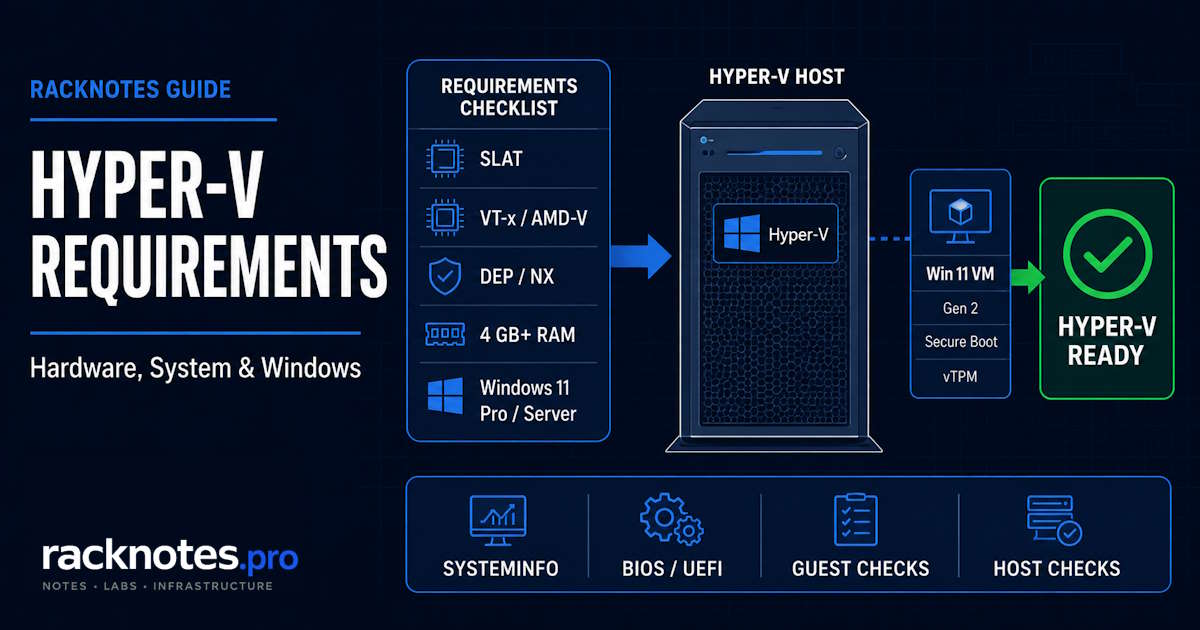
Hyper-V needs a 64-bit CPU with Second Level Address Translation (SLAT) and VM Monitor Mode Extensions, hardware-assisted virtualization enabled in firmware, hardware-enforced Data Execution Prevention (DEP/NX), and a Windows edition that includes Hyper-V: Windows 11 Pro, Enterprise, or Education on the client side, or Windows Server 2019, 2022, or 2025 on the server side. Microsoft states 4 GB of RAM as the planning minimum, not a real sizing number, since the host and every VM running on it need to fit inside actual available memory.
A Windows 11 VM running inside Hyper-V has its own separate requirement list. Don’t confuse host requirements with guest requirements; they’re checked differently and fail differently.
- Host CPU: 64-bit with SLAT and VM Monitor Mode Extensions; hardware-assisted virtualization (Intel VT or AMD-V) must also be enabled in BIOS/UEFI.
- DEP/NX must be available and enabled – Hyper-V won’t install without it.
- 4 GB RAM is Microsoft’s stated planning minimum, not a workable number for running more than a token VM alongside the host.
- Windows 11 Home does not include Client Hyper-V – use Pro, Enterprise, or Education instead.
- Run
systeminfoand check the “Hyper-V Requirements” block for a fast yes/no on every hardware requirement at once. - A Windows 11 guest VM has its own separate checklist: Generation 2, Secure Boot, virtual TPM, at least 64 GB storage, at least 4 GB RAM, at least 2 virtual processors, and a host CPU that meets Windows 11’s own processor requirements.
This article covers what Hyper-V needs to install and run on Windows 11 client hosts and Windows Server hosts, plus the separate requirement list for a Windows 11 guest VM. It does not cover installation steps or role configuration – see How to Install Hyper-V for that. It also does not cover licensing; that’s a separate decision layer covered in Hyper-V Licensing Explained.
Hyper-V System Requirements at a Glance
| Requirement | Minimum | Notes |
|---|---|---|
| Processor | 64-bit CPU with SLAT | No 32-bit path exists |
| Virtualization extensions | Intel VT-x or AMD-V, enabled in firmware | Often disabled by default on consumer boards |
| VM Monitor Mode Extensions | Required | Checked automatically by systeminfo |
| DEP/NX | Available and enabled | Hardware-enforced, not the software fallback |
| RAM | 4 GB (Microsoft’s stated planning minimum) | Real workloads need meaningfully more |
| Client OS | Windows 11 Pro, Enterprise, or Education | Home does not include Client Hyper-V |
| Server OS | Windows Server 2019, 2022, or 2025 | Standard or Datacenter, including Server Core |
This table is the fast path. The sections below cover what each line actually means and how to verify it instead of just trusting a checkbox.
Hyper-V Hardware Requirements
CPU and 64-bit architecture
Hyper-V is 64-bit only. There’s no 32-bit installation path on any supported Windows version, client or server. Beyond the 64-bit requirement, the CPU also needs SLAT support and the specific extensions covered below – a modern 64-bit CPU almost always has them, but older or unusual hardware (some embedded boards, older server CPUs) can still fail this check.
SLAT (Second Level Address Translation)
SLAT, known as Extended Page Tables (EPT) on Intel and Rapid Virtualization Indexing (RVI) on AMD, lets the CPU handle guest-to-host memory address translation in hardware instead of the hypervisor doing it in software. Microsoft lists SLAT as an explicit, non-negotiable requirement for the Hyper-V platform. Every mainstream Intel and AMD CPU from roughly the last decade-plus supports it, but virtualized or nested environments, and some older hardware, can still come up short.
Intel VT-x / AMD-V and VM Monitor Mode Extensions
Hardware-assisted virtualization – Intel VT-x or AMD-V/SVM – has to be present on the CPU and enabled in firmware. This is the single most common reason Hyper-V refuses to install on hardware that otherwise qualifies: the CPU supports it, but the setting is off in the BIOS/UEFI by default.
VM Monitor Mode Extensions are a separate required processor capability reported by Windows as part of the Hyper-V requirements check – not an Intel-only line item. Windows reports this separately from the firmware virtualization setting.
DEP/NX/XD
Hardware-enforced Data Execution Prevention (DEP, also called NX on AMD and XD on Intel) has to be available and enabled. This is a firmware/CPU-level protection, not the software-only DEP fallback older Windows versions used – if it’s disabled in firmware, Hyper-V won’t run even if Windows itself boots fine.
BIOS/UEFI virtualization settings
OEMs don’t use consistent naming, which is why this often trips people up. Depending on the board, the relevant setting can be labeled Intel Virtualization Technology, Intel VT-x, VT-d (a different, IOMMU-related setting – not required for basic Hyper-V), AMD-V, or SVM Mode. On some OEM firmware the virtualization setting also lives in a completely different menu than “CPU Configuration,” under things like “Security” or “Advanced.” If Hyper-V setup or systeminfo reports virtualization as disabled and you’ve confirmed the CPU supports it, this firmware setting is the first thing to check, not a Windows configuration problem.
RAM requirements
4 GB is Microsoft’s stated minimum for planning purposes, not a workable real-world number. That minimum has to cover the host operating system itself plus every VM you intend to run concurrently – it isn’t a per-VM number and it isn’t a number you can safely treat as a target. A host running Windows plus even one or two lightweight VMs needs meaningfully more than 4 GB to avoid constant memory pressure. Size for your actual planned workload, not the stated floor.
Storage and networking considerations
Hyper-V doesn’t impose a specific minimum disk size or network adapter model, but two practical points matter before you start. VM virtual disks need enough free space on the host volume to grow – fixed-size VHDX allocates immediately, while dynamically expanding VHDX grows as data is written. An External virtual switch binds to a physical network adapter for external connectivity: the management OS can either share that switch through a management virtual adapter, or the adapter can be dedicated entirely to VM traffic, depending on the design. Plan storage and networking around your actual VM count and workload, not just enough to get Hyper-V to install.
Windows Requirements for Hyper-V
Windows 11 editions
Client Hyper-V is included with Windows 11 Pro, Enterprise, and Education. Windows 11 Home does not include the Hyper-V feature.
Windows Server 2025/2022/2019
This guide focuses on Windows Server 2019, 2022, and 2025. Hyper-V is also present on Windows Server 2016, which remains in extended support until January 12, 2027, but it’s now a legacy deployment target rather than a sensible choice for a new host.
On the currently recommended releases, the Hyper-V role is available on both Standard and Datacenter editions, and on Server Core installations. The hardware requirements (SLAT, VM Monitor Mode Extensions, virtualization extensions, DEP/NX) are identical across host operating systems – what changes between server versions is the feature set built on top of Hyper-V (networking capabilities, cluster behavior, licensing model), not the base install requirements. See What Is Hyper-V? for how the role differs across these versions.
Is Hyper-V available on Windows Home?
No. Windows 11 Home does not include Client Hyper-V as a supported Windows feature. This isn’t a hidden feature you can unlock with a registry edit or a feature-pack install; it’s an edition-level exclusion. To use Hyper-V itself, use Windows 11 Pro, Enterprise, or Education. A different hypervisor that supports Home is a separate tradeoff, not a Hyper-V workaround.
How to Check Whether Your PC Meets Hyper-V Requirements
systeminfo
The fastest official check is built into Windows. Run this from an elevated Command Prompt or PowerShell:
systeminfoScroll to the Hyper-V Requirements section near the bottom of the output. It lists each hardware requirement with a Yes/No result: VM Monitor Mode Extensions, Virtualization Enabled In Firmware, Second Level Address Translation, and Data Execution Prevention Available. Any No means that specific requirement is unmet, and the line tells you exactly which check failed rather than leaving you to guess.
One caveat worth knowing before you run this: if Hyper-V is already installed and running on the machine, systeminfo may instead report that a hypervisor is already detected rather than showing the full Yes/No checklist. That’s expected behavior, not a broken check; Hyper-V has already claimed the virtualization layer.
Windows Features
On the client side, open Turn Windows features on or off (search for it in the Start menu) and look for Hyper-V in the list. If the checkbox is grayed out or missing entirely, that’s a strong signal that you’re on Windows 11 Home or a hardware requirement isn’t met. The feature does not appear as an option when the Windows edition itself doesn’t support it.
On Windows Server, Hyper-V is installed as a server role. Once the hardware requirements above are confirmed, follow How to Install Hyper-V for the Server Manager and PowerShell installation paths.
BIOS/UEFI checks
If systeminfo shows Virtualization Enabled In Firmware: No, the fix happens in firmware, not Windows. Reboot into BIOS/UEFI setup (the key varies by OEM, commonly Del, F2, F10, or F12 at boot) and look for the virtualization setting under whatever menu your OEM uses (see the naming caveat above). Enable it, save, and reboot, then re-run systeminfo to confirm the line flips to Yes.
What each “Hyper-V Requirements” line means
| Line in systeminfo output | What it checks | If it says No |
|---|---|---|
| VM Monitor Mode Extensions | Required processor virtualization capability | Not fixed by a Windows setting – if the processor/platform genuinely lacks it, the hardware doesn’t qualify |
| Virtualization Enabled In Firmware | Whether VT-x/AMD-V is turned on in BIOS/UEFI | Enable it in firmware setup, the most common fix |
| Second Level Address Translation | SLAT/EPT/RVI hardware support | CPU-level; if unsupported, the CPU itself doesn’t qualify for Hyper-V |
| Data Execution Prevention Available | Hardware DEP/NX/XD availability and state | May also require firmware configuration |
A No for Virtualization Enabled In Firmware usually points to a BIOS/UEFI setting. DEP/NX/XD may also require firmware configuration. A processor that genuinely lacks SLAT or the required monitor-mode virtualization capability does not become Hyper-V-capable through a Windows setting.
Windows 11 VM Requirements in Hyper-V
A Windows 11 guest VM inside Hyper-V has its own requirement list, separate from what the Hyper-V host itself needs. Get this wrong and the VM either refuses to boot the Windows 11 installer or fails a compatibility check during setup, even on a host that’s fully Hyper-V-capable.
Current requirements for a Windows 11 VM: a Generation 2 virtual machine (Generation 1 does not support the required boot mode), Secure Boot enabled, a virtual TPM (vTPM) enabled on the VM, at least 64 GB of virtual disk storage, at least 4 GB of RAM, and at least 2 virtual processors. The physical host processor must also meet Microsoft’s Windows 11 processor requirements – a host that’s fully Hyper-V-capable by the requirements earlier in this article isn’t automatically guaranteed to meet Windows 11’s own separate CPU eligibility list.
The vTPM detail catches people out specifically: it’s a fully emulated virtual TPM tied to the VM itself, not a pass-through of the physical host’s TPM chip. It works the same way regardless of whether the physical host has a TPM 2.0 chip, an older TPM version, or no physical TPM at all. What matters is that the VM’s own vTPM is enabled in its settings, not what silicon sits on the motherboard.
Why Hyper-V Says Your PC Doesn’t Meet the Requirements
When Hyper-V setup or systeminfo reports a failed requirement on hardware you’d expect to qualify, the cause is almost always one of these, roughly in order of how often it actually turns out to be the answer:
Virtualization disabled in firmware. By far the most common cause on otherwise-capable hardware, especially consumer and prosumer boards where virtualization ships off by default. Confirmed and fixed via the BIOS/UEFI check above.
Wrong Windows edition. Windows 11 Home simply doesn’t include Client Hyper-V; no firmware setting fixes that. Confirm your edition with winver or Settings → System → About before troubleshooting anything else.
CPU genuinely lacking SLAT or the required extensions. Rare on anything built in the last decade, but real on some older or unusual hardware. If systeminfo specifically flags Second Level Address Translation or VM Monitor Mode Extensions as unsupported, that’s a hardware ceiling, not a setting to hunt for.
Hyper-V installs, but another virtualization product behaves differently. This is a related but different symptom, worth distinguishing from an actual failed Hyper-V requirement. When the Hyper-V hypervisor is active, third-party virtualization products that also depend on VT-x/AMD-V – VirtualBox and VMware Workstation are the common examples – may fail to start VMs, switch to a compatibility mode, or run differently. That’s a hypervisor-sharing issue between two products competing for the same hardware extensions, not evidence that the CPU fails Hyper-V’s own hardware requirements.
FAQ
Does Hyper-V require SLAT?
Yes, without exception. Second Level Address Translation is a non-negotiable platform requirement for Hyper-V on every supported Windows version. If your CPU doesn’t support it, there’s no firmware setting or workaround that changes that.
How much RAM does Hyper-V need?
Microsoft states 4 GB as the planning minimum, but treat that as a floor, not a target. That minimum has to cover the host OS and every VM running at the same time, not just Hyper-V itself. A host running even one or two real VMs typically needs well beyond 4 GB to avoid memory pressure.
Can I run Hyper-V on Windows 11 Home?
No. Client Hyper-V is not included as a supported Windows feature on Windows 11 Home; it requires Pro, Enterprise, or Education. This is an edition-level exclusion, not a disabled feature you can turn back on.
Why does Hyper-V say my PC doesn’t meet the minimum requirements?
Most often because hardware virtualization is disabled in firmware, even though the CPU itself supports it. Run systeminfo and check the Hyper-V Requirements block; it tells you exactly which line failed instead of leaving you to guess between a firmware setting, a Windows edition problem, and a genuine hardware limitation.
What are the requirements for a Windows 11 VM running in Hyper-V?
A Generation 2 VM with Secure Boot enabled, a virtual TPM enabled, at least 64 GB of storage, at least 4 GB of RAM, and at least 2 virtual processors, plus a physical host processor that meets Microsoft’s Windows 11 processor requirements. This is a separate checklist from what the Hyper-V host itself needs to run Hyper-V at all.
Is Hyper-V free?
Whether Hyper-V has a separate cost depends on which Windows edition you’re already running. It isn’t sold as a standalone product on client Windows or the current Windows Server lineup. That’s a licensing question rather than a requirements question; see Hyper-V Licensing Explained for the full breakdown.
Final Thoughts
Most “Hyper-V won’t install” problems trace back to one of three things: virtualization disabled in firmware, the wrong Windows edition, or a genuine hardware ceiling on SLAT or VM Monitor Mode support, roughly in that order of likelihood. Running systeminfo and reading the Hyper-V Requirements block first saves more troubleshooting time than any other single step, because it tells you which of those three buckets you’re actually in before you start changing settings.
The Windows 11 guest VM requirements are a separate list from the host requirements, and conflating the two is the second most common source of confusion. A fully Hyper-V-capable host can still fail to boot a Windows 11 VM if that VM isn’t Generation 2 with Secure Boot and a vTPM enabled, or if the host CPU itself doesn’t meet Windows 11’s own processor eligibility list.
Once the hardware and edition are confirmed, the next steps are How to Install Hyper-V for the actual role installation, and Hyper-V Licensing Explained for what running it in production actually costs.
Official Microsoft Sources
Hyper-V Series
16 articles – Windows Server 2025 · Requirements · Licensing · Networking · Storage · USB Passthrough · TPM 2.0 · Backup · Clustering