
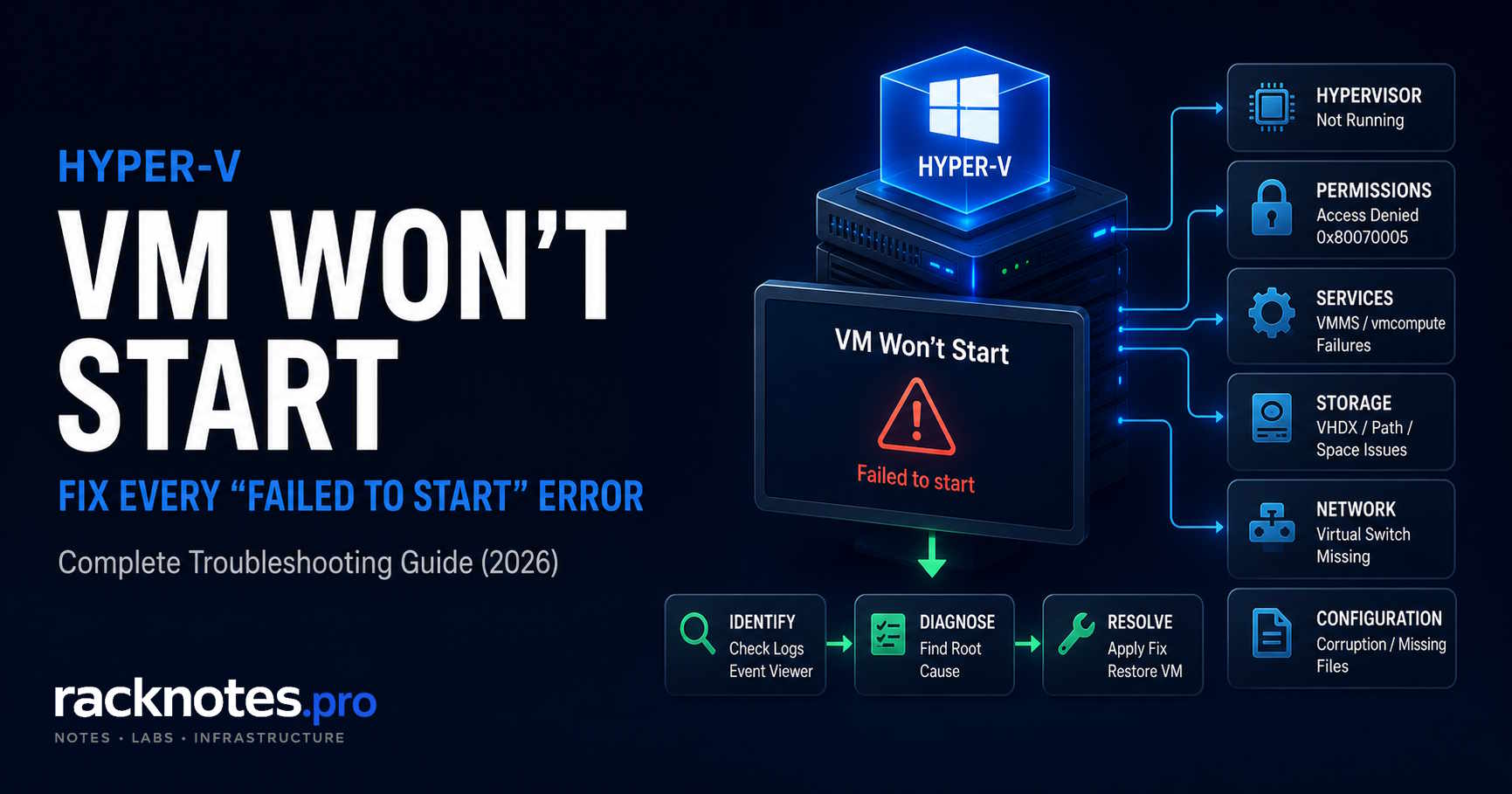
If a Hyper-V VM won’t start, the generic Hyper-V Manager message may not be enough to identify the cause. A Hyper-V virtual machine can fail to start because the hypervisor did not load, a required Hyper-V component is unavailable, VM permissions are wrong, host memory is constrained, or the VM’s storage/configuration path is inaccessible.
Start with the full error in Microsoft-Windows-Hyper-V-VMMS/Admin and Hyper-V-Worker/Admin, then match the message or HRESULT to the diagnostic path below. This guide covers common errors including “the hypervisor is not running,” “one of the Hyper-V components is not running,” 0x80070005, 0x80070569, “cannot connect to virtual machine configuration storage,” memory failures, VHDX errors, and VMs stuck in a transition state.
Applies to: Windows Server 2025, Windows Server 2022, Windows Server 2019, and Windows Server 2016 Hyper-V hosts. Last technically reviewed: August 2026.
- Start with the full error in Hyper-V-VMMS/Admin and Hyper-V-Worker/Admin; the generic Hyper-V Manager dialog is not enough.
- Hypervisor/components not running: verify
HypervisorPresent, Hyper-V role health, firmware virtualization/DEP, andhypervisorlaunchtype. - 0x80070005: verify the VM SID and NTFS permissions on the VHDX/configuration path.
- 0x80070569: verify
NT VIRTUAL MACHINE\Virtual Machinesstill has the required user right and check the winning GPO. - Cannot connect to virtual machine configuration storage: verify the configuration path, storage volume, mount point, and permissions before rebuilding the VM registration.
- Memory errors: check Hyper-V Dynamic Memory Balancer available memory and the VM’s Startup RAM.
- Stuck Starting/Stopping: confirm the transition is genuinely hung before force-terminating
vmwp.exe.
Hyper-V Virtual Machine Failed to Start – Find the Exact Error First
Before touching any configuration, get the exact error text. Hyper-V Manager shows a truncated version. You need the full string.
Where to find the real error
If Hyper-V Manager only reports “An error occurred while attempting to start the selected virtual machine(s),” expand the details or use the Hyper-V event logs – the useful cause is normally in the nested error below that generic message.
Three places, in order of usefulness:
PowerShell – fastest for standalone hosts:
Get-VM -Name "YourVMName" | Select-Object Name, State, StatusThe Status field often contains the error string Hyper-V Manager truncates.
Event Viewer – most complete for root cause:
Event Viewer → Applications and Services Logs →
Microsoft → Windows → Hyper-V-VMMS → Admin
Filter by Error level, sort by time. The VMMS Admin log captures the full error chain including nested causes. On clustered hosts, also check Hyper-V-High-Availability/Admin.
Failover Cluster Manager – clustered VMs only. Shows cluster resource state alongside VM state, which matters when a VM is online at the cluster layer but failed at the VM layer. For cluster-specific start failures, check cluster resource events before VMMS events.
If Event Viewer says Hyper-V-Worker description cannot be found
If Event Viewer says that the description for a Microsoft-Windows-Hyper-V-Worker event “cannot be found,” do not stop at that line. Record the Event ID, HRESULT/error code, VM ID, attached path, and the remaining event payload. The missing localized event description is not necessarily the root cause of the VM start failure.
VM state reference
| State | What it means operationally |
|---|---|
| Off | Clean stop or never started |
| Starting | VM is transitioning to Running. Treat it as stuck only when the state stops progressing and VMMS/Worker events show no successful transition. |
| Running | Normal |
| Stopping | VM is transitioning to Off. Investigate VMMS/Worker state before force-terminating the worker process. |
| Saved | Suspended state on disk – resume requires identical resources to save time |
| Paused | Manually paused or paused by host under memory pressure |
| Critical / Saved-Critical | Hyper-V cannot fully access or validate required VM resources/configuration. Check storage path, config files, permissions, and VMMS/Worker events. |
Error-to-cause matrix
Use this table to identify the right section before reading further. If the Hyper-V VM won’t start and you have an error code – find the row. No error code: start with Event Viewer.
| Error or symptom | Most likely cause | Section |
|---|---|---|
| The virtual machine could not be started because the hypervisor is not running | Hypervisor did not load: boot configuration, firmware virtualization/DEP, or nested-virtualization/platform issue | Hypervisor Not Running |
| 0x80070005 – Access denied | VM SID missing from VHDX or config folder ACLs | Error 0x80070005 |
| 0x80070569 – Logon failure | “Log on as a service” right missing from VM identity | Error 0x80070569 |
| VM stuck in Starting or Stopping | Hung worker process, blocked management operation, cluster transition, or storage/resource failure | VM Stuck Stopping/Starting |
| Not enough memory to start | Host memory pressure or Dynamic Memory misconfiguration | Not Enough Memory |
| Failed to open attachment / failed to open virtual hard disk | Missing VHDX, wrong path, or offline storage | VHDX Not Found |
| Chain of virtual hard disks is corrupted | Failed checkpoint merge or manual AVHDX deletion | Broken AVHDX Chain |
| Not enough space on the disk | Full CSV, ReFS volume, or Storage Spaces pool | Storage Full |
| VM won’t start after restore or migration | ACL mismatch, missing virtual switch, or config version conflict | After Restore or Migration |
| Event ID 32 / 21502 – switch port connection is invalid | VM adapter references an invalid or unavailable virtual switch | Virtual Switch Missing |
| VMMS service not running | VMMS/service dependency failure; inspect Service Control Manager and Hyper-V logs | VMMS Service Failures |
| Lock Status: Locked on storage drive | BitLocker-encrypted drive didn’t auto-unlock at boot | BitLocker and AV |
| Missing or corrupt .vmcx / .vmrs | Config corruption after failed migration or disk error | Config Corruption |
| The Virtual Machine Management Service failed to start the virtual machine because one of the Hyper-V components is not running | Hypervisor presence, Hyper-V role/component health, VMMS/Worker logs | Hypervisor Not Running |
| An error occurred while attempting to start the selected virtual machine(s) | Expand nested error in VMMS and Worker logs | Find the Exact Error |
| Cannot connect to virtual machine configuration storage | VM configuration path, volume/mount point, storage availability, permissions | Cannot Connect to VM Config Storage |
| Failed to start worker process | Use HRESULT/nested reason; common branches include user-rights, service/component, or host failures | Find the Exact Error |
“The Hypervisor Is Not Running” – Why a Hyper-V VM Won’t Start
Full error: The virtual machine could not be started because the hypervisor is not running. Microsoft documents the primary causes in Virtual machine could not start because the hypervisor is not running.
This error means Windows is not running the Hyper-V hypervisor layer. The role may be installed, but the hypervisor itself never loaded. Four distinct causes – check them in this order.
Verify Hyper-V role and services
Check the role first:
Get-WindowsFeature -Name Hyper-VIf InstallState is not Installed, confirm that this is the intended Hyper-V host before changing the role. Installing Hyper-V can require a host restart, so perform it only in an approved maintenance window:
Install-WindowsFeature -Name Hyper-V -IncludeManagementToolsReview the command result and restart the host only when required and operationally approved. See the Install-WindowsFeature reference for restart behavior.
Then verify the two critical services:
Get-Service vmms, vmcompute | Select-Object Name, Status, StartTypeBoth should be Running. If vmcompute is stopped and will not start, do not assume that the service itself is the root cause. Check whether the hypervisor is present, then correlate the Service Control Manager, VMMS, and Hyper-V-Worker events before changing the service configuration.
“Failed to Start Because One of the Hyper-V Components Is Not Running”
If Hyper-V reports that the Virtual Machine Management Service failed to start the virtual machine because one of the Hyper-V components is not running, first verify that the hypervisor actually loaded and that the Hyper-V role is healthy. Do not reinstall the role immediately.
Check:
Get-WindowsFeature Hyper-V
(Get-CimInstance Win32_ComputerSystem).HypervisorPresent
Get-Service vmms, vmcompute
bcdedit /enum | findstr /i hypervisorlaunchtype
If HypervisorPresent is False, continue with the firmware, DEP, and hypervisorlaunchtype checks below. If the hypervisor is present but VMMS or another component is failing, use the VMMS/Admin and Hyper-V-Worker/Admin logs to identify the component before changing services or reinstalling Hyper-V.
BIOS/UEFI virtualization and DEP/SLAT
Hyper-V requires three hardware features: Intel VT-x or AMD-V, hardware DEP (NX/XD bit), and SLAT (Intel EPT or AMD RVI). Quick check:
systeminfo | findstr /i "Hyper-V"Expected output on a functioning host:
Hyper-V Requirements: A hypervisor has been detected. Features required for Hyper-V will not be displayed.If you instead see Virtualization Enabled In Firmware: No, reboot into BIOS/UEFI and enable Intel VT-x or AMD-V. Location varies by manufacturer – typically under Advanced → CPU Configuration. Verify SLAT and the other Hyper-V hardware requirements on the actual host rather than inferring support from CPU age. DEP disabled via BCD is rare but worth checking: bcdedit /enum | findstr nx should return nx OptIn or nx AlwaysOn.
Check hypervisorlaunchtype on a host that worked previously
On a host where Hyper-V worked previously, check hypervisorlaunchtype early in the diagnostic process, especially after boot-configuration changes, recovery operations, or virtualization-stack changes.
# Check current state
bcdedit /enum | findstr hypervisorlaunchtype

# Fix if showing "off"
bcdedit /set hypervisorlaunchtype auto
Restart required after the fix.
Nested virtualization and third-party hypervisors
VBS, Credential Guard, and WSL2 use Microsoft’s virtualization stack and do not normally need to be disabled to make Hyper-V work. If this Windows Server host is itself running inside another hypervisor or cloud VM, verify that nested virtualization is supported and exposed to the guest. For VMware Workstation or VirtualBox on a Windows client host, check the product’s current Hyper-V compatibility requirements rather than assuming that Hyper-V and the third-party hypervisor can share hardware virtualization directly.
Get-CimInstance Win32_ComputerSystem |
  Select-Object HypervisorPresent, Model, Manufacturer
Use a dedicated nested-virtualization check if the host is itself a VM. See Microsoft’s nested virtualization guidance.
Access Denied – Error 0x80070005 (Hyper-V VM Won’t Start)
Full error: ‘VMName’ failed to start. ‘VMName’: Access denied. (0x80070005). See Microsoft’s 0x80070005 KB for the documented cause.
A permissions error. Hyper-V uses per-VM security identifiers (SIDs) in the format NT VIRTUAL MACHINE\{GUID} to control access to VHDX files, snapshot files, and config folders. After migrations, restores, or manual file moves, the ACLs on storage don’t match the VM’s SID.
What triggers it
Manual copies, cross-volume moves, restores, and storage migrations performed outside Hyper-V can leave VHDX or configuration files with ACLs that do not include the VM’s required identity. The same risk applies when importing from a different host or migrating storage without using Hyper-V’s built-in tools.
Restore VM SID on VHDX and config folder
Get the VM ID first:
(Get-VM -Name "YourVMName").IdVerify current ACLs on the VHDX:
icacls "D:\Hyper-V\VMs\YourVM\YourVM.vhdx"If the VM SID is absent from the affected object, repair that exact path:
icacls "D:\Hyper-V\VMs\YourVM\YourVM.vhdx" /grant "NT VIRTUAL MACHINE\{GUID}":(F)If the error points to a configuration file or an AVHDX, repair that exact path instead. Do not grant Full Control recursively across the entire VM tree as the first fix – use the exact path from the error, verify its ACL, and restore the VM SID on the affected object. Repair folder inheritance only when the storage ACL design is known and confirmed to be incorrect.
After a restore, Import-VM can be a safer recovery path than manually rebuilding ACLs when a valid exported/restored configuration is available. Do not delete an existing VM registration until the storage paths and recovery plan are confirmed.
Logon Failure – Error 0x80070569 (Hyper-V VM Won’t Start)
Full error: ‘VMName’ failed to start worker process: Logon failure: the user has not been granted the requested logon type at this computer. (0x80070569). See Microsoft’s 0x80070569 KB for the documented cause and fix.
When a Hyper-V VM won’t start with this error, the NT VIRTUAL MACHINE\Virtual Machines identity is missing the “Log on as a service” right. GPO changes – especially after domain join or OU moves – strip this right without warning.
Check and restore the right
# Verify local policy
secpol.msc → Local Policies → User Rights Assignment → Log on as a service
NT VIRTUAL MACHINE\Virtual Machines must be listed. If missing, add it, then restart vmms:
Restart-Service vmmsGPO override – when the right keeps disappearing
If the right disappears again after Group Policy refresh, a domain GPO is overwriting the local setting. Find which one:
gpresult /H gpresult.htmlOpen the report, search for “Log on as a service” under Computer Configuration → User Rights Assignment. The winning GPO is listed with its source OU. Edit the applicable policy so its Log on as a service setting includes NT VIRTUAL MACHINE\Virtual Machines and preserves every other service principal required on the host. User Rights Assignment from Group Policy is not cumulative – do not create a narrow override that contains only the Hyper-V identity, because it will remove other accounts that also need the right.
After changing the GPO:
gpupdate /forceCheck this branch especially after domain joins, OU moves, or deployment of a GPO that manages User Rights Assignment.
Not Enough Memory – Hyper-V VM Won’t Start
Full error: Not enough memory in the system to start the virtual machine.
Either the host genuinely doesn’t have enough free RAM, or Dynamic Memory is configured in a way that prevents startup allocation.
Check host available memory first
Use the Hyper-V-specific counter for memory available to virtual machines, per Microsoft’s Dynamic Memory guidance:
Get-Counter '\Hyper-V Dynamic Memory Balancer(*)\Available Memory'If the exact instance naming differs by host, list available instances first:
Get-Counter -ListSet 'Hyper-V Dynamic Memory Balancer'Also check overall host OS available RAM and all running VMs against their current allocation:
Get-Counter "\Memory\Available MBytes"Get-VM | Select-Object Name, State, MemoryStartup, MemoryAssigned, MemoryDemandFor a VM starting from Off, Hyper-V must be able to provide its Startup RAM while also preserving host reserve. Compare the target VM’s Startup RAM with Hyper-V’s current memory available to virtual machines and the MemoryAssigned/MemoryDemand values of running VMs. Do not diagnose the host only by summing Startup RAM values.
Dynamic Memory and startup RAM
With Dynamic Memory enabled, Hyper-V allocates the Startup RAM value at boot, not the minimum. A VM configured with 8 GB startup and 512 MB minimum will attempt to claim 8 GB at start regardless of actual workload. If the host can’t satisfy that, the VM won’t start.
# Check Dynamic Memory config
Get-VMMemory -VMName "YourVMName"

# Example only - lower Startup RAM only if the guest/workload supports the new value
Set-VMMemory -VMName "YourVMName" -StartupBytes 2GB
On multi-NUMA hosts, NUMA becomes a startup constraint when NUMA spanning is disabled or when VM topology/resource constraints cannot be satisfied by the host. By default, Hyper-V can span physical NUMA nodes when one node does not have enough memory.
- Check which node currently owns the VM role:
Get-ClusterGroup | Where-Object Name -eq "VMName" | Select-Object Name, OwnerNode, State - Check available memory on that node:
Invoke-Command -ComputerName NodeName { Get-Counter "\Memory\Available MBytes" } - If node is memory-exhausted, move the VM:
Move-ClusterVirtualMachineRole -Name "VMName" -Node "TargetNode" - If all nodes are constrained, reduce running VM count or lower startup RAM values across low-priority VMs
VHDX Not Found – Failed to Open Attachment
Full error: Failed to open attachment ‘path’. Error: ‘The system cannot find the path specified.’ or Failed to open virtual hard disk.
The VM config references a VHDX path that doesn’t exist at the expected location. Common after storage migrations, share path changes, or CSV reconfigurations on cluster hosts.
Identify the broken path
Get-VMHardDiskDrive -VMName "YourVMName"The Path column shows what the VM config expects. Verify the file exists at that path:
Test-Path "D:\Hyper-V\VMs\YourVM\YourVM.vhdx"If False, the file has moved or the storage is offline.
Fix the path or bring storage online
If the VHDX exists at a different path, update the VM config:
# Check current disk configuration first
Get-VMHardDiskDrive -VMName "YourVMName" |
  Select-Object VMName, ControllerType, ControllerNumber, ControllerLocation, Path

# Update only the path, preserving controller settings
Get-VMHardDiskDrive `
  -VMName "YourVMName" `
  -ControllerType SCSI `
  -ControllerNumber 0 `
  -ControllerLocation 0 |
Set-VMHardDiskDrive -Path "E:\NewPath\YourVM.vhdx"
See Set-VMHardDiskDrive reference. Adjust ControllerType, ControllerNumber, and ControllerLocation to match the output of the first command.
If the storage is on a CSV or SAN that’s offline, bring the disk online before reconfiguring the VM. For clustered environments, check that the CSV hosting the VHDX is accessible from the node currently owning the VM – CSV ownership issues are a separate path from VHDX path errors. The Hyper-V storage guide covers CSV and Storage Spaces layout in detail.
Broken AVHDX Chain
Full error: The chain of virtual hard disks is corrupted. The system cannot find the file specified.
Checkpoints create AVHDX differencing disks chained to the parent VHDX. If a merge fails midway, a checkpoint file is deleted manually, or a storage failure interrupts the chain, Hyper-V can’t reconstruct the disk sequence and the VM won’t start.
Get-VMHardDiskDrive -VMName "YourVMName" |
  ForEach-Object {
      Get-VHD -Path $_.Path |
        Select-Object Path, ParentPath, VHDType
  }
Use ParentPath to identify the next disk in the differencing chain. If an AVHDX references a parent that is missing or inaccessible, stop before merging anything and identify the missing parent from backup or storage history. See Microsoft’s checkpoint and differencing disk guidance for chain-repair options.
Recovery paths depend on which file is missing and whether the parent VHDX is intact. The core options are: restore the missing file from backup, or use Merge-VHD to collapse an intact portion of the chain into the parent. Both paths require the parent VHDX to be in a consistent state. A detailed walkthrough of AVHDX chain repair is outside the scope of this article – the Hyper-V Checkpoint & AVHDX Troubleshooting guide covers the full repair sequence.
Storage Full
Full error: There is not enough space on the disk. or Not enough storage is available to complete this operation.
A surprisingly common cause of VM start failures in production. VHDX dynamic disks grow silently – a cluster of VMs with active dynamic disks can fill a volume between maintenance windows.
Check available space
# Check all volumes
Get-Volume | Select-Object DriveLetter, FileSystemLabel, SizeRemaining, Size

# On clustered hosts - check CSVs
Get-ClusterSharedVolume | Select-Object Name, SharedVolumeInfo
For Storage Spaces pools, check both the volume and the underlying pool:
Get-StoragePool | Select-Object FriendlyName, AllocatedSize, Size, HealthStatusImmediate actions
If the volume is full: restore free space first, then identify unexpected AVHDX/checkpoint growth and oversized dynamic disks. Use Optimize-VHD only as a planned maintenance step after the disk is detached or otherwise meets the cmdlet requirements – it is not the first emergency response on a volume at 100%. For a full CSV, check whether checkpoint AVHDX files are accumulating from a failed backup job – this is a common source of silent storage exhaustion on Hyper-V hosts running Hyper-V VSS backups.
In one documented production pattern, failed backup or checkpoint cleanup leaves AVHDX files consuming CSV capacity. Before deleting or merging anything, compare Get-VMSnapshot, Get-VMHardDiskDrive, and the Get-VHD ... ParentPath output with the files on disk. Remove registered checkpoints through Hyper-V. Treat unregistered AVHDX files that no longer appear as checkpoints as a disk-chain recovery case rather than deleting them manually.
Cannot Connect to Virtual Machine Configuration Storage
This error does not automatically mean the .vmcx file is corrupt. First verify that the configuration path and storage volume are online and reachable. Common causes include an unavailable volume, a changed drive letter or mount point, missing configuration files, storage corruption, and permissions problems.
Check the VM configuration location:
Get-VM -Name "YourVMName" | Select-Object Name, Path, ConfigurationLocation, SnapshotFileLocationThen verify that the reported path exists and that the underlying volume is online. If the storage path is intact but the VM remains in a Critical or Saved-Critical state, inspect Hyper-V-VMMS/Admin and Hyper-V-Worker/Admin before deleting cache files or rebuilding the VM registration. Re-importing or recreating the VM should be a recovery action after the storage/configuration cause is understood, not the first diagnostic step. For the full configuration path and permissions check, see the Microsoft Hyper-V storage troubleshooting guidance.
Hyper-V VM Stuck in Starting or Stopping
If a VM remains stuck in a transition state such as Starting or Stopping after the normal management operation has failed, a hung vmwp.exe worker process is one possible cause. Do not apply this procedure to a VM that is simply Off and returns a normal startup error.
Identify the vmwp.exe process by VM GUID
Each running VM has a dedicated vmwp.exe (Virtual Machine Worker Process) identified by the VM’s GUID.
# Get the VM ID
(Get-VM -Name "YourVMName").Id
Open Task Manager → Details tab → right-click columns → add “Command line.” Each vmwp.exe instance shows its GUID in the command line. Match it to your VM ID.
Safe kill sequence
Try the graceful path first:
Stop-VM -Name "YourVMName" -ForceIf the VM remains stuck after the normal Stop-VM operation has failed and Event Viewer confirms that the transition is no longer progressing, identify the VM’s worker process. On a cluster, first confirm that the VM is not migrating, failing over, or undergoing another cluster operation.
$vmId = (Get-VM -Name "YourVMName").Id.ToString()

$process = Get-CimInstance Win32_Process -Filter "Name='vmwp.exe'" |
  Where-Object { $_.CommandLine -match [regex]::Escape($vmId) }

if (@($process).Count -ne 1) {
    throw "Expected exactly one vmwp.exe for VM ID $vmId. Do not force-stop anything until the process is identified."
}

Stop-Process -Id $process.ProcessId -Force
After the worker process is terminated, verify the VM and cluster-resource state before attempting another start. Do not assume the VM is immediately safe to restart solely because vmwp.exe disappeared.
- Verify the VM isn’t live migrating to another node:
Get-ClusterResource | Where-Object {$_.Name -like "*VMName*"} - Check cluster resource state – if migration is in progress, wait or cancel it before killing the worker
- If the VM is genuinely stuck and not migrating, proceed with force-kill
- After kill, verify the clustered role state – do not wildcard-start individual resources as a generic recovery step:
If the clustered role is Offline and it is safe to bring it online, start the role intentionally through Failover Cluster Manager or
$vmId = (Get-VM -Name "YourVMName").Id Get-ClusterGroup -VMId $vmId | Select-Object Name, OwnerNode, StateStart-ClusterGroup. SeeGet-ClusterGroupreference.
Force-killing vmwp.exe is equivalent to pulling the power cord on a physical server. SQL Server, Exchange, and any workload with active transactions will perform dirty shutdown recovery on next start. For stateless VMs, the impact is minimal.
Virtual Switch Missing or Disconnected
A VM with a network adapter connected to a non-existent virtual switch will generate warnings but typically still start – a disconnected NIC is not a blocker by default. However, if the VM is configured with a startup dependency on a specific network, or if the switch reference causes a config validation error, start fails.
Identify the mismatch
# Check what switch the VM expects
Get-VMNetworkAdapter -VMName "YourVMName"

# Check what switches actually exist on this host
Get-VMSwitch
If SwitchName in the adapter output doesn’t appear in Get-VMSwitch, the adapter is referencing a switch that doesn’t exist on this host. Common after import from a host with different switch names, or after a cluster failover to a node with a different vSwitch naming convention.
Reconnect to the correct switch
Connect-VMNetworkAdapter -VMName "YourVMName" -SwitchName "YourActualSwitchName"For clustered environments, virtual switch names must be consistent across all nodes – a VM that can live migrate to any node needs the same switch name available everywhere. Inconsistent switch naming is one of the more common live migration failures. The Hyper-V networking guide covers virtual switch design and naming conventions for clustered hosts.
VMMS Service Failures
The Virtual Machine Management Service (vmms) orchestrates all VM operations. If it’s not running, no VMs can start regardless of individual VM state.
Check VMMS and supporting Windows services
Get-Service vmms | Select-Object Name, Status, StartType
Get-Service vmms -RequiredServices
If VMMS does not start, use its actual service dependencies plus Service Control Manager and Hyper-V event logs to identify the failed layer. Do not assume WMI corruption from a VMMS startup failure alone.
Restart sequence
Restarting VMMS interrupts Hyper-V management operations. Do not do this during an active live migration, checkpoint/backup operation, or other host-management task unless the operational impact is understood.
Stop-Service vmms -Force
Start-Service vmms
Get-Service vmms
If vmms won’t start, check Service Control Manager and Hyper-V event logs for the associated service failure details.
If the event logs and WMI diagnostics confirm repository corruption, follow Microsoft’s current WMI repository recovery procedure. Do not reset the repository as a generic VMMS repair step.
BitLocker and Antivirus Filter Drivers
BitLocker-locked storage
If the volume hosting VHDX files is BitLocker-encrypted and didn’t auto-unlock at boot – TPM protector mismatch or external key absent – Hyper-V can’t access the files.
# Check lock status
manage-bde -status D:

# Unlock if locked
manage-bde -unlock D: -RecoveryPassword <48-digit-key>
After unlock, VMs on that volume start normally. If the volume did not auto-unlock, investigate its protector and auto-unlock configuration, recent firmware/TPM changes, recovery-key requirements, and the underlying storage state before the next restart.
Antivirus filter drivers
Third-party antivirus products or customized Defender policies can interfere with Hyper-V file access. Microsoft documents recommended exclusions for Hyper-V hosts. On Windows Server using Microsoft Defender Antivirus, many role-based Hyper-V exclusions are configured automatically, so verify the current policy before adding duplicate or unnecessarily broad manual exclusions.
Common process exclusions (verify against the current Microsoft guidance for your version): vmms.exe, vmwp.exe, vmcompute.exe
Common file type exclusions (examples only – see Microsoft guidance for the current full list): .vhd, .vhdx, .avhd, .avhdx, .vhds, .vmcx, .vmrs, .vsv, .iso, .rct
Folders to exclude: VM config directory (C:\ProgramData\Microsoft\Windows\Hyper-V\), all VM storage paths, snapshot directories
Config Corruption – Missing .vmcx or .vmrs
A .vmcx is the VM configuration store. A .vmrs holds saved state data. Missing or corrupt files prevent the VM from starting.
Re-import from backup config
Import-VM -Path "D:\Backup\YourVM\Virtual Machines\{GUID}.vmcx"Use Register import type to keep the VM in place, or Copy to create a new VM from backup files.
Recreate from existing VHDX
If the config is unrecoverable but the VHDX is intact:
New-VM -Name "YourVM-Recovered" -MemoryStartupBytes 4GB `
  -VHDPath "D:\Hyper-V\VMs\YourVM\YourVM.vhdx" `
  -Generation 2 -SwitchName "YourVirtualSwitch"
Match the generation to the original VM. Generation 2 VMs have UEFI firmware embedded in the config – recreating as Generation 1 with a Gen 2 VHDX results in a boot failure. Match the generation to the original VM configuration or backup/export metadata whenever possible. The boot-disk partition layout can provide supporting evidence – Gen 2 Windows boot disks normally use UEFI/GPT – but do not recreate the VM solely from that clue if the original configuration information is available.
VM Won’t Start After Restore or Migration
Post-migration start failures usually fall into one of three categories: ACL mismatch, config version conflict, or virtual switch name difference.
ACL issues after restore are covered in the 0x80070005 section above. Import-VM from a restored config can be a safer path than pointing an existing VM definition at moved files when a valid configuration is available.
Config version mismatch
VM configuration versions are host-version dependent. A VM can be imported or started only on a Hyper-V host that supports its configuration version. Instead of assuming a version from the Windows Server release, check the VM and the destination host directly, per the Microsoft configuration version guidance:
Get-VM -Name "YourVMName" | Select-Object Name, Version
Get-VMHostSupportedVersion
If the VM version is not supported on the destination host, move it to a compatible newer host or recreate a VM of the same generation and attach the existing virtual disks. Update-VMVersion only upgrades a VM to a newer configuration version; it does not make a newer VM compatible with an older host.
# Upgrade config version after confirming host compatibility (one-way, irreversible)
Update-VMVersion -VMName "YourVMName"
The version upgrade is irreversible – the VM cannot return to an older host after upgrade. Don’t run Update-VMVersion until you’re certain the VM won’t need to fail back to a previous-generation host. For Failover Cluster considerations, the Hyper-V clustering guide covers cluster functional levels and rolling upgrades.
Virtual switch mismatches after migration are covered in the Virtual Switch Missing section above.
Prevent Hyper-V VM Start Failures
Most scenarios where a Hyper-V VM won’t start are preventable. The common thread across almost every case above is configuration state that drifted without anyone noticing – hypervisorlaunchtype reverting after an update, ACLs stripped during a file move, a GPO pushing a baseline that removes service rights. A Hyper-V VM not starting during a maintenance window is painful; the same failure at 2 AM is worse.
- Include hypervisor presence and boot configuration in post-maintenance validation when the host’s virtualization, firmware, boot configuration, or security platform has changed
- Confirm AV exclusions survive policy updates – re-verify after each major GPO change
- Document VM GUIDs for critical VMs before you need them –
Get-VM | Select-Object Name, Id | Export-Csv vmguids.csv - Check “Log on as a service” after any OU move or new GPO deployment
- Monitor volume free space for dynamic VHDX growth – set alerts at 20% remaining for volumes hosting VM storage
- Use supported Hyper-V migration, storage-move, export/import, and backup-restore workflows instead of manually moving VM files and rebuilding references
- Keep virtual switch names consistent across cluster nodes – document the naming convention and enforce it during host provisioning
Frequently Asked Questions
Why did my Hyper-V virtual machine fail to start?
A Hyper-V VM won’t start and a Hyper-V virtual machine failed to start resolve to the same diagnostic path: get the full error from Hyper-V-VMMS/Admin and Hyper-V-Worker/Admin. Common causes include: hypervisor not loaded (hypervisorlaunchtype off), a required Hyper-V component unavailable, permission errors on VHDX files (0x80070005), service account rights stripped by GPO (0x80070569), host memory pressure, or an inaccessible configuration path. Do not rely on the Hyper-V Manager dialog alone.
How do I fix “the hypervisor is not running” in Hyper-V?
Run bcdedit /enum | findstr hypervisorlaunchtype. If it shows off, run bcdedit /set hypervisorlaunchtype auto and restart. Also verify BIOS/UEFI virtualization: systeminfo | findstr /i "Hyper-V" shows whether firmware virtualization is disabled. On a host that worked previously, hypervisorlaunchtype is one of the early checks, but also verify firmware virtualization and the current Hyper-V/VMMS event errors.
What is error 0x80070005 in Hyper-V?
Access denied – the VM’s SID is missing from the VHDX or config folder ACLs. Get the VM ID with (Get-VM -Name "VMName").Id, then use icacls to grant NT VIRTUAL MACHINE\{GUID} full control on the VM storage path. After a restore, Import-VM can be preferable when a valid restored/exported configuration is available, because it avoids manually rebuilding the VM definition and storage references.
How do I force stop a VM stuck in Stopping state?
Try Stop-VM -Name "VMName" -Force first. If it stays stuck, find the VM’s GUID with (Get-VM -Name "VMName").Id, locate the matching vmwp.exe via Task Manager → Details → Command line, and kill it with Stop-Process -Id <PID> -Force. Treat this as a hard power-off – SQL Server and Exchange will run dirty shutdown recovery on next start.
Can BitLocker prevent a Hyper-V VM from starting?
Yes, if the volume hosting VHDX files didn’t auto-unlock at boot. Check with manage-bde -status D:. If Lock Status: Locked, unlock manually and investigate why auto-unlock failed – usually a TPM protector mismatch after a firmware update.
Why won’t my VM start after restore or migration?
Most post-restore failures are ACL mismatches (0x80070005) or virtual switch name differences. Use Import-VM rather than manually pointing to restored files – it re-stamps SIDs automatically. For switch issues, run Get-VMNetworkAdapter and compare against Get-VMSwitch.
How do I check if the Hyper-V hypervisor is running?
systeminfo | findstr /i "Hyper-V" – if it shows A hypervisor has been detected, the hypervisor is running. Also: Get-Service vmcompute should show Running. If vmcompute is stopped and will not start, check whether the hypervisor is present and correlate Service Control Manager and Hyper-V event logs before changing service configuration.
What antivirus exclusions does Hyper-V require?
Exclude processes vmms.exe, vmwp.exe, vmcompute.exe and file types .vhd, .vhdx, .avhd, .avhdx, .vsv. Also exclude the VM config directory and all VM storage paths. On Windows Server with Microsoft Defender Antivirus, many Hyper-V role exclusions are configured automatically – verify the current policy before adding manual exclusions. Security software can contribute to file-access, lock, or timeout problems, but verify the actual Hyper-V/AV events before attributing a startup failure to exclusions.
What does “one of the Hyper-V components is not running” mean?
It means VMMS could not start the VM because part of the Hyper-V virtualization stack is unavailable. Verify that the Hyper-V role is installed, HypervisorPresent is True, required services are healthy, and the hypervisor is configured to launch at boot. Use VMMS/Admin and Hyper-V-Worker/Admin to identify the failing component before reinstalling Hyper-V.
How do I fix “Cannot connect to virtual machine configuration storage” in Hyper-V?
Verify the VM’s configuration path and the underlying volume first. The error can occur when the storage volume, drive letter, mount point, configuration file, or permissions are unavailable. Use Get-VM | Select-Object Name, ConfigurationLocation to confirm the expected path. Do not delete the VM cache or rebuild the VM registration until the original configuration/storage path has been identified.
Hyper-V Series
14 articles – Windows Server 2025 · Requirements · Licensing · Networking · Storage · Backup · Clustering