
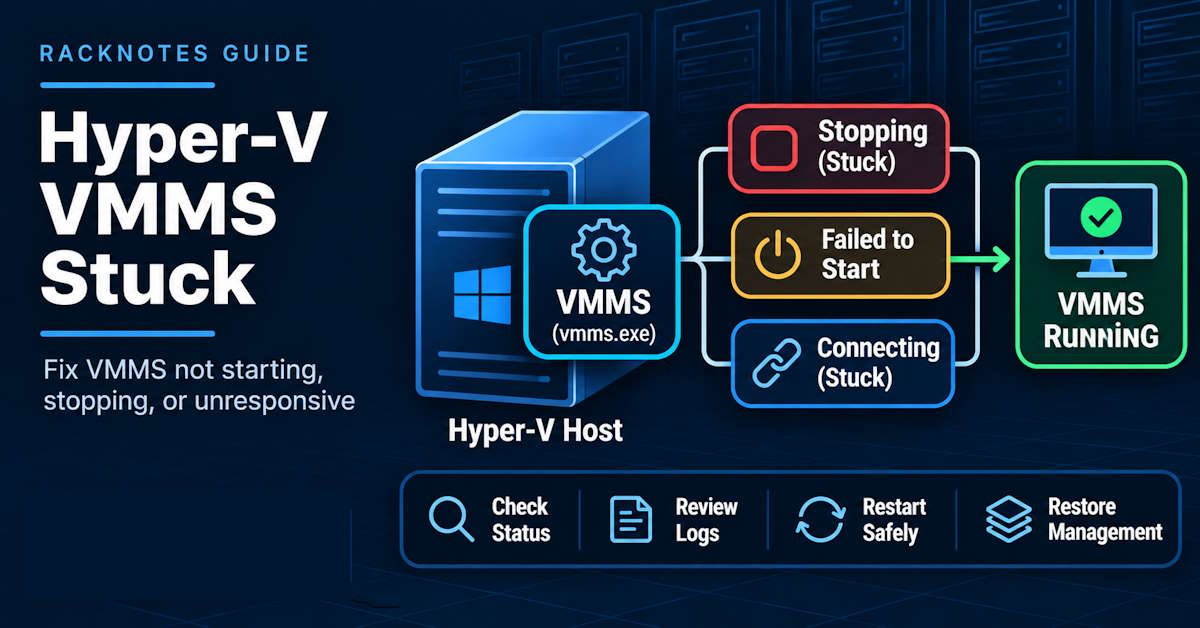
A Hyper-V virtual machine management service stuck in Stopping, or a host that sits on “Shutting down service: Hyper-V Virtual Machine Management”, is a host-side symptom, even when the root cause turns out to be one VM. The Virtual Machine Management Service (vmms) is the host service that manages VMs, takes checkpoints, runs migrations and Replica, and answers Hyper-V Manager. When it hangs or won’t start, management stops. Running VMs normally keep running: Microsoft documents that VMs stay up with no management access while VMMS is down. So the first job is to confirm scope before changing anything. Start with read-only checks of the service state and the VMMS and System event logs, then decide whether the cause is the service itself, one VM’s worker process, storage, a pending operation, or remote access.
Run sc.exe queryex vmms on the host. STOP_PENDING means VMMS is waiting on something, such as a VM stop action, a hung worker, or storage. STOPPED with a start failure means a startup or dependency problem. RUNNING but unresponsive means a blocked operation or a deadlock. Read the Hyper-V-VMMS-Admin and System logs before restarting anything, and never use a forced process kill as the first fix.
- Prove scope first: host service, one VM, or remote access only.
- Read-only checks first:
sc.exe queryex vmms, the service configuration, and the Hyper-V-VMMS-Admin and System logs. - A host shutdown that hangs on VMMS can be VMMS carrying out each VM’s Automatic Stop Action, such as saving memory to disk. Rule that out before calling it a deadlock.
- Restarting VMMS interrupts management, and in-flight migrations, checkpoints, backups, and Replica cycles may fail or need follow-up. Running guests normally keep running.
- Treat killing
vmms.exeorvmwp.exeas an emergency action behind a risk gate, not a routine fix. - Error ID 1602 belongs to System Center Virtual Machine Manager, not Hyper-V VMMS.
Quick Answer: Check VMMS Without Disrupting Running VMs
When the Hyper-V virtual machine management service is stuck, every command in this section is safe to run first: all of them are read-only. Run them on the Hyper-V host in an elevated PowerShell session.
# HOST - read-only
sc.exe queryex vmms
Get-CimInstance Win32_Service -Filter "Name='vmms'" |
    Select-Object Name, State, StartMode, ProcessId, PathName, ExitCode
sc.exe queryex shows the state the Service Control Manager (SCM) sees, plus the process ID. A Running state is not proof that VMMS is healthy. A service can report Running while it is blocked and ignores management calls.
| Symptom | What it usually points to | First read-only check |
|---|---|---|
| Host shutdown stuck on “Shutting down service: Hyper-V Virtual Machine Management” | VMMS stopping VMs per their stop action, or waiting on a worker, storage, an operation, or Windows servicing | Before the next planned shutdown: VM stop actions. After restart: System and VMMS logs |
VMMS in Stopping (STOP_PENDING) | Service waiting on a VM, worker process, or storage | sc.exe queryex vmms, VMMS-Admin events |
| VMMS failed to start or not running | Startup, dependency, or configuration problem | Service Control Manager events in the System log |
| Hyper-V Manager stuck “Connecting to Virtual Machine Management service” | Local VMMS unresponsive, or a remote-access problem | Does Get-VM respond on the host itself? |
| VMMS not found | Role not installed, or you’re on a tools-only machine | Role state on the intended host |
One distinction matters before anything else. A host shutdown screen is not a guest shutdown screen. If the “Shutting down service” text is inside a VM console window, the problem is in the guest OS, not in VMMS.
What Is the Hyper-V Virtual Machine Management Service (VMMS)?
VMMS is the host service, display name Hyper-V Virtual Machine Management, that orchestrates Hyper-V on that host. Its process is vmms.exe. It handles VM creation and deletion, start and stop requests, checkpoints, live migration, Replica, and the WMI and PowerShell interfaces Hyper-V Manager uses. It also hosts the Microsoft Hyper-V VSS Writer that host-level Hyper-V backups depend on.
Several similarly named components are easy to mix up:
| Component | What it is | Why it matters here |
|---|---|---|
vmms / vmms.exe | Host management service | The subject of this article |
vmwp.exe | Worker process associated with an active VM | A hung worker can block VMMS; terminating one affects that VM |
vmcompute | Hyper-V Host Compute Service | A distinct service; not the same as VMMS |
vmic* services | Integration services paired with the guest | Guest communication, not host management |
SCVMM vmmservice.exe | System Center Virtual Machine Manager service | A different product; its errors, such as ID 1602, are not VMMS errors |
What happens when VMMS stops is documented. Microsoft’s Best Practices Analyzer guidance, The Hyper-V Virtual Machine Management service must be running, says running VMs continue to run, but you can’t manage, create, or delete VMs until the service is back. The VMMS event log records the same thing when the service stops with VMs running: “Hyper-V Virtual Machine Management service is shutting down while some virtual machines are running. All running virtual machines will remain running with no management access.”
That’s why a VMMS problem is usually a management outage first and a workload outage second. In-flight operations are a different matter. A backup, checkpoint merge, migration, or Replica cycle that VMMS was coordinating may fail, abort, or need follow-up verification.
Hyper-V Stuck at “Shutting Down Service: Hyper-V Virtual Machine Management”
This is the symptom most people search for, and it isn’t always a deadlock. During host shutdown, VMMS carries out each running VM’s Automatic Stop Action before it stops. When a VM is configured with the Save action, VMMS writes that VM’s memory to disk. A host with many running VMs, large amounts of assigned memory, or slow storage can sit on that screen for a long time while doing exactly what it was configured to do. The available stop actions are documented in the Set-VM reference.
The three stop actions behave differently:
- Save: VMMS saves each VM’s memory to disk. Time scales with the memory being saved and storage speed.
- Shut down the guest operating system: VMMS asks each guest to shut down through integration services. A guest that ignores the request, or is busy with its own updates, holds up the host.
- Turn off: fastest, and the equivalent of pulling power on each VM. Not a safe choice for workloads that hold data in memory.
Slow stop actions are only one possibility. The same status line can also sit on screen because of a VM whose worker process hung, a backup or Replica operation still running, a live migration in progress, storage that has gone slow or unreachable, or Windows servicing that makes the whole shutdown slow. A long update shutdown is not automatically a VMMS hang.
Check stop actions before a planned shutdown, while management still responds:
# HOST - read-only, before a planned shutdown
Get-VM | Select-Object Name, State, AutomaticStopAction, MemoryAssigned
Once the host is already on the shutdown screen, you usually can’t open a new session to check anything. Record when the shutdown started and which VMs you know were running, check whether a backup window or Replica cycle overlaps, and decide whether the workloads can take an unplanned outage.
An illustrative risk sequence: a standalone host is rebooted for patching with a dozen running VMs configured to Save. The shutdown screen sits on the VMMS line for a long time, and someone hard-powers the host. Every VM whose state wasn’t fully saved comes back as if it lost power, and some may report saved-state errors. Waiting, or stopping the VMs deliberately before the reboot, would have avoided the outage.
A hard power-off at that screen has real consequences. Every VM on the host loses power at once. Saved-state files being written can be left incomplete. On a cluster, the node drops without draining and the cluster has to fail over its roles. Treat it as an incident decision, not a troubleshooting step.
What to check after the host comes back
If the shutdown screen prevented collecting evidence, gather it after the restart. These logs reconstruct what happened. A current Get-VM result shows the state now, not the state during the hung shutdown.
# HOST - read-only, after restart
# Who initiated the shutdown (Event 1074) and unexpected shutdowns (Event 6008)
Get-WinEvent -FilterHashtable @{LogName='System'; Id=1074,6008; StartTime=(Get-Date).AddDays(-1)} |
    Select-Object TimeCreated, Id, Message

# VMMS events around the shutdown
Get-WinEvent -FilterHashtable @{
    LogName='Microsoft-Windows-Hyper-V-VMMS-Admin'
    StartTime=(Get-Date).AddDays(-1)
} -MaxEvents 100 | Select-Object TimeCreated, Id, LevelDisplayName, Message
Look for the last VM VMMS was working on before the hang. Errors about saving a VM, or a worker that stopped responding, point at that VM. Before the next planned shutdown, stop or save that VM yourself and watch whether it completes. If slow saves are the pattern, review each VM’s Automatic Stop Action. Changing it is a configuration decision, covered in Hyper-V VM configuration.
Hyper-V Virtual Machine Management Service Stuck Stopping
STOP_PENDING means the SCM asked VMMS to stop and VMMS hasn’t finished. That’s different from a service that is stopped, and from one that reports Running but doesn’t respond.
# HOST - read-only
sc.exe queryex vmms
# STATE: 3 STOP_PENDING means the stop is in progress
# PID: the vmms.exe process that is still running
When the Hyper-V virtual machine management service is stuck stopping, work out what it is waiting for:
- VM states: run
Get-VM | Select-Object Name, State, Statusin a second session. A VM stuck in Starting, Stopping, Saving, or Merging is a likely blocker. IfGet-VMdoesn’t return within a minute or so, stop waiting on it: that hang already tells you VMMS isn’t answering management calls. - VMMS-Admin events: read the last events before the stop request. Errors naming a VM, a disk path, or an operation narrow the cause.
- System log: SCM events record the stop request and any timeout.
- Storage: confirm the volumes holding VM files are online and responsive, using storage or host monitoring if PowerShell is slow. A VM whose storage has gone away can hold VMMS while it waits on I/O.
- Running operations: confirm no backup job, checkpoint merge, live migration, or Replica cycle is in progress. On a cluster, check the node’s roles in Failover Cluster Manager.
If one VM is clearly the blocker, the per-VM recovery path, including how to match that VM to its own vmwp.exe, is in Hyper-V VM won’t start. Terminating the right worker process is a hard power-off for that one VM. Terminating the wrong one is a hard power-off for a VM that was fine.
- Confirm which VMs are running and whether they can tolerate disruption.
- Confirm no backup, migration, checkpoint, or Replica operation is in flight.
- On a cluster, drain the node first or confirm its roles are already elsewhere.
- Record the current service state and the event log contents.
- Only then consider terminating the stuck service process, inside a change window.
Terminating vmms.exe is not a routine fix, and it isn’t equivalent to a controlled stop. Running VMs normally survive it, but anything VMMS was in the middle of is abandoned without cleanup, and the underlying cause, such as the hung worker or the storage wait, is still there when the service comes back. If you do terminate it, use the exact PID from sc.exe queryex, not an image-name kill, then go straight to the verification checklist below.
VMMS Failed to Start, Not Running, or Missing
Start by confirming the service exists and how it’s configured:
# HOST - read-only
Get-CimInstance Win32_Service -Filter "Name='vmms'" |
    Select-Object Name, State, StartMode, PathName, ExitCode
If that returns nothing, go to the missing-service branch below. If the service exists, read its dependencies on this host and the SCM events:
# HOST - read-only, only when the service exists
Get-Service -Name vmms -RequiredServices
Get-WinEvent -FilterHashtable @{LogName='System'; StartTime=(Get-Date).AddHours(-12)} -ErrorAction SilentlyContinue |
    Where-Object ProviderName -eq 'Service Control Manager' |
    Select-Object -First 30 TimeCreated, Id, Message
When the Hyper-V Virtual Machine Management service failed to start, read the result by branch:
- Startup type is Disabled: find out what changed it first, such as a hardening baseline or a GPO, or it will change again. A Manual startup type isn’t automatically broken either; check whether someone set it deliberately. Once a misconfiguration is established, Microsoft’s Best Practices Analyzer guidance restores it as shown below.
- A dependency failed to start: use the dependencies
-RequiredServicesreports on this host, not a list copied from another server, and read that service’s own SCM error. - The service starts and then stops: read the Hyper-V-VMMS-Admin log for the start attempt. A crash or configuration error is usually logged there.
- Hypervisor not running: VMMS can start while VMs still can’t run, if the hypervisor didn’t load at boot. That branch is covered with
HypervisorPresentandhypervisorlaunchtypein the VM won’t start guide linked above.
# HOST - CHANGES CONFIGURATION. Only after a disabled or misconfigured startup type is confirmed.
sc.exe config vmms start=auto
sc.exe start vmms
Hyper-V Virtual Machine Management service missing
If the service isn’t found, it isn’t installed on the machine you’re querying. That commonly means one of two things: the Hyper-V role isn’t installed there, or you’re on a management workstation that has only the Hyper-V tools. Confirm you’re on the intended host first.
On Windows Server, check the role state:
# HOST - read-only, Windows Server only
Get-WindowsFeature -Name Hyper-V, Hyper-V-Tools, Hyper-V-PowerShell
On Windows client, Get-WindowsFeature isn’t available; check the optional feature instead with Get-WindowsOptionalFeature -Online -FeatureName Microsoft-Hyper-V. If the machine is supposed to be a Hyper-V host and the role is missing or partially installed, look at Windows servicing errors before any repair. Installing or repairing the role is a maintenance-window task that can require a restart, not a first step.
Permission errors
Search queries mention a “service does not have permission” variant, but there’s no single verified Microsoft error message behind it, and not every permission error is a VMMS service-account problem. Capture the full text, the Event ID, and the path or object that was denied. Then work out which of three cases it is: the service’s own access, access to VM storage, or authorization for a remote Hyper-V Manager user. Fix that specific principal on that specific resource.
Don’t change the VMMS service logon account, and don’t reset ACLs across the VM storage tree as a blanket fix. For VM storage, Microsoft’s Hyper-V installation, configuration, and operational failure guide focuses on access for Administrators, Hyper-V Administrators, and NT VIRTUAL MACHINE\Virtual Machines on VM folders and disks. A per-VM access-denied error (0x80070005) has its own section in the VM won’t start guide.
The same Microsoft guide includes WMI repository repair steps, but only for a diagnosed corrupt repository. A VMMS startup failure alone is not evidence of WMI corruption, and resetting the repository affects everything else on the host that uses WMI.
Hyper-V Manager Stuck Connecting to Virtual Machine Management Service
When Hyper-V Manager sits on “Connecting to Virtual Machine Management service”, the cause is either VMMS on the target host or the path between your console and the host. Prove which one before fixing either:
- On the host itself, run
Get-VMin an elevated session. If it returns quickly, VMMS is answering locally. - Open Hyper-V Manager locally on the host, if the host has a GUI. If local works and remote doesn’t, the problem is remote access.
- Try from a second admin machine. One broken workstation points to that workstation’s configuration or credentials.
A quick Get-VM is good evidence, not proof under all conditions. A partly blocked VMMS can answer simple queries and hang on others. If Get-VM hangs on the host itself, treat it as a local VMMS problem and go back to the stuck-stopping and event log sections.
If VMMS is fine locally, the cause is remote management: WinRM, DCOM, firewall rules, delegation, or credentials. That’s a different troubleshooting path, and restarting VMMS won’t fix it. A related variant, the Move Wizard reporting that it can’t contact the Virtual Machine Management Service, belongs to migration troubleshooting in Hyper-V live migration failed.
How to Restart VMMS Safely and What It Affects
Recovery for a Hyper-V virtual machine management service stuck in any state sits on a risk ladder. Use the lowest step that resolves the problem:
| Action | Risk | Use when |
|---|---|---|
| Read-only diagnostics | None | Always first |
| Controlled restart of VMMS | Management interruption; in-flight operations may fail or need follow-up | VMMS is unresponsive and no critical operation is running |
Terminate vmms.exe by PID | In-flight operations abandoned without cleanup; cause not fixed | A restart hangs in STOP_PENDING and the risk gate is passed |
| Host restart | Every VM affected per its stop action | Service-level recovery failed; planned window |
What a VMMS restart can affect
- Running VMs: normally keep running, per Microsoft’s documentation and the VMMS shutdown event text. Verify it afterwards rather than assuming it.
- Live migrations and storage moves: an operation in progress may fail or abort. Check where the VM and its files ended up.
- Checkpoints and merges: a checkpoint being created or merged may need follow-up. Check the checkpoint and disk state afterwards.
- Backups: the Hyper-V VSS Writer runs inside
vmms.exe, so a host-level backup in progress is likely to fail. - Replica: a replication cycle in progress may be interrupted. Check replication health afterwards, as described in Hyper-V Replication.
- Clusters: check the node’s roles and cluster resource state before and after. A restart during a cluster operation adds a second problem to the first. Node draining and role behavior are covered in Hyper-V failover clustering.
When the impact check is clean and you’re in a change window:
# HOST - CHANGES SERVICE STATE. Use only after the impact assessment above.
Restart-Service -Name vmms
Get-Service -Name vmms
Restart-Service can itself hang if VMMS stays in STOP_PENDING. That’s the signal to go back to what VMMS is waiting on, not to jump straight to a forced kill.
Get-VMreturns promptly on the host and from your usual admin machine- Every VM that was running is still Running, and guests respond on the network
- No new errors in Hyper-V-VMMS-Admin or in the System log
- Backup jobs, Replica health, and any interrupted checkpoint are back to normal
- On a cluster, the node and its roles are healthy in Failover Cluster Manager
Review VMMS/Admin and Service Control Manager Events
The logs explain why the Hyper-V virtual machine management service is stuck. Collect both sources read-only:
# HOST - read-only
# VMMS operational events
Get-WinEvent -ListLog 'Microsoft-Windows-Hyper-V-VMMS-Admin'
Get-WinEvent -FilterHashtable @{
    LogName='Microsoft-Windows-Hyper-V-VMMS-Admin'
    StartTime=(Get-Date).AddHours(-12)
} -MaxEvents 50 | Select-Object TimeCreated, Id, LevelDisplayName, Message

# Service Control Manager events for start, stop, and timeouts
Get-WinEvent -FilterHashtable @{
    LogName='System'
    ProviderName='Service Control Manager'
    StartTime=(Get-Date).AddHours(-12)
} -MaxEvents 50 | Select-Object TimeCreated, Id, Message
Correlate by timestamp. Line up the SCM stop or start request, the last VMMS events before the hang, and any VM or storage errors in the same minutes. Read the message text, not only the ID. There’s no single “VMMS stuck” Event ID, and the same symptom can come from very different causes.
Two IDs come up often and get misread:
- Event 14050 (Hyper-V-VMMS) is a Service Principal Name registration failure. Microsoft lists it as its own symptom. It affects authentication for migration and remote management, but it isn’t a cause of VMMS stuck stopping unless the logged condition actually matches.
- Error ID 1602 comes from System Center Virtual Machine Manager. Its message, “The Virtual Machine Manager service on that server did not respond”, refers to the SCVMM service (
vmmservice.exe), not Hyper-V VMMS. Microsoft documents it in The Virtual Machine Manager console doesn’t start and you receive error ID 1602. Troubleshoot SCVMM separately.
Operators often lose time here by searching for an Event ID alone and landing on a fix for a different product. “Virtual Machine Manager” (SCVMM) and “Virtual Machine Management” (Hyper-V VMMS) differ by one word and are unrelated services.
Troubleshooting Decision Table
The order below reflects practical investigation priority, not frequency.
| Symptom | Read-only evidence | Likely branch | Next safe step |
|---|---|---|---|
| Host shutdown hangs on VMMS | Stop actions before shutdown; System and VMMS events after restart | VMs being saved or shut down, or a blocked VM | Stop or save VMs before the next shutdown; review stop actions |
STOP_PENDING | sc.exe queryex vmms, VMMS-Admin | Waiting on a VM, worker, storage, or operation | Identify the blocker; pass the risk gate before forcing |
| Failed to start | SCM events, startup type, dependencies | Configuration or dependency | Fix the specific SCM error |
| Service not found | Role state on the intended host | Role not installed, or tools-only machine | Confirm the machine is meant to be a host |
Manager stuck, Get-VM on the host hangs | Local Get-VM | Local VMMS unresponsive | Stuck-stopping checks |
| Manager fails only remotely | Local Get-VM works | Remote access path | WinRM, firewall, credentials |
| Permission error | Full message, Event ID, path | Specific principal or resource | Fix that object only |
| One VM in Starting or Stopping | Get-VM state | Per-VM worker | Per-VM recovery |
| Clustered host | Cluster role and node state | Cluster operation | Drain the node before service or host actions |
Escalate to Microsoft Support when VMMS repeatedly fails to start with logged errors you can’t map to configuration, or hangs again after the blocker is cleared. Bring the VMMS-Admin and System logs, the sc.exe queryex output, and the VM states.
Frequently Asked Questions
Is it safe to restart the Hyper-V Virtual Machine Management Service?
Usually, inside a change window and after checking that no backup, migration, checkpoint, or Replica operation is running. Running VMs normally keep running. Management, and anything VMMS was in the middle of, is interrupted.
Does restarting VMMS shut down running virtual machines?
No, not normally. Microsoft documents that running VMs continue to run while VMMS is stopped, with no management access. Verify the VM states afterwards anyway.
Why is the Hyper-V Virtual Machine Management Service stuck stopping?
It’s waiting on something it has to finish first: a VM’s stop action, a hung worker process, a storage wait, or an in-flight operation such as a backup or migration. Identify the blocker with sc.exe queryex vmms, the VM states, and the VMMS-Admin log before forcing the stop.
How do I fix “Shutting down service: Hyper-V Virtual Machine Management”?
If VMs are configured to Save or shut down, VMMS may simply be working through them, and waiting is often the right move. For the next shutdown, stop or save the VMs first and review their stop actions. A hard power-off at that screen affects every VM on the host.
Why is Hyper-V Manager stuck connecting to the Virtual Machine Management Service?
Either VMMS on the host is unresponsive or the remote management path is broken. If Get-VM works on the host itself, it’s a remote-access problem, and restarting VMMS won’t help.
What if the Hyper-V Virtual Machine Management Service is missing?
It isn’t installed on the machine you’re querying: either the Hyper-V role isn’t installed there, or it’s a workstation with only the management tools. Confirm you’re on the intended host and check the role state before repairing anything.
What is the difference between vmms.exe and vmwp.exe?
vmms.exe is the single host management service. vmwp.exe is a worker process associated with an active VM. Stopping VMMS doesn’t stop VMs. Terminating a vmwp.exe hard-stops the VM it belongs to.
Final Thoughts
A Hyper-V virtual machine management service stuck in Stopping is far more often waiting on something than broken itself. Read the service state, the VM list while it still responds, and the logs first. Most of the time that points at a VM’s stop action, a hung worker, storage, or a backup still running. Restarting or killing the service comes after that, inside a change window, with in-flight operations accounted for.
Hyper-V Series
18 articles – Windows Server 2025 · Requirements · Licensing · Networking · Storage · USB Passthrough · TPM 2.0 · Backup · Replication · Clustering · Troubleshooting