
When Hyper-V live migration fails, the message rarely identifies the root cause by itself. The exact error code, Event ID, or the raw text “Virtual machine migration operation failed at migration source” is the starting point, not the migration percentage where the transfer stopped. From there, run Compare-VM against the destination host, then sort the failure into one of five families: authentication and delegation, destination compatibility, destination resources, network and transport, or VM state.
This guide covers domain-joined Hyper-V hosts on Windows Server 2019, 2022, and 2025, for live migration both inside a failover cluster and without one. Cluster-specific steps are marked conditional throughout; failover clustering is not a prerequisite for most of this troubleshooting.
This page diagnoses Hyper-V live migration failures by exact error code, Event ID, or error text. Failover cluster architecture, quorum design, witness selection, and cluster database recovery belong to the dedicated Hyper-V Failover Clustering guide. Virtual switch design, VM configuration planning, and checkpoint recovery each have their own guides, linked at the relevant section below.
- Capture the exact error code, Event ID, or the “Virtual machine migration operation failed at migration source” text before troubleshooting anything else. The percentage where a migration stalls is a hint, not a diagnosis
- Run
Compare-VMagainst the destination host as the first compatibility check - Event ID 21502 is a generic failure event. Read the underlying error code instead of treating 21502 itself as the cause
0x8009030Eand0x8009030Dpoint to CredSSP/Kerberos execution context and delegation;0x80070569is a local logon-right problem on the destination, not delegation- For the documented Hyper-V Live Migration
0x800705AAscenario, check destination RAM first; Microsoft’s troubleshooting guidance ties this failure to insufficient memory rather than free disk space - Move into cluster and CSV troubleshooting only when the VM is a clustered role and cluster or CSV events accompany the failure
Quick reference for the error codes and Event IDs behind Hyper-V live migration failures, in the order they’re worth checking:
| Error / Event | Meaning | First check |
|---|---|---|
| “Virtual machine migration operation failed at migration source” | Generic wrapper message; the actual cause is a separate code or Event ID | Full VMMS/Worker event message |
| Event 21502 | Generic live migration failure event; the full message identifies the actual cause | Read the complete event message and underlying error code |
| 0x8009030E (SEC_E_NO_CREDENTIALS) | No credentials available for the security package | Authentication mode, execution host |
| 0x8009030D (SEC_E_UNKNOWN_CREDENTIALS) | Credentials presented but not accepted | Kerberos configuration on both hosts, then setspn -L |
| 0x80070569 | User has not been granted the requested logon type | gpresult /h on the destination |
| 0x800705AA | Insufficient system resources on the destination | VMMS events, destination memory counters |
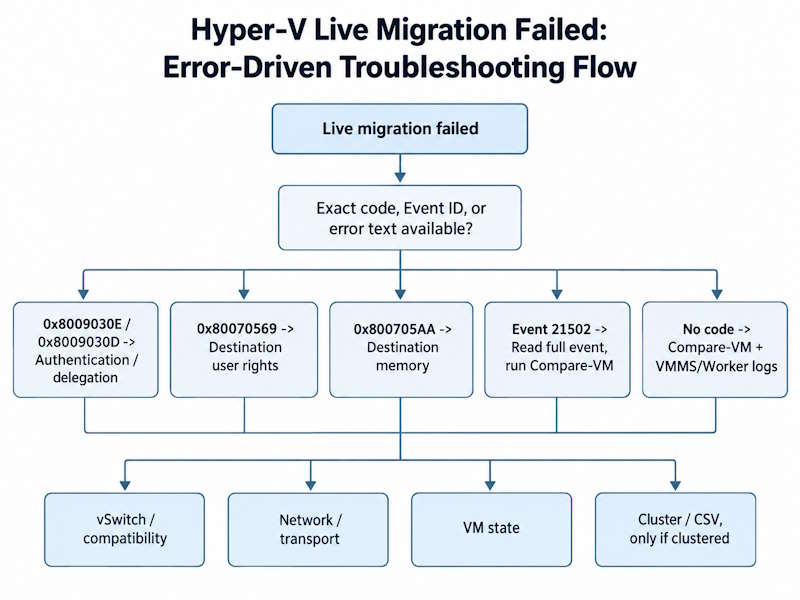
If the failed migration coincides with FailoverClustering events such as 5120, or a degraded CSV state, use the cluster-health section near the end of this guide instead of troubleshooting authentication or vSwitch issues in isolation.
Hyper-V Live Migration Failed: Start With the Exact Error
The percentage where a migration fails is a clue, not evidence. Where it lands depends on the Windows Server version, migration transport, and whether the VM is clustered. It narrows where to look; it does not name the cause by itself.
Run Compare-VM
# From the source Hyper-V host, or specify -ComputerName from a management host
Compare-VM -ComputerName "HV01" -Name "VMName" -DestinationHost "HV02"
Run this on the source host, or specify -ComputerName explicitly. Without it, the cmdlet looks for the VM on whichever computer you’re actually typing from, not the host that owns it.
Compare-VM reports incompatibilities before or after a failed attempt, including processor feature mismatches, missing virtual switches, and configuration version problems. Treat it as a compatibility pre-check, not a full explanation. It doesn’t confirm Kerberos or SPN health, network throughput, destination memory pressure, storage latency, or the concurrent-migration limit.
Check Hyper-V VMMS and Worker Logs
Pair Compare-VM with the two logs that record what happened during the attempt:
$source      = 'HV01'
$destination = 'HV02'
$start       = (Get-Date).AddMinutes(-30)

$logs = 'Microsoft-Windows-Hyper-V-VMMS-Admin', 'Microsoft-Windows-Hyper-V-Worker-Admin'

foreach ($node in $source, $destination) {
    foreach ($log in $logs) {
        Get-WinEvent -ComputerName $node -FilterHashtable @{
            LogName   = $log
            StartTime = $start
        } -ErrorAction SilentlyContinue |
            Select-Object @{Name='Node';Expression={$node}}, TimeCreated, Id, LevelDisplayName, Message
    }
}
Remote event-log access needs the Windows Event Log firewall rule and sufficient permissions on both nodes. Without -ComputerName, this reads the management host’s own logs, not the source or destination events you actually need. Microsoft’s live migration troubleshooting guidance covers the fuller diagnostic sequence this is based on.
“Virtual Machine Migration Operation Failed at Migration Source”
This exact text is the wrapper Hyper-V uses for many live migration failures, not a diagnosis on its own. Hyper-V shows it for authentication failures, compatibility blockers, resource shortages, transport errors, and VM state conflicts alike. The useful signal sits one layer down: the Event ID, the underlying Win32 or security code, and the full VMMS/Worker message on both the source and the destination.
A recurring pattern in Hyper-V live migration failed reports: operators spend time looking for a fix specific to the wrapper text itself. The wrapper does not identify the failing subsystem. Use the Event ID, underlying error code, and full VMMS/Worker message to identify the actual failure branch.
Treat this message as a signal to open the logs, not as a search term to match against a single fix. The sections below sort the underlying causes by the codes and events that actually identify them.
Hyper-V Event ID 21502
Event ID 21502 is a generic live migration failure event covering many different underlying causes, from a missing vSwitch to socket errors to hardware incompatibility. The full event message and error code identify what actually happened, not the ID alone. Common branches include:
- Destination vSwitch mismatch
- Processor or configuration-version incompatibility
- Socket or network transport errors
- Destination configuration problems
A missing destination vSwitch is one documented Event 21502 scenario and can fail migration below 10 percent, per Microsoft’s live migration troubleshooting guidance. Don’t treat 21502 as if it equals a vSwitch problem specifically; confirm with the checks below before assuming which branch applies.
Hyper-V Live Migration Authentication Errors
Several authentication failures can look similar during live migration, but they require different fixes. Separate them by the full error message and code first.
Error 0x8009030E: No Credentials Are Available in the Security Package
When 0x8009030E (SEC_E_NO_CREDENTIALS) appears with the live migration message “No credentials are available in the security package,” start with the authentication mode and execution context: CredSSP initiated from the wrong host, or Kerberos constrained delegation that is missing or incomplete between the two computer accounts. This is the main Hyper-V-specific 0x8009030E pattern covered in this guide.
Check first:
Get-VMHost -ComputerName HV01,HV02 |
    Select-Object ComputerName, VirtualMachineMigrationAuthenticationType
Then review the VMMS/Admin log on both hosts for the exact failure around the attempt. The CredSSP-versus-Kerberos section below covers the execution requirements, including Windows Server 2025 Credential Guard behavior.
Verify: re-run the migration from the correct execution context and confirm no new 0x8009030E entries appear in the VMMS/Admin log.
Source: Set up hosts for live migration, Microsoft Learn.
Error 0x8009030D: Credentials Were Not Recognized
Error 0x8009030D (SEC_E_UNKNOWN_CREDENTIALS) means the credentials supplied to the security package were not recognized. First verify that both hosts use Kerberos for migration and that constrained delegation is configured correctly between the two computer accounts. Microsoft’s live migration troubleshooting guidance directs this as the primary path before anything else.
If delegation appears correct, make SPN inspection a secondary diagnostic step, checking specifically for duplicates, since a duplicate SPN across two accounts breaks delegation silently:
$hosts = 'HV01','HV02'

foreach ($hostName in $hosts) {
    Get-ADComputer -Identity $hostName -Properties msDS-AllowedToDelegateTo |
        Select-Object Name, @{Name='AllowedToDelegateTo';Expression={$_.'msDS-AllowedToDelegateTo'}}
}

setspn -L HV01
setspn -L HV02
setspn -X
Fix: add any missing delegation entries to Microsoft Virtual System Migration Service for the opposite host on each computer account, and correct any duplicate SPN that setspn -X reports. Confirm delegation first, then use SPN findings to narrow the remaining authentication problem.
Verify: re-run setspn -L on both hosts to confirm no duplicates remain, then retry the migration.
Source: Troubleshoot live migration issues, Microsoft Learn.
Hyper-V Live Migration Error 0x80070569
Error 0x80070569, “the user has not been granted the requested logon type at this computer,” is frequently misdiagnosed as a Kerberos delegation problem. It isn’t; it’s a local user-rights problem on the destination host.
Why operators get this wrong: the error text and the failure timing both resemble delegation issues, so the instinct is to re-check SPNs and constrained delegation. Neither is involved. The special identity Hyper-V uses for migration, NT VIRTUAL MACHINE\Virtual Machines, simply lacks a local logon right on the destination.
Check first: verify Log on as a service for that identity on the destination host; this is the primary documented cause. Run gpresult locally on the destination. A report generated on the source host or a management workstation does not prove the destination’s effective policy:
# Run locally on the destination host (HV02 in this example)
gpresult /h C:\Temp\gpresult.html
Fix: add NT VIRTUAL MACHINE\Virtual Machines to Log on as a service in the applicable GPO, under Computer Configuration > Windows Settings > Security Settings > Local Policies > User Rights Assignment.
Verify: re-run gpresult on the destination to confirm the right applies, then retry the migration.
This same error also appears in standalone VM startup failures for the same underlying reason, per Microsoft’s documented fix. For the standalone startup path, see Hyper-V VM Won’t Start.
CredSSP vs Kerberos on Windows Server 2019, 2022, and 2025
Kerberos constrained delegation. The recommended path for migrations initiated from a management host. Configure constrained delegation to Microsoft Virtual System Migration Service between the participating hosts’ computer accounts. Add cifs delegation only when the workflow also moves VM storage or storage is SMB-backed; it’s scenario-dependent, not a universal pair with the migration service.
CredSSP. Avoids configuring Kerberos delegation, but the command must execute inside a signed-in session on the source host itself: local console, RDP, or a remote PowerShell session on that host all count. Running the command from a management workstation against the source host does not; that’s a different authentication path.
Windows Server 2025 and Credential Guard. Windows Server 2025 enables Credential Guard by default on domain-joined non-DC servers unless explicitly disabled. CredSSP-based live migration can fail when it’s enabled. Kerberos constrained delegation is the recommended path on 2025, and generally the safer default on earlier versions too. See Microsoft’s Credential Guard known issues for the documented CredSSP interaction.
Destination Compatibility Problems
Once authentication is confirmed, the next stop on the Event 21502 branch is destination compatibility: the vSwitch, the processor, and the VM configuration version. Operators often treat these as three unrelated checks scattered across a deployment; grouping them here reflects how they actually get diagnosed in sequence.
Destination vSwitch Mismatch
Compare switch names, type, SET or LBFO teaming design, VLAN handling, and network mappings on every node, not just the name string:
# Compare host switches explicitly across both nodes
Get-VMSwitch -ComputerName HV01,HV02 |
    Select-Object ComputerName, Name, SwitchType, EmbeddedTeamingEnabled, NetAdapterInterfaceDescriptions

# Read the VM's current adapter configuration from the source host
Get-VMNetworkAdapter -ComputerName "HV01" -VMName "VMName" |
    Format-List Name, SwitchName, MacAddress, DynamicMacAddressEnabled
If the switch is present but migration still fails at this stage, check SET versus LBFO mismatch, VLAN configuration, and a missing uplink before assuming the switch name is the only variable. For virtual switch design and naming standards, see Hyper-V Networking: Virtual Switches, VLANs, and SET Explained.
Processor Compatibility
CPU compatibility failures appear as: “The virtual machine cannot be moved because the processor on the destination computer is not compatible.” Live migration requires the source and destination to use processors from the same manufacturer. Compatibility mode cannot live migrate between an Intel host and an AMD host, and that limitation is a hard boundary, not a config option.
# VM must be powered off before changing this setting

# Windows Server 2019/2022, or as a safe minimum on any supported version -
# fixed minimum feature set
Set-VMProcessor -ComputerName "HV01" -VMName "VMName" `
    -CompatibilityForMigrationEnabled $true

# Windows Server 2025 cluster, VM configuration version 10.0 or later -
# maximum feature set common to all cluster nodes, not a fixed minimum
Set-VMProcessor -ComputerName "HV01" -VMName "VMName" `
    -CompatibilityForMigrationEnabled $true `
    -CompatibilityForMigrationMode CommonClusterFeatureSet
Standard compatibility uses a fixed minimum feature set for mobility across same-manufacturer hosts. Windows Server 2025 dynamic compatibility instead uses the maximum feature set common to all cluster nodes; both modes can reduce guest-visible features, so test performance-sensitive workloads before standardizing cluster-wide. Neither mode enables Intel-to-AMD or AMD-to-Intel migration. See Microsoft’s processor compatibility mode documentation and configuration guidance.
VM Configuration Version Mismatch
A VM configuration version mismatch is a separate failure family from processor compatibility, not a second cause of the same processor error. It commonly appears during a rolling Windows Server upgrade, or when migration works toward a newer host but not back to an older one.
# Confirm destination support before assuming a version mismatch
Get-VMHostSupportedVersion -ComputerName "HV02"
Get-VM -ComputerName "HV01" -Name "VMName" | Select-Object Name, Version
Config version upgrades through Update-VMVersion are one-way and require the VM to be off. If cluster nodes are at mixed Windows Server versions, hold off on version upgrades until every node is at the target version. See Hyper-V VM Configuration: Generation, vCPU, Memory, and Integration Services for planning beyond the migration failure itself.
Destination Resource Failure: 0x800705AA
For the documented live migration 0x800705AA scenario, Microsoft’s troubleshooting guidance identifies insufficient RAM on the destination node as the cause.
Why operators get this wrong: the alternate wording, “Not enough storage is available to complete this operation,” reads like a disk-space error. It isn’t. Confirm destination memory and Hyper-V Worker/VMMS events before touching storage or network settings.
# What the VM currently thinks it needs
Get-VM -ComputerName "HV01" -Name "VMName" |
    Select-Object Name, State, MemoryAssigned, MemoryDemand, DynamicMemoryEnabled

# What the destination actually has available
Get-Counter -ComputerName "HV02" '\Memory\Available MBytes', '\Memory\Committed Bytes', '\Memory\Commit Limit'
Fix options: migrate other VMs off the destination first, or free RAM directly. Dynamic Memory can help, but enabling it doesn’t guarantee the VM lands with less RAM at the moment of migration; check current assigned memory rather than assuming it alone solves the shortfall.
A related but less common cause is Event ID 21501, the configured concurrent-migration limit:
Get-VMHost -ComputerName HV01,HV02 |
    Select-Object ComputerName, MaximumVirtualMachineMigrations
Wait for another migration to finish, or raise the limit carefully with attention to host performance under concurrent load. On Windows Server 2022 (September 2022 cumulative update or later) and Windows Server 2025, a cluster-wide MaximumParallelMigrations property can override the per-host value; Windows Server 2019 uses only the host-level setting.
Hyper-V Live Migration Network and Transport
Confirm reachability and identify the configured transport before treating the failure as a generic network problem:
# TCP/IP or Compression transport
Test-NetConnection -ComputerName "HV02" -Port 6600

# SMB transport
Test-NetConnection -ComputerName "HV02" -Port 445
Use Test-WSMan only to verify management-plane connectivity; it does not confirm the migration data path itself. If the hosts use SMB transport, check SMB Multichannel and RDMA health during an actual controlled migration rather than as a standalone pre-flight test. An empty result with no migration running just means no qualifying session is active, not that Multichannel is broken. Confirm DNS resolution and firewall rules between source and destination match the transport actually in use, not a single port assumed to cover every configuration.
If the full event message contains 0x8007274D (connection refused), 0x80072746 (connection reset), or 0x8007274C (connection timed out), prioritize the live migration listener, firewall rules, the selected migration network, and the source-to-destination transport path over other diagnostic branches.
VM State Can Block Live Migration
A few VM-state conditions can cause live migration to fail on their own, independent of network or authentication health.
Saved state, checkpoint, or backup state. If the migration fails while the VM is in Backing up, creating a checkpoint, merging a checkpoint, or working with saved-state files, inspect that operation and the VMMS/Worker events before retrying. Let a conflicting operation finish, or resolve a stuck state, before treating the migration as a separate failure. For the deeper checkpoint diagnostic path, see Hyper-V Checkpoint & AVHDX Troubleshooting.
Mounted ISO or DVD. If the VM has an ISO attached from a local path, or a path the destination cannot access, live migration can fail when the destination tries to restore the virtual DVD attachment. Microsoft documents 0xC03A0014 (ERROR_VIRTDISK_PROVIDER_NOT_FOUND) as one such case. Eject the ISO when it isn’t required, or confirm the destination can reach the required media path.
vTPM, shielded VM, or shared storage. Relevant only when the failure explicitly points to a key protector, shielding certificate, or a shared-disk configuration; most failures have nothing to do with any of these. Shared and clustered storage issues route into the cluster/CSV section below.
Live Migration Stuck or Stalled
A migration that stalls instead of failing immediately can point to the management plane, the migration data path, destination resource pressure, or storage contention. Work through these checks in order:
- Check the VMMS and Worker admin logs on both hosts, filtered to the incident window
- Verify WinRM connectivity as a management-plane check only:
Test-WSMan -ComputerName "HV02" - Test the transport actually configured for migration, not a fixed port assumption
- If clustered, confirm the cluster’s view of the operation:
Get-ClusterGroup | Where-Object GroupType -eq 'VirtualMachine' | Select-Object Name, State, OwnerNode– the group name doesn’t always match the VM’s display name - If started as a PowerShell background job (
-AsJob), check and cancel it:Get-JobthenStop-Job - Review network bandwidth; live migration competes with other cluster traffic if a dedicated migration network isn’t configured
Avoid restarting VMMS or the cluster service as a generic first step; either can affect other VMs on the same host. A migration that stalls after several minutes, rather than failing immediately, more often points to transport or infrastructure contention than a configuration error.
If the VM Is Clustered: Check Cluster and CSV Health
If a live migration failure coincides with degraded cluster nodes or CSV events, the failure may be a downstream symptom rather than a migration-specific problem. This check is conditional: skip it entirely for non-clustered hosts.
Get-ClusterNode
Get-ClusterGroup | Where-Object GroupType -eq 'VirtualMachine' | Select-Object Name, State, OwnerNode
Get-ClusterSharedVolumeState |
    Select-Object Name, Node, State, RedirectedIOReason, VolumeFriendlyName
A node showing Isolated, or a VM role stuck in Pending or Failed, is a strong cluster-health signal. A CSV state other than Direct also needs correlation with RedirectedIOReason, FailoverClustering events, and the incident timeline. Redirected I/O can be intentional during approved maintenance or backup, or it can indicate a degraded path; by itself, it does not prove the cluster caused the migration failure.
Full diagnosis of Event 5120, quorum recovery, witness configuration, and cluster database issues is out of scope for this page. For that deeper workflow, see Hyper-V Failover Clustering Explained: Quorum, CSV, and Live Migration.
Verification Checklist
Before closing out a Hyper-V live migration failure ticket, confirm every item below:
Compare-VM no longer reports the blocking incompatibility
Destination vSwitch exists and matches on name, type, and teaming design
Authentication mode matches the execution path used
No new 0x8009030E, 0x8009030D, 0x80070569, or 0x800705AA entries in the VMMS/Admin log
Destination has enough free memory for the VM's assigned RAM
VM configuration version is supported on the destination
Migration network/transport path is confirmed reachable
If clustered, node state, CSV state, and cluster group state are all healthy
Retry one controlled migration and confirm clean VMMS/Worker logs on both hosts
FAQ
Why does Hyper-V live migration fail?
The main categories are destination vSwitch mismatch, authentication or delegation failure, processor or VM configuration incompatibility, insufficient destination resources, a network or transport problem, or a VM-state issue like a stuck checkpoint or mounted ISO. If the VM is clustered, a degraded cluster or CSV state can also be the underlying cause.
What does “Virtual machine migration operation failed at migration source” mean?
It is a wrapper message, not a diagnosis. The text appears for authentication, compatibility, resource, transport, and VM-state failures alike. Read the Event ID and the full VMMS/Worker event message on both hosts to identify which one actually applies.
What is Hyper-V Event ID 21502?
A generic live migration failure event. The ID alone doesn’t identify the cause; common underlying branches include a missing or mismatched destination vSwitch, processor or configuration-version incompatibility, and socket or network transport errors. Confirm with Compare-VM and Get-VMSwitch, and read the full event message, rather than assuming a single cause from the ID.
How do I fix Hyper-V error 0x8009030E?
Confirm the migration’s authentication mode and where the command was actually executed; CredSSP only works from a signed-in session on the source host itself. For migrations run from a management workstation, configure Kerberos constrained delegation instead. On Windows Server 2025, Credential Guard is enabled by default and can block CredSSP outright.
How do I fix 0x80070569 during Hyper-V live migration?
Check Log on as a service for NT VIRTUAL MACHINE\Virtual Machines on the destination host. Microsoft ties this error to that right specifically; use gpresult run locally on the destination to confirm the effective policy, then retry the migration.
Does Hyper-V live migration require Kerberos?
Not strictly; CredSSP is a valid alternative, but only when started from a signed-in session on the source host itself. Kerberos constrained delegation is the recommended path from a management workstation, and required on Windows Server 2025 when Credential Guard blocks CredSSP.
Why does live migration work one way but not the other?
Asymmetric failures usually trace back to VM configuration version support, a processor feature mismatch that only blocks migration in one direction, or an authentication configuration set up on only one of the two computer accounts.
Hyper-V Series
16 articles – Windows Server 2025 · Requirements · Licensing · Networking · Storage · USB Passthrough · TPM 2.0 · Backup · Clustering