
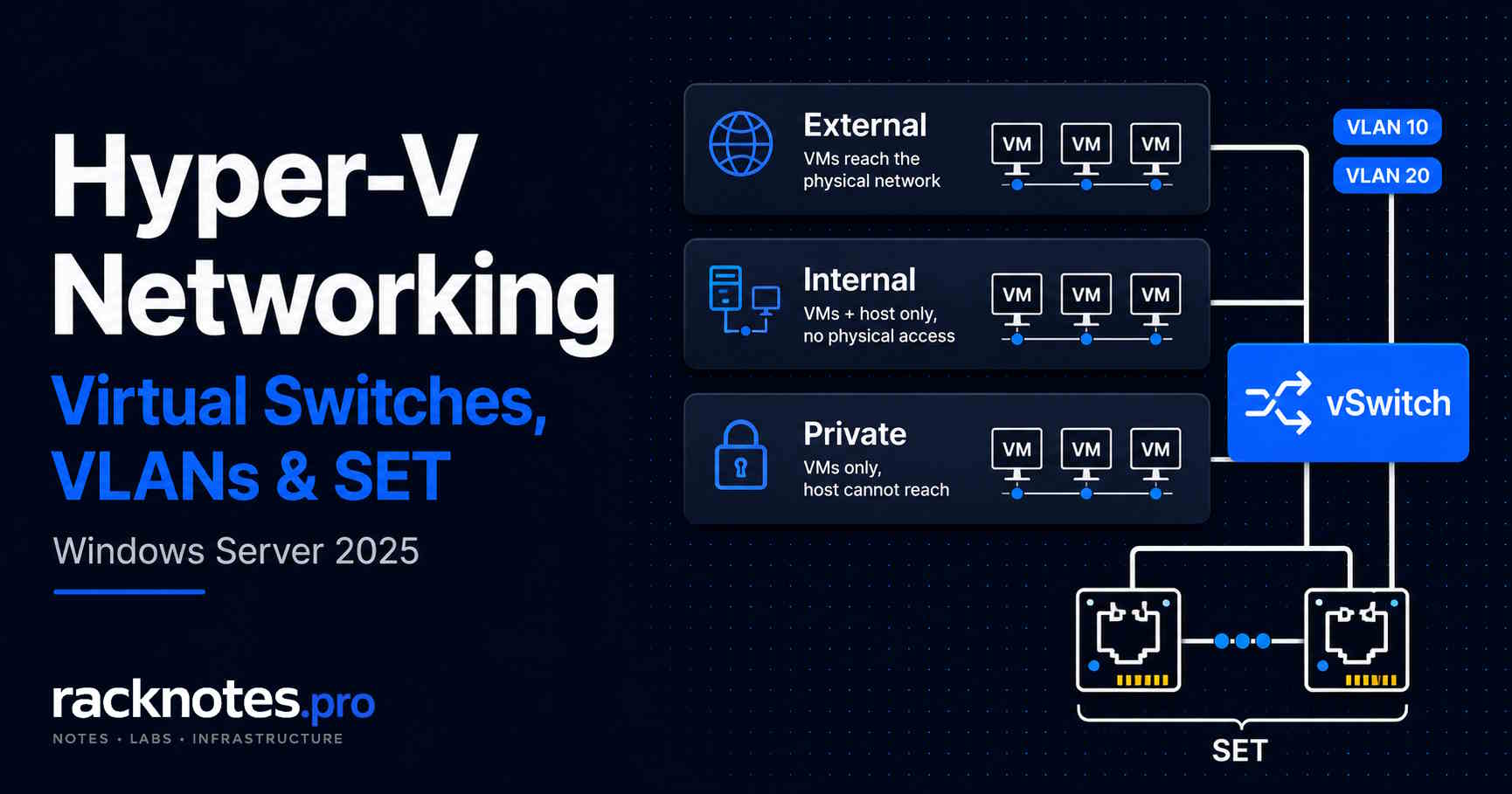
Once Hyper-V is installed, networking is the next design decision – Hyper-V networking comes down to one question: which traffic must leave the host? Use an External switch for VMs that need the physical network, an Internal switch for host-and-VM communication without a physical uplink, and a Private switch for VM-only isolation. When Windows Server 2025 requires teamed Hyper-V uplinks, use Switch Embedded Teaming rather than an LBFO team.
A two-adapter converged SET switch can carry management, VM, live-migration, and some storage traffic, but it isn’t a universal template. Validate adapter symmetry, driver and firmware support, VLAN design, storage protocol, bandwidth, QoS mode, VMQ/VMMQ capability, and migration consistency before assigning production traffic.
| Scenario | Recommended starting design |
|---|---|
| Single-NIC lab host | External switch with management OS sharing |
| Isolated VM lab with host access | Internal switch, optionally with host NAT |
| Fully isolated restore/malware test | Private switch |
| Two-NIC standalone production host | External SET switch can be appropriate after hardware validation |
| Failover cluster | Consistent switch names, VLANs, QoS, and traffic roles on every node |
| iSCSI storage | Validate dedicated adapters/MPIO rather than assuming a generic converged vNIC |
| SMB Direct/RDMA storage | Use a design validated for SET, RDMA, SMB Multichannel, and the NIC hardware |
| Virtual firewall/router | VM adapter trunk mode with a deliberately selected native VLAN |
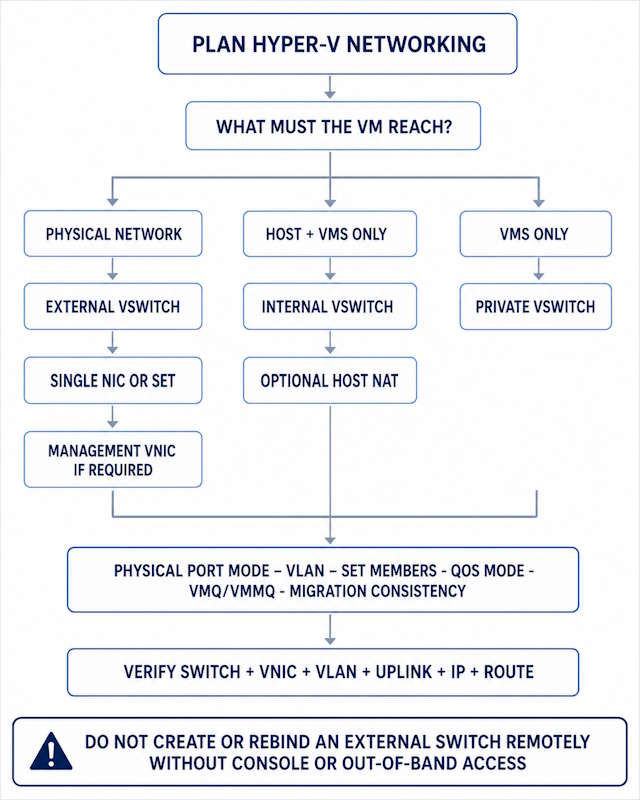
This article covers Hyper-V networking: virtual switch architecture, SET teaming, VLANs, converged networking, QoS, VMQ/VMMQ, migration consistency, and connectivity troubleshooting. For Proxmox’s bridge model, see Proxmox Networking: Bridges, VLANs, Bonds. Cluster network roles, CSV traffic, and SMB Multichannel/RDMA design live in Hyper-V Failover Clustering. Storage-fabric and MPIO design live in Hyper-V Storage. Backup network segmentation lives in Hyper-V Backup. Per-VM adapter settings beyond networking basics live in Hyper-V VM Configuration.
How the Hyper-V Extensible Switch Works
Hyper-V uses the Hyper-V Extensible Switch rather than the Linux bridge implementation used by platforms such as Proxmox. Both provide layer-2 virtual switching, but their configuration, management interfaces, offloads, extension model, and host-adapter behavior differ. You cannot attach a VM interface directly to a physical NIC in Hyper-V – you create a virtual switch, bind it to a physical adapter (or leave it unbound for isolated scenarios), and connect VMs to that switch. The Hyper-V Extensible Switch also supports switch extensions, port mirroring, private VLAN modes, and Hyper-V Network Virtualization/SDN overlays – the architecture comparison with Linux bridging is real, but it’s a different design, not an inherently safer one.
Management OS vNIC and Physical-Adapter Behavior
When you create an External switch, the physical adapter remains visible in the host’s adapter inventory – it doesn’t disappear. What changes is that the Hyper-V Extensible Switch protocol binds to it, and that adapter becomes the switch’s uplink. When AllowManagementOS is enabled, the host’s normal TCP/IP traffic and IP configuration move to a management OS virtual adapter instead, whose Windows interface alias is commonly vEthernet (<switch-name>). Connectivity can drop briefly during this transition.
The Hyper-V management OS adapter also has its own Hyper-V-level Name, which isn’t always the same string as the Windows interface alias – when a cmdlet asks for -VMNetworkAdapterName, use the Name value from Get-VMNetworkAdapter -ManagementOS, not the vEthernet (...) alias you see in Network Connections.
Get-VMSwitch |
    Select-Object Name, SwitchType, AllowManagementOS, NetAdapterInterfaceDescription

Get-VMNetworkAdapter -ManagementOS |
    Select-Object Name, SwitchName, MacAddress, Status

Get-NetAdapter |
    Select-Object Name, InterfaceDescription, Status, LinkSpeed, MacAddress
If you want host management on a dedicated physical NIC separate from VM traffic, set AllowManagementOS to $false when creating the External switch and ensure the host has another adapter for management. Most two-NIC homelab builds don’t need that separation – the default ($true) is fine there.
External, Internal, and Private Switches
| Switch | VM-to-VM | VM-to-host | Physical network |
|---|---|---|---|
| External | Yes | Yes, only when the host has a management vNIC on the switch | Yes |
| Internal | Yes | Yes | No direct uplink |
| Private | Yes | No | No |
External is bound to a physical adapter; VMs on it reach the physical network. Use it for any VM that needs to talk to the LAN, DHCP, or VMs on other hosts. Internal has no physical binding; VMs communicate with each other and the host, but not the physical network directly – from Windows Server 2016 onward you can add NAT for outbound-only lab access. Private has no physical binding and no host participation; nothing outside the switch reaches VMs on it, which makes it genuinely useful for isolated restore testing or malware analysis.
Internal switch NAT example:
New-VMSwitch -Name 'LabNAT' -SwitchType Internal

$ifIndex = (Get-NetAdapter -Name 'vEthernet (LabNAT)').ifIndex

New-NetIPAddress -InterfaceIndex $ifIndex -IPAddress 192.168.250.1 -PrefixLength 24

New-NetNat -Name 'LabNAT' -InternalIPInterfaceAddressPrefix '192.168.250.0/24'
NAT doesn’t provide DHCP automatically – configure guest addresses manually or run a DHCP service for the segment, and check for an existing overlapping NetNat configuration before creating another.
Switch type can be changed after creation with PowerShell, but treat it as a network change, not a harmless property edit – it can interrupt every connected VM and the host management path:
Set-VMSwitch -Name 'LabSwitch' -SwitchType InternalSET vs LBFO
Microsoft deprecated Hyper-V vSwitch binding to LBFO in earlier Windows Server releases and removed that capability in Windows Server 2025 – on Server 2025, a teamed Hyper-V switch must use SET. LBFO still exists for non-virtualization workloads on the same server. SET builds teaming directly into the vSwitch rather than requiring a separate team NIC first, and it supports only switch-independent mode – no LACP, no 802.3ad. Configure physical switch ports as standalone trunk ports, not a LAG/LACP group; Windows handles load distribution, the physical switch doesn’t coordinate it.
Before creating SET, verify adapter symmetry rather than assuming any two NICs will do:
Get-NetAdapter | Sort-Object Name |
    Select-Object Name, InterfaceDescription, Status, LinkSpeed, DriverInformation

Get-NetAdapterAdvancedProperty -Name 'Ethernet 1','Ethernet 2'
Check same vendor/model, same speed, same firmware and driver generation, matching offload settings, no existing team or vSwitch binding, and correct physical-switch VLAN configuration before proceeding.
# Create External vSwitch with SET across two adapters
New-VMSwitch -Name 'vSwitch-Production' `
    -NetAdapterName 'Ethernet 1', 'Ethernet 2' `
    -EnableEmbeddedTeaming $true `
    -AllowManagementOS $true

# Verify SET details, including member adapters
Get-VMSwitchTeam -Name 'vSwitch-Production' | Format-List *
There’s no Get-VMSwitchTeamMember cmdlet in the current Hyper-V module – the command above already returns member information. To correlate members back to physical adapters:
$team = Get-VMSwitchTeam -Name 'vSwitch-Production'
$team.NetAdapterInterfaceDescriptions

Get-NetAdapter | Where-Object InterfaceDescription -in $team.NetAdapterInterfaceDescriptions |
    Select-Object Name, InterfaceDescription, Status, LinkSpeed, DriverInformation
SET supports switch-independent load-balancing modes. Don’t copy a load-balancing change without verifying workload behavior, RDMA requirements, and current Microsoft/OEM guidance:
Set-VMSwitchTeam -Name 'vSwitch-Production' -LoadBalancingAlgorithm DynamicVLAN Configuration
VLANs are configured on the VM’s virtual network adapter for VM traffic, and on the management OS vNIC for host traffic – not on the vSwitch itself. The physical uplink port’s mode needs to match what you’re actually sending: use a trunk when the Hyper-V uplink carries multiple tagged VLANs, but a simple deployment on one untagged physical network can validly use an access/untagged port instead. The Hyper-V port mode and physical-switch configuration must describe the same tagging model, whichever one that is.
Access mode assigns the VM to a single VLAN, untagged from the VM’s perspective:
Set-VMNetworkAdapterVlan -VMName 'VM01' -Access -VlanId 20Trunk mode passes tagged traffic through to the VM’s OS, for VMs acting as routers, firewalls, or appliances handling multiple VLANs internally. Select the native VLAN deliberately – don’t default to VLAN 1 unless it’s intentionally the native/untagged network in your physical design:
Set-VMNetworkAdapterVlan -VMName 'Firewall01' -VMNetworkAdapterName 'LAN-Trunk' `
    -Trunk -AllowedVlanIdList '10,20,30' -NativeVlanId 10
Verify with Get-VMNetworkAdapterVlan -VMName 'VM01'. For the management OS vNIC, pass the object through the pipeline rather than guessing at the Windows interface alias – vEthernet (switch-name) is the alias, not necessarily the Hyper-V adapter Name the cmdlet expects:
# Confirm the actual management-OS adapter name first
Get-VMNetworkAdapter -ManagementOS | Select-Object Name, SwitchName

# Then set its VLAN via the object pipeline
Get-VMNetworkAdapter -ManagementOS -Name 'vSwitch-Production' |
    Set-VMNetworkAdapterVlan -Access -VlanId 10
The most common VLAN misconfiguration: setting a VLAN ID on a VM adapter while the physical port only trunks a different set of VLANs. The VM sends tagged traffic the physical switch silently drops – the adapter looks connected, the switch looks configured, and the VM simply has no network. Confirm the physical trunk configuration actually matches the VM adapter’s VLAN assignment; see Microsoft’s VLAN configuration guidance.
Converged Networking and QoS
A two-adapter SET switch is a practical option for many standalone and smaller clustered deployments when both NICs are compatible and bandwidth is sufficient – it’s not an automatic replacement for storage- and cluster-specific design. The decision needs to account for NIC speed, management traffic, VM traffic, live migration, cluster traffic, backup traffic, iSCSI-versus-SMB storage, SMB Direct/RDMA, failover requirements, and peak concurrent operations. iSCSI normally needs dedicated IP paths and MPIO – don’t label a generic host vNIC “Storage” and assume it covers every storage protocol; SMB storage can use host vNICs and, on appropriate hardware, RDMA/SMB Direct, but treat these as different architectures.
Relative bandwidth weighting requires the switch itself to be created in weight mode:
New-VMSwitch -Name 'vSwitch-Converged' `
    -NetAdapterName 'Ethernet 1', 'Ethernet 2' `
    -EnableEmbeddedTeaming $true `
    -AllowManagementOS $false `
    -MinimumBandwidthMode Weight

Add-VMNetworkAdapter -ManagementOS -SwitchName 'vSwitch-Converged' -Name 'Management'
Add-VMNetworkAdapter -ManagementOS -SwitchName 'vSwitch-Converged' -Name 'LiveMigration'

Get-VMNetworkAdapter -ManagementOS -Name 'Management' |
    Set-VMNetworkAdapterVlan -Access -VlanId 10

Get-VMNetworkAdapter -ManagementOS -Name 'LiveMigration' |
    Set-VMNetworkAdapterVlan -Access -VlanId 50

Set-VMNetworkAdapter -ManagementOS -Name 'Management' -MinimumBandwidthWeight 10
Set-VMNetworkAdapter -ManagementOS -Name 'LiveMigration' -MinimumBandwidthWeight 40
Using AllowManagementOS $false and explicitly creating a named Management vNIC is clearer for converged designs like this one. $true is still fine for simpler builds, but the resulting auto-created adapter’s naming and policy are worth verifying before layering more configuration on top.
-PercentageBandwidthWeight isn’t a current Set-VMNetworkAdapter parameter – the correct one is -MinimumBandwidthWeight, and it means something different than “percentage cap”: minimum bandwidth weights don’t assign a fixed percentage at idle and don’t cap the adapter – they define a relative guaranteed share under contention, and only control outbound traffic. To actually cap outbound traffic, use -MaximumBandwidth and validate the effect. Two 10 GbE or faster adapters are a common practical baseline for a converged cluster carrying VM, live-migration, management, and storage traffic together – that’s an operational recommendation, not a universal Hyper-V minimum; validate throughput and contention for the real workload before committing to it.
VMQ, VMMQ, vRSS, and Drivers
Don’t treat “enable VMQ on every SET member” as a universal fix – that guidance traces back to an older LBFO-team scenario, not a general SET rule, and blindly enabling VMQ on an unsupported or problematic adapter can reduce performance or break connectivity rather than improve it. VMQ behavior depends on NIC speed, hardware and driver capability, available queues, VM adapter VMQ weight, VMMQ/vRSS support, processor topology, and known adapter-specific issues – Microsoft documents VMQ as disabled by default for some 1 Gb scenarios and enabled for faster adapters, which is itself a reason not to force it blindly.
Inspect before changing anything:
Get-NetAdapterVmq |
    Select-Object Name, Enabled, NumberOfReceiveQueues, BaseProcessorNumber, MaxProcessors

Get-NetAdapterRss |
    Select-Object Name, Enabled, NumberOfReceiveQueues, BaseProcessorNumber, MaxProcessors

Get-VMNetworkAdapter -All |
    Select-Object VMName, Name, SwitchName, VmqWeight, VmmqEnabled, VmmqQueuePairs, VrssEnabled

Get-VMNetworkAdapter -ManagementOS |
    Select-Object Name, SwitchName, VmqWeight, VmmqEnabled, VmmqQueuePairs, VrssEnabled

Get-NetAdapter | Select-Object Name, InterfaceDescription, DriverInformation, LinkSpeed
Use current OEM-certified drivers and firmware rather than generic inbox drivers where production performance matters – the claim that inbox drivers never support Dynamic VMMQ comes from Azure Local’s specific validation requirements, not a universal Windows Server rule, so verify actual capability rather than inferring support from the driver source alone. Only after this inspection, change settings deliberately – not as a blanket default:
# Physical adapter VMQ, only after confirming hardware/driver support
Enable-NetAdapterVmq -Name 'Ethernet 1','Ethernet 2'

# VM adapter queue weight
Set-VMNetworkAdapter -VMName 'VM01' -Name 'Network Adapter' -VmqWeight 100
Without effective VMQ/VMMQ, receive processing can become CPU-bound and scale poorly across busy VMs – but the exact bottleneck depends on RSS/vRSS/VMMQ configuration, queue allocation, traffic pattern, and the NIC driver, not a single universal “one core does everything” mechanism.
Virtual-Adapter Security Controls
A few per-adapter controls catch operators as unexplained connectivity or security surprises: DHCP Guard and Router Guard block a VM from acting as a rogue DHCP server or router; MAC address spoofing must be enabled for specific nested-virtualization, load-balancing, virtual-appliance, or guest-teaming scenarios, but weakens the default source-MAC enforcement when on; port mirroring and Protected Network affect monitoring and cluster failover behavior respectively; VMQ/VMMQ and SR-IOV affect performance and offload behavior covered above. Don’t enable MAC spoofing merely to fix an unexplained connectivity problem – confirm the actual scenario requires it first. Detailed per-VM adapter configuration lives in the Hyper-V VM Configuration guide linked in the scope note above.
Migration Consistency
A VM network adapter references a virtual switch by name. For live migration, the destination host needs a compatible switch with the same name and equivalent physical/VLAN connectivity. If that switch is missing entirely, live migration normally fails before completing – it doesn’t complete and then silently lose connectivity. If a same-named switch exists but maps to the wrong physical network or VLAN set, the migration can complete and leave the VM connected to the wrong network instead, which is arguably worse since nothing visibly fails.
Most conventional production VMs use an External switch, but Internal, Private, or SDN switches can also work across hosts when the same logical network is deliberately created and maintained on every destination – the requirement is network equivalence and consistent switch mapping, not the switch type itself. For every migration-capable host, validate identical switch names, equivalent switch type, equivalent physical network and allowed VLANs, equivalent host/VM network policy, and equivalent SET/QoS design where applicable – a same-named switch is not automatically the same network.
# On every host in the migration-capable set
Get-VMSwitch | Select-Object Name, SwitchType, AllowManagementOS, EmbeddedTeamingEnabled
Get-VMNetworkAdapterVlan -ManagementOS

# For the specific VM
Get-VMNetworkAdapter -VMName 'VM01' | Select-Object Name, SwitchName, Status, MacAddress
Get-VMNetworkAdapter -VMName 'VM01' | Get-VMNetworkAdapterVlan
Hyper-V Networking Troubleshooting
Before creating or changing a production switch: confirm console or out-of-band access, record physical adapter names/IPs/gateways/DNS/VLANs/routes, and schedule the change as an interruption, not a live edit. If connectivity is already lost:
- Capture current state:
Get-VMSwitch | Format-List *,Get-VMNetworkAdapter -ManagementOS | Format-Table Name, SwitchName, Status, MacAddress,Get-NetAdapter,Get-NetIPAddress,Get-NetRoute -AddressFamily IPv4,Get-DnsClientServerAddress - Check whether the management vNIC exists, has the expected IP, gateway, DNS, and VLAN, and whether the physical uplink and SET members are healthy
- If management sharing is confirmed to be the missing piece:
Set-VMSwitch -Name 'vSwitch-External' -AllowManagementOS $true - Only delete and recreate the switch after capturing configuration, planning for connected VMs, confirming local or out-of-band access, and actually identifying the switch-binding failure – not as the first response
Hyper-V normally moves host connectivity to the management vNIC when sharing is enabled – if the expected IP, gateway, DNS, or VLAN doesn’t appear correctly, treat it as a failed or incomplete migration and repair the vNIC configuration deliberately rather than assuming the switch itself is broken.
- Confirm the VM adapter’s switch assignment and state:
Get-VMNetworkAdapter -VMName 'VM01' | Select SwitchName, Connected - Check switch type – Internal/Private have no physical uplink:
Get-VMSwitch | Select Name, SwitchType - Check VLAN mode and ID on the VM adapter:
Get-VMNetworkAdapterVlan -VMName 'VM01', and confirm the physical port actually trunks that VLAN - Check SET member health via the actual team, not just any adapter with Status Up:
Get-VMSwitchTeam -Name 'vSwitch-Production' | Format-List * - Inside the guest:
Get-NetAdapter,Get-NetIPConfiguration,Get-NetRoute -AddressFamily IPv4,Get-DnsClientServerAddress,Test-NetConnection -ComputerName <gateway-ip> - Check DHCP availability, host/upstream firewall rules, duplicate MAC/IP, and adapter security features (DHCP Guard, Router Guard, port ACLs, MAC spoofing) that might be blocking traffic
- Capture a packet trace if the above doesn’t explain it
If the destination lacks the required switch name, live migration normally fails before completing – it doesn’t complete first. A same-named switch that maps to a different physical network, VLAN set, native VLAN, security policy, or SET/QoS design can still leave the VM on the wrong network even though migration succeeded.
- Identify the VM’s switch:
Get-VMNetworkAdapter -VMName 'VM01' | Select SwitchName - On the destination host, confirm a matching switch exists with equivalent type, physical network, VLANs, and policy – not just a matching name:
Get-VMSwitch - If a mismatch is found, correct the destination switch configuration to match, or move the VM adapter to a verified-correct switch:
Connect-VMNetworkAdapter -VMName 'VM01' -SwitchName 'MatchingSwitchName' - Build a per-host consistency checklist for every migration-capable host rather than validating one host at a time reactively
Hyper-V Networking Verification Reference
# Virtual switches
Get-VMSwitch |
    Select-Object Name, SwitchType, AllowManagementOS,
                  EmbeddedTeamingEnabled, MinimumBandwidthMode,
                  NetAdapterInterfaceDescription

# SET details
Get-VMSwitchTeam | Format-List *

# Physical NICs and drivers
Get-NetAdapter |
    Select-Object Name, InterfaceDescription, Status, LinkSpeed, DriverInformation

# Management OS vNICs
Get-VMNetworkAdapter -ManagementOS |
    Select-Object Name, SwitchName, Status, MacAddress, VmqWeight, VmmqEnabled, VrssEnabled

# VM adapters
Get-VMNetworkAdapter -All |
    Select-Object VMName, Name, SwitchName, Status, MacAddress, VmqWeight, VmmqEnabled, VrssEnabled

# VM and host-vNIC VLAN settings
Get-VMNetworkAdapter -All | Get-VMNetworkAdapterVlan
Get-VMNetworkAdapter -ManagementOS | Get-VMNetworkAdapterVlan

# VMQ/RSS capabilities
Get-NetAdapterVmq
Get-NetAdapterRss

# Host IP, routes, and DNS
Get-NetIPConfiguration
Get-NetRoute -AddressFamily IPv4
Get-DnsClientServerAddress
For every production host, record the switch name and type, SET members and load-balancing algorithm, management OS sharing state, management vNIC names, VLAN IDs, minimum bandwidth mode and weights, VMQ/VMMQ status, physical switch port configuration, and migration-network equivalence – a baseline worth comparing against after any change, not just at initial build.
FAQ
What is the difference between External, Internal, and Private virtual switches?
External gives VMs access to the physical network and typically hosts a management vNIC. Internal connects VMs to each other and the host but not the physical network directly. Private connects VMs to each other only – the host can’t reach them. Treat the switch type as a design decision made intentionally; PowerShell can change it after creation, but doing so interrupts connected VMs and should be treated as a network change.
Does Hyper-V support NIC teaming, and what is SET?
Yes – Switch Embedded Teaming builds teaming directly into the virtual switch, using -EnableEmbeddedTeaming $true on New-VMSwitch across multiple physical adapters. It supports switch-independent teaming only, so physical ports must be standalone trunk ports, not an LACP/LAG group.
Is LBFO teaming still supported for Hyper-V on Windows Server 2025?
No. Windows Server 2025 removes the ability to bind a Hyper-V vSwitch to an LBFO team – Microsoft deprecated this in earlier releases and removed it fully on 2025. LBFO remains available for non-Hyper-V workloads on the same server; for any Hyper-V switch, SET is the only supported path.
Why does vEthernet (SwitchName) not work with -VMNetworkAdapterName?
vEthernet (...) is the Windows interface alias, not necessarily the Hyper-V management OS adapter’s Name. Retrieve the actual name first with Get-VMNetworkAdapter -ManagementOS and use the returned object or name, rather than assuming the alias string works directly.
Can I run all Hyper-V traffic on a single physical NIC?
Yes, and it can be appropriate for a lab or low-risk standalone host. It provides no uplink redundancy and creates one contention point for management and VM traffic. Production suitability depends on workload, downtime tolerance, bandwidth, storage architecture, and out-of-band access – a two-NIC SET switch isn’t a universal minimum, just a common baseline.
Does Hyper-V always enable VMQ automatically?
Don’t assume either state. Inspect Get-NetAdapterVmq, the VM/host vNIC queue settings, NIC speed, queue count, driver, and firmware, and change VMQ only after confirming the adapter and workload actually support it – blindly enabling it on an unsupported adapter can hurt performance instead of helping.
Do bandwidth weights limit live-migration speed?
No. MinimumBandwidthWeight reserves a relative minimum share under contention – it doesn’t cap traffic. Use MaximumBandwidth when an actual outbound cap is required, and test the result rather than assuming the number alone produces the expected behavior.
Official Microsoft Sources
- Create and configure a Hyper-V virtual switch
- Hyper-V Virtual Switch overview
- Windows Server supported networking scenarios and SET
- Hyper-V cluster network recommendations, QoS, and VMQ
- Troubleshoot live migration and missing destination switch
- Get-VMSwitchTeam
- Set-VMNetworkAdapterVlan
- Virtual Machine Queue architecture
- Virtual Machine Multiple Queues overview
Hyper-V Series
14 articles – Windows Server 2025 · Requirements · Licensing · Networking · Storage · Backup · Clustering