
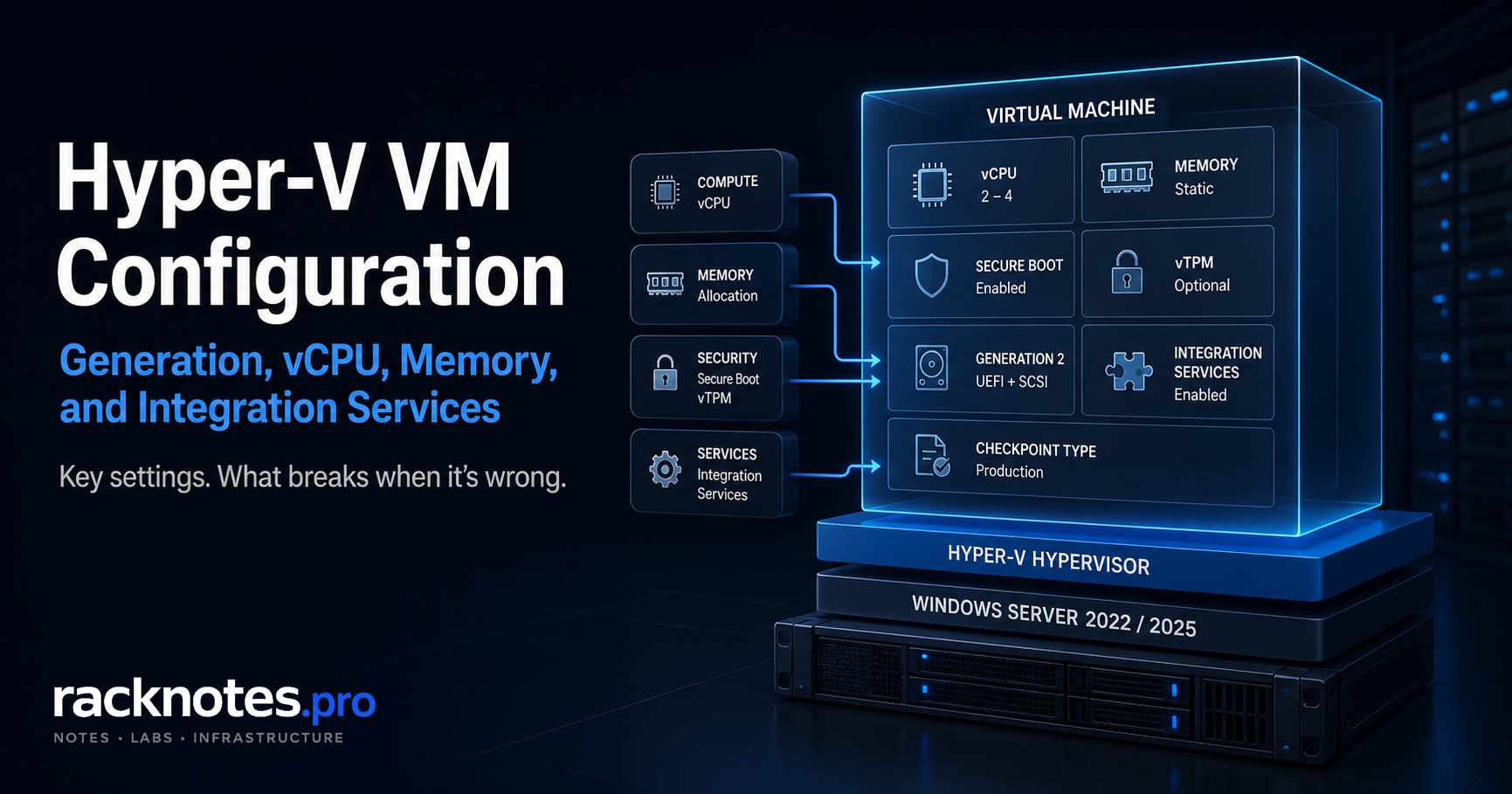
Hyper-V exposes dozens of per-VM settings, but only a handful carry real consequences. Generation is a one-time choice made at creation. The Secure Boot template decides whether a Linux guest boots at all. Configuration version controls which hosts a VM can run on later. Most other settings, including CPU count, memory mode, and checkpoint type, are reversible when changed under their supported runtime conditions.
This is a practical reference for Hyper-V VM settings on Windows Server 2022 and Windows Server 2025: what each one controls, a reasonable default, and which decisions are worth getting right before the VM goes into production.
Covers VM-level settings only: generation, firmware/security, CPU, memory, automatic start/stop actions, checkpoint type, integration services, and configuration version. Virtual switches and NICs live in the Hyper-V Networking guide, VHDX and storage architecture in the Hyper-V Storage guide. Installing the role itself is covered in the installation guide and post-install checklist.
Generation 2 for any modern guest OS, static or carefully sized Dynamic Memory depending on workload, Production or ProductionOnly checkpoints, and the correct Secure Boot template for Linux guests. The remaining settings should follow the workload’s actual requirements, not a universal rule.
Recommended Hyper-V VM Settings
The table below summarizes recommended Hyper-V VM settings for a new production VM. Treat it as a starting point, not a substitute for the reasoning in each section below.
| Setting | Recommended default | When to change it |
|---|---|---|
| Generation | Gen 2 for supported modern OS | Legacy guest or unsupported UEFI OS |
| CPU | Start conservative, size from workload | Increase after measuring real demand |
| Memory | Static, or Dynamic sized with a realistic minimum | Depends on workload and consolidation goals |
| Secure Boot | Enabled with the correct template | Unsupported or niche guest OS |
| Virtual TPM | Enabled when the guest or security policy needs it | Legacy workloads without a TPM requirement |
| Checkpoint type | Production, or ProductionOnly when a Standard fallback is unacceptable | Dev/test VMs without active databases |
| Automatic Start | Depends on service criticality and startup order | Standalone VMs with no startup dependencies |
| Automatic Stop | Graceful shutdown when guest integration supports it | Host-level maintenance windows |
| Configuration version | Keep compatible with every host the VM must run on | Upgrade only once you understand the compatibility tradeoff |
What Hyper-V VM Settings Can and Cannot Be Changed Later?
Some Hyper-V VM settings are effectively permanent once the VM exists. Most others can be changed safely with the VM off.
| Setting | Changeable after creation? |
|---|---|
| Generation | No, permanent |
| Configuration version upgrade | One-way only, cannot downgrade |
| Secure Boot state and template | Yes, VM must be off |
| Memory mode (Static / Dynamic) | Yes, VM must be off |
| vCPU count | Yes, VM must be off |
| Checkpoint type | Yes, anytime |
| Automatic Start / Stop actions | Yes, anytime |
| Integration services (per-service) | Yes, anytime |
Generation and configuration version are the two rows that cause real problems. vCPU count is often assumed to be a live operation; it is not. Hyper-V has required the VM to be powered off to change virtual processor count since the platform shipped, and that has not changed on Windows Server 2025. Everything else on this list is recoverable.
Hyper-V Generation 1 vs 2
Choosing between Hyper-V Generation 1 and Generation 2 is a one-time decision for each VM. Generation 1 uses BIOS emulation, legacy IDE controllers, and a PXE-capable emulated NIC. Generation 2 uses UEFI firmware, synthetic SCSI controllers, and optional Secure Boot. Hyper-V does not support changing a VM’s generation in place after creation.
| Feature | Generation 1 | Generation 2 |
|---|---|---|
| Firmware | BIOS (legacy) | UEFI |
| Boot disk controller | IDE (emulated) | SCSI (synthetic) |
| Secure Boot | Not available | Available, optional |
| Virtual TPM | Not available | Available |
| Max boot disk size | 2 TB (MBR) | 64 TB (GPT) |
| Typical guest OS support | Older Windows and legacy Linux | Windows Server 2012 and newer, most modern Linux |
The boot controller difference affects more than boot time. Generation 1 boots from an emulated IDE controller with no synthetic SCSI available for the boot disk; Generation 2 uses synthetic SCSI throughout and removes that emulation overhead. Storage architecture itself is out of scope here; see the scope note above.
Use Generation 1 for guests that do not support UEFI, 32-bit operating systems, or migrating an existing BIOS-based VM without converting the disk layout. Use Generation 2 for Windows Server 2012 or newer, Windows 8 or newer, and most Linux distributions released after 2014. Treat vendor support pages as the source of truth for the exact version matrix, since guest OS support lists change over time.
Generation mismatch and Secure Boot template mismatch, covered next, can both prevent a VM from booting.
Firmware and Secure Boot
Hyper-V Secure Boot Templates
A Secure Boot template mismatch is a common Generation 2 Linux configuration mistake. Hyper-V currently ships three templates:
| Template | Use case |
|---|---|
| Microsoft Windows | Windows guests (default) |
| Microsoft UEFI Certificate Authority | Most Linux distributions |
| Open Source Shielded VM | Linux-based shielded VMs |
For a normal Linux guest, this is the setting that matters:
Set-VMFirmware -VMName "YourLinuxVM" -SecureBootTemplate "MicrosoftUEFICertificateAuthority"Ubuntu, RHEL/CentOS 8+, Debian 10+, and SLES all boot correctly with the UEFI Certificate Authority template. A small number of older or niche distributions still need Secure Boot disabled entirely:
Set-VMFirmware -VMName "YourLinuxVM" -EnableSecureBoot OffLeave Windows guests on the Microsoft Windows template. Disabling Secure Boot for Windows removes a real integrity control for no operational benefit.
A template mismatch can prevent a Generation 2 Linux guest from booting. If the VM fails during early boot, verify the Secure Boot template before moving into deeper troubleshooting; the Hyper-V VM won’t start guide covers the diagnostic workflow.
Official reference: Generation 2 virtual machine security features, Linux VM issues on Hyper-V.
Virtual TPM
Generation 2 VMs on Windows Server 2016 and newer support a virtual TPM (vTPM), a software-emulated TPM 2.0 chip presented to the guest. It enables BitLocker with a TPM protector inside the guest, is required for Windows 11 guest VMs, and supports measured boot for shielded VM scenarios.
Get-VMSecurity -VMName "YourVMName"A Generation 2 VM with vTPM uses a Key Protector to authorize hosts that can run it. After moving the VM to another host, the destination must be authorized by the VM’s Key Protector or the VM might not start. Guarded-fabric deployments can manage this through Host Guardian Service; standalone and conventional cluster deployments should verify Key Protector requirements before migration.
Hyper-V Processor Settings
Hyper-V processor settings determine how many virtual processors a VM has and how the scheduler places them on physical cores. The instinct to assign as many vCPUs as possible is wrong more often than right: a VM with more vCPUs than it uses regularly creates scheduling overhead affecting every VM on the host, not just the oversized one.
- Start conservative and monitor real demand before scaling up. Adding vCPUs later takes seconds; it just requires the VM to be off.
- With SMT enabled, which covers most modern Intel and AMD hosts, Microsoft recommends an even number of virtual processors.
- NUMA spanning can introduce remote-memory access and reduce performance for NUMA-sensitive workloads. Windows Server 2025 changed how Hyper-V handles VMs that require more virtual cores than a single physical NUMA node can provide, so benchmark large or latency-sensitive VMs instead of applying a fixed single-node rule.
- Dynamic Memory and virtual NUMA cannot be used together. A VM with Dynamic Memory enabled effectively has one virtual NUMA node regardless of vCPU count.
# Check host NUMA topology
Get-VMHostNumaNode

# Verify VM processor and NUMA assignment
Get-VMProcessor -VMName "YourVMName" | Select-Object Count, MaximumCountPerNumaNode, MaximumCountPerNumaSocket
Treat any specific vCPU count per workload type as a starting example, not a rule. “Domain Controller = 2 vCPU” or “SQL Server must never cross a NUMA boundary” both oversimplify a decision that depends on actual load, not job title. Benchmark and adjust.
Official reference: Non-Uniform Memory Access (NUMA) in Hyper-V.
Hyper-V Memory Settings
Hyper-V memory settings control how much RAM a VM can use and how predictably it behaves under host pressure.
| Parameter | What it controls |
|---|---|
| Startup RAM | How much RAM Hyper-V allocates at VM boot; it must be available on the host at start time |
| Minimum RAM | Lower floor; Hyper-V will not reclaim below this value |
| Maximum RAM | Upper ceiling; Hyper-V will not allocate above this regardless of guest demand |
| Memory weight | Priority (1-10000) when the host is under memory pressure; default 5000 |
Common misconfiguration: Startup RAM set high “for safety” while Minimum RAM stays at the Hyper-V default of 512 MB. The VM boots needing 8 GB, but under host memory pressure Hyper-V can reclaim it down to 512 MB. Set Minimum RAM to a realistic floor for the workload under low load.
Static vs Dynamic Memory
Static memory allocates a fixed amount at startup and holds it for the VM’s lifetime. Dynamic Memory uses a balloon driver inside the guest, delivered through integration services, to reclaim or allocate RAM based on host pressure and guest demand signals.
Microsoft states that Dynamic Memory is supported with SQL Server. Whether it is the right choice depends on SQL version and edition, expected peak demand, and how predictable the workload’s memory footprint needs to be, not on a blanket prohibition. In-memory caches such as Redis or Memcached often do better on static allocation, since a preallocated buffer benefits from not being reclaimed mid-operation. Size and test against the actual workload rather than assuming either mode is unsafe.
# Check current memory config
Get-VMMemory -VMName "YourVMName"

# Set static memory
Set-VMMemory -VMName "YourVMName" -DynamicMemoryEnabled $false -StartupBytes 8GB

# Configure Dynamic Memory with a realistic floor
Set-VMMemory -VMName "YourVMName" -DynamicMemoryEnabled $true `
  -MinimumBytes 2GB -StartupBytes 4GB -MaximumBytes 16GB -Priority 6000
Official reference: Hyper-V Dynamic Memory, SQL Server hardware virtualization support policy.
Automatic Start and Stop Actions
These two settings decide what happens to a VM when the host reboots or shuts down, and they are easy to leave on defaults that do not match the workload.
Automatic Start Action
| Value | Behavior |
|---|---|
| Nothing | VM stays off after host reboot, regardless of its state before shutdown |
| StartIfRunning | VM starts only if it was running when the host went down |
| Start | VM always starts with the host, regardless of prior state |
Automatic Start Delay staggers VM starts after a host boot. It is useful when several VMs starting simultaneously would otherwise compete for disk and CPU during the host’s own boot process.
Automatic Stop Action
| Value | Behavior |
|---|---|
| TurnOff | Equivalent to pulling power, no graceful shutdown |
| Save | Saves VM state to disk, preserves memory contents |
| ShutDown | Sends a graceful shutdown signal through integration services |
Graceful shutdown is usually the right default when the guest supports it through integration services. TurnOff should not be a casual production choice; it is equivalent to an abrupt power loss and carries the same risk to in-flight writes.
Set-VM -Name "YourVMName" `
  -AutomaticStartAction StartIfRunning `
  -AutomaticStartDelay 30 `
  -AutomaticStopAction ShutDown
Official reference: Set-VM PowerShell reference.
Checkpoint Type
Checkpoint type is a VM setting. AVHDX mechanics, merge failures, and chain recovery live in a dedicated guide; this section only covers which setting to choose.
| Type | Behavior |
|---|---|
| Disabled | No checkpoints can be created for this VM |
| Standard | Captures full VM state, including memory and in-flight transactions |
| Production | Uses VSS on supported Windows guests or File System Freeze on supported Linux guests to create a data-consistent checkpoint; falls back to Standard if the production mechanism is unavailable |
| ProductionOnly | Same as Production, but fails instead of silently falling back to Standard |
Production checkpoints use guest-aware consistency mechanisms, VSS on Windows or File System Freeze on supported Linux guests, and do not capture VM memory state; rollback resumes from a cold-boot-like state. Standard checkpoints preserve VM state, including memory, but do not use guest-aware consistency mechanisms. For production databases and other transactional workloads, prefer Production checkpoints when supported.
Use ProductionOnly when a fallback to a Standard checkpoint is unacceptable: if the guest-consistent checkpoint cannot be created, the operation fails instead of silently degrading.
# Check current checkpoint type
Get-VM -VMName "YourVMName" | Select-Object Name, CheckpointType

# Fail rather than silently fall back to Standard
Set-VM -VMName "YourVMName" -CheckpointType ProductionOnly
Checkpoints are not backups. For checkpoint chain recovery, orphaned AVHDX files, and merge failures, see the Hyper-V Checkpoint & AVHDX Troubleshooting guide. For actual backup strategy, VSS writers, and restore testing, see the Hyper-V Backup guide.
Official reference: Using checkpoints in Hyper-V.
Integration Services Settings
Integration services are the drivers and components inside the guest enabling Hyper-V-specific functionality: heartbeat monitoring, VSS-consistent checkpoints and backups, clock sync, data exchange. Modern Windows guests get them through Windows Update rather than a separate install. The Guest Service Interface, used for host-to-guest file copy without a network path, is commonly disabled by default while core services stay enabled.
Get-VMIntegrationService -VMName "YourVMName" |
  Select-Object Name, Enabled, PrimaryOperationalStatus
PrimaryOperationalStatus of OK means the guest-side component is running and communicating.
Microsoft recommends disabling Hyper-V host/guest time synchronization for VMs configured as Domain Controllers, so they follow the domain’s own time hierarchy instead of the hypervisor’s clock. Full PDC Emulator and NTP hierarchy design belongs to the Active Directory Time Synchronization guide.
Official reference: Hyper-V Integration Services, virtualized Domain Controllers on Hyper-V.
Hyper-V VM Configuration Version
The Hyper-V VM configuration version is a number tied to the host’s Hyper-V version. It determines which features the VM can use and, more importantly, which hosts it is allowed to run on.
| Hyper-V host OS | Maximum VM configuration version |
|---|---|
| Windows Server 2016 | 8.0 |
| Windows Server 2019 | 9.0 |
| Windows Server 2022 | 10.0 |
| Windows Server 2025 | 12.0 |
The destination Hyper-V host must explicitly support the VM’s configuration version. Microsoft publishes the exact compatibility matrix per host OS. Upgrading unlocks newer features, with GPU partitioning as one example gated behind version 12.0, but permanently narrows which hosts the VM can run on afterward.
# Check current version
Get-VM -VMName "YourVMName" | Select-Object Name, Version

# Check what version this host supports
Get-VMHostSupportedVersion

# Preview the change, then apply it
Update-VMVersion -VMName "YourVMName" -WhatIf
Update-VMVersion -VMName "YourVMName"
Updating the configuration version is irreversible. PowerShell prompts for confirmation by default; use -Force to skip it, while -WhatIf is useful for validating a planned batch upgrade. On a Failover Cluster running a rolling OS upgrade, verify every node is on the target OS before upgrading any VM’s version. Upgrading too early breaks live migration back to nodes still on the older OS. Correct cluster functional level sequencing is covered in the Hyper-V Failover Clustering guide; a live migration that has already failed on a version mismatch is covered in the Live Migration troubleshooting guide.
Upgrade when the VM has permanently moved to a higher-version host, when it needs a feature available only in a newer version, or when older hosts are being decommissioned from a cluster. Do not upgrade during a rolling cluster upgrade or when fail-back to an older host is still possible.
Official reference: Upgrade virtual machine version in Hyper-V.
Hyper-V VM Settings by Workload
These Hyper-V VM settings are starting points, not universal rules. Validate them against the actual workload before treating any row as final.
| Workload | Generation | Memory approach | Checkpoint type | Notes |
|---|---|---|---|---|
| Domain Controller | Gen 2 | Static, or predictable Dynamic floor | Production | Disable Time Synchronization integration service |
| SQL Server | Gen 2 | Consider static, or Dynamic sized against peak buffer pool demand | Production, or ProductionOnly if a Standard fallback is unacceptable | Validate NUMA locality, do not assume a blanket static-only rule |
| File server | Gen 2 | Size to expected cache and workload demand; validate Dynamic Memory before using it under sustained I/O load | Production | I/O-bound more often than CPU-bound |
| Web / app server | Gen 2 | Static or Dynamic depending on workload variability and consolidation goals | Production | Confirm memory profile under real traffic before finalizing |
| Linux server | Gen 2 | Depends on workload | Production | Confirm the UEFI Certificate Authority Secure Boot template |
| Windows 11 guest | Gen 2 | Consider static for predictability | Production | Virtual TPM required |
| Dev/test VM | Gen 2 | Dynamic | Standard is acceptable without active databases | Lower memory weight relative to production VMs |
| Legacy guest (pre-2012) | Gen 1 | Static | Standard | Verify current guest OS support before deploying new instances |
Pre-Production Verification Checklist
Run this after configuring Hyper-V VM settings and before moving any VM to production. It covers every setting discussed above in one pass.
$vm = "YourVMName"

# Generation, configuration version, checkpoint type, start/stop actions
Get-VM $vm | Select-Object Name, Generation, Version, CheckpointType,
  AutomaticStartAction, AutomaticStartDelay, AutomaticStopAction

# Processor
Get-VMProcessor $vm

# Memory
Get-VMMemory $vm

# Firmware (Secure Boot template, Generation 2 only)
Get-VMFirmware $vm

# Security (virtual TPM)
Get-VMSecurity $vm

# Integration services
Get-VMIntegrationService $vm |
  Select-Object Name, Enabled, PrimaryOperationalStatus

# Disk controllers and paths
Get-VMHardDiskDrive $vm |
  Select-Object ControllerType, ControllerNumber, ControllerLocation, Path
Only run commands that apply to the VM’s generation; Get-VMFirmware is relevant to Generation 2 only. Run this check before a VM goes live, not after something breaks.
Frequently Asked Questions
What are the best Hyper-V VM settings for a new virtual machine?
Generation 2 for a modern guest OS, workload-sized CPU and memory rather than defaults, Production or ProductionOnly checkpoints, and Automatic Start/Stop actions matched to how critical the VM is. See the defaults table and workload examples above for specifics.
Should I use Hyper-V Generation 1 or Generation 2?
Generation 2 for any modern OS. Generation 1 only for legacy operating systems, 32-bit guests, or migrating an existing BIOS-based VM. Hyper-V does not support changing a VM’s generation in place; the choice at creation is permanent.
What Secure Boot template should I use for Linux on Hyper-V?
MicrosoftUEFICertificateAuthority, for most modern distributions. A small number of niche distributions still need Secure Boot disabled entirely.
Should I use Static or Dynamic Memory in Hyper-V?
Static is predictable and avoids balloon-driver overhead, making it a reasonable default where predictable memory availability matters. Dynamic Memory is supported for a wide range of workloads including SQL Server, but suitability depends on version, edition, and how predictable the footprint needs to be. Size and test rather than picking one mode as a universal rule.
How many virtual processors should I assign to a Hyper-V VM?
Start with the smallest vCPU count that meets the workload’s measured requirements, then monitor peak demand and increase it when needed. On hosts using SMT, Microsoft recommends configuring virtual processors in multiples of two. Adding more later requires the VM to be off, but takes seconds once it is.
What should Hyper-V Automatic Start and Stop actions be set to?
StartIfRunning for Automatic Start is a common default because it respects the VM’s prior state. ShutDown is preferred for Automatic Stop when guest integration supports it; TurnOff should not be a casual production default.
Should I use Production or Standard checkpoints?
Production, or ProductionOnly when a fallback to Standard is unacceptable. Standard preserves VM state including memory but does not use guest-aware consistency mechanisms; prefer Production for transactional workloads when supported. ProductionOnly fails visibly instead of silently falling back, which is safer when the fallback itself would be unacceptable.
What is a Hyper-V VM configuration version?
A number tied to the host’s Hyper-V version, determining which hosts a VM can run on and which features it can use. Windows Server 2022 supports up to version 10.0, Windows Server 2025 up to 12.0.
Can I downgrade a Hyper-V VM configuration version?
No, the upgrade is one-way. Check Get-VMHostSupportedVersion against every host the VM might need, including during a rolling cluster upgrade, before running Update-VMVersion.
Hyper-V Series
14 articles – Windows Server 2025 · Requirements · Licensing · Networking · Storage · Backup · Clustering