
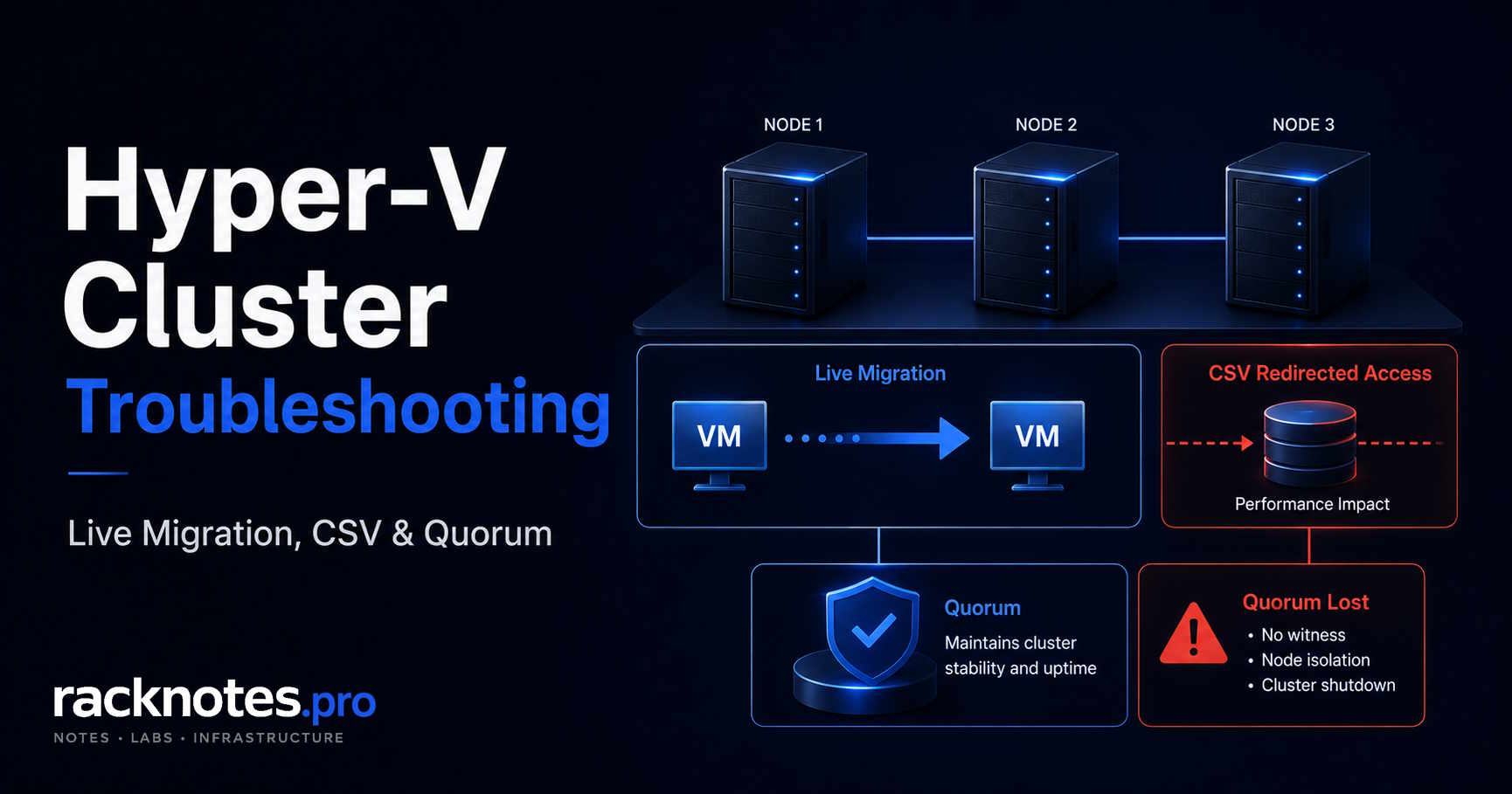
A Hyper-V live migration failed error at 8%, and a CSV entering redirected I/O an hour after a backup, look unrelated – but both can start with the same question: is the cluster, destination host, and storage path healthy before the migration begins?
This guide provides an incident-first workflow for domain-joined Hyper-V failover clusters on Windows Server 2019, 2022, and 2025. Start with CSV and cluster state, validate destination compatibility with Compare-VM, then follow the exact error code, event provider, and migration transport instead of guessing from the progress percentage.
Coverage focuses on domain-joined, clustered Hyper-V on Windows Server 2019, 2022, and 2025, including Windows Server 2025’s default Credential Guard behavior. Workgroup-cluster authentication, live migration without failover clustering, Storage Spaces Direct-specific quorum tuning, and step-by-step cluster database (CLUSDB) recovery are out of scope here; CLUSDB recovery in particular needs a validated runbook against your exact build, not a generic copy-paste procedure.
Commands without -ComputerName run against the local computer, and cluster cmdlets without a node argument run against the local cluster. Run VM-scoped commands on the VM’s current owner node or add the source host explicitly – a management host with the right modules installed is not the same as the host that actually owns the VM.
- Run
Get-ClusterSharedVolumeStatefirst, notGet-ClusterSharedVolumealone. It reports Direct, File System Redirected, or Block Redirected I/O per node plus the redirection reason - Confirm destination compatibility with
Compare-VMbefore trusting the failure percentage. The progress bar is a heuristic, not a documented root-cause code - For Event ID 5120, a status code in the message identifies a storage communication interruption. For Event ID 5125, read the complete message and record the named filter driver; the event number alone does not prove which product caused the redirected state
Start-ClusterNode -ForceQuorum(-FixQuorumand-FQare just aliases for the same parameter, not a separate older command) is a last-resort recovery command. Confirm the authoritative partition, the most current cluster configuration, workload state, and shared-storage fencing first – node power state alone is not enough- Antivirus exclusions for CSV volumes reference the real property names,
VolumeName(the GUID path) andVolumeFriendlyName(the display name), not a nonexistentVolumeGuidproperty. Microsoft’s general guidance already includesC:\ClusterStorage - A two-node cluster without a witness has asymmetric, failure-order-dependent resiliency, not a guaranteed quorum loss on every reboot. Configure a witness before production regardless
Quick reference for the error codes and Event IDs behind a hyper-v live migration failed error, in the order they’re worth checking:
| Error / Event | Source / provider | Most likely category | First command or log |
|---|---|---|---|
| 0x8009030E | Security (SSPI) | No credentials available: CredSSP started from the wrong host, Kerberos delegation unavailable, or authentication mode mismatch | VMMS/Admin log, authentication mode, execution host |
| 0x8009030D | Security (SSPI) | Credentials, SPN, or delegation weren’t accepted | setspn -L, AD delegation tab, duplicate SPN check |
| 0x80070569 | Win32/Security | Local user rights / GPO | gpresult /h, Log on as a service, Create symbolic links |
| 0x800705AA | Win32 | Destination resources | VMMS events, available memory on destination |
| Event 5120 | Microsoft-Windows-FailoverClustering | CSV communication interrupted | Status code in the message, storage/network path |
| Event 5125 | Microsoft-Windows-FailoverClustering | Complete message may name an interfering filter driver | fltmc filters, fltmc instances |
| Event 1177 | Microsoft-Windows-FailoverClustering | Quorum lost | Get-ClusterQuorum, cluster log |
Cluster Health Triage – Start Here
Before chasing individual errors, run a baseline state check. A hyper-v live migration failed error is often a downstream symptom of cluster health, not a migration-specific bug, so this baseline check comes first: it’s fast and prevents authentication, VM, and storage symptoms from being investigated in isolation while the cluster is already degraded, including the ones that make a live migration failure look like an authentication problem when it’s actually a CSV state problem.
# Run once, early - every log-collection command later in this guide uses $logPath
$logPath = 'C:\ClusterLogs'
New-Item -ItemType Directory -Path $logPath -Force | Out-Null

Get-Cluster
Get-ClusterNode
Get-ClusterResource | Select-Object Name, State, OwnerNode, ResourceType
Get-ClusterSharedVolume
Get-ClusterSharedVolumeState |
    Select-Object Name, Node, State, RedirectedIOReason, VolumeFriendlyName, VolumeName
VolumeFriendlyName is the display name (Volume1); VolumeName is the underlying GUID path (\\?\Volume{GUID}\), per Microsoft’s Get-ClusterSharedVolumeState reference. They’re easy to mix up and several exclusion and reporting tasks later in this guide need the right one.
Healthy cluster output (simplified example – Get-ClusterSharedVolumeState is a per-node command, so a real multi-node cluster returns a state record for each relevant CSV/node combination, not one row per volume):
# Healthy
Get-ClusterNode

Name   State
----   -----
HV01   Up
HV02   Up

Get-ClusterSharedVolumeState

Name              Node   State    RedirectedIOReason   VolumeFriendlyName
----              ----   -----    -------------------   ------------------
Cluster Disk 1    HV01   Direct   NotRedirected          Volume1
Cluster Disk 2    HV02   Direct   NotRedirected          Volume2
Broken cluster output – what you’re looking for:
# Degraded / broken
Get-ClusterSharedVolumeState

Name              Node   State                   RedirectedIOReason
----              ----   -----                   -------------------
Cluster Disk 1    HV01   File System Redirected   NoDiskConnectivity

Get-ClusterNode

Name   State
----   -----
HV01   Up
HV02   Isolated
Read Each State from the Correct Cluster Command
Get-ClusterResource, Get-ClusterSharedVolumeState, and Get-ClusterNode report three different state domains. Mixing them up sends you looking for Isolated in the wrong command’s output.
Cluster resource state (Get-ClusterResource) | What it means |
|---|---|
| Online | Resource is online and healthy |
| Offline | Resource is offline or manually stopped |
| Pending | Resource is transitioning – wait or investigate |
| Failed | Resource failed or exceeded its retry policy |
CSV I/O state (Get-ClusterSharedVolumeState) | What it means |
|---|---|
| Direct | Node has direct storage access |
| File System Redirected | File-system I/O is redirected over the cluster network |
| Block Redirected | Block-level I/O is redirected because direct disk access is unavailable |
Cluster node state (Get-ClusterNode) | What it means |
|---|---|
| Up | Node participates in active membership |
| Down | Node is not participating |
| Paused | Node remains in the cluster but doesn’t accept normal placement |
| Isolated | Node entered isolation after losing reliable cluster communication |
Redirected I/O can be an expected temporary state during approved maintenance, backup, or snapshot activity, or it can be an unplanned degraded condition where storage I/O is routed over the cluster network through another node instead of directly through the local storage path. Use Get-ClusterSharedVolumeState to identify the current state and reason; it doesn’t report a timestamp or duration, so use FailoverClustering event timestamps or your monitoring history to determine when the state began and how long it’s persisted before assuming the worst.
# Search for two common incident signals around the redirected-I/O window.
# This doesn't identify the start of every possible redirected state - see
# the decision table below for what each source actually tells you.
$nodes = 'HV01','HV02'
$start = (Get-Date).AddHours(-4)

foreach ($node in $nodes) {
    Get-WinEvent -ComputerName $node -FilterHashtable @{
        LogName      = 'System'
        ProviderName = 'Microsoft-Windows-FailoverClustering'
        StartTime    = $start
    } -ErrorAction SilentlyContinue |
        Where-Object Id -in 5120,5125 |
        Select-Object @{Name='Node';Expression={$node}}, TimeCreated, Id, LevelDisplayName, Message
}
Use monitoring history or repeated state snapshots to establish exact duration; event timestamps help correlate the incident, but Events 5120 and 5125 don’t represent every redirected-I/O transition – UserRequest, unsafe file-system or volume filters, tiering, BitLocker initialization, and other build-dependent reasons can all appear in RedirectedIOReason without a matching 5120/5125 event. For proactive monitoring, keep a running history instead of relying on log correlation after the fact:
# Run on a schedule to build a queryable history of CSV state over time
Get-ClusterSharedVolumeState |
    Select-Object @{Name='CollectedAt';Expression={Get-Date}},
                  Name, Node, State, RedirectedIOReason, VolumeFriendlyName, VolumeName |
    Export-Csv "$logPath\CsvStateHistory.csv" -Append -NoTypeInformation
A short decision table for which source actually answers which question:
| Need | Best source |
|---|---|
| Current CSV state and reason | Get-ClusterSharedVolumeState |
| Approximate transition time | FailoverClustering/System events, or the state-history snapshot above |
| Exact internal cluster sequence | Get-ClusterLog -UseLocalTime |
| Filter driver inventory | fltmc run locally on the affected node |
| Storage transport evidence | System/Application events on the affected node |
No single command here answers all five questions – that’s the point of checking the right one instead of re-running Get-ClusterSharedVolumeState and expecting it to explain timing it was never designed to report.
Hyper-V Live Migration Failed – Diagnostic Workflow
Confirm the Cause Before Chasing the Percentage
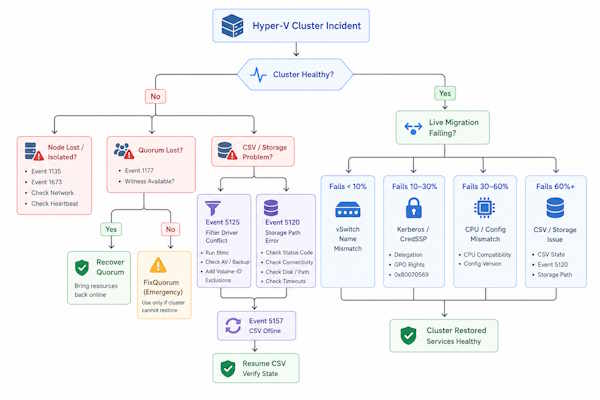
Before reading the progress bar as a diagnosis on a hyper-v live migration failed error, run a direct compatibility check. This is the primary compatibility pre-check in this section, and it works whether the failure is at 5% or 95%.
# From the source Hyper-V host, or specify -ComputerName from a management host
Compare-VM -ComputerName "HV01" -Name "VMName" -DestinationHost "HV02"
Run this on the source host or specify -ComputerName explicitly; without it, the cmdlet looks for the VM on the local computer, not on whichever host you happen to be typing from.
Compare-VM reports incompatibilities before or after a failed migration attempt, including processor feature mismatches, missing virtual switches, and VM configuration version problems. Treat it as a compatibility pre-check, not a full explanation of every failure: it doesn’t confirm Kerberos/SPN health, actual network throughput, the cluster’s UDP heartbeat, destination memory commit pressure, storage latency, filter-driver contention, or the concurrent-migration limit. Pair it with two key Hyper-V logs to cross-reference against FailoverClustering and System events:
$source      = 'HV01'
$destination = 'HV02'
$start       = (Get-Date).AddMinutes(-30)

$logs = 'Microsoft-Windows-Hyper-V-VMMS-Admin', 'Microsoft-Windows-Hyper-V-Worker-Admin'

foreach ($node in $source, $destination) {
    foreach ($log in $logs) {
        Get-WinEvent -ComputerName $node -FilterHashtable @{
            LogName   = $log
            StartTime = $start
        } -ErrorAction SilentlyContinue |
            Select-Object @{Name='Node';Expression={$node}}, TimeCreated, Id, LevelDisplayName, Message
    }
}
Remote event-log access needs the Windows Event Log firewall rule and sufficient permissions on both nodes; if that’s not available, run the same block locally on each host instead. Running it without -ComputerName from a management host reads that host’s own logs, not the source or destination Hyper-V events you actually need.
See Microsoft’s live migration troubleshooting guidance for the fuller diagnostic sequence this section is based on.
The progress percentage at which a migration fails can still narrow where to look first, but it’s an investigation hint, not a documented root-cause code. Where the stage lands depends on the Windows Server version, migration transport (TCP, compression, or SMB), whether the migration is clustered, and current cluster load.
| Observed failure stage | Checks to prioritize |
|---|---|
| Early failure (roughly under 10%) | Compare-VM, vSwitch mapping on the destination, authentication |
| During memory transfer (roughly 10-90%) | Migration network bandwidth, CPU compatibility, destination memory/resources |
| Late or cleanup failure (roughly 90-100%) | Storage state, checkpoint chain, VMMS/Worker events, cluster role state (see AVHDX troubleshooting) |
This is investigation priority, not a statistical ranking, and it isn’t a substitute for confirming the exact error code or Event ID before you act.
Pre-Migration Validation Checklist
Most hyper-v live migration failed errors are predictable. Before migrating a VM in a cluster where migrations haven’t been tested recently:
- Migration transport identified and tested for that transport specifically. Use TCP 6600 for TCP/IP or Compression transport; use TCP 445 plus SMB Multichannel/RDMA health when using SMB transport
- Authentication mode matches the execution path: Kerberos constrained delegation for migrations initiated from a management host; CredSSP only when the operator is signed in on the source host and starts the migration there. Add
cifsdelegation only when moving storage or using SMB-backed Hyper-V storage. Account for Credential Guard blocking CredSSP by default on Windows Server 2025 - vSwitch present on the destination with a matching name, type, and teaming design (SET or LBFO)
- Source and destination use processors from the same manufacturer. If generations differ, confirm standard or (on Windows Server 2025) dynamic processor compatibility as appropriate
- VM config version supported on the destination – check with
Get-VMHostSupportedVersion - Destination node has enough free memory for the VM’s currently assigned RAM
- No backup, checkpoint creation, or checkpoint merge operation currently in progress on the VM
- No stuck migrations from a previous attempt:
Get-ClusterGroup | Where-Object GroupType -eq 'VirtualMachine' | Select-Object Name, State, OwnerNode– look forPendingorFailedstates, an unexpected owner node, or a role transition that never completed. The cluster group name doesn’t always match the VM’s display name - Concurrent migration limit not already exhausted. On Windows Server 2022 with the September 2022 cumulative update or later, and on Windows Server 2025, the cluster-wide
MaximumParallelMigrationsproperty overrides the per-host value; Windows Server 2019 uses only the host-level setting
# Supported on all versions in this guide
Get-VMHost -ComputerName HV01,HV02 |
    Select-Object ComputerName, VirtualMachineMigrationAuthenticationType,
                  VirtualMachineMigrationPerformanceOption, MaximumVirtualMachineMigrations

# Windows Server 2022 (September 2022 CU or later) and Windows Server 2025 only -
# not present on Windows Server 2019
$cluster = Get-Cluster

if ($cluster.PSObject.Properties.Name -contains 'MaximumParallelMigrations') {
    $cluster | Select-Object Name, MaximumParallelMigrations
}
else {
    Write-Host 'Cluster-wide MaximumParallelMigrations is not available on this build; use the host-level setting instead.'
}
See Microsoft’s Get-Cluster reference for the full set of cluster-wide properties. Cluster-wide MaximumParallelMigrations applies only to supported Windows Server 2022 builds and later, not Windows Server 2019.
Early Live Migration Failure – Check the Destination vSwitch First
Microsoft’s live migration documentation confirms a VM connected to a virtual switch that doesn’t exist on the destination node fails migration. In practice this tends to show up early in the progress bar, though Microsoft doesn’t publish a fixed percentage threshold for it – treat “under 10%” as an operator heuristic worth checking first, not a documented cutoff. This is a high-priority check in production clusters, and it isn’t only about the name.
The destination needs a logical vSwitch with a matching name and a compatible configuration. Compare switch names, type, SET or LBFO teaming design, VLAN handling, and network mappings on every node, not just the name string. A hyper-v live migration failed error that traces back to this mismatch is one of the fastest fixes in this guide once the mismatch is actually confirmed.
For context on virtual switch design and naming standards, see Hyper-V Networking: Virtual Switches, VLANs, and SET Explained.
# Compare host switches explicitly across both nodes
Get-VMSwitch -ComputerName HV01,HV02 |
    Select-Object ComputerName, Name, SwitchType, EmbeddedTeamingEnabled, NetAdapterInterfaceDescriptions

# Read the VM's current adapter configuration from the source host where it actually runs
Get-VMNetworkAdapter -ComputerName "HV01" -VMName "VMName" |
    Format-List Name, SwitchName, MacAddress, DynamicMacAddressEnabled
Get-VMNetworkAdapterVlan -ComputerName "HV01" -VMName "VMName"
The VM adapter commands describe the source VM’s current configuration; destination compatibility is established through Compare-VM and the destination’s own Get-VMSwitch output above, not by running VM-scoped commands against a host that doesn’t have the VM.
If the switch is present but migration still fails at this stage, check SET versus LBFO mismatch, VLAN configuration, a missing uplink, and cluster network mapping before assuming the switch name is the only variable.
Live Migration Authentication Failures: Kerberos, SPN, and Local Rights
Two distinct failure families surface as authentication errors during live migration, and treating them as one thing wastes time on a hyper-v live migration failed error that actually has a simple fix. Separate them by error code first.
Kerberos, SPN, and constrained delegation. Errors like 0x8009030E (no credentials available) and 0x8009030D (credentials not recognized) point here. For VM live migration, configure constrained delegation to Microsoft Virtual System Migration Service between the participating hosts. Add cifs only when the workflow also moves VM storage or when Hyper-V storage is hosted on SMB – treat the two services as scenario-dependent, not a universally identical pair.
# Kerberos live migration needs reciprocal delegation - check both hosts, not just one
$hosts = 'HV01','HV02'

foreach ($hostName in $hosts) {
    Get-ADComputer -Identity $hostName -Properties msDS-AllowedToDelegateTo |
        Select-Object Name, @{Name='AllowedToDelegateTo';Expression={$_.'msDS-AllowedToDelegateTo'}}
}

setspn -L HV01
setspn -L HV02

# Duplicate SPNs across accounts silently break delegation - check for them explicitly
setspn -X
setspn -Q "Microsoft Virtual System Migration Service/HV01"
setspn -Q "Microsoft Virtual System Migration Service/HV01.contoso.com"
setspn -Q "Microsoft Virtual System Migration Service/HV02"
setspn -Q "Microsoft Virtual System Migration Service/HV02.contoso.com"
Error 0x80070569 – local user rights, not delegation. This code means “the user has not been granted the requested logon type at this computer” – a local rights problem, most often not Kerberos delegation. Verify Log on as a service for the special identity NT VIRTUAL MACHINE\Virtual Machines on the destination host first; this is the primary documented cause. Also validate Create symbolic links for the same identity, since a restrictive user-rights GPO can break this too. Run gpresult locally on the destination host – a report generated on the source or on a management workstation doesn’t prove the destination’s effective policy:
# Run locally on the destination host (HV02 in this example)
New-Item -ItemType Directory -Path C:\Temp -Force | Out-Null
gpresult /h C:\Temp\gpresult.html

# Or remotely, if RSoP firewall rules and permissions allow it
gpresult /S HV02 /SCOPE COMPUTER /H C:\Temp\gpresult-HV02.html /F
The same 0x80070569 error appears in standalone Hyper-V VM startup failures for the same reason, per Microsoft’s documented fix for this error. See Hyper-V VM Won’t Start: Fix Every “Failed to Start” Error for the standalone diagnostic path.
The “Create symbolic links” GPO trap. If Log on as a service is correct and 0x80070569 still appears, also verify Create symbolic links. A restrictive GPO can break the migration workflow even when constrained delegation and the primary user right are both configured correctly. Fix: add NT VIRTUAL MACHINE\Virtual Machines to the user right in the applicable GPO, under Computer Configuration > Windows Settings > Security Settings > Local Policies > User Rights Assignment > Create symbolic links.
CredSSP execution context. CredSSP avoids configuring Kerberos constrained delegation, but the migration command must execute inside a signed-in session on the source Hyper-V host itself. That source-host session can be local console, Remote Desktop, or a remote Windows PowerShell session – all three count. What doesn’t count is running Hyper-V Manager or a migration command directly from a management workstation against the source host; that’s a different authentication path than a session running on the source host itself. For centralized management from a workstation, use Kerberos constrained delegation instead. On Windows Server 2025, this matters more directly: Credential Guard is enabled by default in common domain-joined configurations and can block CredSSP-based live migration outright. Kerberos constrained delegation is the preferred production design on 2025 and is generally the safer default regardless of version.
Processor Manufacturer and Feature Compatibility
CPU compatibility failures appear as: “The virtual machine cannot be moved because the processor on the destination computer is not compatible.”
Processor manufacturer and generation. Live migration requires the source and destination hosts to use processors from the same manufacturer. Compatibility mode can reduce the feature set exposed to the guest so that different processor generations look the same to it, but it cannot live migrate a running VM between an Intel host and an AMD host – that limitation isn’t a config option, it’s a hard boundary. See Microsoft’s processor compatibility mode documentation and configuration guidance for the affected feature flags.
# VM must be powered off before changing this setting

# Windows Server 2019/2022, or as a safe minimum on any supported version -
# fixed minimum feature set
Set-VMProcessor -ComputerName "HV01" -VMName "VMName" `
    -CompatibilityForMigrationEnabled $true

# Windows Server 2025 cluster, VM configuration version 10.0 or later -
# maximum feature set common to all cluster nodes, not a fixed minimum
Set-VMProcessor -ComputerName "HV01" -VMName "VMName" `
    -CompatibilityForMigrationEnabled $true `
    -CompatibilityForMigrationMode CommonClusterFeatureSet

# Verify
Get-VMProcessor -ComputerName "HV01" -VMName "VMName" |
    Select-Object CompatibilityForMigrationEnabled, CompatibilityForMigrationMode
Standard processor compatibility uses a fixed minimum feature set and is intended for mobility across hosts from the same CPU manufacturer. Windows Server 2025 dynamic compatibility instead uses the maximum processor feature set common to all nodes in the cluster – the opposite calculation, not the same one applied more broadly. Both modes can reduce the features exposed to the guest, so performance-sensitive or compute-heavy workloads should get a test before this is standardized cluster-wide. If your build’s Hyper-V module doesn’t recognize -CompatibilityForMigrationMode, drop it and use -CompatibilityForMigrationEnabled $true alone. Neither mode enables Intel-to-AMD or AMD-to-Intel live migration.
VM Configuration Version Mismatch
A VM configuration version mismatch is a separate failure family from processor compatibility, not a second cause of the same processor error message. It commonly appears as a general compatibility or unsupported-version failure, especially during a rolling Windows Server upgrade, or when migration works toward a newer host but not back to an older one. Confirm destination support directly rather than assuming it from the OS version alone.
# Confirm destination support before assuming a version mismatch
Get-VMHostSupportedVersion -ComputerName "HV02"
Get-VM -ComputerName "HV01" -Name "VMName" | Select-Object Name, Version

# Upgrade (VM must be shut down - one-way operation)
Update-VMVersion -ComputerName "HV01" -VMName "VMName"
Config version upgrades are one-way. If cluster nodes are at mixed Windows Server versions, hold off on version upgrades until every node is at the target version. For generation and configuration-version planning beyond the migration failure itself, see Hyper-V VM Configuration: Generation, vCPU, Memory, and Integration Services.
Insufficient Destination Memory During Live Migration (0x800705AA)
Error 0x800705AA: “Not enough storage is available to complete this operation.” A hyper-v live migration failed error with this code is, despite the wording, usually about insufficient system resources on the destination rather than disk storage, but confirm it against the destination’s actual memory counters and VMMS events before treating it as settled.
$start = (Get-Date).AddMinutes(-30)

# What the VM currently thinks it needs
Get-VM -ComputerName "HV01" -Name "VMName" |
    Select-Object Name, State, MemoryAssigned, MemoryDemand, DynamicMemoryEnabled

# What the destination actually has available
Get-VMHostNumaNode -ComputerName "HV02" |
    Select-Object NodeId, @{Name='MemoryAvailableMB';Expression={$_.MemoryAvailable}}
Get-Counter -ComputerName "HV02" '\Memory\Available MBytes', '\Memory\Committed Bytes', '\Memory\Commit Limit'
# Counter paths are English-locale names. If Get-Counter reports the path as
# invalid, enumerate the local set instead: Get-Counter -ListSet *Memory*

# What VMMS logged on the destination around the failure
Get-WinEvent -ComputerName "HV02" -FilterHashtable @{
    LogName   = 'Microsoft-Windows-Hyper-V-VMMS-Admin'
    StartTime = $start
} -ErrorAction SilentlyContinue | Select-Object TimeCreated, Id, LevelDisplayName, Message
See Microsoft’s Hyper-V live migration troubleshooting guide for how this error fits into the broader migration failure sequence.
Fix options: migrate other VMs off the destination first, or free RAM directly. Dynamic Memory can help a VM start with a smaller footprint and expand afterward, but enabling it doesn’t guarantee the VM lands with less RAM at the moment of migration; check current assigned memory rather than assuming Dynamic Memory alone solves the shortfall, and test the tradeoff before relying on it for latency-sensitive workloads.
Live Migration Stuck or Stalled
A migration that stops progressing can be a management-plane issue, a migration data-path problem, destination resource pressure, or storage and cluster contention. Start with timestamped VMMS, Worker, FailoverClustering, and System events, identify whether the hosts are using TCP/IP, Compression, or SMB as the transport, and test the matching data path. Use Test-WSMan only to verify management connectivity, not the migration data path itself.
- Check the VMMS and Worker admin logs on both the source and destination hosts, filtered to the incident window rather than a raw event count:
Get-WinEvent -ComputerName "HV01" -FilterHashtable @{ LogName = 'Microsoft-Windows-Hyper-V-VMMS-Admin'; StartTime = (Get-Date).AddMinutes(-30) } | Select-Object TimeCreated, Id, LevelDisplayName, Message– repeat with-ComputerName "HV02" - Verify WinRM connectivity between nodes as a management-plane check only:
Test-WSMan -ComputerName "HV02" - Test the transport actually configured for migration, not a fixed port:
Test-NetConnection -ComputerName "HV02" -Port 6600for TCP/IP or Compression transport;Test-NetConnection -ComputerName "HV02" -Port 445for SMB transport. For SMB Direct specifically, see the CimSession-scoped commands below – runGet-SmbMultichannelConnectionduring an actual controlled migration, not as a standalone pre-flight test, since an empty result with no migration in progress just means no qualifying SMB session is active, not that Multichannel is broken - Confirm the cluster’s own view of the operation:
Get-ClusterGroup | Where-Object GroupType -eq 'VirtualMachine' | Select-Object Name, State, OwnerNode– remember the cluster group name doesn’t always match the VM’s display name, so don’t assumeGet-ClusterGroup -Name "VMName"will find it - If the migration was started as a PowerShell background job (
-AsJob), check and cancel it there:Get-JobthenStop-Job -Id <JobId>. This does not cancel migrations started through Failover Cluster Manager or another management plane - Review cluster network bandwidth utilization; live migration competes with CSV I/O on the same network if a dedicated live migration network isn’t configured
# SMB/SMB Direct pre-flight inventory - commands without -CimSession read the
# local host, not the source or destination
$sourceSession = New-CimSession -ComputerName HV01
$destSession   = New-CimSession -ComputerName HV02

Get-SmbClientNetworkInterface -CimSession $sourceSession
Get-SmbServerNetworkInterface -CimSession $destSession
Get-NetAdapterRdma -CimSession $sourceSession
Get-NetAdapterRdma -CimSession $destSession

# Run while a controlled SMB live migration is active
Get-SmbMultichannelConnection -CimSession $sourceSession

# Clean up
Remove-CimSession $sourceSession, $destSession
Avoid restarting VMMS or the cluster service as a generic first step. Either can affect other VMs currently running on the same host. A migration that only stalls after several minutes, rather than failing immediately, can indicate transport or infrastructure contention rather than a Hyper-V configuration error.
CSV – Redirected Access Mode
What Redirected Access Is and Why It Matters
Cluster Shared Volumes normally let each node access storage directly through a local path. When a node loses that direct path, I/O routes through another node over the cluster network instead.
VMs keep running. That’s the trap – operators often miss redirected I/O for hours. On a 10GbE network shared with live migration traffic, storage throughput for affected VMs drops substantially, and I/O-intensive workloads show the degradation almost immediately.
Backup or snapshot windows are a useful correlation point; backup agents install filter drivers that can interfere with direct CSV I/O. If redirected I/O appears consistently after backup windows, see Hyper-V Backup: VSS, Checkpoints, and Restore Failures Explained. If the backup agent left orphaned AVHDX files on the CSV, that’s covered separately in Hyper-V Checkpoint & AVHDX Troubleshooting.
Redirected I/O is a CSV operating state, not a single root cause. It can be requested administratively for maintenance, triggered by a backup or snapshot workflow, caused by an unsafe file-system or volume filter, entered after a storage-path interruption, or tied to other build-dependent reasons. The two categories this guide covers in most depth, filter-driver interference and storage-path interruption, are the two highest-priority checks in an incident workflow, not the only two possible causes. Always read State, RedirectedIOReason, the complete FailoverClustering event message, and the surrounding cluster log before choosing a fix. This is also part of why a live migration failure and a CSV redirected-access incident so often show up in the same maintenance window: both trace back to cluster or storage health, not to the live migration feature itself.
Event Reference Table
| Event ID | Provider | Meaning | Where to look |
|---|---|---|---|
| 5120 | Microsoft-Windows-FailoverClustering | Communication between a node and CSV storage was interrupted; a status code identifies the failure type | System log, cluster log |
| 5125 | Microsoft-Windows-FailoverClustering | Complete message may name an active filter driver interfering with CSV operations – confirm from the message, not the number alone | System log, fltmc |
| 1135 | Microsoft-Windows-FailoverClustering | Node removed from cluster membership | System log |
| 1673 | Microsoft-Windows-FailoverClustering | Node entered the isolated state; inspect surrounding membership and network events for the cause | System log |
| 1177 | Microsoft-Windows-FailoverClustering | Quorum lost – cluster service shutting down | System log |
Event 5125 – Identify and Validate the Named Filter Driver
The full text of a FailoverClustering Event 5125 can name an active filter driver that may be interfering with CSV operations, after which I/O moves to redirected mode as a precaution. Read the complete message before concluding anything: the event number alone doesn’t prove a driver is the cause, and the exact driver name plus its product version is what you actually need for the vendor compatibility check.
Antivirus products and backup agents install kernel-level filter drivers that intercept I/O. In production clusters, an AV update is one change worth checking when Event 5125 appears shortly afterward; the update can replace a CSV-compatible driver version with one that isn’t.
Run fltmc locally on the node whose Get-ClusterSharedVolumeState record shows the redirected state – a management workstation or a healthy node’s filter inventory won’t show the driver actually causing the problem. Compare against a healthy node only for reference, not as the primary check.
# Run locally on the affected node
fltmc filters
fltmc instances

# Illustrative output only - compare against a healthy node to identify outliers
# Look for third-party entries not present on the working node

Filter Name           Num Instances    Altitude    Frame
-----------           -------------    --------    -----
WdFilter                       13       328010        0
storqosflt                      1       244000        0
ExampleBackupFilter              4       259995        0   <- illustrative third-party entry, not a real product name
Cross-reference the exact driver name and product version against the vendor’s CSV compatibility documentation for your Windows Server build. Common sources include backup, antivirus, encryption, HSM, replication, and snapshot filter drivers; verify against current vendor guidance rather than assuming a specific product is still the culprit in its latest version.
Do not jump straight to detaching the filter driver. Manually detaching a filter on a production CSV depends heavily on the driver’s design and can leave an application inconsistent, interrupt a backup or snapshot in progress, or force a reboot. Work through it in order, on the affected node:
- Read the full Event 5125 text and record the exact filter/driver name.
- Check driver instances with
fltmc filtersandfltmc instances, run locally on the affected node. - Confirm the driver and product version against the vendor’s support matrix for this CSV and Windows Server build.
- Stop the backup or AV operation through its own management console, not by force.
- Update, reconfigure, or remove the product during a maintenance window.
- Only detach manually if the vendor’s own documentation says to, and only following their exact procedure.
- Re-check state:
Get-ClusterSharedVolumeState | Select-Object Name, Node, State, RedirectedIOReason
If CSV was placed in redirected mode manually for maintenance rather than by the filter driver itself, Resume-ClusterResource is the right way back. Run it against the cluster resource that owns the CSV, and only when clearing an actual maintenance state – it doesn’t fix filter incompatibility or storage-path loss on its own:
# Only after the root cause is resolved or maintenance mode is being cleared
Resume-ClusterResource -Name "Cluster Disk 1"

# Healthy output after resuming
Get-ClusterSharedVolumeState |
    Select-Object Name, Node, State, RedirectedIOReason
If the CSV immediately re-enters redirected mode after resuming, the underlying cause hasn’t actually been resolved.
Event 5120 – Storage Communication Errors
Event ID 5120 means the node’s communication with CSV storage was interrupted. Per Microsoft’s Event ID 5120 troubleshooting guidance, the NTSTATUS code in the message narrows the investigation but doesn’t prove one physical root cause – treat it as a failure class, then correlate it with the complete event message, surrounding events, cluster logs, storage-path state, drivers, firmware, MPIO, and the incident timeline before changing infrastructure.
| Status code | What it confirms | Investigation priority |
|---|---|---|
c00000b5 – STATUS_IO_TIMEOUT | A redirected file-system I/O operation exceeded its timeout | Review System/Application events, storage and network latency, HBA/NIC drivers and firmware, MPIO, recent maintenance and load |
c00000be – STATUS_BAD_NETWORK_PATH | Windows couldn’t resolve or use the required storage path | Validate storage configuration and MPIO, then check network/storage events, drivers, firmware, and path availability |
c000020c – STATUS_CONNECTION_DISCONNECTED | Communication between the node and CSV was interrupted | Correlate with iSCSI/FC/SMB storage events, MPIO, and cluster logs; determine whether the interruption was transient or persistent |
Run the discovery and correlation commands below locally on the affected node – the one whose Get-ClusterSharedVolumeState record actually shows the interruption. Available log channels and providers vary by installed components and build, and a management workstation or healthy node won’t show the same evidence.
# Run locally on the affected node
Get-WinEvent -ListLog '*iSCSI*', '*iScsiPrt*' -ErrorAction SilentlyContinue
Get-WinEvent -ListProvider '*iSCSI*', '*iScsiPrt*' -ErrorAction SilentlyContinue

$affectedNode = 'HV01'
$start = (Get-Date).AddMinutes(-30)

# First inspect warnings and errors in the incident window - a narrow provider
# filter can miss VSS, backup-agent, or vendor-specific Application events
foreach ($logName in 'System','Application') {
    Get-WinEvent -ComputerName $affectedNode -FilterHashtable @{
        LogName   = $logName
        StartTime = $start
    } -ErrorAction SilentlyContinue |
        Where-Object Level -in 1,2,3 |
        Select-Object TimeCreated, LogName, ProviderName, Id, LevelDisplayName, Message
}

# Then narrow to the storage-specific providers once you've seen the full picture
foreach ($logName in 'System','Application') {
    Get-WinEvent -ComputerName $affectedNode -FilterHashtable @{
        LogName   = $logName
        StartTime = $start
    } -ErrorAction SilentlyContinue |
        Where-Object { $_.ProviderName -match 'iScsiPrt|MSiSCSI|StorPort|MPIO|disk' } |
        Select-Object TimeCreated, LogName, ProviderName, Id, LevelDisplayName, Message
}

# Cluster log for the window around Event 5120
Get-ClusterLog -UseLocalTime -Destination $logPath -TimeSpan 15
5120 events that correlate with backup job windows can point to storage contention, but they can equally reflect a filter/provider issue, snapshot behavior, transport saturation, or a genuine storage-path failure. Confirm from the status code, the events above, and the cluster log rather than assuming contention by default.
Node Isolation and Cluster Membership Loss
Never interpret a Windows Event ID from the number alone. Confirm the provider, channel, timestamp, full message, and status code before acting – the same numeric Event ID can have an unrelated meaning under a different provider. For a CSV that’s paused, offline, or otherwise not serving I/O, Event 5120 with its status code is the better-documented FailoverClustering signal to lead with.
Node Isolation – Events 1135 and 1673
Event 1135 indicates that a node was removed from active cluster membership. Event 1673 indicates that a node entered the isolated state. Neither Event ID alone identifies the complete root cause; inspect the surrounding membership, network, and storage events.
An isolated node may still be running VMs; the cluster has simply stopped trusting it. Node isolation and node failure have different recovery paths – treating isolation as a confirmed power-off failure can lead to duplicate workload ownership or storage-write conflicts.
- Determine the isolated node’s actual power state via IPMI/iDRAC/iLO, not ping or WinRM
- If it’s still powered on, do not force quorum; the cluster may try to restart VMs on surviving nodes while the isolated node is still running them
- Check cluster network health directly rather than a single port test:
Get-ClusterNetwork | Format-Table Name, State, Role, Address, AddressMaskandGet-ClusterNetworkInterface | Format-Table Name, Node, Network, State - The actual cluster heartbeat runs over UDP/DTLS 3343, which a simple TCP test can’t confirm.
Test-NetConnection -ComputerName "IsolatedNode" -Port 3343is still worth running, but label it correctly: it checks the TCP path used during node join, not heartbeat health. For heartbeat itself, rely on cluster logs, validation tests, firewall-rule inspection, or a packet capture - Review available validation categories first with
Test-Cluster -List(this only lists tests, it doesn’t run anything – category names can be localized, so copy the exact names this returns on your build). On an existing cluster, specifying member nodes doesn’t necessarily limit the run to just those nodes – Microsoft notes that validation against nodes already in a cluster can expand to the full cluster membership. Confirm current membership withGet-ClusterNode | Select-Object Name, Statefirst, then run only the agreed non-storage categories and accept that the effective scope may be the whole cluster:Test-Cluster -Include "Inventory","Network","System Configuration" -ReportName "$logPath\Selected-Validation". See Microsoft’sTest-Clusterreference for the full category list. These categories are lighter than a full run, but calling any validation “non-disruptive” is too strong; it still adds load, may need elevated rights, and the exact test set is build-dependent. Reserve the completeTest-Clustersuite, including storage tests, for a maintenance window - Proceed with quorum recovery only after the unavailable node or site is confirmed unable to retain workload or storage-write ownership. For a local incident, verify power state through IPMI/iDRAC/iLO and confirm storage fencing. For a multisite disaster, follow the validated site-fencing, replication-direction, and storage-ownership controls in the DR runbook instead of expecting direct power confirmation
Quorum Lost
Why Quorum Was Lost – Diagnosis
Event 1177: “The Failover Clustering feature will be shut down. This is because a quorum is not currently active in the cluster.”
Common causes, in the order they’re worth checking first:
- Two-node cluster without a witness, and an unfavorable failure sequence. Dynamic Quorum can let the surviving node continue in some sequences, but the design is asymmetric and depends on which node currently holds the dynamic vote. It is not a reliable design regardless of the sequence.
- Witness failure. File share witness offline, cloud witness lost connectivity, or a disk witness volume degraded.
- Network partition. Nodes can’t communicate but are all still running; the cluster shuts down the minority partition.
# Collect cluster log - extend TimeSpan to cover the incident window
Get-ClusterLog -UseLocalTime -Destination $logPath -TimeSpan 60

# Filter for quorum events
Select-String -Path "$logPath\*.log" -Pattern "quorum" | Select-Object -Last 50

# Check node vote weights
Get-ClusterNode | Select-Object Name, State, NodeWeight, DynamicWeight
Collecting Cluster Logs Before Escalation
If this is going to a Microsoft support case, collect these before opening the ticket. Export event logs as EVTX rather than CSV; CSV drops structured event data that Microsoft Support will otherwise ask for again.
# Run once on any single accessible cluster node - Get-ClusterLog gathers logs
# for every node in the cluster, not just the one it's run on
Get-ClusterLog -UseLocalTime -Destination $logPath -TimeSpan 240

# Lists available validation categories - does not run anything by itself
Test-Cluster -List

# On an existing cluster, specifying member nodes can still expand validation to the
# full cluster membership - review current membership and accept the effective scope
# before running. Only the agreed non-storage categories, full storage tests belong
# in a maintenance window
Test-Cluster -Include "Inventory","Network","System Configuration" -ReportName "$logPath\Selected-Validation"
# Run locally on each node - Get-ClusterLog doesn't collect these, and
# Get-ClusterLog itself cannot be run remotely without CredSSP configured
$node = $env:COMPUTERNAME
wevtutil epl System "$logPath\System-$node.evtx"
wevtutil epl Microsoft-Windows-FailoverClustering/Operational "$logPath\FailoverClustering-$node.evtx"
wevtutil epl Microsoft-Windows-Hyper-V-VMMS-Admin "$logPath\Hyper-V-VMMS-$node.evtx"
# Cluster resource state snapshot
Get-ClusterResource | Select-Object Name, State, OwnerNode |
Export-Csv "$logPath\ClusterState-$node.csv" -NoTypeInformationThe cluster log (cluster.log) is the most important artifact for quorum and CSV failures. It records internal cluster events at millisecond granularity, including the exact sequence leading to quorum loss, at a level the Event Viewer logs don’t preserve.
Witness Type Decision
| Witness type | Best fit | Avoid when |
|---|---|---|
| Cloud witness (Azure Blob) | Geographically dispersed clusters, no shared storage witness | No reliable internet connectivity from cluster nodes |
| File share witness | Two-node clusters at the same site, existing file server available | File server is on the same failure domain as the cluster nodes |
| Disk witness | Clusters with shared storage, a dedicated small LUN available | Cluster has no shared storage |
For Windows Server 2012 R2 and later, Microsoft recommends always configuring a quorum witness: Dynamic Witness automatically enables or disables the witness’s vote depending on the number of available voting nodes, so it doesn’t need to be manually tuned per node count. Witness type and placement should match the cluster’s actual failure domains. For cluster design rationale and initial witness configuration, see Hyper-V Failover Clustering Explained: Quorum, CSV, and Live Migration.
Emergency Recovery – Forcing Quorum
Start-ClusterNode -ForceQuorum forces the cluster to start with whatever nodes are currently available, per Microsoft’s guidance on recovering a failover cluster without quorum. (-FixQuorum and -FQ are aliases for the same parameter on Start-ClusterNode, not a separate command for older builds – use whichever name your scripts already expect.) It’s a last-resort recovery command: used correctly it’s the right tool, used against an active competing partition it risks data corruption and can silently discard recent cluster configuration changes.
Forced quorum while another partition may still be active. If another cluster partition remains active or shared-storage fencing hasn’t been confirmed, forcing quorum can create competing cluster ownership and can corrupt VM or application data. Whether that actually happens depends on whether the isolated node is still running, whether it still holds storage ownership, and whether fencing is in place; confirm the authoritative partition, node power state, workload state, and storage ownership before proceeding, not after.
-ForceQuorum makes the local node’s copy of the cluster configuration authoritative and replicates it to the rest of the cluster. If that node isn’t the one with the most current configuration, recent changes to roles, dependencies, preferred owners, or recovery settings on other nodes can be silently lost. Confirming the authoritative node is part of the checklist below, not an afterthought.
What “confirm before forcing” means depends on the scenario. For a local shared-storage incident, confirm the unavailable node is powered off and fenced – direct power confirmation via IPMI/iDRAC/iLO is realistic and expected. In a multisite disaster, direct power confirmation of the failed site might be impossible; instead use the site-fencing, replication-direction, and storage-ownership controls defined in your validated DR runbook. The invariant is the same in both cases: no competing partition can be allowed to retain write access to shared storage.
Pre-action checklist – before forcing quorum
- Local incident: confirm the failed node is powered off via IPMI/iDRAC/iLO, not just “no ping”; confirm no VMs are running on it; confirm CSV/SAN fencing or ownership state directly
- Multisite DR: confirm the site is declared unavailable per your DR runbook; confirm the old site is fenced from the network and storage replication; confirm write ownership has moved to the surviving site – direct power confirmation may not be possible here
- Confirm which node or site actually holds the most current cluster configuration, and document which VMs or roles were running before the failure
- Have a rollback plan before executing
# On the authoritative surviving node - only after root-cause, fencing, and
# configuration-currency checks above
Start-ClusterNode -ForceQuorum

# On additional nodes being rejoined - run locally on each node to prevent it
# from forming a separate cluster instance. Remote execution is possible only
# with CredSSP deliberately configured and approved by security policy.
Start-ClusterNode -PreventQuorum

# Verify before starting any VMs
Get-ClusterQuorum
Get-ClusterNode | Select-Object Name, State, NodeWeight, DynamicWeight
Get-ClusterSharedVolumeState
Get-ClusterResource | Select-Object Name, State

# Do not start critical workloads until every required CSV is Online, ownership is
# understood, and any redirected I/O matches your validated recovery design.
# Unexpected redirection must be investigated first, not assumed safe.
Once enough votes are restored, the cluster exits the forced state automatically. Don’t skip the verification block above just because the forced start succeeded.
Cluster Service Error 0x80070490 – Do Not Assume CLUSDB Corruption
Error 0x80070490 means “Element not found.” In a cluster-service startup incident it can indicate a configuration-store problem, but the code alone does not prove that CLUSDB is corrupted; it can equally point to a missing resource, a registry state issue, a dependency problem, or a third-party component. Confirm the failing provider, resource, registry key, or configuration object from the complete event message and cluster log before choosing a recovery path. Treat CLUSDB recovery as its own dedicated runbook rather than a quick fix here.
At a high level, without prescribing exact commands for every version:
- Collect cluster logs and the System/FailoverClustering EVTX from every node before changing anything.
- Confirm the failure is genuinely about the cluster database, not a missing resource, registry issue, or third-party component masquerading as this error.
- Identify the authoritative node and configuration copy before touching any file.
- Use a documented backup or system-state recovery process, or a Microsoft Support-guided runbook, rather than copying a database file by hand.
- If no valid cluster backup exists, plan a supported cluster rebuild that re-adds existing workloads and storage, rather than restoring an unverified file.
Maintain a cluster-aware backup or system-state recovery plan, plus a current inventory of roles, dependencies, preferred owners, quorum settings, networks, and storage mappings. A configuration inventory like this is documentation that speeds up recovery; it is not a substitute for a supported backup.
Antivirus Exclusions for Clustered Hyper-V
Follow the antivirus vendor’s Hyper-V/CSV guidance directly rather than assuming one syntax works everywhere. Microsoft’s general Hyper-V guidance already includes C:\ClusterStorage, VM data directories, VM file extensions, and the core Hyper-V processes. Some VMM-managed and third-party antivirus scenarios instead reference the underlying Volume ID to avoid ambiguity around CSV reparse paths, but that doesn’t mean path-based exclusions are wrong for every antivirus engine.
# Get both the friendly name and the underlying GUID path for each CSV
Get-ClusterSharedVolumeState |
    Select-Object Name, VolumeFriendlyName, VolumeName, Node, State, RedirectedIOReason
Selected high-priority examples, not the complete Microsoft exclusion list – check the full guidance linked below before finalizing any policy, and get security/vendor sign-off before applying blanket exclusions:
| Path / process | Reason |
|---|---|
C:\ClusterStorage\ | Included in Microsoft’s general Hyper-V exclusion guidance |
Underlying VolumeName (GUID path) | Used by some VMM-managed or third-party AV scenarios to avoid reparse-path ambiguity – confirm with your vendor before switching syntax |
C:\ProgramData\Microsoft\Windows\Hyper-V\ | VM configuration files |
C:\Users\Public\Documents\Hyper-V\Virtual hard disks\ | Default VHDX location |
VM file extensions (.vhd, .vhdx, .avhdx, .vhds, .vmcx, .vmrs, .vmgs, .rct, .mrt) | Covered by Microsoft’s general Hyper-V guidance – verify the current list for your build |
vmms.exe | Hyper-V management service |
vmwp.exe | Per-VM worker process |
vmcompute.exe | Host Compute Service |
vmsp.exe | Included in current Microsoft Hyper-V exclusion guidance for Windows Server 2016 and later |
Real-time scanning of VHDX files can contribute to both storage performance degradation and CSV redirected access in clustered Hyper-V environments. Microsoft’s antivirus exclusion guidance for Hyper-V covers the full recommended list. Microsoft Defender on Windows Server can add some role-based exclusions automatically; verify the effective exclusion list rather than assuming it matches what you configured manually. If fltmc identifies an AV filter driver as the Event 5125 source, the VHDX real-time scan configuration is where to start.
Prevention
Several failure modes covered in this guide are preventable with cluster hygiene that’s easier to implement during initial setup than after the first incident – the goal is fewer hyper-v live migration failed errors reaching production in the first place, not just faster diagnosis after they happen.
Configure and validate a witness before production. Even in a two-node cluster, add a witness during setup, per Microsoft’s quorum witness deployment guidance. A cloud witness has negligible storage and transaction cost, but it still needs an Azure Storage account, outbound connectivity, and credential management, none of which is “free” to configure and monitor. Skipping it is a preventable quorum failure mode this guide covers.
Keep patch, firmware, and driver levels aligned. Patch cluster nodes in a rolling sequence: drain roles off one node, patch and reboot it, validate it, then move to the next node. Cluster-Aware Updating or an equivalent documented workflow is preferable to a manual rolling patch. This is separate from VM configuration version, which only changes through an explicit Update-VMVersion; during any OS rolling upgrade, confirm the VM configuration versions supported by every remaining node before running it.
Test live migration before you need it. Migrate a non-critical VM across all node pairs during cluster setup, and re-test after any node patching or hardware change. A migration failure discovered in a test window is a configuration problem with time to fix. The same error discovered during an emergency is an incident.
Centralize vSwitch naming. vSwitch mismatches are a high-priority check for early-stage migration failures. A documented naming standard the team can reference eliminates most of this category outright.
Know your filter driver inventory. Common sources of Event 5125 include backup, antivirus, encryption, HSM, replication, and snapshot filter drivers. Use the exact driver name from the event and verify compatibility against the vendor’s current documentation for your Windows Server build rather than relying on a reputation from a previous version.
FAQ
Why is Hyper-V live migration failing?
Start with Compare-VM against the destination host, then read the exact error code or Event ID rather than guessing from the progress percentage alone. A Hyper-V live migration failure is rarely one single cause: the stage at which migration fails is a useful hint (early failures skew toward vSwitch or authentication problems, later ones toward CPU compatibility, storage, or cleanup), but it isn’t a documented root-cause mapping. Work through the pre-migration checklist before digging into specific error codes.
Why does live migration fail early in the progress bar?
Most often a vSwitch problem on the destination: a missing switch, a name mismatch, or a SET/LBFO teaming design mismatch. This is an operator heuristic, not a documented Microsoft threshold – Microsoft doesn’t publish a fixed percentage-to-cause mapping. Run Get-VMSwitch on both nodes and compare name, type, and teaming configuration, not just the name string; Compare-VM will also surface this directly.
How do I fix error 0x80070569 in Hyper-V live migration?
This is a hyper-v live migration failed error that’s frequently misdiagnosed as a Kerberos problem when it isn’t one. Check Log on as a service for NT VIRTUAL MACHINE\Virtual Machines on the destination host first – this is the primary documented cause, not Kerberos delegation. Use gpresult run locally on the destination to check effective policy. If that’s correct and the error persists, also verify Create symbolic links for the same identity; a restrictive GPO can break the migration workflow even with delegation configured correctly. Separately, confirm constrained delegation to Microsoft Virtual System Migration Service (add cifs only if the workflow also moves storage) on both node computer accounts – that covers a different set of error codes (0x8009030E, 0x8009030D), not 0x80070569 itself.
What is CSV redirected I/O and how do I fix it?
It means a node is routing CSV I/O through another node over the cluster network instead of accessing storage directly – a state, not automatically an incident. It can be an expected temporary condition during maintenance, backup, or snapshot activity, or an unplanned degraded one. Check Get-ClusterSharedVolumeState for the redirection reason, Event 5125 for filter driver issues (fltmc filters/fltmc instances), and Event 5120 for storage communication failures. Fix the root cause first; Resume-ClusterResource only clears a manually-set redirected state, it doesn’t fix an active filter driver problem on its own.
What causes Event ID 5120 on a cluster shared volume?
The node’s communication with CSV storage was interrupted. The status code narrows the failure class rather than naming a guaranteed root cause: c00000b5 means a redirected I/O operation timed out, c00000be means Windows couldn’t resolve or use the required storage path, and c000020c means the connection was interrupted. All three need correlation with the full event message, System and Application logs on the affected node, and the cluster log before you act. 5120 events that correlate with backup job windows can point to storage contention, but they can equally reflect a filter-driver issue, snapshot behavior, or transport saturation.
When is it safe to force cluster quorum?
Only after confirming the unavailable node or site can’t retain write access to shared storage – not just that it’s unreachable. For a local incident, that means the failed node is confirmed powered off via IPMI/iDRAC/iLO and storage fencing or ownership is confirmed directly, not assumed from a failed ping. For a multisite DR scenario, it means the old site is fenced per your validated runbook, since direct power confirmation may not be possible. Either way, force quorum from the node or site holding the most current cluster configuration – forcing from the wrong one can silently discard recent changes – then bring other nodes back with -PreventQuorum so they don’t form a competing cluster instance.
Hyper-V Series
12 articles — Windows Server 2025 · Networking · Storage · Backup · Clustering