
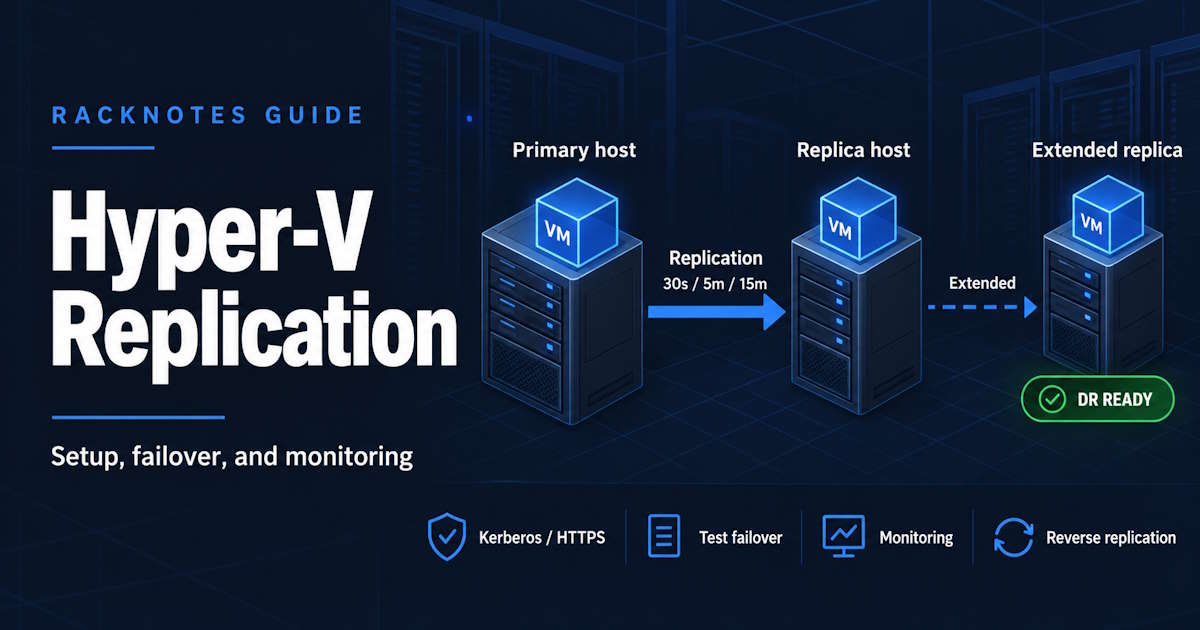
Hyper-V replication is the built-in way to keep an asynchronous copy of a running VM on a second Windows Server Hyper-V host, so the workload can be brought up at another site when the first one fails. The feature is called Hyper-V Replica. It sends changes from a primary VM to a replica VM on a schedule of every 30 seconds, 5 minutes, or 15 minutes, and the replica stays switched off until someone fails over to it.
That design decides what Hyper-V replication is good for. It is a disaster recovery tool. It is not a backup, because deletions, corruption, and ransomware encryption replicate along with everything else. It is not high availability either: standalone Hyper-V Replica does not fail over by itself, and changes that had not replicated when the primary failed are lost.
This guide follows the order the work actually happens in: choose authentication, configure the receiving host first, enable replication on the VM, verify health, then test failover before you ever need a real one. Workgroup certificates, firewall rules, the cluster Replica Broker, extended replication, and a symptom-to-cause troubleshooting matrix are covered further down.
- Configure the receiving host (or the cluster’s Replica Broker) first. The primary side needs the same configuration only for failback, which production almost always wants.
- Same or trusted AD domain: Kerberos over HTTP, TCP 80. Workgroup, untrusted domain, or encryption required: certificates over HTTPS, TCP 443.
- The Hyper-V role creates the Replica firewall rules but leaves them disabled.
Test-VMReplicationConnectionfrom the primary host tests listener, authentication, and authorization, not just the TCP port.- Run a test failover after the first healthy cycle. The test VM starts with no network connection, and that is deliberate.
- Replication frequency is a target, not a ceiling on data loss. Keep separate backups.
What Is Hyper-V Replica and How Does Replication Work?
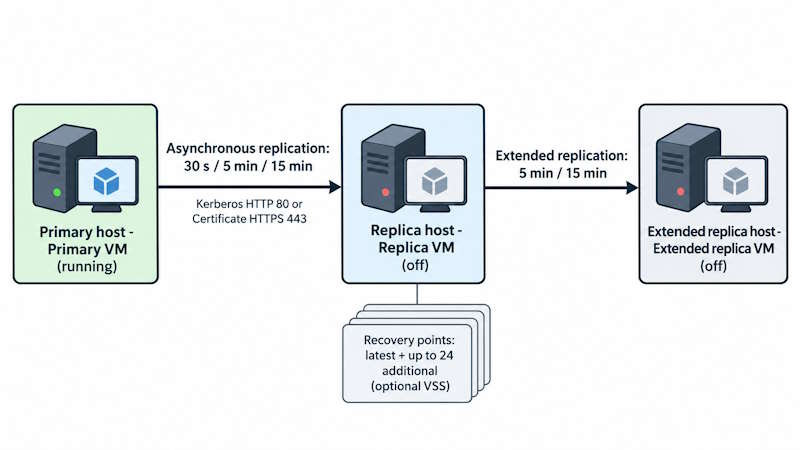
Hyper-V Replica has three moving parts:
- Primary VM on the primary host, where the workload runs.
- Replica VM on the replica host or cluster, kept off and updated on a schedule.
- Extended replica (optional): a third copy, fed from the replica rather than from the primary.
Hyper-V replication starts with an initial copy of the selected virtual disks, sent over the network or carried on external media. After that, Hyper-V tracks changes on the primary and ships them at the configured frequency. The replica side can keep only the latest recovery point, or up to 24 additional recovery points created roughly once an hour. Some of those can be VSS snapshots, which give application-consistent points inside VSS-aware guests; the rest are crash-consistent.
Two settings drive the actual outcome:
- Replication frequency is the nominal RPO. It is a target, not a maximum: a stalled cycle, a growing backlog, or a saturated link leaves the replica further behind, and an unplanned failover then loses more than one interval of changes.
- Recovery points decide whether you can fail over to something older than the latest copy. Without them, a problem that replicated before anyone noticed is also the only thing on the replica.
Hyper-V Replica vs Backup vs Failover Clustering
| Aspect | Hyper-V Replica | Backup | Failover Clustering |
|---|---|---|---|
| Purpose | Site-level DR copy of a VM | Versioned recovery of data and VMs | Keep VMs running through host failure |
| Copy | Asynchronous, near-current | Point-in-time, retained by policy | Same VM on shared storage |
| Failover | Manual: test, planned, unplanned | Restore operation | Automatic restart on another node |
| Deletion, corruption, ransomware | Replicates the damage; a few older recovery points may predate it, but they are short-lived and on the same replica storage | Independent versions, if retention and isolation are designed for it | No protection |
| Data loss on failure | Changes not yet replicated | Changes since last good backup | In-memory state on unplanned failover |
The three solve different failures, and many environments run all three. Backup design lives in the Hyper-V backup guide and cluster design in the Hyper-V failover clustering guide. This article stays on the replica side.
Hyper-V Replication Requirements and Supported Configurations
Supported Windows Server versions and topology
Microsoft’s current Hyper-V Replica host configuration guide applies to Windows Server 2016, 2019, 2022, and 2025, plus Azure Local. That list tells you which host versions support the feature. It does not tell you which pairs of versions can replicate to each other.
For a specific pair, check two things. First, the replica host must support the VM’s configuration version, or the replica can’t run there; the per-host version table is in the Hyper-V VM configuration guide. Second, the pair itself has to be covered by Microsoft’s published support information for those Windows Server releases. A compatible configuration version is necessary, but it does not prove a host pair or feature combination is supported. Configuration version upgrades are also one-way, which matters as soon as you plan failback to an older host.
Supported topologies:
- standalone host to standalone host;
- standalone host to cluster, or cluster to standalone host;
- cluster to cluster.
A cluster on the receiving side needs the Hyper-V Replica Broker role, covered later in this guide.
Choose Kerberos (HTTP) or certificate-based authentication (HTTPS)
| Scenario | Authentication | Default port | Caveat |
|---|---|---|---|
| Hosts in the same or trusted AD domains | Kerberos over HTTP | TCP 80 | Hyper-V Replica does not encrypt the replication traffic on this path |
| Workgroup hosts or untrusted domains | Certificates over HTTPS | TCP 443 | Certificates needed on every sending and receiving endpoint |
| Encryption required regardless of domain | Certificates over HTTPS | TCP 443 | Same certificate requirements as workgroup |
Workgroup hosts can’t use the Kerberos path because there is no shared domain to issue and validate tickets. Certificates replace that trust. Both ports can be changed; whatever port the receiver listens on has to match on the sender and in every firewall in between.
Other prerequisites
- An account with administrative rights on both primary and replica hosts or clusters.
- Reliable name resolution between sites. Use FQDNs. In a workgroup, make sure each host resolves the other’s FQDN, and that the FQDN matches the certificate.
- Enough storage on the replica side for the replicated disks, every recovery point you keep, and the initial copy.
- Bandwidth sized for the change rate of the VMs, not just their size. A VM that writes heavily can fall behind a 30-second cycle on a link that handled its initial copy fine.
- Accurate time on both ends, since certificate validity depends on it.
How to Enable Hyper-V Replica on the Receiving Host
The receiving host is configured first. The primary host only needs the same configuration if you want to fail back later, and in production you almost always do, so plan to configure both. The steps and commands in this section are for a standalone receiving host; a receiving cluster is configured through its Replica Broker instead.
Configure Hyper-V Replication Settings in Hyper-V Manager
On the replica host:
- Open Hyper-V Manager, select the host, then Hyper-V Settings > Replication Configuration.
- Select Enable this computer as a Replica server.
- Under Authentication and ports, select Kerberos (HTTP), certificate-based authentication (HTTPS), or both. Keep the default ports unless you have a reason to change them. For HTTPS, select the certificate.
- Under Authorization and storage, choose one:
- Allow replication from any authenticated server, with a single default storage location; or
- Allow replication from the specified servers, where each entry has a primary server name (wildcards such as
*.contoso.comare allowed), its own storage location, and a trust group.
- Select OK, then enable the matching firewall rule.
In production, prefer specified servers. “Any authenticated server” means any host that can authenticate can create replica VMs on your storage, and on a Kerberos setup that covers every host in the domain and in trusted domains.
Windows Admin Center in Virtualization mode offers the same settings, but Microsoft marks that path as Preview as of October 2026. Hyper-V Manager and PowerShell are the stable paths.
Configure Hyper-V Replica with PowerShell
Standalone receiver, Kerberos, accepting replication only from a named primary host. Host names, paths, and the trust group are examples:
# On the replica host
Set-VMReplicationServer -ReplicationEnabled $true -AllowedAuthenticationType Kerberos -ReplicationAllowedFromAnyServer $false
New-VMReplicationAuthorizationEntry -AllowedPrimaryServer "hv01.contoso.com" -ReplicaStorageLocation "D:\Replica" -TrustGroup "SiteA"
Enable-NetFirewallRule -DisplayName "Hyper-V Replica HTTP Listener (TCP-In)"
Standalone receiver with certificates, for a workgroup or when encryption is required:
# On the replica host. Use the thumbprint of the certificate in LocalMachine\My
Set-VMReplicationServer -ReplicationEnabled $true -AllowedAuthenticationType Certificate -CertificateThumbprint "<replica-host-cert-thumbprint>" -ReplicationAllowedFromAnyServer $false
New-VMReplicationAuthorizationEntry -AllowedPrimaryServer "hv01.site-a.example" -ReplicaStorageLocation "D:\Replica" -TrustGroup "SiteA"
Enable-NetFirewallRule -DisplayName "Hyper-V Replica HTTPS Listener (TCP-In)"
If you do want to accept any authenticated server, -ReplicationAllowedFromAnyServer $true requires -DefaultStorageLocation in the same command, per the Set-VMReplicationServer reference. Check the result with:
Get-VMReplicationServer
Get-VMReplicationAuthorizationEntry
Hyper-V Replication Firewall Rules and Ports
Installing the Hyper-V role creates two inbound rules on every host and leaves both disabled:
| Authentication | Default port | Windows Firewall rule |
|---|---|---|
| Kerberos (HTTP) | TCP 80 | Hyper-V Replica HTTP Listener (TCP-In) |
| Certificate (HTTPS) | TCP 443 | Hyper-V Replica HTTPS Listener (TCP-In) |
Enable the rule that matches your authentication method on every receiving host. On a cluster, that means every node, not just the node that currently owns the Broker role. Enable it on the original primary hosts too if you plan to fail back. If you changed the listener port, these rules no longer match and you need a custom rule for the new port.
Network firewalls between sites need the same port open toward the replica host or Broker address. The Windows rule alone doesn’t cover that.
Two tests, in this order, from the primary host:
# Transport only: is the port reachable?
Test-NetConnection hv02.contoso.com -Port 80

# Full check: listener, authentication, and authorization
Test-VMReplicationConnection -ReplicaServerName "hv02.contoso.com" -ReplicaServerPort 80 -AuthenticationType Kerberos
For certificates, use -ReplicaServerPort 443 -AuthenticationType Certificate -CertificateThumbprint "<primary-host-cert-thumbprint>". A successful run returns: The connection to the specified Replica server with the specified parameters was successful.
A passing Test-NetConnection only proves that something answered on that port. It says nothing about Kerberos, certificates, or authorization entries, which is why it is the first test and not the last one.
Configure Hyper-V Replica Broker for a Receiving Cluster
A cluster can’t receive Hyper-V replication through a node name, because the replica VM can move between nodes. The Hyper-V Replica Broker is a clustered role with its own network name and IP that acts as the single replication endpoint for the whole cluster. Microsoft’s failover cluster replication guide covers it; the short version in Failover Cluster Manager is:
- Connect to the receiving cluster and select Configure Role.
- Select Hyper-V Replica Broker.
- Enter the Broker’s client access point: a NetBIOS name of up to 15 characters, unique in the AD domain, and a static IP in the management subnet (or use DHCP if that subnet has it).
- Finish the wizard and confirm the role comes online. Move it to each node once to confirm it can run anywhere.
- Right-click the Broker role, select Replication Settings, and enable the cluster as a Replica server: authentication, ports, and authorization work exactly as on a standalone host.
- Point the replica storage location at storage every node can reach, such as a Cluster Shared Volume path.
- Enable the matching firewall rule on every node.
Creating the Broker creates a computer object in AD. That needs either a domain administrator account or a computer object prestaged for the Broker name with the right permissions. Microsoft’s failover cluster replication guide linked above also has a PowerShell procedure for building the Broker role and its resources; use that page directly rather than a shortened version, since the role, network name, IP address, and dependencies all have to be created correctly.
From then on, primary hosts replicate to the Broker FQDN, connection tests run against the Broker FQDN, and certificates must match the Broker FQDN. Cluster design itself, including CSV and quorum, stays in the failover clustering guide linked above.
How to Enable Replication for a Virtual Machine
Configure the replication wizard
On the primary host, right-click the VM in Hyper-V Manager and select Enable Replication:
- Specify Replica Server. Enter the replica host FQDN. For a receiving cluster, enter the Replica Broker name, not a node name.
- Specify Connection Parameters. Authentication type and port must match the receiver. Compression is on by default and usually worth keeping on WAN links.
- Choose Replication VHDs. Exclude disks that don’t need DR protection, such as a dedicated pagefile or scratch disk. Excluded disks don’t exist on the replica after failover, so the guest has to boot and run without them.
- Configure Replication Frequency. 30 seconds, 5 minutes, or 15 minutes.
- Configure Additional Recovery Points. Latest point only, or additional hourly points, with an optional VSS snapshot frequency for application-consistent points.
- Choose Initial Replication Method. Send over the network now or at a scheduled time up to seven days ahead, send using external media, or use an existing VM on the replica server as the initial copy, such as one restored from backup.
- Review and finish.
The PowerShell equivalent for a standalone-to-standalone Kerberos setup, with example values:
# On the primary host
Enable-VMReplication -VMName "APP01" -ReplicaServerName "hv02.contoso.com" -ReplicaServerPort 80 -AuthenticationType Kerberos -CompressionEnabled $true -ReplicationFrequencySec 300 -RecoveryHistory 4
Start-VMInitialReplication -VMName "APP01"
For certificates, change the port to 443, set -AuthenticationType Certificate, and add -CertificateThumbprint. For a receiving cluster, -ReplicaServerName is the Broker FQDN. For VMs whose application spans several disks, such as data and logs on separate VHDX files, the Enable-VMReplication reference documents -EnableWriteOrderPreservationAcrossDisks $true to keep all replicated disks at the same point in time.
Choosing frequency is a trade-off, not a quality setting. 30 seconds narrows the nominal window for lost changes but sends more cycles and falls behind sooner on a slow link. 15 minutes tolerates a thin link but widens that window. Either way the setting is a target: if replication lags, an unplanned failover loses everything not yet replicated, whatever the frequency says. Set it from the RPO the business has agreed to and the change rate the link can actually carry.
Initial replication: plan the first copy
Initial Hyper-V replication can transfer a large baseline of the selected disks. Estimate the actual transfer size and time from the disks’ current allocation, not their provisioned maximum, and from how much the VM changes while the copy runs. On a large VM over a WAN link, the first copy can take hours or days and compete with production traffic. Practical options:
- schedule it for off-hours with the delayed start option;
- seed with external media and import it on the replica side (Import Initial Replica), after which health moves from Warning to Normal;
- restore a backup of the VM on the replica host and use it as the initial copy.
Two things catch operators after the first failover. Network adapters on the replica VM are not connected to a virtual switch until you connect them. And configuration changes made on the primary after replication starts, such as memory, processor count, or a new network adapter, should not be assumed to appear on the replica. Microsoft’s VM replication guide says such changes are not replicated automatically. Check the replica VM’s settings and network mapping after initial replication and after any hardware change on the primary.
Verify initial replication and replication health
In Hyper-V Manager, select the VM, then Replication > View Replication Health. The dialog shows state, health, last synchronization time, and statistics for the monitoring interval.
# Relationship: mode, state, frequency, partner server
Get-VMReplication -VMName "APP01"

# Health and statistics for the current monitoring interval
Measure-VMReplication -VMName "APP01"
Get-VMReplication shows the relationship and its current state. Measure-VMReplication shows health and statistics calculated over the monitoring interval set on the replica server. A healthy VM after initial replication shows health Normal and a recent last-replication time, checked on both primary and replica.
Hyper-V Replica in a Workgroup: Certificate Setup
Certificate requirements and trust
For certificate-based Hyper-V replication, each host that sends or receives needs a computer certificate in LocalMachine\My that meets all of these:
- not expired;
- includes both Client Authentication and Server Authentication EKUs;
- has its private key on that host;
- chains to a valid root;
- has a subject CN, or DNS SAN, that matches the FQDN used for that endpoint.
Each side of a connection validates the certificate the other side presents. So for one direction of replication, the receiver must trust the chain of the sender’s certificate and the sender must trust the receiver’s. Because failback runs the same connection in reverse, configure both hosts and trust both chains before you need to fail back.
Clusters add one rule: the Replica Broker is the endpoint, so the certificate presented for replication must match the Broker FQDN. Per the Set-VMReplicationServer reference, clustered nodes need two certificates: one for the node name and one for the Broker FQDN.
To find a thumbprint and check EKUs:
Get-ChildItem Cert:\LocalMachine\My | Select-Object Subject, NotAfter, Thumbprint, EnhancedKeyUsageListAn internal PKI is the cleanest source for these certificates. Self-signed certificates can work, but only when each host’s root is deliberately imported into the other host’s Trusted Root store and someone owns renewal. In a workgroup replication pair, an expired certificate stops replication with no other change, and it tends to surface months after setup.
Fix “No Valid Certificate Found”
- Store and private key. The certificate is in
LocalMachine\My, not a user store, and shows a private key. - EKU. Both Client Authentication and Server Authentication are present. A web server template with Server Authentication only is the usual mismatch.
- Name. CN or DNS SAN equals the FQDN you entered. Short names and IP addresses don’t match an FQDN.
- Chain. The full chain, including intermediates, is trusted by the peer that validates it.
- Validity. Not expired, not yet-to-start, and host clocks are correct.
- Port and listener. HTTPS is enabled on the receiver, and the port matches what the sender uses.
- Cluster identity. On a cluster, each node needs both its node-name certificate and a Broker FQDN certificate. The Broker endpoint uses the Broker FQDN certificate, so a node-name certificate selected for the Broker fails this check.
Disabling revocation checks or weakening TLS settings is not a fix. If one of the steps above fails, correct the certificate instead of relaxing validation.
How to Monitor Hyper-V Replica and Fix Replication Health
Monitor with Hyper-V Manager and PowerShell
Replication health has three working states:
| Health | Meaning |
|---|---|
| Normal | Cycles complete on schedule, backlog minimal, no recent errors |
| Warning | Replication works but lags or the backlog grows, often from transient network or storage load. Also shown while an external-media import is pending, and after failover until reverse replication is set up |
| Critical | Replication has stalled or failed, and the RPO is at risk |
To list only the VMs that need attention:
Measure-VMReplication -ReplicationHealth Warning
Measure-VMReplication -ReplicationHealth Critical
For the cause, check the Hyper-V-VMMS Admin log (Applications and Services Logs > Microsoft > Windows > Hyper-V-VMMS > Admin) on both primary and replica hosts. Read the actual error before acting. A Critical state caused by an expired certificate and one caused by a full replica volume look identical in the health column and need different fixes.
Health status and event logging are built in; proactive notification is not something Hyper-V Replica sets up for you. Feed the health state into whatever monitoring the environment already uses. A scheduled task that runs Measure-VMReplication -ReplicationHealth Critical and forwards any result is a minimal version; test its output on your host version before relying on it.
Resynchronize a VM When Replication Is Out of Sync
Resynchronization compares primary and replica disks and sends only the differences. Hyper-V requires it after events that break change tracking, such as an abrupt shutdown of the primary host. It is not a new initial copy: the replica disks stay in place. On large disks, the comparison still costs significant storage, CPU, and network time.
Before resynchronizing:
- read the error that put the VM into the resynchronization-required or Critical state, and fix that first;
- check free space on the replica volume;
- check that the link can carry the comparison traffic in the window you choose.
# Resume a paused replication (no resync)
Resume-VMReplication -VMName "APP01"

# Start resynchronization now
Resume-VMReplication -VMName "APP01" -Resynchronize

# Or schedule it off-peak, up to 7 days ahead
Resume-VMReplication -VMName "APP01" -Resynchronize -ResynchronizeStartTime "2026-10-23 01:00"
Per the Resume-VMReplication reference, resynchronization should run off-peak. Automatic resynchronization can also be enabled per VM with Set-VMReplication -AutoResynchronizeEnabled $true and an off-peak window. Removing replication and deleting the replica files is not a standard fix for a resync error. It throws the replica away and forces a full initial copy, so it should only follow a deliberate decision to rebuild.
Hyper-V Replica Failover: Test, Planned, and Unplanned
Test and planned failover expect Hyper-V replication health to be Normal. All three types need membership of Hyper-V Administrators or local Administrators on each host involved. If the VM uses a static IP that must change at the recovery site, configure the failover TCP/IP settings on the replica VM’s network adapter beforehand; without them, the VM comes up with the primary site’s addressing. The commands below are for standalone hosts, following Microsoft’s Hyper-V Replica failover guide. For clustered VMs, run the equivalent actions through Failover Cluster Manager on the cluster that owns the VM role.
Test failover safely
A test failover creates a separate VM on the replica host, named after the original with ” – Test” appended, from the recovery point you choose. Hyper-V replication keeps running and production is not touched.
# On the replica host: create the test VM from the latest recovery point
Start-VMFailover -VMName "APP01" -AsTest

# Connect the test VM to an isolated switch if it needs a network, then start it
Start-VM -Name "APP01 - Test"

# Only after validation is finished: remove the test VM and its data
Stop-VMFailover -VMName "APP01"The test VM has no network connection by default. Connecting it to the production network creates a second machine with the same name, IP address, and identity as the running primary. That is how a DR test turns into an outage. Domain controllers, database servers with fixed listeners, and anything with a computer account need isolation most. Use the console or an isolated test switch.
Use the test to check what DR depends on: the guest boots, the application starts, the data is current to the expected point, and someone with the right access can sign in. Only one test failover per VM can exist at a time, and Stop-VMFailover on the replica VM deletes the test VM and its data.
Planned failover
A planned failover moves the workload to the replica site without losing data, because the primary VM is shut down and its remaining changes are sent before the switch. Use it for site maintenance, migrations, and DR rehearsals that are allowed to touch production. It requires the original primary host to be configured as a replica server, so that replication can run back the other way.
Order of operations, per Microsoft’s Start-VMFailover reference:
# 1. Primary host: shut down the VM, then send pending changes
Stop-VM -VMName "APP01" -ComputerName "hv01.contoso.com"
Start-VMFailover -Prepare -VMName "APP01" -ComputerName "hv01.contoso.com"

# 2. Replica host: fail over
Start-VMFailover -VMName "APP01" -ComputerName "hv02.contoso.com"

# 3. Replica host: reverse the relationship, the replica becomes primary
Set-VMReplication -Reverse -VMName "APP01" -ComputerName "hv02.contoso.com"

# 4. Start the VM at the recovery site
Start-VM -VMName "APP01" -ComputerName "hv02.contoso.com"
After step 3, the original primary is the replica. Check health on both hosts before calling the failover complete. To return, run another planned failover in the opposite direction. If the prepare step fails, or you change your mind before failing over on the replica, Stop-VMFailover on the primary cancels the planned failover and restarts replication, so the primary VM can be started again.
Unplanned failover and recovery
An unplanned failover is for when the primary site is gone. Everything changed on the primary after the last replicated point is lost, and if replication was lagging, that can be more than one replication interval. With additional recovery points, you can choose an older point instead of the latest, which matters when the problem itself, such as corruption or encryption, already replicated.
# Replica host: fail over to the latest recovery point and start the VM
Start-VMFailover -VMName "APP01"
Start-VM -VMName "APP01"

# Or list recovery points and fail over to an earlier one
Get-VMSnapshot -VMName "APP01"
Get-VMSnapshot -VMName "APP01" -Name "<recovery point name>" | Start-VMFailover
Start the VM and verify the application before committing. Until you commit, you can cancel and try a different recovery point. When the result is right:
Complete-VMFailover -VMName "APP01"Per the Complete-VMFailover reference, this commits the chosen recovery point and removes all others, and the failover can’t be cancelled afterward. If the other points might still be needed, export the VM first.
The step most often skipped is the old primary. If the original host comes back while the replica now runs production, the same VM can end up running at both sites. Keep the original primary VM off and disconnected until the original host is reachable, configured as a replica server, and reverse replication is set with Set-VMReplication -Reverse on the new primary. Then plan a controlled failback. Health stays at Warning until reverse replication is in place.
Virtualized domain controllers can be protected with Hyper-V Replica on hosts that provide VM-GenerationID, which current Windows Server versions do. Failing a DC over to an older recovery point is still a restore event for Active Directory, so read the USN rollback guide before planning DC recovery around replica points.
How to Extend Hyper-V Replication to a Third Host
Extended Hyper-V replication adds a third copy: primary to replica to extended replica. The extended leg is configured on the replica VM, not the primary, and it replicates from the replica host. Typical uses are a second DR location, or a local replica plus a distant one.
To configure it, select the replica VM on the replica host, then Replication > Extend Replication, and point it at the third host’s FQDN, port, and authentication. The third host is set up like any other receiving host: replication enabled, authorization, and the firewall rule.
Limits to know before designing around it:
- Extended replication supports 5- or 15-minute frequency only. 30 seconds is not available on the extended leg.
- The extended leg replicates the disks the first leg replicates. It can’t add disks the first leg excluded.
- The extended replica is only as current as the first replica. If the first leg stalls, the second stalls with it.
Check health on both legs. A Normal state on primary to replica says nothing about replica to extended replica.
Hyper-V Replication Troubleshooting: Symptom-to-Cause Matrix
Most Hyper-V replication failures sit in one of four layers: transport, authentication, receiver configuration and storage, or replication state. Checking them in that order avoids fixing the wrong layer.
| Symptom | First checks | Section |
|---|---|---|
| Cannot connect to the Replica server | FQDN resolves, Test-NetConnection to the port, receiver enabled, firewall rule enabled on the receiver | Firewall rules and ports |
| Authentication failed or access denied | Kerberos: same or trusted domain, FQDN used. Certificates: thumbprint, EKU, chain, name | Authentication; certificate setup |
| No valid certificate found | Store, private key, EKU, CN/SAN, chain, expiry, listener port | Fix “No Valid Certificate Found” |
| Primary server not authorized | Authorization entry on the receiver matches the primary FQDN, or a wildcard covers it; same trust group | Receiving host configuration |
| Initial replication failed or stuck | Free space on the replica volume, link capacity, scheduled start time, pending external-media import | Initial replication |
| Health Warning | Event detail, transient link or storage load, backlog trend over several intervals | Monitoring |
| Health Critical or replication paused | The error in the Hyper-V-VMMS Admin log; fix the cause before Resume-VMReplication | Monitoring; resynchronization |
| Resynchronization required | Cause of tracking loss (often an abrupt primary shutdown), capacity, off-peak window | Resynchronization |
| Failover option missing or greyed out | Which side you are on, current state, health Normal for test and planned | Failover |
| Failback not possible | Original primary configured as a replica server, firewall rule enabled there, reverse replication set | Planned and unplanned failover |
| Replica Broker errors | Broker role online, Broker name resolvable, certificate for the Broker FQDN, firewall rule on every node, storage reachable from every node | Replica Broker; certificate setup |
Identify the layer from the error text, fix that layer, then resume. Restarting the Hyper-V Virtual Machine Management service is not a replication fix: it interrupts management of every VM on the host and rarely touches the underlying cause.
Hyper-V Replica Best Practices and Limitations
- Write down the RPO and RTO each replicated VM is meant to meet, then choose frequency and recovery points from that, not from defaults.
- Test failover on a schedule, in isolation. A replica that has never been started is an assumption.
- Restrict authorization to specified primary servers and dedicated storage paths.
- Use HTTPS when replication crosses untrusted networks or policy requires encryption.
- Size replica storage for recovery points. Each additional point consumes space on the replica volume, and a full volume stops replication. General VHDX and volume planning is in the Hyper-V storage guide.
- Keep VM configuration versions compatible with every host the VM may run on, including the replica site.
- Keep backups separate. Hyper-V replication copies mistakes as faithfully as it copies data. Independent, retained, isolated backups are what protect against deletion, corruption, and ransomware.
- Check application behavior after failover, not just boot: static IP changes, DNS records, hardware-bound licensing, and dependencies on VMs that weren’t replicated all show up here.
FAQ
Is Hyper-V Replica the same as a Hyper-V backup?
No. Replica keeps a near-current copy for site failover, and deletions, corruption, and encryption reach it within a cycle. Its additional recovery points are a short window on the same replica storage. Backups keep independent versions with their own retention. Environments that use Hyper-V replication still need backups.
Can Hyper-V Replica work in a workgroup without Active Directory?
Yes, with certificate-based authentication over HTTPS. Each host needs a certificate with both Client and Server Authentication EKUs, a private key, a name matching its FQDN, and a chain the peer trusts. Kerberos authentication requires the hosts to be in the same or trusted domains.
Which ports does Hyper-V Replica use?
TCP 80 for Kerberos (HTTP) and TCP 443 for certificates (HTTPS) by default. Both can be changed on the receiver. The matching Windows Firewall rules exist after the Hyper-V role is installed but stay disabled until you enable them.
Does Hyper-V Replica fail over automatically?
No. Standalone Hyper-V Replica needs an administrator, or an external orchestration tool, to start a failover. Automatic restart after host failure is what Failover Clustering provides inside one cluster.
Can I replicate from Windows Server 2012 R2 to Windows Server 2022?
Treat it as a compatibility question to verify, not something to assume. Windows Server 2012 R2 reached end of extended support on October 10, 2023, and Microsoft’s current Hyper-V Replica documentation covers Windows Server 2016 through 2025. For any host pair, the replica must support the VM’s configuration version and the pair must be covered by Microsoft’s published support information. If the goal is moving off 2012 R2, validate the exact pair in a test before relying on it for a production cutover.
How often does Hyper-V Replica replicate changes?
Every 30 seconds, 5 minutes, or 15 minutes, set per VM; extended replication supports 5 or 15 minutes only. The setting is a target. A slow link or heavy writes can leave the replica further behind, which shows up as Warning health.
Hyper-V Replication Verification Checklist
- Receiver or Replica Broker enabled, authorization restricted, matching firewall rule enabled on every receiving host or node
Test-VMReplicationConnectionsucceeds from each primary host- Initial replication complete, health Normal on both sides
- Replica VM network adapters connected, and failover IP settings configured where needed
- Test failover run in isolation, application verified, test VM removed
- Original primary configured as a replica server for failback
- Certificate expiry dates recorded with an owner, on certificate setups
- Monitoring alerts on Warning and Critical health
- Separate backups in place
Hyper-V Series
18 articles – Windows Server 2025 · Requirements · Licensing · Networking · Storage · USB Passthrough · TPM 2.0 · Backup · Replication · Clustering · Troubleshooting