
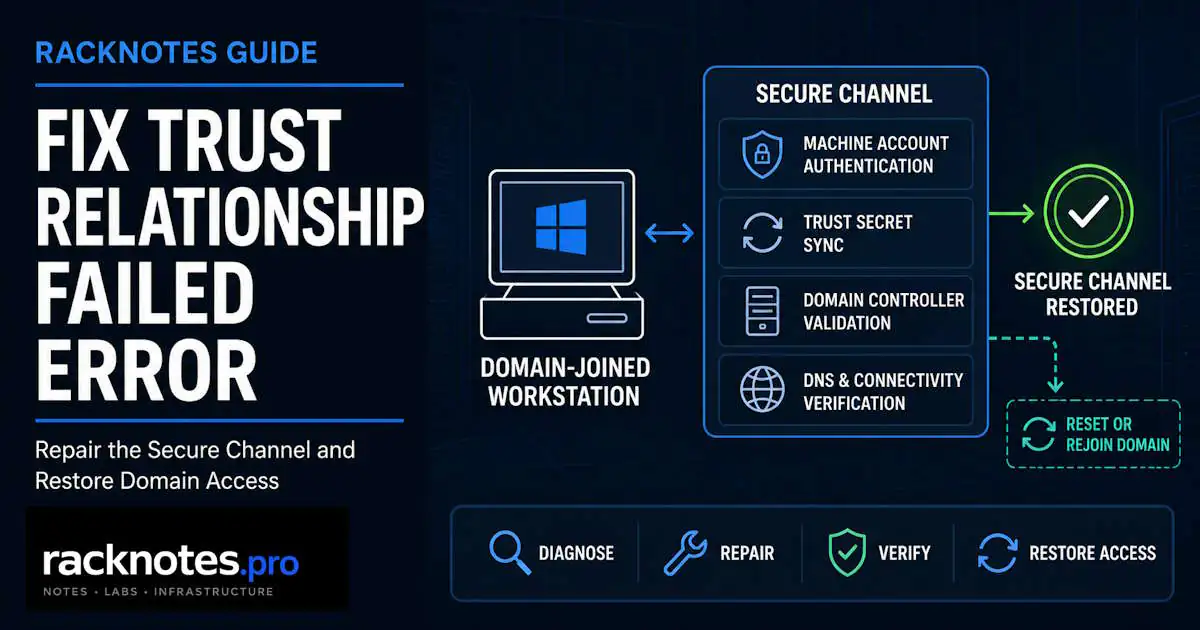
“The trust relationship between this workstation and the primary domain failed” usually points to a broken computer-domain secure channel, commonly because the local machine and Active Directory no longer agree on the machine-account trust secret. DNS, DC discovery, network reachability, or replication problems can complicate troubleshooting and produce similar domain-authentication failures, so rule them out before forcing a rejoin. In most cases you can repair the secure channel in place with local administrator access, without removing the machine from the domain. Start with that repair path, then work through diagnosis, higher-impact repair methods, and a domain rejoin only when it is actually needed.
| Situation | First action |
|---|---|
| You can log in with local admin credentials | Test the secure channel |
Test-ComputerSecureChannel returns False | Repair with -Repair and domain credentials |
| PowerShell repair fails | Check DNS/DC connectivity and the computer account |
| Secure-channel password needs an explicit reset | Use Reset-ComputerMachinePassword |
| Computer account is disabled | Enable the account, allow replication if needed, then retest the secure channel |
| Computer account is missing, or secure-channel repair repeatedly fails | Controlled domain rejoin may be required |
Test-ComputerSecureChannel -VerboseTrue means the secure-channel test succeeds at that moment – don’t rejoin yet; investigate DNS/DC discovery, authentication context, and any intermittent or multi-DC issue first. False means the test failed and makes a repair appropriate after basic DC connectivity is confirmed:
Test-ComputerSecureChannel -Repair -Credential (Get-Credential) -VerboseRun this from an elevated PowerShell session on the affected machine, using domain credentials with permission to reset the computer account. After a successful repair, test a fresh domain authentication – reboot only if the affected workflow or environment requires it, or if the issue persists.
What Does “The Trust Relationship Between This Workstation and the Primary Domain Failed” Mean?
A domain-joined computer has its own AD computer account, and it maintains a secure channel with the domain using a machine-account password that the computer itself rotates on a regular schedule – 30 days by default. This error usually indicates that the local machine’s copy of that password no longer matches the AD-side copy. Pure DC-reachability failures more often surface as other domain-authentication errors, such as “no logon servers available,” although the symptoms can overlap.
Similar symptoms can also come from DNS misconfiguration, an unreachable domain controller, a disabled or deleted computer account, a machine restored to an old state, or AD replication inconsistency. Test-ComputerSecureChannel is what actually tells you whether the secure channel itself is broken, as opposed to one of these surrounding problems producing comparable symptoms.
Why the Trust Relationship Fails
Computer Account Password Mismatch
The most direct cause: the machine’s locally stored password and the password AD has on record for that computer account have diverged, so the machine can no longer prove its identity to the domain.
Restoring an Old VM Snapshot or System Image
Restoring a domain-joined VM or system image can roll the local machine back to an older machine-account secret while Active Directory still holds the newer password established after that snapshot was taken. If the restored secret is no longer accepted, the workstation can lose its secure channel even though the computer object still exists. This is a different problem from a domain controller being restored from an old backup; that scenario belongs to AD’s own replication and USN rollback protections, not this article.
Computer Account Was Reset, Deleted, or Recreated
If an administrator reset the computer account’s password in AD, or deleted and recreated the object, the existing machine still has the old password cached locally – the two sides no longer agree, even though nothing changed on the workstation itself.
Long-Offline or Cloned Machines
Simply leaving a domain member offline does not cause Active Directory to rotate its password behind its back – domain members initiate their own machine-account password changes, so there’s no fixed “trust expiration” timer tied to offline time by itself. Problems are more likely after restoring an old image, cloning a domain-joined system, resetting the AD computer account, or otherwise causing the local and AD-side machine secrets to diverge – most often two machines, typically from an image or clone, sharing the same computer identity and fighting over one AD-side password.
DNS or Domain Controller Connectivity Problems
If the client can’t resolve or reach a domain controller – because of wrong DNS servers, public DNS instead of internal AD DNS, or a network path issue – authentication can fail with symptoms that resemble a trust problem even when the machine account and password are fine. See Active Directory DNS Problems for the dedicated DNS troubleshooting workflow.
Replication Problems Between Domain Controllers
If a password change hasn’t replicated to every DC yet, or different DCs disagree about the computer account’s state, repair attempts can behave inconsistently depending on which DC answers the request. See Active Directory Replication Not Working if repair results seem to depend on which DC you hit.
Step 1: Confirm the Computer Can Find a Domain Controller
nltest /dsgetdc:example.comA successful response confirms that DC discovery succeeded and returned a domain controller – it does not prove that every required service, port, or authentication path to that DC is healthy. If this fails, fix DNS and network connectivity before attempting secure-channel repair. A client pointed at public DNS instead of internal AD DNS is a common cause of DC discovery failure.
Step 2: Test the Secure Channel
Test-ComputerSecureChannel -VerboseTrue means the test succeeds at that moment. Check DNS, authentication context, or an intermittent/multi-DC issue instead of rejoining. False means repair is justified.
Technical caution: Test-ComputerSecureChannel and its -Repair option are intended for domain member computers – workstations and member servers. Running it on a domain controller can produce misleading results; a DC’s own machine account password is managed through a different, DC-specific procedure covered near the end of this guide. Don’t run member-computer repair tools against a DC expecting the same result.
For a status check without PowerShell, nltest /sc_query:<domain> reports the secure channel’s state from its most recent use – useful, but not equivalent to a fresh Test-ComputerSecureChannel test. nltest /sc_verify:<domain> is not purely passive: if verification fails, it can remove and rebuild the Netlogon secure channel on its own. Keep Test-ComputerSecureChannel as this guide’s primary test/repair decision point, and be aware of what /sc_verify can do before running it.
Step 3: Check the AD Computer Account
Before repairing anything, confirm in Active Directory Users and Computers (or with Get-ADComputer) that the computer object actually exists, is enabled, and corresponds to the machine you’re troubleshooting – not a stale duplicate from a prior image or rename. If multiple domain controllers show different states for the same computer object, that points to replication rather than a straightforward password mismatch. Don’t delete the object at this stage; that’s a much later, higher-impact option.
Trust Relationship Troubleshooting Decision Tree
Trust relationship error – can the machine find a DC?
- No – fix DNS/network/DC discovery first.
- Yes – run
Test-ComputerSecureChannel.- True – secure channel isn’t the primary problem at this moment; investigate authentication/DNS context or an intermittent/multi-DC issue instead.
- False – try
-Repair.- Succeeds – verify, and log on again to confirm.
- Fails – check the computer account and replication; try
Reset-ComputerMachinePasswordornetdom reset.- Still fails – controlled domain rejoin.
Method 1: Repair with Test-ComputerSecureChannel
The preferred first repair for a normal domain-joined workstation or member server.
Test-ComputerSecureChannel -Repair -Credential (Get-Credential) -VerboseRun this from an elevated PowerShell session on the affected machine. You’ll need domain credentials with permission to reset the computer account – typically a domain admin or an account specifically delegated that right. With -Repair, the cmdlet asks Netlogon to repair the broken secure channel between the local domain member and its domain. It resynchronizes the machine’s trust relationship through a domain controller rather than simply copying an AD password onto the local machine. Test a fresh domain logon afterward. If the command reports success but the error returns at the next logon, check DNS/DC connectivity and the computer account state instead of repeating the repair.
Reference: Microsoft’s Test-ComputerSecureChannel documentation.
Method 2: Reset the Computer Machine Password with PowerShell
Reset-ComputerMachinePassword -Credential (Get-Credential)Both this cmdlet and Test-ComputerSecureChannel -Repair resynchronize the computer’s machine-account trust secret with the domain through a domain controller. Reset-ComputerMachinePassword is useful when you want to target a specific domain controller explicitly:
Reset-ComputerMachinePassword -Server "DC01" -Credential (Get-Credential)If Method 1 already succeeded, there’s no need to run this too – they solve the same underlying problem.
Reference: Microsoft’s Reset-ComputerMachinePassword documentation.
Method 3: Reset the Workstation Secure Channel with Netdom
For a command-line alternative to Methods 1-2, current Windows Server command documentation defines netdom reset specifically for resetting the secure connection between a workstation or member server and a domain controller:
netdom reset PC01 /domain:example.com /server:DC01Run this from an elevated command prompt. If the current account doesn’t have permission to perform the reset, supply an authorized account with /UserO:<domain\user> /PasswordO:*.
netdom resetpwd is a different command. Current Windows Server command documentation defines it for resetting the machine-account password of a domain controller, run locally on that DC – it does not support remote machines or member servers. netdom reset is the workstation/member-server command used in this guide; netdom resetpwd is a DC-recovery command and does not apply here.
References: Microsoft’s netdom reset documentation and netdom resetpwd documentation.
Method 4: Reset the Computer Account in Active Directory
In Active Directory Users and Computers, right-click the computer object and choose Reset Account when the account is in a bad state that the methods above can’t clear on their own. This resets the AD-side trust state for that computer object – it does not delete or recreate the object. After Reset Account, return to the member computer and run Test-ComputerSecureChannel -Repair or Reset-ComputerMachinePassword to repair the local side; if the machine still can’t establish trust, proceed to the controlled rejoin method. Don’t reach for this before trying Methods 1-3, and don’t delete the account casually; deletion is a heavier, harder-to-reverse action than a reset.
Method 5: Remove and Rejoin the Computer to the Domain
The fallback, not the default. Use this when the computer account is missing or unusable, or repair has genuinely failed after working through the steps above.
- Confirm you have local administrator access to the machine
- Record anything that depends on domain membership before changing it
- Move the machine to a workgroup
- Reboot
- Rejoin the correct domain
- Reboot again
- Test a domain user logon
- Confirm Group Policy and domain resource access work normally
Do I have to rejoin the domain? Usually not – secure-channel repair resolves most cases without it. Rejoin is for when the computer account itself is gone or unusable.
Rejoining the same computer object does not automatically delete user profiles. The bigger risk is deleting and recreating the AD computer object, which gives the computer account a new AD SID – that can affect ACLs, services, scheduled tasks, or other resources that explicitly referenced the old computer account. Confirm local administrator recovery access before changing domain membership, in case something doesn’t come back cleanly.
What to Do If the Repair Still Fails
Test-ComputerSecureChannel -Repair Returns False
Work through this list before escalating further:
- Client DNS points to internal AD DNS servers, not public DNS
- A domain controller can actually be resolved and reached
- The computer account exists and is enabled
- The credentials used for repair have sufficient rights
- Time isn’t severely out of sync between client and DC
- No duplicate or conflicting computer identity exists (common after imaging)
- AD replication is healthy across DCs
- Netlogon/RPC connectivity to a DC isn’t blocked
The Computer Cannot Contact a Domain Controller
This is a DC-discovery or network problem layered on top of – or instead of – a secure-channel issue. Determine whether the failure is the secure channel, DNS/DC discovery, or network reachability before repeating a repair that cannot succeed without connectivity. See the AD DNS troubleshooting guide linked above. If the workstation symptom may reflect a broader domain health issue, see Active Directory Health Check.
The Error Returns After Reboot
If the same error comes back after a successful-looking repair, check whether the machine is reverting to an old snapshot or image on boot, whether it’s a clone sharing an identity with another machine, or whether something elsewhere (a script, a management tool, replication) is changing the computer account again. If the error keeps returning, find the underlying cause instead of repeating the same repair.
Verify the Trust Relationship Is Working
Test-ComputerSecureChannel -VerboseThen confirm in practice: a domain user can log on normally, the machine discovers a DC without delay, Group Policy processes on the next refresh, and domain resources are reachable. gpupdate /force is a useful signal that policy is now applying – it confirms Group Policy specifically, not that every other AD component is healthy.
FAQ
Can I fix the trust relationship without rejoining the domain?
Yes, in most cases. Test-ComputerSecureChannel -Repair, Reset-ComputerMachinePassword, or netdom reset resolve a genuine secure-channel break without removing the computer from the domain.
What does Test-ComputerSecureChannel -Repair do?
It asks Netlogon to repair the broken secure channel between the local domain member and its domain, resynchronizing the machine’s trust relationship through a domain controller.
Why does the trust relationship fail after restoring a VM snapshot?
The restored machine reverts to an older machine-account secret while AD still holds the newer password established after the snapshot was taken, and the secure channel breaks if that older secret is no longer accepted.
Does resetting the computer account delete the user profile?
No – resetting the AD computer account resets its trust state without deleting the object, and user profiles are stored separately. Deleting and recreating the object is the more disruptive action, since it assigns a new AD SID.
Can DNS cause a trust relationship error?
Yes, indirectly. If a client can’t resolve or reach a domain controller because of DNS misconfiguration, authentication can fail with similar symptoms even though the machine account itself is fine.
What’s the difference between netdom reset and netdom resetpwd?
netdom reset resets the secure connection between a workstation or member server and a domain controller – the command for this article’s scenario. netdom resetpwd resets a domain controller’s own machine-account password and is run locally on that DC. They aren’t interchangeable.
Should I delete the computer from Active Directory and rejoin it?
Not as a first step. Try the secure-channel repair methods first; reserve deletion and rejoin for when the computer account is genuinely missing or unusable.
Active Directory Series
25 articles – Windows Server 2025 · Forest & Domain · FSMO · GPO · Replication · DNS · Security · Backup & Recovery