
The AD DS installation wizard completing successfully is not the same as Active Directory being healthy.
A domain controller can be promoted without errors and still have misconfigured DNS, an uninitialized SYSVOL share, a broken time hierarchy, or no backup in place. None of these problems show up in the wizard. Most of them only surface later — when clients can’t authenticate, Group Policy stops applying, or a recovery attempt reveals there’s nothing to restore from.
This active directory post-install checklist covers nine verification steps every Windows Server 2025 domain controller should pass before users, Group Policy objects, or additional DCs go anywhere near it. If you haven’t promoted the DC yet, start with How to Install Active Directory on Windows Server 2025.
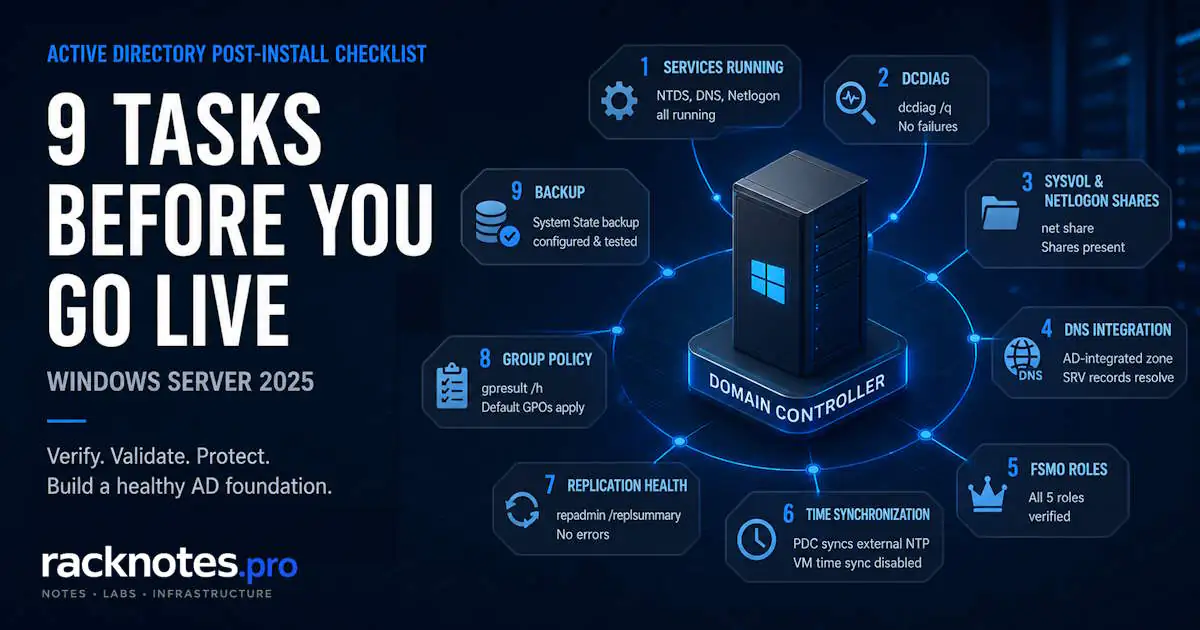
- AD DS services running:
Get-Service ntds,dns,kdc,netlogon,w32time - DCDiag passes:
dcdiag /q— no output = no failures - SYSVOL and NETLOGON shares present:
net share - DNS AD-integrated, SRV records resolve:
dcdiag /test:DNS - All 5 FSMO roles verified:
netdom query fsmo - PDC Emulator syncing external NTP — VM hypervisor time sync disabled
- Replication healthy (or single-DC expected):
repadmin /replsummary - Default Domain Policy and Default Domain Controllers Policy applying:
gpresult /h - System State backup configured and tested:
wbadmin
| # | Check | Command | Pass condition |
|---|---|---|---|
| 1 | AD DS services | Get-Service ntds,dns,kdc,netlogon,w32time |
All show Running |
| 2 | DCDiag | dcdiag /q |
No output |
| 3 | SYSVOL / NETLOGON | net share |
Both shares listed |
| 4 | DNS integration | dcdiag /test:DNS |
No failures, SRV resolves |
| 5 | FSMO roles | netdom query fsmo |
All 5 on expected DC |
| 6 | Time synchronization | w32tm /query /status |
External NTP source, stratum < 5 |
| 7 | Replication | repadmin /replsummary |
0 failures |
| 8 | Group Policy | gpresult /h report.html |
Default policies applied |
| 9 | System State backup | wbadmin get versions |
Recent backup confirmed |
1. Verify Active Directory Services Are Running
AD DS depends on five services that must all be running before the domain controller is usable. NTDS is the directory database. DNS handles name resolution. Netlogon handles authentication and domain join requests. KDC issues Kerberos tickets — without it, every authentication attempt fails. W32Time manages the time hierarchy that Kerberos depends on.
This is step one in any active directory post-install checklist for a reason. Everything else downstream depends on these services being healthy.
Run this on the domain controller immediately after first reboot:
Get-Service ntds,dns,kdc,netlogon,w32timeAll five should show Running. If any show Stopped or StartPending, check Event Viewer before proceeding. A stopped KDC is not obvious in its failure mode — clients get Kerberos errors that look like authentication or permissions problems, not service failures.
Event Viewer location: Windows Logs → System. Key Event IDs after AD DS promotion:
- Netlogon 5719 — domain controller cannot be contacted; Netlogon failed to register or locate a DC
- DNS 4013 — DNS service is waiting for AD to signal that initial synchronization is complete
- DNS 4000 / 4007 — DNS zone load failures
A clean promotion with a clean reboot produces no critical errors in this log. If errors appear — investigate before running any other step in this active directory post-install checklist.
2. Run DCDiag
DCDiag is Microsoft’s primary domain controller diagnostic tool. Running it immediately after promotion catches configuration problems before they compound into harder-to-diagnose failures.
Start with the quiet summary:
dcdiag /qNo output means no failures were detected. This trips up a lot of operators — the tool returns nothing and looks like it didn’t run. It ran. Silence is the pass state. Any line of output is a problem to investigate.
For the full picture:
dcdiag /v /cThis runs all available tests verbose — DNS, LDAP, advertising, replication, Netlogon, services. It produces a lot of output. Scan for any line containing FAILED or WARNING. The DNS tests are the most likely to surface issues on a new DC.
- Verify the DNS zone is AD-integrated — covered in Section 4
- Run
ipconfig /registerdns, wait 30 seconds, rerundcdiag /q - Confirm the DC’s own IP is set as its primary DNS server — pointing to an external resolver breaks SRV registration
- Run
dcdiag /test:DNS /vfor DNS-specific verbose output - If the zone exists but records are missing, verify the
_msdcssubdomain exists under the domain zone in DNS Manager
3. Verify SYSVOL and NETLOGON Shares
SYSVOL is where Group Policy templates and scripts live. NETLOGON is where clients go during domain authentication. Both shares must exist before the domain controller is usable. Without SYSVOL, Group Policy silently fails — gpupdate /force on clients returns errors even when the DC appears healthy in every other respect.
net shareOr in PowerShell:
Get-SmbShare | Select Name, PathExpected output includes SYSVOL and NETLOGON. Both must appear before this step in the active directory post-install checklist passes.
- Check DFS Replication service:
Get-Service dfsr— should be Running - Open Event Viewer → Applications and Services Logs → DFS Replication
- Look for Event ID 4614 (SYSVOL initialized) — if absent, DFSR hasn’t completed initialization. Event ID 2213 indicates DFSR stopped and requires manual intervention.
- On a single-DC deployment, force a DFSR policy poll:
dfsrdiag PollAD /member:<DC-hostname> - If DFSR service errors persist, investigate before proceeding — a missing SYSVOL blocks Group Policy for the entire domain
On a newly promoted DC, SYSVOL can take a few minutes to appear. Wait at least two minutes before concluding it’s missing. For a full SYSVOL recovery procedure, see the SYSVOL replication troubleshooting guide
4. Validate DNS Integration
Most Active Directory problems are DNS problems in disguise. DNS that works well enough to pass basic tests can still fail AD’s specific requirements — particularly SRV record registration and zone replication behavior.
Run the DCDiag DNS test:
dcdiag /test:DNSThis tests DNS registration, zone delegation, dynamic update capability, and SRV record presence. A clean result here is a required step in any active directory post-install checklist.
Verify the critical SRV record manually:
nslookup -type=SRV _ldap._tcp.dc._msdcs.yourdomain.localReplace yourdomain.local with your domain name. The DC’s hostname and IP should resolve. If this lookup returns nothing, domain join fails for every client that checks this record — which is all of them.
If records are missing, re-register and recheck:
ipconfig /registerdnsVerify DNS zone type: DNS Manager → expand your domain zone → right-click → Properties → General tab. Type must show Active Directory-Integrated. A standard primary zone doesn’t replicate with AD. When you add a second DC, it won’t receive DNS updates automatically — SRV records disappear on the second DC, and the domain appears broken.
What breaks if you skip DNS validation: Domain join fails on every client. The error — “The specified domain either does not exist or could not be contacted” — doesn’t mention DNS. Operators check firewall rules and DC availability before running dcdiag /test:DNS and finding that SRV records never registered. Event ID 4013 on the DC is the earlier warning sign that’s easy to miss.
For full DNS diagnosis including missing zones, SRV record corruption, and conditional forwarder configuration, see the Active Directory DNS problems guide.
5. Verify FSMO Roles
The first domain controller in a new forest holds all five FSMO roles. These roles coordinate specific directory operations — schema changes, domain naming, RID allocation, time authority, and infrastructure updates. On a single DC, they all live together. Verification is quick — this step in the active directory post-install checklist takes about 30 seconds, but a failed promotion step can occasionally leave a role unassigned.
netdom query fsmoOutput should list all five roles pointing to your DC’s fully qualified DNS name. For a structured PowerShell view:
Get-ADForest | Select SchemaMaster, DomainNamingMaster
Get-ADDomain | Select PDCEmulator, RIDMaster, InfrastructureMaster| FSMO Role | Scope | Function |
|---|---|---|
| Schema Master | Forest | AD schema modification rights |
| Domain Naming Master | Forest | Domain add/remove operations |
| PDC Emulator | Domain | Time authority, password changes, GPO primary |
| RID Master | Domain | RID pool allocation for new objects |
| Infrastructure Master | Domain | Cross-domain object reference updates |
All five should show the same DC on a single-domain deployment. For a full explanation of FSMO role behavior, failure modes, and transfer procedures, see the FSMO roles guide.
6. Configure and Verify Time Synchronization
Kerberos authentication has a hard five-minute tolerance window. If the clock difference between a client and the domain controller exceeds five minutes, authentication fails — not degrades, fails. Users get access denied. Services can’t authenticate. The domain appears broken.
Time synchronization in AD follows a hierarchy: the PDC Emulator syncs from an external NTP source, all other DCs sync from the PDC Emulator, and domain-joined clients sync from any available DC. Configuring the PDC Emulator correctly is not optional — it’s the time root for the entire domain.
Check current status on the PDC Emulator using the w32tm diagnostic tool:
w32tm /query /statusThe Source field should show an external NTP server — not Local CMOS Clock and not a Hyper-V host name. The Stratum value should be low (2–4 is normal for an external source). Event ID 36 (time source unreachable) or Event ID 47 (time difference too large) in the System log are early warning signs before Kerberos failures begin.
Configure external NTP on the PDC Emulator:
w32tm /config /syncfromflags:MANUAL /manualpeerlist:"time.windows.com"
w32tm /resync
w32tm /query /status
Rerun the status check to confirm the source changed. This step is a mandatory part of any active directory post-install checklist for VM-hosted domain controllers — and is skipped more often than it should be.
VM hypervisor time sync overriding the AD hierarchy
If the domain controller runs on Hyper-V, the Time Synchronization Integration Service actively competes with the AD time hierarchy. The Hyper-V host pushes time to the guest VM — including the PDC Emulator — overriding the external NTP configuration. The PDC Emulator syncs from the host’s hardware clock instead of time.windows.com.
This is a silent misconfiguration. Everything appears to be working until the Hyper-V host’s clock drifts, or until a domain-joined machine compares its time against the PDC Emulator and hits the five-minute window. By then, every Kerberos-dependent service in the domain is failing.
Fix: on every DC running as a Hyper-V VM, disable Time Synchronization via Hyper-V Manager → VM Settings → Integration Services → uncheck Time Synchronization. Or via PowerShell on the Hyper-V host:
Disable-VMIntegrationService -VMName "DC01" -Name "Time Synchronization"This applies to all DCs, not just the PDC Emulator.
What breaks if you skip time sync configuration: Kerberos authentication fails intermittently as clock drift accumulates. The symptom — “The trust relationship between this workstation and the primary domain failed” — doesn’t mention time. Operators rejoin machines to the domain, which fixes the symptom temporarily. The drift continues. Eventually domain admin logons fail.
For full time synchronization architecture, w32tm troubleshooting, and multi-DC NTP configuration, see the Active Directory time synchronization guide.
7. Verify Replication Health
On a single-DC deployment, there’s nothing to replicate. repadmin /replsummary shows no partners — that’s expected. Run it anyway to confirm no errors from the promotion process itself.
repadmin /replsummaryExpected on a single DC: zero failures, no error codes.
On a multi-DC environment, this output becomes critical. Replication failures don’t heal on their own — they compound. USN rollback scenarios are significantly harder to recover from than early-stage replication errors — which is exactly what the active directory post-install checklist is designed to catch before they reach that stage.
For detailed per-partner status:
repadmin /showreplIf replsummary shows failures, see the Active Directory replication troubleshooting guide before continuing.
8. Validate Group Policy Processing
Group Policy depends on SYSVOL, DNS, and Netlogon — everything covered in earlier steps of this active directory post-install checklist. If any of those have issues that slipped through, Group Policy validation usually surfaces them. It’s a useful end-to-end confirmation that the directory is functioning correctly.
Force a policy refresh on the DC:
gpupdate /forceThen generate an HTML report:
gpresult /h C:\gpresult.htmlOpen the report and confirm both default policies are applied:
- Default Domain Policy — listed under Computer Configuration
- Default Domain Controllers Policy — applied to the DC’s OU
Both ship with Active Directory. If either is missing, something upstream is broken — SYSVOL not initialized, DNS resolution failing, or a replication problem preventing policy retrieval.
A common trap: gpupdate /force completing with “User Policy update has completed successfully” while computer policy silently failed. Both lines in the output matter. Read them both.
9. Configure System State Backup
Without a System State backup, recovering a domain controller means rebuilding the domain from scratch. The AD database, SYSVOL content, registry, and boot files aren’t included in a standard file backup. They require a System State backup specifically. This is the step most operators skip on a new active directory deployment — and the one they regret most during recovery. No active directory post-install checklist is complete without it.
What System State backup includes:
- NTDS.dit — the AD database
- SYSVOL — Group Policy templates and scripts
- System Registry
- Boot files
- COM+ class registration database
Using Windows Server Backup (install the feature first if not present):
wbadmin start systemstatebackup -backuptarget:E:Replace E: with a backup target drive. The target must not be the same volume as the OS. For production environments, a network share or external target is preferable to a local drive.
Verify the backup completed:
wbadmin get versionsWhat breaks if you skip System State backup: A corrupted NTDS.dit, a failed domain controller, or an accidental OU deletion with no backup means rebuilding the entire domain — rejoining every machine, recreating every user account, reapplying every Group Policy object. There is no “restore from file backup” path for Active Directory. System State backup is not optional in any environment with more than one user account.
Configure scheduled System State backups before the domain goes into production use. A single manual backup is a starting point, not a strategy.
Final Validation Summary
This active directory post-install checklist covers the minimum required before deploying users, joining workstations, adding additional DCs, or applying production Group Policy. Confirm all nine passed:
- AD DS services running: ntds, dns, kdc, netlogon, w32time
- DCDiag passes with no output on
/q - SYSVOL and NETLOGON shares present
- DNS AD-integrated, SRV records resolving, dcdiag /test:DNS clean
- All 5 FSMO roles on expected DC
- PDC Emulator syncing external NTP — hypervisor time sync disabled on all DC VMs
- Replication 0 failures, or single-DC with no errors logged
- Default Domain Policy and Default Domain Controllers Policy applied
- System State backup configured, tested, and scheduled
A domain controller that passes all nine steps in this active directory post-install checklist is ready for production workloads. One that skips steps two, four, or six tends to surface problems at the worst possible moment — usually the moment users start logging in.
The next step in the AD cluster is Active Directory Sites and Services, which covers multi-site replication topology and domain controller placement.
For foundational context on what Active Directory is and how its components fit together, see What Is Active Directory and Active Directory Components: Forest, Domain, OU.
Frequently Asked Questions
What does dcdiag /q returning nothing mean?
No output means no failures. dcdiag /q is quiet mode — it only prints failures. An empty return is a clean pass. If you want confirmation it ran, use dcdiag /v /c which prints verbose output including successful tests.
Why is SYSVOL missing after domain controller promotion?
Most commonly, DFS Replication hasn’t completed initialization. After promotion, DFSR needs to initialize the SYSVOL replica locally — typically automatic but can stall if the DFSR service has an issue. Check Event ID 4614 in the DFS Replication log to confirm initialization completed. Event ID 2213 means DFSR stopped and needs manual intervention. On a new single-DC deployment, wait at least five minutes before concluding SYSVOL is genuinely missing.
How long does SYSVOL take to appear after promotion?
On a new single-DC deployment, SYSVOL initialization is local and typically completes within two to three minutes of the post-promotion reboot. On a DC joining an existing domain, replication from a source DC depends on network conditions and SYSVOL size — it can take longer.
What happens if time synchronization is wrong on a domain controller?
Kerberos authentication fails once the clock difference exceeds five minutes. User logons fail, service accounts can’t authenticate, and domain joins fail. The error message — “The trust relationship between this workstation and the primary domain failed” — doesn’t mention time. Event IDs 36 and 47 in the System log are the earlier warning signs before Kerberos failures begin.
Do I need to verify replication on a single-DC deployment?
Run repadmin /replsummary once after promotion to confirm no errors from the promotion process itself. No replication partners is expected on a single DC. The step becomes critical when you add a second DC — run it again after each promotion to confirm replication established correctly.
Should the DNS zone be AD-integrated or standard primary?
Always AD-integrated. A standard primary zone doesn’t replicate with Active Directory. A second DC won’t receive DNS updates automatically — SRV records that the first DC registers won’t appear on the second DC. Change the zone type before adding any additional domain controllers.
Does this checklist apply to Windows Server 2022?
Yes. The commands and verification steps are identical on Windows Server 2022. The primary behavioral difference is that Windows Server 2025 improved DFSR initialization speed — SYSVOL may appear faster on 2025. Kerberos time requirements, FSMO behavior, and System State backup procedures are identical across both versions.
What are the most common things people miss on this active directory post-install checklist?
Time synchronization on VM-hosted DCs (Hyper-V Integration Services conflict) and System State backup are the two most consistently skipped steps in any active directory post-install checklist. Both are invisible failures — everything works fine until they don’t. DNS zone type (standard primary vs AD-integrated) is the third, typically caught only after the second DC is promoted.
Active Directory Series
25 articles – Windows Server 2025 · Forest & Domain · FSMO · GPO · Replication · DNS · Security · Backup & Recovery