
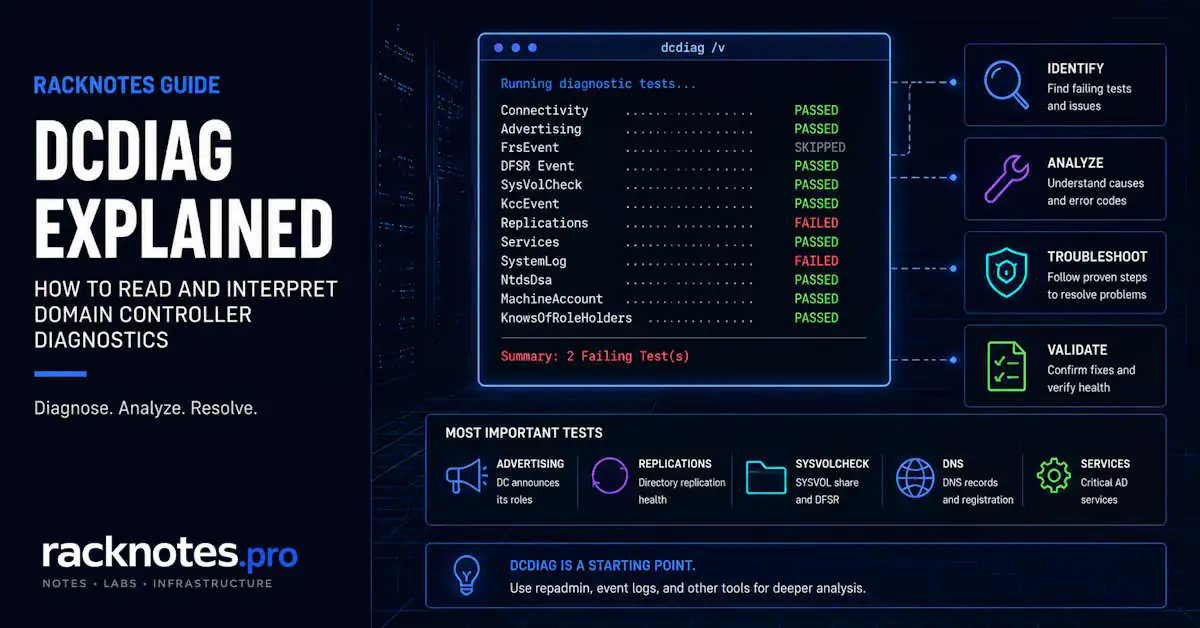
dcdiag is Microsoft’s command-line diagnostic tool for checking the health and configuration of Active Directory domain controllers. It can run a general DC diagnostic pass or target specific areas such as DNS, replication, SYSVOL, services, machine-account configuration, and security checks.
This guide is a practical dcdiag command reference: how to run it, what the main switches mean, which tests matter most, and how to interpret common failures.
dcdiag /qgives a compact errors-only scan; add/eto cover every DC in the enterprise/skip:<Test>is a/c(comprehensive) option, not a standalone switch – usedcdiag /c /q /skip:SystemLog, notdcdiag /q /skip:systemlogon its own- A FAILED SystemLog test flags System log errors from the last 60 minutes – correlate with the actual events before writing it off as noise
dcdiag /test:DNS /vreports up to seven DNS result columns in its summary table; read that table, not just the pass/fail linedcdiag /fixonly repairs SPNs on the MachineAccount test – it isn’t a general repair switch for DNS, replication, or SYSVOL- dcdiag tests configuration and state – for replication depth and forcing sync, use
repadmin - Error 1722 means RPC unavailable; error 8453 means replication access denied
- Run dcdiag elevated – without it, access-denied failures appear across tests that would otherwise pass
DCDIAG Quick Command Reference
Pick the command that matches what you’re trying to do. The full switch reference and test-by-test detail follow below.
| Goal | Command |
|---|---|
| Basic scan (local DC) | dcdiag |
| Errors only | dcdiag /q |
| Full verbose output | dcdiag /v |
| Target a specific DC | dcdiag /s:dc01.yourdomain.com |
| All DCs in the enterprise | dcdiag /e |
| Comprehensive scan | dcdiag /c |
| DNS validation | dcdiag /test:DNS /v |
| Replication check | dcdiag /test:Replications /v |
| Output to a file | dcdiag /f:dcdiag.txt |
What Is DCDIAG?
dcdiag is available by default on domain controllers and can also be installed with the Active Directory RSAT tools on supported Windows management systems. Run it from an elevated shell and use an account with the permissions required for the tests you’re running. Insufficient rights can produce misleading access-denied results across tests that should otherwise pass.
dcdiag runs a series of diagnostic tests against a domain controller and reports PASSED, FAILED, or WARNING for each. It checks whether AD components are configured correctly and operational – services running, objects intact, replication connections valid, DNS records registered, FSMO roles known.
What it does not do: measure replication latency in depth, force replication, check disk space, validate GPO content, or assess security hardening posture. Those require other tools – see What DCDIAG Does NOT Test below. The full reference is in the Microsoft Learn dcdiag documentation.
How to Run DCDIAG
With no switches, dcdiag runs a standard diagnostic pass against the local domain controller:
dcdiagAdd /q to print only error messages, or /v for full detail on every test:
dcdiag /q
dcdiag /v
Target a specific DC with /s:, or scan every DC in the enterprise with /e:
dcdiag /s:DC01
dcdiag /e
Match the scope to the moment: a fast local check during troubleshooting, a targeted check against a specific DC after a change, or an enterprise-wide check on a schedule.
DCDIAG Commands and Switches
| Switch | What it does |
|---|---|
/q |
Quiet – print only error messages |
/v |
Verbose – show full detail per test |
/c |
Comprehensive – run all tests except DCPromo and RegisterInDNS, including non-default tests; required alongside /skip |
/a |
Test all DCs in the local site |
/e |
Enterprise – run against all DCs in the enterprise |
/s:DCname |
Target a specific DC by name |
/n:NamingContext |
Test a specific naming context (NetBIOS, DNS, or distinguished name) |
/u:Domain\User /p:Password |
Run with alternate credentials instead of the current session’s |
/f:file.txt |
Write output to a file |
/test:TestName |
Run only the named test (the mandatory Connectivity test still runs alongside it) |
/fix |
Attempt automatic repair – MachineAccount SPNs only |
/ReplSource:DC |
Source DC for the CheckSecurityError test |
Most Useful DCDIAG Tests
Not all tests carry equal operational weight. These are the ones to check first. Full explanations for every test are in the DCDIAG Test Reference below.
- Connectivity – DNS resolution, ICMP, LDAP, and RPC bind. Every other test depends on it passing.
- Advertising – confirms the DC is announcing itself as a DC, KDC, and time server.
- Replications – checks replication connection objects for errors. Surfaces codes like 1722 and 8453.
- DNS – not run by default; request it explicitly with
/test:DNS /v. DNS problems are a common cause of Active Directory replication failures, so this test is one of the first checks to run when replication is failing. - SysVolCheck – reads the Netlogon
SysVolReadyregistry value to verify SYSVOL is marked ready. A failure means SYSVOL hasn’t reached the ready state and should be investigated alongside DFSR and Netlogon. - DFSREvent – scans the DFS Replication event log for the last 24 hours.
- Services – confirms AD-dependent services are actually running.
- MachineAccount – validates the DC’s computer object and SPNs; the only test
/fixcan repair.
DCDIAG Test Reference
Tests run in order. Connectivity cannot be skipped because every other test depends on it.
| Test | What it checks | What a failure usually points to |
|---|---|---|
| Connectivity (cannot be skipped) | DNS resolution, ICMP ping, LDAP bind, RPC bind via DsBindWithCred |
DC not reachable or not registered in DNS – the rest of the output is unreliable if this fails |
| Advertising | DC advertises itself as a DC, KDC, time server, and (if applicable) a GC | Netlogon or KDC service stopped, or SYSVOL hasn’t finished replicating on a new DC |
| FrsEvent | FRS event log, last 24 hours (legacy SYSVOL replication) | Legacy FRS errors on environments that still contain older systems. Current Windows Server domain controllers should use DFSR for SYSVOL; Windows Server 2025 no longer includes FRS |
| DFSREvent | DFS Replication event log, last 24 hours | DFSR warnings or errors such as dirty-shutdown recovery (2213), content-freshness protection (4012), or database/storage failures (2104) |
| SysVolCheck | The SysVolReady registry flag |
SYSVOL hasn’t completed initialization or replication; Netlogon won’t share it until this flag is set |
| KccEvent | Directory Service event log for KCC errors, last 15 minutes | The KCC can’t build a valid replication topology – Event 1311 is one important KCC/topology event to investigate |
| KnowsOfRoleHolders | Whether this DC knows which servers hold the five FSMO roles | A replication symptom between DCs, not a role-holder failure – use LocatorCheck to test reachability |
| MachineAccount | The DC’s computer object, UserAccountControl flags, and SPNs | Missing SPNs break Kerberos – the only failure /fix can repair |
| NCSecDesc | Security descriptors on naming contexts required for replication | Review the verbose output carefully, especially in mixed-version or RODC environments, before changing naming-context permissions |
| NetLogons | Access to the SYSVOL and NETLOGON shares | Shares missing, or the “Access this computer from the network” privilege misconfigured |
| ObjectsReplicated | Whether the NTDS Settings object and computer object replicated to at least one partner | Newly promoted DC still converging, or replication is broken |
| Replications | Every replication connection object: last-attempt errors, disabled connections, latency over 12 hours | The error code drives the fix – 1722 is RPC unavailable, 8453 is access denied |
| RidManager | RID master reachability and this DC’s RID pool | New security-principal creation fails once the current RID pool is exhausted |
| Services | AD-dependent services: DFSR, DNS, DNSCACHE, EVENTSYSTEM, ISMSERV, KDC, NETLOGON, NTDS, RPCSS, SAMSS, SERVER, W32TIME, WORKSTATION | Output names the specific service that’s stopped |
| SystemLog | System event log for errors/warnings, last 60 minutes | A broad OS-level signal, not AD-specific – see DCDIAG Failed Test SystemLog below |
| VerifyReferences | FRS or DFSR computer-reference attributes on the DC object | Stale or broken reference attributes |
Two more tests run only with /e: LocatorCheck tests that global FSMO role holders (PDC emulator, KDC, GC, time server) can be located and respond – error 1717 means a specific role holder is unreachable. FsmoCheck verifies this DC can contact a KDC, time server, PDC emulator, and GC; it tests locator connectivity, not whether the role holders are actually performing their functions correctly.
Non-Default Tests
| Test | How to run | What it does |
|---|---|---|
| DNS | /test:DNS /v |
Seven DNS sub-tests – see DCDIAG DNS Test below |
| CheckSecurityError | /test:CheckSecurityError |
Deeper RPC and security failure analysis for errors 1722 and 5 |
| OutboundSecureChannels | /test:OutboundSecureChannels |
Validates secure channels from DCs in the domain to domains specified with /testdomain |
| Topology | /test:Topology |
Analyzes replication topology – does not verify partner reachability |
| VerifyEnterpriseReferences | /test:VerifyEnterpriseReferences |
Cross-domain object references |
| RegisterInDNS | /test:RegisterInDNS |
Tests whether the DC can register the required Server Locator DNS records and reports DNS infrastructure changes that may be required |
| DcPromo | /test:DcPromo |
Pre-promotion environment readiness check |
| CutoffServers | /test:CutoffServers |
DCs that can’t be reached by any replication path |
DCDIAG DNS Test: Command, Results, and Common Failures
The DNS test isn’t run by default – request it explicitly:
dcdiag /test:DNS /vWithout a specific sub-test named, dcdiag /test:DNS defaults to /DnsAll, which covers every DNS sub-test except /DnsResolveExtName. External name resolution has to be requested on its own. The test prints a summary table at the end of its output; read that table, not just the pass/fail line. Columns are labeled Auth / Basc / Forw / Del / Dyn / RReg / Ext, one row per DC.
| Column | Result / test | What it checks |
|---|---|---|
| Basc | DnsBasic | DNS client config, service availability, zone existence |
| Auth | Authoritative-zone check | Whether this DC is authoritative for the domain zone |
| Forw | DnsForwarders | Forwarder configuration and reachability |
| Del | DnsDelegation | Delegation records for child zones |
| Dyn | DnsDynamicUpdate | Dynamic updates enabled on the AD-integrated zone |
| RReg | DnsRecordRegistration | A, CNAME, and SRV records registered for this DC |
| Ext | DnsResolveExtName | External name resolution – not included in /DnsAll |
A WARN means dcdiag couldn’t fully validate the configuration. Treat it as a “look here,” not automatically a defect. Run with /v for the detail behind any flagged column. Microsoft’s DNS verification guidance covers the broader validation workflow this test is built on.
DCDIAG Failed Test DNS
Common failures, by column:
RReg FAIL – SRV records aren’t registered. This breaks DC locator for clients and other DCs. Force re-registration: nltest /dsregdns, then restart Netlogon. For SRV record troubleshooting and DNS zone issues, see Active Directory DNS Problems.
Forw FAIL – the forwarder is misconfigured or unreachable. This doesn’t break internal AD name resolution but breaks internet access from the DC and external name resolution for clients using it as their DNS resolver.
Dyn FAIL – dynamic updates disabled on the zone. Client and DC records won’t self-register, leading to stale and missing records over time.
Auth FAIL – this DC isn’t authoritative for its own domain zone. Usually means DNS is pointing at an external resolver instead of an AD-integrated zone.
DCDIAG Replications Test
Direct command:
dcdiag /test:Replications /vThis test checks every configured replication connection object for three things: the last attempt’s success or error state, whether the connection is disabled, and whether latency has exceeded 12 hours. A FAILED result means at least one connection has a problem – the error code in the output determines what that problem actually is. See Common DCDIAG Errors below for what 1722, 8453, and the other codes mean.
dcdiag identifies that a replication problem exists and roughly where. For per-partner detail, error history, queue depth, or to force a sync, switch to repadmin – see DCDIAG vs REPADMIN below.
DCDIAG Failed Test SystemLog
The SystemLog test examines System event-log errors and warnings from the previous 60 minutes. A failure does not automatically mean Active Directory itself is broken; inspect the actual events and correlate them with the DC problem you’re troubleshooting.
In production this test fires constantly. Windows Update, driver messages, and unrelated hardware events all count toward it. That volume is why it gets treated as noise, but a genuine infrastructure problem can surface here too, so don’t reflexively dismiss every failure without reading what actually triggered it.
An operator runs dcdiag /q and sees ten failures. Nine are SystemLog entries unrelated to AD. One is a real Replications error with code 1722. The SystemLog volume makes the actual problem easy to miss – reading the System log directly, or intentionally excluding SystemLog from a comprehensive scan, keeps it from burying a real failure.
Check what actually triggered a SystemLog failure instead of relying on dcdiag’s pass/fail line alone:
Get-WinEvent -LogName System -MaxEvents 50 |
    Where-Object { $_.LevelDisplayName -in 'Error','Warning' }
If you intentionally want to exclude SystemLog from a scan, do it inside a comprehensive run. Microsoft documents /skip:<Test> as an option used with /c, not as a standalone switch:
dcdiag /c /q /skip:SystemLogWhat Does dcdiag /fix Do?
dcdiag /fix is not a general repair mode. Microsoft documents it as affecting the MachineAccount test only, where it repairs required SPNs on the domain controller’s computer account. It does not fix DNS, replication, SYSVOL, or any other failing test.
Use it when MachineAccount specifically fails:
dcdiag /test:MachineAccount /fixFor SPN problems /fix doesn’t resolve, inspect the account’s registered SPNs directly with setspn -L dc01, and reset the computer account with netdom if needed.
Common DCDIAG Errors
Error 1722 – “The RPC server is unavailable”
Surfaces in: Replications, Connectivity, LocatorCheck.
Error 1722 means the RPC connection required for replication could not be established. Common causes include DNS/name-resolution problems, blocked RPC traffic, network connectivity failures, unavailable services, or security/configuration mismatches.
- Run
dcdiag /test:CheckSecurityError /s:failing-dc– this produces a more detailed RPC analysis than the Replications test alone - Verify DNS resolves the partner DC:
nslookup dc02.yourdomain.com– a missing or stale A record blocks RPC before any firewall is involved - Test RPC endpoint mapper reachability:
Test-NetConnection dc02 -Port 135(PortQry works too, but isn’t built into Windows Server by default) - Check firewall rules – TCP 135 and dynamic ports 49152-65535 must be open between all DCs
- Confirm SMB signing configuration is consistent across all DCs
For the full 1722 diagnostic sequence including error code variants and repadmin correlation, see Active Directory Replication Not Working: How to Diagnose and Fix. Official source: Replication fails with error 1722.
Error 8453 – “Replication access was denied”
Surfaces in: Replications.
The DC attempting replication doesn’t have permission, or the secure channel is broken. The most common causes are missing “Replicating Directory Changes” permission on the naming context, a broken computer account secure channel, or – simplest – dcdiag wasn’t run elevated.
First rule out the account and elevation context used to run the diagnostic. If the command is already running with appropriate administrative rights and 8453 persists, investigate the secure channel, replication permissions, and the specific source/destination DC pair. Check permissions with dsacls "DC=yourdomain,DC=com" | findstr /i "replicating", and verify the secure channel with nltest /sc_verify:yourdomain.com.
Error 5 – “Access is denied”
Surfaces in: multiple tests. RPC session established but the operation was rejected. Microsoft’s replication error 5 guidance lists several possible causes – don’t assume time skew by default.
Work through the causes in order:
- Confirm dcdiag was run in an elevated/admin context
- Validate the computer account’s secure channel:
nltest /sc_verify:yourdomain.com - Check time and Kerberos clock skew:
w32tm /query /status– Kerberos rejects tickets once the offset exceeds five minutes - Check replication permissions and account state on the naming context
- Run
dcdiag /test:CheckSecurityErrorfor deeper analysis
For time synchronization recovery specifically, see Active Directory Time Synchronization: Fix PDC Emulator, W32Time, and Kerberos Clock Skew.
LocatorCheck Failures and Error 1717
LocatorCheck validates discovery of services such as the PDC emulator, KDC, GC, and time server. If the output reports error 1717 or another locator error, read which locator call actually failed, then verify DNS/DC Locator, service availability, and the relevant role holder. Run netdom query fsmo to identify which DC holds each role, but use it only when the failed locator is actually related to an FSMO role such as the PDC emulator. See FSMO Roles Active Directory: What They Do and How to Manage Them for role transfer and seize procedures if a role holder is unrecoverable.
Error 8606 and Error 8614
Both surface in Replications and both indicate the DC has been out of contact for an extended period.
8606 – the destination DC rejected an update because the source DC still has an object that the destination already deleted and garbage-collected. This is commonly associated with lingering objects after long-term replication failures, although Microsoft also documents transient cases around garbage collection.
8614 – replication has been quarantined because the time since the last successful replication exceeded the tombstone lifetime. Recovery may involve checking for time jumps and lingering objects, removing replication quarantine after the directory is confirmed safe, or demoting/rebuilding the stale DC when that is the safer option – full procedures are in the dedicated Active Directory replication guide linked under Error 1722 above. Official sources: error 8606, error 8614.
DCDIAG vs REPADMIN
These tools answer different questions. Using repadmin when you need dcdiag, or vice versa, wastes diagnostic time.
| Question | Tool |
|---|---|
| Is this DC healthy overall? | dcdiag |
| Which tests are failing on this DC? | dcdiag |
| Are there replication errors anywhere? | dcdiag /test:Replications first, then repadmin |
| What exactly failed, when, with which partner? | repadmin /showrepl |
| How long ago did replication last succeed? | repadmin /replsummary |
| Is replication stuck or just delayed? | repadmin /queue |
| Force replication now | repadmin /syncall /AdeP |
| Export replication state for all DCs | repadmin /showrepl * /csv |
The practical sequence: start with dcdiag /q. If Replications fails, switch to repadmin /showrepl * /errorsonly for the specific partner, naming context, and error code. dcdiag identifies failing diagnostic areas; repadmin provides deeper replication-specific state and controls. The full repadmin command reference is on Microsoft Learn.
Recommended Diagnostic Workflow
This sequence minimizes wasted time from the initial scan to a confirmed fix.
- Run
dcdiag /qfor a compact, errors-only scan - For each FAILED test, run that test in verbose mode:
dcdiag /test:TestName /v /s:dc01 - Note the error code – 1722, 8453, 5, 1717, 8606, 8614 each point to a different root cause
- If Replications failed: switch to
repadmin /showrepl * /errorsonlyfor partner-level detail - If DNS failed: run
dcdiag /test:DNS /vand read the summary table column by column - Review relevant event logs – Directory Service and DFS Replication are the most useful
- Apply the fix, then re-run the specific test with
/vto confirm resolution - Once specific tests pass, run a comprehensive scan to check for secondary failures:
dcdiag /e /c /q /skip:SystemLog
- Check DNS:
nslookup dc01.yourdomain.com– if resolution fails, fix DNS before anything else - Check ICMP:
ping dc01.yourdomain.com– blocked ICMP breaks dcdiag connectivity - Verify NTDS service is running on the target DC
- Check firewall – TCP 389 (LDAP) and TCP 135 (RPC) must be reachable
- Note the error code in the output – 1722, 8453, 8606, and 8614 each have different causes
- Switch to repadmin:
repadmin /showrepl * /errorsonlyfor partner-level detail - For 1722 – check DNS and firewall first (see error reference above)
- For 8453 – confirm you’re running elevated; then check secure channel with
nltest /sc_verify - For 8606/8614 – do not force replication until the root cause is resolved; data divergence risk is real
- Check the DFS Replication event log:
Get-WinEvent -LogName "DFS Replication" -MaxEvents 50 | Where-Object { $_.Level -le 3 } - Event 2213 indicates DFSR paused after a dirty shutdown on affected versions/configurations – follow the recovery instructions in the event and Microsoft’s Event 2213 guidance; don’t jump directly to authoritative or non-authoritative SYSVOL recovery unless the wider SYSVOL state actually requires it
- Event 4012 – content-freshness lockout; see Microsoft’s SYSVOL/NETLOGON share troubleshooting for scope-appropriate recovery
- Event 2104 – the DFSR database failed to recover from an internal error, often tied to disk space, storage, or database corruption; see Microsoft’s DFSR troubleshooting guidance
- Verify SYSVOL and NETLOGON shares are present:
net share - Check DFSR backlog:
dfsrdiag replicationstate
For dirty-shutdown and content-freshness events that require a deeper restore path, see SYSVOL Replication Issues in Active Directory: DFSR Troubleshooting.
- Check Netlogon service:
Get-Service Netlogon - Check KDC service:
Get-Service KDC - If services are running, check the Directory Service event log for startup errors
- On a newly promoted DC – wait 5-10 minutes for SYSVOL to complete initial replication, then retest
What DCDIAG Does NOT Test
This is the part that catches operators who treat a clean dcdiag as a clean bill of health.
dcdiag does not check disk space on the NTDS volume, NTDS.dit file size or integrity, backup recency, GPO content correctness, or SYSVOL file consistency beyond confirming shares exist and DFSR logs are clean. It doesn’t assess absolute time accuracy – only Kerberos-relevant skew against a partner. It doesn’t evaluate security hardening posture: NTLM usage, TLS versions, unsigned LDAP binds, or SMB signing state are outside its scope. AD Recycle Bin status, object count trends, schema health, and trust health beyond basic locator connectivity are also not covered.
The Topology test analyzes replication topology but does not verify that partners are actually reachable or that the replication schedule allows current replication. FsmoCheck confirms locator connectivity but does not test whether role holders are performing their functions correctly.
A clean dcdiag is a necessary check, not a sufficient one. The Active Directory Health Check Checklist covers the areas dcdiag misses – AD database, backup recency, security posture, and the cadence-based checks that keep a production environment stable.
Windows Server 2025 Compatibility
dcdiag is supported on Windows Server 2025, available natively on domain controllers and through RSAT on management workstations. Because wmic is disabled by default in WS2025, some operators expect dcdiag /test:DNS to break. It doesn’t. The DNS test uses the WMI service itself, not the wmic CLI, so WMIC deprecation affects legacy scripts and monitoring agents that call wmic directly, not dcdiag.
Final Thoughts
dcdiag is the first tool most operators reach for when an AD environment starts behaving strangely – and correctly so. It maps the failure surface faster than manually checking services, events, and replication state individually. The gap isn’t in using it. It’s in knowing that a FAILED SystemLog test needs correlation with the actual events before it’s written off, that FsmoCheck doesn’t actually test role holder function, and that a clean result doesn’t mean the directory is healthy.
Use dcdiag to find where to look. Use repadmin when replication is the problem. For the areas dcdiag doesn’t reach – backup recency, database health, security posture, and the full service dependency chain – the dedicated Active Directory Health Check Checklist picks up where this page stops.
FAQ
What does DCDIAG check?
dcdiag validates domain controller health across approximately 20 default tests covering DNS registration, service state, SYSVOL sharing, DFSR event logs, replication connections, FSMO role knowledge, machine account integrity, naming context security descriptors, and Netlogon share access. Additional tests – the DNS sub-suite, CheckSecurityError, Topology – run only when explicitly requested.
How do I run DCDIAG?
Open an elevated Command Prompt or PowerShell session on a domain controller, or on a management workstation with the AD RSAT tools installed, and run dcdiag for a standard local scan. Add /q for errors only, /v for full detail, /s:DCname to target a specific DC, or /e to scan every DC in the enterprise.
What are the most useful DCDIAG commands?
dcdiag /q for a compact errors-only scan, dcdiag /test:DNS /v for DNS validation, dcdiag /test:Replications /v for replication health, and dcdiag /e /c /q /f:dcdiag.txt for a full enterprise scan written to a file. See DCDIAG Quick Command Reference above for the complete set.
What does dcdiag /test:DNS do?
It runs the documented DNS test suite and reports the results in summary columns such as Auth, Basc, Forw, Del, Dyn, RReg, and Ext. Without a sub-test specified it defaults to /DnsAll, which covers everything except external name resolution.
What does dcdiag /test:Replications do?
It checks every configured replication connection object for the last attempt’s success or error state, whether the connection is disabled, and whether latency has exceeded 12 hours. A FAILED result means at least one connection has a problem; the error code in the output – 1722, 8453, and others – determines the fix.
Why did DCDIAG fail the SystemLog test?
The SystemLog test flags System event-log errors and warnings from the previous 60 minutes – Windows Update, driver messages, and hardware events all count, so it fires often in production. A failure isn’t automatically an AD problem, but it isn’t automatically noise either; check the actual events before dismissing it. See DCDIAG Failed Test SystemLog above.
What does dcdiag /fix do?
It affects the MachineAccount test only, repairing required SPNs on the domain controller’s computer account. It is not a general repair mode and does not fix DNS, replication, or SYSVOL failures.
What is the difference between DCDIAG and REPADMIN?
dcdiag tests configuration and state across many functional areas; repadmin specializes in replication – per-partner status, error history, queue depth, and the ability to force sync. Use dcdiag to find which area is failing; switch to repadmin when replication specifically is the problem and you need partner-level detail or to act on it.
Does DCDIAG work on Windows Server 2025?
Yes. dcdiag is fully supported on Windows Server 2025 and is unaffected by the wmic deprecation – the DNS test uses the WMI service directly, not the wmic CLI.
Active Directory Series
25 articles – Windows Server 2025 · Forest & Domain · FSMO · GPO · Replication · DNS · Security · Backup & Recovery