
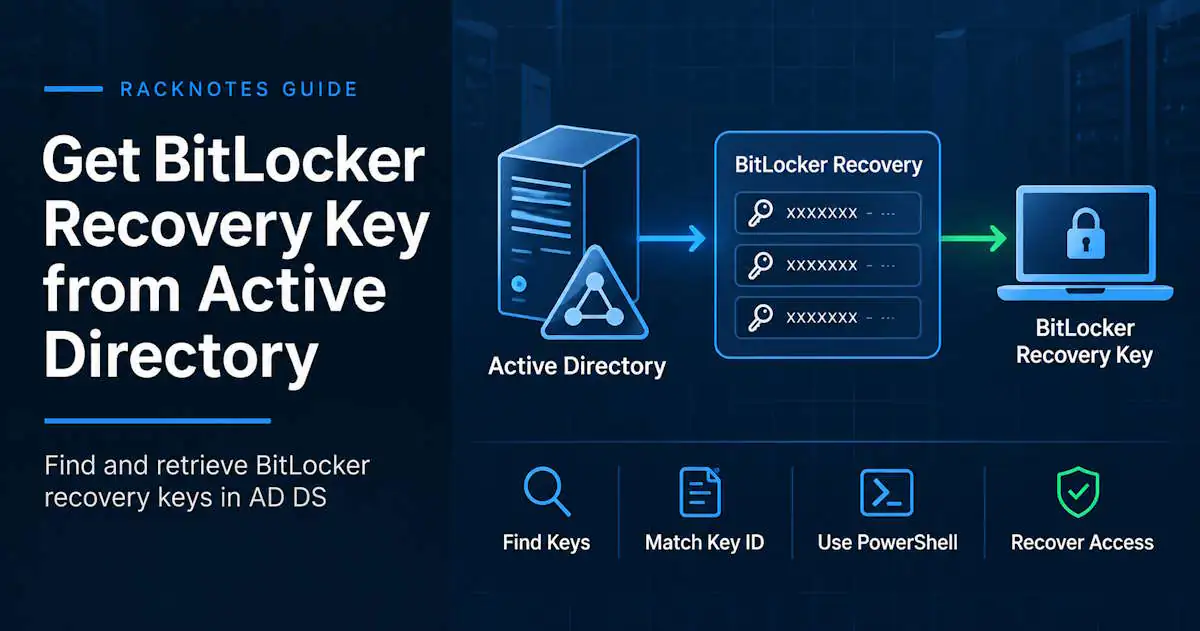
BitLocker recovery information stored in Active Directory is attached to the computer object and can be read through Active Directory Users and Computers (ADUC) or PowerShell, provided the recovery password was backed up to AD DS, the operator has permission to read it, and the required ADUC recovery-viewer component is installed for the GUI path. This guide covers on-premises Active Directory Domain Services (AD DS), not Microsoft Entra ID. Entra-based recovery-key retrieval is a separate workflow and outside the scope of this article; it will get its own dedicated guide. This guide also assumes the recovery password has already been backed up to AD DS. If that step hasn’t happened yet, start with backing up a BitLocker recovery key instead.
Quick Answer: Find a BitLocker Recovery Key in Active Directory
- Open Active Directory Users and Computers.
- Locate the computer object.
- Open Properties.
- Open the BitLocker Recovery tab.
- Match the first eight characters of the Recovery Key ID shown on the BitLocker recovery screen to the corresponding Password ID / recovery entry in AD.
- Use the matching 48-digit recovery password.
If the BitLocker Recovery tab is missing, install the BitLocker Recovery Password Viewer or required RSAT component before assuming the key itself is missing. A missing tab and missing recovery data are separate problems with different fixes.
How BitLocker Recovery Keys Are Stored in Active Directory
BitLocker recovery information sits beneath the computer object in AD DS as a child object using the msFVE-RecoveryInformation object class. The 48-digit recovery password lives in the msFVE-RecoveryPassword attribute of that object, while msFVE-RecoveryGuid holds the GUID associated with that specific recovery password, the identifier shown as the Key ID at the recovery screen. In short, msFVE-RecoveryInformation is the object class, msFVE-RecoveryPassword is the 48-digit password, and msFVE-RecoveryGuid is the GUID that matches a stored password to the one requested during recovery.
Practical takeaway:
- A computer object can have zero, one, or several
msFVE-RecoveryInformationchild objects at once. - The Recovery Key ID isn’t a password itself; it’s how a specific stored entry gets matched to a specific locked device.
- None of this data appears unless the recovery password was actually escrowed to AD DS at some point; AD DS doesn’t generate it independently.
Find the BitLocker Recovery Key with Active Directory Users and Computers
- Open ADUC.
- Find the correct computer account.
- Open Properties.
- Select the BitLocker Recovery tab.
- Review the available recovery entries.
- Match the correct Key ID.
- Copy the recovery password only when actually required.
If more than one entry appears, that is expected when a device has had its recovery password rotated or replaced over time. Match the first eight characters of the Recovery Key ID rather than assuming the newest or first entry is the right one.
The BitLocker Recovery Password Viewer also adds Find BitLocker Recovery Password to the domain container’s right-click context menu, as documented in Microsoft’s Recovery Password Viewer documentation. Enter the first eight characters of the Password ID to locate the matching recovery record when the specific computer object isn’t known in advance. The per-computer Properties tab remains the primary workflow.
Match the Recovery Key ID Before Using the Password
The BitLocker recovery screen displays a Recovery Key ID. AD DS can contain more than one recovery entry for the same computer, so choosing whichever password looks newest can lead to the wrong record. Match the first eight characters of the identifier before using the password. The full explanation of what the Recovery Key ID is and how it relates to the 48-digit password lives in finding your BitLocker recovery key; this article only covers matching it against AD-stored entries.
Get a BitLocker Recovery Key from Active Directory with PowerShell
$Computer = Get-ADComputer -Identity "PC01"

Get-ADObject `
    -Filter 'objectClass -eq "msFVE-RecoveryInformation"' `
    -SearchBase $Computer.DistinguishedName `
    -Properties msFVE-RecoveryGuid, msFVE-RecoveryPassword
This resolves the target computer’s distinguished name, then queries for msFVE-RecoveryInformation child objects beneath it and returns both the GUID and the recovery password. Requesting the GUID alongside the password lets you match the returned record to the Key ID shown at the recovery screen instead of relying on an unverified password value.
Keep the scope to one computer by default. Sweeping every computer object in the domain and exporting every recovery password creates significant security exposure and should be treated as a deliberate, access-controlled action. Avoid displaying or logging recovery passwords where they are not required, including console history and transcript logging if the environment captures them.
BitLocker Recovery Tab Missing in Active Directory
A missing Recovery tab and a tab with no recovery password are different problems and should be troubleshot separately.
The BitLocker Recovery Tab Itself Is Missing
Likely causes include a missing BitLocker Recovery Password Viewer component, a management workstation without the required RSAT/BitLocker tools, or an MMC console without the extension. This is a local tooling problem on the machine running ADUC, not evidence that the recovery data is absent from AD.
The Tab Exists, But No Recovery Password Is Shown
Likely causes include recovery information that was never backed up to AD DS, a device encrypted before recovery-backup policy was configured and never escrowed afterward, insufficient permissions, the wrong computer object, or an absent recovery object. A blank result alone does not prove that no recovery object exists because the viewer may not distinguish missing data from insufficient rights. Verify permissions separately before assuming the data is gone. This is a data or permissions problem, not a viewer installation problem; reinstalling the viewer component won’t fix it.
Install the BitLocker Recovery Password Viewer
On Windows 10 or Windows 11, the viewer ships as an RSAT capability, Rsat.BitLocker.Recovery.Tools, installable through Settings > Optional Features or:
Add-WindowsCapability -Online -Name "Rsat.BitLocker.Recovery.Tools~~~~0.0.1.0"On Windows Server, Microsoft’s BitLocker Server installation documentation shows the full management-tool install as:
Install-WindowsFeature BitLocker -IncludeAllSubFeature -IncludeManagementToolsThis installs the BitLocker feature itself along with its management tools, including the AD DS viewer extension. It is more invasive than adding a capability to an admin workstation and can require a restart to complete. Verify the exact current feature or capability name on the target OS version before scripting it into a deployment process; naming has shifted slightly across Windows releases.
Install the component on the machine where ADUC is being run, whether that is an administrative workstation, a management server, or a domain controller. It does not need to be installed on the encrypted endpoint merely to retrieve the key from AD. Microsoft’s Recovery Password Viewer tool documentation notes that, once installed, the BitLocker Recovery tab becomes available on computer object Properties in ADUC. Use the Microsoft-supplied management component rather than a third-party download.
BitLocker Recovery Key Is Not in Active Directory
Work through this in order:
- Confirm the correct computer object is actually selected.
- Confirm the BitLocker Recovery tab and viewer component are working, using the distinction covered above.
- Check whether any
msFVE-RecoveryInformationchild objects exist for that computer at all. - Confirm the recovery password was ever escrowed to AD DS in the first place.
- Check the effective BitLocker recovery policy for that device.
- Check whether the device was encrypted before the AD DS backup policy was configured and never escrowed afterward.
- Confirm the operator actually has permission to read recovery information.
- If the key still exists locally on that machine and just needs to be backed up now, use backing up a BitLocker recovery key rather than treating this as a retrieval problem.
A missing AD recovery object does not mean Active Directory can regenerate the recovery password. AD DS can only return recovery information that was actually stored in it; it has no way to reconstruct a password that was never escrowed.
| Problem | Likely area | First check |
|---|---|---|
| Recovery tab missing | Viewer / RSAT component | Confirm Recovery Password Viewer is installed |
| Tab present, no key | Data / permissions | Check recovery objects and access |
| Multiple keys | Multiple recovery records | Match first 8 characters of Key ID |
| PowerShell returns no objects | Computer / permissions / escrow | Verify search base and recovery objects |
| Recovery object exists, password cannot be read | Permissions | Verify delegated access |
Check for BitLocker Recovery Objects with PowerShell
$Computer = Get-ADComputer -Identity "PC01"

Get-ADObject `
    -Filter 'objectClass -eq "msFVE-RecoveryInformation"' `
    -SearchBase $Computer.DistinguishedName
This query answers one specific question: does an msFVE-RecoveryInformation object exist under this computer account at all? It intentionally doesn’t request msFVE-RecoveryPassword, so it cannot diagnose a missing password value or a permissions problem on its own. An empty result means the query did not find a recovery-information object under that computer account. Verify the computer object, permissions, and AD state before concluding that escrow never occurred, because a wrong search base, insufficient rights to enumerate the objects, or replication lag can produce the same result. To test whether the password attribute itself is readable, run the query in the previous section with -Properties msFVE-RecoveryGuid, msFVE-RecoveryPassword instead.
Permissions Required to Read BitLocker Recovery Information
Access to recovery passwords should be delegated deliberately, not granted broadly. By default, only Domain Administrators have access to BitLocker recovery information, though access can be delegated to other security principals. Recovery information is sensitive because it can unlock an encrypted drive, and broad read access could expose credentials for many managed devices if a delegated account is compromised. Grant read access only to roles that require it and follow least-privilege practice instead of broadening AD access to work around a permissions error. Full AD ACL delegation is a separate topic; the key point here is that access should be intentional, and a retrieval permission error may reflect the delegation model working as designed.
Multiple Recovery Keys Appear for One Computer
More than one recovery entry under a single computer object is normal. Protector rotation, replacement recovery passwords, and recovery-protector changes over a device’s lifetime all add new entries without removing the old ones automatically. Match the first eight characters shown on the recovery screen before selecting a stored password. Don’t default to whichever record looks newest unless its ID is actually the one that matches.
FAQ
Where is the BitLocker recovery key stored in Active Directory?
Under the computer object, as BitLocker recovery information in AD DS.
How do I find a BitLocker recovery key in ADUC?
Open the computer object’s Properties and use the BitLocker Recovery tab.
Why is the BitLocker Recovery tab missing in Active Directory?
The BitLocker Recovery Password Viewer or required management component likely isn’t installed on the machine running ADUC.
Can I get a BitLocker recovery key from Active Directory with PowerShell?
Yes. Query the msFVE-RecoveryInformation objects beneath the computer account using the ActiveDirectory PowerShell module.
Why is the BitLocker recovery key not showing in Active Directory?
The key may never have been backed up to AD DS, the recovery object may be absent, permissions may be blocking access, or the wrong computer object may be selected.
Can Active Directory recreate a missing BitLocker recovery key?
No. AD DS can only return recovery information that was actually backed up to it; it can’t reconstruct a password that was never stored there.
Final Thoughts
Retrieving a BitLocker recovery key from Active Directory and backing one up are different tasks, and this guide covers retrieval. Open the computer object in ADUC or query it with PowerShell, match the first eight characters of the Recovery Key ID before using a stored password, and treat a missing tab and missing data as separate problems. Multiple recovery entries on one computer are normal as long as the correct one is matched by ID. AD DS cannot return a recovery password that was never escrowed to it.
BitLocker Series
9 of 10 published – Drive Encryption · TPM & Recovery Keys · manage-bde · Disable & Decrypt · Recovery Key Backup · PowerShell · Suspend & Resume · Active Directory