
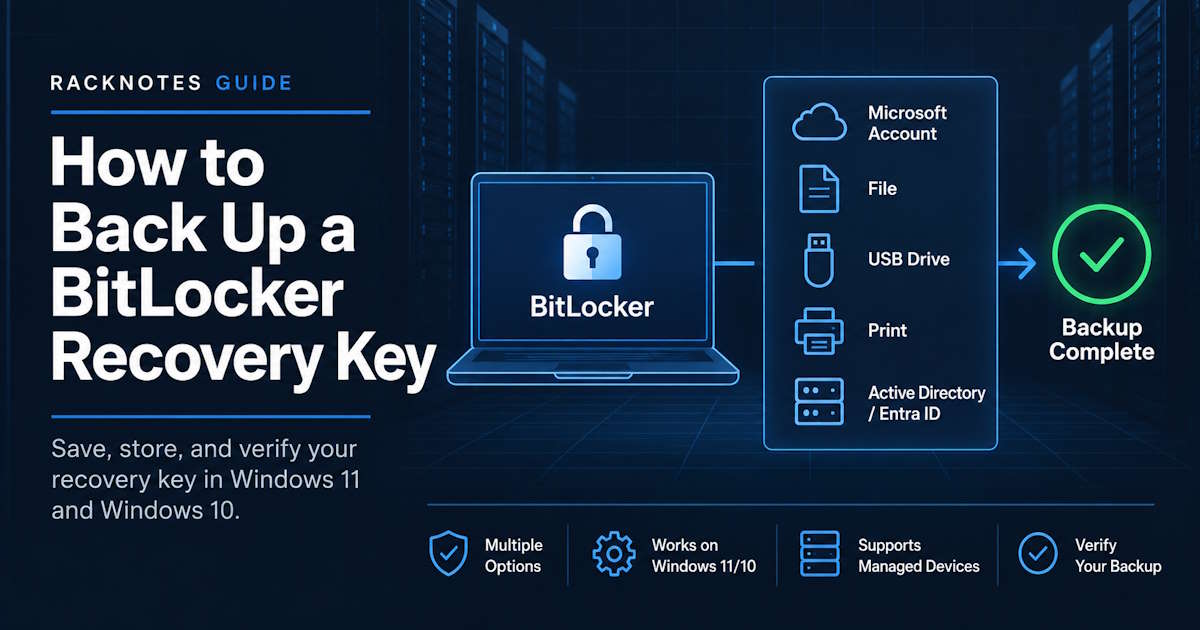
A BitLocker recovery key provides access to an encrypted drive when BitLocker can’t unlock it normally. It’s separate from your everyday Windows password and from any PIN used at startup. This guide covers how to back up a BitLocker recovery key in Windows 11 and Windows 10 – to a Microsoft account, a file, a USB drive, a printout, or a managed environment like Active Directory or Microsoft Entra ID. The focus here is creating and verifying a backup, not finding a key you’ve already lost; for that, see finding your BitLocker recovery key.
To back up a BitLocker recovery key, use the BitLocker management interface to save it to a Microsoft account, a file, USB storage, or a printout, whichever options are available on that device. On managed devices, recovery information may also be stored in Active Directory or Microsoft Entra ID. After saving it, verify that the backup exists before relying on it – don’t assume it happened automatically just because BitLocker is on.
What Does Backing Up a BitLocker Recovery Key Mean?
BitLocker recovery uses a 48-digit recovery password tied to a specific protector on the volume. Backing it up means saving a copy of that password somewhere other than the encrypted drive itself. Store the backup somewhere other than the protected volume so it remains available if that volume cannot be unlocked.
Practical takeaway:
- A backup only counts if it’s reachable when the protected drive isn’t.
- Automatic backup being available does not prove it happened on this specific device – verify it before relying on it.
- Personal and managed devices commonly use different default storage locations; that is expected, not a sign of misconfiguration.
In most situations, the key is already backed up automatically depending on how the device is set up: signing in with a Microsoft account typically attaches the recovery key to that account, while a managed device may have its recovery information escrowed automatically when BitLocker is enabled, depending on the applied policy and device configuration, per Microsoft’s BitLocker recovery key backup documentation. Check that before assuming a manual backup is necessary. Whether a key was backed up says nothing about how often recovery might be triggered.
Check Whether a Recovery Key Already Exists
Before creating another backup, confirm that a recovery password protector actually exists on the volume.
manage-bde -protectors -get C:Look for a Numerical Password / Recovery Password protector and note its protector ID; the AD DS and Microsoft Entra ID backup commands later in this article need that ID. Full syntax and the other fields reported by this command are covered in the manage-bde command reference and Microsoft’s manage-bde -protectors reference; this article only uses the protector check. Get-BitLockerVolume can also be used to inspect the volume and its configured key protectors from PowerShell.
How to Back Up a BitLocker Recovery Key in Windows 11
- Open Manage BitLocker (search for it from Start, or go through Control Panel’s System and Security section).
- Find the protected drive in the list.
- Select Back up your recovery key next to that drive.
- Choose an available destination.
- Confirm the backup completed.
Save to Your Microsoft Account
On devices signed in with a Microsoft account, the key can be stored in that account’s recovery-key library and accessed from another device if the original PC is unavailable. On some work or school managed devices, Microsoft documents the option as Save to your Azure AD account – Azure AD is the previous name for what’s now called Microsoft Entra ID. Not every configuration uploads a key automatically just because a Microsoft account is signed in, so verify that the key is actually present.
Save to a File
Save the file somewhere other than the protected volume, such as another drive, a network share, or comparable secure storage. Keeping the only copy on the encrypted drive defeats the purpose.
Save to a USB Drive
Useful for an offline copy that doesn’t depend on signing into anything. Store the USB separately from the protected computer.
Print the Recovery Key
A paper copy is offline and does not depend on account access. Store it somewhere controlled and separate from the protected computer.
How to Back Up a BitLocker Recovery Key in Windows 10
Windows 10 uses the same underlying workflow through the BitLocker Drive Encryption Control Panel item: locate the protected drive, choose Back up your recovery key, and pick a destination. The available destinations behave the same as in Windows 11; only the navigation path differs.
Can You Back Up a Recovery Key After BitLocker Is Already Enabled?
Yes. As long as the recovery password protector still exists and there’s administrative access to the protected volume, backing it up later works the same way as backing it up at setup time. Use the BitLocker management interface, or check manage-bde -protectors -get first to confirm what protector is actually active. Generating a brand-new recovery password protector is a separate action from backing up the existing one, and isn’t something this process requires by default.
How to Verify the Recovery Key Was Backed Up
Verify each backup after creating it.
Microsoft account: confirm the key shows up in that account’s online recovery-key list.
File: confirm the file actually exists at the saved location and opens correctly.
USB: confirm the recovery-key file is present on the drive rather than relying on memory.
Printed copy: confirm the full 48-digit password is legible and the Key ID printed alongside it, where shown, is readable too.
Managed environment: confirm the recovery object or key is actually present in the expected directory or management platform, rather than assuming escrow succeeded because policy says it should have.
Where Should You Store a BitLocker Recovery Key?
| Storage location | Best for | Main advantage | Main caution |
|---|---|---|---|
| Microsoft account | Personal PCs | Accessible from another device | Depends on account access |
| File on separate storage | Local/manual backup | Easy to copy and archive | Must not live only on the encrypted drive |
| USB drive | Offline backup | Independent of any cloud account | Physical loss |
| Printed copy | Offline emergency access | No device or account dependency | Physical security |
| Active Directory Domain Services (AD DS) | Domain-managed PCs | Central admin retrieval | Requires correct domain backup configuration |
| Microsoft Entra ID | Cloud-managed devices | Centralized cloud retrieval | Requires managed-device and account setup |
No single method is universally best. Personal devices commonly use a Microsoft account or an offline copy, while managed fleets typically rely on centrally managed directory escrow.
Back Up a BitLocker Recovery Key to Active Directory
In a domain environment, BitLocker recovery information can be stored in Active Directory Domain Services as an msFVE-RecoveryInformation child object under the computer account, per Microsoft’s BitLocker recovery guide. The 48-digit recovery password is stored in the msFVE-RecoveryPassword attribute of that object. Whether that actually happens depends on the applicable BitLocker recovery policy for that drive type under Computer Configuration > Administrative Templates > Windows Components > BitLocker Drive Encryption, not on domain membership by itself.
To back up an existing recovery-password protector to AD DS manually, note its protector ID from manage-bde -protectors -get, then run:
manage-bde -protectors -adbackup C: -id {RECOVERY-PROTECTOR-ID}or, in PowerShell:
Backup-BitLockerKeyProtector -MountPoint "C:" -KeyProtectorId "{RECOVERY-PROTECTOR-ID}"Verify the recovery object is actually present on the computer account afterward, using the BitLocker Recovery Password Viewer or an equivalent lookup tool rather than assuming the recovery information was successfully escrowed. Detailed lookup procedures, including what to do when the object is missing, belong to a dedicated Active Directory recovery article.
Applying an AD DS recovery policy does not by itself prove that every previously encrypted device already has recovery information stored in AD. Verify existing devices and back up missing recovery-password protectors before relying on directory recovery.
Back Up a BitLocker Recovery Key to Microsoft Entra ID
Organization-connected devices can store recovery information in Microsoft Entra ID, the current name for Azure AD. Whether this happens depends on device identity and management configuration, including Microsoft Entra join, Entra hybrid join, and the applicable policy; simply connecting a work or school account is not enough by itself.
To back up an existing recovery-password protector to Microsoft Entra ID manually, note its protector ID first, then run:
manage-bde -protectors -aadbackup C: -id {RECOVERY-PROTECTOR-ID}or, in PowerShell:
BackupToAAD-BitLockerKeyProtector -MountPoint "C:" -KeyProtectorId "{RECOVERY-PROTECTOR-ID}"After backup, verify that the recovery key is present in the expected Microsoft Entra device record, using the self-service device portal Microsoft documents in its BitLocker recovery process guide, or the equivalent management portal. Deployment and enforcement through Intune policy is a separate topic, covered in a dedicated Intune article rather than here.
Can You Back Up a BitLocker Recovery Key in BIOS?
No. BIOS or UEFI firmware is not a supported storage location for a BitLocker recovery key. The TPM participates in BitLocker’s startup validation, and firmware changes can trigger a recovery prompt, but neither the TPM nor the BIOS/UEFI settings screen is where a manual backup of the 48-digit recovery password lives. If a firmware change already triggered an unexpected recovery prompt, that’s a different problem covered in the BitLocker recovery screen guide.
What If You Already Lost the Recovery Key?
This article assumes the key still exists and can be backed up or verified. If a device is already locked out and the key can’t be found, that’s a retrieval problem, not a backup problem – start with finding your BitLocker recovery key instead.
Common BitLocker Recovery Key Backup Mistakes
- Saving the only backup on the encrypted drive itself.
- Assuming Microsoft account backup happened without checking the account’s recovery-key list.
- Assuming AD or Entra escrow happened without verifying the recovery object actually exists.
- Keeping the only USB drive or printout in the same bag as the protected laptop.
- Confusing the Recovery Key ID with the full 48-digit recovery password – the ID only helps match the right backup, it doesn’t unlock anything by itself.
- Backing up an old recovery password while a different protector is now the one actually active on the drive.
A saved recovery password remains useful only while its corresponding recovery protector is valid on the volume.
BitLocker Recovery Key Backup FAQ
How do I back up my BitLocker recovery key?
Use the BitLocker management interface to save it to an available destination – Microsoft account, file, USB storage, or printout. Managed devices may also escrow the key to Active Directory or Entra ID.
Can I back up the key after BitLocker is already enabled?
Yes, provided the recovery protector still exists and there’s administrative access to the protected volume.
Can I save the BitLocker recovery key to the same drive it protects?
Don’t use the encrypted drive as the only backup location. If the drive becomes inaccessible, that backup becomes inaccessible along with it.
Can I back up a BitLocker key to Active Directory?
Yes, in a properly configured domain environment. Verify the recovery information is actually present in AD DS rather than assuming domain membership alone covers it.
Can I back up a BitLocker key to Azure AD?
Yes, on supported organization-connected devices. The current name is Microsoft Entra ID, though older documentation and many searches still use Azure AD.
Can I store the recovery key in BIOS?
No. BIOS or UEFI is not a recovery-key backup location.
Should I print my BitLocker recovery key?
A printed copy is a reasonable offline backup when it is stored securely and kept separate from the protected device.
Final Thoughts
A BitLocker recovery key is useful as a backup only if it remains accessible when the protected drive is not. Windows supports common destinations such as a Microsoft account, file, USB storage, or printout, while managed environments can use Active Directory or Entra ID. Choose a storage method that fits the device, then verify the copy exists. If the key is already missing and the device is locked out, use the recovery-key retrieval workflow instead.
BitLocker Series
9 of 10 published – Drive Encryption · TPM & Recovery Keys · manage-bde · Disable & Decrypt · Recovery Key Backup · PowerShell · Suspend & Resume · Active Directory