
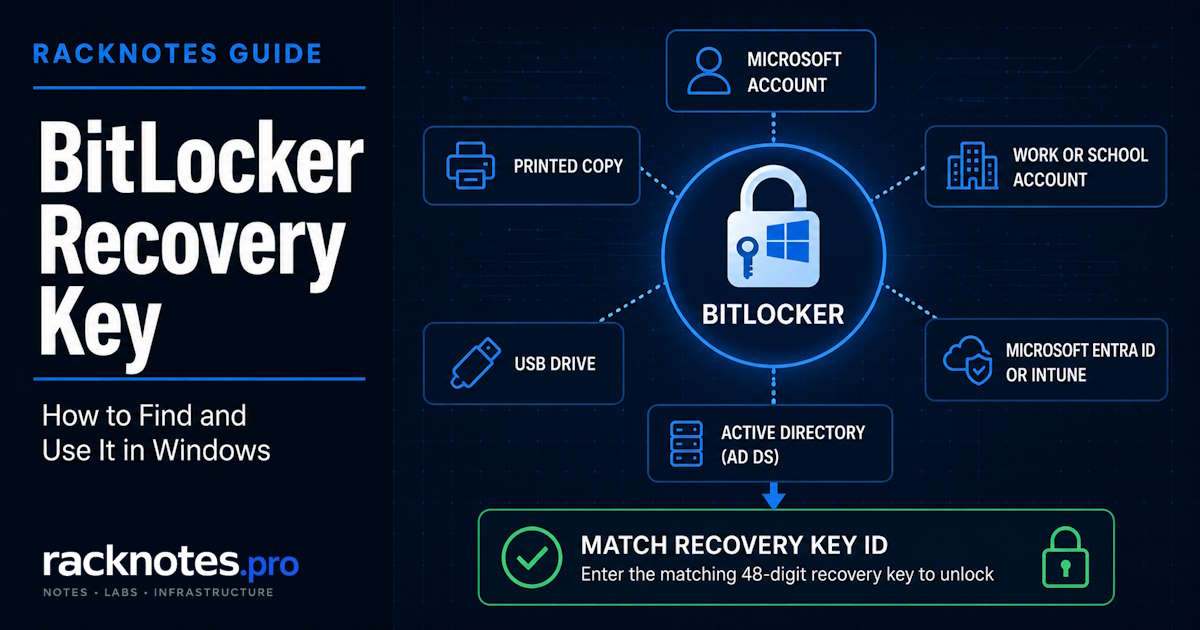
If a machine is asking for a BitLocker recovery key, the priority is finding the correct 48-digit recovery password, not rereading how BitLocker works.
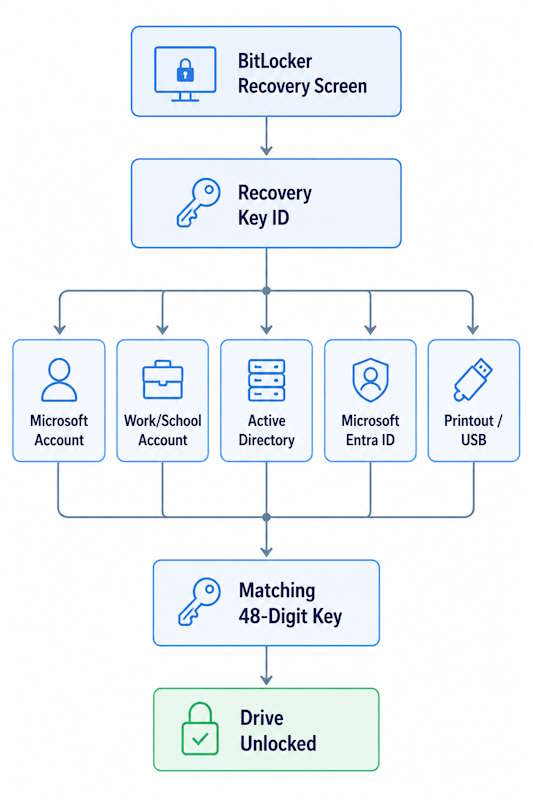
A BitLocker recovery key is a 48-digit numerical password used to unlock a BitLocker-protected drive when normal authentication fails. Match the Recovery Key ID shown on the recovery screen first, then check your Microsoft account, work or school account, saved printout, USB drive, or your organization’s recovery-key store.
Where you’ll find that key depends primarily on whether this is a personal PC or a work/school-managed device. Personal devices usually point to a Microsoft account first. Managed devices usually point to IT, Microsoft Entra ID, or Active Directory. The sections below cover both paths, plus what to do if the key genuinely can’t be found. For background on what BitLocker is and how it works, see the main BitLocker guide; this article stays focused on retrieval.
This guide covers finding and matching an existing BitLocker recovery key. Diagnosing why a device keeps asking for one, retrieving keys from Active Directory as an administrator, and setting up recovery-key backup ahead of time are covered in separate dedicated guides.
What Is a BitLocker Recovery Key?
A BitLocker recovery key is a 48-digit numerical password used to unlock a BitLocker-protected drive when normal authentication cannot unlock it. BitLocker can create this recovery password as a recovery method when the volume is configured for recovery. Exactly when that happens depends on how BitLocker or Device Encryption was set up and managed, not a single universal trigger.
In common Windows and Microsoft Support terminology, “BitLocker recovery key” usually means this 48-digit numerical recovery password shown during recovery. Microsoft Learn also uses “recovery key” for a separate .bek key file that can be stored on removable media. This guide focuses on the 48-digit recovery password, since that’s what most people searching for a recovery key actually need. See Microsoft’s BitLocker recovery overview for the full terminology breakdown.
The recovery key is commonly confused with several other credentials:
- Recovery key / recovery password – the 48-digit value that actually unlocks the protected drive.
- Recovery Key ID – an identifier used to locate the correct recovery key. It does not unlock anything on its own.
- BitLocker PIN – an optional preboot authentication method some devices use for normal, day-to-day unlocking. It’s not a recovery credential.
- Windows password or Microsoft account password – these authenticate you to Windows after the volume is already unlocked. They have nothing to do with decrypting the drive.
- TPM PIN – the same category as the BitLocker PIN above: normal preboot authentication, not a fallback recovery method.
Mixing these up wastes time during an actual lockout. If a machine is asking for a recovery key, entering a Windows password or a PIN won’t help, and neither will treating a Recovery Key ID as if it were the key.
How to Find Your BitLocker Recovery Key
Start by identifying what kind of device this is. The right place to look depends on the answer, and checking the wrong location first wastes time.
If this is your personal PC, check in this order:
- Your Microsoft account.
- A printed copy, if you saved one during setup.
- A USB drive, if BitLocker was configured to save recovery information there.
- Any other file or password manager where you may have deliberately stored it.
If this is a work or school PC, check in this order:
- Your work or school account, where the organization supports self-service retrieval.
- Your organization’s IT or help desk.
- Microsoft Entra ID or Intune recovery information, if the organization manages the device that way.
- Active Directory Domain Services, if the device is domain-joined and recovery information was escrowed there.
Not every device has every one of these storage paths available. A typical personal PC won’t have an AD DS recovery record unless it was previously joined to or managed by an organization. Some managed devices may not have recovery information available in a given directory if escrow was never configured or completed successfully. Match the Recovery Key ID at whichever location you check; it’s the fastest way to confirm you’re looking at the right entry before you type in a 48-digit string.
Where to Check First
Use this as a quick decision map:
| Device type | First place to check |
|---|---|
| Personal Windows PC | Microsoft account |
| Work or school PC | Organization / work-school identity |
| Domain-joined PC | AD DS recovery store, if configured |
| Entra-managed PC | Microsoft Entra ID or organization IT |
| Key was manually saved | Printout, USB drive, or saved file |
These are the most likely starting points, not guaranteed storage locations. Whether any given device actually has a key stored in a specific place depends entirely on how it was set up and managed.
Find a BitLocker Recovery Key in Your Microsoft Account
This is the retrieval path most personal-device users need, and it’s usually the fastest.
If the locked computer can’t get online, use another device, such as a phone or another PC, to sign in.
- Sign in with the Microsoft account associated with the locked device. Recovery information is tied to the account the device was set up or backed up under, not necessarily the account currently signed into it.
- Locate the stored BitLocker recovery keys associated with your devices.
- Compare the Recovery Key ID shown on your locked device’s recovery screen against the IDs listed in your account.
- Enter the matching 48-digit key on the locked device once you’ve confirmed the ID matches.
The exact screens for browsing stored keys in a Microsoft account change from time to time, so this guide won’t walk through every button; Microsoft’s own guidance on finding a BitLocker recovery key stays current with the actual interface.
Not every device has a key stored in a Microsoft account, and signing in does not guarantee that a key will appear. Microsoft Support cannot generate or reconstruct a recovery key that was never backed up there. If no key appears, continue with the other storage locations below.
How to Match the BitLocker Recovery Key ID
Do this before trying any stored key. Skipping the ID check is an easy way to waste time on the wrong entry.
The recovery screen on a locked device displays a Recovery Key ID. That ID identifies which specific recovery key is needed. It is not secret material, and it does not unlock the drive by itself; it’s a lookup value, nothing more.
Microsoft Support recommends noting the first eight digits of the Recovery Key ID shown on the recovery screen. Use that identifier to match the device with the corresponding stored 48-digit recovery password, rather than trying to compare the full ID by eye.
Devices and accounts can accumulate more than one stored recovery key over time (more on why in the section below on whether the key changes). When several recovery keys are listed in a Microsoft account, work/school account, or enterprise directory, match the Recovery Key ID shown on the recovery screen to the corresponding stored recovery password before entering it. This prevents you from trying a key stored for another device, volume, or recovery-password entry.
| Item | Purpose |
|---|---|
| Recovery Key | Unlocks the BitLocker-protected drive |
| Recovery Key ID | Helps identify the correct recovery key |
| PIN | Normal preboot authentication when configured |
Find a BitLocker Recovery Key in Windows 11
“Windows 11” isn’t a separate type of recovery key. The mechanism is the same one covered above: a 48-digit recovery password tied to wherever the recovery information was actually backed up.
What determines where to look is not the Windows version but the backup destination:
- A Microsoft account, for most personal Windows 11 setups.
- A work or school identity, for managed devices.
- An organization-managed directory (AD DS or Microsoft Entra ID), for domain-joined or Entra-managed fleets.
- A printout, USB drive, or another manually saved location, if that’s how it was set up.
If you haven’t already, the Microsoft account section above covers the most common Windows 11 retrieval path in full.
Find a BitLocker Recovery Key in Active Directory
Domain-joined Windows devices can have BitLocker recovery information backed up to Active Directory Domain Services (AD DS), but only if policy or deployment was actually configured to do so. It isn’t automatic just because a device is domain-joined.
When recovery escrow is configured, authorized administrators can retrieve the recovery information associated with the specific computer account. This is an admin-side retrieval path, not something an end user typically handles; if this is your situation, contacting IT is usually faster than trying to access AD DS directly.
One condition matters more than any procedure: the key has to have actually been escrowed to AD DS before the lockout happened. If it wasn’t, there’s nothing to retrieve there regardless of permissions.
A dedicated walkthrough for locating and reading BitLocker recovery information in Active Directory, including the administrative tools involved, is covered in a separate guide.
Find a BitLocker Recovery Key in Microsoft Entra ID
Entra-joined or Entra-managed organizational devices can have recovery information backed up to Microsoft Entra ID (formerly Azure AD), depending on how the device is enrolled and managed. As with AD DS, this isn’t guaranteed by default; it depends on tenant configuration.
Users and administrators may have different retrieval capabilities here depending on tenant policy and assigned permissions. Some organizations enable self-service retrieval through the user’s own account; others route everything through IT.
This section only covers retrieval. Setting up Entra ID escrow, Intune policy, and administrative access is a separate management topic covered in a dedicated Intune-focused guide.
Other Places the Recovery Key May Be Stored
If the account-based paths above don’t turn anything up, check these less common but legitimate locations:
Printed copy. Some users print the recovery key during initial setup and file it away physically. Worth checking if that sounds familiar.
USB flash drive. Depending on how BitLocker was configured, a USB drive may contain a saved text copy of the 48-digit recovery password or a separate BitLocker recovery-key file. If the password was saved as text, read it on another device; if Windows prompts specifically for a USB recovery key, that’s a different protector type with its own recovery workflow. Not every setup saves recovery information to a USB drive the same way, so treat this as a possibility to check, not an assumption.
Saved file. A user or administrator may have explicitly exported and saved the recovery information somewhere else, such as a password manager, document, or secure note.
IT or help desk. For organization-managed devices, this is often the correct first call rather than a last resort, especially if none of the self-service paths above turn up anything.
What If You Cannot Find the BitLocker Recovery Key?
- Confirm you’re checking the correct Microsoft, work, or school account. Signing into the wrong account, or a secondary account, is a common false negative.
- Match the Recovery Key ID before assuming a stored key is wrong. A key that doesn’t match the displayed ID isn’t the wrong key by mistake; it’s for a different protector state entirely.
- Check whether the device was previously owned, provisioned, or managed by another organization or account. Recovery information sometimes lives under an account you no longer think of as relevant.
- Check printed or removable-media backups if account-based retrieval comes up empty.
- Contact organizational IT if this is a managed device and self-service retrieval isn’t available or isn’t working.
If none of that turns anything up: BitLocker was specifically designed so that access to the encrypted data isn’t available without a valid protector or recovery method. Microsoft cannot recreate a missing BitLocker recovery key. There’s no support ticket path around a key that was never backed up anywhere.
Wiping and reinstalling Windows can make the device usable again, but it does not recover the encrypted data on the existing volume. It starts over without restoring access to the old encrypted data.
There is no legitimate tool, BIOS trick, or password-reset technique that bypasses BitLocker without valid recovery material. If something claims otherwise, it’s not describing how BitLocker actually works.
Why Is Windows Asking for a BitLocker Recovery Key?
Briefly: BitLocker enters recovery when its normal unlock mechanism can’t complete, or when platform validation no longer matches the expected startup state. Firmware or BIOS/UEFI changes, TPM changes, boot configuration changes, certain hardware changes, or policy and protector changes can all trigger it.
Diagnosing why a specific machine keeps asking, including repeated prompts and loop scenarios, is a distinct troubleshooting problem covered in the dedicated guide on the BitLocker recovery screen. This article stays focused on retrieving the recovery key; the recovery-screen guide covers why the prompt keeps returning.
Can You Bypass BitLocker Without the Recovery Key?
Not in the sense most people mean when they ask.
If a drive is locked and no valid configured protector or recovery method is available, BitLocker is doing exactly what it’s designed to do: preventing access to the encrypted data. The distinctions matter:
- Signing into Windows is not the same as bypassing BitLocker. If the volume is still locked, there’s no Windows session to sign into yet.
- Resetting a Windows account password does not decrypt a BitLocker-protected volume. Account authentication and volume decryption are separate mechanisms.
- Clearing the TPM or changing BIOS settings can make recovery harder, not unlock the drive. These actions can knock a protector further out of sync rather than resolve anything.
- Formatting or reinstalling Windows destroys access to the existing encrypted data. It doesn’t recover it; it replaces it with a fresh, unencrypted install.
None of these actions bypasses the encryption or replaces valid recovery material.
Does the BitLocker Recovery Key Change?
Sometimes. An old saved key may no longer be the one the device is requesting.
A device can accumulate multiple recovery-password entries over time. Recovery passwords can be rotated after use when automatic rotation is enabled, rotated remotely by administrators through supported management tools such as Intune or Configuration Manager, or replaced when recovery-password protectors are regenerated. An old saved entry therefore may not be the one currently requested. Microsoft’s BitLocker recovery process documentation covers the rotation policy options in full.
Recovery Key ID matching is therefore the reliable way to identify the correct entry rather than assuming the most recently saved key is the right one. There’s no universal rule that the key changes after a fixed event or interval; it depends on what’s actually happened to the device and how it’s managed.
BitLocker Recovery Key FAQ
How many digits is a BitLocker recovery key?
48 digits.
Is the BitLocker Recovery Key ID the actual key?
No. It identifies the correct recovery key but does not unlock the drive itself.
Where is my BitLocker recovery key stored?
Potential locations include a Microsoft account, a work or school identity, AD DS or Microsoft Entra ID in managed environments, a printout, a USB drive, or another manually saved location. Not every device has every one of these.
Can Microsoft give me my recovery key?
If a recovery key was backed up to your Microsoft account, you can retrieve it through the account’s recovery-key page. Microsoft Support cannot retrieve, provide, or recreate a missing BitLocker recovery key on your behalf.
Can I use a different BitLocker recovery key?
Use the Recovery Key ID shown during recovery to select the corresponding stored recovery password. A recovery password stored for another device or volume is not the key the prompt is asking you to retrieve.
Is my Windows password the BitLocker recovery key?
No.
Is the recovery key the same as my BitLocker PIN?
No.
Can I recover encrypted files if the recovery key is permanently lost?
If no valid protector or recovery method remains, BitLocker is designed to prevent access to the encrypted data. There’s no general promise of data recovery in that situation.
Final Thoughts
Match the Recovery Key ID first, then check the storage location that fits how the device is managed, whether that’s a personal account or an organizational directory. Don’t waste time guessing at credentials that aren’t the recovery key. If this is an organizational device, IT or the managed escrow location is usually faster than self-service retrieval.
Operational rule: A recovery key that worked today is not the same as a verified backup for next time.
Don’t assume Microsoft can recreate a key that was never backed up anywhere. That is not a support gap; it is the feature working as designed. Once access is restored, verify that recovery-key backup is actually in place before this happens again.
For background on how BitLocker works generally, see the main guide on what BitLocker is. If this device keeps prompting for recovery repeatedly, that’s a separate diagnostic question covered in the dedicated BitLocker recovery screen guide.
BitLocker Series
9 of 10 published – Drive Encryption · TPM & Recovery Keys · manage-bde · Disable & Decrypt · Recovery Key Backup · PowerShell · Suspend & Resume · Active Directory