
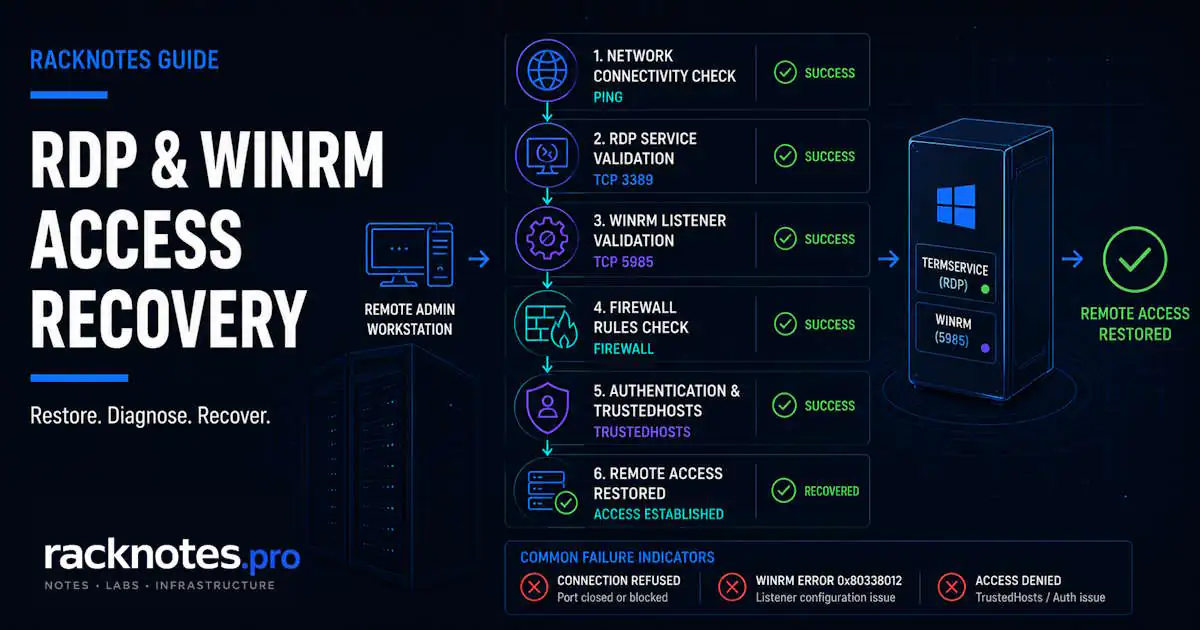
Remote Desktop can’t connect to the remote computer, and the fix depends on where the connection is failing. RDP troubleshooting works best as a sequence: confirm the machine is reachable, test port 3389, check whether the RDP-Tcp listener is running, verify configuration and services, check firewall and network, and only then move to authentication, certificates, or policy. Skipping ahead to authentication before confirming the listener and port are healthy usually wastes time. If RDP can’t be fixed through normal access but WinRM still works, WinRM becomes the repair path. If both RDP and WinRM are unavailable, the remaining options are console, out-of-band management, and offline access.
- Test port 3389 with
Test-NetConnectionbefore assuming anything about the server or the listener - If TCP fails, investigate network, firewall, and listener state
- If TCP succeeds but RDP still won’t connect, verify RDP-Tcp configuration, TermService, and UmRdpService before looking at authentication
- Check
fDenyTSConnectionsand Group Policy – a policy can silently override a local fix - Confirm which process actually owns port 3389 before assuming TermService is listening
- If WinRM still works, use it to repair RDP remotely
- If neither RDP nor WinRM works, move to console, out-of-band management, or SMB-based recovery
Remote Desktop Can’t Connect to the Remote Computer: Quick Troubleshooting
- Confirm the server is reachable and running
- If the hostname fails, test by IP to rule out DNS
- Test TCP port 3389 with
Test-NetConnection - Determine whether RDP-Tcp is actually listening
- Check RDP configuration (
fDenyTSConnections,fEnableWinStation) - Check the RDP-related services –
TermServiceandUmRdpService - Check Windows Firewall and any upstream firewall, including the active network profile
- Confirm which process actually owns port 3389
- Only after the checks above pass, move to policy, authentication, or certificate issues
Each step below expands on the corresponding check, per Microsoft’s own Remote Desktop troubleshooting guidance.
ping <server-ip>
Test-NetConnection -ComputerName <server-ip> -Port 3389
A successful ping confirms ICMP reachability – nothing more. ICMP can be blocked by a firewall while the server and RDP are both reachable, so don’t conclude the server is down or powered off just because ping fails; Test-NetConnection against the actual port you need is the more relevant signal. TcpTestSucceeded : False means no TCP listener is reachable on that address and port – either nothing is listening, the wrong address or port is being tested, or a firewall/ACL/network path is blocking the connection. If it comes back True, that confirms reachability to something listening on 3389, not that RDP authentication, certificate, or session handling will actually succeed. Continue to the listener and configuration checks either way.
Check Whether the RDP-Tcp Listener Is Working
If you have console or local access to the affected server, check the listener directly:
qwinstaAn rdp-tcp entry in Listen state confirms the listener is up locally. Running qwinsta /server:<ip> from another machine can fail for reasons unrelated to RDP itself, including permissions, RPC, or firewall restrictions on the remote query. A failed remote qwinsta call therefore doesn’t prove the listener is down. Correlate it with Test-NetConnection from the client and the registry/service checks below.
Two registry values control whether RDP is enabled:
HKLM\SYSTEM\CurrentControlSet\Control\Terminal Server\WinStations\RDP-Tcp
    fEnableWinStation = 1

HKLM\SYSTEM\CurrentControlSet\Control\Terminal Server
    fDenyTSConnections = 0
If a policy is applied, it also has its own value that must agree:
HKLM\SOFTWARE\Policies\Microsoft\Windows NT\Terminal Services
    fDenyTSConnections = 0
If the policy and local values conflict, the policy value wins – see the Group Policy section below.
Check both RDP-related services, not just one:
Get-Service TermService, UmRdpServiceUmRdpService (Remote Desktop Services UserMode Port Redirector) matters alongside TermService – Microsoft’s own troubleshooting guidance checks both. If either is stopped, start it and retest before assuming a deeper listener problem.
Port 3389 Is Closed or Unreachable
Test-NetConnection -ComputerName <server-ip> -Port 3389Check the active network profile and compare it against the Profile value on the Remote Desktop firewall rules – a rule can be scoped to Domain, Private, Public, or Any. If the active profile isn’t included in the rule’s scope, an enabled rule still won’t apply:
Get-NetConnectionProfile
Get-NetFirewallRule -DisplayGroup "Remote Desktop" | Select-Object DisplayName, Enabled, Profile
Only change the network category if it’s genuinely misclassified – don’t switch Public to Private/Domain merely to make RDP work. Enable the firewall rule only if it’s actually disabled:
Enable-NetFirewallRule -DisplayName "Remote Desktop - User Mode (TCP-In)"If the server is a hosted VM or cloud instance, also check provider-side controls such as security groups, NSGs, or network ACLs. Windows Firewall can be configured correctly while the cloud network still blocks 3389 upstream.
Confirm you’re testing the right port if RDP was reconfigured to a non-default port, and compare hostname vs. IP resolution if the connection only fails by name.
Port 3389 Is Open but Remote Desktop Still Can’t Connect
A successful TCP test only proves something is listening on 3389 – not that it’s actually TermService, or that authentication will succeed. Confirm ownership first:
sc queryex TermService
netstat -ano | findstr :3389
Compare the PID reported by sc queryex TermService against the PID shown listening on 3389. A match confirms TermService owns the port; a mismatch means something else has bound it – reconfigure or stop the conflicting application, then restart the service:
net stop TermService && net start TermServiceThis is specifically an RDP-side problem. A conflict on 3389 doesn’t explain a WinRM failure on 5985/5986 – those are separate services on separate ports.
If the listener and port ownership are correct, the next branches include:
- An RDP certificate problem – Microsoft’s troubleshooting guidance covers checking and, if needed, recreating the Remote Desktop self-signed certificate
- A Network Level Authentication (NLA) mismatch between client and server capabilities
- Authorization: check whether the account is a member of the local Administrators or Remote Desktop Users group, and verify the Allow log on through Remote Desktop Services / Deny log on through Remote Desktop Services user-right assignments – domain Group Policy can override the local settings
- A Group Policy restriction narrowing who can connect
- Session or RDS-specific conditions, such as a session limit already at capacity
Check the relevant event logs (covered below) to narrow down which branch applies before changing configuration.
RDP Settings Keep Reverting: Check Group Policy
If a local fix reverts after a short delay, Group Policy is reapplying the setting on refresh – not something intermittently breaking on its own.
gpresult /r
gpresult /h C:\gpreport.html
Look under Computer Configuration for a Remote Desktop Services policy. If “Allow users to connect remotely” is set to Disabled, a domain or local policy is enforcing that value, and the registry key is reapplied during Group Policy processing – the fix belongs in the GPO, not on the server. The HTML report from gpresult /h shows exactly which GPO is responsible and which OU it’s linked to.
Background policy refresh on a member server is typically around every 90 minutes with a randomized offset, not a fixed interval – don’t treat “it came back within 90 minutes” as diagnostic proof by itself. Running gpupdate /force applies the current policy immediately, which is useful for confirming whether policy is actually the cause before waiting for the next natural refresh.
Repair RDP Through WinRM
If WinRM still works even though RDP doesn’t, it is usually the fastest recovery path and requires no console access:
Invoke-Command -ComputerName <server-ip> -ScriptBlock {
    Set-ItemProperty -Path "HKLM:\System\CurrentControlSet\Control\Terminal Server" -Name fDenyTSConnections -Value 0
    Start-Service TermService, UmRdpService
    Enable-NetFirewallRule -DisplayName "Remote Desktop - User Mode (TCP-In)"
}
Verify from the client afterward:
Test-NetConnection -ComputerName <server-ip> -Port 3389If TcpTestSucceeded comes back True, retest an actual RDP connection rather than assuming the port result alone means the fix is complete.
WinRM Is Also Not Working
This branch matters only if you need WinRM as the repair path and it isn’t currently working.
Run from the client:
Test-NetConnection -ComputerName <server-ip> -Port 5985
Test-NetConnection -ComputerName <server-ip> -Port 5986
Port 5985 is HTTP, 5986 is HTTPS.
Run on the affected server (via console, out-of-band access, or another working management path):
Get-Item WSMan:\localhost\Listener\*
sc queryex WinRM
If the service is stopped, net start WinRM and retest from the client.
Microsoft documents error 0x80338012 in cases where WinRM service or listener functionality is broken. On the affected server, restore the configuration and reconfigure:
winrm invoke Restore winrm/Config
winrm quickconfig
winrm enumerate winrm/config/listener
Then verify port 5985 reachability from the client again. These are affected-server commands – if RDP and WinRM are both unavailable, you need console, out-of-band, or PsExec access to run them at all.
WinRM over HTTP doesn’t automatically mean the PowerShell remoting payload is unencrypted. With Kerberos or NTLM/Negotiate, WinRM uses message-level encryption negotiated by the authentication protocol after authentication – Basic authentication is different and shouldn’t be treated as equivalent. HTTPS adds TLS transport encryption and server certificate identity, which matters specifically when Kerberos isn’t available or policy requires TLS. Per Microsoft’s WinRM security documentation, this is a different security property from HTTP being unsafe outright.
TrustedHosts matters only in non-Kerberos scenarios: connecting by IP address, a workgroup machine, or an untrusted domain. A trusted domain with working Kerberos doesn’t need it. Configure it on the client, not the server:
$current = (Get-Item WSMan:\localhost\Client\TrustedHosts).Value
Set-Item WSMan:\localhost\Client\TrustedHosts -Value "$current,<server-ip>" -Force
TrustedHosts suppresses the normal server-identity trust check for matching destinations – a wildcard (*) expands that trust to any host, which is why it’s worth avoiding outside a temporary lab or emergency scenario. Per Microsoft’s PowerShell remoting troubleshooting guidance, use a specific IP or hostname and revert it after recovery.
Local account / UAC remote restriction on a workgroup server can cause “Access Denied” with otherwise-correct credentials:
reg add "HKLM\SOFTWARE\Microsoft\Windows\CurrentVersion\Policies\System" /v LocalAccountTokenFilterPolicy /t REG_DWORD /d 1 /fValue 1 causes qualifying local administrator network logons to receive an elevated token instead of the default filtered token – per Microsoft’s remote UAC restriction documentation, this changes a real security boundary. It’s a documented fix for a specific workgroup scenario, not a default first action. Apply it deliberately, understand what it removes, and don’t leave it in place if it isn’t actually needed going forward.
RDP and WinRM Are Both Down: Recovery Options
In order of preference:
Physical console. If the server is local, connect a monitor and keyboard directly.
Out-of-band management. iDRAC, iLO, IPMI, or BMC gives console access regardless of OS or network state – this is exactly why out-of-band management matters for production servers, and why it’s worth configuring before it’s the only remaining option rather than during an incident. A cloud provider’s serial or web console serves the same purpose for hosted instances, though the exact feature name and access path vary by provider.
PsExec over SMB, if the prerequisites are actually met: port 445 reachable, the Server service and administrative shares available, firewall permitting the traffic, valid administrative credentials, and no security policy blocking that administrative path.
psexec \\<server-ip> -u Administrator cmd.exeThis uses MSRPC over port 445 rather than 3389 or 5985, so it is a separate path, but only when every prerequisite holds.
Offline recovery as a last resort, if you can control the boot sequence: boot to WinPE and edit the offline registry. First identify the drive letter containing the offline Windows installation – it isn’t guaranteed to be D: under WinPE – then load that SYSTEM hive:
reg load HKLM\OfflineSystem <WindowsDrive>:\Windows\System32\config\SYSTEM
reg query HKLM\OfflineSystem\Select
Inspect the offline Select values to determine which control set the system expects to use for the next boot before editing anything – don’t assume ControlSet001, and don’t assume Current is guaranteed to be what actually loads next, particularly if LastKnownGood recovery behavior could be involved. Apply changes to the control set the values indicate:
reg add "HKLM\OfflineSystem\ControlSet00X\Control\Terminal Server" /v fDenyTSConnections /t REG_DWORD /d 0 /f
reg add "HKLM\OfflineSystem\ControlSet00X\Services\WinRM" /v Start /t REG_DWORD /d 2 /f
reg unload HKLM\OfflineSystem
Changing these two values doesn’t guarantee both services will actually start and accept connections – firewall state, listener configuration, dependencies, and policy can all still block access after the reboot. Verify with Test-NetConnection from the client rather than assuming success.
RDP and WinRM Event Logs to Check
| Log | What to look for |
|---|---|
| Security | Event 4625 – logon failure; check the Sub Status code for the reason |
TerminalServices-RemoteConnectionManager/Operational | Listener and connection-attempt activity |
TerminalServices-LocalSessionManager/Operational | Session lifecycle – connect, disconnect, logoff |
Microsoft-Windows-WinRM/Operational | WinRM listener creation/removal and session events |
| System | Service Control Manager events (7000/7001) when a service fails to start |
An RDP authentication event in the RemoteConnectionManager log confirms authentication succeeded at that stage, but it doesn’t prove the full interactive session completed. The LocalSessionManager log is the better source for session lifecycle. These events are under Applications and Services Logs, not the normal System log view:
Get-WinEvent -LogName "Microsoft-Windows-TerminalServices-RemoteConnectionManager/Operational" -MaxEvents 20 |
    Select-Object TimeCreated, Id, Message | Format-List
For service-dependency failures specifically, see Windows Server Service Failures. For the fuller event ID reference across Windows Server roles, see Windows Server Event Log Troubleshooting.
RDP Troubleshooting Checklist
- Is the machine reachable?
- Does DNS resolve correctly?
- Is TCP 3389 reachable?
- Is RDP-Tcp actually listening?
- Are TermService and UmRdpService both running?
- Is RDP enabled in local and policy configuration?
- Does TermService actually own port 3389?
- Does Windows Firewall allow the connection?
- Is the remaining issue authentication, policy, or certificate?
- Can WinRM repair RDP?
- If not, which alternate management path remains?
FAQ
Why does Remote Desktop say it can’t connect to the remote computer?
Usually one of: the server isn’t reachable on the network, port 3389 is blocked or unreachable, the RDP-Tcp listener isn’t running, RDP is disabled at the OS or policy level, a firewall rule isn’t applying to the active network profile, or something else is bound to port 3389 instead of TermService.
How do I troubleshoot RDP on Windows Server?
Confirm the server is reachable, test port 3389, check whether RDP-Tcp is listening, verify fDenyTSConnections/fEnableWinStation and the TermService/UmRdpService state, check the firewall rule and profile, confirm port ownership, then move to authentication or policy only once those checks pass.
What if port 3389 is open but RDP still doesn’t connect?
A successful TCP test only proves something is listening – confirm the owning process is actually TermService by comparing PIDs, then check RDP certificate state, NLA, authorization (Administrators/Remote Desktop Users group membership and the Allow/Deny logon-through-RDS user rights), and Group Policy.
What if ping works but RDP doesn’t?
Ping only confirms ICMP reachability. RDP depends on a completely different port and service – test 3389 directly with Test-NetConnection rather than treating ping success as proof RDP should also work.
Can I fix RDP through WinRM?
Yes, when WinRM still works. Use PowerShell Remoting to enable RDP at the registry level, start TermService and UmRdpService, and enable the firewall rule – all without console access.
What if RDP and WinRM are both unavailable?
Move to console access – physical, hypervisor, or out-of-band management (iDRAC/iLO/IPMI) – or PsExec over SMB if its prerequisites are met. Offline WinPE registry recovery is a last resort.
Why do RDP settings keep reverting?
Group Policy is reapplying the setting on its normal refresh cycle. Run gpresult /h to identify the responsible GPO and OU, then fix the policy rather than repeating the local change.
What does WinRM error 0x80338012 mean?
Microsoft documents it as occurring when WinRM service or listener functionality is broken. Restore the configuration with winrm invoke Restore winrm/Config, then winrm quickconfig, and verify the listener with winrm enumerate winrm/config/listener before retesting port 5985 (or 5986 for HTTPS) from the client.
Windows Server Operations Series
8 articles — Event Logs · Performance · Services · Remote Access · Network · Storage · Backup · Boot Recovery