
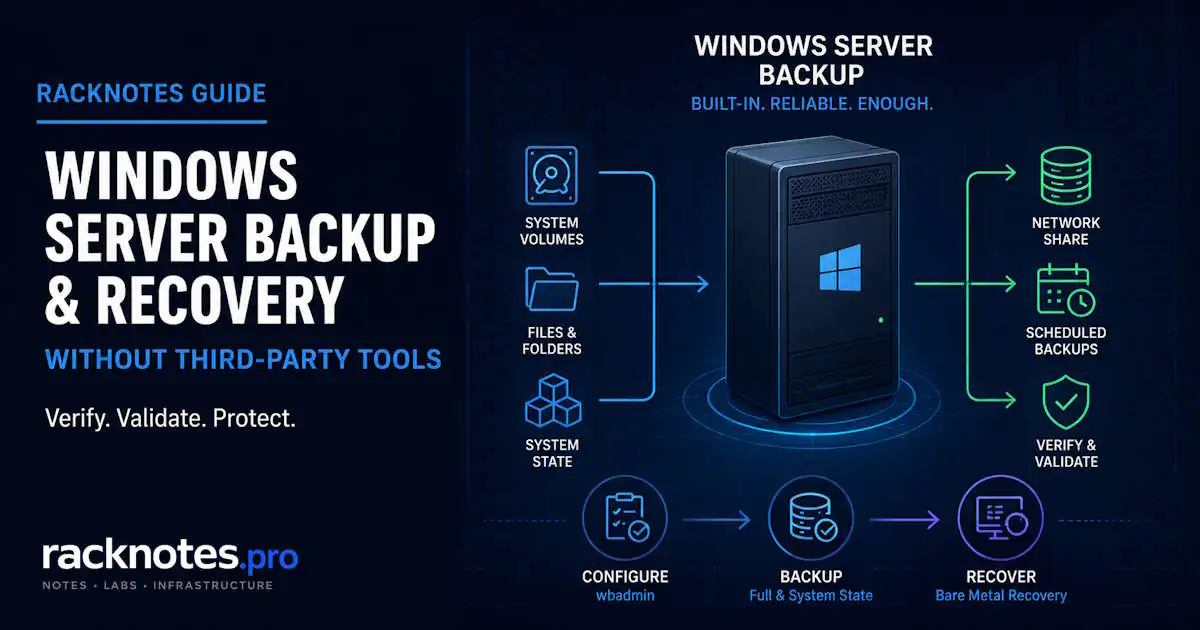
Windows Server Backup is the built-in Windows Server feature for creating file, volume, System State, and full-server recovery backups. wbadmin provides the command-line interface. A recoverable backup requires more than a completed job: choose the right target, include the volumes you actually need, verify the version and contents, and test a restore before an incident. The practical workflow is to install the feature, choose a target, create and verify the backup, restore files when needed, and understand the bare metal recovery procedure before you depend on it.
- Windows Server Backup is a feature, not installed by default –
Install-WindowsFeature Windows-Server-Backup wbadmin start backupcreates one-time backups;wbadmin enable backupschedules recurring ones-allCriticalcovers the volumes needed for bare metal recovery – it does not automatically include every data volume- Backing up the same computer to the same network-share target repeatedly overwrites the previous backup there
- Verify with
wbadmin get versions,wbadmin get items, andGet-WBJob -Previous 5– not just a green status on the job itself - Bare Metal Recovery (BMR) runs from Windows Setup/recovery media, not from within a running OS
- Domain controller System State has its own procedure – covered in a dedicated guide, linked below
What Is Windows Server Backup?
Windows Server Backup is a Windows Server feature (not a role service) that provides file/folder, volume, System State, and full-server backup and recovery, coordinated through VSS. It’s managed through its own GUI console, the wbadmin command-line tool, or the WindowsServerBackup PowerShell module.
A “full server” or BMR-capable backup does not automatically mean every volume on the machine – it means the volumes selected for that job, and -allCritical specifically means the volumes required for OS recovery, not every data volume by default. The backup itself also isn’t bootable media; Bare Metal Recovery is initiated from Windows Setup, WinRE, or Windows PE, which then reads the backup image.
Windows Server Backup isn’t continuous data protection or an agent-based VM backup platform. It coordinates with VSS writers, but application-level recovery capabilities depend on the workload and whether that application registers recovery components with Windows Server Backup – treat database- or mailbox-level recovery as an application-specific procedure rather than assuming a volume backup provides granular recovery on its own. For a standalone server or a single-role SMB box, it covers the practical recovery scenarios – OS corruption, a failed update, or a disk requiring bare metal recovery.
Install Windows Server Backup
Install-WindowsFeature -Name Windows-Server-Backup -IncludeManagementToolsVerify:
Get-WindowsFeature -Name Windows-Server-BackupOr via Server Manager: Add Roles and Features > Features > Windows Server Backup.
Run wbadmin from an elevated Command Prompt or PowerShell session, using an account with the required Backup Operators or Administrators permissions.
Choose a Backup Target
The target you choose affects version management, retention behavior, and how well the backup is isolated from a failure on the source server.
| Target | Good for | Important limitation |
|---|---|---|
| Dedicated local disk/volume | Native WSB scheduled backups and managed recovery versions | Same server/storage failure domain unless separately protected |
| Remote SMB share | Off-server copy, NAS-based storage | Repeated backups to the same share target overwrite the previous backup there |
| USB/removable disk | Offline rotation, portable recovery | Requires deliberate rotation and handling |
Windows Server Backup to a Network Share
A UNC path is supported, but backing up the same computer to the same shared-folder target repeatedly overwrites the previous backup at that target. If the new backup fails after the old one has already been overwritten, you can end up without a usable backup at all. Preserve multiple copies through an external retention design, such as separate subfolders, NAS snapshots, or an independently managed target-rotation process – Windows Server Backup does not manage these as native multi-version retention on a share the way it does on a dedicated local disk. wbadmin enable backup also only supports one shared-folder target configured at a time.
Always verify what actually exists at the target rather than trusting the job status alone:
wbadmin get versions -backupTarget:\\NAS\backups\SERVER01 -machine:SERVER01If you expect several restore points and only one appears, your retention design is not preserving multiple copies, even if the backup job itself reports Success.
Windows Server Backup with wbadmin
Create a One-Time Backup
wbadmin start backup -backupTarget:D: -allCritical -vssFull -quiet-backupTarget is the destination. -allCritical includes the volumes required for OS/BMR recovery – it does not automatically include every data volume; use -include: for anything beyond that. -vssFull affects how the backup interacts with VSS backup history and application transaction logs – it isn’t simply “makes the backup application-consistent,” and using it on a server also protected by another backup product can affect that other product’s own log-truncation behavior. Confirm before combining backup tools on the same server.
Back Up Additional Data Volumes
wbadmin start backup -backupTarget:F: -allCritical -include:D:,E: -vssFull -quietThe backup target must be separate from the volumes being protected – here, D: and E: are data volumes being backed up, and F: is where the backup itself is stored. Verify the volumes actually made it into the backup with wbadmin get items (covered below) rather than assuming -allCritical covered them.
Schedule a Backup
wbadmin enable backup -addtarget:\\NAS\backups\SERVER01 -user:<DOMAIN_OR_NAS>\<BackupUser> -password:<Password> -allCritical -vssFull -schedule:02:00 -quietUse -addtarget, not -backupTarget, for a scheduled job. The account needs permission to the remote target – use a dedicated backup service account, not a placeholder credential copied from documentation, and don’t paste a real password into tickets, screenshots, or scripts left in plaintext. The schedule lands in Task Scheduler under \Microsoft\Windows\Backup.
How to Verify a Windows Server Backup
A backup job is not proven until you verify its versions, contents, and at least one restore path.
Check the Current Job
wbadmin get statusThis reports the currently running backup or recovery operation – not a history of recent completed jobs. Use it while something is actively running.
Check Previous Job History
Get-WBJob -Previous 5This retrieves previous backup or recovery job objects so you can review their timing, state, and error details. Looking across several runs makes recurring warnings or errors easier to spot, including problems that do not prevent a job from completing.
List Available Backup Versions
# Local target
wbadmin get versions

# Remote target
wbadmin get versions -backupTarget:\\NAS\backups\SERVER01 -machine:SERVER01
Shows backup time, target, version identifier, and recovery type for each version. If the expected backup doesn’t show up, that doesn’t automatically mean the job is failing – verify the target, machine name, and catalog visibility first; a wrong -machine value or target path produces the same empty-looking result as an actual failure.
Verify Backup Contents
wbadmin get items -version:<VersionIdentifier>For a remote backup, add -backupTarget and -machine as needed. Use this command to confirm that a specific data volume (D:, E:, or an application volume) is present in the selected version rather than assuming the backup included it.
Restore Files and Folders
wbadmin start recovery -version:MM/DD/YYYY-HH:MM -itemtype:file -items:C:\Users\Administrator\Documents -recoveryTarget:D:\Recovered -quietOr via the GUI: Windows Server Backup > Recover > This Server > select version > Files and Folders > browse to the items. File-level recovery runs from within the running OS – no recovery media needed for this path.
Windows Server Backup Bare Metal Recovery
Bare Metal Recovery restores the server’s operating-system state and critical volumes from a Windows Server Backup image when the original installation is unavailable or the system disk has been replaced.
What a BMR-Capable Backup Must Include
-allCritical covers the volumes required for OS recovery – system volume, boot volume, and volumes hosting system components. It is not automatically every volume on the server; confirm with wbadmin get items that any additional volumes you need were actually included.
Before Starting Bare Metal Recovery
- The backup version is visible and accessible from the recovery environment
- The number of target drives matches the number of drives in the backup, and each target drive is the same size or larger than its corresponding source drive – per Microsoft’s full-server-recovery guidance
- Storage or network drivers are available if the recovery environment can’t natively see the target or the backup source
- Network credentials are ready if restoring from a UNC path
- BitLocker or other volume-encryption requirements are accounted for if applicable
Bare Metal Recovery Procedure
- Boot from the appropriate Windows Server installation or recovery media for the server being recovered
- Select Repair your computer, not Install
- Open Troubleshoot
- Select System Image Recovery
- Choose the local or network backup location
- Select the backup version
- Review the disk/repartition options presented
- Start the restore
- Reboot and verify
Command-line bare metal recovery is also available through wbadmin start sysrecovery, which Microsoft requires to be run from the Windows Recovery Environment rather than a running OS. For most cases, the GUI wizard above covers the same operation.
For a network image, use the wizard’s network-search option and supply credentials for the share when prompted. Confirm actual volume assignments before relying on drive letters inside the recovery environment – the system volume is not guaranteed to be C: there:
diskpart
list volume
exit
If the restore completes but Windows doesn’t boot, that’s a separate problem from the restore itself – continue with Windows Server Boot Failure Recovery.
BMR to Different Hardware
Restoring to different storage or network hardware can require drivers the restored image doesn’t already have, since the image carries drivers from the original hardware. INACCESSIBLE_BOOT_DEVICE after an otherwise-completed restore points toward a storage/boot-driver gap – that’s a boot-recovery problem at that point, not a BMR problem.
The Windows recovery wizard supports loading drivers during recovery. Preparing ahead of time helps:
dism /online /export-driver /destination:D:\driversKeep the export alongside the backup. If needed after BMR, inject drivers from WinRE against the correct offline Windows root path – don’t assume it’s C:\, confirm the actual drive letter first with DiskPart, then reference the full path:
dism /image:E:\ /add-driver /driver:D:\drivers /recurseDriver injection resolves some storage and NIC issues, but it isn’t a guaranteed path to a working dissimilar-hardware restore. Test this specific path (lab or VM) before relying on it in production – a successful test proves the backup is readable and the restore mechanism works, not that the image will boot cleanly on different physical hardware.
Windows Server Backup Troubleshooting
Backup Version Not Found
Check the target path, the -machine value if remote, backup catalog visibility, job history (Get-WBJob -Previous 5), and share availability before concluding the backup itself never ran.
Required Volume Missing
wbadmin get items -version:<VersionIdentifier>If a needed volume isn’t listed, correct the backup command with -include: and reschedule – -allCritical alone won’t add it.
Network Share Backup Fails
Check the share path, credentials, share permissions and the underlying filesystem/ACL permissions as applicable, connectivity, available storage on the target, and the exact Microsoft-Windows-Backup error code or message. Whether the machine account or a specified user account is used depends on how the backup was configured – don’t assume one or the other without checking.
VSS / System Writer Failure
vssadmin list writersWork through it in order: capture the failed writer and exact backup error, identify the application or service that owns the writer, check that component’s event log or provider guidance, correct the underlying issue, re-check the writer state, then rerun the backup. A reboot is not a universal next step; some writer issues resolve with a service restart, while others require workload-specific handling. Microsoft’s Event ID 513 documentation covers a specific System Writer/CAPI2 scenario, so check the exact source and message rather than treating 513 as a generic VSS event. Microsoft-Windows-Backup Event 517 also appears in more than one failure context, including a documented System Writer scenario; record the accompanying error code instead of assuming 517 always means a permission problem.
Domain Controller / System State Boundary
Windows Server Backup can create a System State backup on a domain controller, but DC backup and restore have Active Directory-specific requirements beyond what this page covers. Use Active Directory Backup with Windows Server Backup and wbadmin for System State creation, backup lifetime, and AD-aware verification, and Restore a Domain Controller from Backup for DSRM and the actual restore procedure. If the scenario involves losing multiple domain controllers or the forest as a whole, Active Directory Forest Recovery covers that sequence specifically.
For Hyper-V host and VM backup behavior, checkpoints, VSS coordination, and restore failures, see Hyper-V Backup: VSS, Checkpoints, and Restore Failures rather than treating this page as covering that layer.
Native Windows Server Backup is suitable when its retention, monitoring, recovery granularity, and target limitations match the environment. Larger or multi-server environments may need a dedicated backup platform to cover gaps this built-in toolchain doesn’t address.
Backup Verification Checklist
wbadmin get versionsshows at least one successful, expected versionwbadmin get items -version:<VersionIdentifier>confirms all needed volumes are present, including anything beyond-allCriticalGet-WBJob -Previous 5shows consistent, healthy results with no unexplained recurring errors- At least one test restore of individual files has actually completed
- BMR tested in a lab or VM at least once, with the understanding that this proves the backup and restore mechanism, not hardware compatibility
- A network-share target has a retention design beyond a single overwritten version
vssadmin list writersshows no writers in a Failed state- Backup account permissions are confirmed at the SMB share and underlying filesystem/ACL layer as applicable
FAQ
What is Windows Server Backup?
The built-in Windows Server feature for creating file/folder, volume, System State, and full-server recovery backups, managed through its own console, wbadmin, or PowerShell.
What is wbadmin used for?
It’s the command-line tool for Windows Server Backup – creating one-time or scheduled backups, checking job status and versions, verifying contents, and running recovery operations without the GUI.
Does Windows Server Backup support network shares?
Yes, but backing up the same computer to the same shared-folder target repeatedly overwrites the previous backup there. Design retention explicitly – dated subfolders, NAS snapshots, or rotation between targets – rather than assuming the share behaves like a dedicated backup disk.
How do I verify a Windows Server Backup?
Check job history with Get-WBJob -Previous 5, confirm available versions with wbadmin get versions, confirm actual contents with wbadmin get items -version:<VersionIdentifier>, and periodically perform a real test restore. A completed job status alone doesn’t prove the backup is usable.
Does -allCritical back up every volume?
No. It covers the volumes required for OS/BMR recovery – system and boot volumes and volumes hosting system components. Additional data volumes need -include: explicitly, and wbadmin get items confirms whether they made it in.
What is Windows Server Backup Bare Metal Recovery?
BMR restores the server’s operating-system state and critical volumes from a backup image when the original installation is unavailable or the system disk has been replaced. It runs from Windows Setup/recovery media, not from within a running OS.
Can Windows Server Backup restore individual files?
Yes – wbadmin start recovery with -itemtype:file, or the GUI recovery wizard, both work from within the running OS without needing recovery media.
Can Windows Server Backup back up Active Directory?
It can create a System State backup that includes AD on a domain controller, but DC backup and restore have their own requirements beyond System State creation itself. See the dedicated Active Directory Backup and Restore Domain Controller guides for the full procedure.
Windows Server Operations Series
8 articles — Event Logs · Performance · Services · Remote Access · Network · Storage · Backup · Boot Recovery