
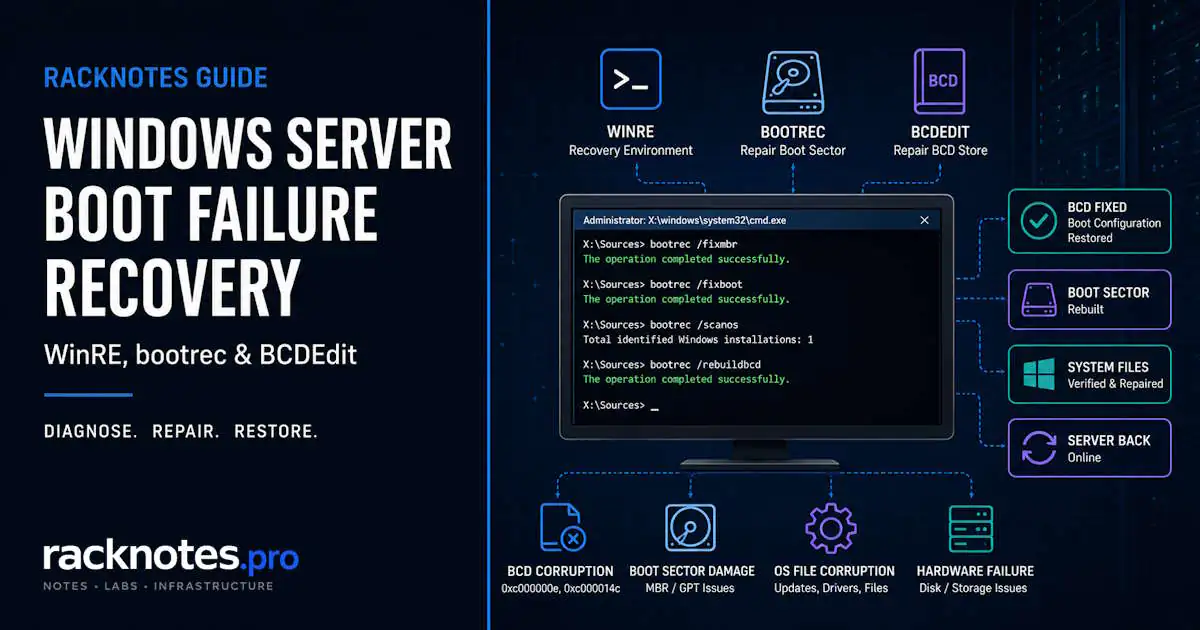
- Boot into WinRE, or matching Windows Server installation media, before changing anything.
- Confirm the OS disk is actually visible before touching boot configuration.
- Don’t assume Windows is
C:in WinRE; drive letters get reassigned. - Identify UEFI/GPT vs BIOS/MBR first. BCDBoot supports both firmware types, but the repair details differ.
INACCESSIBLE_BOOT_DEVICEroutes to the storage/controller branch, not to more BCD or Bootrec commands.bootrec /fixbootreturning Access is denied means confirm boot mode and system partition, not retry the command.Total identified Windows installations: 0does not prove the Windows volume is gone; recheck the volume and the current BCD first.- If Startup Repair or Automatic Repair already failed once, stop repeating it and move into the manual workflow below.
- Error
0xc000000eis a symptom, not a diagnosis: verify disk, partition, boot files, and BCD before acting.
Windows Server boot repair starts by identifying the failing layer before touching BCD or boot files, and the error on screen is often the fastest way to narrow it down. Seeing 0xc000000e, INACCESSIBLE_BOOT_DEVICE, bootrec /fixboot Access is denied, Total identified Windows installations: 0, or a Startup Repair failure points toward different parts of the boot path: boot configuration, the EFI/system partition, Windows servicing, or storage/controller access. Running Bootrec commands in sequence before identifying the failing layer only adds uncertainty.
UEFI/GPT and BIOS/MBR systems store and load boot files differently, so confirm the boot mode before choosing a repair operation. BCDBoot supports both firmware types; Bootrec adds boot-sector and BCD recovery operations for situations that specifically need them. This guide covers WinRE access, drive-letter verification, the UEFI/GPT vs BIOS/MBR decision, BCD and EFI repair, Bootrec and BCDBoot, the exact errors above, boot loops after Windows Update, and the storage/driver failures that aren’t boot-loader problems at all. Windows Server Backup and bare-metal recovery are out of scope here; that’s a separate escalation path, not the first move.
Windows Server Startup Repair: Start With WinRE
Windows can fail over to WinRE automatically after a detected startup failure. If the boot manager, BCD store, partition metadata, or recovery path itself is damaged, automatic entry into WinRE may not be available, so boot from matching Windows Server installation media instead: same architecture, same build family where practical.
From the initial setup screen, choose Repair your computer, then open Command Prompt from the available recovery options. Menu names and the exact number of steps vary by Windows Server version and recovery media. Startup Repair automates a subset of the diagnostics in this guide and is worth trying once. If it fails repeatedly, move to the manual checks below instead of expecting another run to produce a different result.
For VM guests, the console matters as much as the media. A Generation 2 Hyper-V VM boots UEFI and needs a virtual DVD attached with Secure Boot template settings matching the guest OS; a Generation 1 VM boots BIOS and behaves like a physical BIOS server for repair purposes. Confusing the two leads straight to running the wrong command family. If the VM itself won’t reach a running state at all (stuck in Saved-Critical or Stopping-Critical, or hung at PXE), that’s a Hyper-V VM state problem, not a boot repair problem; the dedicated guide on Hyper-V VMs that won’t start handles that branch.
Before Any Boot Repair, Identify the Disk and Windows Volume
This is the step operators skip, and it’s the one that wastes the most commands. WinRE loads its own minimal environment with its own drive-letter assignments, and they rarely match what Windows used at normal boot. The volume containing the Windows directory is not guaranteed to be C:, and running BCDBoot, DISM, or SFC against the wrong letter either fails outright or, worse, appears to succeed against an unrelated volume.
Start with DiskPart:
diskpart
list disk
list vol
exit
list disk confirms the OS disk is visible to WinRE at all. If it isn’t, don’t move on to BCD repair; skip ahead to the storage/controller branch. list vol lists every accessible volume with its current letter, filesystem, and size, usually enough to spot the Windows volume by size alone on a single-disk server.
Confirm the guess before running anything else:
dir C:\Windows
dir D:\Windows
Check every plausible letter until one returns a real Windows directory listing (System32, Boot, and so on), not an error. Microsoft’s Windows Server WinRE troubleshooting guidance also recommends identifying the offline system volume with BCDEdit before running repair commands against it:
bcdeditThe osdevice value under Windows Boot Loader points to the OS partition Windows expects at normal boot. Cross-check it against what dir actually shows on that letter inside WinRE; the two can disagree if the BCD entry itself is stale, which is a useful early signal that the BCD, not just the drive letter, needs attention.
A “Windows Server won’t boot” escalation can come down to repair commands being run against a recovery partition or a data volume that happens to land on the familiar C: letter inside WinRE. The disk itself was never damaged; the identification step was.
Determine UEFI/GPT vs BIOS/MBR Before Repairing Boot Files
Boot repair depends on the system’s boot mode. Mixing UEFI-oriented repair with a BIOS/MBR disk, or the reverse, can fail and leave the disk harder to diagnose than the original problem.
From the WinRE command prompt, DiskPart shows the partition style directly:
diskpart
list disk
select disk 0
list partition
exit
A GPT disk lists an EFI System Partition alongside the Windows partition: small, FAT32, typically labeled System or unlabeled, usually somewhere between 100 and 500 MB. An MBR disk may use a small hidden System Reserved partition, but boot files can also reside on the active Windows partition; there is no EFI partition. list disk also flags GPT disks with an asterisk in the Gpt column, a useful second confirmation if the partition list is ambiguous.
UEFI/GPT and BIOS/MBR systems store and load boot files differently, so identify the boot mode before choosing a repair operation. On UEFI systems, repairing the EFI System Partition and the Windows Boot Manager is usually central. On BIOS/MBR systems, MBR and boot-sector state matter as well. BCDBoot supports both firmware types (/f UEFI, /f BIOS, /f ALL); Bootrec adds boot-sector and BCD recovery operations for the specific repairs that need them. The rest of this guide follows that logic rather than treating BCDBoot as UEFI-only or Bootrec as BIOS-only.
UEFI/GPT is common on current physical servers and on Generation 2/UEFI virtual machines, but don’t infer the boot mode from the Windows Server version alone; check the actual disk and firmware configuration. A server still running BIOS/MBR is either an older install that was never converted, or a virtualization platform explicitly configured for legacy boot: Hyper-V Generation 1, or a Proxmox VM with SeaBIOS instead of OVMF.
Windows Server Boot Repair on UEFI/GPT Systems
This is the primary Windows Server boot repair path once UEFI/GPT is confirmed.
- Identify the Windows volume (previous section).
- Identify the EFI System Partition; it shows as a small FAT32 partition without a drive letter by default.
- Assign it a temporary drive letter so BCDBoot can write to it (below).
- Rebuild the Windows boot files from the confirmed Windows volume onto the EFI partition (below).
- Remove the temporary letter once the repair is confirmed working.
- Reboot and test.
diskpart
select disk <OSDiskNumber>
select partition <ESPNumber>
assign letter=<ESPDrive>
exit
Use the numbers list disk and list partition actually returned for <OSDiskNumber> and <ESPNumber>; multi-disk servers and storage-attached systems don’t always number the same way.
bcdboot <WindowsDrive>:\Windows /s <ESPDrive>: /f UEFIFor example, if the confirmed Windows volume is C: and the ESP was just assigned Z::
bcdboot C:\Windows /s Z: /f UEFIBCDBoot copies boot-environment files from the selected Windows installation to the target partition and can create or repair the BCD store from the Windows BCD template, per Microsoft’s BCDBoot command-line reference. Existing settings can be preserved depending on the current store and the options used, so a normal run isn’t a guaranteed full wipe-and-recreate of the BCD every time.
Using /s to target the ESP explicitly is what lets BCDBoot write to a partition that doesn’t have its default drive letter, which is the reason for the temporary-letter step above. Worth knowing the side effect: on UEFI, specifying /s means BCDBoot doesn’t create the Windows Boot Manager firmware entry in NVRAM, and the system relies on the default UEFI boot path instead. If the repair goal includes recreating that firmware entry on the same machine and the firmware already identifies the system partition correctly, running BCDBoot without /s is the alternative.
diskpart
select volume <ESPDrive>
remove letter=<ESPDrive>
exitFormatting or recreating the EFI System Partition sometimes gets suggested as a quick fix when BCDBoot fails. On a single-OS server that’s usually recoverable. On a server that shares the ESP with other bootloaders, formatting the ESP destroys their boot files along with Windows Server’s. Firmware NVRAM entries may remain, but they can point to files that no longer exist. Confirm what else lives on the partition before formatting it; BCDBoot with /f UEFI rebuilds Windows’ boot files without erasing unrelated files on the ESP.
Windows Server Boot Repair on BIOS/MBR Systems
On confirmed MBR disks, Bootrec adds the boot-sector and BCD recovery operations BCDBoot doesn’t cover. It exposes four operations that solve different problems; don’t run all four as a ritual because a checklist online listed them together.
bootrec /fixmbr
bootrec /fixboot
bootrec /scanos
bootrec /rebuildbcd
/fixmbr writes a Windows-compatible master boot record without touching the existing partition table. Use it when the MBR itself is suspected damaged (dual-boot leftovers, disk cloning tools). It overwrites only the master boot code; if partition-table corruption is the actual problem, /fixmbr alone won’t fix it.
/fixboot writes a new boot sector to the system partition. Use it when the boot sector is damaged or was replaced by a non-Windows loader.
/scanos scans all disks for Windows installations not currently represented in the BCD and reports what it finds, without changing anything. Microsoft’s documented BCD-repair sequence runs /scanos first and checks whether that alone resolves the issue before going further.
/rebuildbcd scans disks for compatible installations and lets you add the ones it finds to the BCD store. It does not automatically erase and replace the existing store. If the store itself is confirmed corrupted and must be recreated, follow the documented recovery sequence: export or otherwise back up the existing store, rename the BCD file, then run /rebuildbcd. Don’t assume the command performs those preparation steps on its own.
Total Identified Windows Installations: 0
Total identified Windows installations: 0 does not prove the Windows installation is gone. /scanos specifically looks for Windows installations that are not already represented in the BCD store, so a zero result can mean the installation is already listed, that WinRE hasn’t located the right disk or volume, or that the volume genuinely isn’t reachable. Before treating it as proof the OS vanished:
- Reconfirm disk visibility with
diskpart>list disk. - Reconfirm the actual Windows volume and drive letter (see the identification section above); WinRE’s letters don’t have to match normal boot.
- Inspect the current BCD store with
bcdedit /enumto see whether the installation is already represented. - Only move to the storage/controller branch once the volume is confirmed genuinely inaccessible, not just absent from one Bootrec scan.
Rebuild the BCD When Windows Server Is Not Detected Correctly
Both repair paths eventually touch the BCD store directly. Inspect it before changing anything:
bcdedit /enumThe Boot Configuration Data Store Could Not Be Opened
If BCDEdit returns The boot configuration data store could not be opened. The system cannot find the file specified, don’t jump straight to bootrec /rebuildbcd. Confirm the system volume first (WinRE’s drive letters don’t always match what Windows used at normal boot), then follow the documented BCD recovery sequence: export or back up whatever store exists, rename it, and only then run /rebuildbcd to create a fresh one. If the store opens but has a missing or misconfigured entry instead of failing to open at all, bcdedit /set against the specific identifier is usually more precise than a full rebuild.
Re-confirm disk visibility and Windows volume identification from earlier in this guide before concluding the OS is unrecoverable; both a missing store and a mis-identified volume can look identical at this stage.
Fix Error 0xc000000e on Windows Server
Microsoft documents 0xc000000e as the boot selection failing because a required device is inaccessible. That’s broader than a corrupted BCD, and treating it as a BCD-only error skips diagnostic steps that would catch a storage or partition problem faster. Don’t assume 0xc000000e always means corrupted BCD; work the sequence in order.
- Confirm the disk is visible in WinRE (
diskpart>list disk). If it isn’t, this is a storage/controller problem, not a boot-file problem; check controller mode and connectivity before touching BCD. - Confirm the correct Windows partition using the drive-letter identification steps above. A wrong volume produces the same error as a genuinely missing one.
- On UEFI/GPT systems, confirm the EFI System Partition is present and intact; a missing or corrupted ESP produces
0xc000000eeven with a perfectly healthy Windows volume. - Verify, and if needed rebuild, the boot files and BCD using whichever path (UEFI or BIOS) matches the confirmed boot mode.
- If the disk or OS volume still isn’t accessible after the above, move to storage/controller diagnosis rather than repeating BCD commands.
Work through the sequence in order. Cases that don’t resolve through disk, volume, and boot-file checks point toward the storage/controller branch covered in the INACCESSIBLE_BOOT_DEVICE section below.
Boot Failure After a Windows Update
If the failure began during or right after servicing, WinRE is the correct recovery environment. After confirming the offline Windows volume, check for pending update packages:
DISM /Image:<WindowsDrive>:\ /Get-PackagesIf pending actions are the suspected cause, revert them with:
DISM /Image:<WindowsDrive>:\ /Cleanup-Image /RevertPendingActionsReplace <WindowsDrive> with the confirmed Windows volume, not an assumption. Microsoft documents /RevertPendingActions specifically as a system-recovery operation for an offline Windows image that failed to boot, not a routine maintenance command; it reverts pending servicing actions recorded against the image.
If the server won’t reach WinRE cleanly enough to run any of this, or the update coincided with a driver or storage controller change, treat it as the storage/controller branch instead of a servicing problem.
When Bootrec /fixboot Returns Access Is Denied
If bootrec /fixboot returns Access is denied, don’t keep retrying the command or treat the message as proof of a permissions problem on its own. First confirm whether the server is UEFI/GPT or BIOS/MBR and identify the actual system partition.
On a UEFI/GPT server with an intact EFI System Partition, repair the Windows boot environment using the BCDBoot workflow above rather than continuing to retry /fixboot or reaching for random bootsect and formatting recipes carried over from BIOS-era guidance; those target a different partition layout and are usually the wrong next step here.
Startup Repair Couldn’t Repair Your PC / Automatic Repair Loop
Startup Repair couldn't repair your PC and the closely related automatic repair loop describe the same pattern: WinRE launches, Startup Repair runs, fails, the server reboots, and the cycle starts again. Once you’ve seen that message, repeating the same automated repair is unlikely to change the outcome. Startup Repair writes a log at %windir%\System32\LogFiles\Srt\Srttrail.txt summarizing what it checked and what it couldn’t fix; worth a quick read before moving to the manual steps below, but not a required stop.
Capture what actually changed before the loop started: a recent update, a driver install, a storage configuration change, or hardware that started failing intermittently. Then work through disk visibility and Windows volume identification as usual, and check the file system itself:
chkdsk <WindowsDrive>: /f
sfc /scannow /offbootdir=<WindowsDrive>:\ /offwindir=<WindowsDrive>:\Windows
Replace <WindowsDrive> with the confirmed Windows volume. Offline SFC in WinRE requires the /offbootdir and /offwindir switches pointed at the real boot and Windows directories; without them it has nothing to check against.
Replacing system registry hives from the RegBack folder still appears as a quick fix in older boot-loop guidance. Microsoft’s documented change here is scoped to Windows Client (Windows 10 version 1803 and later no longer populates RegBack by default), so don’t assume every supported Windows Server release behaves identically. More importantly, don’t assume RegBack contains a usable current backup: verify that the files exist, have non-zero size, and come from a suitable point in time before considering a hive restore. A stale or empty RegBack directory is not a recovery source.
If the loop persists after file-system and boot-configuration checks come back clean, that points toward OS component damage or a hardware fault rather than anything this guide’s commands fix directly.
INACCESSIBLE_BOOT_DEVICE on Windows Server Is Not a BCD Problem
INACCESSIBLE_BOOT_DEVICE appears after the boot manager has already succeeded: Windows reached the point of loading the kernel and then lost access to the disk it just booted from. That timing rules out most of the boot-loader and BCD scenarios covered above.
Microsoft documents this bug check as Windows losing access to the system partition during startup, with causes that include:
- Missing, corrupted, or mismatched storage-stack filter drivers
- File system corruption on the boot partition
- Storage controller mode or BIOS settings changed since the last successful boot (AHCI to RAID, for example)
- A different storage controller than the one Windows was installed against, common after a P2V/V2V migration or moving the disk to different hardware
- Faulty motherboard, storage controller, or other hardware
- On a VM, a changed virtual disk controller type (IDE to SCSI on some hypervisors)
Driver injection into the offline image is the standard remediation once a driver mismatch is confirmed, but the process is version- and package-specific enough to deserve its own depth rather than a subsection here. For general Windows Server disk error triage beyond the boot path, the Windows Server storage troubleshooting guide covers CHKDSK, disk health signals, and knowing when a drive is failing outright. Treat this section as the handoff point: confirm the storage layer is the actual cause, then move to storage-specific diagnosis instead of continuing BCD or Bootrec repairs that this error’s timing already rules out.
If WinRE reports the OS volume as BitLocker-protected and won’t mount it for inspection, that’s a recovery-key problem, not a boot-configuration one. Supplying the correct recovery key typically has to happen before any of the disk-identification steps above will show real data. The guide on finding a BitLocker recovery key covers that path; it isn’t something to work around by troubleshooting BCD against a volume WinRE can’t read yet.
Full Windows Server Boot Repair Decision Tree
The sections above cover each branch individually. This sequence connects them in practical investigation order. It is a troubleshooting path, not a statistical ranking of which failure is most common.
- Can the firmware or VM host see the disk at all? If not, this is hardware/storage, not Windows.
- Can WinRE see the disk? If not, check controller mode and driver before anything else.
- Can you identify the actual Windows volume, not just guess
C:? Confirm withdir <letter>:\Windows. - Is the disk GPT/UEFI or MBR/BIOS? Confirm with DiskPart before choosing a command family.
- Is the EFI System Partition (UEFI) or System Reserved partition (BIOS) present and intact?
- What does the error text actually say?
0xc000000ecan point to the boot device, partition, EFI/BCD, or storage path;bootrec /fixboot Access is deniedpoints back to boot mode and the system partition;INACCESSIBLE_BOOT_DEVICEand a driver-related stop code point to storage instead. - UEFI/GPT confirmed: repair the EFI System Partition and Windows Boot Manager with BCDBoot.
- BIOS/MBR confirmed: use the Bootrec sequence that matches the confirmed damage,
/scanosbefore a full/rebuildbcd,/fixmbrand/fixbootonly when evidence supports them. Total identified Windows installations: 0: recheck the Windows volume and current BCD first. If the volume is genuinely missing or inaccessible, then move to the storage/controller branch.- Failure began right after a Windows Update: use the update/servicing recovery branch.
Startup Repair couldn't repair your PCrepeats, but boot configuration checks out: move to OS-component or hardware diagnostics instead of running Startup Repair again.- Boot files can’t be safely repaired, or repair doesn’t restore bootability: escalate to restoring the server from a known-good backup rather than continuing to experiment on a production boot volume. The Windows Server Backup and bare-metal recovery guide covers that path.
RackNotes principle: Boot repair is diagnosis, not ritual. A server that won’t boot has one actual failure chain, disk to partition to boot files to OS, and the fix lives at whichever link in that chain actually broke. Running every recovery command available treats a specific failure like random noise instead of following the chain to where it actually is.
| Symptom | Likely area | First check |
|---|---|---|
0xc000000e | Boot device / EFI / BCD / storage | Disk visibility + correct Windows volume |
bootrec /fixboot returns Access is denied | Boot mode / system partition / EFI path | Confirm UEFI/GPT vs BIOS/MBR |
Total identified Windows installations: 0 | WinRE volume mapping / existing BCD / detection | Locate the Windows volume + inspect BCD |
| The boot configuration data store could not be opened | BCD / system partition | Confirm the correct system volume |
Startup Repair couldn't repair your PC | Boot files / OS / servicing / storage | Stop repeating the repair; enter the manual workflow |
| INACCESSIBLE_BOOT_DEVICE | Storage / controller / driver | Controller mode + storage path |
| Boot loop after update | Servicing / component state | WinRE + update recovery branch |
“Likely area” reflects practical investigation priority based on how these symptoms typically present, not a certain diagnosis for every case.
FAQ
What is the first command to run when Windows Server will not boot?
There isn’t one universal first command for Windows Server boot repair. First identify the OS disk, confirm the correct Windows volume, and verify the boot mode before running anything that changes boot configuration. Jumping straight to Bootrec or BCDBoot without that context can target the wrong layer of the boot process.
Should I use Bootrec or BCDBoot on Windows Server?
Depends on which layer is actually damaged, not a strict UEFI-vs-BIOS split. BCDBoot supports both firmware types and is usually the more direct route for rebuilding EFI boot files and the BCD store on UEFI/GPT systems. Bootrec adds boot-sector and MBR-specific recovery operations that BIOS/MBR systems need and BCDBoot doesn’t cover. Confirm the boot mode and the damaged layer first, then pick the matching tool.
Why is Windows not on C: in WinRE?
WinRE assigns its own temporary drive letters that don’t have to match what Windows used at normal boot. On a server with multiple disks or volumes, the Windows directory can land on D:, E:, or any other letter. Always verify with dir <letter>:\Windows rather than assuming.
What does Error 0xc000000e mean on Windows Server?
Microsoft documents it as the boot selection failing because a required device is inaccessible. That covers a missing or corrupted BCD, a damaged EFI System Partition, or the Windows volume simply not being reachable, not one single guaranteed cause. Diagnose in order: disk visibility, correct volume, EFI partition, boot files.
Why does bootrec /fixboot return Access is denied?
The message doesn’t identify one universal cause. Confirm the boot mode and system partition first. On a UEFI/GPT server, use the EFI/BCDBoot recovery path when the EFI boot environment is what actually needs repair, rather than repeatedly retrying /fixboot.
Why does Bootrec show Total Identified Windows Installations: 0?
It doesn’t mean Windows is gone. /scanos looks specifically for installations not already represented in the BCD, so a zero result can just as easily mean the wrong volume was scanned or the installation is already listed. Reconfirm the Windows volume and check the current BCD with bcdedit /enum before assuming the OS itself is missing.
What does “The boot configuration data store could not be opened” mean?
It means BCDEdit can’t find or read the BCD file at all, which is a different problem than a store that opens but is missing an entry. Confirm the system volume, then follow the documented recovery sequence, back up or rename the existing store before running bootrec /rebuildbcd to create a fresh one.
What should I do when Startup Repair couldn’t repair the PC?
Stop running it again and move to the manual workflow. Startup Repair can resolve some common startup problems automatically; once it has failed once, capture what changed recently and work through disk visibility, Windows volume identification, and file-system checks (chkdsk, offline sfc) by hand. Storage driver mismatches, INACCESSIBLE_BOOT_DEVICE, and deeper OS component damage require a different recovery path.
Final Thoughts
Confirm disk visibility, the Windows volume, and the boot mode before changing boot configuration. If the boot files check out and the server still can’t start, move to the storage, servicing, OS-component, or backup-recovery branch instead of repeating boot commands.
Windows Server Operations Series
8 articles — Event Logs · Performance · Services · Remote Access · Network · Storage · Backup · Boot Recovery