
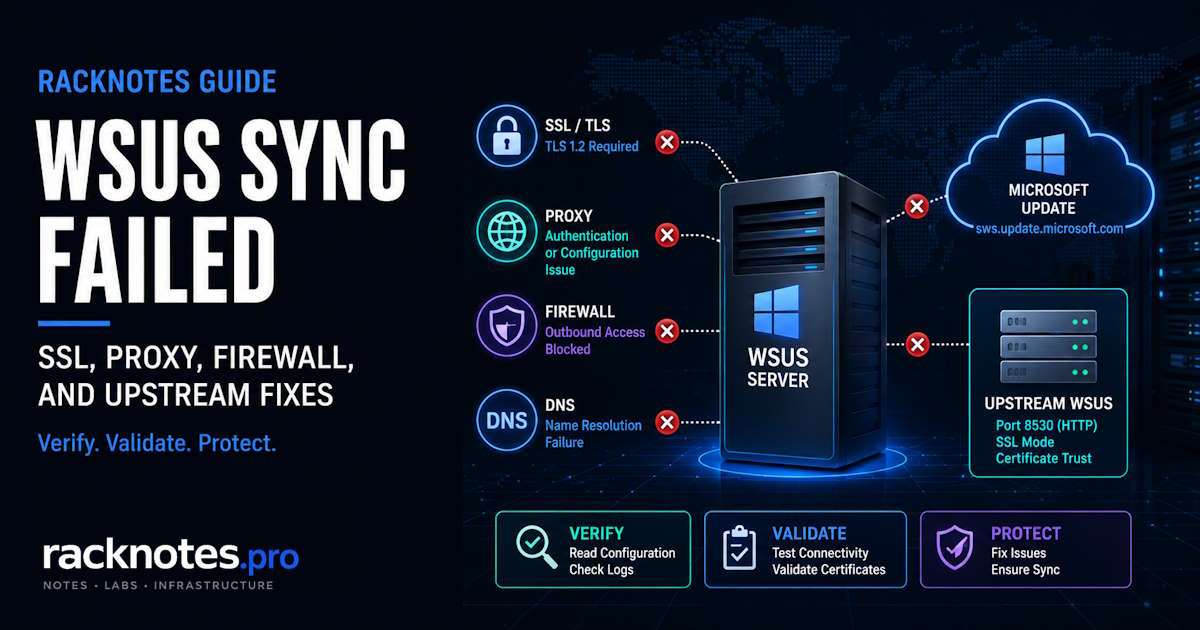
When WSUS sync failed errors appear, new update metadata, revisions, and expirations stop entering the environment. Existing approvals and previously synchronized updates continue to work, but newly published updates cannot move through the WSUS pipeline until synchronization succeeds. For an internet-connected top-level WSUS server – one that synchronizes directly with Microsoft Update – the failure commonly traces to the Microsoft Update endpoint, TLS negotiation, proxy configuration, DNS, or outbound filtering. In a WSUS hierarchy, also check the upstream server, configured port, SSL mode, certificate trust, and version order.
This guide covers metadata synchronization failures. It also includes manual Catalog import and disconnected export/import because those workflows share or replace parts of the synchronization path. If sync succeeds but update files are not downloading, that is a separate content-download problem covered in WSUS Not Downloading Updates. Client detection and reporting failures are covered in WSUS Client Not Reporting. Console and IIS performance problems are covered in WSUS Console Slow or Crashing.
Last technically reviewed: July 2026
- Read the WSUS server configuration first –
MUUrl, upstream settings, and proxy settings – before touching system-level proxy or network tools. - The supported endpoint for Windows Server 2012 and later is
https://sws.update.microsoft.com.fe2.update.microsoft.comis decommissioned andsws1.update.microsoft.comis legacy – update only a confirmed legacy value, not any URL that simply isn’tsws. - Configure and verify the synchronization proxy in the WSUS console, not
netsh winhttp. TreatTest-NetConnectionas a secondary signal only – it confirms direct TCP reachability, not the path through an explicit proxy. - Intermediate CA certificates go to
Intermediate Certification Authorities, notTrusted Root– and an incorrect system clock can make a valid certificate look expired or not yet valid. - WSUS is deprecated and receives no new features, but Microsoft continues to support it for production deployments per the Windows Server lifecycle – see the WSUS overview for the full picture.
| First symptom | First check |
|---|---|
SoapException in console or log | Check MUUrl and the endpoint shown in the stack trace |
| TLS reset / no common algorithm | Check TLS 1.2 enablement and cipher policy |
| Proxy authentication error / 407 | Check WSUS console proxy settings |
| Downstream cannot sync to upstream | Check upstream port, SSL mode, certificate trust |
| TCP timeout reaching Microsoft Update | Check proxy path, firewall, DNS |
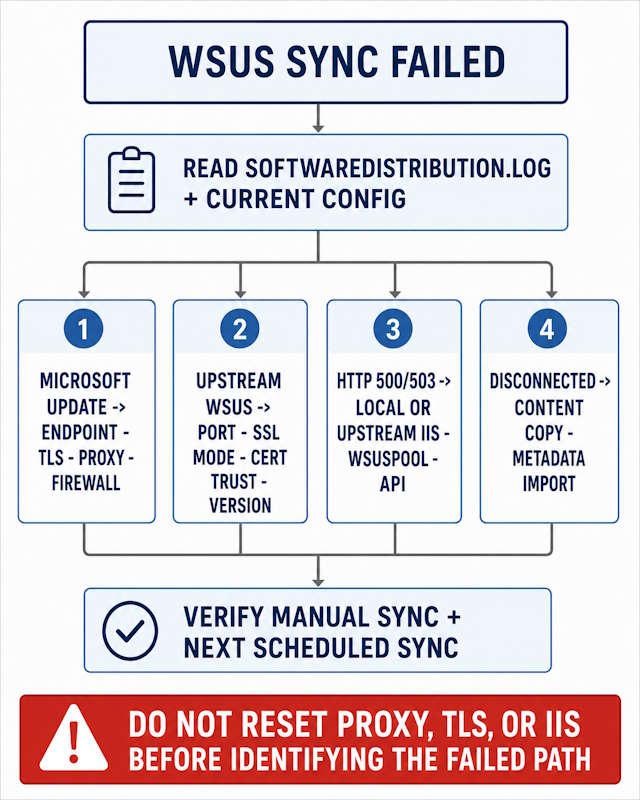
SoftwareDistribution.log with WCM.log and wsyncmgr.log, since endpoint, TLS, and proxy failures often surface in the ConfigMgr logs first.
Before troubleshooting a WSUS synchronization failure
This guide assumes WSUS is already installed and configured. Synchronization was working (or was just set up) but the console now shows a sync error, the sync log shows failures, or the last sync timestamp is stale. A synchronization failure can appear after a Windows update, a network change, a certificate renewal, or a Microsoft endpoint change – sometimes with no obvious trigger.
Where to read sync failures: Sync logging lives in %ProgramFiles%\Update Services\LogFiles\SoftwareDistribution.log and the Application event log (source: Windows Server Update Services) – general Event Viewer technique is covered in Windows Server Event Log Troubleshooting. The file C:\Windows\SoftwareDistribution\ReportingEvents.log is a Windows Update client-agent log – it records client reporting events, not server sync activity. For server-side sync failures, read SoftwareDistribution.log and the Application event log.
Step 0: Read the current WSUS configuration
Before changing network settings or restarting services, capture the current WSUS server state. This tells you which diagnostic path applies.
Import-Module UpdateServices -ErrorAction Stop
$server = Get-WsusServer -ErrorAction Stop
$config = $server.GetConfiguration()

$config | Select-Object `
    SyncFromMicrosoftUpdate,
    IsReplicaServer,
    MUUrl,
    RedirectorChangeNumber,
    UpstreamWsusServerName,
    UpstreamWsusServerPortNumber,
    UpstreamWsusServerUseSsl,
    UseProxy,
    ProxyName,
    ProxyServerPort,
    AnonymousProxyAccess,
    HasProxyPassword,
    UseSeparateProxyForSsl,
    SslProxyName,
    SslProxyServerPort
Capture the output before changing anything and store it with the incident record. HasProxyPassword reports whether a password is stored without exposing it – do not attempt to print the actual secret. Then read the output before proceeding:
SyncFromMicrosoftUpdate = TrueandMUUrlshowsfe2.update.microsoft.comorsws1.update.microsoft.com– go to section 1 (wrong endpoint).SyncFromMicrosoftUpdate = TrueandUseProxy = True– go to section 3 (WSUS proxy settings), then verify network path.SyncFromMicrosoftUpdate = False– go to section 6 (upstream/downstream failures).- All values look correct – go to section 2 (TLS) or section 4 (firewall/DNS).
If Get-WsusServer itself fails to connect, the incident may be local – stop before assuming an endpoint, TLS, or proxy cause:
Get-Service WsusService, W3SVC

Import-Module WebAdministration
Get-WebAppPoolState -Name WsusPool
Check WsusService, W3SVC, WsusPool, and the Application log for a local error first. Persistent console/API slowness short of an outright failure is a separate diagnostic – the WSUS Console Slow or Crashing guide linked above.
After reading WSUS configuration, check direct TCP reachability as a secondary signal:
# Direct-path TCP test only - not definitive behind an explicit proxy
Test-NetConnection sws.update.microsoft.com -Port 443
A failed Test-NetConnection in an environment using an explicit proxy does not prove a firewall problem. WSUS routes sync through its configured proxy, not through a direct TCP path. Treat a failed direct test as a data point, not a conclusion.
1. Check for an old Microsoft Update endpoint
On older installations, a decommissioned Microsoft Update endpoint is a well-documented cause of a sudden synchronization failure. Check this first when MUUrl or the SoftwareDistribution.log stack trace references fe2.update.microsoft.com. Windows Server 2012 and later should use https://sws.update.microsoft.com. sws1.update.microsoft.com is also legacy and should not be used on a current configuration – configure sws now rather than depending on either older endpoint.
Symptoms in SoftwareDistribution.log:
SoapException: Fault occurred ...
WebException: The underlying connection was closed
Run only on the server with SyncFromMicrosoftUpdate = True, and do not run this on a downstream or replica server. First confirm the current value rather than rewriting on assumption:
$server = Get-WsusServer
$config = $server.GetConfiguration()

$config | Select-Object SyncFromMicrosoftUpdate, MUUrl, RedirectorChangeNumber
Change only a confirmed legacy endpoint – not any value that simply isn’t sws, since an environment can have other supported or intentional configurations:
$legacyEndpoints = @(
    'https://fe2.update.microsoft.com/v6',
    'https://sws1.update.microsoft.com'
)

if ($config.SyncFromMicrosoftUpdate -and
    $legacyEndpoints -contains $config.MUUrl.TrimEnd('/')) {

    $oldUrl = $config.MUUrl

    $config.MUUrl = 'https://sws.update.microsoft.com'
    $config.RedirectorChangeNumber = 4002
    $config.Save()

    [pscustomobject]@{
        PreviousMUUrl = $oldUrl
        CurrentMUUrl  = $config.MUUrl
        Redirector    = $config.RedirectorChangeNumber
    }
}
Restart the WSUS service to apply the change:
Restart-Service WsusService -VerboseOnly run a full IIS reset if the WSUS service restart doesn’t resolve it – iisreset restarts every IIS application on the host, not just WSUS. On a shared server, schedule it and record the impact rather than pairing it automatically with every endpoint change:
iisresetAfter saving, trigger a synchronization and watch SoftwareDistribution.log for a clean run.
2. Verify TLS 1.2 and cipher compatibility
TLS 1.2 is required by sws.update.microsoft.com. When the server cannot negotiate it, synchronization can fail with a connection reset, an “underlying connection was closed” exception, or a “no common algorithm” error. There are two separate TLS paths in a WSUS deployment: the sync service itself, and the .NET Framework TLS path used by manual Catalog import.
Check TLS 1.2 in the sync log
After restarting the WSUS service and running iisreset, read SoftwareDistribution.log for SCHANNEL entries near startup:
SCHANNEL Protocol 'TLS 1.0' disabled
SCHANNEL Protocol 'TLS 1.1' disabled
SCHANNEL Protocols subkey for 'TLS 1.2' not found. Protocol is enabled
On Windows Server 2012/2012 R2, absent SCHANNEL Protocol lines can mean the WSUS TLS 1.2 servicing change is missing – it shipped as a non-security Monthly Rollup change, so a Security-Only-patched server can lack it. Install KB4022721 (2012) or KB4022720 (2012 R2), or a later superseding rollup. On Server 2016 and later, don’t treat absent lines alone as proof of a missing update – verify the OS build, installed updates, and log context first.
If TLS 1.2 is confirmed enabled but the connection still resets with no common algorithm, check whether a Group Policy cipher-suite order is restricting available ciphers. Run this elevated:
gpresult /scope computer /h "%TEMP%\WSUS-GPReport.html" /f
Start-Process "$env:TEMP\WSUS-GPReport.html"
Open the report and inspect SSL Cipher Suite Order under Computer Configuration. Do not hard-code a fixed cipher list as a permanent security baseline – use it only to understand the failure mechanism and verify current endpoint negotiation with supported tools or a network capture.
Manual Catalog import uses a separate TLS path
If sync succeeds but manual Catalog import fails, the problem is usually the .NET Framework TLS path, not the WSUS sync service itself. Symptoms in SoftwareDistribution.log or the import output:
The underlying connection was closed: An unexpected error occurred on a send
... they do not possess a common algorithm
Apply Microsoft’s documented strong-cryptography configuration for the .NET Framework version actually used by the import process, rather than a single registry value:
# 64-bit .NET Framework 4.x
$net4 = "HKLM:\SOFTWARE\Microsoft\.NETFramework\v4.0.30319"
# 32-bit .NET Framework 4.x on a 64-bit OS
$net4wow = "HKLM:\SOFTWARE\Wow6432Node\Microsoft\.NETFramework\v4.0.30319"

foreach ($path in @($net4, $net4wow)) {
    if (!(Test-Path $path)) { New-Item -Path $path -Force | Out-Null }
    New-ItemProperty -Path $path -Name SchUseStrongCrypto      -Value 1 -PropertyType DWord -Force | Out-Null
    New-ItemProperty -Path $path -Name SystemDefaultTlsVersions -Value 1 -PropertyType DWord -Force | Out-Null
}
Apply only the paths required by the affected process and installed framework – don’t add legacy v2.0.50727 keys as a general shortcut without checking what else depends on that runtime. Restart after the registry method, or use Microsoft’s %SystemRoot%\System32\inetsrv\w3wp.exe.config method instead, not both – the latter affects every IIS worker process on the server, fine on a dedicated WSUS host, worth noting on a shared one.
The legacy “Import Updates” action in the WSUS console was built on ActiveX and has been replaced by a PowerShell-based import workflow. Copy UpdateIDs from the Microsoft Update Catalog and import them using Microsoft’s documented PowerShell script. Manual Catalog import isn’t a substitute for fixing a broken normal synchronization path – use it for specific out-of-band updates or disconnected workflows, not as the default response to every sync failure. See WSUS and the Microsoft Update Catalog for current import guidance.
3. Verify WSUS proxy settings
Proxy misconfiguration is a common synchronization-failure cause. WSUS synchronization proxy settings are stored in the WSUS configuration and managed through the WSUS console. When synchronization returns a proxy error or HTTP 407, check Options > Update Source and Proxy Server > Proxy Server before changing system-wide proxy settings.
The Step 0 output shows the current proxy configuration: UseProxy, ProxyName, ProxyServerPort, AnonymousProxyAccess, HasProxyPassword, and the SSL proxy fields. These properties control what proxy the WSUS synchronization service uses – not the system-wide WinHTTP proxy.
If UseSeparateProxyForSsl = True, verify the HTTPS proxy name and port as well as the standard proxy. Microsoft supports a separate HTTPS proxy through wsusutil ConfigureSSLproxy <proxy-server> <proxy-port> -enable.
netsh winhttp show proxy reports the system WinHTTP proxy – useful as supporting context, but not as proof of the proxy path WSUS synchronization actually uses.
Proxy authentication
If your proxy requires authentication, configure credentials in the WSUS console: Options > Update Source and Proxy Server, supply proxy name/port, and enable Use user credentials to connect to the proxy server. Changing or re-entering proxy credentials is a state-changing operation – record the configured proxy host, port, authentication mode, and whether a password is stored before replacing them. If the proxy requires basic authentication, enable Allow basic authentication – basic authentication does not protect credentials at the authentication-scheme layer, so use it only when the client-to-proxy channel is trusted or separately encrypted.
TLS inspection
Temporarily bypass TLS inspection for the Microsoft Update domains as a diagnostic test. If synchronization succeeds with inspection bypassed, either retain the bypass or correct the proxy’s certificate chain, TLS policy, and cipher configuration according to your security design.
4. Test firewall, DNS, and outbound access
Firewall and DNS failures surface as timeouts, connection errors, resets, or name-resolution failures. The topmost WSUS server needs outbound HTTP/HTTPS access to the Microsoft domains below – Microsoft can revise this list at any time, so treat it as a starting point and check the live WSUS configuration documentation rather than a permanent copy:
http://windowsupdate.microsoft.com
http://*.windowsupdate.microsoft.com
https://*.windowsupdate.microsoft.com
http://*.update.microsoft.com
https://*.update.microsoft.com
http://*.windowsupdate.com
http://download.windowsupdate.com
https://download.microsoft.com
http://*.download.windowsupdate.com
http://wustat.windows.com
http://ntservicepack.microsoft.com
http://go.microsoft.com
http://dl.delivery.mp.microsoft.com
https://dl.delivery.mp.microsoft.com
http://*.delivery.mp.microsoft.com
https://*.delivery.mp.microsoft.com
Allow any URL within these domains – Microsoft does not support IP-based firewall rules here, since the endpoints are CDN-backed and the IPs change constantly.
0x8024402C means the proxy or target name couldn’t be resolved – determine whether resolution failed locally or on the explicit proxy before assigning the cause. Validate DNS from the WSUS server itself first:
Resolve-DnsName sws.update.microsoft.com
Resolve-DnsName download.windowsupdate.com
These commands validate the WSUS server’s local resolver only. With an explicit proxy, successful local DNS resolution does not prove that the proxy can resolve or reach the destination. Check proxy or secure web gateway logs for the actual CONNECT request and upstream DNS result. For broader DNS diagnostics, Windows Server DNS Troubleshooting covers the general resolution workflow.
5. Resolve certificate trust failures
Certificate problems produce a distinctive WebException: ... Could not establish trust relationship for the SSL/TLS secure channel. Two different scenarios need different checks – identify which applies before installing or moving any certificate.
5A. Certificate trust for a top-level WSUS synchronizing with Microsoft Update
A top-level WSUS server synchronizing from Microsoft Update acts as a TLS client. The failure here is almost always a trust or inspection problem on the outbound path, not a missing local server certificate. Verify:
- The Local Computer Trusted Root and Intermediate Certification Authorities stores contain the chain presented by the endpoint or by the TLS-inspection proxy in front of it.
- System time is correct (see below).
- Revocation endpoints (CRL/OCSP) are reachable through the same proxy path WSUS uses.
- TLS policy and cipher compatibility allow the negotiation.
Do not install Microsoft’s endpoint certificate into Local Computer\Personal and do not bind anything to the local WSUS IIS site to fix outbound Microsoft synchronization. That is inbound-server configuration and does not apply to an outbound TLS client.
5B. Certificate and IIS binding for downstream-to-upstream TLS
When a downstream WSUS server synchronizes from an internal upstream over HTTPS, the upstream WSUS server is the TLS server. On the upstream:
- Server certificate – install it in
Local Computer\Personalwith its private key, then select it in the WSUS IIS HTTPS binding (port 8531 by default). - The certificate Subject or SAN must match the FQDN downstream servers use to reach it.
After binding the certificate and configuring the required WSUS metadata virtual roots for SSL, run configuressl using the same FQDN as the certificate Subject/SAN and the one downstream servers use:
cd "%ProgramFiles%\Update Services\Tools"
wsusutil.exe configuressl upstream.fqdn
On each downstream server:
- Root CA certificate – import to
Local Computer\Trusted Root Certification Authorities. - Intermediate/issuing CA certificate – import to
Local Computer\Intermediate Certification Authorities. Do not import an intermediate CA to Trusted Root to force chain validation – that expands the trust boundary and is poor PKI practice. - Confirm
UpstreamWsusServerUseSsl = Trueand the correct port in the Step 0 output.
Verify HTTPS and certificate validation from the WSUS server
$request = [System.Net.HttpWebRequest]::Create(
    "https://upstream.fqdn:8531/ClientWebService/client.asmx"
)

try {
    $response = $request.GetResponse()
    $response.Close()
    "HTTPS request succeeded"
}
catch {
    $_.Exception.GetBaseException().Message
}
This only tests the connection under the account running PowerShell, not the WSUS service identity or the actual ServerSync SOAP call. If it succeeds but sync still fails, inspect SoftwareDistribution.log and the upstream IIS logs and compare the exact URL, status, and substatus.
For file-based certificate verification, export the actual upstream leaf certificate first, then verify the full chain:
certutil -verify -urlfetch C:\Temp\upstream-wsus.cerRecord whether the failure is trust, revocation retrieval, expiry, EKU, or name mismatch – certutil results also depend on local machine trust and revocation reachability, which a proxy can affect independently.
Incorrect system time
An incorrect local clock can make a valid certificate appear not yet valid or expired. Check the WSUS server’s local date, time, time zone, and synchronization source whenever the actual TLS or certificate exception points to trust, expiry, or a “not yet valid” condition – not from a single error code alone. After correcting the clock, verify the certificate chain, name, and expiry.
Certificate name mismatch
The FQDN used to reach WSUS must match the Subject or SAN on the certificate. A common source: WSUS configured using a NetBIOS name during setup, while the certificate is issued to the FQDN.
6. Diagnose upstream and downstream synchronization
For WSUS hierarchies, default ports are 8530 (HTTP) and 8531 (HTTPS) on WSUS 6.2+ (Windows Server 2012 and later). Earlier WSUS versions used 80 and 443.
Check downstream reachability to upstream:
# Replace ports if your WSUS site uses a different configured port
Test-NetConnection upstream.fqdn -Port 8531
Test-NetConnection upstream.fqdn -Port 8530
SelfUpdate is a client resource, not proof of server-to-server sync – use it only to confirm SSL wasn’t incorrectly required on that root (replace 8530 if configured differently):
http://upstream.fqdn:8530/selfupdate/iuident.cabFor the real hierarchy test, inspect the exact URL and HTTP status in SoftwareDistribution.log and the upstream IIS logs, focusing on ServerSyncWebService. With SSL enabled, metadata endpoints use HTTPS (replace 8531 if configured differently):
https://upstream.fqdn:8531/ServerSyncWebService/serversyncwebservice.asmxWhen WSUS is configured for SSL, Require SSL applies to ApiRemoting30, ClientWebService, DSSAuthWebService, ServerSyncWebService, and SimpleAuthWebService. Content, Inventory, ReportingWebService, and SelfUpdate must not require SSL – enabling it on SelfUpdate specifically creates client self-update problems.
Common hierarchy failures:
- Port mismatch – downstream configured for 8530 but upstream expects 8531, or vice versa
- SSL mismatch – upstream uses SSL but downstream has Use SSL when synchronizing unchecked, or
configuresslwas never run on the upstream - Content-source configuration – confirm whether the downstream stores update files locally, downloads them from the upstream server, or retrieves payloads from Microsoft Update directly. A downstream retrieving payloads directly from Microsoft also needs access to the required Microsoft Update domains. Different storage choices are not by themselves a metadata-sync failure.
- Version order – the downstream WSUS server must run the same WSUS version as the upstream server or an earlier version. A newer downstream synchronizing from an older upstream is not a supported hierarchy design.
- “The upstream server experienced an unexpected error” – verify upstream IIS and WSUS service availability, review the upstream
SoftwareDistribution.logand Application log, and check WsusPool health and resource pressure. The downstream message alone does not identify the upstream root cause.
Configure the downstream in Options > Update Source and Proxy Server > Synchronize from another Windows Server Update Services server, specifying the upstream FQDN and port. Enable This server is a replica of the upstream server only when replica mode is intentional. Replica servers inherit the computer-group definitions and approval state from the upstream. Clients that report to a replica still need to be assigned to the appropriate inherited groups through the selected targeting method; an upstream client-membership assignment should not be assumed to follow a client that reports to another server.
7. Use export/import for disconnected WSUS
When the WSUS server has no internet path, synchronization is replaced by export and import. A synchronization-failure message in a disconnected environment usually means the server has never completed a successful import, or the last import is stale. Import metadata only from a trusted export WSUS server – Microsoft warns that importing data from an untrusted source can compromise the destination WSUS server. If this server is a ConfigMgr Software Update Point, ConfigMgr has its own supported disconnected workflow and ownership – don’t run WSUS export/import against it independently.
Before each transfer, align the language and express-file options between the export and import servers. Copy content first, metadata second – importing metadata before the matching files are in place can leave updates displayed as failed to download.
On a connected staging WSUS server, export the metadata after the content has been prepared for transfer:
cd "%ProgramFiles%\Update Services\Tools"
wsusutil.exe export wsus-export.xml.gz wsus-export.log
Copy the WsusContent folder to the offline environment first, then copy wsus-export.xml.gz and import on the offline WSUS server:
cd "%ProgramFiles%\Update Services\Tools"
wsusutil.exe import wsus-export.xml.gz wsus-import.log
wsusutil export/import transfers metadata only – it does not carry approvals or server settings. Re-apply approvals using the UpdateServices PowerShell module after import.
When copying WsusContent, run elevated, verify destination free space first, and prefer a non-destructive copy that preserves the directory structure, timestamps, and retries transient failures:
robocopy <source> <destination> /E /COPY:DAT /DCOPY:T /R:2 /W:5 /LOG:C:\Logs\wsus-content-copy.logReview the log and return code before proceeding. Use robocopy /MIR only when the connected WSUS is the authoritative mirror and it is safe to delete destination files that no longer exist in the source – it is destructive, so preview with /L first and confirm the source is authoritative. Do not use /MIR when the import server holds independently retained content.
If updates show Failed to download after a successful metadata import, the content copy may be incomplete or arrived after the metadata. Copy the missing content, preserve the directory structure, then verify update status and WSUS logs again – a client scan alone does not repair an incomplete content transfer.
Error and symptom reference
| Code / symptom | Where observed | What it means | First check |
|---|---|---|---|
SoapException: Fault occurred | SoftwareDistribution.log | Legacy endpoint or SOAP failure from Microsoft/upstream | Read the endpoint and server in the stack trace |
0x80072EE2 | Server or client log | Request timeout | Identify the local/upstream URL, proxy, firewall, and latency – do not assume IIS without additional evidence |
0x80072EFD | Server or client log | Connection could not be established | DNS, proxy, firewall, upstream port |
0x80072F8F | Server or client log | WININET content-decoding failure, commonly seen with TLS configuration incompatibility | Verify TLS 1.2 servicing/configuration, SCHANNEL/cipher policy, proxy inspection, and the full exception text |
0x80244022 | SOAP/HTTP path | HTTP 503 / service unavailable | Determine which server actually returned 503, then inspect that server’s IIS/WsusPool/service state |
0x8024402C | Commonly WUA/client context | Proxy or target name resolution failure | Identify local versus proxy-side DNS resolution in the affected security context |
Always record the failing URL, actor, full exception text, and HTTP status – the same HRESULT can appear in client, top-level server, or downstream-server contexts, and the code alone does not prove system clock, certificate expiry, name mismatch, or a missing root certificate; those remain valid checks only when the actual exception or validation message points there.
Trigger and verify synchronization
Trigger a manual synchronization rather than waiting for the schedule:
Import-Module UpdateServices

$server = Get-WsusServer
$subscription = $server.GetSubscription()

$subscription.StartSynchronization()
$subscription.GetSynchronizationStatus()
StartSynchronization() is asynchronous – confirm success through synchronization history, SoftwareDistribution.log, and the next scheduled run rather than treating the method return as proof of completion.
One successful manual run does not prove that stored credentials, the schedule, or an intermittent proxy issue are permanently fixed – confirm several signals:
- WSUS console – Synchronizations node shows Succeeded for the latest run, against the endpoint or upstream you actually intended.
- Last synchronization start and end timestamps have advanced.
- The expected product and classification metadata appears after the run.
SoftwareDistribution.logshows no new sync exception, and no local WsusPool/API error occurred during the run.- The Application event log shows no new WSUS event associated with a failed catalog synchronization – confirm the source, message text, timestamp, result, and exception, not the event ID alone.
- In a hierarchy, the downstream server also syncs successfully; if manual Catalog import was used, confirm the imported updates actually appear.
- The next scheduled sync also completes on its own, not just the manual trigger.
FAQ
Why does sync work in the browser but fail in WSUS?
The browser uses the current user’s proxy and certificate store. WSUS sync runs as a system service using its own configured proxy settings and the local computer certificate store – it does not simply inherit the interactive browser’s proxy. A certificate trusted in the user profile may not be trusted in the machine store, and a proxy that works in the browser may not be configured in the WSUS console. Always verify in the machine context.
Can netsh winhttp import proxy source=ie fix a WSUS sync failed error?
netsh winhttp import proxy source=ie changes the machine-wide WinHTTP proxy and can affect components that use WinHTTP. It is not the primary configuration method for standalone WSUS synchronization. For a synchronization failure, inspect UseProxy, ProxyName, the configured port, and proxy credentials in the WSUS console or IUpdateServerConfiguration first. Treat netsh winhttp show proxy as supporting context, not as proof of the proxy path used by WSUS synchronization.
What is the difference between sws.update.microsoft.com and sws1.update.microsoft.com?
sws.update.microsoft.com is the current supported endpoint for Windows Server 2012 and later. sws1.update.microsoft.com is a legacy endpoint that Windows Server 2012 and later should not use. The fe2.update.microsoft.com WSUS synchronization endpoint is already decommissioned. If the configured endpoint is one of these confirmed legacy values, update it using the documented top-level-server procedure in section 1 – don’t rewrite any URL that simply isn’t sws without confirming it’s actually one of the legacy ones.
Sync succeeds but the update is missing from the console – is this a download problem?
No, not if the update metadata is absent. A content-download failure applies only when the update is visible but its file status is Not Downloaded or Failed. If the update does not appear at all after a successful synchronization, check products, classifications, languages, console filters, the update’s revision or state, and whether the update is available through the selected synchronization source or requires manual Catalog import. If the update appears but its files simply aren’t downloading, that’s the separate content-download guide linked at the top of this article.
How do I confirm whether a downstream server is in replica mode?
Check IsReplicaServer in the Step 0 output, or in the WSUS console under Options > Update Source and Proxy Server. Replica servers inherit update approvals and computer-group definitions from the upstream and are not administered independently. Clients that report to a replica still need to be assigned to the appropriate inherited groups through the selected targeting method.
Why does WSUS return HTTP 503 during synchronization?
Identify which server actually returned the 503 first – the Microsoft Update endpoint, an upstream WSUS server, and this server’s own local API are three different branches with different fixes. For a local 503, inspect this server’s IIS, WsusPool, and WSUS service state; persistent local API/console degradation is a separate diagnostic (see above), and ongoing capacity or database pressure belongs in WSUS Maintenance. For an upstream or Microsoft-side 503, treat it as availability or load on that server, not something this server’s configuration can fix directly.
References
- WSUS synchronization fails with SoapException – Microsoft Learn
- Troubleshoot WSUS synchronization and import issues – Microsoft Learn
- Step 2: Configure WSUS – Microsoft Learn
- WSUS and the Microsoft Update Catalog – Microsoft Learn
- Enable TLS 1.2 on servers and site systems – Microsoft Learn
- Synchronize updates with no Internet connection – Microsoft Learn
- WSUS overview and deprecation status – Microsoft Learn
WSUS on Windows Server
Installation & Configuration · Maintenance · Sync Failures · Content Download · Client Reporting · Console Recovery