
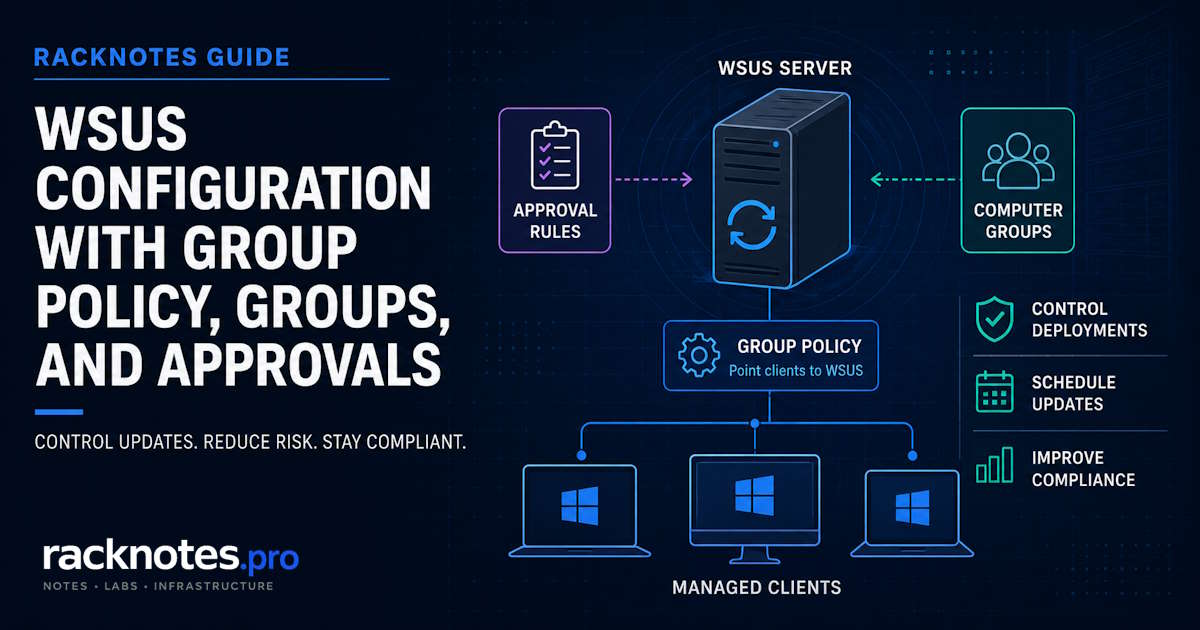
WSUS configuration starts after the role is installed and the first synchronization has completed. A working WSUS server does not push updates on its own: Windows clients must be pointed to the WSUS service through Group Policy, placed into the right computer groups, and offered only the updates approved for those groups. This guide walks through WSUS configuration step by step: client GPO settings, Automatic Updates behavior, registry verification, computer groups and targeting, deployment rings, approval rules, deadlines, products and classifications, and modern Windows scan-source behavior.
If WSUS isn’t installed or hasn’t synced yet, start with How to Install WSUS on Windows Server. For what WSUS is, how it fits today, and what its deprecation status means, see WSUS on Windows Server.
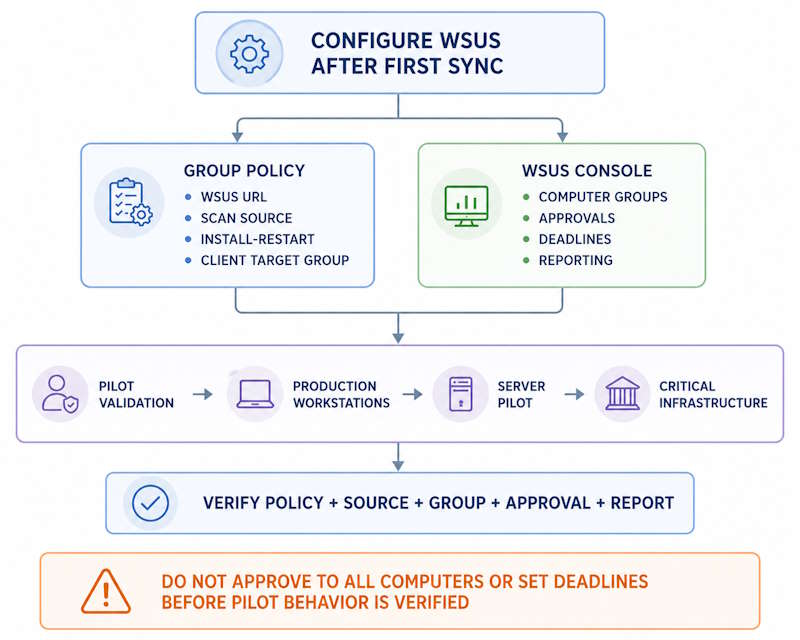
- Put WSUS client settings in a dedicated computer GPO, never in Default Domain Policy.
- Point clients at WSUS with Specify intranet Microsoft update service location, then confirm
UseWUServer = 1in the registry. - Choose one targeting mode: server-side (console) or client-side (GPO). Enabling client-side targeting disables manual console membership.
- Use computer groups as deployment rings and approve normal production updates to a pilot group before broader deployment, rather than approving broadly to All Computers.
- Don’t create broad, product-agnostic
Upgradesauto-approval rules; they can move Windows 10 devices to Windows 11. - A WSUS approval deadline resolves to a fixed date and time and can force installation and restart when it arrives.
WSUS Configuration Step by Step
The full WSUS configuration path, in the order that avoids most rework:
| Step | What you configure | Where |
|---|---|---|
| 1 | Client WSUS location and Automatic Updates behavior, then verify GPO and registry | Computer GPO, client registry |
| 2 | Targeting mode and computer groups | WSUS Options > Computers, console or GPO |
| 3 | Deployment rings for workstations and servers | WSUS computer groups |
| 4 | Manual and automatic approval rules | WSUS console, Options > Automatic Approvals |
| 5 | Approval deadlines | Approval dialog or automatic rule |
| 6 | Products, classifications, and languages | WSUS Options |
| 7 | Scan source for Windows 10 and 11 where policies are mixed | Computer GPO |
| 8 | End-to-end validation with a real pilot update | Test client and WSUS console |
Three layers have to work together: WSUS decides which updates are approved for which groups, Group Policy decides where clients look and how they install, and your change process decides when an update is safe to promote from pilot to production.
Step 1: Configure WSUS Clients with Group Policy
Client-side WSUS configuration starts with Group Policy. Create a dedicated GPO for WSUS client settings and link it to the OU that holds the computers you want WSUS to manage. A separate GPO isn’t a technical requirement, but it makes rollback, scoping, and troubleshooting much simpler. Don’t add these settings to Default Domain Policy or Default Domain Controllers Policy. They are computer-side settings, so link the GPO where the computer accounts live.
All settings below are under Computer Configuration > Policies > Administrative Templates > Windows Components > Windows Update (on newer ADMX versions, some live under the Manage updates offered from Windows Server Update Service subfolder).
Specify Intranet Microsoft Update Service Location
This setting points the client at WSUS. It has two fields: the intranet update service for detecting updates, and the intranet statistics server for reporting. In a normal single-server deployment, both fields carry the same URL:
http://wsus.contoso.com:8530    (HTTP)
https://wsus.contoso.com:8531   (HTTPS)
Standard WSUS deployments use 8530/8531, with 80/443 as the other common supported pair. If the WSUS IIS bindings have been changed, use the exact HTTP/HTTPS pair configured for that server and keep Microsoft’s required pairing rather than choosing unrelated ports. Microsoft does allow different detection and statistics values when the two services are intentionally split, so verify the design before treating a mismatch as an error.
Configure Automatic Updates
The location setting only tells clients where to look. Configure Automatic Updates controls what they do with what they find:
- 2 – Notify for download and auto install: Windows notifies the user before download. The user starts the download from Windows Update, after which installation proceeds through the client experience. Rarely suitable for centrally managed WSUS deployments.
- 3 – Auto download and notify for install: downloads applicable updates in the background, while installation remains user or operator initiated.
- 4 – Auto download and schedule the install: installs on a configured schedule, but Automatic Maintenance, active hours, restart policies, and WSUS approval deadlines can also affect the final behavior.
- 5 – Allow local admin to choose setting: legacy and generally not part of a modern managed baseline.
- 7 – Auto download, notify to install, notify to restart: available on Windows Server 2016 and later; installation and restart remain operator controlled.
For workstations, option 4 alone is not a complete compliance design. Treat it as part of a set: an approved schedule, active hours, restart notification behavior, and tested WSUS deadlines. For an initial workstation pilot, option 3 can be useful when you deliberately want installation to remain operator initiated while validating targeting and approval behavior. For managed workstation production, Microsoft documents option 4 as the standard automated choice; validate the complete schedule and restart-policy set before broad rollout.
For servers where installation and restart must remain operator controlled, this guide uses option 7 as the preferred baseline on Windows Server 2016 and later. Option 3 is another valid choice when automatic download is desired but installation and restart ownership are documented. Microsoft documents the Windows Server registry default as option 3, which the GPO editor doesn’t show, and setting the policy to Not Configured can still result in automatic download and installation. Configure the intended behavior explicitly.
Verify WSUS GPO and Registry Settings
GPMC shows intended WSUS configuration, not effective configuration. After gpupdate /force on a test client, check what actually landed in the registry rather than what GPMC says is configured:
Get-ItemProperty "HKLM:\SOFTWARE\Policies\Microsoft\Windows\WindowsUpdate" |
    Select WUServer, WUStatusServer

Get-ItemProperty "HKLM:\SOFTWARE\Policies\Microsoft\Windows\WindowsUpdate\AU" |
Select UseWUServer, AUOptions| Value | Expected | What it tells you |
|---|---|---|
WUServer | Your WSUS URL and port | Where the client detects updates |
WUStatusServer | Usually the same URL | Where the client reports status |
UseWUServer | 1 | Policy-driven Automatic Updates uses the intranet server |
AUOptions | Your chosen option (3, 4, or 7) | Download, install, and restart behavior |
Treat UseWUServer set to 0 or missing as evidence that the effective policy is incomplete or another GPO is overriding it. If values are empty, run gpresult /scope computer /h C:\Temp\wsus-gp.html /f and check the winning GPO, denied GPOs, and security filtering; the gpresult command guide covers reading that report. If the GPO isn’t applying at all, that’s a general Group Policy problem covered in GPO Not Applying.
Why operators get this wrong: the GPO scope is narrowed to a security group, Authenticated Users is removed, and the computer accounts silently lose the Read permission they need. The policy looks correct in GPMC and never reaches the client.
Step 2: Configure WSUS Computer Groups
WSUS computer groups are central to WSUS configuration because they define the scope of approvals. WSUS approvals are scoped to computer groups rather than directly to individual computer objects. Two groups exist by default:
- All Computers: every client registered with WSUS. An approval here reaches everything.
- Unassigned Computers: clients that registered but haven’t been placed in a custom group.
Custom groups, such as Pilot or Servers-Production, are where staged WSUS deployment becomes practical. A computer can belong to more than one group, but overlapping membership makes the effective approval state and deadline harder for operators to reason about. One primary group per device keeps it simple.
Before creating groups, choose a targeting mode under Options > Computers. The two modes are mutually exclusive.
Server-Side Targeting
With Use the Update Services console selected, new clients land in Unassigned Computers and you move them into groups manually through the console, API, or a script. This fits small environments, explicit per-machine placement, and exception handling. There’s no documented machine-count limit; it simply becomes more manual work as the estate grows.
Client-Side Targeting
With Use Group Policy or registry settings on computers selected, each client tells WSUS which group it belongs to. Enable it on the server first, then configure Enable client-side targeting in a GPO and enter the target group name exactly as it appears in the console. A name that doesn’t exist yet is ignored until a matching group is created. Multiple groups separated by semicolons are supported, but one primary ring per device keeps approvals predictable.
Enabling client-side targeting makes manual membership changes in the console unavailable until you switch the mode back. Verify the client side with:
Get-ItemProperty "HKLM:\SOFTWARE\Policies\Microsoft\Windows\WindowsUpdate" |
    Select TargetGroup, TargetGroupEnabled
Server-Side vs Client-Side Targeting
| Factor | Server-side targeting | Client-side targeting |
|---|---|---|
| Membership control | Console or API | GPO or registry |
| New computers | Land in Unassigned, placed manually | Join the group set by policy scope |
| Best fit | Small, manual, or exception-heavy estates | OU/GPO-driven environments at scale |
| Per-machine exceptions | Easy, move the machine | Needs a scoped GPO or OU exception |
| Reimaging and redeployment | Reassign manually | Group reapplies automatically |
| Operational effort | Lower at first, grows with size | More setup, better at scale |
Step 3: Create WSUS Deployment Rings
Deployment rings are computer groups used for staged rollout, and they are what keep production changes controlled. A common mistake is creating the groups and then approving to All Computers anyway, which bypasses every ring at once.
Workstation rollout and server criticality are different axes, so model them separately. An example starting point:
| Ring | Members | Purpose |
|---|---|---|
| WS-Pilot | IT and representative business devices | First approval for workstation updates |
| WS-Broad | Normal production workstations | Promoted after pilot evidence |
| WS-Exception | Documented holds and special workflows | Temporary, not a permanent dumping ground |
| SRV-Pilot | Low-risk representative servers | Validates server-specific behavior |
| SRV-Production | Application, file, and infrastructure servers | Approved through the change process |
| SRV-Critical | Domain controllers, identity, database clusters, core network services | Separate maintenance windows and dependency checks |
In an SMB environment, a pilot of roughly 5-10 diverse devices is a reasonable starting point. The right size depends on hardware and application diversity and on business risk, not a fixed number. Promote based on evidence: successful installation, clean restart, service health, application checks, monitoring, and help-desk signal. Elapsed time is one input, not the decision.
For an actively exploited vulnerability, the emergency path still goes through a small validation group first, with documented risk acceptance, a supersedence check, post-deployment monitoring, and a rollback plan. Shorter soak time, same structure.
Step 4: Configure WSUS Manual and Automatic Approval Rules
Manual Approvals
In the console, open Updates > All Updates, filter on Unapproved and Needed, select the updates, right-click, and choose Approve. Approve to the pilot group first, then add later rings after validation.
Before approving, confirm product, classification, architecture, language, and supersedence, and check known issues and restart requirements. Avoid approving multiple competing feature-update targets to the same deployment group; keep the intended feature-update path unambiguous. Keep these distinctions straight:
- Not Approved means no decision has been made for that group. Declined hides the update from the default views and stops it being offered.
- Approved for Removal only works for updates that support uninstallation.
Automatic Approvals
Automatic approvals carry the highest configuration risk in WSUS. The rules live under Options > Automatic Approvals and run at synchronization time, approving anything that matches. Scope every rule by product, classification, and computer group. Review existing rules before enabling or creating new ones: an old, disabled rule scoped to All Computers bypasses your rings the moment someone re-enables it.
Definition Updates are often suitable for broader automatic approval when Defender intelligence is actually delivered through WSUS, subject to the endpoint-management design.
Two less visible behaviors:
- Automatic rules don’t approve updates whose license terms haven’t been accepted on the server, so a matching rule can leave some updates unapproved without an obvious error.
- The Advanced tab controls whether new revisions of approved updates are approved automatically and whether updates are declined when a revision expires. That is separate from the product and classification rule.
The Upgrades Auto-Approval Risk
Narrowly scoped feature-update rules are supported when they name the intended product, computer group, and deadline. Broad, product-agnostic Upgrades rules are the dangerous case: they can upgrade applicable Windows 10 devices to Windows 11.
Run Rule also processes existing matching updates, not just new ones. For Upgrades, that can approve older feature updates and trigger large downloads. Review the matching set before running a rule manually.
Step 5: Configure WSUS Approval Deadlines
Approval deadlines are one of the WSUS settings most likely to cause an unplanned restart. A WSUS approval deadline and a Windows Update client compliance deadline are different systems:
- WSUS approval deadline: server-side, and it resolves to a concrete date and time. Manual approvals let you pick the date directly; automatic rules calculate it from a relative offset and a time of day.
- Windows Update compliance deadline: a modern client policy that counts days relative to when the update is offered, with a grace period.
If an update isn’t installed when a WSUS deadline arrives, the next successful contact can install it as soon as possible, with a forced restart if the update requires one. An offline device gets no fresh countdown; the approval is already overdue when it reconnects. “No auto-restart with logged-on users” is not complete protection against a deadline, because the deadline exists to make installation mandatory.
For workstations, use a deadline as a compliance backstop after users have had a reasonable window to restart on their own. For servers, set a deadline only when it’s deliberately aligned with an approved maintenance window. Otherwise approve without one and schedule installation through the change process.
A server-group deadline set without checking the change calendar arrives during business hours, and a domain controller restarts. With thin site coverage or poor replication health, that can interrupt authentication for dependent services. The deadline did exactly what it was configured to do; the fixed-time model wasn’t accounted for.
Step 6: Configure Products, Classifications, and Languages
The sync scope chosen in the initial wizard continues to affect database growth, disk usage, and cleanup time for the life of the server. Review it as part of WSUS configuration rather than leaving the wizard defaults in place.
| Classification | Starting baseline | Note |
|---|---|---|
| Security Updates, Critical Updates, Updates | Include | Core of most WSUS deployments |
| Definition Updates | Include if WSUS delivers Defender intelligence | Frequent, usually low restart risk |
| Update Rollups, Feature Packs, Service Packs | Include only if needed | Depends on managed products |
| Upgrades | Only for deliberate feature-update management | Requires explicit per-group approvals |
| Drivers | Avoid unless a defined driver process exists | Substantially increases sync time and SUSDB load |
Subscribe only to the products you actually run, and match languages to what managed devices and downstream servers need. Unsubscribing a product stops new synchronization but doesn’t remove existing entries; cleanup mechanics belong in WSUS Maintenance. If synchronization itself starts failing after a scope change, see WSUS Sync Failed.
Step 7: Configure Scan Sources for Windows 10 and Windows 11
This part of WSUS configuration matters when WSUS and Windows Update client policies (formerly Windows Update for Business) apply to the same devices, or when different update classes are intentionally sourced differently. In a pure WSUS configuration, setting the WSUS server policy normally keeps policy-driven scans on WSUS.
In mixed-policy environments, however, update classes can be sourced from Microsoft depending on the effective policy set unless the scan source is defined explicitly. The device can still appear healthy in the WSUS console while installing content that was never approved there.
Configure Specify source service for specific classes of Windows Updates under Manage updates offered from Windows Server Update Service. It can route Feature Updates, Quality Updates, Driver Updates, and Other Microsoft Updates independently. When you use the scan-source policy, define the intended source for all four classes rather than leaving part of the design implicit.
| Platform | Guidance |
|---|---|
| Windows 10 version 2004 and later, with the required update | Supported by Microsoft’s scan-source guidance |
| Windows 11 | Supported by Microsoft’s scan-source guidance |
| Windows Server 2016 / 2019 | Do not use this as a baseline |
| Windows Server 2022 build 20348.371+ and Windows Server 2025 | Current Update Policy CSP applicability includes these builds; validate current ADMX/CSP behavior in your environment before adopting it |
Server note: Microsoft’s main WSUS and Windows Update scan-source guidance is written for Windows 10 and Windows 11. The server entry comes from current Update Policy CSP applicability metadata, so treat it as a platform capability to validate against the current ADMX/CSP and your exact build, not as the same deployment recommendation Microsoft gives Windows clients.
Microsoft’s WSUS and Windows Update client policies guidance states that the legacy Dual Scan policy (DisableDualScan, “Do not allow update deferral policies to cause scans against Windows Update”) is no longer supported on Windows 11 and is replaced on Windows 10. Configuring both on Windows 10 stops the device from getting updates from Windows Update. Don’t combine them.
Verify all four class values, not just the master switch:
Get-ItemProperty "HKLM:\SOFTWARE\Policies\Microsoft\Windows\WindowsUpdate" |
    Select UseUpdateClassPolicySource,
           SetPolicyDrivenUpdateSourceForFeatureUpdates,
           SetPolicyDrivenUpdateSourceForQualityUpdates,
           SetPolicyDrivenUpdateSourceForDriverUpdates,
           SetPolicyDrivenUpdateSourceForOtherUpdates
0 means Windows Update, 1 means WSUS, and a missing value means the class isn’t explicitly configured. UseUpdateClassPolicySource = 1 on its own doesn’t prove every class is routed as intended. Fix discrepancies in the GPO rather than editing these keys by hand.
Before routing every class to WSUS, check how your Windows versions receive Features on Demand and language packs, and test .NET 3.5, RSAT, language packs, and optional features on a pilot device.
Do not connect to any Windows Update Internet locations blocks public update-service access, but it can also break most Microsoft Store functionality and affect other Microsoft services. Don’t enable it just to fix an unexpected scan source. Configure the WSUS URL and per-class source policy first, then evaluate this setting as a separate security and compatibility decision.
WSUS Configuration Best Practices
- Use a dedicated computer GPO for WSUS client settings.
- Keep WSUS settings out of Default Domain Policy and Default Domain Controllers Policy.
- Separate common source settings from workstation and server behavior.
- Use computer groups as actual deployment rings.
- Approve to pilot groups before broad production.
- Avoid broad, product-agnostic Upgrades auto-approval rules.
- Explicitly configure Configure Automatic Updates on managed servers rather than assuming Not Configured means manual-only behavior.
- Subscribe only to required products, classifications, and languages.
- Set the scan-source policy wherever WSUS and Windows Update client policies coexist.
- Verify effective policy and registry values, not just what GPMC shows.
- Test the complete path with a real pilot update before calling the WSUS configuration done.
Example WSUS GPO Baseline
Split source settings from install and restart behavior across three GPOs instead of copying the WSUS URL into every policy:
| Setting | GPO 1: WSUS Source (all managed computers) | GPO 2: Workstations OU | GPO 3: Servers OU |
|---|---|---|---|
| Intranet update service and statistics URL | https://wsus.contoso.com:8531 | Inherited | Inherited |
| Configure Automatic Updates | – | 3 during pilot; 4 with full schedule and restart set once mature | 7 (or documented 3) |
| Client-side targeting | – | WS-Pilot or WS-Broad by OU | SRV-Pilot, SRV-Production, or SRV-Critical by OU |
| Active hours and restart behavior | – | Configured and tested | Owned by maintenance process |
| Scan-source policy | – | Configure all four classes when WSUS and Windows Update client policies coexist or split sourcing is intentional | Only on supported, validated builds where explicit source routing is required |
| Block Windows Update Internet locations | Only after impact review | – | – |
| WSUS approval deadlines | – | As a compliance backstop | Only when aligned with a maintenance window |
This split keeps source settings independent from install and restart behavior: changing the WSUS server URL affects one GPO, while workstation restart changes cannot accidentally reach a domain controller.
Verify the WSUS Configuration End to End
A WSUS configuration is complete only after a real update has passed through the full workflow. Work through this order on a test client:
- Run
gpresultand confirm the WSUS GPO wins with no denied entries. - Check effective registry values: WSUS URL,
UseWUServer,AUOptions, target group, and scan-source values where they apply. - Trigger detection.
- Confirm WSUS Last Contact and Last Status Report changed.
- Confirm the computer is in the expected group.
- Approve one low-risk applicable update to the pilot group only.
- Confirm download, installation, restart, and reporting after restart.
One command covers the registry checks:
Get-ItemProperty "HKLM:\SOFTWARE\Policies\Microsoft\Windows\WindowsUpdate" |
    Select WUServer, WUStatusServer, TargetGroup, TargetGroupEnabled,
           UseUpdateClassPolicySource,
           SetPolicyDrivenUpdateSourceForFeatureUpdates,
           SetPolicyDrivenUpdateSourceForQualityUpdates,
           SetPolicyDrivenUpdateSourceForDriverUpdates,
           SetPolicyDrivenUpdateSourceForOtherUpdates,
           DoNotConnectToWindowsUpdateInternetLocations

Get-ItemProperty "HKLM:\SOFTWARE\Policies\Microsoft\Windows\WindowsUpdate\AU" |
    Select UseWUServer, AUOptions, ScheduledInstallDay, ScheduledInstallTime
Trigger detection through the documented API:
# DetectNow() is asynchronous: it does not prove detection completed,
# that the device reported to WSUS, or that the target group was accepted.
$autoUpdate = New-Object -ComObject Microsoft.Update.AutoUpdate
$autoUpdate.DetectNow()
Verify the result asynchronously in the WSUS console and Windows Update operational events, not from the command’s return value. UsoClient StartScan is sometimes seen to trigger a scan on current builds, but it’s undocumented and returns no reliable status, so treat it as a non-authoritative fallback.
Also confirm no approval exists on All Computers and no feature upgrade arrives directly from Microsoft unexpectedly. If the device still hasn’t appeared in the console after a full day, stop waiting and troubleshoot with WSUS Client Not Reporting. If it reports but approved updates sit at Not Downloaded on the server, see WSUS Server Not Downloading Updates.
FAQ
What ports do WSUS clients use?
WSUS commonly uses TCP 8530 for HTTP and 8531 for HTTPS; 80/443 is the other supported pair. In a TLS-enabled WSUS deployment, WSUS uses HTTPS for metadata and HTTP for update payloads, so clients need access to both ports in the configured pair.
How do I configure a WSUS client with Group Policy?
In a computer GPO, enable Specify intranet Microsoft update service location with your WSUS URL and set Configure Automatic Updates. Then confirm WUServer and UseWUServer = 1 in the client registry. Step 1 above has the full path and verification commands.
What is the difference between server-side and client-side targeting?
Server-side: you move computers into groups in the WSUS console. Client-side: a GPO tells each computer which group to join. The modes are mutually exclusive, and client-side scales better for OU-driven environments. See the comparison table in Step 2.
Can a computer belong to multiple WSUS groups?
Yes. In the console, or with semicolon-separated names in client-side targeting. Approvals and deadlines from every group the computer belongs to can apply, so overlapping membership makes the effective result harder to reason about. Use one primary ring per device and test any deliberate overlap before production.
Why are Windows 11 clients getting updates directly from Microsoft despite WSUS?
Usually WSUS and Windows Update client policies both apply, and the legacy Dual Scan setting, which isn’t supported on Windows 11, was relied on instead of the scan-source policy. Configure Specify source service for specific classes of Windows Updates and verify all four SetPolicyDrivenUpdateSourceFor... values.
What happens if a computer is offline when a WSUS deadline passes?
It gets no new countdown. The update is already overdue when the device reconnects and can install after the next successful detection, with a forced restart if the update requires one.
Should updates be approved to All Computers?
No. Approve to specific groups so the ring structure actually works. Definition Updates are often suitable for broader automatic approval when Defender intelligence is actually delivered through WSUS, subject to the endpoint-management design.
Is WSUS still supported?
Yes. Microsoft has deprecated WSUS, so it gets no new features, but it remains supported for production use within the current Windows Server lifecycle. The WSUS on Windows Server overview linked at the top explains what that means for planning.
Microsoft Documentation
WSUS on Windows Server
Installation & Configuration · Maintenance · Sync Failures · Content Download · Client Reporting · Console Recovery