
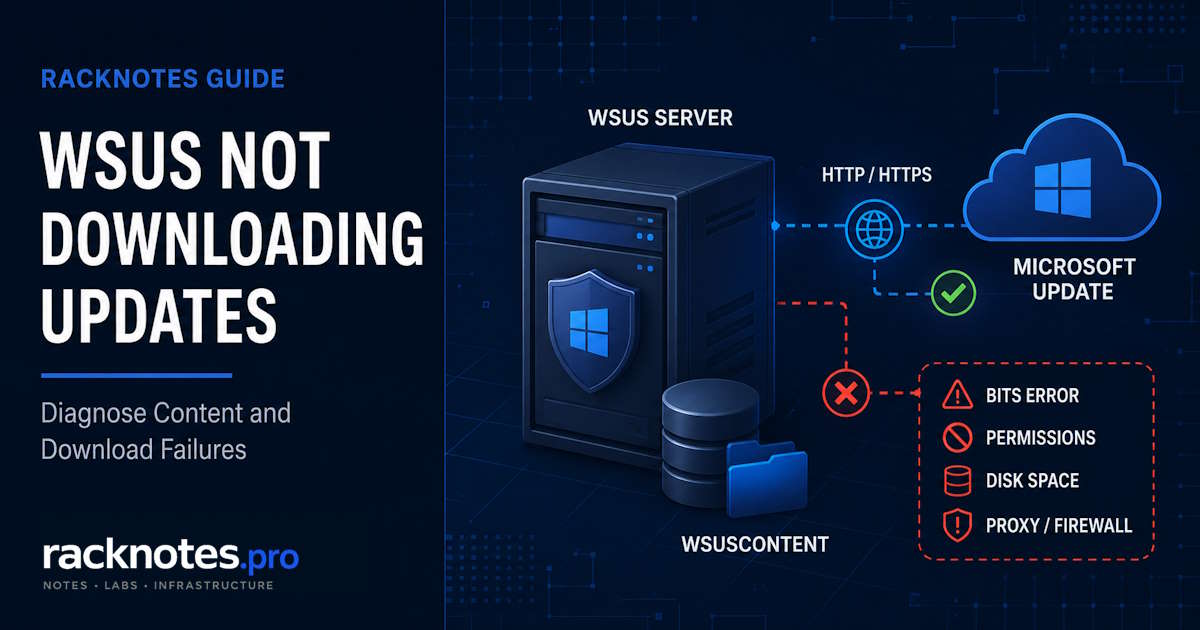
WSUS server not downloading updates usually means metadata synchronization is working but the server is failing to acquire the update binaries. Updates can appear in the console and be approved while File Status remains Not Downloaded or Failed, or Download Status stays at 0.00 MB. If WSUS approved updates are not downloading, confirm that local content storage is enabled, then check File Status, Event ID 364, and the BITS transfer job before resetting WSUS. This guide focuses on server-side downloads into WsusContent, not client download failures, metadata sync failures, or client reporting.
WsusContent, clearing all BITS jobs, editing SUSDB, or running wsusutil reset. First capture the Event 364 reason, BITS error code, source URL, destination path, and BITS job owner. Destructive cleanup can remove the best evidence and multiply the recovery workload.
- Read Event 364 before touching anything – the reason string tells you which layer failed.
- Inspect BITS jobs with
Get-BitsTransfer -AllUsers(elevated) orbitsadmin.exe /list /allusers /verbose– note the OWNER, ERROR FILE, ERROR CODE, and PROXY USAGE fields. - NETWORK SERVICE needs Read on the content root and Full Control on
WsusContent. - Range-header interference by an inspection gateway is a common cause of
0x80200013and stalled downloads. CRC/hash failures are a separate signature – altered or corrupt bytes. wsusutil resetis a recovery action after root-cause remediation, not a first step.- WSUS is deprecated and no longer receives new features, but Microsoft continues to support it for production deployments on supported Windows Server versions, including Windows Server 2025.
| Event / BITS result | First place to check | Evidence to capture |
|---|---|---|
0x80070005 / local access denied | Content-root and WsusContent ACLs | Destination path, effective NTFS access for NETWORK SERVICE |
0x80070070 | Free space on the content volume | Free space on the content volume, current growth rate |
0x80072ee7 | DNS / name resolution in the BITS job-owner context | Resolved name, DNS server used, job OWNER |
| HTTP 407 / proxy authentication | WSUS proxy credentials and proxy configuration | Configured proxy host/port, job PROXY USAGE, job OWNER |
0x80200013 / Range support | Proxy, firewall, or inspection gateway | Request/response headers for the failing transfer |
0x80190194 / HTTP 404 | Exact source URL, upstream content availability, downstream IIS / UUP MIME types, intermediary rewriting | Exact source host and path from ERROR FILE |
| CRC / hash verification failure | Inspection gateway, proxy cache, stale partial file, local storage integrity | Source URL, partial file state, gateway/proxy logs |
Check WSUS download status and local content storage first
Not every WSUS server stores update files locally. Check Options > Update Files and Languages > Update Files. If clients are configured to obtain approved files directly from Microsoft Update, an empty or minimally populated WsusContent folder is not by itself a fault. Also confirm how your server handles download timing – WSUS can be set to download files only after approval or to pre-download on sync.
Three scoping questions narrow the problem further:
- Do updates appear in the console at all? If the Updates list is empty or sync shows Failed, that is a metadata synchronization problem – see WSUS Sync Failed.
- Is the problem the server filling its own content store, or clients pulling from it? If clients show 0 KB downloads or are absent from the console while the server’s
WsusContentstore is populated, see WSUS Client Not Reporting. This article covers the WSUS server acquiring content from its configured upstream source: Microsoft Update or another WSUS server. - Add the File Status column. In All Updates, right-click the column header and add File Status. This shows per-update whether files are Downloaded, Not Downloaded, or download-failed.
WSUS download status stuck at 0 or 0.00 MB
A download status stuck at 0 or 0.00 MB is a symptom, not a root cause – it can come from several different layers. Check these in order: the File Status for the affected update, the Event ID 364 reason string, the BITS job state and error code, proxy or range-header interference, and disk or ACL issues on the content store. The full diagnostic workflow below covers each of these in detail.
WSUS synchronizing but not downloading updates: what it means
For troubleshooting, treat WSUS update metadata and update binaries as separate stages of the update workflow.
Metadata synchronization. The WSUS server contacts Microsoft Update or an upstream WSUS server and writes update metadata, classifications, applicability rules, and configuration data to SUSDB. A top-level WSUS server uses Microsoft’s HTTPS synchronization endpoint for metadata.
Update-file acquisition. When local content storage is enabled, WSUS downloads the required update binaries into WsusContent. With deferred downloads enabled, this begins after an update is approved. BITS performs the file transfer. Microsoft requires the internet-connected WSUS server to reach the documented update domains on ports 80 and 443, because payload acquisition can use both HTTP and HTTPS endpoints. Client-side download behavior on modern Windows can also involve Delivery Optimization and is outside this article’s scope.
A clean metadata sync does not prove payload reachability. WSUS stores metadata in SUSDB, but BITS retrieves update binaries in a separate transfer context that can use different hosts, ports, proxy behavior, and HTTP requirements. Permissions, proxy authentication, range-header handling, content inspection, and content-path configuration can therefore break binary acquisition while metadata sync still succeeds.
Troubleshooting a WSUS server not downloading updates
Step 1 – Check WSUS Event ID 364, Event ID 10032, and SoftwareDistribution.log
Start with Event 364. Its reason string usually identifies whether the failure is local storage, proxy authentication, HTTP Range handling, or upstream content availability. Read the error before changing anything. Start with two sources:
SoftwareDistribution.log at %ProgramFiles%\Update Services\LogFiles\SoftwareDistribution.log. Search for ContentSyncAgent. Failed transfers commonly produce ContentSyncAgent.JobError and EventId=364 entries; HTTP failures may also include an HTTP status.
Application Event Log, source Windows Server Update Services:
- Event 364 – “Content file download failed.” The reason string is the single most actionable piece of information. Common variants:
Reason: HTTP status 404– the remote endpoint or intermediary returned file not found. Verify the exact source URL, upstream content availability, and whether the update revision is still valid. A 404 from a downstream IIS server may also indicate missing UUP MIME types (see the downstream section). Treat name-resolution failures separately – those produce0x80072ee7.Reason: The requested resource requires user authentication– proxy authentication failure for a top-level server downloading from Microsoft, or IIS anonymous authentication on an upstream WSUS server’s Content virtual directory for a downstream server.Reason: CRC verification failure– the received bytes did not pass WSUS integrity verification. Possible causes include inspection gateways, proxy caches, stale partial content, local security software, storage corruption, and transient source-side problems. Treat the Event 364 reason and the exact failing file as evidence, not as proof of a specific root cause. CRC failures and range-header failures are separate failure modes, even when the same gateway can produce both.Reason: The server does not support the necessary HTTP protocol... BITS requires that the server support the Range protocol header– a proxy or inspection gateway is interfering with HTTP range requests (see Step 6).Reason: Access is denied– NTFS permissions on the content root or WsusContent (see Step 3).
- Event 10032 – “The server is failing to download some updates.” Roll-up alarm. Drill into Event 364 entries for specifics.
Record the exact reason string, source URL, destination path, BITS job ID, owner, state, error code, proxy usage, bytes transferred, and last modification time. Event 364 may show HTTP failures as readable reason strings while BITS reports the corresponding HRESULT code.
Step 2 – Inspect BITS service and jobs
BITS handles the actual file transfers. BITS may be demand-started or delayed-started depending on the Windows version and current service configuration – the important checks are that it is not Disabled, uses the expected service account, and can run while jobs are active. Do not change the startup type merely because the service is idle or stopped outside an active transfer window.
Verify the service configuration first – do not change it blindly.
PowerShell:
Get-CimInstance Win32_Service -Filter "Name='BITS'" |
  Select-Object Name, State, StartName, StartMode
Command Prompt fallback:
sc.exe qc BITS
sc.exe query BITS
The expected values are SERVICE_START_NAME : LocalSystem and a running state while jobs are active. If the account is wrong, correct it and restart BITS; configuration changes do not take effect until the service restarts. Note the required space after obj=.
Command Prompt:
sc.exe config BITS obj= LocalSystem
sc.exe stop BITS
sc.exe start BITS
Inspect the jobs from an elevated session – all-users enumeration requires administrative access. The default PowerShell table does not show every field this workflow needs, so pull the summary first, then expand a specific job:
Shell note: run the BitsTransfer examples in an elevated Windows PowerShell 5.1 session (powershell.exe). PowerShell 7 compatibility behavior can vary by server build and module-loading method.
PowerShell, summary:
$bitsJobs = Get-BitsTransfer -AllUsers

$bitsJobs |
  Select-Object JobId, DisplayName, JobState, OwnerAccount,
                BytesTransferred, BytesTotal
PowerShell, full detail for one recorded job – -JobId and -AllUsers are different parameter sets and cannot be combined, so filter the all-users list instead:
$jobId = [guid]'<GUID>'

$bitsJob = Get-BitsTransfer -AllUsers |
  Where-Object JobId -eq $jobId

if (@($bitsJob).Count -ne 1) {
    throw "Expected exactly one BITS job. Recheck the recorded JobId."
}

$bitsJob | Format-List *
Command Prompt fallback, useful because it exposes human-readable ERROR FILE, ERROR CODE, and PROXY USAGE fields that the default PowerShell output does not:
bitsadmin.exe /list /allusers /verboseRead the key fields:
- OWNER – identifies the security context that owns the job. WSUS content jobs are commonly shown under
NT AUTHORITY\NETWORK SERVICE, but verify the actual value rather than assuming it. - STATE –
TRANSIENT_ERRORmeans BITS is retrying;ERRORmeans the job requires intervention. - ERROR FILE – shows the source URL and destination path. Opening the source URL interactively tests DNS, TCP/TLS, and basic HTTP reachability for the signed-in user only. It does not validate the BITS job owner, proxy credentials, Range support, response-body integrity, or the service-account route.
- ERROR CODE – the machine-readable failure code.
- PROXY USAGE – shows the proxy mode used by that specific BITS job.
On BITS queue management. Repeatedly failing jobs can consume queue attention and make overall content progress appear stalled. Do not clear the entire BITS queue simply because WSUS has transient errors; record the failing jobs and fix the common cause first.
Resume, Remove, or ownership changes. Prefer fixing the root cause and letting WSUS/BITS retry automatically. Cancel one job only after it is verified stale, the job ID is exact, and the action is approved – this is an escalation step, not a routine one.
Escalation only, after evidence is recorded and the underlying cause is fixed:
$bitsJob | Remove-BitsTransfer -WhatIf
$bitsJob | Remove-BitsTransfer -ConfirmGet-BitsTransfer -AllUsers | Remove-BitsTransfer and its equivalent bitsadmin /reset /allusers attempt to cancel every BITS job visible to the session and can delete the associated transfer state and temporary files. Some higher-integrity service-owned jobs can reject modification even from an elevated administrator session, so the practical blast radius of this command can vary. Do not run either as a routine troubleshooting step. Use them only when the entire queue is demonstrably corrupt or permanently wedged, and only after the failing job IDs and evidence above are already recorded. See Remove-BitsTransfer and User Account Control and BITS.
Step 3 – Check content-root and WsusContent permissions
If Event 364 says Access is denied or the BITS error code is 0x80070005, suspect NTFS permissions. Microsoft’s legacy WSUS server-verification reference still documents the ACLs required for BITS content downloads:
- The content root – the parent directory of
WsusContent, such asD:\WSUSwhen the binary store isD:\WSUS\WsusContent– must be traversable/readable byNT AUTHORITY\NETWORK SERVICE. WsusContentitself must grant Full Control toNT AUTHORITY\NETWORK SERVICE. WSUS setup configures this, but security software can reset it.
Save and verify the current ACLs first, before changing anything. Create the backup destination if it does not already exist, and expect the recursive save to take longer on a large content tree:
New-Item -ItemType Directory -Path 'D:\Backup' -Force | Out-Nullicacls "D:\WSUS" /save D:\Backup\wsus-content-acl.txt /t
icacls "D:\WSUS"
icacls "D:\WSUS\WsusContent"The example paths below assume a content root of D:\WSUS. Replace them with the actual ContentDir root on your server, and confirm inheritance and effective access before applying any change. Only if a required ACE is confirmed missing or wrong, grant it – do not overwrite a deliberate custom security design:
icacls "D:\WSUS" /grant "NT AUTHORITY\NETWORK SERVICE:(R)"
icacls "D:\WSUS\WsusContent" /grant "NT AUTHORITY\NETWORK SERVICE:(OI)(CI)(F)"
ACL changes apply immediately, so after correcting them, retry the affected download and monitor the existing BITS job. Restart the Update Services (WsusService) service only if WSUS does not requeue or retry the job on its own and the restart fits your maintenance window.
A note on the WsusPool application-pool identity: on a standard WSUS installation, WsusPool commonly runs as NetworkService, but verify the actual Process Model identity on the server rather than assuming it. Do not change the identity merely to match another server or a generic guide. If it has already been customized, compare the current IIS identity with the content ACL, SUSDB access, registry access, and any remote-resource requirements before making changes.
Step 4 – Check content-volume space and database-growth errors
Two exhaustion conditions can surface as server-side content-download failures. Treat the database-growth branch below as secondary unless the Application log or SQL/WID logs show that SUSDB cannot grow or WSUS cannot commit content state. First-line causes are far more often BITS, network, storage volume, ACL, proxy, or the content path.
Content volume full – BITS 0x80070070. When the WsusContent volume runs out of space, BITS cannot write and downloads fail. Check free space on the content volume first.
If genuinely undersized, general disk diagnosis belongs in Windows Server Storage Troubleshooting. Content reclamation is covered in WSUS Maintenance.
Database growth errors. Check the database engine version before assuming a specific size ceiling. SQL Server Express versions through SQL Server 2022 have a 10 GB maximum relational database size. SQL Server 2025 Express raises the limit to 50 GB. WID is not governed by the SQL Server Express edition limit, and Microsoft’s current WSUS deployment documentation does not state a comparable fixed WID database-size ceiling – treat the absence of a documented limit as unverified capacity, not as a guarantee of unlimited practical growth.
The database-size limit alone does not establish WSUS health or compatibility. Confirm separately that the SQL Server version is supported on the database server’s Windows version and still within the Microsoft support lifecycle.
If SUSDB cannot grow, SQL errors and WSUS bookkeeping failures can accompany content-download symptoms. Confirm the actual SQL edition and version and inspect database-growth errors in the Application event log rather than diagnosing from file size alone. Database maintenance and migration are covered in WSUS Maintenance.
Step 5 – Check the WSUS proxy and required upstream endpoints
WSUS stores its proxy configuration in the WSUS server configuration. BITS performs the file transfer under the job’s effective owner and proxy settings. A successful metadata synchronization or a browser test does not prove that the BITS content job can use the same proxy route. These are different contexts.
- Options > Update Source and Proxy Server – WSUS configured proxy
- The failing BITS job’s OWNER
- The job’s PROXY USAGE
- The exact source host shown in ERROR FILE
A browser test that succeeds tells you the URL is reachable for the signed-in user through the browser’s proxy context. It tells you nothing about whether the BITS job owner has the same credentials, proxy route, range-handling behavior, or inspection policy.
Read-only check – this only displays the current configuration, it does not change anything:
Import-Module UpdateServices -ErrorAction Stop

$config = (Get-WsusServer -ErrorAction Stop).GetConfiguration()

$config |
  Select-Object `
    UseProxy,
    ProxyName,
    ProxyServerPort,
    AnonymousProxyAccess,
    ProxyUserDomain,
    ProxyUserName,
HasProxyPasswordImport-Module UpdateServices -ErrorAction Stop
$config = (Get-WsusServer -ErrorAction Stop).GetConfiguration()
$config.UseProxy = $true
$config.ProxyName = 'proxy.corp.local'
$config.ProxyServerPort = 8080
$config.AnonymousProxyAccess = $true
$config.Save()This example does not configure or safely display stored proxy credentials.
Do not treat the WinHTTP default proxy and the proxy stored in WSUS configuration as interchangeable evidence. They are separate configuration surfaces, and a correct value in one does not prove that the WSUS BITS job is using the expected route.
Verify stored proxy credentials after an OS upgrade, post-install operation, or proxy-account change. Re-enter them only when authentication tests or WSUS configuration indicate that the stored secret is no longer valid.
Confirm the Microsoft Update domains are reachable on both ports 80 and 443 from the WSUS server using the current FQDN list in Step 2: Configure WSUS. Avoid permanent IP allowlists, because Microsoft Update endpoints and addresses can change.
Step 6 – Check range support, inspection, and integrity failures
BITS background transfers use HTTP range requests: the client sends a Range request header and expects a valid partial-content response, normally including Content-Range. A proxy or firewall that strips the request header, returns the full file incorrectly, or changes the response can cause 0x80200013 / BG_E_INSUFFICIENT_RANGE_SUPPORT. The full list of HTTP behaviors BITS requires is documented in HTTP Requirements for BITS Downloads.
Range-header interference is a direct cause of 0x80200013 and stalled BITS downloads. CRC or hash verification failures are a separate signature: they indicate altered or corrupted content.
A CRC/hash failure requires its own checks for inspection rewriting, proxy-cache corruption, stale partial files, local antivirus interference, and storage integrity. A single network appliance can produce both symptoms, but they are not the same failure.
The preferred fix is to configure the inspection gateway to pass Range, Content-Range, Content-Length, and HEAD behavior unchanged for Microsoft Update payload traffic and not rewrite the response body. Use the vendor’s current documentation for the exact inspection-bypass setting.
The Microsoft-documented approach for SonicWall devices (KB 922330) is to enable HTTP Byte-Range request support in the Gateway AV configuration or add the WSUS server to the exclusion list. Create a bypass that preserves HTTP range behavior and does not rewrite the response body.
Historical note: do not use legacy direct-SUSDB foreground-priority workarounds on a current deployment. Correct the HTTP Range behavior at the proxy or inspection gateway instead.
Step 7 – Verify and repair the configured local content path after a move
After moving the WsusContent folder to a different drive or path, the registry, the WSUS API, and IIS must agree on the location. These values are not expected to be identical strings: the registry ContentDir value stores the content root and does not include the trailing WsusContent directory, while the WSUS API LocalContentCachePath and the IIS Content virtual directory physical path include it.
For example, a content root of D:\WSUS should show LocalContentCachePath and the IIS Content physical path both as D:\WSUS\WsusContent. Compare all three – registry, WSUS API, and IIS:
$wsus = Get-WsusServer
$config = $wsus.GetConfiguration()

[pscustomobject]@{
    ApiLocalContentCachePath = $config.LocalContentCachePath
    RegistryContentRoot      = (Get-ItemProperty `
        'HKLM:\SOFTWARE\Microsoft\Update Services\Server\Setup').ContentDir
}
Check the same registry value directly if needed:
reg.exe query "HKLM\SOFTWARE\Microsoft\Update Services\Server\Setup" /v ContentDirGet the third value, the IIS Content virtual directory’s physical path, from IIS Manager: open the WSUS site, select the Content virtual directory, choose Basic Settings, and record Physical path. Where the WebAdministration module is available, this also works from PowerShell. If the WSUS site was renamed, replace WSUS Administration with the actual IIS site name:
Import-Module WebAdministration

Get-WebVirtualDirectory `
  -Site 'WSUS Administration' `
  -Name 'Content' |
  Select-Object ItemXPath, Path, PhysicalPath
Expected relationship for a content root of D:\WSUS:
ContentDir: D:\WSUS
LocalContentCachePath: D:\WSUS\WsusContent
IIS Content physical path: D:\WSUS\WsusContent
If the content root reported by the registry and API does not match where WSUS is actually writing and IIS is serving from, WSUS writes to one location while searching for files in another. The supported repair is not to hand-edit ContentDir or internal SUSDB values – use wsusutil movecontent, which updates the WSUS database and configuration to match the new path.
Pass the content root, not the final WsusContent subfolder – with D:\WSUS as the root, the final cache path becomes D:\WSUS\WsusContent automatically. If the files were already copied to the new location by another method, use -skipcopy so WSUS updates its database and configuration without re-copying. -skipcopy does not delete the old source content, and any file WSUS cannot find at the new location may be re-downloaded rather than restored from the old path.
The destination content root must already exist, and so must the log file’s directory – movecontent does not create either one for you:
New-Item -ItemType Directory -Path 'D:\WSUS' -Force | Out-Null
New-Item -ItemType Directory -Path 'D:\Logs' -Force | Out-Null
Command Prompt:
cd /d "%ProgramFiles%\Update Services\Tools"
WsusUtil.exe movecontent D:\WSUS D:\Logs\wsus-move.log -skipcopy
PowerShell:
Set-Location "$env:ProgramFiles\Update Services\Tools"
.\WsusUtil.exe movecontent D:\WSUS D:\Logs\wsus-move.log -skipcopy
Microsoft advises managing WSUS through the console, documented command-line tools, or the API rather than by accessing its internal database schema directly.
WSUS not downloading updates from upstream server: downstream and UUP checks
If this server downloads files from an upstream WSUS server rather than from Microsoft Update, or serves UUP content to clients, test the exact /Content/... source URL shown in Event 364 from the downstream server. Before investigating the checklist below, confirm the upstream server is otherwise healthy per Plan your WSUS deployment. On the upstream WSUS server, verify:
- The Content virtual directory points to the correct
WsusContentpath. - Anonymous Authentication is enabled for the Content virtual directory.
- The upstream and downstream servers use compatible local-content storage settings.
- The upstream server has current WSUS-related cumulative updates installed.
- The required UUP MIME types are present at the IIS server level and inherited by the WSUS Administration site:
.wim→application/x-ms-wim.msu→application/octet-stream
Set these MIME mappings once, at the IIS server level, so the WSUS Administration site inherits them. Do not create duplicate local mappings at the site or web-service level – that can itself produce configuration errors. Prefer keeping the upstream server on current cumulative updates over manual MIME configuration where possible.
Missing UUP MIME mappings can cause HTTP 404 failures for Windows 11 and UUP payloads even when metadata synchronization and non-UUP content downloads succeed. Note the scope: a top-level WSUS server that only downloads content from Microsoft would not fail acquisition because of its own local IIS MIME mappings – that failure mode belongs to a downstream server pulling from an upstream, or to clients pulling UUP content from WSUS.
HTTP 404 means different things depending on the source. Confirm the exact URL and update revision first in either case – persistent top-level 404 responses can indicate stale metadata, an upstream issue, or an intermediary cache/rewrite problem, and the table below is a starting checklist, not a ranked list of likely causes:
| 404 source | First checks |
|---|---|
| Top-level WSUS to Microsoft Update | Stale or invalid URL, retired update revision, transient upstream issue, intermediary cache or rewriting |
| Downstream WSUS to upstream WSUS | Missing content upstream, IIS Content physical path, MIME inheritance, Anonymous Authentication, intermediary rewriting |
Error-code quick reference for WSUS not downloading updates
| Code | Meaning | First check |
|---|---|---|
0x80190193 | HTTP 403 – remote request refused | Proxy/filter policy, upstream authorization, and job identity. Not an NTFS problem. |
0x80190194 | HTTP 404 – requested URL not found | Exact source URL, upstream content availability, downstream IIS / UUP MIME configuration, intermediary rewriting |
0x80070005 | Local access denied | NTFS ACLs on the content root and WsusContent |
0x80070070 | Disk full | Free space on the content volume |
0x800704DD | Logon notification / security-context problem | Inspect SENS/EventSystem health first, then record the job owner, confirm BITS itself runs as LocalSystem, and identify jobs created under an obsolete interactive or service identity |
0x80200011 | Missing Content-Length | Proxy or upstream HTTP response |
0x80200013 | HTTP range support failure | Proxy, firewall, or inspection gateway – Step 6 |
0x80072ee7 | Server or proxy name not resolved | DNS resolution of the source and proxy host |
0x80072f78 | Invalid server response | Treat as transient initially; investigate if persistent |
Event 364 may show HTTP failures as readable reason strings while BITS reports the corresponding HRESULT.
wsusutil reset: purpose, prerequisites, and operational cost
wsusutil reset gets recommended as the first response when WSUS is not downloading updates. That order is backwards, and it costs people time.
For a known content-store mismatch after a restore or a manual file cleanup, reset is the right tool. For an unexplained Event 364 acquisition failure with an unresolved root cause, it is not. Running reset before fixing permissions means the newly downloaded files inherit the same broken ACLs. Running it before fixing a proxy problem just re-queues the same failures at scale. Fix the underlying cause first, confirm it is fixed, then run reset to let WSUS re-acquire what is missing.
What it does. It checks whether every update-metadata row in SUSDB has corresponding local files and downloads files that are missing or fail integrity verification. It does not reset WSUS configuration, clear approvals, or wipe the database.
When it is appropriate:
- After fixing the underlying cause (permissions, proxy, firewall, disk) and wanting WSUS to retry failed or corrupt files.
- After restoring SUSDB from backup.
- After manually removing corrupt files from WsusContent.
- When an approval error explicitly states that required license or Terms and Conditions files are missing, after confirming UUP/content prerequisites and upstream availability.
Prerequisites – confirm these before running it:
- WSUS is otherwise healthy: console connects, WsusService and BITS services run.
- The configured content source is reachable if files need to be re-downloaded.
- The outbound HTTP/HTTPS path and local content permissions are fixed – running reset while the underlying path is still broken just re-queues the same failures.
- You have confirmed free disk space and available bandwidth for the resulting downloads.
Command Prompt:
cd /d "%ProgramFiles%\Update Services\Tools"
WsusUtil.exe reset
PowerShell:
Set-Location "$env:ProgramFiles\Update Services\Tools"
.\WsusUtil.exe reset
When to avoid it: if metadata sync is still failing (see WSUS Sync Failed), if the content volume is full, or if you have not yet identified the Event 364 reason. Reset is a recovery step after diagnosis, not a substitute for it.
Verify the repair
After applying a fix for WSUS not downloading updates, confirm that server-side content downloads have recovered:
- File Status – the affected updates change to Downloaded. This is the primary WSUS-facing success signal; correlate it with the absence of new Event 364 failures, completed BITS activity, and successful content processing rather than treating it alone as final proof.
WsusContent– expected files appear and the content store grows while outstanding downloads complete.- BITS jobs – the affected jobs no longer remain in
TRANSIENT_ERRORorERROR. A job may briefly enterTRANSFERREDbefore WSUS completes and removes it from the queue. - SoftwareDistribution.log – new content-download entries complete without a following
ContentSyncAgent.JobError. - Application log – no new Event 364 or 10032 entries for the affected files.
- Exact file check – treat file existence and non-zero size as supplementary evidence only. A file can be partial, modified, stale, or not yet accepted by WSUS, so it does not prove integrity on its own.
Prevention
These practices reduce the chance of WSUS not downloading updates again after this incident is resolved:
- Allow Microsoft Update payload traffic without destructive inspection. A common recurring cause is a proxy or security gateway that breaks HTTP range handling or alters downloaded content.
- Monitor the
WsusContentvolume. Alert before free space becomes low enough to interrupt BITS writes. - Run regular WSUS maintenance. Decline unneeded updates and perform cleanup so content and SUSDB growth remain controlled. See WSUS Maintenance.
- Patch WSUS servers that provide UUP content. Confirm the
.wimand.msuMIME mappings are present at the IIS server level when required. - After an upgrade, content move, or post-install operation, verify the proxy credentials,
ContentDir,LocalContentCachePath, IIS Content path, and NETWORK SERVICE ACLs. These checks are especially important after operations that change the WSUS role, content path, IIS configuration, or proxy credentials. - Record Event 364 details. Preserve the reason string, source URL, destination path, error code, job owner, and proxy mode for future incidents.
FAQ
Why does browsing to the update URL work while BITS still fails?
Browser and BITS run in different security and proxy contexts. The browser uses the signed-in user’s credentials and proxy settings. The WSUS BITS job runs under the owner shown in the job’s OWNER field, with the proxy behavior shown in PROXY USAGE. Browser success means the URL is reachable for that user. It says nothing about whether the BITS job owner has the same credentials, proxy route, range-handling behavior, or inspection policy. This is a common source of false confidence during WSUS troubleshooting.
Why does WSUS say “The files for this update failed to download”?
That console message is generic and does not identify the actual cause. The Event ID 364 reason string and the corresponding BITS job (error code, owner, proxy usage) identify the actual failure layer: local permissions, proxy authentication, HTTP range support, disk space, or upstream content availability. Start with Event 364, not the console message itself.
When WSUS is not downloading updates, should I delete WsusContent and run wsusutil reset?
Only after the underlying cause is fixed and you have confirmed free disk space and outbound reachability. Running reset with a broken proxy, blocked path, or full disk reproduces the original failure at scale. Running it without fixing permissions means the newly downloaded files inherit the same broken ACLs.
How long does wsusutil reset take?
It depends on how many files need re-downloading, plus database performance, content-store latency, the BITS queue, and upstream responsiveness. It may complete relatively quickly when the database and content store are small and healthy.
The number of missing files alone does not determine total verification time. On a server with a large proportion of missing content, reset can run for a full maintenance window or longer. Monitor SoftwareDistribution.log and the WsusContent folder size – there is no percentage-based progress UI.
BITS shows TRANSIENT_ERROR but updates still show Not Downloaded – is it still retrying?
Yes. TRANSIENT_ERROR means BITS still considers the failure retryable and retries automatically according to its retry policy – see the Life Cycle of a BITS Job for the full state machine. After fixing the underlying cause, monitor bytes transferred and the job’s modified time to confirm progress rather than intervening immediately.
Prefer the WSUS Retry Download action in the console if an immediate retry is needed – WSUS owns these jobs, and a service-owned BITS job can reject a manual Resume or cancellation from an ordinary elevated session. Manually resume or cancel a specific job only after confirming the exact job ID, its owner, and that you actually have modification rights; cancellation is irreversible and deletes the job’s temporary transfer files.
Sync works but only some updates fail to download – where do I start?
Look for a repeatable pattern by product family, classification, file extension, file size, source host, and publishing date. A consistent pattern can narrow the likely layer – for example, one endpoint returning 404, one file type blocked by inspection, or UUP files failing because of MIME configuration. A scattered pattern may indicate an intermittent transfer problem, but it does not prove that the cause is transient or confined to BITS. Use the File Status column and correlate the failed updates with Event 364 and the BITS ERROR FILE field.
References
Some entries below are from Microsoft’s legacy WSUS documentation branch, retained because the current WSUS role still uses the same content-store, ACL, and command-line model.
- Fail to download a file by using BITS – Microsoft Learn
- Verifying WSUS Server Settings – Microsoft Learn (legacy)
- Get-BitsTransfer – Microsoft Learn
- Remove-BitsTransfer – Microsoft Learn
- Resume-BitsTransfer – Microsoft Learn
- Life cycle of a BITS job – Microsoft Learn
- User Account Control and BITS – Microsoft Learn
- Service accounts and BITS – Microsoft Learn
- Plan your WSUS deployment – Microsoft Learn
- Step 2: Configure WSUS – Microsoft Learn
- Implement a shared SUSDB for Configuration Manager SUPs – Microsoft Learn
- Manage WSUS 3.0 SP2 from the Command Line – Microsoft Learn (legacy)
- Editions and supported features of SQL Server 2025 – Microsoft Learn
- Windows Server Update Services overview and support status – Microsoft Learn
WSUS on Windows Server
Installation & Configuration · Maintenance · Sync Failures · Content Download · Client Reporting · Console Recovery