
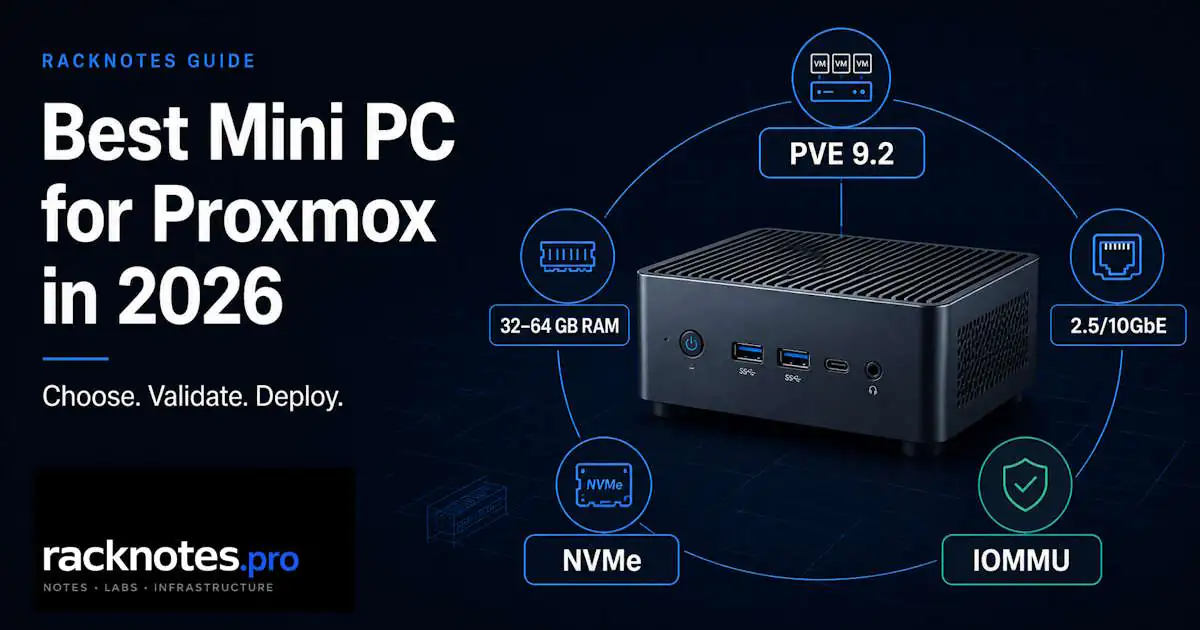
Mini PCs became one of the most visible homelab hardware categories as Intel exited the NUC business, efficient AMD and Intel mobile platforms improved, and smaller operators looked for lower-power alternatives to traditional virtualization hosts. The mini PC for Proxmox market grew fast in response, with Beelink, Minisforum, GMKtec, and BOSGAME all shipping hardware claiming “Proxmox-ready” status. This guide is about finding the best mini PC for Proxmox for your specific use case, not the fastest one on paper.
Most of it works. Some of it bites you in ways that aren’t obvious from the spec sheet.
This guide covers what actually matters when picking a mini PC for Proxmox in 2026, plus specific models with field reports of working (or not working) in production homelab use. No affiliate links, just operational reality with the firmware quirks and BIOS revisions that marketing copy skips. Models here were selected editorially – availability, exact SKU configurations, and RAM ceilings were checked against vendor pages in July 2026 and can change by region, bundle, or production batch.
One framing to set the tone: for Proxmox use, thermals matter more than Cinebench numbers, NIC stability matters more than synthetic performance, and IOMMU grouping quality matters more than CPU tier. The rest of this mini PC for Proxmox guide elaborates on why.
- Budget / learning → Beelink EQ14 (Intel N150)
- Balanced homelab → Beelink SER8 or GMKtec NucBox K6 (AMD Ryzen)
- Cluster node → Minisforum MS-01 i5-12600H for the conservative pick; i9-13900H if you validate current BIOS and thermals first
- AMD performance → Minisforum MS-A2
Full reasoning, comparison table, and BIOS checklist for picking the best mini PC for Proxmox below.
What happened to Intel NUC
Intel exited the NUC business in 2023, transferring the product line to ASUS. Existing NUC hardware still works well for Proxmox, especially 11th and 12th gen models, but the ecosystem shifted heavily toward Chinese mini-PC vendors afterward. The brands now dominating mini PC for Proxmox discussions (Beelink, Minisforum, GMKtec, BOSGAME) filled the gap.
How these recommendations were evaluated
The current software baseline is Proxmox VE 9.2 with Linux kernel 7.0. Official platform behavior (installer, Secure Boot, storage, HA, cluster) is verified against current Proxmox documentation; model-specific compatibility conclusions below are based on dated field reports, not personal lab testing, unless explicitly marked otherwise. Where a report is specific to Proxmox VE 8.4 or an older kernel, it’s labeled separately and isn’t treated as current behavior without retesting.
Official platform behavior (installer, Secure Boot, storage, HA, cluster) was checked against current Proxmox VE 9.2 and kernel 7.0 documentation. Model-specific field evidence below draws on reports spanning kernels 6.8 through 7.0 – each report reflects the kernel it was observed on, not a claim that it’s been retested on 9.2/7.0 specifically.
This guide synthesizes:
- Proxmox forum reports across 2024-2026
- Reddit homelab deployment threads (r/Proxmox, r/homelab, r/sysadmin)
- PCI passthrough success and failure reports
- Linux NIC stability under Proxmox kernels 6.8 through 7.0
- Long-running uptime feedback from 24/7 deployments
- BIOS and firmware issue frequency, time-to-fix patterns
Rather than controlled lab benchmarking, sponsored vendor testing, or synthetic performance scoring. Synthetic benchmarks were intentionally deprioritized compared to thermal stability, IOMMU group quality, and networking behavior. A mini PC for Proxmox that scores 5% higher on Cinebench but drops to 60% performance after an hour of sustained VM load isn’t a better Proxmox host.
What “good for Proxmox” actually means
Every mini-PC product page says “supports virtualization.” At this end of the market, marketing copy and real-world behavior are often two different things. Proxmox needs specific capabilities, and not every mini PC for Proxmox claim is honest.
Hardware virtualization (VT-x / AMD-V). The baseline. Nearly every current x86-64 mobile CPU used in the mini PCs covered here supports this, but firmware may expose or disable the relevant setting differently, and some BIOS implementations ship with it off by default. The Proxmox official wiki documents this as the first thing to verify post-install with cat /proc/cpuinfo | grep -E 'vmx|svm'. Nothing returns? Virtualization is off in BIOS.
IOMMU support (VT-d / AMD-Vi). This is where any mini PC for Proxmox splits into “works for VMs” vs “works for PCI passthrough.” IOMMU is required for full PCI passthrough of devices like GPUs, NICs, NVMe controllers, and HBAs directly into a VM. Not every hardware-assisted use case actually needs that, though: a Home Assistant USB dongle can often use USB-device passthrough or serial-device mapping instead, and Plex running in an LXC can use controlled /dev/dri device access rather than full GPU passthrough. A Windows VM with a physical display output or TrueNAS with a dedicated HBA generally does need full PCI passthrough with IOMMU. Decide which passthrough model you actually need before ruling out hardware based on IOMMU grouping alone.
On many recent Intel platforms with VT-d enabled in firmware, Proxmox picks up IOMMU without needing legacy kernel parameters added manually – but this isn’t a guaranteed version-tied rule. In practice forum threads still regularly show systems where VT-x is enabled, VT-d looks enabled in BIOS, and passthrough still silently fails until a BIOS update or kernel parameter tweak. Always verify the actual kernel log and populated IOMMU groups rather than assuming based on kernel version alone:
dmesg | grep -Ei 'DMAR|IOMMU|AMD-Vi'A working Intel system shows DMAR: IOMMU enabled near the top of the output; AMD systems show AMD-Vi initialization lines instead – don’t expect the Intel-specific string on a Ryzen box. Missing output usually means IOMMU isn’t active, but it can also point to a disabled firmware setting, a boot parameter that needs adding, a nested/virtualized test environment, or a logging difference – check the BIOS setting and boot parameters before concluding the hardware can’t do it.
IOMMU group separation matters as much as the feature being present. Check group quality with:
find /sys/kernel/iommu_groups/ -type lOn badly grouped systems this command returns nearly the entire PCIe platform in a single group, which breaks clean passthrough – you’d have to pass every device in that group to one VM. Check both dmesg and the groups before assuming a mini PC for Proxmox supports your passthrough use case.
Networking: dual NICs and 2.5GbE as a useful target, not a Proxmox requirement. Single 1GbE is genuinely fine for learning, light single-node services, and basic management traffic. It becomes the bottleneck once VM migration, NFS-mounted storage, or backup-to-NAS enters the picture – that’s where dual 2.5GbE or better pays off. Forum threads consistently recommend separating management traffic from VM traffic once you’re past the learning stage, which means dual NICs or VLAN tagging on a trunk port.
One specific NIC quirk worth knowing: the Intel i226-V chipset shows up in many recent mini PCs and has mixed stability reports depending on kernel and BIOS combination. Community report, not a vendor-confirmed defect: link drops observed in some Proxmox deployments under kernel 6.8 combinations during sustained TCP throughput (iperf3 above 2Gbps or backup-to-NAS workloads), occasional driver resets. Behavior varies by PCI revision, PHY, firmware, kernel, cable, switch, EEE, and ASPM state – not just the chipset name, so don’t classify an entire chipset family as broken or safe without checking reports on your exact board revision. Realtek r8126/r8127 chipsets have their own separate kernel compatibility history on recent Proxmox releases worth checking before buying.
Quick decision logic for NIC chipsets:
- Prefer NICs with in-kernel drivers and recent successful reports on the exact mini-PC revision you’re buying
- Intel i225-LM / i226-LM tend to show fewer complaints than the consumer i226-V in community reports, but verify against current threads rather than treating this as a fixed ranking
- Realtek r8126/r8127 – check recent kernel compatibility reports for your specific model before buying
NIC chipset choice is one of the cheapest things to verify before buying and one of the most expensive things to discover after. To check which driver Proxmox bound to your NICs:
lspci -nnk | grep -A3 EthernetThe output shows each Ethernet controller and the kernel driver actually in use. If a NIC shows up in lspci but has no driver listed under Kernel driver in use:, that’s a kernel module mismatch and the NIC won’t work until resolved.
RAM capacity ceiling. Marketing says “supports up to 64GB,” but it pays to read the manual – the EQ14 case above is a good example of the gap between forum assumption and official spec. Some mini PCs cap lower than expected despite the module slots being physically present; some use soldered memory entirely. Proxmox itself runs in 2GB, but each VM consumes its own (Linux 1-2GB, Windows 4-8GB), and ZFS still needs RAM planning on top of that – though current Proxmox defaults cap ARC at 10% of host memory with a 16GiB ceiling unless you change it, so it won’t silently consume everything the way older guidance suggests. Most homelab users still run out of RAM long before they run out of CPU. As a RackNotes operational baseline, not a Proxmox minimum: 16GB is workable for evaluation, 32-64GB is the practical range for a balanced 3-5 VM homelab, and 64GB+ makes sense once storage or Windows VMs get involved. For detailed RAM sizing, see our RAM sizing guide.
Storage slots. Two NVMe slots minimum if ZFS mirroring matters. Single-slot mini PCs force you into either no redundancy or USB-attached storage. For a deeper look at storage options and tradeoffs, the Proxmox storage guide covers ZFS, LVM-thin, and what each costs operationally.
Selection mistakes that cost you later
Three patterns repeatedly trip up first-time mini PC for Proxmox buyers. All three appear in forum threads and Reddit discussions across 2024-2026.
Buying for CPU benchmarks instead of platform features. A faster Ryzen 9 won’t help if its motherboard groups every PCIe device into one IOMMU group, breaking GPU passthrough. Owner reports more frequently describe AMD Zen 4 mini PCs as having flexible IOMMU group isolation, though this varies significantly by BIOS implementation and motherboard revision. Platform features matter more than CPU tier for Proxmox use.
Confusing desktop Intel voltage issues with mobile CPU reliability. Intel’s desktop 13th and 14th gen parts had a well-documented voltage management issue (the “Raptor Lake” Vmin Shift instability) that prompted microcode fixes in 2024 – Intel’s own advisory covers the affected desktop SKUs specifically. That advisory does not extend to mobile H-series or HX-series CPUs used in mini PCs – it’s a different silicon bin, different power envelope, and Intel hasn’t listed mobile parts as affected. Some MS-01 i9-13900H owners do report stability issues in 24/7 use, but treat those as model-specific BIOS, thermal, or power-delivery reports on that particular board – not evidence of an inherited desktop defect.
Underestimating thermals. Mini PCs throttle aggressively under sustained load. Benchmark-perfect cold boots, then a noticeable performance drop after 30 minutes of constant VM activity in poorly-cooled chassis. Reviews testing only short bursts miss this entirely. For 24/7 use, lower-TDP CPUs (35W or below) tend to hold their sustained clocks more predictably than higher-clocked parts that throttle hard in a small chassis, though actual behavior depends heavily on the specific chassis cooling design, not just the TDP number. This is one of the most common mini PC for Proxmox sizing mistakes.
One more: ASPM power states. Some mini PCs ship with aggressive ASPM defaults that cause spurious PCIe device disconnects under load. If a NIC randomly disappears from lspci mid-session, treat ASPM as one evidence-driven branch to test, not the automatic first fix – check journalctl -k for AER or driver-reset messages first, and rule out cabling, switch port, EEE, thermal, and PSU issues alongside it. Change one variable at a time and record what actually fixed it, before you waste three hours blaming Proxmox for a hardware-layer problem.
BIOS settings to verify before installing Proxmox
Mini PC for Proxmox BIOS quality varies, but every Proxmox install benefits from a short pre-flight check:
- Enable VT-x / AMD-V (hardware virtualization, sometimes hidden under “CPU Configuration”)
- Enable VT-d / AMD-Vi (IOMMU for PCI passthrough, sometimes under “Chipset” or “Advanced”)
- Leave Secure Boot enabled where firmware and planned kernel modules support it (Proxmox VE has supported Secure Boot since 8.1; disable only for a documented troubleshooting case or an unsigned custom module you don’t sign yourself)
- Leave ASPM at the firmware default initially (only test disabling it as a controlled troubleshooting step if kernel logs show PCIe/AER or power-state-related failures – don’t disable it by default before you’ve seen instability)
- Set fan profile to performance or balanced (default “silent” profiles cause thermal throttling)
- Enable SR-IOV only when a specific supported NIC or GPU workflow actually requires it (not a default-on setting for most homelab builds)
- Update BIOS to latest stable revision before install (firmware updates often fix compatibility issues, though boot failures can also trace back to installer media, storage controller mode, Secure Boot conflicts, or unsupported NIC/storage hardware – verify the exact board revision, read the changelog, save current settings, avoid beta BIOS, and keep a recovery path in case the update goes wrong)
Not every BIOS exposes all of these. Document what your specific BIOS allows before deployment. If you’re updating a cluster, test the new BIOS on one node before rolling it out to the rest.
One adjacent piece of homelab veteran wisdom: early production batches of mini PCs are effectively public beta firmware programs. Waiting 3-6 months after launch often results in significantly fewer BIOS and suspend-related issues. The hardware is the same, but the firmware quality usually settles after the first 2-3 BIOS revisions. New launches look attractive, but the second or third batch is usually a better bet for production homelab use.
Decision framework for choosing a mini PC for Proxmox by use case
The right mini PC for Proxmox depends on what you’re actually building. Price bands below reflect July 2026 US-market street pricing and should be adapted for your region, VAT, and current promotions.
Single-node homelab learning Proxmox
Budget: $300-500. Goal: learn the platform, run 3-5 lightweight VMs, no cluster.
Priorities: VT-x and VT-d confirmed working, 16-32GB RAM upgradeable, dual SSD slots for ZFS mirror, single 2.5GbE acceptable. Intel N100/N150 or AMD Ryzen 5 mobile handles this fine. Skip GPU passthrough concerns at this tier.
Production-like homelab with 3-5 VMs and services
Budget: $500-900. Goal: TrueNAS, Plex, Windows VM, monitoring stack, Docker workloads.
Priorities: start planning at 32GB and move to 64GB once Windows VMs, storage services, or memory-heavy applications are in the mix – size from actual guest memory reservations rather than VM count alone. Also: dual 2.5GbE for traffic separation, AMD Ryzen 5/7 mobile or Intel Core i5/i7 12th gen, NVMe x2 for ZFS, IOMMU group quality verified from owner lspci dumps before purchase.
GPU passthrough starts mattering at this tier for Plex transcoding or HTPC use. AMD Radeon 780M (Ryzen 7000/8000) passthrough reset behavior varies by exact PCI ID, BIOS, and kernel – the community vendor-reset project fixes some combinations, not all of them, and should be treated as experimental rather than a guaranteed fix. Intel N-series runs Proxmox fine without any special module for normal use; i915-sriov-dkms only matters if you’re specifically chasing the experimental SR-IOV/vGPU workflow, not for ordinary /dev/dri LXC access or full-device passthrough. Not turnkey either way.
Cluster node or GPU passthrough heavy
Budget: $900-1500+ per node. Goal: 3-node Proxmox cluster, GPU compute, OculLink external GPU.
Priorities: 64GB+ RAM, dual 10GbE for Ceph or replication, robust BIOS with proper IOMMU configuration, OculLink port for external GPU enclosures, 24/7 thermal design.
This tier is where mobile-CPU reliability track record matters most. Cluster nodes running months without intervention prefer hardware reliability over peak benchmark numbers. The MS-01 with i5-12600H is the sysadmin pick – it has the longer field history and fewer reported issues. The i9-13900H variant has model-specific stability reports in 24/7 use worth checking against your exact BIOS revision before committing a cluster to it.
Specific mini PC for Proxmox models worth knowing in 2026
These appear repeatedly in Proxmox forum discussions and homelab Reddit threads. Coverage focuses on operational behavior rather than marketing claims.
Minisforum MS-01 remains the most-discussed mini PC for Proxmox. Official spec: i5-12600H, i9-12900H, or i9-13900H, up to 64GB DDR5 (the officially listed ceiling – some owners report running 96GB unofficially, which isn’t the vendor spec), dual 10GbE SFP+ plus dual 2.5GbE, PCIe slot for expansion. Community report: a shutdown hang with active VMs is a recurring forum pattern on this hardware – units that wouldn’t power off cleanly while VMs were still running. The Proxmox forum thread on MS-01 shutdown issues documents the pattern and a BIOS 1.24+ resolution reported by multiple owners in that thread – treat that as a community-confirmed fix until it shows up in Minisforum’s own release notes. The i5-12600H variant has the longer uptime track record in forum reports; the i9-13900H has more scattered reliability reports specific to this board, not a documented desktop-inherited defect (see the misconception note above).
Minisforum MS-A2 is the AMD alternative: current SKUs span Ryzen 9 7945HX through 9955HX depending on region and revision – check the exact SKU page before buying, don’t assume one fixed spec. Officially up to 96GB DDR5, same dual 10GbE / dual 2.5GbE networking as the MS-01. The platform is newer than the MS-01, so long-term uptime data is thinner – fewer reported failures so far isn’t the same claim as “more reliable,” it’s mostly “less field history.” AMD-side risks worth knowing about: AGESA microcode quality varies between BIOS revisions, USB controller quirks are documented on some Ryzen mobile platforms, and BIOS maturity for newer SKUs lags Intel’s more mature MS-01 firmware.
Beelink SER series (SER5, SER7, SER8, SER9 PRO+). AMD Ryzen mobile platforms popular for budget and mid-tier homelab, but don’t treat the lineup as one uniform behavior – CPU, iGPU, and NIC controller all change across SER5 to SER9, so check the exact model page before assuming a report from one SER generation applies to another. Community report: on the Radeon 780M boards specifically (SER8/SER9), passthrough has a documented reset problem on some configurations – VMs starting fine the first time but failing to restart cleanly after a reboot. This isn’t universally fixed by the community vendor-reset project; the open 780M discussion thread shows the fix landing for some PCI IDs and BIOS/kernel combinations and not others. Treat iGPU passthrough on the SER lineup as something to validate on your exact BIOS, kernel, and APU variant before committing to it, not a solved problem. Networking is typically single 2.5GbE on lower SER models, dual on newer ones – confirm against the specific model’s page.
Beelink EQ14 / S13 Mini (Intel N150). Budget tier with extremely low idle power (around 10W with VMs running). Officially capped at 16GB DDR4 – the “32GB” figure sometimes quoted around forums is not the manufacturer spec, so check the exact listing before buying if RAM headroom matters. NIC configuration varies by SKU: some ship dual 1GbE, others dual 2.5GbE – confirm which variant a listing is before ordering if 2.5GbE matters. N150 IOMMU passthrough for full-device GPU use is finicky – GitHub issue #44 on TechHutTV/homelab covers the typical symptoms. Regular Proxmox operation doesn’t need the i915-sriov-dkms module at all – that project is an experimental community SR-IOV/vGPU workflow, not a requirement for running N150 as a Proxmox host. Good for budget clusters or learning, limited for heavier workloads.
GMKtec NucBox K6 / K11. Mid-tier AMD Ryzen platforms and a solid pick when you’re shopping specifically for a mini PC for Proxmox with external GPU expansion. K6 runs Ryzen 7 7840HS with up to 64GB RAM and dual 2.5GbE, and covers basic homelab needs without added complexity – it’s shown as sold out on some regional vendor pages at times, so check current availability before planning around it. K11 steps up to Ryzen 9 8945HS with up to 96GB RAM, dual Intel i226-V 2.5GbE, and an OCuLink PCIe Gen4 x4 port confirmed on the official GMKtec product page – it’s one of the clearest compact options for adding external PCIe GPU expansion to a homelab node. OCuLink availability doesn’t guarantee trouble-free GPU passthrough on its own: verify the eGPU dock, power delivery, GPU reset behavior, and IOMMU grouping before committing to a build around it. Verify current NIC and exact regional SKU against the official product page before buying either model – GMKtec revises these between production batches.
BOSGAME P4 Ultra. Newer entrant with Ryzen 7 7730U and dual 2.5GbE. The reviewed official listing sells it configured with 16GB RAM and a 1TB PCIe SSD – the vendor page doesn’t clearly confirm a higher maximum, so treat any “64GB” figure floating around forums as unverified until you check the exact SKU’s manual. Less forum coverage than established brands, but base specs match what Proxmox homelab use actually needs.
GEEKOM is deliberately omitted here. Not because the hardware is bad – mostly because the Proxmox community footprint is smaller than the brands above, which means fewer field reports of edge cases to point readers at.
Evidence traceability for the claims above
Not every claim above carries equal weight. This table separates official vendor/Proxmox specifications from community-sourced reliability reports, so you can judge confidence level before buying around any single claim.
| Claim | Model / SKU | Source | Confidence |
|---|---|---|---|
| 16GB RAM ceiling | Beelink EQ14 | Official Beelink product page | Official |
| OCuLink PCIe Gen4 x4 | GMKtec K11 | Official GMKtec product page | Official |
| 64GB RAM max | Minisforum MS-01 (all CPU variants) | Official Minisforum product page | Official |
| Shutdown hang with active VMs, BIOS 1.24+ fix | MS-01, exact SKU/BIOS varies by report | Proxmox forum thread (linked above) | Strong field signal, not vendor-confirmed |
| 780M passthrough reset behavior | SER8/SER9 (exact APU PCI ID varies) | vendor-reset GitHub issue #82 (linked above) | Strong field signal, PCI-ID-dependent |
| i226-V link drops under sustained throughput | Various boards, kernel 6.8 combinations reported | Aggregated Proxmox/homelab forum reports | Anecdotal – revision and firmware dependent |
| i5-12600H longer uptime track record vs i9-13900H | MS-01 | Aggregated forum uptime reports | Anecdotal – no controlled dataset |
Quick mini PC for Proxmox comparison
| Model | CPU | NICs | Official RAM max | Watch out |
|---|---|---|---|---|
| Beelink EQ14 | Intel N150 | 1GbE or 2.5GbE (SKU-dependent) | 16GB | RAM ceiling; confirm NIC SKU before ordering |
| Beelink SER8 | Ryzen 7 8745HS | 1× 2.5GbE | 64GB | 780M passthrough reset behavior is BIOS/kernel-specific, not a solved problem |
| GMKtec NucBox K6 | Ryzen 7 7840HS | 2× 2.5GbE | 64GB | Verify regional availability |
| GMKtec NucBox K11 | Ryzen 9 8945HS | 2× 2.5GbE | 96GB | OCuLink PCIe Gen4 x4 confirmed official – verify regional SKU and firmware |
| BOSGAME P4 Ultra | Ryzen 7 7730U | 2× 2.5GbE | 16GB (sold config; max unconfirmed) | Small community footprint, fewer field reports |
| MS-01 (i5-12600H) | i5-12600H | 2× 10GbE + 2× 2.5GbE | 64GB | Longest uptime track record of the MS-01 variants |
| MS-01 (i9-13900H) | i9-13900H | 2× 10GbE + 2× 2.5GbE | 64GB | Model-specific stability reports for 24/7 use – check current threads |
| Minisforum MS-A2 | Ryzen 9 7945HX – 9955HX (SKU varies) | 2× 10GbE + 2× 2.5GbE | 96GB | Newer platform – AGESA maturity still settling |
Best mini PC for Proxmox picks by tier
After all the framework analysis, here’s the practical summary by use case:
- Lowest power / budget cluster → Beelink EQ14 (Intel N150, ~10W idle, 16GB RAM ceiling, confirm 2.5GbE SKU if that matters)
- Balanced homelab → Beelink SER8 or GMKtec K6 (AMD Ryzen, 2.5GbE, strong CPU/RAM value – verify IOMMU groups on the exact BIOS and board revision before buying for passthrough)
- Mid-tier with external GPU option → GMKtec NucBox K11 – official OCuLink PCIe Gen4 x4 port, though OCuLink alone doesn’t guarantee flawless GPU passthrough, so verify the enclosure, power delivery, and GPU reset behavior before you buy for this specifically
- Best cluster node → Minisforum MS-01 i5-12600H is the conservative value and thermal pick; the i9-13900H isn’t ruled out by Intel’s desktop issue but deserves a closer look at current BIOS, cooling, and memory config before committing a cluster to it
- Performance peak, AMD → Minisforum MS-A2 (strongest AMD option in 2026)
That’s roughly where the homelab crowd has landed after a year of forum testing and BIOS pain. Specific kernel versions, BIOS revisions, and per-batch hardware variations can shift the picture. Verify recent threads for your exact configuration before buying.
Where mini PCs bite you
Three operational realities mini PC for Proxmox marketing copy doesn’t mention.
Thermal throttling is very real. Some of these boxes benchmark great cold and then throttle hard after sustained load once the chassis heat-soaks. How much performance drops depends on TDP limit configuration, BIOS fan curve, and ambient cooling – it varies too much by chassis to quote one universal number. Use a long-duration stress test (30+ minutes of sustained load) and watch clocks over time rather than trusting a short benchmark run or a vendor spec sheet. Small chassis acoustics also matter more than reviewers admit, because tiny high-RPM fans become noticeable in quiet rooms after sustained VM load.
NIC limitations are the actual bottleneck. Even mini PCs with dual 2.5GbE max out at 2.5Gbps per stream. For VM migration, NFS-mounted storage, backup-to-NAS – the network limits throughput before the CPU does. MS-01 and MS-A2 dual 10GbE configurations are genuinely useful here. Almost everything else lives in 2.5GbE land.
Expandability ceiling. Fill the M.2 slots and the RAM, you’re done. No “add another disk later.” If homelab plans involve growing storage or compute, factor in either a NAS, a second node, or accept a replacement in 2-3 years.
PCIe bifurcation support is rare on mini PCs. If you plan to split a PCIe slot for multiple NVMe drives or a multi-function card, verify the BIOS supports bifurcation before buying. Most don’t expose this option.
Cluster considerations
Three-node Proxmox clusters with mini PCs work and show up across homelab deployments at various scales. A few mini PC for Proxmox cluster patterns worth knowing.
Identical hardware preferred. Live migration and storage replication work more predictably with matching nodes. Mixed CPU generations across nodes shrink the common feature set available to VMs – the host CPU type maximizes per-node performance but narrows what can migrate cleanly between different silicon. Selecting a compatible cluster-wide CPU model (rather than host) and testing live migration before relying on it in production is the safer default when nodes aren’t identical.
10GbE for cluster network. Corosync wants low latency. Ceph wants throughput. 2.5GbE works for small homelab Ceph clusters but degrades under concurrent VM IO load. For cluster network design patterns and VLAN separation between Corosync and storage traffic, the Proxmox networking guide covers the specifics.
Three voting members are the normal baseline for resilient quorum. A two-node cluster does have quorum while both nodes are online – the problem shows up after a node is lost or the network partitions, when the surviving node normally drops below the votes needed for quorum on its own, blocking cluster configuration changes and automatic HA recovery. A qdevice (typically a Raspberry Pi running corosync-qdevice) supplies a third vote so the surviving node can retain quorum by itself – but it doesn’t guarantee quorum in every partition scenario, it doesn’t add storage redundancy, and it shouldn’t run on either of the two cluster nodes it’s meant to tiebreak. The full HA fencing and failover logic is covered in the Proxmox HA guide.
Budget for redundancy. Three matched mini PCs at $600 each is $1800. Comparable to a single refurbished enterprise server with more total capacity but lower per-node power draw and distributed failure domains.
Storage for mini PC for Proxmox clusters
Local disks do not inherently prevent planned live migration. Proxmox can live-migrate a running VM while copying its local virtual disks to the target node, but that consumes migration-network bandwidth and takes noticeably longer than migrating on shared storage. Shared storage or pre-existing ZFS replication reduces the amount of data that has to move and makes recovery timing more predictable – which matters more for HA than for a one-off planned migration. Whether local-disk migration works cleanly in a given case also depends on target storage capacity, guest device configuration, any passthrough hardware attached to the VM, and the current Proxmox version.
Three practical paths for mini PC for Proxmox clusters:
- Ceph on the nodes themselves. Works best with MS-01 or MS-A2 hardware where 10GbE is native – that’s the recommended design, with a dedicated Ceph network. Needs three nodes minimum. Running Ceph over 2.5GbE is a lab compromise that works for light homelab loads, not equivalent to the recommended 10GbE+ design, and NVMe drives can saturate a 2.5GbE link well before they saturate 10GbE. Ceph also consumes RAM on top of VM requirements – budget accordingly per OSD and validate against your actual workload rather than a fixed number. A full comparison of Ceph vs NFS vs iSCSI for Proxmox clusters is in the shared storage guide.
- NFS or iSCSI from a NAS. Simpler operationally for small clusters. A Synology or TrueNAS appliance on the same 10GbE switch handles shared storage without touching the mini PC hardware at all.
- Proxmox storage replication. ZFS replication between nodes gives a middle path – no shared storage requirement, but VM failover isn’t instant. Trade-off between complexity and recovery time. The underlying storage options and when replication makes sense are covered in the Proxmox storage guide.
For a single-node mini PC setup, local ZFS mirror across two NVMe slots is the standard pattern and strongly preferred for local redundancy. A single-drive node can still be a valid choice when workloads are remote or replicated, the host itself is treated as disposable, and backups are actually tested – not just configured. Worth remembering either way: a ZFS mirror protects against a drive failure, it is not a backup, and it won’t save you from accidental deletion, ransomware, or a botched config change.
When a mini PC is the wrong choice
A mini PC for Proxmox is excellent for low-noise homelabs, efficient always-on workloads, and budget-conscious clustering. It’s a poor fit if you need:
- ECC memory validation (most consumer mini PCs don’t support it)
- Large local storage pools (M.2 slots cap quickly)
- Multiple PCIe expansion cards (no slots, with rare exceptions like the MS-01)
- High-end GPU compute (Thunderbolt or OculLink workarounds are limited)
- Field-serviceability under warranty (return-to-vendor only)
- Future internal expansion (what you buy is what you get)
At some point, refurbished enterprise hardware (HP MicroServer, Dell PowerEdge T-series, used Supermicro) becomes the more practical option. The trade-off is noise and power draw against expandability and reliability. Neither category is universally better.
Coverage scope
- Compatibility checked against Proxmox VE 9.2 with kernel 7.0; remaining Proxmox VE 8.4 / kernel 6.8-6.11 references are labeled separately below and aren’t treated as current behavior without retesting
- Community reports synthesized through Q2 2026
- Sources: Proxmox official forum, r/Proxmox, r/homelab, GitHub issues from relevant kernel modules
- Hardware tier: consumer and prosumer mini PCs, $300-1500 range
- Excludes: enterprise-grade Xeon mini PCs (different category, different priorities)
- Official Proxmox VE host support targets Intel 64 and AMD64 only; community ARM ports exist outside the supported product and aren’t covered here
Hardware behavior shifts with firmware updates and kernel revisions. What’s stable on kernel 7.0 may break on a later kernel, and vice versa. Forum threads from 6 months ago describe configurations that no longer match current behavior. Kernel regressions are common in homelab environments using newer consumer hardware – a mini PC that works flawlessly on Proxmox VE 9.2 may develop NIC or suspend issues after a kernel upgrade six months later. Proxmox major version upgrades (8.x to 9.x specifically) have historically affected NIC and IOMMU behavior on some mini PCs, so it’s worth keeping a rollback path and testing in a non-production environment first.
Consumer mini PC firmware quality still varies wildly between vendors and even between production batches of the same model. Same hardware revision, same BIOS version on paper, different real-world behavior. One of the reasons forum threads matter more than benchmarks for this category.
FAQ
Is 16GB RAM enough for a mini PC for Proxmox?
Technically yes for 2-3 lightweight VMs – some entry-level boards like the EQ14 top out there officially. Practically, 32-64GB is the RackNotes-recommended range once ZFS, a Windows VM, or any serious container workload enters the picture. Budget for 32GB minimum for new mini PC for Proxmox builds in 2026 unless you’re deliberately staying in the evaluation tier.
Does AMD or Intel work better for a mini PC for Proxmox?
Both work for mini PC for Proxmox deployments. Owner reports more frequently describe AMD Zen 4 platforms as having flexible IOMMU group isolation, though this varies by BIOS implementation and motherboard revision rather than being a fixed AMD-vs-Intel rule. Intel dominates the budget tier (N100/N150). Intel’s documented desktop 13th/14th gen voltage issue doesn’t extend to mobile H/HX-series CPUs used in mini PCs – don’t rule those out on that basis alone, but do check current field reports for the exact model and BIOS revision you’re considering, since some mini PCs do have model-specific stability reports.
Can I run a Proxmox cluster on mini PCs?
Yes, popular pattern. Three identical mini PCs with 2.5GbE or 10GbE cluster networking handles typical homelab workloads. HA needs the guest’s storage reachable from whichever node picks it up on failover – shared storage (Ceph, NFS, iSCSI) is the simplest way to guarantee that, but ZFS storage replication is a valid asynchronous alternative with an explicit recovery-point gap. Two-node setups without a qdevice risk losing quorum after a node loss.
What about ECC RAM?
If ECC is mandatory, mini PCs aren’t your category. Most consumer mini PCs don’t support it. Refurbished enterprise hardware is the alternative.
How much power does a Proxmox mini PC actually draw?
Manufacturer TDP numbers are mostly fantasy under sustained VM load. Directionally, community wall-meter reports tend to cluster around 5-15W idle for Intel N-series, 15-25W for Ryzen 5/7 mobile, and 25-40W for i9 or Ryzen 9 mobile, rising roughly 1.5-2x under sustained VM load – but actual draw varies with RAM configuration, NVMe count, active NIC links, ASPM state, and ambient temperature, so treat these as rough ranges rather than a spec you can plan a power budget around. If it matters for your setup, measure it yourself with a wall meter under your actual workload rather than trusting a vendor number or a single forum post. Compared to refurbished enterprise hardware idling at 80-120W, the gap is still large enough that the general direction holds.
What’s the realistic lifespan of a mini PC running Proxmox 24/7?
There’s no reliable universal lifespan figure for consumer mini PCs run as 24/7 hypervisors – failure risk depends on fan quality, dust, ambient temperature, PSU and motherboard component quality, and usage pattern, none of which are consistent across vendors. Treat fans, SSDs, and the PSU as the most likely replaceable-risk items, monitor temperatures and SMART/NVMe data over time, and buy with warranty and replacement logistics in mind rather than a specific year count. Virtualization and ZFS workloads can generate substantial writes, but the endurance impact is workload-dependent – compare actual SMART data-units-written against the drive’s rated TBW/DWPD rather than assuming a fixed aging multiplier.
Should I worry about the Intel i226-V NIC?
Worth knowing about, not necessarily a dealbreaker. Stability varies by kernel version. Check recent forum threads for your specific model before buying.
What storage setup works best for a mini PC for Proxmox cluster?
For 3-node clusters with MS-01 or MS-A2 hardware (10GbE native), Ceph on the nodes is viable, though 2.5GbE is a lab compromise rather than the recommended design. For 2.5GbE mini PCs, NFS from a NAS is simpler and more predictable. Single-node setups: a two-drive ZFS mirror is the preferred design when the node itself must survive a drive failure, but it’s not mandatory for disposable nodes or hosts whose actual workloads live on resilient remote storage – and either way, a mirror is not a substitute for backup.
Final thoughts
A mini PC for Proxmox is no longer “toy homelab hardware.” A well-configured Ryzen or Intel-based mini PC comfortably runs a serious Proxmox stack with ZFS, Plex, monitoring, Home Assistant, and clustered workloads. Some homelab operators run 5+ VMs and 15+ LXC containers on these systems 24/7.
The trade-off is that consumer hardware pushes more responsibility onto the operator. Firmware quality, Linux driver support, thermal behavior, and BIOS quirks matter far more than on enterprise servers. Mini PC for Proxmox homelab advice ages unusually fast because firmware and kernel support shift constantly. Having a solid backup strategy before you rely on these systems for anything important is not optional – consumer NVMe failure and single-drive nodes without redundancy are among the most common ways operators lose data in mini PC for Proxmox setups.
For most production-like homelab users in 2026, the best mini PC for Proxmox is still AMD Ryzen mobile (or Intel 12th gen for budget), with dual 2.5GbE as a useful target rather than a hard requirement, 32-64GB RAM sized against actual guest reservations rather than VM count alone, dual NVMe slots, and IOMMU groups verified on the exact BIOS and board revision rather than assumed from the platform family. Lightweight single-node systems can do fine on a single 1GbE or 2.5GbE port. Everything beyond that is a trade-off between power efficiency, expandability, and operational pain tolerance.
Proxmox VE Series
28 articles – Installation · Storage · Networking · HA · Recovery