
An administrator links a GPO with a locked-down desktop policy to the OU holding the RDS session hosts, expecting every user who logs on to inherit it. Nothing happens. The user’s normal GPOs still control the session, and the new GPO does not appear in the user-side applied list. The setting was never in scope because User Configuration settings do not follow the computer’s OU path during normal processing. Group Policy loopback processing is the supported mechanism for adding User Configuration settings selected through the computer’s Group Policy path.
- By default, the domain and OU portion of the user GPO list follows the user account’s own AD path. User Configuration settings linked only through the computer’s OU path require loopback processing to apply at all.
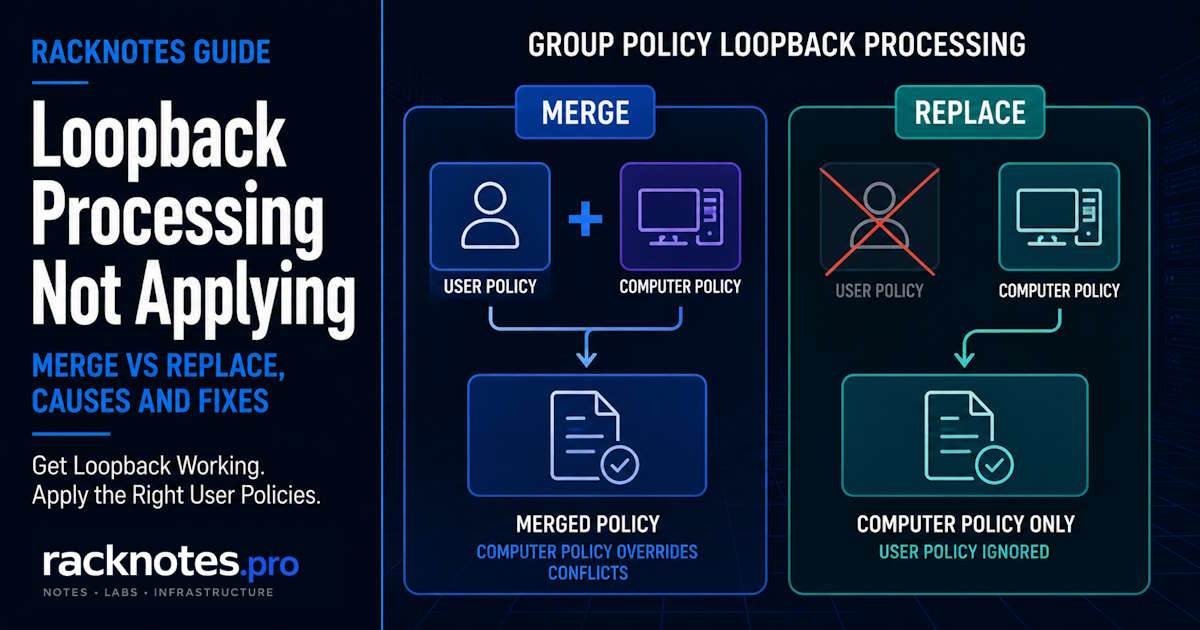
- Merge adds the computer-location GPO list to the end of the user’s normal list – conflicting settings from the computer-location GPOs win, non-conflicting user settings still apply.
- Replace discards the user’s own GPO list entirely – only the computer-location GPOs’ User Configuration settings apply.
- Loopback is a Computer Configuration setting that must apply through the computer’s effective GPO scope. If multiple GPOs configure it, confirm which GPO supplies the effective Merge, Replace, or Disabled value; a GPO left Not Configured contributes no competing setting.
- Loopback does not bypass Group Policy permissions. The computer must apply the GPO that enables loopback, the logged-on user must be in scope for the User Configuration GPOs, and the computer account must retain Read access to user GPOs so Windows can retrieve them.
| Behavior | Merge | Replace |
|---|---|---|
| Normal user-location GPO list | Processed first | Not gathered |
| Computer-location GPOs | Appended after, User Configuration only | The only source of User Configuration settings |
| Conflicting settings | Computer-location setting normally wins over the user’s normal setting because it is processed later | No conflict with the discarded normal user list; conflicts among computer-location GPOs still follow normal Group Policy precedence |
| Typical use case | Shared machine needs some baseline settings on top of normal user policy | Kiosk or single-purpose terminal where user identity shouldn’t affect the desktop at all |
| Common assumption that breaks it | “My user GPO will still apply for anything Merge doesn’t override” – true, but only if nothing conflicts | “The user’s usual desktop customizations still show up” – false, by design |
What loopback processing changes
Normal user policy processing
Without loopback, the computer’s OU path does not contribute User Configuration settings to the user’s normal GPO list. A GPO with user settings linked only to OU=RDSHosts therefore does not apply merely because the user signs in to a computer stored there. During normal processing, the Local and Site portions come from the destination computer, while the Domain and OU portion follows the user account’s AD path. This is the single most common reason operators believe loopback processing is “broken”: it was never turned on, so a computer-OU-linked GPO’s user settings were never in scope to begin with.
How merge mode changes precedence
Enable Merge, and Windows computes the user’s normal GPO list first, then appends the list of GPOs linked anywhere in the LSDOU chain leading to the computer’s OU, evaluating only their User Configuration sections. Because the computer-location list is appended and processed after the user’s own list, it gets higher effective precedence for any setting both lists configure – the computer-location value wins. Settings only present in the user’s own GPOs, with nothing conflicting in the computer-location list, still apply normally.
How replace mode changes scope
Replace skips the user’s normal domain and OU GPO list. Only the User Configuration sections of GPOs selected through the computer’s processing path are processed for that logon. User-OU-only GPOs therefore stop contributing new policy results. However, Replace does not guarantee that every setting previously created by those GPOs disappears from the endpoint: Group Policy Preferences, tattooed values, mapped resources, and software state can persist unless their own removal behavior is configured. Microsoft documents Merge and Replace as the two supported loopback modes. Replace is the right choice when the desktop experience needs to be fully controlled by the machine’s role rather than by whoever happens to log on.
Loopback first changes which GPO list supplies User Configuration settings. Replace substitutes the computer-location list for the user’s normal list; Merge keeps both lists and gives the appended computer-location list higher effective precedence.
When loopback is the right tool
RDS and shared desktops
Session hosts are the textbook case: many users log on to the same machines, and the desktop and security baseline needs to be dictated by the machine’s role, not by whatever policy each user carries from their home OU. Merge is common here, layering session-host-specific restrictions on top of whatever the user’s own GPOs already apply. Microsoft documents loopback as the supported mechanism for this exact RDS scenario.
Kiosk and lab machines
Kiosks, classroom lab PCs, and other single-purpose terminals are the classic Replace scenario. The machine should behave identically no matter who signs in – any user-specific customization defeats the point of a locked-down shared terminal.
When not to use loopback
Loopback is the wrong fix when a GPO with user settings was linked to the wrong OU by mistake, or when the real requirement is simpler security filtering on an existing link. If the intent is “this policy should only affect users in the Finance OU,” that’s an OU or security-filtering question, not a loopback question – loopback exists for cases where the machine’s identity, not the user’s, should drive the outcome.
How to verify loopback with Group Policy Results and gpresult
- Run Group Policy Results in GPMC for the affected user and computer pair.
- In the computer-side results, find Configure user Group Policy loopback processing mode and confirm the effective mode and Winning GPO.
- Generate
gpresult /h report.htmlon the affected computer. Use an elevated session for complete computer-side data, but make sure the report targets the affected user rather than a different administrator account used only for elevation. When user context is ambiguous, rely on Group Policy Results for the explicit user/computer pair or specify the target with/user DOMAIN\User– see generate and read a gpresult report for full syntax. - Under user results, identify a GPO or test setting unique to the computer’s processing path. Do not treat a GPO name that also exists in the user’s normal scope as proof of loopback by itself.
- In Merge mode, verify that a user-OU-only GPO remains and that a conflicting computer-path setting wins.
- In Replace mode, verify that GPOs unique to the user’s normal OU path are absent. Shared domain-level GPOs may still appear through the computer path, so their presence alone doesn’t mean Replace failed.
- If an expected GPO is missing, check the effective loopback value, link state, enabled configuration half, WMI result, user Read and Apply permissions, and computer Read permission.
- After confirming the resultant GPO lists, compare them with the actual desktop state. A setting that remains on the endpoint can be persisted preference or software state rather than evidence that the user-OU GPO still applies.
The most common reasons loopback appears broken
Loopback or user-settings GPO is outside the required scope
Troubleshoot the loopback-enabling GPO and the GPOs supplying User Configuration settings separately – they have different scope requirements.
- Loopback-enabling GPO: confirm the link is enabled, the computer is in effective scope, Computer Configuration is enabled, the computer has Read and Apply Group Policy, the WMI filter evaluates true, and Block Inheritance hasn’t removed a non-Enforced link.
- User-settings GPO selected through the computer path: confirm it is linked or inherited through the computer’s path, User Configuration is enabled, the user has Read and Apply Group Policy, and the computer account retains Read permission so Windows can retrieve the GPO.
Do not grant Apply Group Policy to the computer on every separate user-settings GPO by default, and do not use a Deny ACE on the computer as a substitute for user-side filtering – Microsoft warns against relying on computer-side permissions to filter which loopback user settings apply. Check replication to the domain controller used by the client only after the effective links, permissions, and filters are confirmed.
Another GPO supplies the effective loopback mode
Loopback mode is a Computer Configuration policy and follows normal Group Policy precedence and link order. A GPO linked closer to the computer, a higher-precedence link on the same container, or an Enforced link can supply a different value than the GPO being inspected. A higher-precedence GPO left Not Configured does not override a configured value from another applicable GPO. Use Group Policy Results or gpresult /h to identify the winning GPO for Configure user Group Policy loopback processing mode – finding one GPO set to Merge doesn’t prove Merge is the effective mode.
Computer Configuration or User Configuration is disabled
The loopback-enabling GPO needs its Computer Configuration section enabled, since that’s where the setting lives. A GPO supplying the intended user settings needs its User Configuration section enabled, or none of it applies regardless of loopback mode. This is easy to overlook when a GPO was originally built for one purpose and later repurposed for the other.
Security and Read-permission model
The GPO that enables Configure user Group Policy loopback processing mode is a computer-side policy: the target computer needs Read and Apply Group Policy permissions on it, and the link must be in the computer’s effective scope.
Separately, the logged-on user must have Read and Apply Group Policy permissions on the GPOs whose User Configuration settings are expected under Merge or Replace – see security filtering and denied GPO results for how an excluded user is diagnosed, regardless of how the GPO was selected.
The computer account also needs Read access to the user GPOs themselves: since the MS16-072 processing change, Windows retrieves user policy using the computer’s security context, so if Authenticated Users was removed from a GPO, grant Read permission to Domain Computers, the specific computer, or another appropriate computer group – without automatically granting that group Apply Group Policy.
WMI filter returns false
A WMI filter attached to a computer-location GPO is evaluated on the destination computer. If the query returns false for the RDS host, kiosk, or shared workstation, the entire GPO is excluded even when loopback is enabled – this looks identical to a permissions problem from the outside, but the fix is entirely different.
Merge used instead of Replace
If the goal was a fully locked-down, identical-for-everyone desktop and Merge is configured, remnants of each user’s own policy will still show up wherever the computer-location GPOs don’t explicitly conflict. This reads as “loopback isn’t working” when the actual issue is mode selection, not a processing failure.
Replace is active, but old user settings remain
Replace changes which GPO list is processed; it is not a universal cleanup mechanism. A drive mapping, registry preference, shortcut, printer, or other preference item created during an earlier normal-user logon can remain after the user-OU GPO leaves the resultant list.
Check how the original item was created. Group Policy Preferences do not remove every item automatically when the hosting GPO falls out of scope. Where appropriate, review Remove this item when it is no longer applied, the preference action, and any software-removal option. Compare the current Group Policy Results report with the actual endpoint state so that persisted configuration is not mistaken for an active user-OU GPO.
Domain loopback processing requires both the computer and the signed-in user account to be in Active Directory. Do not use a local-account test as proof that a domain loopback design is working or failing.
How to fix each failure mode safely
Minimal-change fixes
Most loopback issues resolve by correcting exactly one of: which GPO carries the loopback setting, which OU it’s linked to, or the Merge/Replace choice – not by restructuring the OU design. A dedicated loopback GPO or the same GPO that carries the user settings both work, though a dedicated GPO is usually easier to audit. Confirm the fix with gpresult before assuming it’s resolved.
When to move links instead of forcing loopback
If the real requirement is scoping a setting to a subset of users rather than a subset of machines, move the link or adjust security filtering instead of reaching for loopback – it avoids leaving a processing mode on the GPO that a future admin has to remember exists.
How to roll back safely
Set the policy to Not Configured to stop this GPO from contributing a value, or to Disabled to explicitly turn loopback off at its precedence level. Then use Group Policy Results to confirm the final effective result, because another applicable GPO can still enable Merge or Replace. Refresh computer policy, sign out, and start a new interactive session before validating – some user-side extensions need foreground processing, so a background gpupdate alone isn’t proof rollback is complete. Compare the new user-side applied GPO list against the pre-change gpresult /h baseline and confirm the normal user-location policy path has actually returned.
Normal user policy returning to the resultant list does not by itself clean up every setting previously delivered through the computer path. Validate both the new RSoP report and the actual endpoint state.
Operator checklist for production validation
- Confirm which GPO actually carries the loopback setting, that it’s in the target computer’s effective scope, and which GPO wins if more than one configures it.
- Confirm Merge or Replace matches the intended outcome, not just “loopback is on.”
- Run
gpresult /hagainst a test session before and after enabling loopback, and compare the user-side applied list. - Verify permissions separately: the computer must apply the loopback-enabling GPO, the user must be eligible for the expected User Configuration GPOs, and the computer account must have Read access to those user GPOs.
- Sign out and start a new test session after changing loopback mode – don’t rely only on a background refresh for settings that require foreground user-policy processing.
- If moving from Merge to Replace (or the reverse), re-test with a real user account that has customizations in their own GPOs – the difference only shows up when there’s something to lose.
- Document the change on the GPO itself, including why loopback was needed for that specific OU, so it doesn’t get mistaken for a stray setting during a future cleanup.
- If old mappings, preferences, or software remain under Replace, verify their removal behavior separately instead of treating endpoint residue as proof that loopback failed.
Key takeaways
- User Configuration settings follow the user account’s own Domain and OU path by default – loopback is what adds the computer’s OU path to that list.
- Merge appends the computer-location list after the user’s own, so conflicting settings there win. Replace discards the user’s own list entirely.
- Loopback mode follows normal Group Policy processing order – more than one GPO can configure it, so confirm the winning GPO.
- Loopback involves three separate permission checks: computer apply on the loopback GPO, user eligibility on the User Configuration GPOs, and computer Read access to those GPOs.
- Replace changes which GPO list is processed, not what already exists on the endpoint – persisted preferences, mappings, and software state need their own removal check.
- For the full Group Policy troubleshooting workflow beyond this specific failure mode, see the dedicated guide.
Group Policy Troubleshooting Series
8 articles – Workflow · Precedence · GPResult · GPUpdate · Filtering · Loopback · Events