
ipconfig /flushdns, client resolver cache, NIC DNS settings), see Windows Server Network Troubleshooting. For Active Directory DNS health (SRV records, DC locator, _msdcs zone, dcdiag /test:dns), see Active Directory DNS Problems.
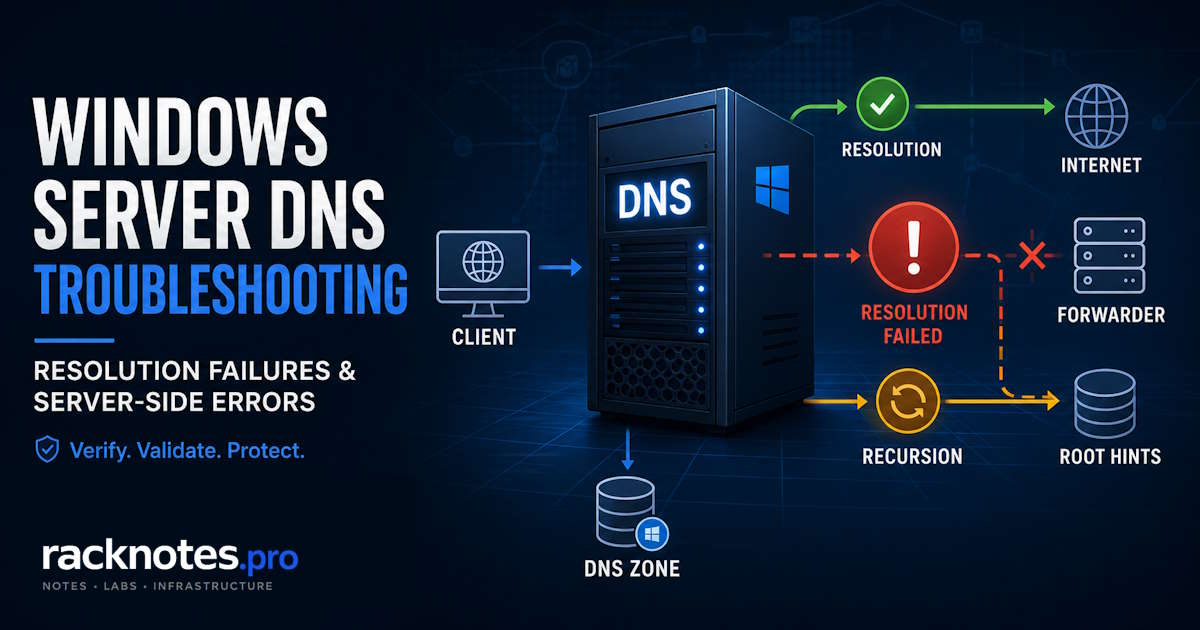
Windows Server DNS troubleshooting is faster when you start with the exact response from the server. Default Server: Unknown, DNS request timed out, Server failed / SERVFAIL, and Query refused point to different parts of the DNS path. Before rebuilding zones or blaming Active Directory, test the DNS server directly and identify whether the failure is service reachability, interface binding, authoritative data, forwarding, or recursion.
- Default Server: Unknown – test an actual query first; this can be a missing reverse-lookup (PTR) record for the DNS server’s own address, not a failure
- DNS request timed out – check direct reachability to the DNS server, service state, interface binding, and firewall/network path before touching zones
- Server failed / SERVFAIL – the server responded but could not complete the query; check zone health, forwarder reachability, recursion, and DNSSEC
- Query refused – the server deliberately declined the request; check recursion settings, policy, zone state, and query source
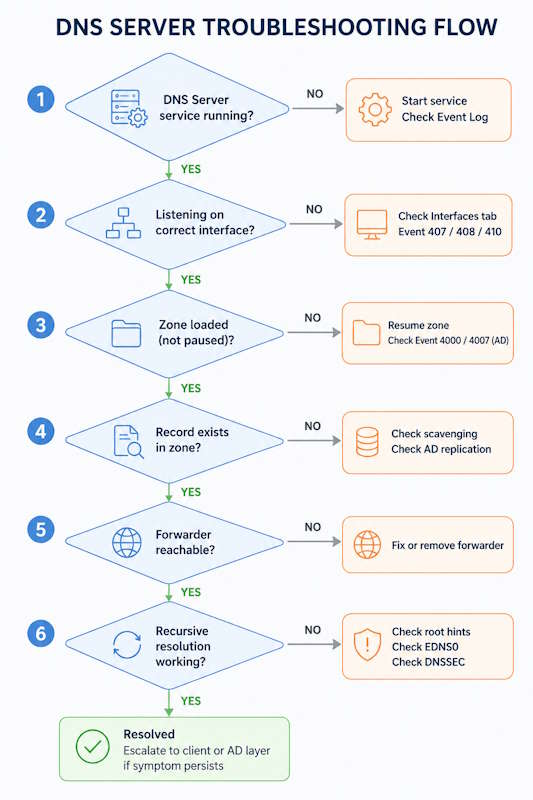
Default Server: Unknown,DNS request timed out,Server failed/SERVFAIL, andQuery refusedeach point to a different part of the DNS path; the wording narrows where to look first- Windows Server DNS troubleshooting follows a fixed six-step order: service running, listening interfaces, zone loaded, record present, forwarder reachable, recursion working
- Test against the server with
nslookup <name> <server-ip>andResolve-DnsName -Server, not with client resolver tools, which test a different layer - Event IDs 4000, 4004, 4007, 4013, 4015, and 4016 point to Active Directory dependencies rather than standalone DNS Server role problems; redirect instead of deep-diving here
- A dead or unreachable forwarder is a frequent cause of “external names won’t resolve” in smaller environments, but confirm it with an actual query, not just a port test
nslookup Default Server Unknown on Windows Server
nslookup shows Default Server: Unknown before you even type a query. Here, nslookup is trying to reverse-resolve the DNS server’s own IP address to a name for the header line it prints at startup, not the query you’re about to run.
The message alone does not prove DNS resolution is broken. A missing or failed PTR record for the DNS server’s address is a common reason Default Server: Unknown appears while the server answers real queries just fine. Confirm this before treating it as a failure:
nslookup <name> <server-ip>If that returns a real answer, the server is working, and the Default Server line is cosmetic in this case. If the query also fails or times out, the problem isn’t just the reverse lookup; move to DNS Request Timed Out or SERVFAIL below.
To verify the reverse lookup separately rather than guessing:
nslookup <server-ip>No PTR record, or a PTR pointing somewhere unexpected, confirms the reverse-lookup theory. Add or correct the PTR record in the relevant reverse lookup zone if the missing name display genuinely matters for logging or downstream tooling; if nothing depends on it, this often isn’t worth fixing at all.
The same principle applies over IPv4, IPv6, and loopback: nslookup still needs a name for whichever address it’s querying against.
DNS Request Timed Out in nslookup
DNS request timed out, sometimes shown as “Request to server timed out” or with a specific interval like “timeout was 2 seconds”, means no usable response arrived from the queried server within the expected window. The message does not identify which layer failed.
Work through this order:
- Query the intended DNS server explicitly, not whatever server the client happens to be using:
nslookup <name> <server-ip> - Confirm the DNS Server service is actually running:
Get-Service DNS - Confirm the server is listening on the IP being queried (DNS console > Properties > Interfaces). A service that’s running but not bound to that IP behaves like a stopped service from the querying host’s perspective
- Confirm the network path between the querying host and the server; routing, VPN, or segmentation changes can break that path
- Check Windows Firewall on the DNS server and any upstream ACLs for DNS traffic on port 53
- Verify both transport reachability and an actual DNS response; a reachable port does not guarantee a working DNS answer
- Only once the server itself answers reliably, move into zone, forwarder, or recursion diagnosis for the specific query that’s failing
A timeout can come from several distinct causes, not just “the service isn’t running”: network reachability, firewall or ACL drops, packet loss, an overloaded or unresponsive server, DNS service interface binding, or upstream/recursion behavior if the query that’s timing out is one the server has to forward. Keep the distinction clear between no response at all from the queried server, and a response that carries a DNS error code (SERVFAIL, REFUSED) – those are different failure classes with different next steps, covered below.
nslookup Server Failed / SERVFAIL
Server failed, or SERVFAIL in newer nslookup output, means the DNS server received the query and responded but could not complete the lookup successfully. Unlike a timeout, the server is reachable and answering, just not with a usable result for this query.
SERVFAIL does not map to one specific cause. Areas worth checking:
- Authoritative zone problems – a paused, missing, or corrupted zone for the name being queried
- Failed recursion – the server can’t complete resolution for a name it doesn’t host directly
- An unreachable or misbehaving forwarder – see Recursion and Forwarder Failures below
- DNSSEC validation failures, particularly when a forwarder is also configured
- An AD-integrated zone that isn’t currently available where the query depends on it
Use the six-step workflow below to isolate which of these actually applies rather than guessing from the error text alone.
DNS Query Refused / nslookup Query Refused
Query refused, or REFUSED in raw DNS response-code terms, means the queried server received the request and deliberately declined to perform it. This differs from a timeout or SERVFAIL because the server is explicitly rejecting the request based on its current configuration.
Do not assume a paused zone is the only cause. Check the actual context first:
- Recursion availability – is recursion permitted at all, and for this query source
- DNS Policy or query resolution policy rules that explicitly deny the query
- Zone state – paused or disabled zones do produce this, but they’re one cause among several
- Query source / allowed clients, where the server restricts which hosts it answers
- Whether the failing operation is a normal lookup or a zone transfer (AXFR/IXFR) – transfer-specific restrictions produce REFUSED for transfer requests specifically, covered in Zone Transfer Failures below
REFUSED on a normal lookup and REFUSED on a zone transfer request usually trace back to different settings entirely, even though nslookup or a transfer client reports both the same way.
Windows Server DNS Troubleshooting: Six-Step Server-Side Workflow
Work through this top to bottom. Each step isolates a failure class, so skipping ahead usually creates more uncertainty than it removes.
- Service running?
Get-Service DNS. From any host,nslookup <name> <server-ip>– “Request to server timed out” or “No response from server” points at the service, not the zone. - Listening on the right interface? DNS console > server Properties > Interfaces. A service that’s running but not bound to the queried IP behaves identically to a stopped service from the client’s perspective.
- Zone loaded and not paused? DNS console General tab, or
Get-DnsServerZone. A paused zone can return “Query refused” or “Server failure,” among other causes of each. - Record present?
Get-DnsServerResourceRecord -ZoneName corp.local -Name host. Missing records on an otherwise healthy zone usually trace to scavenging. - Forwarder reachable? DNS console > Properties > Forwarders, or
Test-NetConnection <forwarder> -Port 53as a transport check. Then confirm the forwarder answers an actual DNS query. - Recursion actually working?
Resolve-DnsName microsoft.com -Server localhost, or the DNS console Monitoring tab’s recursive query test.
Map the error you actually saw to where to start: a timeout points at steps 1-2 and the network/firewall checks covered above; SERVFAIL on external names points at steps 5-6 (forwarder, recursion); REFUSED points at zone state and policy rather than a specific step number; a missing record or NXDOMAIN points at step 4 and can trace back to scavenging.
Steps 1 through 3 isolate service, interface, and zone-state failures. Once the server itself is confirmed healthy, steps 5 and 6 isolate forwarding and recursion problems.
Test the DNS Server Directly With nslookup and Resolve-DnsName
A common diagnostic mistake is testing the client resolver instead of the DNS server. Point both tools directly at the DNS server you want to test, or you’re measuring a different layer.
nslookup <name> <server-ip> queries a specific server directly. What the response tells you:
| Result | What it tells you | Next check |
|---|---|---|
| Timeout / no response | No usable response from the queried server | Service, interface binding, firewall/network path |
| Default Server: Unknown | Reverse lookup for the server’s own address failed or can’t be identified | Test an actual query, then check the PTR separately |
| SERVFAIL / Server failed | Server responded but couldn’t complete the lookup | Zone, recursion, forwarder, DNSSEC/upstream |
| REFUSED / Query refused | Server deliberately rejected the query | Recursion/policy/zone/query context |
| NXDOMAIN | Server says the name doesn’t exist | Authoritative zone, record, delegation |
For walking a broken delegation chain, the interactive nslookup sequence is server <IP>, then set norecursion, then set q=NS, then the FQDN in question – this traces where the NS/A chain actually breaks, root down.
Resolve-DnsName -Server localhost (or -Server <dns-ip>) is the PowerShell equivalent and the one to reach for first on anything Server 2012 R2 and later.
Keep server and client cache handling separate. Clear-DnsServerCache clears the server’s own resolver cache, which is the relevant cache here. Clear-DnsClientCache and ipconfig /flushdns clear a client’s cache, a different layer covered in Windows Server Network Troubleshooting.
Quick Event ID Reference
This is a fast lookup, not a full reference. Each Event ID below gets the depth it needs for triage – what it means and what to check next – not a complete explanation. For full per-event detail, see Windows Server DNS Event IDs.
| Event ID | Layer | Meaning | Action |
|---|---|---|---|
| 407 / 408 | Server | Could not bind/open a socket on an interface | Check Interfaces tab; look for a port 53 conflict or stale IP |
| 410 | Server | Restricted interfaces list has no valid IP for this server – falls back to listening on all interfaces | Correct the IP list on the Interfaces tab. If this recurs after NIC teaming or a slow-to-initialize NIC, dnscmd /resetlisteningaddresses plus a delayed service start is a common workaround, not Microsoft’s documented fix for the event itself |
| 414 | Server | Server has a single-label hostname (no DNS suffix) | Set the primary DNS suffix; reboot. Harmless on a standalone box |
| 6702 | Server | Server’s own A record update failed on an AD-integrated peer | Check for wrong A records on replication partners; restrict listening on multi-NIC servers |
| 6522 / 6525 / 6534 | Server | Zone transfer refused or failed | See Zone Transfer Failures below |
| 2501 / 2502 | Server | Scavenging cycle completed, with/without deletions | See Scavenging-Related Failures below |
| 4000 / 4004 / 4007 / 4016 | Active Directory | DNS can’t open, load, or enumerate the AD-integrated zone | Redirect – see Active Directory DNS Problems |
| 4013 | Active Directory | DNS waiting on AD DS initial synchronization | Redirect – see Active Directory DNS Problems |
| 4015 | Active Directory | Critical error from Active Directory (RODC, permissions, or orphaned object limit) | Redirect – see Active Directory DNS Problems |
This table is a fast-lookup boundary, not a full per-event reference. It covers what’s needed to triage during an active incident.
Recursion and Forwarder Failures
A common SMB and homelab pattern is that internal names resolve normally while external lookups time out or return slowly.
Dead or unreachable forwarder. Windows Server’s classic default timeouts are tight by design: an 8-second recursion timeout and a 3-second forwarding timeout mean a server following those defaults can realistically only try about three forwarders before the recursion timeout cuts the process off. A dead forwarder at the top of the list burns most of that budget before the server ever reaches a working one. These timeouts are configurable per server, so confirm the actual configured values with Get-DnsServerRecursion or Get-DnsServerForwarder rather than assuming the classic defaults are still in effect. Fix: remove unreachable forwarders, and confirm the survivors actually answer a real query – Resolve-DnsName <name> -Server <forwarder-ip> – not just that the port responds. A server-side DNS failure here doesn’t stay contained to name resolution – a WSUS server that can’t resolve its configured Microsoft Update endpoint will fail synchronization with the same underlying cause; see WSUS Sync Failed if that’s the symptom actually driving the ticket.
DC-to-DC forwarding. Domain controllers in the same domain shouldn’t forward to each other. They already hold the same zone data, and forwarding between them only adds latency without resolving anything new. Forward to external resolvers only.
DNSSEC plus forwarders. With DNSSEC validation enabled and a forwarder configured, the server can misjudge an unsigned zone as signed and return SERVFAIL instead of a clean answer. If recursion fails specifically on DNSSEC-aware configurations, this combination is worth checking before assuming a forwarder is simply down.
EDNS0 and firewalls. Windows DNS uses EDNS0 for responses larger than the old 512-byte UDP ceiling. A firewall that drops oversized UDP packets produces a pattern where some domains resolve fine and others fail intermittently, which looks like a flaky forwarder but isn’t. dnscmd /config /enableednsprobes 0 is a documented workaround; fixing the firewall’s UDP handling, including fragmentation and any path MTU issues, is the actual resolution.
Clear-DnsServerCache confirms the diagnosis immediately; the durable fix is blocking AAAA recursion through a query resolution policy and addressing the upstream forwarder, not scheduling recurring cache flushes as a workaround.
Scavenging-Related Resolution Failures
Records that simply vanish are usually a scavenging configuration issue, not corruption or an attack. Full scavenging mechanics, safe rollout sequencing, and recovery from over-aggressive scavenging are covered in DNS Scavenging Windows Server – this section is the fast-triage version for an active incident.
Fastest check: dnscmd /zoneinfo <zone> for current aging settings, and Event IDs 2501/2502 in the DNS Server log to confirm a scavenging cycle ran and what it removed. If a record keeps disappearing on a predictable cycle, check whether the no-refresh and refresh intervals are set below the device’s actual re-registration cadence before assuming anything more dramatic.
Zone Transfer Failures
This applies to standard primary/secondary zone pairs. AD-integrated zones replicate through Active Directory replication, not AXFR/IXFR. If both zones in question are AD-integrated, this section doesn’t apply, and the issue belongs in Active Directory DNS Problems instead.
Symptoms: a secondary server serving visibly stale records, paired with Event 6534 (“aborted or failed to complete transfer of the zone”) or 6522/6525 (“zone transfer request… refused by the master”).
- Confirm TCP port 53 is reachable from the secondary to the primary:
Test-NetConnection <primary> -Port 53 - Compare SOA serial numbers on both servers:
Resolve-DnsName <zone> -Type SOA -Server <primary>and the same against the secondary - If the primary’s serial isn’t higher than the secondary’s, no transfer will trigger – this is expected behavior, not a bug
- Check the primary’s Zone Transfers tab – “Only to servers listed on the Name Servers tab” is a common silent blocker if the secondary isn’t actually listed there
- If the secondary is a non-Windows server (BIND or similar), confirm “BIND secondaries” is enabled on the primary’s Advanced tab – without it, fast transfers can fail to complete
- Force a manual transfer to confirm the fix:
dnscmd /zonerefresh <zone>
For transfer security hardening, AXFR-versus-IXFR mechanics, and a deeper transfer-specific troubleshooting sequence, see DNS Zone Transfers on Windows Server.
When It’s Not the DNS Server Role
Some tickets that arrive as “DNS is broken” belong to a different layer entirely. Use this table to redirect the investigation before spending time on the wrong system.
| Symptom | Actual layer | Where it belongs |
|---|---|---|
Works after ipconfig /flushdns on the client, breaks again later | Client resolver cache | Windows Server Network Troubleshooting |
DC won’t register SRV records, or dcdiag /test:dns fails | Active Directory / Netlogon | Active Directory DNS Problems |
| Event IDs in the 4000-4019 range, or 4013/4015 | Active Directory | Active Directory DNS Problems |
| AD-integrated zone not replicating to all DCs | Replication scope, not transfer | Windows Server DNS Replication Scope |
| Records dynamically registering on some devices but not others | Dynamic update permissions | DNS Dynamic Update Failed and Windows Server DNS Forwarders |
| Internal and external clients resolve the same name to different IPs | Expected behavior, not a failure | Windows Server Split-Brain DNS |
Verification and Debug Logging
For Windows Server DNS troubleshooting that survives the quick checks above, two tools go deeper without requiring a packet capture.
# Query/recursion/cache counters
dnscmd /statistics

# Temporary debug logging - enable, reproduce the issue, then disable
dnscmd <server> /config /loglevel 0x8101F
# ... reproduce the issue, check %windir%\System32\Dns\Dns.log ...
dnscmd <server> /config /loglevel 0x0
Debug logging is resource-intensive and meant to be temporary. Enable it, reproduce the failure, capture the log, then turn it back off. On Server 2016 and later, the DNS Analytical log under Event Viewer > Applications and Services Logs > Microsoft > Windows > DNS-Server is the lower-overhead alternative when full debug logging is undesirable on a production server.
The slowest part of Windows Server DNS troubleshooting is often identifying the failing layer. Use the exact error text and the six-step order to narrow it down: service, interface, zone, record, forwarder, then recursion. Once the failing step is clear, the repair path is usually much narrower.
FAQ
Why does nslookup say Default Server Unknown?
A missing or failed reverse lookup (PTR record) for the DNS server’s own IP address is a common reason, but confirm actual query behavior before assuming that’s the cause: run nslookup <name> <server-ip> against it. If real queries succeed, the message is cosmetic.
How do I fix DNS request timed out in nslookup?
Start with a direct query against the specific server, then confirm the DNS Server service is running, confirm it’s listening on the queried IP, and check the firewall and network path between the querying host and the server. Only move into zone or recursion diagnosis once the server answers other queries reliably.
What does Server failed mean in nslookup?
It means the DNS server received the query and responded but could not complete the lookup, which is different from a timeout. Possible causes include zone health, failed recursion, an unreachable forwarder, DNSSEC validation, or an AD-integrated zone that isn’t currently available.
What does Query refused mean in nslookup?
The queried server received the request and deliberately declined it. Check recursion availability, DNS policy, zone state, and query source, then confirm whether the failing operation is a normal lookup or a zone transfer because those usually trace to different settings.
Should I use nslookup or Resolve-DnsName on Windows Server?
Resolve-DnsName -Server <dns-ip> is the modern PowerShell option and a reasonable default on Server 2012 R2 and later. nslookup is still useful for its interactive mode when walking a delegation chain. Either way, point the query directly at the DNS server being tested, not at a client resolver.
When is a DNS error actually an Active Directory problem?
Event IDs 4000, 4004, 4007, 4013, 4015, and 4016 indicate that the DNS Server role is waiting on or failing to read Active Directory rather than showing a standalone DNS Server role misconfiguration. SRV registration failures and dcdiag /test:dns failures belong in the same category. See Active Directory DNS Problems.
Windows Server DNS Series
10 articles — Zones & Configuration · Scavenging · Forwarders · Replication Scope · Split-Brain DNS · Troubleshooting · Dynamic Updates · Event IDs · Scavenging Recovery · Zone Transfers