
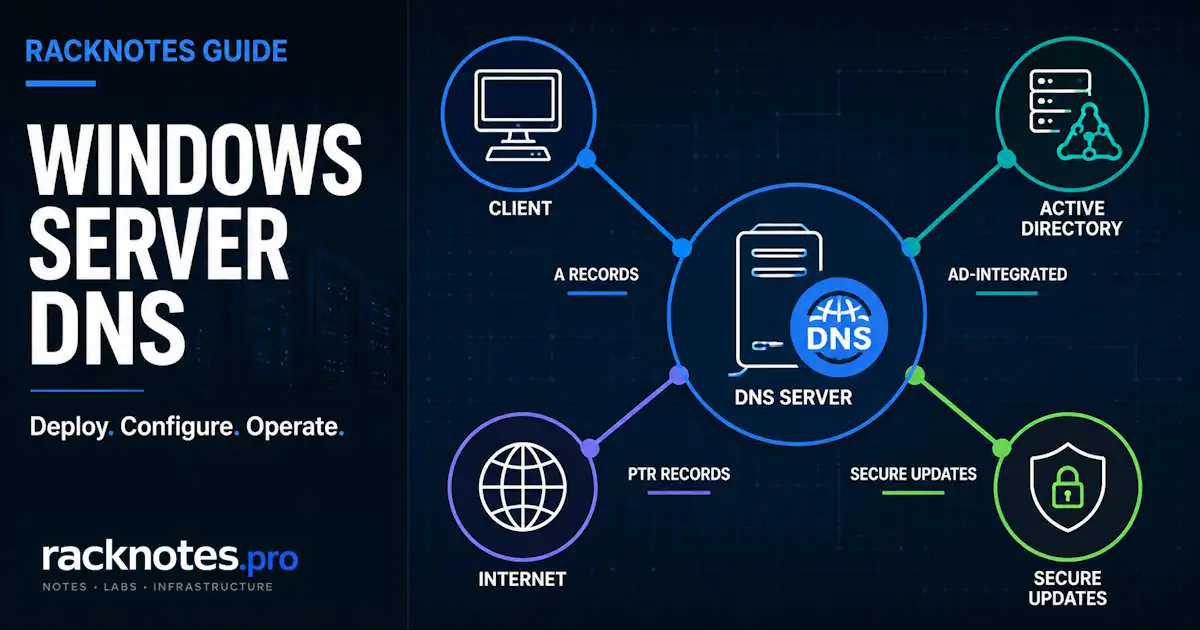
Windows Server DNS is the name-resolution layer Active Directory relies on for DC locator, Kerberos service discovery, Group Policy processing, and domain join. A DNS outage can break new lookups and authentication workflows immediately, while cached records, existing Kerberos tickets, and established sessions may keep some activity working temporarily. This guide covers what the DNS Server role manages: installation, zone types, record types, and configuration decisions that become difficult to change once production traffic depends on them.
This article covers the Windows Server DNS Server role – installation, zones, records, and core configuration. For AD-side DNS problems (SRV record registration, DC locator failures, _msdcs zone issues), see Active Directory DNS Problems. For client-side resolution issues, see Windows Server Network Troubleshooting.
- AD-integrated zones are the normal choice for AD domain zones because they support multi-master updates and replicate through Active Directory. File-backed primary/secondary zones still matter for non-AD scenarios and transfer-based integrations.
- Replication scope controls which DNS servers on domain controllers host an authoritative copy of a zone – it doesn’t by itself determine whether other domains can resolve it.
- “Secure only” dynamic updates require authentication and enforce zone/record ACLs – it’s not a blanket “any domain member can write anything” switch. “Nonsecure and secure” additionally accepts unauthenticated updates, which is a real attack surface.
- Aging and scavenging are disabled by default. Enable them only after reviewing timestamps and the server- and zone-level settings. See the dedicated DNS Scavenging on Windows Server guide before enabling them in production.
- A misconfigured or unreachable forwarder can cause slow external resolution, intermittent failures, or
SERVFAILresponses depending on timeout and root-hints fallback behavior. Full guide: Windows Server DNS Forwarders.
What the DNS Server role actually does
Windows Server DNS resolves names to IP addresses (and the reverse) for anything that needs to find anything else on the network – domain controllers locating each other, clients finding a DC to authenticate against, mail servers routing by MX record, internal apps resolving each other by hostname. On a domain-joined network, DNS isn’t optional infrastructure – it’s the lookup layer AD’s own protocols (Kerberos, LDAP, Netlogon) depend on to function.
The AD DS Configuration Wizard selects the DNS Server option by default when creating a new forest or domain, and it commonly remains selected when additional domain controllers are promoted. As a result, Windows Server DNS is often colocated with domain controllers in AD environments. That is a common pattern, not a universal rule: in supported scenarios an administrator can deselect it, and DNS can run as a standalone role on a member server or workgroup box. An AD-integrated zone, though, can only be hosted by the DNS Server service running on a domain controller.
Install and open DNS Server on Windows Server
The AD DS Configuration Wizard installs the DNS Server role automatically in most new-forest and new-DC scenarios, but the role can also be installed directly on a domain controller, member server, or workgroup server. AD-integrated zones still require a domain controller.
Server Manager: Add Roles and Features -> Server Roles -> DNS Server. Equivalent PowerShell:
Install-WindowsFeature DNS -IncludeManagementToolsDNS Manager (dnsmgmt.msc) is the main MMC console for managing Windows Server DNS zones, records, forwarders, server properties, and logging settings. Open it from Server Manager’s Tools menu, or run dnsmgmt.msc directly from an elevated session. See Microsoft’s DNS Server installation quickstart for interface binding and initial server configuration.
Forward versus reverse lookup zones
Forward zones resolve hostnames to IP addresses (server01.contoso.com → 10.0.0.5), which is what most people mean by “DNS.” Reverse zones do the opposite, IP to hostname, and live in a separate zone object under the in-addr.arpa (IPv4) or ip6.arpa (IPv6) namespace.
Creating a forward zone does not create the matching reverse zone automatically; that is a separate step. Skipping it is a common oversight when provisioning a new subnet. Some applications, logging systems, and security controls rely on reverse lookups, so missing PTR records can cause incomplete identification or application-specific failures.
Zone roles and storage models
Windows DNS separates a zone’s role from how its data is stored. A primary zone can be file-backed or stored in Active Directory. Stub zones can also be file-backed or AD-integrated. Secondary zones remain read-only copies obtained through zone transfer.
Primary – the writable role for a zone. AD-integrated primary zones store data in AD DS and replicate via AD replication (multi-master: any writable DC hosting the zone can accept updates). File-backed primary zones store data in a local .dns file and replicate to secondaries via zone transfer instead.
Secondary – a read-only copy obtained through AXFR/IXFR zone transfer from one or more configured master DNS servers. The transfer source is normally a server hosting the primary zone, but another secondary can also act as a transfer source. It is useful for load distribution and for authoritative DNS on segments where a writable copy is not wanted. Full zone transfer troubleshooting: DNS Zone Transfers on Windows Server.
Stub – contains the SOA, NS, and required glue address records needed to identify the authoritative DNS servers for another zone, not the full record set. It can be file-backed or AD-integrated and refreshes its data from configured master servers. Stub zones are commonly used to support resolution between separate DNS namespaces or to maintain an automatically updated list of authoritative servers for another zone.
AD integration is a storage and replication choice, not a fourth zone type alongside the other three. For AD domain zones, AD-integrated storage is the standard Windows Server design because it supports multi-master updates and Active Directory replication. When multiple writable domain controllers host the zone, the multi-master model avoids depending on a single DNS server for updates, and replication piggybacks on AD’s existing Kerberos-authenticated, encrypted transport. Microsoft’s AD-integrated DNS zones documentation covers the storage and replication model in full.
| Zone form | Storage | Replication / update method | Best fit |
|---|---|---|---|
| AD-integrated primary | AD DS | AD replication, multi-master writes | AD domain zones and internal writable zones hosted on DCs |
| File-backed primary | .dns file | Single writable primary; zone transfer to secondaries | Non-AD environments and transfer-based integrations |
| Secondary | Local read-only zone file | AXFR/IXFR from one or more primary servers | Read-only authoritative copy and transfer-based redundancy |
| Stub (file-backed or AD-integrated) | File or AD DS | Refreshes SOA, NS, and glue data from master servers | Maintaining authoritative-server awareness for another namespace |
On a DC that’s a Read-Only Domain Controller, the picture changes slightly: an RODC holds a read-only copy of the zone, and updates are handled through a writable DNS server/DC per normal Windows RODC replication behavior, not written locally.
Zone delegation, briefly
A parent zone delegates a child namespace to a different set of name servers using NS records. When the child’s name servers live inside the parent’s own namespace, glue (A/AAAA) records let resolvers find them without a circular lookup. A stub zone is related to delegation but serves a different purpose: it gives the DNS server hosting the stub an automatically refreshed list of authoritative servers for another zone. It does not create the delegation itself and is not limited to the parent DNS server.
AD-integrated DNS and replication scope
AD-integrated zones replicate through AD DS rather than zone transfer. Replication scope determines which DNS servers running on domain controllers host an authoritative copy of the zone – Domain (the default, DomainDnsZones) and Forest (ForestDnsZones) are the common built-in scopes, with custom application directory partitions available for more specific enrollment.
Replication scope is a separate question from whether other domains can resolve the zone: a domain-scoped zone can still be resolved elsewhere through a valid delegation, conditional forwarder, stub zone, or ordinary recursion, without those DNS servers hosting the zone directly. Full breakdown of scope selection, the partition model, and replication troubleshooting: Windows Server DNS Replication Scope.
DNS record types that matter in production
Windows Server supports many DNS record types. The following are the ones most relevant to the zone, record, and Active Directory workflows covered in this guide. Microsoft’s DNS resource-record documentation covers record creation, management, and the common record types supported by Windows Server.
| Record | Purpose | Where it commonly bites people |
|---|---|---|
| A / AAAA | Hostname to IPv4/IPv6 address | Stale entries after a server’s IP changes without re-registration |
| CNAME | Alias to another hostname | Chained CNAMEs add dependency and make troubleshooting harder; keep alias chains simple where possible |
| SRV | Service location (protocol, port, host) – critical for AD: _ldap._tcp, _kerberos._tcp | Missing or wrong SRV records break DC locator; usually an AD/Netlogon registration issue, not a manual DNS edit |
| PTR | Reverse lookup: IP to hostname | Reverse zones are easy to forget when provisioning new subnets; some apps and security tools depend on PTR records and may behave unexpectedly without one |
| MX | Mail routing priority and target host | Priority values misordered, or the target host has no valid address record (A and/or AAAA) |
| NS | Authoritative name servers for a zone | Stale NS records after decommissioning a DNS server |
| SOA | Zone metadata: serial number, refresh/retry/expire timers, primary server | Windows DNS normally manages serial increments automatically; a stuck serial is an edge case, more likely when a third-party secondary transfers from multiple AD-integrated servers with different local serial state |
| TXT | Arbitrary text – commonly SPF, DKIM, domain verification | Multiple SPF policy records can cause SPF validation to return an error; publish one valid SPF policy record for the domain |
Manual edits to SRV or PTR records can mask the actual cause. Missing SRV records often point to Netlogon registration problems, while missing PTR records often indicate that the reverse zone was never created.
Configuring a new DNS zone
Several important decisions happen at zone creation, and some, especially namespace design, are expensive to change later.
- Choose the zone role and storage. AD-integrated primary is the standard choice for AD domain zones and for other internal zones where AD-backed multi-master replication is desired; file-backed primary when there’s a specific reason to avoid AD dependency – non-AD environments, transfer-based integrations, isolated namespaces where storing the zone in AD DS is inappropriate. For public authoritative DNS, many organizations use a managed external DNS provider rather than exposing internal Windows DNS infrastructure directly.
- Set the replication scope. Domain scope replicates the zone to DNS servers on domain controllers in that domain; Forest scope extends the replica set across the forest. Choose the scope based on which DNS servers need to host the zone, and use the dedicated replication guide for the full decision model.
- Configure dynamic updates deliberately. “Secure only” requires authenticated dynamic updates and enforces the ACLs on the zone and individual records – authorized clients, DHCP servers, or delegated service accounts can create or update records according to those permissions. “Nonsecure and secure” additionally accepts unauthenticated updates, substantially increasing spoofing and record-hijacking risk, and should be limited to a documented compatibility requirement, not a default. Microsoft’s dynamic update documentation covers the full permission model.
- Set up the matching reverse lookup zone if PTR resolution matters for this subnet – it’s a separate zone object and doesn’t get created automatically alongside the forward zone.
- Leave aging and scavenging off until there’s a deliberate, documented plan for it – the dedicated Windows Server DNS Scavenging guide covers when and how to enable it safely.
If “Nonsecure and secure” is enabled for a temporary compatibility requirement, document the exception and set a review date rather than leaving it as a permanent default.
Creating a zone and record with PowerShell
GUI path: DNS Manager → Forward Lookup Zones → New Zone → Primary zone → Store the zone in Active Directory → select replication scope → Secure only.
Equivalent PowerShell, creating an AD-integrated forward zone, its matching reverse zone, and one A record with an automatic PTR:
# Create an AD-integrated forward lookup zone with domain-wide replication
Add-DnsServerPrimaryZone `
    -Name "apps.contoso.com" `
    -ReplicationScope Domain `
    -DynamicUpdate Secure

# Create the matching IPv4 reverse lookup zone
Add-DnsServerPrimaryZone `
    -NetworkId "10.20.0.0/24" `
    -ReplicationScope Domain `
    -DynamicUpdate Secure

# Add an A record and create its PTR record in the same step
Add-DnsServerResourceRecordA `
    -Name "app01" `
    -ZoneName "apps.contoso.com" `
    -IPv4Address "10.20.0.10" `
    -CreatePtr
Basic Windows Server DNS verification
A few PowerShell checks confirm that the server is functioning as its configuration implies:
# Zone inventory and update mode
Get-DnsServerZone |
    Select-Object ZoneName, ZoneType, ReplicationScope, IsDsIntegrated, DynamicUpdate

# Configured server-level forwarders
Get-DnsServerForwarder

# Test an authoritative internal record against the server clients use
Resolve-DnsName <known-internal-fqdn> -Server <dns-server-ip>

# Test external resolution through that same server
Resolve-DnsName microsoft.com -Server <dns-server-ip>

# Review recent DNS Server events
Get-WinEvent -LogName 'DNS Server' -MaxEvents 50 |
    Select-Object TimeCreated, Id, LevelDisplayName, Message
If external resolution fails, verify the configured forwarders before assuming a broader DNS problem; forwarder, timeout, and root-hints troubleshooting is covered in the dedicated Windows Server DNS Forwarders guide.
If an AD-integrated zone is present on one DNS server but missing or stale on another, verify the zone’s replication scope and the relevant Active Directory naming context; the dedicated Windows Server DNS Replication Scope guide covers the full check and force-replication workflow.
Security basics
DNS is foundational infrastructure, so its security settings deserve explicit review. Confirm these settings rather than assuming the defaults fit the deployment:
- Zones that should remain static should use “Do not allow dynamic updates.” For an AD-integrated zone that needs dynamic registration, “Secure only” restricts updates to authenticated clients according to the zone and record ACLs. Do not apply it to zones that do not need dynamic registration.
- Disable zone transfers where no secondary server or integration requires them. Where transfers are required, restrict them to explicitly approved secondary-server IP addresses – an unrestricted AXFR can expose the full contents of that zone, including internal hostnames and addresses useful for network reconnaissance.
- DNSSEC is available for zone signing but adds operational overhead, including key rollover and resolver compatibility. It is most relevant when the deployment has a specific threat model that justifies signed zones.
- Cache locking defaults to 100 percent and normally doesn’t need adjustment. Response Rate Limiting is available on supported Windows Server versions but is not simply “on by default” the way cache locking is – verify its current mode and thresholds explicitly rather than assuming, especially on an internet-facing authoritative server:
Get-DnsServerCache
Get-DnsServerResponseRateLimiting
FAQ
What is Windows Server DNS?
Windows Server DNS is the DNS Server role built into Windows Server. It resolves hostnames to IP addresses and reverse mappings, and hosts the SRV, A, and other records Active Directory depends on for domain controller location, Kerberos authentication, and Group Policy processing. It can host AD-integrated zones on a domain controller or file-backed zones on a member or workgroup server.
How do I open DNS Manager in Windows Server?
Open DNS Manager from Server Manager’s Tools menu, or run dnsmgmt.msc directly from an elevated session. DNS Manager is the main MMC console for managing zones, records, forwarders, server properties, and logging on a Windows Server DNS server.
What’s the difference between a forward lookup zone and a reverse lookup zone?
Forward zones resolve hostnames to IP addresses. Reverse zones do the opposite – IP to hostname – and live in a separate zone object under the in-addr.arpa or ip6.arpa namespace. Creating a forward zone doesn’t create the matching reverse zone automatically; if PTR lookups matter for a subnet, that’s a second, deliberate step.
Should every zone be AD-integrated?
No. AD integration is most common for AD domain zones, but it isn’t limited to namespaces that match an AD domain. Any primary zone hosted by the DNS Server service on a domain controller can be stored in AD DS when multi-master AD replication is the desired model. Use file-backed primary, secondary, or stub zones when AD DS is unavailable, when the zone must be hosted on a member or workgroup server, or when a transfer-based design is required.
What’s the difference between a stub zone and a conditional forwarder?
Both direct queries for a specific namespace elsewhere, but a stub zone stores the target zone’s NS/SOA/glue records locally and refreshes them automatically as the target zone’s authoritative servers change. A conditional forwarder is just a static list of IPs to query for a given namespace, with no awareness of whether those IPs are still correct. Stub zones self-maintain; conditional forwarders don’t. Full comparison: Windows Server DNS Forwarders.
Can I run DNS on a member server instead of a domain controller?
Yes. A member server can run the DNS Server role, host file-backed primary, secondary, or stub zones, and provide caching/forwarding services. AD-integrated zones specifically require DNS Server to run on a domain controller because the zone data is stored in AD DS. In many AD environments, DNS remains colocated with domain controllers; other designs may use dedicated DNS appliances or managed platforms instead.
How do I tell if a DNS problem is server-side or client-side?
Query the DNS server directly with Resolve-DnsName -Server. If the server answers but normal client resolution fails, investigate client DNS configuration and the network path. If the direct query also fails, continue with the dedicated Windows Server DNS Troubleshooting workflow.
What Windows Server versions does this guide apply to?
The core zone, record, AD-integration, and dynamic-update concepts apply to Windows Server 2016, 2019, 2022, and 2025. Version-specific defaults and PowerShell behavior – like the exact Response Rate Limiting configuration – should be verified against the Microsoft Learn documentation for the deployed release rather than assumed from this guide alone.
Final thoughts
A stable Windows Server DNS deployment starts with deliberate choices around zone storage, replication scope, dynamic updates, and reverse lookup coverage. Once those fundamentals are correct, forwarders, scavenging, replication, and troubleshooting can be handled as separate operational concerns.
The zones and records covered here are the foundation for the rest of the DNS cluster. Forwarders, replication scope, scavenging, and troubleshooting each have their own deeper treatment linked throughout this guide.
Windows Server DNS Series
10 articles — Zones & Configuration · Scavenging · Forwarders · Replication Scope · Split-Brain DNS · Troubleshooting · Dynamic Updates · Event IDs · Scavenging Recovery · Zone Transfers