
Windows Server DNS event IDs are not diagnoses by themselves. Before applying any fix, confirm the provider and log name, read the complete message text, and record any embedded or extended error code. Event 4015, for example, can point to an RODC connectivity problem, a zone-permission condition, or an overloaded dnsRecord attribute depending on the extended code.
Use the table below to match the Event ID to the likely subsystem and the first safe check.
Windows Server DNS Event IDs Quick-Reference Table
| Event ID | Typical symptom | Likely subsystem | First safe check |
|---|---|---|---|
| 4015 | Critical error from Active Directory while loading zone data | Active Directory / DNS zone data | Record the extended error code |
| 4013 | DNS Server waiting for AD DS initial synchronization | Active Directory replication (startup) | Confirm whether it’s transient (startup) or persistent |
| 4000 / 4007 | AD-integrated zones fail to load; DNS console or dnscmd returns Access Denied | Active Directory / secure channel | Check the secure channel with nltest /sc_verify:<domain-fqdn> |
| 4004 | DNS directory-service operation against AD failed or timed out | Active Directory / DNS Server | Confirm OS build and patch level |
| 4016 | DNS update or directory-service operation timed out | Active Directory / DNS Server | Confirm OS build and cumulative-update level |
| 407 | UDP socket bind failure | Network interface / socket | Validate the address and UDP port 53 owner |
| 408 | DNS cannot open a socket on an address | Network interface / socket | Check Interfaces tab and current local addresses |
| 410 | Restricted interface list has no valid local IP | Network interface / socket | Review DNS listening interfaces; check NIC Teaming startup order |
| 6702 | DNS Server service failed to publish its own host records | DNS Server publication | Check peer resolution and PublishAddresses |
| 7062 | Self-send or bad delegation | DNS configuration (forwarders / delegation) | Check forwarders, master/notify lists, and delegation NS records for a self-reference |
This reference covers Event IDs from the Windows Server DNS Server role. Because some Event IDs are reused by other Windows providers, always confirm the provider and full message. AD DS, NTDS, and Netlogon events such as 2087, 5774, and 5781 are routed to the AD section below.
Before You Change Anything
- Record the provider, the complete message text, and any embedded error code – the number alone is never enough.
- Determine whether the event occurred once at startup or repeats during normal operation.
- Don’t change AD objects, secure channels, listening interfaces, or DNS records based on the Event ID alone.
DNS Event ID 4015 – Critical Error from Active Directory
DNS Event ID 4015 means DNS Server connected to Active Directory but received a critical error while reading zone data. The extended error code embedded in the event – not the Event ID alone – determines the actual cause and the fix.
Typical message: “The DNS server has encountered a critical error from the Active Directory. Check that the Active Directory is functioning properly. The extended error debug information (which may be empty) is [error code].”
This differs from Event 4013, which reflects a wait for initial synchronization. With 4015, DNS Server connected to AD DS and received an error. Microsoft’s Event 4015 troubleshooting article documents this as a wrapper around a specific AD DS error – the fix depends entirely on which one.
Match the extended error code before doing anything else:
| Extended code | Documented scenario | First diagnostic step |
|---|---|---|
00002095 | RODC cannot locate or use a suitable writable DNS DC | nltest /dsgetdc:<domain-fqdn> /WRITABLE /AVOIDSELF /TRY_NEXT_CLOSEST_SITE /DS_6 |
0000051B with nTSecurityDescriptor | DNS Server cannot access the AD zone object because of ownership or domain Users-group conditions | Correlate with Directory Service Event 1644, identify the zone object, verify its owner, and check the documented Users-group membership |
00002024 / ADMIN_LIMIT_EXCEEDED | dnsRecord multi-value attribute hit its capacity, usually orphaned records after repeated DC promotions and demotions | Identify the affected dnsNode object; clean up orphaned record values through a supported AD/DNS procedure, not manual ADSI edits on a guess |
Event 4015 Error Code 00002095
An RODC cannot locate or use a suitable writable DNS domain controller. Confirm it can reach a writable partner before assuming a broader replication failure:
nltest /dsgetdc:<domain-fqdn> /WRITABLE /AVOIDSELF /TRY_NEXT_CLOSEST_SITE /DS_6Event 4015 Error Code 0000051B
Code 0000051B paired with nTSecurityDescriptor means DNS Server cannot access the AD zone object because of ownership or domain Users-group conditions. Correlate with Directory Service Event 1644, identify the specific zone object, verify its owner, and check the documented Users-group membership before changing any permissions.
Event 4015 ADMIN_LIMIT_EXCEEDED / 00002024
Code 00002024 (ADMIN_LIMIT_EXCEEDED) means the dnsRecord multi-value attribute on a dnsNode object hit its capacity – usually orphaned records left behind after repeated DC promotions and demotions. Identify the affected dnsNode object and clean up the orphaned record values through a supported AD/DNS procedure, not manual ADSI edits on a guess.
Event 4015 Diagnostic Sequence
- Record the extended error code from the event details before doing anything else
- Open the Directory Service log and look for Event 1644 or other errors at the same timestamp
- Match the code against the table above
- Run
repadmin /showreplanddcdiag /test:replicationsto confirm general replication health - Run
dcdiag /test:dns /e /vto check the DNS application partitions - If the DC is an RODC, run the
nltest /dsgetdccommand above to confirm it can reach a writable partner
Don’t edit zone ACLs or ADSI objects based on a guess. Confirm the exact code, identify the specific affected object, and have a system-state backup and change window before making directory-level changes.
If the extended code points toward a broader Active Directory problem rather than a self-contained DNS zone-object issue, continue with Active Directory DNS Problems for deeper AD-integrated DNS troubleshooting.
DNS Event ID 4013 – DNS Server Waiting for AD DS Initial Synchronization
DNS Event ID 4013 means the DNS Server role is waiting for Active Directory Domain Services to complete initial synchronization. The event can be transient during domain-controller startup; if it persists after the server is fully online or AD-integrated zones remain unavailable, investigate the DNS client path and AD replication.
Typical message: “The DNS server is waiting for Active Directory Domain Services (AD DS) to signal that the initial synchronization of the directory has been completed.”
DNS Server and AD DS have a dependency loop at DC startup: DNS needs AD to load AD-integrated zones, and AD needs DNS for DC locator records. Event 4013 can appear during this startup phase while DNS waits for initial inbound replication. Microsoft’s dedicated troubleshooting article for Event 4013 documents delays of 15-25 minutes in some topologies – a known pattern, not a threshold to wait out passively.
If the event clears after startup and zones load normally, it is usually transient. If it recurs after the server is fully online, or zones remain unavailable, investigate beyond AD replication health alone. Microsoft’s documented contributing conditions also include the DC pointing only at itself for DNS, configured DNS servers being unreachable, DNS servers not hosting the required zones, and the replication-source DC’s GUID CNAME record failing to resolve.
- Check whether zones are loading:
Get-DnsServerZone | Select ZoneName, ZoneType, IsAutoCreated– confirms whether DNS can enumerate the expected zones. It does not, on its own, prove complete AD synchronization. - Check DNS application partitions:
Get-DnsServerDirectoryPartition - Check the DC’s own DNS client configuration:
ipconfig /all– confirm it points at DNS servers that actually host the required zones - Check AD replication:
repadmin /showrepl,repadmin /replsummary, anddcdiag /test:replications - Run
dcdiag /test:dns /e /vto check DNS-related health across all DCs - Confirm the replication-source DC’s GUID CNAME record resolves through the DNS servers configured on the affected DC
A common misread: operators see 4013 and go straight to AD replication tools. DNS Server is reporting what AD DS told it, but the root-cause tree includes the DC’s own DNS client path, not just replication health.
Some third-party guidance suggests disabling initial synchronization entirely via the Repl Perform Initial Synchronizations registry value under HKEY_LOCAL_MACHINE\SYSTEM\CurrentControlSet\Services\NTDS\Parameters, set to 0. Microsoft’s own Event 4013 troubleshooting article explicitly does not recommend this for production or ongoing use – it’s a narrow, temporary workaround for specific rebuild scenarios, not a normal fix for a persistent 4013.
DNS Event IDs 4000 and 4007 – AD-Integrated Zones Fail to Load
DNS Event IDs 4000 and 4007 together mean AD-integrated zones fail to load, and the DNS console or dnscmd may return Access Denied, even though the DNS Server service itself is still running. Microsoft documents the underlying cause as the DC losing its secure channel with itself or the PDC – this can happen even in a single-DC environment.
On current supported Windows Server versions, Microsoft’s dedicated article on Events 4000 and 4007 documents these two Event IDs together as an AD access problem, not a generic zone-file failure.
If the message references Active Directory access, or 4000 and 4007 appear together, treat this as an AD access / secure-channel problem, not a zone-file problem:
repadmin /showrepl
repadmin /replsummary
dcdiag /test:replications
dcdiag /test:dns /e /v
nltest /sc_verify:<domain-fqdn>
nltest /sc_verify checks the secure-channel state. It does not replace Microsoft’s documented DC machine-password reset procedure when the exact 4000/4007 symptoms match. Secure-channel repair on a DC is high-impact: confirm a healthy replication partner, a current system-state backup, and a maintenance window before running it.
If the provider or message differs from Microsoft’s documented AD-access text, don’t assume it’s the same scenario – use the full provider and message to locate version-specific guidance before editing zone files, registry values, or permissions on a different theory.
If a zone fails to load on one DC after a replication cycle while other DCs load it normally, identify the failing naming context first with repadmin /showrepl and repadmin /replsummary before reaching for any repair command. Forcing a blanket resync with repadmin /syncall before the actual cause is known doesn’t repair a broken secure channel and can add topology noise that makes the real problem harder to see. If manual replication is genuinely needed once the cause is identified, target it: repadmin /replicate <DestinationDC> <SourceDC> <NamingContextDN>. Avoid modifying permissions on DNS zone objects without first identifying the root cause.
For broader AD-integrated DNS architecture and failure patterns beyond this specific secure-channel condition, see Active Directory DNS Problems.
DNS Event ID 4004 – Directory Service Operation Failure or Timeout
DNS Event ID 4004 means the DNS Server role could not complete a directory-service operation against Active Directory. The exact provider and message determine whether this is the Microsoft-documented DNS update timeout condition or a different AD access failure. This is a DNS Server role event specifically – Windows Network Profile and DFSR also reuse Event ID 4004 for unrelated conditions, so confirm the source is DNS Server or Microsoft-Windows-DNS-Server-Service before applying this guidance.
Microsoft documents a timeout pattern affecting AD-integrated DNS zones on Windows Server 2012 R2 or later: zones may fail to enumerate or DNS records may intermittently fail to create or write even while ordinary DNS queries continue to resolve. For Windows Server 2019 and later, Microsoft lists fixes in updates released on April 9, 2024; current cumulative updates supersede those packages.
- Confirm the provider and record the complete event message, object DN, and any embedded error
- Check whether ordinary DNS queries still resolve while zone enumeration or DNS record writes fail
- Check the Windows Server version, OS build, and current cumulative-update level
- Check AD replication health with
repadmin /showreplanddcdiag /test:replications - If another DC hosts the same AD-integrated zone, compare whether the same operation succeeds there
Event 4004 and Event 4016 can appear together under the same Microsoft-documented condition. See DNS Event ID 4016 for the full diagnostic sequence, the Kerberos-cache workaround, and how to tell this apart from a broader AD issue. Official source: Events 4016 and 4004 – DNS updates time out.
DNS Event ID 4016 – DNS Update or Directory Service Operation Timed Out
DNS Event ID 4016 means a DNS update or directory-service operation against Active Directory timed out. It can appear together with Event 4004 under Microsoft’s documented DNS update timeout condition, but confirm the provider, exact message, symptoms, and OS build before assuming that specific cause.
Confirm the operating system build and current update level before assuming this is the documented issue:
Get-ComputerInfo |
    Select-Object WindowsProductName, WindowsVersion, OsBuildNumber

Get-HotFix |
    Sort-Object InstalledOn -Descending |
    Select-Object -First 10 HotFixID, InstalledOn
For Windows Server 2019 and later, Microsoft states this issue was fixed by updates released on April 9, 2024. Cumulative updates supersede those packages, so install the current supported cumulative update rather than targeting an old KB unless change-control requirements say otherwise. Official source: Events 4016 and 4004 – DNS updates time out.
- Record the exact message, object DN, and any embedded error
- Check whether DNS record writes and zone enumeration fail while ordinary DNS queries still work – that split is the documented fingerprint
- Verify whether the same record can be written on another DC and replicates normally through AD
- Check the OS build and current cumulative-update level
- If the server is current and symptoms don’t match the documented condition, continue with broader AD, LDAP, storage-latency, and security-software diagnostics instead of assuming the known bug
- If immediate mitigation is required before patching, apply Microsoft’s documented workaround only during a maintenance window and when clients have another reachable resolver
Microsoft’s workaround purges the LocalSystem Kerberos ticket cache, then restarts DNS Server:
klist purge -li 0x3e7Follow with a DNS Server service restart per Microsoft’s documented procedure. Don’t automate repeated service restarts without validating the event threshold and confirming DNS redundancy is in place.
Broader AD load, security software, backup activity, or storage latency can produce other DNS/AD symptoms, but don’t treat them as the documented default cause of this specific 4016/4004 condition. The OS build and patch level are the first things to check, not server load.
DNS Event IDs 407, 408 and 410 – Interface and Socket Binding
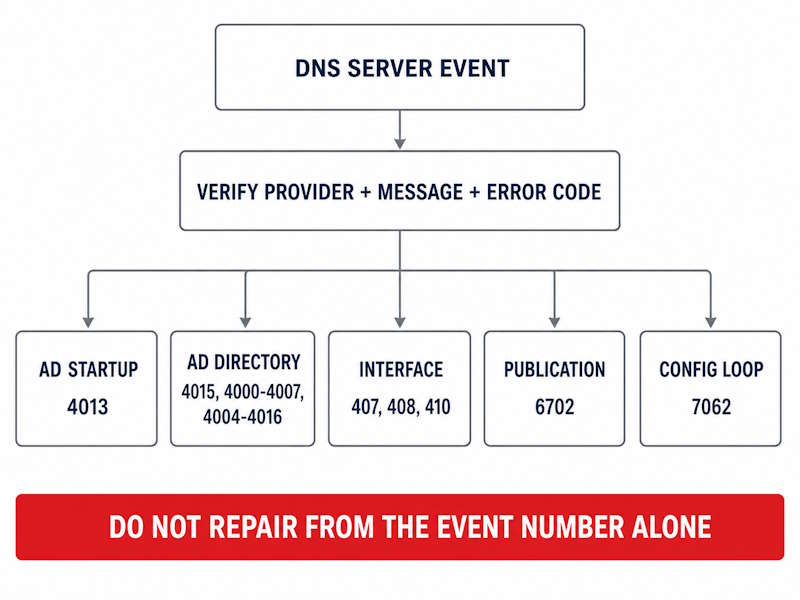
These three Windows Server DNS event IDs share a common interface-binding root cause, even though each has its own trigger.
Event 407 – DNS Server Cannot Bind UDP Port 53
Typical message: “The DNS server could not bind a User Datagram Protocol (UDP) socket to [IP address].”
DNS Server cannot bind UDP port 53 to the IP address shown in the event. Validate the address and check port ownership first. Microsoft’s maintained Events 407 and 408 article preserves a legacy NAT/DNS-proxy scenario, originally written for older Windows Server releases, where NAT and DNS Server compete for the same interface, address, or port. Follow that branch only when NAT/RRAS DNS proxy functionality actually exists on the box – it isn’t the default explanation on a current Windows Server 2025 install.
- Open DNS Manager -> server name -> Properties -> Interfaces tab
- Check whether the listed IP address still exists:
Get-NetIPAddress | Select IPAddress, InterfaceAlias, AddressFamily, AddressState - Check for port 53 conflicts on both protocols:
Get-NetUDPEndpoint -LocalPort 53andGet-NetTCPConnection -LocalPort 53 -State Listen - If a conflicting process owns the port, map the PID:
Get-Process -Id <PID> - If NAT/RRAS is running on the same host, check for the legacy DNS-proxy conflict before assuming it’s purely an interface problem
- Update the Interfaces tab to reflect the current addresses, then restart the DNS Server service
A common trigger is a server IP change or a stale interface selection left over from one – but treat that as one branch to check, not the default explanation, since port ownership by another process and the legacy NAT proxy conflict are both documented alternatives.
Event 408 – DNS Server Cannot Open a Socket for an Address
Typical message: “The DNS Server service cannot open a socket on the interface at [IP address]. This may not be a valid interface address.”
Closely related to Event 407, this event means the DNS Server configuration references an address it cannot use, typically because the address was removed from the NIC or never existed on this server. Use the same diagnostic sequence as for Event 407, then remove any stale address from DNS Manager -> server Properties -> Interfaces tab. On a multihomed server, consider whether “All IP addresses” is actually appropriate – it also means DNS starts answering on backup networks, management interfaces, or VPN adapters if those exist on the box.
Event 410 – Restricted Interface List Has No Valid Local IP
Event 410 means the DNS Server’s list of restricted listening interfaces no longer contains a valid IP address for the server. The usual triggers match 407 and 408: an IP change, a removed interface, or a virtual NIC that Windows re-numbered on reboot.
If Event 410 returns after every reboot on a server using NIC Teaming, check whether DNS Server starts before the teamed interface becomes available. Microsoft documents this condition for Windows Server 2016/2019 and recommends setting the DNS Server service to Automatic (Delayed Start). Before applying that workaround on newer releases, confirm the event and adapter-readiness symptoms actually match the documented scenario.
After Event 410, confirm which addresses DNS is actually listening on – Windows can discard the invalid restricted-interface setting and revert to listening on all local addresses, which can unintentionally expose DNS on management, backup, or VPN networks. Fix in DNS Manager -> server Properties -> Interfaces tab: confirm each listed address still exists with Get-NetIPAddress, remove stale entries, and add the current addresses if the server is intentionally restricted to a subset of its interfaces.
On a production DNS server, confirm that clients have another reachable resolver, or schedule a maintenance window, before restarting the DNS Server service to apply any of the 407, 408, or 410 fixes above.
Event 6702 – DNS Server Failed to Publish Its Own Host Records
Typical message: “The DNS server has updated its own host records. In the process of doing so, it encountered the following error while talking to the DNS server [server name].”
This Windows Server DNS event ID concerns the DNS Server service’s own attempt to publish its host records on other DNS servers, not the DNS client registration path that ipconfig controls. Microsoft’s guidance on DNS dynamic registration confirms these are separate mechanisms. Event 6702-specific guidance is legacy, so the sequence below relies on current dynamic-update and PublishAddresses documentation rather than a current Event-6702-specific KB. Peer DNS servers and domain controllers use these A records to locate each other, so stale or missing published records can block replication partners from connecting.
- Record the event data and any embedded error code
- Confirm which DNS server was contacted when the failure occurred
- Resolve the server’s FQDN from each partner:
Resolve-DnsName <server-fqdn> -Server <peer-dns-ip> - Compare the result against the server’s actual published addresses:
Get-NetIPAddress -AddressFamily IPv4,IPv6 | Where-Object AddressState -eq 'Preferred' - Check the authoritative zone’s dynamic update policy and this server’s listening/publication addresses – on a multihomed server,
PublishAddressesbehavior determines which address gets published - Use
ipconfig /registerdnsonly as a DNS client registration test – it doesn’t confirm DNS Server service publication is working - For DC locator SRV records specifically, test Netlogon registration separately:
nltest /dsregdns - If the affected zone is AD-integrated, check replication health:
repadmin /showrepl
Event 6702 sometimes appears alongside Event 4013 or 4015 when the broader AD replication path is degraded. Fix the replication issue first in that case – the self-registration failure is often a downstream effect, not the root cause.
Event 7062 – DNS Server Received a Packet Addressed to Itself
Event 7062 indicates a self-send configuration error or a delegation to a server that isn’t authoritative for the zone. Microsoft’s current article for Event 7062 covers both patterns: a query loop where the server ends up asking itself to resolve a name, and delegation to a server with no corresponding zone file at all.
Microsoft separates the checks by where the self-reference can live:
- Check server-level Forwarders (DNS Manager -> server Properties -> Forwarders) for the server’s own address
- For a secondary zone, check the master-server list (zone Properties -> General -> Master Servers) and remove the server’s own address if present
- For a primary zone, check the Notify list (zone Properties -> Zone Transfers -> Notify) and remove the server itself if present
- Inspect the parent zone’s delegation and NS records for this zone
- Confirm that any server delegated as authoritative actually hosts a primary or secondary copy of the zone
- Correct the self-reference, then restart the DNS Server service once if the change requires it and DNS redundancy is available
Event 7062 is a configuration-loop or delegation-mismatch signal, not zone corruption. Restarting the service repeatedly without fixing the underlying forwarder, master list, notify list, or delegation entry won’t resolve it. For related forwarding configuration, see Windows Server DNS Forwarders.
Zone Transfer Events
Zone-transfer event messages and IDs vary by provider and Windows Server version, so this reference doesn’t map them to one fixed set of numbers. Look for a secondary zone with a stale Last Transfer timestamp in DNS Manager and DNS Server log errors around the expected transfer time. Common causes include zone transfers not being permitted on the primary, TCP port 53 being blocked between secondary and primary, the SOA serial number not incrementing, or the primary DNS Server service being unreachable. For the complete diagnostic workflow, including dnscmd commands, SOA serial comparison, and TCP connectivity tests, see DNS Zone Transfers on Windows Server.
Related AD and Netlogon Events
Several Event IDs appear in or near the DNS Server log but trace back to AD DS, Netlogon, or replication – not to DNS Server role configuration. The practical rule: if investigating DNS Server settings and zones doesn’t resolve the event, open the Directory Service log and check Netlogon. These events belong in AD diagnostics:
- Netlogon Event 5774 / 5775 / 5781 – SRV record registration failures, DC locator. Covered in Active Directory DNS Problems.
- NTDS Event 2087 – AD replication DNS lookup failure. Covered in Active Directory Replication Not Working.
- NTDS Events 1925, 1926 – replication connectivity. Same article.
Where DNS Server Events Are Logged
Windows Server DNS event IDs are logged across three separate surfaces, documented in Microsoft’s DNS Server troubleshooting guide and DNS logging and diagnostics reference. The log an event comes from determines the correct investigation path.
Classic DNS Server event log – the primary operational log, where the Event IDs above appear. Open via Event Viewer -> Applications and Services Logs -> DNS Server (not Application or System). PowerShell access:
Get-WinEvent -FilterHashtable @{
    LogName   = 'DNS Server'
    Level     = 1,2
    StartTime = (Get-Date).AddHours(-24)
} | Select-Object TimeCreated, Id, ProviderName, LevelDisplayName, Message
Using FilterHashtable with a time range filters before retrieval – important on busy servers, where pulling the first 100 events and filtering afterward can miss older errors buried under informational noise.
DNS Server Audit and Analytical channels – available under Event Viewer -> Applications and Services Logs -> Microsoft -> Windows -> DNS-Server. Audit is enabled by default and records configuration changes, zone and record changes, dynamic updates, zone transfers, and DNSSEC operations. Analytical is disabled by default and captures detailed high-volume query/response tracing – enable it explicitly, typically for a short diagnostic window.
DNS debug log (text file) – enabled manually via DNS Manager -> server Properties -> Debug Logging, or with Set-DnsServerDiagnostics. It records selected packet categories, not automatically every query; enabling every category can produce very high volume on a busy server. Enable briefly for targeted troubleshooting, then disable. Reference: Set-DnsServerDiagnostics.
Start with the classic DNS Server log, since the Audit channel doesn’t replace it. Inspect warnings and informational events in the same timestamp window as errors – service restarts, zone load sequences, and interface changes logged just before an error often explain it. See also Windows Server Event Log Troubleshooting for the general Event Viewer workflow.
How to Read DNS Events During an Outage
When DNS is down and there are 40 events since the last restart, filter to Critical and Error first, then inspect warnings and informational events from the same provider and timestamp window – they often show what triggered the error.
# Errors and criticals from the last 24 hours
Get-WinEvent -FilterHashtable @{
    LogName   = 'DNS Server'
    Level     = 1,2
    StartTime = (Get-Date).AddHours(-24)
} | Select-Object TimeCreated, Id, ProviderName, LevelDisplayName, Message | Format-List

# All events from a specific time window - replace with your own values
$Start = [datetime]'YYYY-MM-DD HH:MM'
$End   = [datetime]'YYYY-MM-DD HH:MM'

Get-WinEvent -FilterHashtable @{
    LogName   = 'DNS Server'
    StartTime = $Start
    EndTime   = $End
} | Select-Object TimeCreated, Id, ProviderName, LevelDisplayName, Message

# Export the exact XML for one event ID when the message text alone isn't enough
Get-WinEvent -FilterHashtable @{ LogName = 'DNS Server'; Id = 4015 } -MaxEvents 1 |
    ForEach-Object { $_.ToXml() }
Check timestamps against the DNS Server service restart time. Errors at the moment the service started are usually startup-sequence events; errors hours later, during normal operation, point to runtime failures – zone changes, replication events, interface changes. If errors point to AD (4013, 4015, 4000, 4007, or 4004/4016), open the Directory Service log before touching DNS Manager – the fix is rarely in DNS Server configuration when these events appear together.
FAQ
Where do Windows Server DNS Event IDs appear in Event Viewer?
Event Viewer -> Applications and Services Logs -> DNS Server. If the log isn’t visible, the DNS Server role may not be installed. The Audit channel, under Applications and Services Logs -> Microsoft -> Windows -> DNS-Server, is on by default; the Analytical channel there must be enabled explicitly for high-volume query tracing.
Is DNS Event ID 4013 normal after a domain controller reboot?
It can appear during startup while DNS waits for AD DS to complete initial synchronization, and a short-lived occurrence can be a startup synchronization condition if it clears after initial replication completes and the zones load normally. If zones stay unavailable after the DC has been up a while, or 4013 repeats during normal operation, check both AD replication health (repadmin /showrepl, dcdiag /test:replications) and the DC’s own DNS client configuration (ipconfig /all).
What does the extended error code in DNS Event ID 4015 mean?
It determines the entire troubleshooting path. 00002095 points to an RODC unable to find a writable partner. 0000051B with nTSecurityDescriptor points to a zone-object access condition tied to ownership or domain Users-group membership – correlate with Directory Service Event 1644. 00002024 / ADMIN_LIMIT_EXCEEDED points to an orphaned-record capacity issue on a dnsNode object. Record the code before doing anything else.
What is the difference between DNS Event IDs 4000/4007 and 4004/4016?
Both pairs are AD-integrated DNS problems, but not the same failure. In Microsoft’s documented pairing, 4000/4007 point to AD access and a lost secure channel between the DC and itself or the PDC. For 4004/4016, Microsoft documents a DNS-to-AD timeout condition affecting AD-integrated zones on Windows Server 2012 R2 or later; fixes for Windows Server 2019 and later were released on April 9, 2024. Confirm the provider, full message, OS build, and symptoms before applying either repair path.
What should I check for DNS Event IDs 407, 408 and 410?
Open DNS Manager -> server Properties -> Interfaces tab; a leftover old IP address after an IP change is a common finding across all three. Check for a port 53 conflict with Get-NetUDPEndpoint and Get-NetTCPConnection, and rule out a legacy NAT/DNS-proxy conflict only if NAT/RRAS actually runs on the box. For 410 specifically, also check whether DNS Server starts before a NIC Teaming interface is ready – Microsoft’s documented fix is Automatic (Delayed Start). Confirm clients have another reachable resolver before restarting the DNS Server service.
What is the difference between Events 6702 and 7062?
They point in opposite directions. 6702 means this server failed to publish its own host records to a peer – a publication problem, tested with Resolve-DnsName against each partner. 7062 means this server received a query packet that traces back to itself, usually from a self-referencing forwarder, master list, notify list, or a bad delegation – a configuration-loop problem. Neither is fixed by restarting the DNS Server service repeatedly without correcting the underlying entry.
How do I export the DNS Server event log before clearing it?
Save first, then clear, from an elevated shell: wevtutil epl "DNS Server" C:\dns-server-backup.evtx saves the log to a file, then wevtutil cl "DNS Server" clears it. Verify the export destination is writable and the .evtx file exists before clearing – clearing removes timeline evidence from Event Viewer, and the saved copy may be needed if a change causes an unexpected problem.
Windows Server DNS event IDs are only useful when read alongside the provider, the exact message, and any embedded error code – the number by itself is a starting point, not a diagnosis. Check the Directory Service and Netlogon logs in the same timestamp window before assuming the fix lives in DNS Manager. When the problem is socket binding, interface configuration, or a self-referencing delegation, the DNS Server role settings are exactly where to look.
Windows Server DNS Series
10 articles — Zones & Configuration · Scavenging · Forwarders · Replication Scope · Split-Brain DNS · Troubleshooting · Dynamic Updates · Event IDs · Scavenging Recovery · Zone Transfers