
- If
gpupdate /forcecompletes and Windows reports that sign-out or restart is required, that can be expected for foreground-only extensions. User-targeted Software Installation and Folder Redirection process at sign-in, while computer-targeted Software Installation processes at startup. - If the GPO was already filtered out by security or WMI filtering, gpupdate has nothing to reprocess differently. Rule that out first with
gpresult /rbefore blaming the update command. - A real gpupdate failure shows an actual error: “Computer policy could not be updated successfully,” “User policy could not be updated successfully,” or a specific event in the System log.
- Read the accompanying error text and event, not just the summary line. The same summary message can point to DNS, LDAP connectivity, authentication, or SYSVOL retrieval, and each has a different fix.
- A gpupdate error and a GPO that’s missing, denied, or filtered are different problems. See GPO Not Applying: 6 Causes and Fixes for the broader failure classes if gpresult shows the GPO absent or denied rather than a command error.
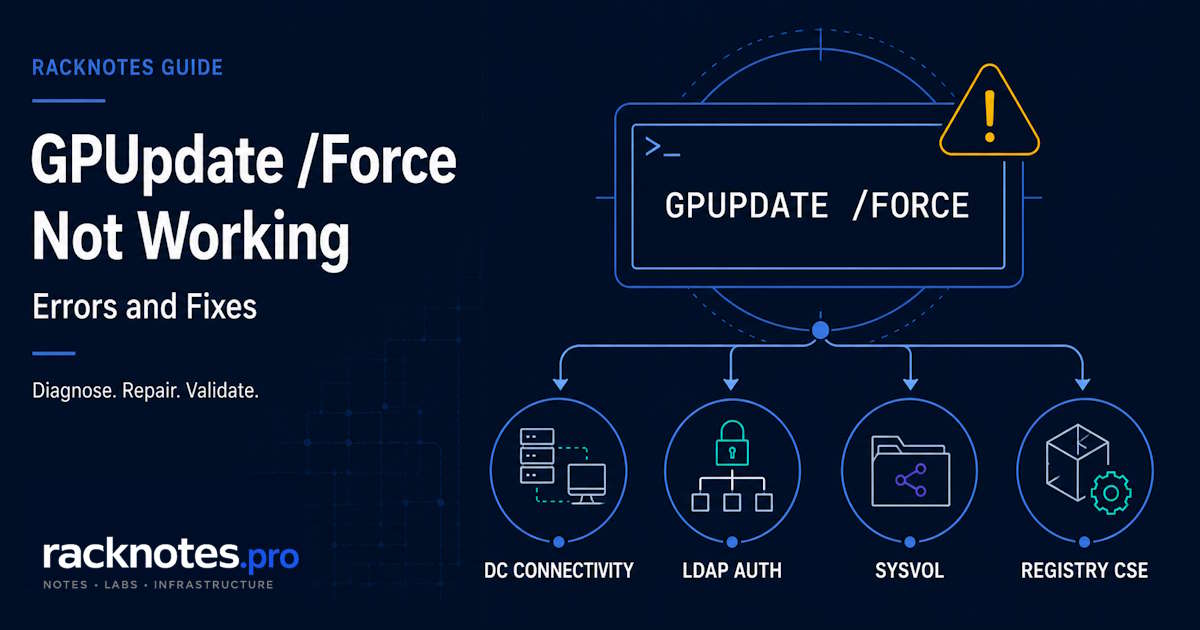
A gpupdate /force not working ticket usually falls into one of two categories: the command completes but the expected setting still has not changed, or the command itself returns a real processing error. Treating both situations as the same failure wastes time because they require different diagnostic paths.
What GPUpdate /Force Actually Does
The gpupdate command refreshes Group Policy. By default, client-side extensions reprocess only policies that Windows detects as changed. The /force switch reapplies all policy settings, but it does not override security filtering, repair DNS, rebuild a stale access token, or force foreground-only extensions to run in the current session.
| Command | Purpose |
|---|---|
gpupdate /force | Reapplies all user and computer policy settings |
gpupdate /target:computer /force | Refreshes only computer policy |
gpupdate /target:user /force | Refreshes only user policy |
gpupdate /force /logoff | Signs the user out if a called extension requires sign-in processing |
gpupdate /force /boot | Restarts the computer if a called extension requires startup processing |
gpupdate /wait:-1 /force | Waits indefinitely for policy processing to finish |
gpupdate /wait:0 /force | Returns immediately while policy processing continues |
gpupdate /sync | Makes the next foreground application synchronous; /force and /wait are ignored when /sync is used |
The default /wait value is 600 seconds. Reaching that limit returns control to the command prompt, but policy processing can continue in the background.
GPUpdate /Force Not Working: Is It a Real Failure?
Many gpupdate /force not working tickets aren’t command failures at all. User-targeted Software Installation and Folder Redirection process during sign-in, while computer-targeted Software Installation processes during startup rather than in the current session. If gpupdate completes and Windows reports that sign-out or restart is required, rerun it with /logoff or /boot when appropriate. Those switches perform the required sign-out or restart so the extension can process during the next sign-in or startup.
A recent change to the target’s group membership won’t be reflected until the current security context refreshes, typically at the next sign-in or restart. That’s a token-timing issue, not a gpupdate defect.
If gpupdate completes but the expected setting is still missing, and no direct event already points to another failure, check gpresult /r before repeatedly forcing another refresh. If the GPO appears as Denied (Security) or Denied (WMI Filter), another gpupdate /force run will reprocess the same denial. Fix the underlying permission or filter, covered in the GPO Not Applying article, rather than treating the repeated denial as a gpupdate bug.
When GPUpdate Throws a Real Error
The client cannot locate or contact a domain controller
A real gpupdate failure often begins with text such as “Computer policy could not be updated successfully” or “User policy could not be updated successfully.” Event ID 1129 means Group Policy could not process because the client lacked network connectivity to a domain controller.
Do not treat Event ID 1129 as proof of a DNS failure by default. Possible causes include:
- incorrect DNS configuration or missing AD SRV records;
- blocked LDAP traffic on TCP 389;
- routing, VPN, or firewall problems;
- an unavailable or unreachable domain controller;
- failure to reach the DC service named in the event.
Start with:
nltest /dsgetdc:contoso.com
ipconfig /all
Then verify AD service records and the specific DC named in the event:
nslookup -type=SRV _ldap._tcp.dc._msdcs.contoso.comReplace contoso.com with your own AD DNS domain. If name resolution succeeds, test connectivity to the required AD ports instead of repeatedly flushing DNS:
Test-NetConnection dc01.contoso.com -Port 389Run this from PowerShell (Test-NetConnection is a PowerShell cmdlet) and replace dc01.contoso.com with the domain controller named in the event. A successful TCP 389 test proves only that the port is reachable; it does not prove that LDAP bind, Kerberos authentication, the secure channel, or SYSVOL access succeeds. Use the event’s Details tab, the Group Policy Operational log, and GPSvc logging to determine whether the failure occurred during DC discovery, name resolution, or the TCP connection.
LDAP bind or computer-account authentication fails
When Group Policy can find a domain controller but cannot authenticate, check Event ID 1006 or Event ID 1097.
For Event ID 1006, the Details tab is more important than the event title:
- error 5 – access denied;
- error 49 – invalid credentials, often involving an expired password or service account;
- error 258 – timeout, which can point to DNS or network connectivity.
Event ID 1097 means Windows could not determine the computer account required to enforce computer policy. Check the event details, confirm that the computer account exists and is healthy, and verify time synchronization with the domain controller.
Run the time and secure-channel checks from an elevated Command Prompt:
w32tm /query /status
w32tm /resync
nltest /sc_verify:contoso.com
If w32tm /resync fails, verify that the Windows Time service is available and that the client has a valid domain time source. For Event ID 1097, verify the client’s time, time zone, computer account, and secure channel before changing Group Policy. A time difference greater than five minutes can prevent domain authentication. Use w32tm /resync, then restart the computer if the event persists. Do not clear Credential Manager or modify the Group Policy Client service unless the logs identify those components specifically.
The client cannot read the GPO files from SYSVOL
If domain-controller discovery and authentication succeed but policy retrieval fails, check for Event ID 1058. This event means Windows attempted to read a Group Policy file from a domain controller and was unsuccessful.
Use the Details-tab error code and the exact file path before choosing a fix:
- error 3 – path not found;
- error 5 – access denied;
- error 53 – network path not found.
A 1058 failure can involve DNS, SMB connectivity, permissions, a missing gpt.ini or Registry.pol, or SYSVOL/DFSR replication. It is not a gpupdate defect. Event ID 1058 needs its own decision tree because the exact DC path and error code determine whether the next branch is name resolution, permissions, SMB connectivity, or replication.
Registry policy processing fails with Event ID 1096
Event ID 1096 means the Registry client-side extension could not apply registry-based policy settings. Do not assume that the local Registry.pol file is corrupt.
Open the event’s Details tab and record:
FilePath;ErrorCode;ErrorDescription;GPOCNName;DCName, when present.
The available fields and the level of detail in ErrorDescription vary by Windows build. Recent Windows builds provide enhanced registry-policy parsing descriptions; older Windows and Windows Server builds may provide a more generic error and require the GPSvc log for the exact parsing failure.
If FilePath points to SYSVOL, investigate the domain GPO file, permissions, connectivity, and replication. If it points to a local Registry.pol file and the error indicates invalid or unreadable data, a local cache repair may be appropriate.
Before renaming a local policy file:
- Capture
gpresult, System, Application, and Group Policy Operational logs. - Back up or rename the affected file instead of permanently deleting it.
- Confirm that the path is local and not a SYSVOL path.
- Rerun
gpupdate /force. - Verify which settings were rebuilt.
Do not delete the entire GroupPolicy and GroupPolicyUsers folders as a routine first-line fix. That removes local policy state and can erase settings that will not be restored from a domain GPO.
Check for a recent Windows update only when the timing matches
If gpupdate began failing immediately after an OS or security update, record the build, installed KBs, first failure date, and whether unaffected devices run a different build. Check the specific KB and Windows Release Health before changing domain configuration. Do not attribute the failure to an update without an official known issue or reproducible comparison.
Enable GPSvc Logging Only When the Normal Logs Are Not Enough
Microsoft recommends starting with the System, Application, and Group Policy Operational logs. GPSvc debug logging is a deeper diagnostic step because verbose logging can affect performance and consume disk space.
Back up the registry before enabling it, then run:
if not exist "%windir%\debug\usermode" md "%windir%\debug\usermode"
reg add "HKLM\Software\Microsoft\Windows NT\CurrentVersion\Diagnostics" /v GPSvcDebugLevel /t REG_DWORD /d 0x00030002 /f
gpupdate /force
Review the resulting log at %windir%\debug\usermode\gpsvc.log, then disable it once the failure has been captured:
reg add "HKLM\Software\Microsoft\Windows NT\CurrentVersion\Diagnostics" /v GPSvcDebugLevel /t REG_DWORD /d 0x00000000 /fAfter disabling the registry value, archive or remove the old log if it is no longer needed so later investigations do not mix separate processing sessions. Keep the captured log alongside the matching System, Application, and Group Policy Operational events from the same processing attempt so the evidence can be correlated.
Symptom-to-Next-Check Table
| What You See | Likely Direction | Next Check |
|---|---|---|
| Command completes but setting is unchanged | Filtering, stale security context, or foreground-only extension | gpresult, setting type, sign-in/startup requirement |
| Sign-out or restart is requested | Extension requires foreground processing | Use /logoff or /boot when appropriate |
| “Computer/User policy could not be updated” | Read the accompanying error, not only the summary line | System log and Group Policy Operational log |
| Event ID 1129 | Domain-controller connectivity failure | DNS, DC discovery, LDAP 389, routing, firewall |
| Event ID 1006 | LDAP bind/authentication failure | Details-tab error 5, 49, or 258 |
| Event ID 1097 | Computer account or time synchronization problem | Event details, w32tm, computer account, secure channel |
| Event ID 1058 | Group Policy file retrieval failure | Exact path and error code |
| Event ID 1096 | Registry CSE failure | FilePath, error code, local versus SYSVOL path |
| Long wait at “Updating Policy…” | A CSE or connectivity operation may still be running | Check /wait; correlate Event 4016 start events with matching 5016 completion events under the same Activity ID |
Practical Takeaway
- Confirm that gpupdate actually failed before troubleshooting it. A sign-out or restart prompt for a foreground-only extension is expected behavior; use
/logoffor/bootwhen the command reports that the action is required. - Run
gpresult /rfirst if the underlying GPO might be filtered. A repeated Denied result isn’t a gpupdate problem. - Read the Details-tab error code for the specific event before picking a fix. The same summary error text can mean DNS, LDAP, authentication, or SYSVOL retrieval, and each has a different diagnostic path.
- Event ID 1096 does not automatically mean local corruption; check
FilePathbefore renaming or deleting anything. - A long wait at “Updating Policy…” is not automatically stuck. The default timeout is 600 seconds, and processing can continue after it returns control to the prompt.
FAQ
Why does gpupdate /force say “Computer policy could not be updated successfully”?
This summary line is the classic gpupdate /force not working symptom, but it can accompany several different underlying events. Check the accompanying error and Event ID: 1129 points to domain-controller connectivity, 1006 points to LDAP bind or authentication failure, 1097 points to computer-account or time-synchronization problems, and 1058 points to Group Policy file retrieval from SYSVOL.
Why is gpupdate stuck at “Updating Policy…”?
A long “Updating Policy…” phase can mean that a client-side extension, domain-controller connection, or policy-file retrieval operation is still running. The default wait time is 600 seconds, and policy processing can continue after the command returns. Use the System event’s Activity ID to isolate the matching Group Policy Operational events. Identify which client-side extension logged Event 4016 and whether it later logged a corresponding Event 5016 or another failure event. For the Audit client-side extension, Event ID 5016 can contain an E_PENDING return value by design, so inspect the extension-specific Operational log before treating that value as a failure.
Does gpupdate /force fix a GPO that’s denied by security or WMI filtering?
No. If gpresult shows the GPO as Denied (Security) or Denied (WMI Filter), gpupdate just reprocesses the same denial. Fix the underlying permission or filter first.
Does Event ID 1096 mean the local Registry.pol file is corrupt?
Not automatically. Event ID 1096 means the Registry client-side extension failed to apply a setting. Check FilePath in the event details: a SYSVOL path points to a domain-side problem, while a local path with an invalid-data error may need a local cache repair.
Is a restart always required after gpupdate /force?
No. Most policy settings apply on the next background or foreground refresh without a restart. Sign-out or restart is specifically needed for extensions Microsoft documents as foreground-only, such as user-targeted Software Installation and Folder Redirection (sign-in) or computer-targeted Software Installation (startup), and after certain security-context changes like group-membership updates.
Final Thoughts
GPUpdate /force not working tickets are easier to route once the first question is whether the command actually failed or completed successfully without producing the expected visible result. A practical sequence is to rule out expected foreground-processing delays, check GPResult when filtering is possible, and then follow the specific System or Operational event into connectivity, authentication, SYSVOL retrieval, or Registry CSE troubleshooting. Check a recent Windows update only when the timing matches and an official known issue or reproducible comparison supports that branch. For the full System, Application, and Operational log workflow, see the Group Policy troubleshooting guide.
Group Policy Troubleshooting Series
8 articles – Workflow · Precedence · GPResult · GPUpdate · Filtering · Loopback · Events