
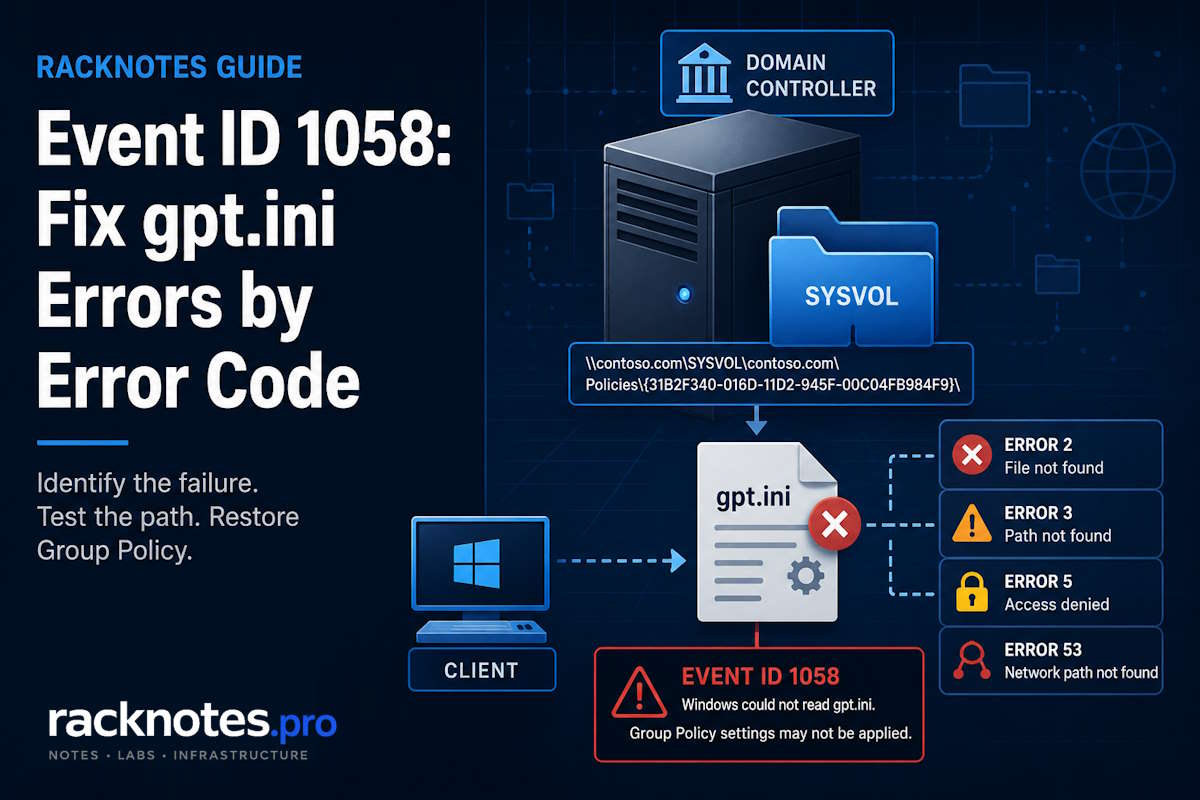
Group Policy Event ID 1058 tells you one thing precisely: the Group Policy client could not read the policy file named in the event. That file is gpt.ini, the small text file at the root of every GPO folder in SYSVOL. The event names a specific GPO, a specific domain controller path, and a specific error code, and most of the diagnostic work is deciding why that read failed – not assuming the GPO itself is broken.
The named GPO may be healthy but unreachable. It may be missing on one DC and present on another. It may be genuinely damaged or deleted. Those are different problems with different fixes, and the event’s own error code points you at the right branch. Start there, not with a guess about DNS or permissions.
- Event ID 1058 means Windows could not read
gpt.inifor the GPO named in the event. The GPO may be healthy, missing, inaccessible, or inconsistent on the DC that handled the request. - Read three things off the event before doing anything else: the DC name, the full path, and the ErrorCode on the Details tab. The code narrows the failed operation – it does not prove the root cause.
- Errors 2 and 3 point at the file or path; error 5 points at access; error 53 points at the network path. Test the exact DC-specific path from the event, then compare the same path on another DC.
- The GPO GUID identifies the policy file that failed during this processing attempt. Do not assume the GPO itself is damaged until you test the exact path and compare the same folder across domain controllers.
- Keep DNS, permissions, connectivity, and DFSR as hypotheses. Authoritative DFSR synchronization is a disaster-recovery operation, not a troubleshooting step.
What Group Policy Event ID 1058 actually means
The modern event comes from the source Microsoft-Windows-GroupPolicy and is written to the System log. The text reads along these lines:
The processing of Group Policy failed. Windows attempted to read the file
\\contoso.com\SysVol\contoso.com\Policies\{31B2F340-016D-11D2-945F-00C04FB984F9}\gpt.ini
from a domain controller and was not successful. Group Policy settings may not
be applied until this event is resolved.
The Group Policy client reads gpt.ini from the policy file share because it contains file-side version information for the GPO. Windows uses GPO version information and cached processing state to determine whether policy content changed and which extensions need processing – the mechanics are documented in Microsoft’s Group Policy protocol specification. If the client cannot open that file, processing for that GPO stops and 1058 is logged. Everything after that is figuring out which link in the chain broke: name resolution, the network path, the SMB session, the share, the folder, the file, or the permissions on it.
A useful distinction up front: the GPO named in the event is the file read that failed, not automatic proof that the GPO object is corrupt. The GUID identifies the GPO whose gpt.ini read failed in that processing instance. If the underlying problem affects SYSVOL or the client-to-DC path, other GPOs may fail as well. Confirm whether the named folder is actually missing or inaccessible before changing or recreating that GPO. If policy is silently not taking effect without this event, that is a different investigation – GPO not applying covers scope, filtering, and link problems.
Capture the DC, the path, and the error code
Before touching anything, pull four values off the event on the affected machine: the domain controller named in the path, the complete UNC path to gpt.ini, the GPO GUID, and the ErrorCode with its ErrorDescription from the Details tab.
The ErrorCode is a Win32 result code for the failed file operation. Ignore the SupportInfo1 and SupportInfo2 fields – they are undocumented internal diagnostic values, not the Win32 error, and reading them as a cause is a dead end.
While you are in Event Viewer, note whether this is computer-side or user-side processing, and whether Event ID 1030 appears nearby. Event ID 1030 is a broader Group Policy retrieval failure. It may appear with Event ID 1058 when the file-read problem prevents Windows from retrieving or processing policy data. Resolve the underlying retrieval failure and then confirm whether both events stop recurring. On a domain controller, a persistent failure may recur at the DC’s Group Policy refresh interval, so a repeating pair is expected until the read works again.
Capture evidence you can compare later instead of working off a screenshot. Export the System log, the Group Policy Operational log, and a policy report, and record the Activity ID and the reproduction timestamp:
wevtutil.exe export-log System "%TEMP%\System.evtx" /overwrite:true
wevtutil.exe export-log Microsoft-Windows-GroupPolicy/Operational "%TEMP%\GroupPolicy.evtx" /overwrite:true
gpresult /h "%TEMP%\GPResult.htm" /f
Reading the resulting report is its own skill – the GPResult command guide covers what each section of that HTML output actually tells you.
Test the exact gpt.ini path from the event
This is the single most useful test, and the order matters. Microsoft’s Group Policy troubleshooting guidance builds the path around the specific DC the client contacted, not the domain name:
\\dc01.contoso.com\SYSVOL\contoso.com\Policies\{GPO-GUID}\gpt.iniTest that exact DC-specific path first. Then test the domain-based path (\\contoso.com\SYSVOL\...), which goes through the DFS namespace and the DC locator. Then test the same GPO path against a second DC. The domain path is useful, but on its own it hides which DC actually answered – and that is exactly what you need to know.
The three results together tell you where to look:
| Exact DC path | Domain path | Another DC | Likely direction |
|---|---|---|---|
| Fails | Fails | Works | Problem isolated to the named DC |
| Works | Fails | Works | DFS namespace / DC referral or client DNS path |
| Fails | Fails | Fails | Broader client connectivity or authentication, or a multi-DC problem |
| GPO folder missing on one DC | – | Present elsewhere | SYSVOL replication or content inconsistency |
| GPO folder missing everywhere | – | – | Validate the AD object, deletion history, backup, and GPO integrity |
Microsoft recommends testing with the credentials that failed. For user-side processing, use the affected domain user. For computer-side processing, the read runs as SYSTEM under the machine account context – an administrator’s successful UNC test does not prove the computer account can read the same path, so do not treat your own admin session as a substitute for the failing identity.
One GPO, one DC, or every DC?
The path matrix already started answering this, and it is worth settling before diving into any single branch. The scope decides whether you are looking at a content problem, a replication problem, or a reachability problem.
If the GPO folder is missing on one DC and present on another, you have a SYSVOL content or replication inconsistency on the affected DC. If it is missing on every DC, the GPO object itself is in question: check whether it still exists in AD, whether it was recently deleted, and whether you have a GPMC backup. If the folder is present everywhere but the client still cannot read it, the problem is on the path between the client and the DC – DNS, connectivity, or authentication. Settling this first prevents the classic detour of tuning DNS on a client while one DC quietly holds a stale SYSVOL copy.
Read the error code as a branch, not a verdict
Each Win32 code narrows the failed operation. None of them, on its own, proves the root cause. The code definitions come from Microsoft’s system error code reference; the interpretation still needs the path test above.
- ERROR_FILE_NOT_FOUND means Windows did not find the requested
gpt.inifile at the path it attempted to access. - Confirm the exact DC-specific folder on the DC named in the event.
- Compare the same folder on another DC before deciding whether the file is missing, the content is inconsistent, or the request reached an unexpected location.
- ERROR_PATH_NOT_FOUND means Windows could not find part of the requested path. This does not prove that name resolution succeeded or that the DFS path fully resolved.
- Walk the path one level at a time: does the SYSVOL share respond, then the domain folder, then Policies, then the GPO GUID folder, then the file?
- The first level that fails narrows the investigation. Use the error code, the named DC, the comparison with another DC, and the failing identity to distinguish a missing share or folder from connectivity, authentication, or replication.
- ERROR_ACCESS_DENIED means the file operation was refused. Investigate the failing user or computer identity, authentication, secure channel, SMB session, and effective permissions before modifying the GPO or SYSVOL ACLs.
- Useful checks along the way:
nltest /sc_verify:contoso.comfor the secure channel, andw32tm /query /statusfor time skew, since Kerberos rejects authentication when clocks drift too far apart. - Only after the identity and path are confirmed, compare permissions against a healthy GPO and review the GPO’s Delegation tab. Do not recursively reset SYSVOL ACLs or apply a generic ACL template to the share.
- ERROR_BAD_NETPATH is the network-path branch, and it is broader than DNS.
- DNS and DC discovery are the early checks:
ipconfig /all(is the configured DNS an internal AD DNS server?),nltest /dsgetdc:contoso.com, andnslookup -type=SRV _ldap._tcp.dc._msdcs.contoso.com. - Then verify reachability and SMB. From an elevated PowerShell session:
Test-NetConnection dc01.contoso.com -Port 445. Also check the SYSVOL share itself, routing or VPN reachability, and the host firewall.
Codes outside these four turn up occasionally. A GPO Event ID 1058 with one of the less common codes points at the network or share layer rather than the policy itself, and the safe next step is the same in each case: confirm exactly where the failure happens before changing anything.
| Error code | System message | Safe next step |
|---|---|---|
| 58 | The specified server cannot perform the requested operation | Review the exact target, SMB client and server event logs, server health, and any protocol or signing errors recorded on both sides |
| 65 | Network access is denied | Determine whether denial occurs during authentication, share access, or filesystem access |
| 67 | The network name cannot be found | Confirm that the named server exposes SYSVOL and NETLOGON, then test the exact shares |
Check DNS without assuming DNS
DNS is a frequent contributor to error 53, but it is a hypothesis to confirm, not a foregone conclusion. The operational principle: domain members should use DNS resolvers that can answer for the AD-integrated namespace and its service records. In most AD environments, these are internal AD DNS servers. Public resolvers should normally be configured as forwarders on the internal DNS service rather than assigned directly to domain members, because they do not host the private AD zone or its _ldap._tcp SRV records.
For domain controllers themselves, avoid the folk rule that every DC must point to itself as primary. The correct DNS client configuration depends on topology, DC count, and startup behavior; Microsoft’s AD DNS design guidance is the reference, not a blanket rule.
A split-tunnel VPN client can log Event ID 1058 when its DNS path cannot resolve the private AD namespace or its routing policy cannot reach the selected DC. In that scenario the event points to gpt.ini, but the corrective action belongs to the VPN’s DNS and reachability configuration rather than the GPO or the domain controller.
AD replication is not SYSVOL replication
This distinction separates a fast diagnosis from a long one. AD replication and SYSVOL replication are frequently checked together even though they are separate systems.
AD replication moves directory objects between DCs – users, groups, and the Group Policy Container (the GPC, the AD half of a GPO). You check it with repadmin /replsummary and repadmin /showrepl.
SYSVOL replication moves the files – the Group Policy Template (the GPT, including gpt.ini). In domains that have completed SYSVOL migration, DFS Replication replicates the Group Policy Template files. Older domains that have not completed migration may still use FRS and should be migrated using Microsoft’s supported process.
The trap: a clean repadmin /replsummary confirms only the AD DS replication status it reports. It does not confirm that SYSVOL files replicated successfully through DFSR. If directory changes replicate fine but GPO content is inconsistent between DCs, look at DFSR.
Core commands for the server-side check:
repadmin /replsummary
dcdiag /test:dns
dcdiag /test:netlogons
dfsrmig /getglobalstate
dfsrmig /getmigrationstate
dcdiag /test:netlogons validates access to the NETLOGON and SYSVOL-related logon infrastructure and can surface missing-share errors. Use it together with direct net view or UNC tests and the DFS Replication event log rather than relying on one diagnostic alone. Run the DFSRMIG commands from an elevated session with appropriate domain rights, and do not start or advance a migration as part of an Event 1058 ticket without a separate migration plan.
Check DFSR health before assuming the worst
If the GPO folder is missing or stale on one DC, look at DFSR – carefully, and without reaching for a rebuild. Microsoft’s guidance for missing SYSVOL and NETLOGON shares is the reference workflow here, and it warns explicitly that reinitializing replication is unnecessary in most cases and can cause data loss.
Two DFSR events matter most. Event 4012 means content freshness protection triggered: the DC was disconnected from its replication partners longer than the configured window, so DFSR deliberately stopped replicating SYSVOL rather than push stale data. On supported DFSR-based domain controllers this protection commonly uses MaxOfflineTimeInDays=60; verify the configured value rather than assuming it was never changed.
Event ID 2213 indicates DFSR detected recovery from a dirty database shutdown. Whether replication remains paused and requires an explicit ResumeReplication action depends on the operating-system version, patch level, role, configuration, and the instructions contained in the event itself.
- Determine how many DCs are affected and which replication partners are healthy.
- Back up SYSVOL and export your GPOs (GPMC backup) before changing anything.
- Verify which copy of SYSVOL is the most current and complete.
- For Event 4012, check DFSR state and topology, then follow Microsoft’s SYSVOL and NETLOGON troubleshooting guidance for the affected version.
- For Event 2213, read the event text and the current Microsoft guidance for the affected Windows Server version. Back up the replicated data before using ResumeReplication, and confirm the applicable recovery sequence afterward.
For a deeper look, dfsrdiag ReplicationState and dfsrdiag backlog show replicated-folder state and backlog between a named sender and receiver. Treat these as an advanced step. WMIC-based state queries still appear in Microsoft support guidance but WMIC is legacy tooling, not the interface to standardize on.
Recovery: non-authoritative and authoritative DFSR sync
The following procedures are not routine Event ID 1058 fixes. They are SYSVOL recovery operations, performed only after the affected topology, backups, healthy source, and replication state have been established.
DFSR does not use FRS-style BurFlags. What people mean by “D2” and “D4” are analogies, and Microsoft’s authoritative and non-authoritative DFSR synchronization procedure is the only supported path:
- A non-authoritative DFSR synchronization (“D2-like”) reinitializes one DC’s SYSVOL from a healthy partner. It is appropriate only after a known-good source has been identified.
- An authoritative DFSR synchronization (“D4-like”) reinitializes the entire domain’s SYSVOL from one chosen source. It is reserved for the case where every DC’s SYSVOL must be forced to synchronize.
- Back up SYSVOL and every GPO.
- Verify AD replication is healthy.
- Inventory every DC’s SYSVOL state and compare contents.
- Confirm which source copy is complete and current. The PDC emulator is a common candidate, not automatic proof of authority.
- Follow Microsoft’s current procedure exactly.
- For multi-DC or potential data-loss situations, involve Microsoft Support rather than improvising.
The reason for the caution: choosing the wrong authoritative source can propagate incomplete or stale SYSVOL content to every DC and require restoration from backup. A two-minute client-side path test costs nothing. A domain-wide restore costs a weekend.
Missing gpt.ini, FRS holdouts, and SMB
If gpt.ini is missing, resist the urge to hand-craft one. Manually recreating the file can mask a DFSR failure, create a version inconsistency, repair one DC while leaving replication broken, and propagate the wrong copy. First determine whether it is missing on one DC or all of them, compare the GPO’s AD object with its SYSVOL folder, check DFSR health, and restore the GPO from a known-good GPMC backup when the content is genuinely gone.
If the domain still runs FRS, that is its own project. FRS is deprecated, and promoting new DCs on Windows Server 2019 and later requires DFSR for SYSVOL. Check the state with dfsrmig /getglobalstate: Eliminated means the domain is fully on DFSR. Start means the domain has not begun DFSR migration. A supported migration progresses through Prepared, Redirected, and Eliminated, with dfsrmig /getmigrationstate used to verify that all domain controllers reached each stage before advancing. A migration stuck partway is a recognized source of unshared SYSVOL and, by extension, of this event across the whole domain. Detailed migration steps are out of scope for this article – Microsoft’s FRS-to-DFSR migration guide is the reference.
On SMB: modern Windows and Windows Server do not install SMBv1 by default. A supported AD DS SYSVOL design should use the SMB versions supported by the domain controllers and clients. Do not enable SMBv1 on domain controllers as an Event ID 1058 workaround.
Final thoughts
Group Policy Event ID 1058 rewards discipline over instinct. The event hands you a DC, a path, and an error code, and those values plus the DC-specific UNC test provide the evidence needed to choose between connectivity, authentication, missing content, and replication checks. The failure classes look similar in Event Viewer and diverge sharply in their fixes.
Use this order: read the error code, test the exact DC-specific path, test the domain path, and compare the same GPO on another DC. Keep DNS, permissions, connectivity, and replication as hypotheses until the evidence separates them. Perform DFSR recovery only after backups exist and a healthy source has been confirmed, and reserve authoritative synchronization for a documented disaster-recovery scenario.
For the diagnostic workflow across every Group Policy failure, not just this one, the Group Policy troubleshooting guide covers the tools and log sequence. When the refresh command itself fails rather than the file read, gpupdate /force not working owns that path.
FAQ
Does Group Policy Event ID 1058 mean the GPO named in the event is broken?
Not necessarily. Event ID 1058 identifies the GPO file that Windows could not read during that processing attempt. The GPO may be healthy but inaccessible, inconsistent on one DC, or genuinely missing. Test the exact path and compare the folder across domain controllers before assigning the cause.
What is the difference between Event ID 1058 and 1030?
Event ID 1058 identifies a failure to read a Group Policy file from SYSVOL. Event ID 1030 reports a broader failure to retrieve new Group Policy settings. A GPO Event ID 1058 and a 1030 can appear together, but use the event details and Activity ID to confirm they belong to the same processing attempt.
Where do I find the error code for Event ID 1058?
Open the event in Event Viewer and switch to the Details tab. The ErrorCode field holds the Win32 result (2, 3, 5, 53, and others) with an ErrorDescription next to it. Ignore the SupportInfo fields – they are undocumented internal values, not the error code.
Why does error code 53 keep pointing back to DNS?
Because a client that cannot resolve its domain to a domain controller cannot build the path to SYSVOL, and the read fails with a network-path error. But 53 is broader than DNS – it also covers TCP 445 being blocked, VPN or routing reachability, the SYSVOL share, and server availability. Confirm DNS with nltest /dsgetdc and an SRV lookup rather than assuming.
My repadmin output is clean but GPOs are still inconsistent. Why?
Because repadmin reports AD DS replication, and GPO files replicate through DFS Replication, which is a separate system. A clean repadmin summary does not confirm that SYSVOL files replicated. Check DFSR state and the DFS Replication event log when the files are the problem.
Should I run an authoritative SYSVOL sync to fix group policy event id 1058?
Not as a first step. Authoritative DFSR synchronization reinitializes the whole domain’s SYSVOL from one source, and choosing the wrong source can propagate stale content to every DC and force a restore from backup. Back up your GPOs, confirm a healthy source copy, and rule out client-side and single-DC causes first.
Group Policy Troubleshooting Series
8 articles – Workflow · Precedence · GPResult · GPUpdate · Filtering · Loopback · Events