
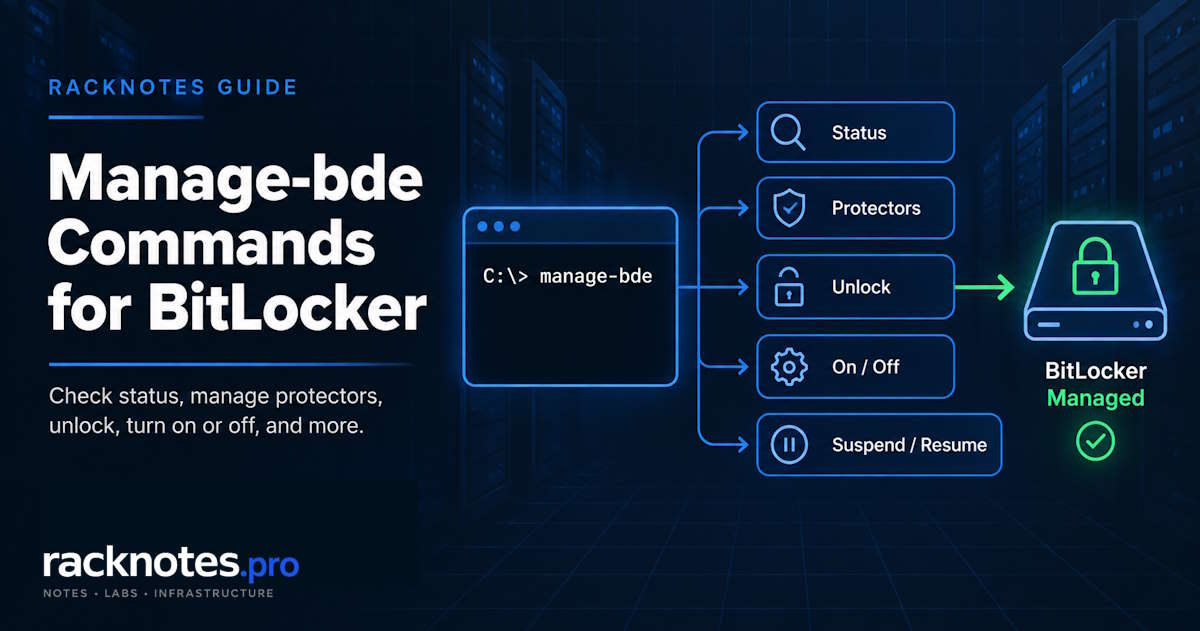
manage-bde is the built-in Windows command-line tool for managing BitLocker Drive Encryption. It checks encryption status, lists key protectors, unlocks and locks drives, turns encryption on or off, and handles maintenance tasks that the Control Panel doesn’t expose directly. This guide covers the commands administrators actually run: status checks, protector inspection, unlock, on/off, suspend/resume, and troubleshooting common command-line failures. PowerShell can do most of the same work through Get-BitLockerVolume and related cmdlets, but this article stays manage-bde-focused; for how BitLocker itself works underneath these commands, see the BitLocker overview.
manage-bde -statuschecks encryption state.manage-bde -protectors -getlists key protectors.manage-bde -unlockunlocks a locked data drive with a recovery method.manage-bde -offstarts full decryption.
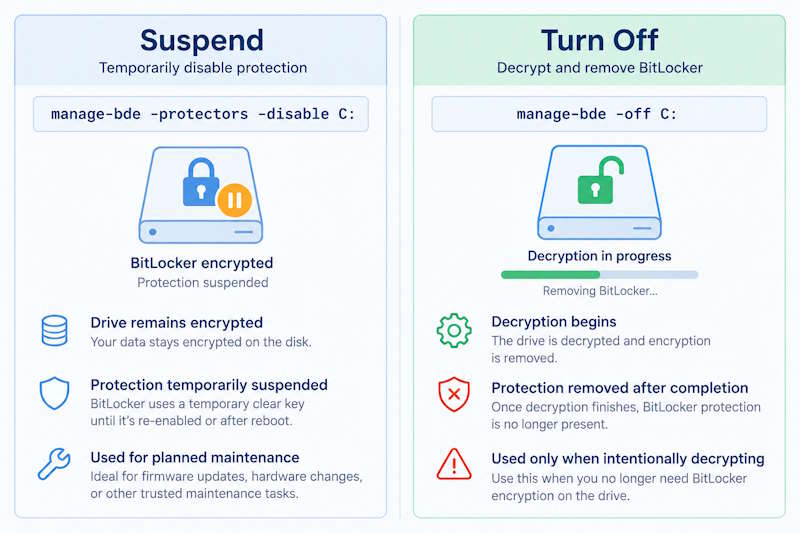
Suspending protection (-protectors -disable) is a different operation from turning BitLocker off (-off), and the two should not be treated as interchangeable.
What Is Manage-bde?
manage-bde is the command-line front end for BitLocker Drive Encryption, built into Windows since Vista and still shipped in current Windows 11 builds. According to Microsoft Learn’s manage-bde command reference, it’s the same BitLocker engine the Control Panel item drives, just accessible from an elevated Command Prompt or PowerShell window instead of a GUI wizard.
Admins reach for it for the things a GUI doesn’t do well: checking status across dozens of machines from a script, inspecting protector configuration during a support call, or unlocking a data drive without walking through the graphical wizard. It can inspect status, list and manage protectors, lock and unlock drives, and start or stop encryption. It cannot do everything PowerShell’s BitLocker cmdlets can, and it is a separate tool from the PowerShell BitLocker module. Same underlying feature, two different interfaces, and they don’t always expose the same options.
Practical takeaway:
manage-bdeis built in, no install required, works from Windows 7 through current Windows 11 releases.- It drives the same BitLocker engine as the Control Panel and Settings app, not a separate encryption layer.
- It’s the right tool for scripting and remote diagnostics; PowerShell is the right tool for object-based automation.
Manage-bde Command Syntax
The general shape is:
manage-bde <command> <drive> [options]Most commands target a specific volume, usually written as a drive letter with a colon (C:, D:). Leave the drive off -status and it reports on every BitLocker-capable volume on the machine.
For consistent results, run the examples in this guide from an elevated Command Prompt or Windows Terminal. Without the required elevation, administrative operations can return Access Denied.
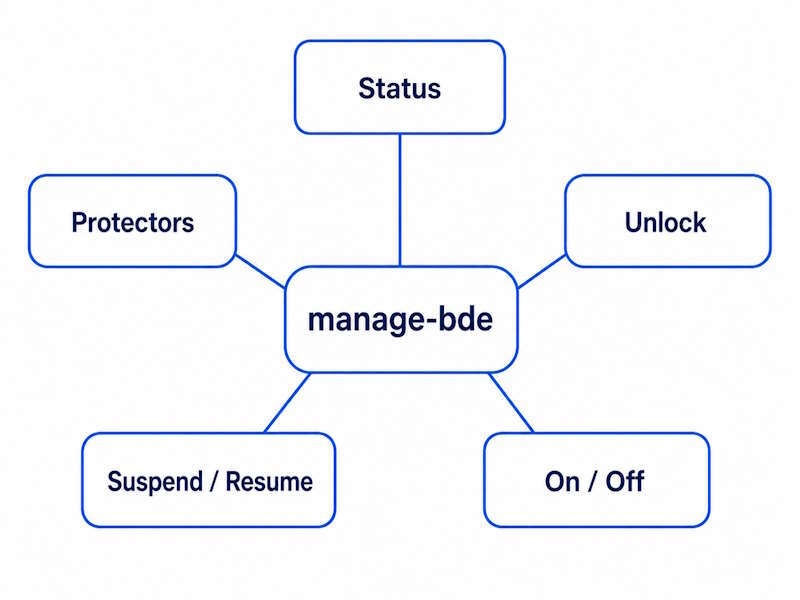
Manage-bde Commands at a Glance
| Command | Purpose |
|---|---|
manage-bde -status | Check BitLocker and encryption status |
manage-bde -protectors -get C: | List key protectors |
manage-bde -unlock D: -recoverypassword ... | Unlock a data drive with a recovery password |
manage-bde -on D: | Start BitLocker encryption |
manage-bde -off C: | Decrypt and turn BitLocker off |
manage-bde -protectors -disable C: | Suspend protection |
manage-bde -protectors -enable C: | Resume protection |
manage-bde -lock D: | Lock an unlocked BitLocker data volume |
Check BitLocker Status with manage-bde -status
This is the first command to run in almost any BitLocker troubleshooting session, before anything else.
manage-bde -statusmanage-bde -status C:The output lists, per volume: Size, BitLocker Version, Conversion Status, Percentage Encrypted, Encryption Method, Protection Status, Lock Status, Identification Field, and Key Protectors. Most of what matters for day-to-day troubleshooting sits in three of those fields: Conversion Status (whether encryption or decryption is actually complete), Protection Status (whether the protectors are currently enforced), and Lock Status (whether the volume is accessible right now).
Check a Specific Drive
manage-bde -status D:Useful once a machine has more than one BitLocker-capable volume and the full unfiltered list gets noisy.
How to Read Protection Status
Two states show up here: Protection On and Protection Off.
Protection Off does not mean the volume is decrypted. A suspended volume can remain fully encrypted while a clear key allows access without the normal protector validation. Read Conversion Status and Protection Status separately.
Why operators get this wrong: Protection Off reads like “not encrypted” at a glance, but Conversion Status and Protection Status describe different states.
View BitLocker Protectors with manage-bde -protectors -get
manage-bde -protectors -get C:This lists whatever key protectors are currently configured on the volume. In practice, checking protectors is a natural next step after status when troubleshooting unlock or policy behavior. Depending on the volume type and policy, protectors can include TPM, TPM+PIN, Recovery Password, External Key, Startup Key, and other supported combinations, per Microsoft Learn’s manage-bde protectors reference. For an operating-system drive without a TPM, the configuration must explicitly allow BitLocker without a compatible TPM and typically uses a startup key rather than a password protector.
Find the Recovery Password Protector
Look for the numerical recovery password entry in the output. -protectors -get can display recovery-related protector information that’s available locally on the machine, including the protector ID and, where present, the numerical password itself. It cannot recreate a lost recovery key. If the protector isn’t there, or the machine can’t be reached to run the command in the first place, that’s a different problem with a different fix – see the dedicated guide on finding a BitLocker recovery key for AD, Entra ID, and Microsoft account retrieval paths.
Protector ID vs Recovery Password
Two different identifiers show up in the same output and get confused constantly:
- Protector ID identifies a specific key protector object on the drive. It’s a GUID used to identify that specific protector.
- Recovery Password is the 48-digit numerical value used to unlock the drive during recovery.
- Recovery Key ID is the shorter identifier shown on the BitLocker recovery screen itself, used to match against the correct stored recovery password when a machine has more than one backed up.
Unlock a BitLocker Drive with manage-bde -unlock
manage-bde -unlock does not bypass the normal BitLocker preboot recovery screen. From a running Windows or recovery environment, it can unlock a BitLocker-protected volume that is visible to that environment and for which valid recovery material is available. Unlocking the OS volume from WinRE does not remove the underlying condition that may cause BitLocker recovery again on the next normal boot.
manage-bde -unlock D: -recoverypassword <48-digit-recovery-password>manage-bde -unlock D: -recoverykey X:\path\to\recoverykey.bekThe first form takes the 48-digit numerical recovery password (dashes included, exactly as displayed or printed), per Microsoft Learn’s manage-bde unlock reference. The second points to a .bek recovery key file, typically saved to a USB drive when the protector was created. Either way, once the command succeeds the volume becomes accessible for that session; it doesn’t change what happens on the next reboot.
One mistake to avoid is running manage-bde -unlock from an unrelated machine and expecting it to clear the preboot prompt remotely. That isn’t how it works. The command only unlocks a volume that’s actually visible to the environment running it, which for a stuck OS volume usually means booting into a recovery environment where that volume is reachable and valid recovery material is available, not issuing the command from an unrelated machine.
Unlock Is Not the Same as Turn Off BitLocker
-unlockrestores access to a protected volume for the current session. Encryption stays in place.-offbegins full decryption. The drive stops being encrypted entirely once it finishes.
The distinction matters because -off starts decryption while -unlock does not change the encryption state. One command changes access. The other changes the drive itself.
Turn On BitLocker with manage-bde -on
manage-bde -on D:Microsoft documents the base -on form for data volumes. An operating-system volume should not be enabled from a generic one-line example without first defining the protector and recovery configuration required by policy. Real deployments need explicit decisions about encryption method, protector type, recovery configuration, escrow, and policy. Existing BitLocker policy, for example under Computer Configuration > Administrative Templates > Windows Components > BitLocker Drive Encryption > Operating System Drives, can constrain the protector, encryption, and recovery settings available to the command, so verify policy before using -on in a managed environment.
This isn’t a production deployment tutorial. Treat -on as a reference point for what the command does, and verify the specific protector and encryption-method flags against current Microsoft Learn documentation before scripting a rollout.
Turn Off BitLocker with manage-bde -off
manage-bde -off C:This begins decryption. It doesn’t merely suspend protection, and it doesn’t ask for confirmation twice. All key protectors on that volume are removed once decryption is complete. The volume remains accessible while decryption proceeds. Use manage-bde -status to monitor Conversion Status and Percentage Encrypted.
This section covers what -off does at the command level; the full BitLocker disablement workflow, including GUI and PowerShell paths, is covered separately.
Running -off when the intent was temporary suspension starts decryption instead.
Suspend BitLocker with manage-bde -protectors -disable
manage-bde -protectors -disable C:Suspending BitLocker keeps the data encrypted, but BitLocker makes the volume master key available through a clear key stored on the volume. The configured protectors are not removed. This is why the machine can tolerate an expected boot or firmware change while protection is suspended – the kind of maintenance that would otherwise trip a TPM measurement and force an unplanned recovery prompt on next boot.
By default, protection resumes automatically the next time Windows restarts. An optional -RebootCount parameter, available since Windows 8, changes that: set it to a specific number to resume after that many restarts, or set it to 0 to suspend indefinitely until someone runs -protectors -enable manually. An indefinite suspension can leave a device at Protection Off until protection is explicitly re-enabled.
If -off was started accidentally, check manage-bde -status immediately. -protectors -enable does not undo a decryption operation, because suspension and decryption are different state transitions. Do not continue with another conversion command until the current Conversion Status is understood.
Resume BitLocker with manage-bde -protectors -enable
manage-bde -protectors -enable C:Restores enforcement. Confirm it took effect with manage-bde -status afterward; Protection Status should read On again.
Lock a BitLocker Data Drive with manage-bde -lock
manage-bde -lock D:This applies to an unlocked BitLocker-protected data volume, not the operating system drive currently running Windows, per Microsoft Learn’s manage-bde lock reference. It can fail if the volume has open file handles or other conditions that prevent locking cleanly, in which case Windows reports the lock attempt as unsuccessful rather than forcing it through. Don’t present this as a substitute for a proper OS shutdown or a way to force-eject an active volume; it’s a data-drive-specific operation, not a system control.
Can Manage-bde Get a BitLocker Recovery Key?
Partially. manage-bde -protectors -get <drive> displays protector information available locally, including numerical recovery password data where a recovery password protector exists on that machine. It cannot reconstruct a recovery password that was never backed up, or one whose backup location (Active Directory, Microsoft Entra ID, a Microsoft account, or a printed copy) is no longer accessible. Retrieving a key from AD DS or Entra ID is a separate workflow entirely, covered in the BitLocker recovery key guide.
manage-bde Not Recognized
A handful of things cause this. Work through them in this order:
- Verify the exact command spelling.
manage-bdegets mistyped asmanagebdeormanage_bdemore often than it should. - Verify the Windows environment. This shows up more on some Windows Server installations with certain optional features not enabled than on standard Windows 10/11 desktop builds.
- Confirm BitLocker tooling and component availability on that system.
- Confirm
C:\Windows\System32\manage-bde.exeexists where expected. - If binary or system components are missing, treat that as a Windows servicing problem rather than inventing a one-command fix.
Manage-bde Access Denied
Check elevation first. Run Command Prompt or Windows Terminal as administrator, then retry the command. If access is still denied, check organizational policy and management restrictions.
In production environments, domain-joined machines often manage BitLocker centrally through Group Policy, and local admin rights don’t override that policy. If elevation alone doesn’t clear the error, that’s the next thing to check, not a local permissions problem.
When the output doesn’t match what’s expected, work through this in order. This reflects a practical investigation sequence, not a statistical ranking of causes.
- Verify the drive letter first, especially after storage or recovery-environment changes.
- Check Conversion Status for whether encryption or decryption is actually complete, not just in progress.
- Check Protection Status, and remember Off doesn’t mean decrypted.
- Check Lock Status.
- Inspect Key Protectors for anything missing or unexpected.
- Correlate the timing against recent suspend commands, recovery events, firmware updates, or Group Policy changes.
If the trail leads to a recurring recovery prompt rather than a one-off status mismatch, that’s the territory of the BitLocker recovery screen guide.
Manage-bde vs PowerShell for BitLocker
| Use case | Manage-bde | PowerShell |
|---|---|---|
| Quick local status check | Strong | Strong |
| Existing command-line scripts | Strong | Strong |
| Object-based output | Limited | Strong |
| Automation / pipelines | Limited | Strong |
| Legacy/admin familiarity | Strong | Moderate |
| Rich scripting logic | Limited | Strong |
Neither tool is universally better. manage-bde remains useful in existing batch scripts and RMM workflows, while PowerShell is stronger when automation needs structured objects. PowerShell’s Get-BitLockerVolume and related cmdlets return structured objects instead of text to parse, which matters the moment automation needs to branch on a specific field instead of parsing console output. In real deployments, manage-bde covers ad hoc troubleshooting fine; PowerShell earns its keep once the same check needs to run across many machines. Detailed PowerShell BitLocker automation, including Get-BitLockerVolume and protector management via cmdlets, is out of scope here – this article stays command-line-first.
Common Manage-bde Examples
manage-bde -status
manage-bde -status C:
manage-bde -protectors -get C:
manage-bde -unlock D: -recoverypassword <48-digit-recovery-password>
manage-bde -off C:
manage-bde -protectors -disable C:
manage-bde -protectors -enable C:
manage-bde -lock D:
That’s the working set most admins actually reach for. Less common command families – autounlock management, TPM configuration, key package generation, identifier fields – are better referenced directly from Microsoft Learn when needed.
Manage-bde FAQ
What is manage-bde?
The built-in Windows command-line tool for managing BitLocker Drive Encryption, available since Windows Vista and still current in Windows 11.
How do I check BitLocker status with manage-bde?
Run manage-bde -status for every volume, or manage-bde -status C: for one drive. Read Conversion Status, Protection Status, and Lock Status as three separate answers, not one.
How do I list BitLocker protectors?
manage-bde -protectors -get C: lists everything currently configured on that drive.
How do I unlock a BitLocker drive?
For a locked data volume, manage-bde -unlock with a valid recovery password or recovery key file. It won’t clear a preboot recovery prompt on the system drive by itself.
Does manage-bde -off suspend BitLocker?
No. -off starts full decryption. Suspending protection without decrypting is manage-bde -protectors -disable, a completely different command.
Can manage-bde recover a lost BitLocker key?
It can show protector information that’s already stored locally. It can’t reconstruct a recovery password that was never backed up anywhere reachable.
Is manage-bde better than PowerShell?
Short answer: no single winner. manage-bde for quick command-line checks and legacy scripts, PowerShell for anything object-based or automated at scale.
Final Thoughts
manage-bde provides direct command-line access to BitLocker administration and troubleshooting. The command worth memorizing first is -status, since almost every other troubleshooting step starts by reading its output correctly. Suspending protection and turning BitLocker off are different operations: -protectors -disable suspends protector enforcement while the data remains encrypted; -off starts decryption. For scripted, one-off, or remote diagnostic work across machines that already have batch tooling built around it, manage-bde remains the practical default. Where automation needs structured output or branching logic, PowerShell’s BitLocker cmdlets are the better fit; scripting that path in depth is out of scope for this command reference.
BitLocker Series
9 of 10 published – Drive Encryption · TPM & Recovery Keys · manage-bde · Disable & Decrypt · Recovery Key Backup · PowerShell · Suspend & Resume · Active Directory