
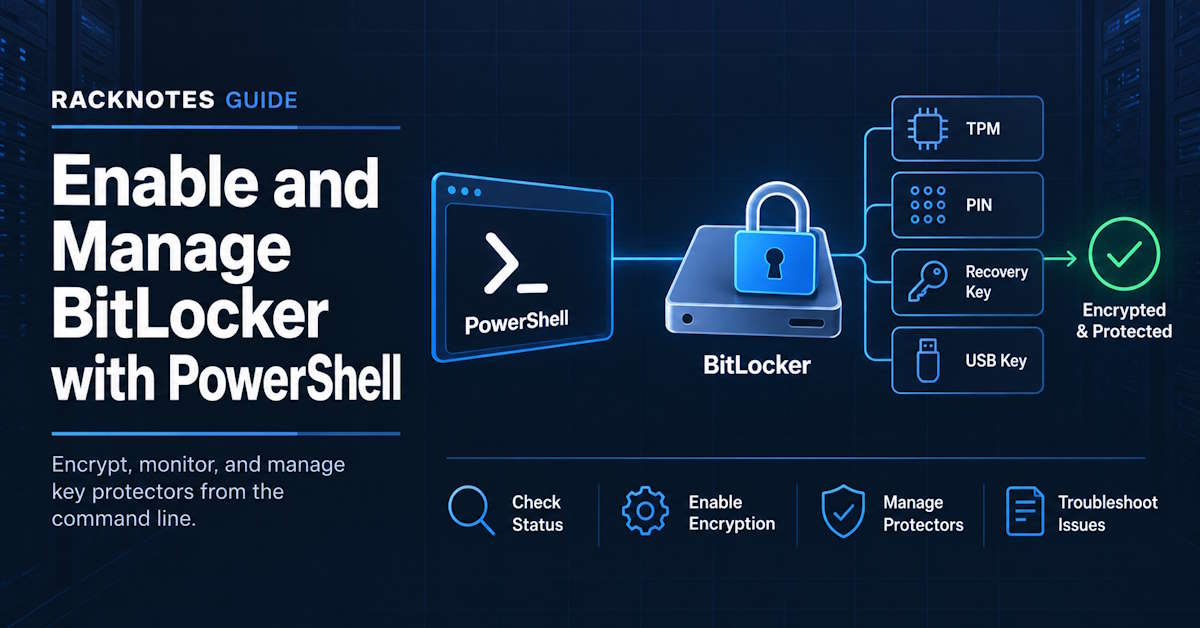
This guide covers how to enable BitLocker with PowerShell, check status, manage key protectors, automate common tasks, and troubleshoot failures using the same module, with no GUI required. It relies mainly on three cmdlets: Enable-BitLocker, Get-BitLockerVolume, and Add-BitLockerKeyProtector. For BitLocker fundamentals, see the BitLocker overview; this article assumes that background and goes straight to the PowerShell workflow.
Quick Answer: Enable BitLocker with PowerShell
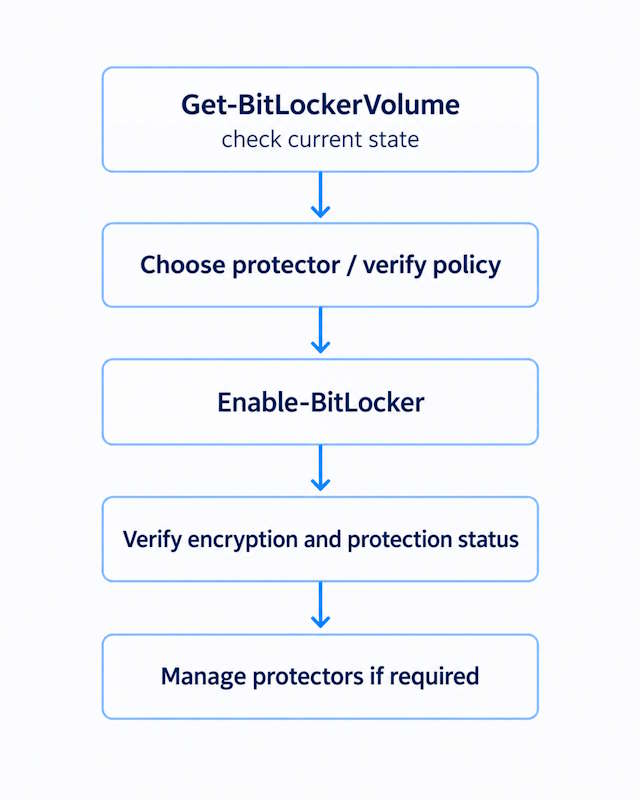
Enable-BitLocker -MountPoint "C:" -TpmProtectorThat’s the minimal, Microsoft-documented form for a TPM-only protector on a compatible OS drive. It is not a universal safe default. The correct protector, recovery configuration, encryption method, and policy requirements depend on the environment, and a TPM-only protector still needs a verified recovery path before it is relied on in production. Check the current state with Get-BitLockerVolume first, and confirm a recovery key backup exists before treating any encrypted volume as production-ready.
Check BitLocker Status Before Making Changes
Get-BitLockerVolumeGet-BitLockerVolume -MountPoint "C:"Get-BitLockerVolume -MountPoint "C:" | Format-ListThe fields that matter day to day are VolumeStatus, ProtectionStatus, EncryptionPercentage, EncryptionMethod, LockStatus, and KeyProtector. These are related but not interchangeable. A fully encrypted volume can have protection suspended or off while the data itself remains encrypted. The disable BitLocker guide covers that distinction in more depth for decryption.
Important: EncryptionPercentage: 100 can look like “done and protected,” but that number describes the data, not protector enforcement. Check ProtectionStatus separately every time.
Enable BitLocker on an OS Drive with TPM
Enable-BitLocker -MountPoint "C:" -TpmProtector-MountPoint targets the volume by drive letter. -TpmProtector tells BitLocker to use the Trusted Platform Module as the key protector, which in general only applies to an operating system volume. Not every device can use this configuration: TPM availability, firmware state, current BitLocker policy, and startup authentication requirements all affect whether a bare TPM protector is appropriate.
A more explicit form, shown only where it’s actually appropriate:
Enable-BitLocker -MountPoint "C:" -EncryptionMethod XtsAes256 -UsedSpaceOnly -TpmProtector-EncryptionMethod accepts Aes128, Aes256, XtsAes128, or XtsAes256. The default is XTS-AES-128 if the parameter is omitted, and Microsoft recommends specifying the method explicitly rather than relying on the default. XTS-AES-256 isn’t automatically “the correct choice” for every environment. Removable media intended for older Windows 8.1 or Server 2012 R2 systems needs plain AES instead for backward compatibility, and organizational policy may already dictate a specific method. -UsedSpaceOnly encrypts only the space currently in use rather than the full disk, which can meaningfully reduce initial encryption time on a mostly empty drive.
Microsoft documents a common AD DS workflow: add a recovery-password protector with Add-BitLockerKeyProtector, escrow it to Active Directory with Backup-BitLockerKeyProtector, and only then enable BitLocker on the volume. That order gives the volume a recovery option before encryption starts. In Entra-managed or standalone environments, use the recovery-storage method appropriate to that environment instead; see backing up a BitLocker recovery key for the full matrix of destinations.
Practical takeaway:
- A bare
-TpmProtectorcommand is a valid Microsoft-documented starting point, not a finished production configuration. - Specify
-EncryptionMethodexplicitly; don’t rely on the silent default. - Confirm a recovery protector exists and is stored appropriately before treating the volume as complete.
Microsoft strongly advises against the -HardwareEncryption switch, per the Enable-BitLocker reference; BitLocker uses software encryption by default unless hardware encryption is explicitly configured.
Monitor BitLocker Encryption Progress
Get-BitLockerVolume -MountPoint "C:" |
    Select-Object MountPoint, VolumeStatus, EncryptionPercentage, ProtectionStatus
Avoid polling in a tight loop; re-run this periodically instead. Watch EncryptionPercentage climb alongside VolumeStatus, and confirm ProtectionStatus is actually On once conversion finishes, not just that the percentage reaches 100.
Enable BitLocker with TPM and PIN
$Pin = Read-Host "Enter BitLocker startup PIN" -AsSecureString

Enable-BitLocker `
    -MountPoint "C:" `
    -TpmAndPinProtector `
    -Pin $Pin
Read-Host -AsSecureString prompts interactively instead of embedding a real PIN as plain text in a script. Microsoft’s reference example for this cmdlet hardcodes a demo PIN through ConvertTo-SecureString -AsPlainText -Force for illustration. That is acceptable in documentation, but not in a script that handles a real production PIN.
Whether TPM+PIN is even permitted depends on Group Policy. Some organizations require it for OS drives, some block it outright, and a PIN that meets local testing but violates the effective policy will fail at Enable-BitLocker time rather than silently succeeding with weaker protection. Detailed startup-authentication policy configuration belongs in a dedicated Group Policy article rather than here.
Enable BitLocker on a Data Drive
Data volumes don’t need the same protector design as an OS drive because they are not part of the boot process. Add a recovery-password protector first, then enable the volume with a separate primary protector such as a password:
Add-BitLockerKeyProtector -MountPoint "D:" -RecoveryPasswordProtector

$Password = Read-Host "Enter password for D:" -AsSecureString
Enable-BitLocker -MountPoint "D:" -PasswordProtector -Password $Password
If a recovery password alone is the intended protector, skip the separate Add-BitLockerKeyProtector step and enable directly:
Enable-BitLocker -MountPoint "D:" -RecoveryPasswordProtectorDon’t carry an OS-drive protector pattern over to a data volume by default; the two solve different problems. One covers unattended startup, the other covers a specific data volume that a script or an administrator unlocks deliberately.
Manage BitLocker Key Protectors with PowerShell
A BitLocker key protector protects access to the Volume Master Key (VMK), which in turn protects the volume’s actual encryption key. Common protector types include TPM, TPM+PIN, recovery password, password, startup key, and supported AD DS account/group protectors. A volume can have more than one active protector at once.
List Existing Protectors
(Get-BitLockerVolume -MountPoint "C:").KeyProtectorAdd a Recovery Password Protector
Add-BitLockerKeyProtector -MountPoint "C:" -RecoveryPasswordProtectorIf a recovery password is generated here, it must be stored somewhere accessible. See backing up a BitLocker recovery key for the storage and escrow workflow rather than treating the protector’s existence alone as a completed backup.
Add Other Protector Types
TPM, TPM+PIN, password, and startup key protectors are all valid Add-BitLockerKeyProtector parameter sets, each with its own required parameters. A startup key protector needs -StartupKeyPath pointing at removable storage. AD DS account/group protectors are a specialized option for supported data-volume scenarios, including some clustered-storage configurations; they are not a general substitute for TPM-based OS-drive startup protection. Match the protector type to the actual use case rather than defaulting to whichever protector was used last time. Adding a protector doesn’t remove any existing one; a volume commonly ends up with more than one active protector by design, not by accident.
Remove a Protector Safely
(Get-BitLockerVolume -MountPoint "C:").KeyProtectorIdentify the specific protector to remove from that list, confirm that another valid recovery or access protector remains, and only then substitute its KeyProtectorId into the removal command:
Remove-BitLockerKeyProtector -MountPoint "C:" -KeyProtectorId "{KEY-PROTECTOR-ID}"Microsoft documents the failure mode directly in the Remove-BitLockerKeyProtector reference: if every key protector is removed from a volume, BitLocker can leave the volume encrypted while storing the volume key without protector-based protection, effectively allowing anyone who can access the volume to read the data. Microsoft recommends keeping at least one recovery password protector in place at all times. Don’t remove the only viable recovery path without confirming what’s left afterward.
Use BitLocker PowerShell Commands in Scripts
The useful pattern is: inspect current state, act only if necessary, verify the result, and log the state or error. Do not treat command execution alone as proof that encryption succeeded.
$BitLocker = Get-BitLockerVolume -MountPoint "C:"

if ($BitLocker.VolumeStatus -eq "FullyDecrypted") {
    # Enable BitLocker using the protector and settings approved for the environment
}
That’s a concept, not a deployment-ready script. A real version needs error handling and a defined recovery-key strategy before it touches production machines. Check VolumeStatus before acting, then record the volume’s state before and after the attempted change so a failed run remains diagnosable later.
Example failure pattern: a deployment script written while TPM+PIN was allowed can begin failing after effective Group Policy changes. If the script does not validate the result of Enable-BitLocker, the failure may repeat unnoticed across every run instead of surfacing immediately.
Check BitLocker on a Remote Computer
Get-BitLockerVolume does not have a -ComputerName parameter; it only inspects the local machine. Remote checks go through PowerShell remoting instead:
Invoke-Command -ComputerName "PC01" -ScriptBlock {
    Get-BitLockerVolume -MountPoint "C:"
}
This needs PowerShell remoting configured and permitted on the target, appropriate permissions for the calling account, and endpoint firewall or policy settings that allow it. A quick Test-WSMan -ComputerName "PC01" before the real command confirms remoting itself is reachable, separating a remoting problem from a BitLocker-specific one when the command fails. WinRM configuration is separate from BitLocker and is outside the scope of this guide.
Common PowerShell BitLocker Errors
Get-BitLockerVolume Is Not Recognized
This is a command-discovery problem, not a permissions problem. PowerShell resolves the cmdlet name before any BitLocker privilege check happens. Work through it in this order:
- Confirm the cmdlet is actually resolvable:
Get-Command Get-BitLockerVolume. - Check whether the BitLocker module is present at all:
Get-Module -ListAvailable BitLocker. - On Windows Server, check whether the BitLocker feature and management components are installed. Microsoft documents that BitLocker is not installed by default on Windows Server editions.
- Confirm the session is running on a supported Windows host rather than a non-Windows PowerShell environment or a stripped-down image missing optional features.
- Once the cmdlet resolves correctly, treat any remaining failure as a separate elevation or permissions issue on the BitLocker operation itself, not as part of this diagnosis.
“A Required Privilege Is Not Held by the Client” (0x80070522)
This can surface when a BitLocker operation runs without the administrative or security context it needs, including scheduled tasks or automation that runs with less privilege than the interactive session. Run the operation from a genuinely elevated session, and check the security context a scheduled or startup script actually uses, not just the account assigned to it. Running as SYSTEM doesn’t automatically guarantee the exact privilege context BitLocker expects, and disabling UAC is not the fix.
“Parameter Set Cannot Be Resolved Using the Specified Named Parameters”
PowerShell’s parameter sets restrict which protector-specific switches can be combined in one call. For example, -TpmProtector and -RecoveryPasswordProtector belong to different parameter sets. Get-Help Enable-BitLocker -Full shows the available sets. Identify the intended protector type, then remove any switch that belongs to a different set.
BitLocker Could Not Be Enabled
Treat this as a checklist, not a single diagnosis:
- current
Get-BitLockerVolumestate for that volume; - TPM availability and readiness, if the chosen protector needs one;
- a pending reboot or recent platform/firmware change;
- effective BitLocker Group Policy requirements;
- conflicting or duplicate protectors already present;
- recovery-password requirements the policy may enforce;
- firmware or boot configuration issues, where relevant.
No single fix applies to every message with this text; the error can reflect several distinct root causes.
Group Policy Requires a Recovery Password Before Encryption (0x8031002C)
Locally valid PowerShell syntax can still be blocked by policy. This code indicates that the effective recovery policy is not satisfied, which may include an AD DS recovery-information requirement. It is distinct from other recovery-password policy errors, so do not treat every “recovery password required” message as interchangeable. Bring the protector sequence into compliance with the effective BitLocker recovery policy rather than bypassing it. Detailed GPO configuration belongs in a dedicated Group Policy article.
Only One Key Protector of This Type Is Allowed (0x80310031)
Inspect the current protector list before adding another one of the same type. Decide whether the existing protector should stay, be rotated, or be replaced deliberately. Avoid a blanket “remove everything and start over” approach, which reintroduces the protector-removal risk covered earlier.
Startup PIN Is Not Permitted by Policy (0x80310060)
-TpmAndPinProtector can fail outright if effective policy doesn’t allow that startup authentication method on that device. This is a policy question, covered in more depth in the future Group Policy guide, not a PowerShell syntax problem to work around locally.
Other BitLocker Enable Errors
| Error | Likely area to inspect | First check |
|---|---|---|
0x80070522 | Privilege/security context | Elevated/admin context |
| Parameter set cannot be resolved | PowerShell syntax | Protector parameter set in use |
0x8031002C | Recovery policy | Effective BitLocker policy |
0x80310031 | Duplicate protector | Existing KeyProtector list |
0x80310060 | Startup PIN policy | Startup authentication policy |
0x80310048 | Firmware/BIOS compatibility | Firmware mode, BIOS/UEFI support and vendor updates |
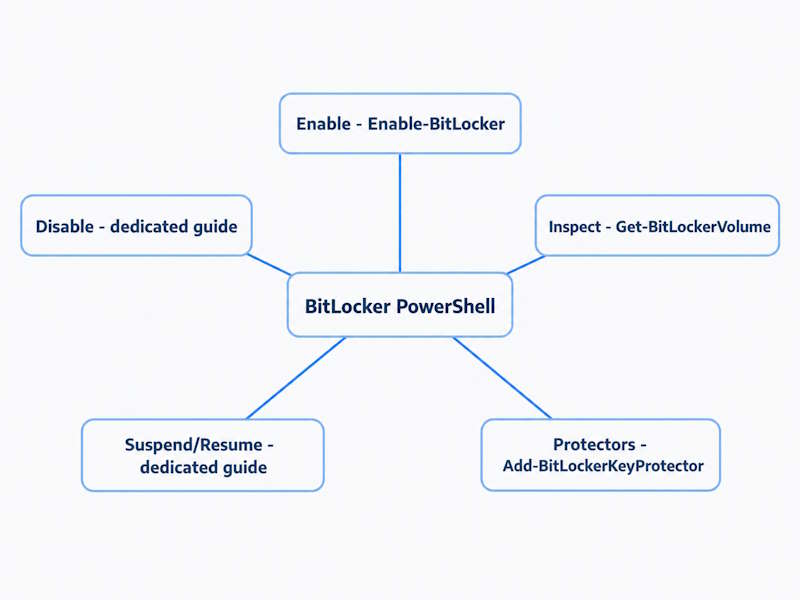
Suspend, Resume, or Disable BitLocker?
| Action | What it does | PowerShell cmdlet | Where to read more |
|---|---|---|---|
| Suspend | Temporarily disables key-protector enforcement while data remains encrypted | Suspend-BitLocker | Dedicated suspend guide (coming soon) |
| Resume | Restores protection after suspension | Resume-BitLocker | Dedicated suspend guide (coming soon) |
| Disable | Removes protectors and begins decryption | Disable-BitLocker | Disable BitLocker |
These are three different operations, not variations on one theme. This article stays focused on enabling and managing protectors; the full suspend/resume workflow gets its own guide once published.
PowerShell vs manage-bde for BitLocker Administration
PowerShell’s advantage is structured objects: Get-BitLockerVolume output can be filtered, piped, and scripted directly, which matters when the same check must run across many machines or feed into automation. manage-bde remains useful as a direct command-line utility, particularly in command-prompt-only contexts and some recovery or troubleshooting scenarios where a full PowerShell session isn’t available. Neither replaces the other. The full manage-bde command reference covers the command-line side in depth; this article stays on the PowerShell module.
FAQ
What PowerShell command enables BitLocker?
Enable-BitLocker. The exact required parameters depend on the protector type and the effective BitLocker policy for that device.
How do I check if BitLocker is enabled with PowerShell?
Get-BitLockerVolume. Read VolumeStatus and ProtectionStatus as two separate answers, not one combined status.
How do I see BitLocker key protectors in PowerShell?
(Get-BitLockerVolume -MountPoint "C:").KeyProtectorCan I enable BitLocker remotely with PowerShell?
Yes, through PowerShell remoting such as Invoke-Command, provided permissions and remoting configuration allow it. Enable-BitLocker and Get-BitLockerVolume don’t have a built-in remote-computer parameter of their own.
Why is Get-BitLockerVolume not recognized?
Usually a missing module or an unsupported environment rather than one single cause. See the troubleshooting section above for the checklist.
Does Suspend-BitLocker decrypt the drive?
No. Suspension and decryption are different operations entirely. Suspension leaves data encrypted and pauses protector enforcement; only Disable-BitLocker starts actual decryption.
Final Thoughts
The PowerShell BitLocker module covers enabling, inspecting, and managing protectors without opening the GUI, but recovery still comes first. Check Get-BitLockerVolume before changing anything, match the protector to the drive type, and confirm a recovery path exists before calling a volume production-ready. Suspend, resume, and full disable each have their own cmdlet and dedicated guide.
BitLocker Series
9 of 10 published – Drive Encryption · TPM & Recovery Keys · manage-bde · Disable & Decrypt · Recovery Key Backup · PowerShell · Suspend & Resume · Active Directory