
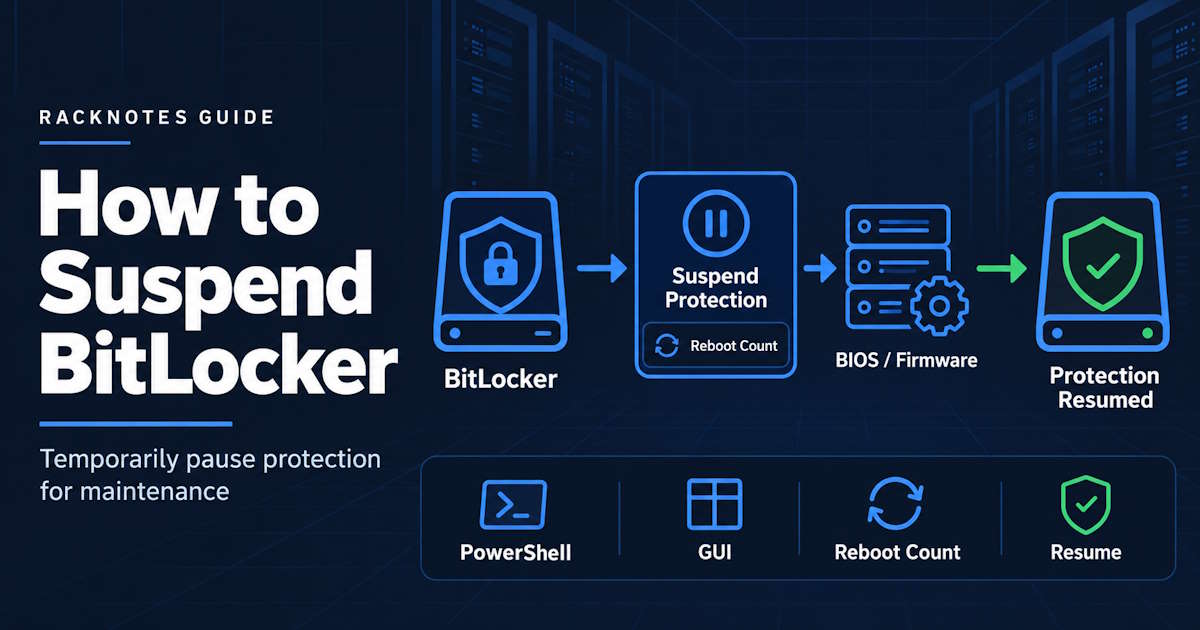
Suspending BitLocker temporarily disables key-protector enforcement while the drive stays encrypted. It’s a common maintenance step when the update workflow calls for it, typically before BIOS, UEFI, TPM, or firmware maintenance that could otherwise trigger BitLocker’s startup validation and force an unplanned recovery prompt. Suspending BitLocker does not decrypt the drive. Protection remains paused until BitLocker resumes automatically or an administrator resumes it manually. If the actual goal is permanent removal of BitLocker, see disable BitLocker instead.
Quick Answer: How to Suspend BitLocker
Suspend-BitLocker -MountPoint "C:" -RebootCount 1Protection is suspended, the data stays encrypted, and -RebootCount 1 fits a one-reboot maintenance event. Use a higher count for a planned multi-reboot sequence, and use 0 only when you intend to resume protection manually afterward, not as a default setting.
What Suspending BitLocker Actually Does
The volume remains encrypted on disk, but BitLocker protection is temporarily weakened because the encryption key is made available without normal protector enforcement, as described in Microsoft’s BitLocker operations guide. Suspension is intended for controlled maintenance windows, not as a long-term state. It is different from decryption and from pausing an in-progress encryption or decryption conversion. Protection status and encryption status are separate concepts throughout this article.
| State | Data encrypted? | Protector enforcement active? | Decryption running? |
|---|---|---|---|
| BitLocker active | Yes | Yes | No |
| BitLocker suspended | Yes | No / temporarily bypassed | No |
| BitLocker disabled / decrypting | Partially until complete | No | Yes |
Practical takeaway:
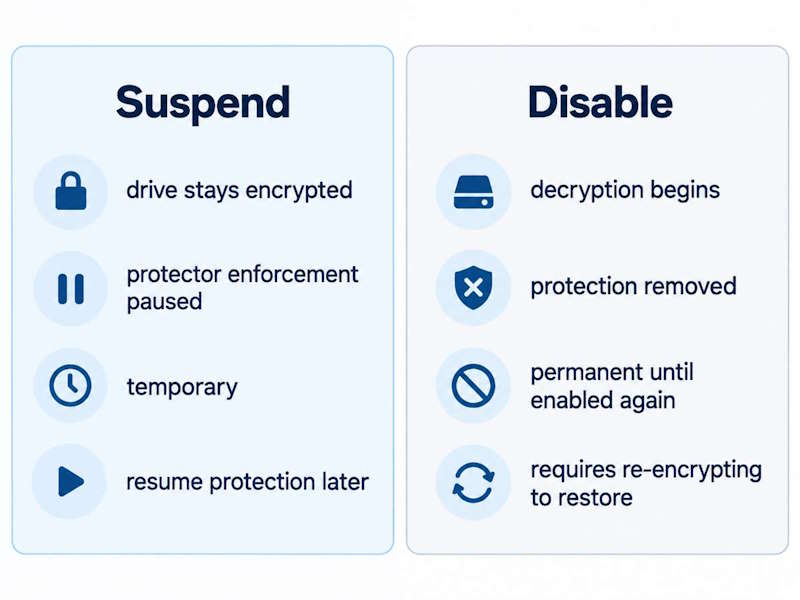
- Suspension is a temporary protection state and does not decrypt the drive. Disabling BitLocker starts decryption; restoring BitLocker afterward requires enabling and encrypting the volume again.
- Encrypted sectors on disk are not the same thing as active protector enforcement; suspension separates the two on purpose.
- Resuming protection re-enables enforcement of the configured key protectors; it does not create a new protector set by itself.
When Should You Suspend BitLocker?
Common scenarios include BIOS or UEFI firmware updates, TPM firmware updates, boot-manager or boot-order changes, hardware or firmware maintenance that may change measured boot values, and vendor update tools that explicitly instruct you to suspend BitLocker first. Not every Windows update or routine reboot needs this. Suspend protection when the maintenance workflow or vendor guidance calls for it, not as a reflexive precaution before any system change.
Suspend BitLocker in Windows 11
Microsoft documents the Control Panel path as System and Security > BitLocker Drive Encryption > Suspend protection for the operating system drive in its guidance on suspending BitLocker for firmware and software updates. After suspension, use Resume protection from the same BitLocker Control Panel applet. GUI availability and exact wording can vary by edition and Device Encryption state, so PowerShell is the more stable method for administrative or scripted use.
Suspend BitLocker with PowerShell
Suspend-BitLocker -MountPoint "C:" -RebootCount 1Full parameter details are in Microsoft’s Suspend-BitLocker reference.
Suspend for One Reboot
Suspend-BitLocker -MountPoint "C:" -RebootCount 1Protection remains suspended through one restart and then resumes automatically.
Suspend for Multiple Reboots
Suspend-BitLocker -MountPoint "C:" -RebootCount 3Some firmware update sequences require more than one restart. Match the count to the actual planned sequence, not a guess.
Suspend Until Manually Resumed
Suspend-BitLocker -MountPoint "C:" -RebootCount 00 means protection does not automatically resume based on reboot count at all, not “resume after zero reboots.” The administrator must run Resume-BitLocker afterward, and protection can stay suspended far longer than intended if that follow-up step is missed.
Suspend BitLocker from Command Line with manage-bde
manage-bde -protectors -disable C:manage-bde uses protector-disable terminology rather than the PowerShell cmdlet name, but the underlying operation is the same: protectors stop being enforced while the drive stays encrypted. Microsoft’s manage-bde -protectors reference documents reboot-count values from 0 through 15:
manage-bde -protectors -disable C: -RebootCount 3Resume from the command line with:
manage-bde -protectors -enable C:Full syntax lives in the manage-bde command reference; this article only needs the suspend/resume commands specifically.
How to Resume BitLocker Protection
Resume-BitLocker -MountPoint "C:"Verify with:
Get-BitLockerVolume -MountPoint "C:"The expected change is restored protection status, not a change in encryption percentage. The data was never decrypted, so that percentage should not change as a result of resuming protection. Microsoft documents that Resume-BitLocker has no effect on a volume that is not suspended. Use Get-BitLockerVolume to verify the actual protection state before and after the command.
Check Whether BitLocker Is Still Suspended
Get-BitLockerVolume -MountPoint "C:"Read ProtectionStatus, VolumeStatus, and EncryptionPercentage as three separate answers. A drive can remain fully encrypted with EncryptionPercentage at 100 while ProtectionStatus is Off because protection is suspended. That combination is expected during a suspension window, not a sign of a broken drive.
Suspend BitLocker for a BIOS or Firmware Update
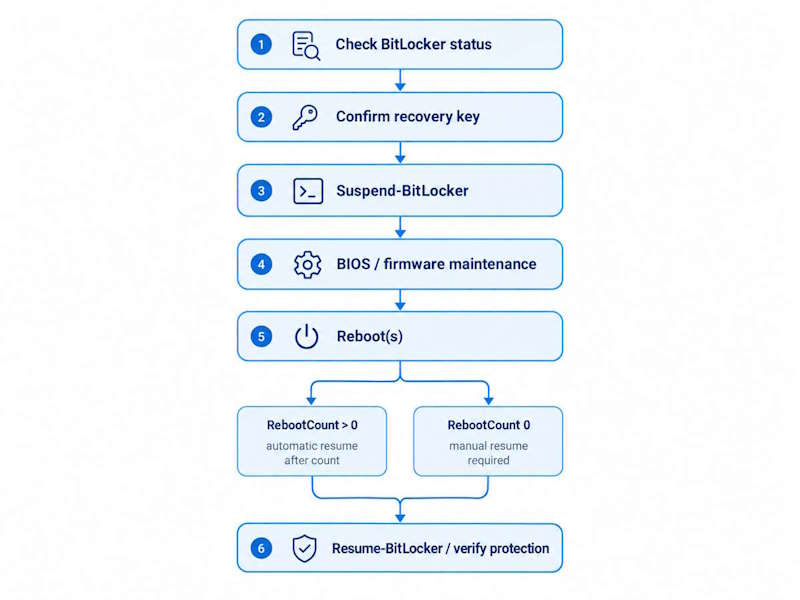
A firmware or platform change can alter the measured boot values BitLocker checks at startup. Without suspension, that change can trigger an unplanned recovery prompt even when the machine is not compromised.
- Confirm a recovery key exists and is accessible. See backing up a BitLocker recovery key if that hasn’t been verified recently.
- Check current BitLocker state with
Get-BitLockerVolume. - Determine how many reboots the vendor update actually requires.
- Suspend BitLocker with a
RebootCountmatching that sequence. - Apply the update.
- Verify protection resumes afterward.
- If
RebootCount 0was used, resume manually.
BitLocker suspension is configured in Windows before the firmware update begins; it is not a BIOS or UEFI setting.
Why RebootCount Matters
RebootCount determines how long BitLocker protection remains suspended across restarts.
-RebootCount 1: protection remains suspended through one restart and then resumes automatically.
-RebootCount 2 or higher: use when the planned maintenance flow genuinely requires multiple restarts.
-RebootCount 0: protection stays suspended until someone runs Resume-BitLocker manually. It can be useful for controlled maintenance, but it can also leave a device suspended indefinitely if the manual resume step is forgotten.
Example failure pattern: a maintenance script uses -RebootCount 0, completes the firmware update, but never runs Resume-BitLocker. The device continues operating while protection remains suspended until an administrator or management workflow restores it.
Suspend vs Resume vs Pause Encryption vs Disable
| Action | Purpose | Data remains encrypted? | PowerShell |
|---|---|---|---|
| Suspend protection | Temporarily bypass protector enforcement | Yes | Suspend-BitLocker |
| Resume protection | Restore protector enforcement | Yes | Resume-BitLocker |
| Pause encryption/decryption | Temporarily stop conversion progress | Depends on current state | Conversion-specific workflow |
| Disable BitLocker | Decrypt the drive | No, after completion | Disable-BitLocker |
Resume-BitLocker restores protector enforcement; it does not resume a paused encryption or decryption conversion, which is a separate state. Do not conflate suspension with a paused conversion, or resumption with disablement, even though the search terms overlap.
BitLocker Stays Suspended After Reboot
Not every suspended system is broken. Check the current state before assuming something is wrong:
- Run
Get-BitLockerVolume -MountPoint "C:". - Check whether the suspension was created with
-RebootCount 0. - Confirm whether the configured reboot count has actually been exhausted yet.
- Check whether policy or a management workflow is intentionally keeping protection suspended.
- If maintenance is complete and nothing is holding it suspended on purpose, resume explicitly with
Resume-BitLocker -MountPoint "C:".
Unable to Resume BitLocker Protection
Check Get-BitLockerVolume first to confirm the volume is actually in a suspended or protection-off state. A resume attempt on a volume that is already protected simply does nothing, which can look like a failure when it is not. Then review effective BitLocker policy and check whether recovery information must be escrowed before protection can resume. On an Entra ID-joined device where policy requires recovery-key backup, verify network connectivity and whether recovery information was successfully escrowed before assuming the BitLocker configuration itself is broken. Do not start by clearing the TPM, deleting protectors, or recreating them.
BitLocker Resumes Too Early During a BIOS or Firmware Update
If a firmware workflow needs multiple restarts but BitLocker was suspended for only one, protection can resume before maintenance finishes. A later reboot in the sequence may then trigger BitLocker recovery because the measured boot environment changed mid-process. Choose a RebootCount that covers the full maintenance sequence, or use 0 only with an intentional, tracked manual resume step.
Protection Off, Reboots Left, but Resume Fails
An observed pattern documented in Microsoft Q&A: Get-BitLockerVolume shows something like Protection Off with reboots still remaining, and Resume-BitLocker fails with an error such as Data of this type is not supported (0x8007065E). Treat this carefully rather than reaching for a generic fix. This combination does not point to one specific broken component by itself. Identify the exact current state first, check for pending firmware or update operations that may still be mid-sequence, confirm whether a reboot expected by the original suspend operation is still outstanding, and verify policy and protector state together rather than in isolation. Avoid destructive advice such as clearing the TPM or recreating protectors as a default response. There is no single universal cause behind this error message; if the state remains inconsistent after these checks, deeper platform-specific troubleshooting is more appropriate than a one-line fix.
Protection Does Not Resume Automatically
Possible causes include RebootCount 0, a reboot count that has not yet been exhausted, unsatisfied recovery-escrow requirements, network or management dependencies in a managed environment, or other platform/update state. Work through these as a checklist rather than guessing at a single cause, because more than one can apply on the same device. Microsoft also notes in its BitLocker operations guide that resuming protection requires the device to have accepted the Windows EULA. This is an edge case, not a likely first diagnosis.
Dangerous Troubleshooting Advice to Avoid
Don’t treat any of these as a first-line fix for a suspended or non-resuming volume: clearing the TPM, deleting all protectors, disabling UAC, decrypting and re-encrypting the entire drive, removing recovery protectors, or bypassing organizational BitLocker policy. These responses can be destructive, reduce security, alter unrelated system controls, or create unnecessary recovery risk. Diagnose the actual suspension state and policy conditions first.
FAQ
Does suspending BitLocker decrypt the drive?
No. The data stays encrypted; suspension only changes protector enforcement temporarily.
How do I suspend BitLocker with PowerShell?
Suspend-BitLocker -MountPoint "C:" with a -RebootCount value matched to the actual maintenance sequence.
What does RebootCount 0 mean?
Protection stays suspended until it’s resumed manually; it does not mean “resume after zero reboots.”
How do I resume BitLocker?
Resume-BitLocker -MountPoint "C:", then confirm with Get-BitLockerVolume.
Should I suspend BitLocker before a BIOS update?
When Microsoft, the device vendor, or the update workflow calls for it. Match the reboot count to the planned update sequence rather than guessing.
Why is BitLocker still suspended after reboot?
Usually RebootCount 0, a reboot count that hasn’t been exhausted yet, or policy and management conditions intentionally preventing automatic resume.
Final Thoughts
Suspending BitLocker is a protector-enforcement pause: the drive stays encrypted on disk, but protection is temporarily weakened while the encryption key is available without normal enforcement. RebootCount controls how long that state lasts. Confirm a recovery key backup exists before maintenance, match the reboot count to the actual update sequence, and verify with Get-BitLockerVolume that protection returned when the work is complete. The main operational risk is leaving protection suspended because the resume step was missed. Full disablement is a different task with its own guide; this one stays focused on the pause-and-resume workflow for planned firmware and boot-related maintenance.
BitLocker Series
9 of 10 published – Drive Encryption · TPM & Recovery Keys · manage-bde · Disable & Decrypt · Recovery Key Backup · PowerShell · Suspend & Resume · Active Directory