
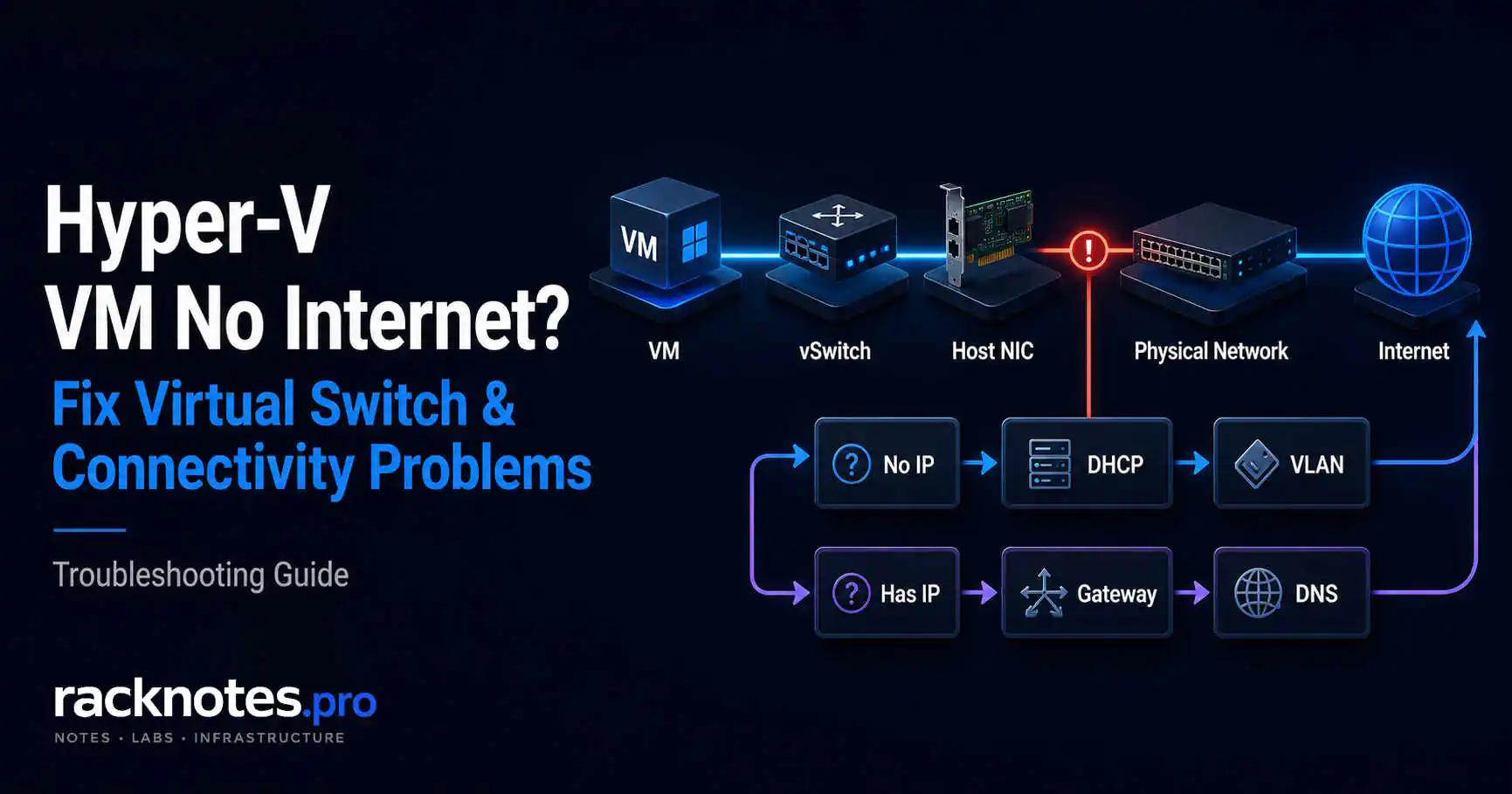
Hyper-V VM no internet problems split into two diagnostic branches: no valid IP address, or a valid IP with no upstream connectivity. If the VM has no valid IP, start with the virtual adapter, switch assignment, VLAN, and DHCP path. If it has the expected IP, test the default route, local gateway/L2 reachability, external connectivity, and DNS in that order.
If the Hyper-V host itself loses connectivity after an external vSwitch is created, use a separate host-side branch: verify the management OS vEthernet adapter, its IP/VLAN configuration, and AllowManagementOS before touching the switch.
The main troubleshooting flow applies to Windows Server 2022 and 2025, with a dedicated section for the client-only Default Switch on Windows 10/11.
- No IP address – check the guest adapter/driver, switch assignment, VLAN ID blocking DHCP
- Has IP, no internet – test in order: subnet/gateway, local L2 reachability, external endpoint, DNS
- Host lost internet after creating external switch – TCP/IP now belongs on the
vEthernetadapter; verify IP/VLAN/gateway/DNS on that adapter explicitly - vSwitch broken after a driver or update change – verify the Hyper-V switch binding (
vms_pp) before recreating the switch - Nested VM no network – needs MAC spoofing on the outer adapter, or NAT inside the L1 VM
| Symptom | First checks / likely layer |
|---|---|
| No IP address | DHCP failure, VLAN mismatch, wrong switch type, guest adapter/driver problem |
| IP but no internet | Default gateway missing or wrong, DNS broken, VLAN routing issue |
| Host lost internet | TCP/IP must be on the vEthernet management adapter; verify IP/VLAN/gateway/DNS there |
| VM adapter disconnected | Switch name changed or switch deleted |
| Nested VM no network | MAC spoofing not enabled on outer VM adapter, or no NAT configured in the L1 VM |
| vSwitch missing or broken | Check Hyper-V extensible switch binding (vms_pp) |
Map the Failure Path First
Before running commands, locate the failure layer. VM networking failures usually occur at one of a few points in this chain:
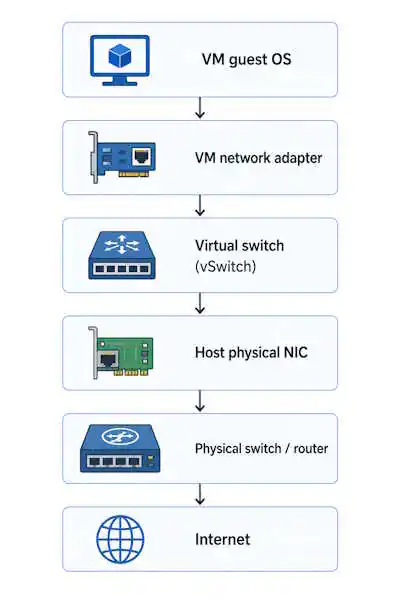
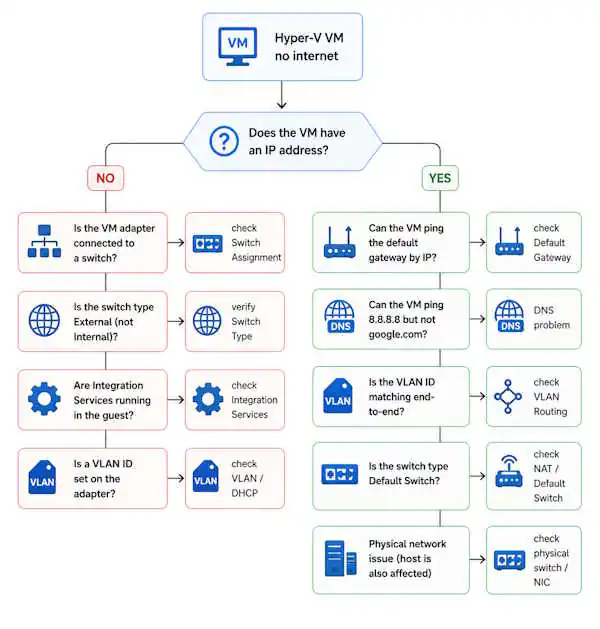
The decision tree below routes you to the right section:
Quick state check – run these first
From the Hyper-V host (PowerShell):
# List all virtual switches and their types
Get-VMSwitch | Select-Object Name, SwitchType, NetAdapterInterfaceDescription

# Check all adapters for a specific VM
Get-VMNetworkAdapter -VMName "YourVM" | Select-Object VMName, Name, SwitchName, Status, IPAddresses

# Check VLAN assignment
Get-VMNetworkAdapterVlan -VMName "YourVM"

# Check the physical NIC the switch actually uses
Get-NetAdapter | Select-Object Name, Status, LinkSpeed, InterfaceDescription
Healthy output for Get-VMNetworkAdapter:
VMName    SwitchName  Status  IPAddresses
------    ----------  ------  -----------
Server01  External    Ok      {192.168.1.45}
Broken output – VM adapter not connected to any switch:
VMName    SwitchName  Status       IPAddresses
------    ----------  ------       -----------
Server01              Disconnected {}
An empty SwitchName is a configuration problem, not a network problem – fix the adapter assignment before anything else. If the physical NIC behind the switch shows Status: Disconnected, no vSwitch or guest configuration will fix it; the uplink itself is down.
IPAddresses is useful host-side evidence, but an empty value does not by itself prove the guest has no IP. Hyper-V depends on guest integration/KVP data to report addresses to the host. Confirm the actual address with Get-NetIPConfiguration inside the guest when SwitchName and adapter status look healthy.
Hyper-V VM Has No IP Address
No valid IP usually means the VM never received a DHCP offer, has no working static address, or the adapter is not communicating at the vSwitch layer. Start with the checks below.
Guest network adapter or driver problem
For supported Windows Server guests, Hyper-V integration components and the synthetic network driver (netvsc.sys) are built into the OS; updates arrive through Windows Update. Do not use the Guest Service Interface status as a network-health test – that service handles host-to-guest file copy via Copy-VMFile and is disabled by default, so its state says nothing about whether network traffic is passing.
Inside the VM, verify the Microsoft Hyper-V Network Adapter is present, enabled, and has no Device Manager error:
Get-NetAdapter
Get-PnpDevice -Class Net | Where-Object Status -ne "OK"
Install current Windows updates in the guest if either command shows a problem. For Linux guests, verify the required Hyper-V network kernel modules are loaded and supported by the distribution. On older or P2V-migrated guests, the adapter can appear in Device Manager even when the underlying driver or integration state is stale.
VLAN ID blocking DHCP
VLAN mismatches are harder to spot because DHCP frames disappear silently without an obvious Hyper-V error. If a VLAN ID is set on the VM adapter, the physical switch port must be a trunk carrying that VLAN. An access-mode port silently drops all tagged frames and the VM waits for DHCP indefinitely.
Get-VMNetworkAdapterVlan -VMName "YourVM"If VlanList shows an ID, verify the physical switch port is a trunk and the VLAN is permitted on it. If VLAN isolation is not needed, remove the setting:
Set-VMNetworkAdapterVlan -VMName "YourVM" -UntaggedWrong switch type assigned
If the VM is attached to the wrong switch type, an Internal or Private switch has no physical uplink by itself. For direct access to the physical network, connect the VM to an External switch. If isolation is required, keep the Internal switch and provide routing or NAT – a VM on an Internal switch can still reach the internet through Windows NAT, RRAS, or a router/firewall VM. Verify switch types:
Get-VMSwitch | Select-Object Name, SwitchTypeInternal and Private switches carry no external traffic on their own. If the VM needs direct internet access and isolation is not a requirement, move it to an External switch.
APIPA address (169.254.x.x)
A 169.254.x.x address is one of the clearest indicators of a DHCP, VLAN, or link problem. It means DHCP did not complete and no valid static address is configured. Run Get-NetIPConfiguration inside the guest; an APIPA address sends you back to the three causes above, not forward into routing or DNS troubleshooting.
Hyper-V VM Has an IP but No Internet
A valid address from the expected subnet confirms the guest adapter is configured, but it does not by itself prove DHCP is working – the address could be static, a stale lease, or assigned from the wrong scope. First confirm whether the address is DHCP-assigned or static, then confirm the subnet, default gateway, and DNS servers match the intended network before testing anything further.
Static or stale address misconfigured inside the guest
A static IP with the wrong subnet mask, missing gateway, or incorrect DNS shows an address in ipconfig but fails every connection attempt – this is a guest OS configuration issue, not a Hyper-V one. Run Get-NetIPConfiguration inside the VM and confirm the default gateway and DNS servers are populated and correct. Also check for a stale DHCP lease if the VM was recently moved or cloned.
Test in order: subnet – gateway – external endpoint – DNS
Use this sequence to localize the failure instead of jumping straight to an external address.
1. Confirm the address, gateway, and DNS configuration
Get-NetIPConfigurationNo address, or an address outside the expected subnet, points back to a DHCP/VLAN/adapter problem. A correct-looking address with no gateway or DNS server listed means DHCP options are missing or the static configuration is incomplete.
2. Verify a default route actually exists
Get-NetRoute -DestinationPrefix "0.0.0.0/0"A gateway address in ipconfig does not always mean an active default route exists. No result here means fixing the DHCP gateway option or the static configuration.
3. Test the local default gateway
Test-NetConnection "<default-gateway>"Treat a failed ping as a clue, not proof. Some gateways do not answer ICMP while still forwarding normal traffic. If the ping fails, confirm the gateway is on-link and check the neighbor/ARP state before blaming Hyper-V:
Get-NetNeighbor -AddressFamily IPv4If the guest cannot resolve the gateway MAC address, investigate VLAN tagging, subnet mask, switch assignment, physical trunking, or duplicate addressing. If ARP resolves but ICMP fails, the gateway may simply block ping – continue to the next step.
4. Test a known external endpoint on a real application port
Test-NetConnection "<known-external-endpoint>" -Port 443Use a port and destination you actually expect to reach. A failed ping alone does not prove the route is broken. If this test fails, investigate routing, NAT, an upstream firewall, or a proxy requirement. If it succeeds, basic external connectivity works for that specific path.
5. Test DNS resolution separately
Resolve-DnsName microsoft.com
Get-DnsClientServerAddress -AddressFamily IPv4
External connectivity working but name resolution failing means the DNS server is unreachable, the wrong DNS server is configured, or the DHCP scope is not providing DNS options.
6. If everything above passes, look one layer higher
Application-specific failures with working routing and DNS usually mean a proxy requirement, TLS/certificate issue, application firewall rule, or blocked port – outside Hyper-V networking entirely.
VLAN routing mismatch
A VM can receive an address from the wrong subnet when DHCP relay, the native VLAN, or scope selection is misconfigured. This can be deceptive because DHCP appears to succeed while routing is broken. Verify the assigned subnet matches the VM adapter’s VLAN ID and that the gateway belongs to the same intended network.
Guest firewall and host-side vSwitch policy
Inside the guest, Windows Defender Firewall or third-party endpoint security can block traffic. On the host side, Hyper-V port ACLs, virtual-switch extensions, SDN/VFP policy, or third-party network filter drivers can create similar symptoms. Check the specific profile, rule, or security log rather than disabling the firewall as a permanent fix.
Hyper-V Default Switch Has No Internet or DHCP Is Not Working
Scope: Default Switch is client-only – it’s created automatically on Windows 10/11 Hyper-V hosts and does not exist on Windows Server by default. Troubleshoot it separately from the Windows Server External/Internal/Private switch model covered in the rest of this guide.
First checks: confirm the VM’s network adapter is actually attached to Default Switch, then check the guest’s IP, gateway, and DNS with Get-NetIPConfiguration. An APIPA address or no valid address at all points back to the client-side managed DHCP/NAT path or a guest adapter problem – the same diagnostic logic as the no-IP branch above, just on a host-managed switch instead of a server one. A valid IP with only name resolution failing isolates the problem to DNS.
Avoid static assumptions: Default Switch addressing and NAT are managed automatically by the host. It is not a manually configured server subnet, and its address range can change across host reboots or Windows updates. Don’t hand-configure static addressing inside the guest expecting it to remain stable against that model.
Alternative: if the VM needs direct LAN presence or more predictable network behavior than Default Switch provides, use a properly configured External switch instead. If the requirement is controlled private NAT rather than direct LAN access, a custom Internal switch plus NAT gives more predictable control than relying on Default Switch’s automatic behavior.
Hyper-V External Switch No Internet or Host Loses Connectivity
This section covers two different problems that both follow external-switch creation. If the VM has no internet but the host is still online, first confirm that the External Switch is bound to the intended physical NIC and that the uplink is connected. AllowManagementOS controls host access through that switch; it is not required simply for a VM to use the external uplink.
Confirm the external switch uses the correct physical NIC
Get-VMSwitch -SwitchType External | Select-Object Name, NetAdapterInterfaceDescription
Get-NetAdapter | Select-Object Name, Status, LinkSpeed, InterfaceDescription
Confirm the switch is bound to the NIC you expect, and that the same physical adapter shows Status: Up with a real link speed. A switch bound to the wrong NIC, or bound to a NIC whose uplink is down, produces exactly the “VM has no internet, host is fine” symptom without any error in the VM itself.
If the host itself lost connectivity after external switch creation, treat that as a separate branch. Creating an external virtual switch hands the physical NIC to the Hyper-V Virtual Switch Protocol, so the NIC becomes a switch uplink. When management OS sharing is enabled, Hyper-V creates a vEthernet (SwitchName) management adapter. The host TCP/IP configuration belongs on that management vNIC rather than on the physical uplink. Existing settings may carry over during switch creation, but verify them explicitly – especially static IP, VLAN, gateway, and DNS settings.
Finding the management vNIC configuration
Get-NetIPAddress | Where-Object { $_.InterfaceAlias -like "vEthernet*" }If the vEthernet adapter has no IP, configure it manually on the vEthernet (SwitchName) adapter. Do not move the host’s normal TCP/IP configuration back to the physical NIC; it is now the external-switch uplink. Management TCP/IP belongs on the management OS vNIC when sharing is enabled.
AllowManagementOS = $false – the footgun
Creating a switch with -AllowManagementOS $false creates no vEthernet adapter. The host loses access to that physical NIC entirely. Fix without destroying the switch:
Set-VMSwitch -Name "SwitchName" -AllowManagementOS $trueThis creates the management OS vNIC and reconnects the management partition to the external switch. Host connectivity returns only after that vNIC has the correct IP, prefix, gateway, DNS, and – where required – management VLAN configuration. Existing VM network adapters remain attached to the switch, although a brief network interruption is still possible during the host-side change.
Recovery when the host has no network access
Use the physical console or IPMI – do not delete and recreate the switch, since that disconnects every attached VM. Run Set-VMSwitch -AllowManagementOS $true from the local console, then configure the vEthernet adapter IP and verify the full network configuration. The switch and all VM connections survive.
Virtual Switch Not Working or Missing
A missing or broken vSwitch can follow Windows Updates, driver changes, or configuration errors. It may still appear in Get-VMSwitch but pass no traffic, or it may disappear entirely. Creation failures usually lead into the same host-side binding checks covered below.
Hyper-V Virtual Switch Creation Errors
If Virtual Switch Manager fails while creating or changing a switch, the visible error often points to the same host-side binding branch covered below. Common messages include “Error applying virtual switch properties changes,” “Failed while creating virtual Ethernet switch,” and “Ethernet port bind failed: Element not found.” Some cases also surface HRESULT 0x80070002 or a related binding message – treat the code as a routing clue, not a diagnosis by itself.
Work through this before recreating anything:
- Confirm the intended physical NIC is present and shows
Up. - Confirm the NIC isn’t already owned by another external vSwitch outside a valid SET design.
- Check the Hyper-V Extensible Virtual Switch binding,
vms_pp– see the binding command below. - Check whether the failure appeared immediately after a NIC driver or Windows update.
- Check the VmSwitch and VMMS event channels for the exact binding message (see Event Viewer, below).
- Only recreate the switch after binding recovery fails – continue to Hyper-V binding state after a driver or update change below.
Do not delete and recreate the switch as the first response. A binding repair may restore connectivity without disconnecting every attached VM or losing management-vNIC configuration.
External switch uplink binding
A physical uplink cannot be independently bound to multiple external Hyper-V switches. A normal external switch owns its selected uplink, while SET deliberately creates one vSwitch over multiple member NICs. See Confirm the external switch uses the correct physical NIC above for the binding check. Each physical adapter should appear at most once outside a SET configuration. If two external switches are needed, use two physical NICs or a Switch Embedded Teaming (SET) configuration. For vSwitch design decisions, see the Hyper-V Networking guide.
Hyper-V binding state after a driver or update change
If a switch stops passing traffic or vSwitch operations fail after a NIC driver or update change, verify the Hyper-V extensible switch binding before assuming the switch must be recreated:
Get-NetAdapterBinding -Name "EthernetAdapterName" | Where-Object { $_.ComponentID -eq "vms_pp" }If Enabled is False and this adapter is expected to back the external switch, re-enabling the binding can be an appropriate targeted recovery step:
Enable-NetAdapterBinding -Name "EthernetAdapterName" -ComponentID vms_ppRe-binding without recreating the switch preserves VLAN assignments and VM adapter connections. It can still interrupt traffic briefly on a production host – confirm console or IPMI access and record the host’s current IP and VLAN configuration before making the change.
- Only recreate when re-binding the protocol fails to restore connectivity.
- Export current state before touching anything:
Get-VMSwitch | Select-Object Name, SwitchType, NetAdapterInterfaceDescription |
    Export-Csv .\vmswitches.csv -NoTypeInformation

Get-VM | Get-VMNetworkAdapter | Select-Object VMName, Name, SwitchName, MacAddress, MacAddressSpoofing |
    Export-Csv .\vm-network-adapters.csv -NoTypeInformation

Get-VMNetworkAdapterVlan | Export-Clixml .\vm-network-vlans.xml

Get-VMNetworkAdapter -ManagementOS | Select-Object Name, SwitchName, MacAddress |
Export-Csv .\management-vnics.csv -NoTypeInformation- Confirm console or IPMI access before proceeding – host network connectivity will likely be lost during recreation.
VLAN Trunking Issues
Access vs. trunk port on the physical switch
For VLANs to work end-to-end, the physical switch port connected to the host NIC must be a trunk (tagged port) carrying all required VLANs. An access port carries only one VLAN and silently drops all tagged frames from the Hyper-V host. If VLAN-tagged VMs are unreachable, confirm the physical switch port is a trunk and the required VLANs are permitted on it before looking at Hyper-V configuration.
Setting VLAN on a VM adapter
# Set access mode - VM adapter in one VLAN
Set-VMNetworkAdapterVlan -VMName "YourVM" -Access -VlanId 20

# Verify
Get-VMNetworkAdapterVlan -VMName "YourVM"
A common mistake is enabling VLAN identification in Hyper-V Manager without configuring the physical switch trunk to match. The VM sends tagged frames, the access-mode switch port drops them, and the VM waits for DHCP indefinitely.
SET team and VLAN interaction
With Switch Embedded Teaming, VLAN tagging is applied at the vSwitch adapter level, not at the physical NIC level. Operators migrating from LBFO-based configurations sometimes try to configure VLAN IDs on the physical NIC, which does nothing in a SET configuration. Each VM adapter in the SET team can be in a different VLAN independently.
Internal Switch and Nested Virtualization
Internal switch – host/VM connectivity
An internal switch creates an isolated segment between the host and its VMs. The host gets a vEthernet adapter on that switch; VMs on the same internal switch can reach the host and each other, but nothing outside the host without additional routing or NAT.
# Confirm vEthernet adapter for the internal switch exists
Get-NetAdapter | Where-Object { $_.Name -like "vEthernet*" }

# Check its IP address
Get-NetIPAddress | Where-Object { $_.InterfaceAlias -like "vEthernet*" }
If the adapter exists but has no IP, configure it manually. The host and all VMs on the internal switch must be in the same subnet. A subnet mismatch here can look like an Internal-switch failure even though the vSwitch itself is working correctly.
MAC spoofing or NAT for nested virtualization
When running nested Hyper-V, the inner VMs generate MAC addresses the outer vSwitch does not recognize by default, and the outer vSwitch drops frames with unknown source MACs. Microsoft documents two supported options: enable MAC address spoofing on the outer (L1) VM’s adapter, or configure NAT networking inside the L1 VM when spoofing is not available or desirable.
Set-VMNetworkAdapter -VMName "NestedHyperVHost" -MacAddressSpoofing OnThis must be set on the outer VM’s adapter in the parent host, not inside the nested environment. Without either MAC spoofing or NAT configured, the nested VM’s network stays dead regardless of any guest configuration.
Hyper-V Networking Changes in Windows Server 2022 and 2025
LBFO and Hyper-V vSwitch binding: Hyper-V virtual switches cannot use LBFO teams on Windows Server 2022 and newer – this is not a 2025-only change. Use Switch Embedded Teaming (SET) for teamed Hyper-V uplinks. LBFO remains supported for non-Hyper-V scenarios. Hosts upgraded from older releases with LBFO-backed Hyper-V networking should migrate that design to SET and verify VLAN, management vNIC, and team-member configuration afterward.
NIC driver, firmware, and offload checks: if connectivity is intermittent or fails only under load, verify the physical NIC uses a vendor-supported Windows Server 2025 driver and current firmware before assuming a configuration problem. Check current offload state with dedicated read-only cmdlets:
Get-NetAdapterRss -Name "EthernetAdapterName"
Get-NetAdapterRsc -Name "EthernetAdapterName"
Get-NetAdapterVmq -Name "EthernetAdapterName"
Get-NetAdapterAdvancedProperty -Name "EthernetAdapterName"
Vendor-specific advanced properties can be inspected separately via the last command. Temporarily disabling a specific offload can be a useful isolation test, but only when the NIC vendor or Microsoft documents a matching issue for that adapter and driver version.
Event Viewer and Hyper-V Network Logs
When PowerShell output looks normal but the VM still has no connectivity, Event Viewer is often the fastest path to a root cause. Start with the Hyper-V VmSwitch, VMMS, and Worker channels, including Hyper-V-VMMS/Networking for networking-specific events.
Relevant log channels:
- Microsoft-Windows-Hyper-V-VmSwitch/Operational – switch-level errors, protocol binding failures, extension issues
- Microsoft-Windows-Hyper-V-VMMS/Admin – VM management service events, adapter connect/disconnect
- Microsoft-Windows-Hyper-V-VMMS/Networking – networking-specific VMMS events
- Microsoft-Windows-Hyper-V-Worker/Admin – per-VM worker process events
Filter each channel for Warning/Error level events in the timeframe of the failure:
Get-WinEvent -LogName "Microsoft-Windows-Hyper-V-VMMS/Admin" -MaxEvents 50If Virtual Switch Manager shows one of the creation or binding errors above, check the VmSwitch and VMMS channels for the same timestamp before changing the switch configuration.
Do not rely on a fixed list of event IDs. The exact ID and message text for binding and adapter errors vary enough across builds that a short reference table can be misleading. Use Microsoft’s Hyper-V installation, configuration, and operational troubleshooting guidance when the logs point to a host or switch failure. The Hyper-V networking planning guide is useful for validating the intended switch and adapter design.
Diagnostic Command Reference
The commands below collect the main host-side and guest-side state used throughout this guide.
# List all vSwitches and their physical NIC bindings
Get-VMSwitch | Select-Object Name, SwitchType, NetAdapterInterfaceDescription

# All network adapters for a VM - status and IP
Get-VMNetworkAdapter -VMName "YourVM" | Select-Object VMName, Name, SwitchName, Status, IPAddresses

# VLAN configuration for a VM
Get-VMNetworkAdapterVlan -VMName "YourVM"

# VLAN configuration for every VM on the host
Get-VMNetworkAdapterVlan

# Hyper-V protocol binding on a physical NIC
Get-NetAdapterBinding -Name "EthernetAdapterName" | Where-Object { $_.ComponentID -eq "vms_pp" }

# Physical NIC status and link speed
Get-NetAdapter | Select-Object Name, Status, LinkSpeed, InterfaceDescription
Get-NetAdapterStatistics -Name "EthernetAdapterName"

# Offload state (dedicated cmdlets)
Get-NetAdapterRss -Name "EthernetAdapterName"
Get-NetAdapterRsc -Name "EthernetAdapterName"
Get-NetAdapterVmq -Name "EthernetAdapterName"

# All vEthernet adapters (management OS)
Get-NetAdapter | Where-Object { $_.InterfaceDescription -like "*Hyper-V Virtual Ethernet*" }

# MAC spoofing state on VM adapter
Get-VMNetworkAdapter -VMName "YourVM" | Select-Object VMName, MacAddressSpoofing

# Inside the guest: full IP configuration, route, neighbor, and adapter health
Get-NetIPConfiguration
Get-NetRoute -DestinationPrefix "0.0.0.0/0"
Get-NetNeighbor -AddressFamily IPv4
Get-NetAdapter
Get-PnpDevice -Class Net | Where-Object Status -ne "OK"

# Inside the guest: DNS resolution and server configuration
Resolve-DnsName microsoft.com
Get-DnsClientServerAddress -AddressFamily IPv4
FAQ
Why does my Hyper-V VM have no internet?
Start with two checks: does the VM have a valid IP address, and is its adapter connected to the intended virtual switch? An External switch provides direct access to the physical network; an Internal switch needs routing or NAT for internet access, while the client-only Default Switch provides automatically managed NAT. That determines the next diagnostic branch. If DHCP is working, test outward in order: default gateway, external endpoint, then DNS. The decision tree at the top of this article maps the full flow.
Why does my Hyper-V VM have no IP address?
Start with four likely areas: the guest network adapter or driver, an Internal switch without routing, a VLAN ID mismatch blocking DHCP frames, or an adapter that is not connected to any switch. Run Get-VMNetworkAdapter -VMName "YourVM" first and check SwitchName and Status – an empty SwitchName means it is not connected to any switch, and a 169.254.x.x address inside the guest means DHCP did not complete.
Why did my host lose internet after creating a virtual switch?
The physical NIC became a switch uplink. The host IP belongs on the vEthernet (SwitchName) management adapter – verify IP, gateway, DNS, and VLAN settings there explicitly. If the switch was created with -AllowManagementOS $false, no vEthernet adapter was created at all – run Set-VMSwitch -AllowManagementOS $true to create the management vNIC, then configure it with the required network settings.
How do I safely recreate a Hyper-V virtual switch?
Document everything before touching the switch: export current switch-to-NIC mappings, VM-to-switch adapter assignments, and VLAN settings with PowerShell (see the command reference section above). Have console or IPMI access ready, since host network connectivity will likely be lost during recreation. Deleting the switch disconnects every attached VM and can remove the management OS vNIC configuration.
Why does live migration fail with a virtual switch error, or lose network after migrating?
The VM’s connected virtual switch must exist under the same name on the destination host. If migration succeeds but the VM loses connectivity, compare the destination host’s physical uplink, VLAN trunk configuration, SET membership, management vNICs, and any switch extensions against the source host. This scenario is covered in detail in the Hyper-V Cluster & Live Migration Troubleshooting guide.
How do nested VMs get network access?
Two supported options: enable MAC address spoofing on the outer (L1) VM’s adapter, or configure NAT networking inside the L1 VM. Without one of the two, the nested VM’s network stays dead no matter what is configured inside the guest.
What changed for Hyper-V networking with LBFO teaming?
Hyper-V virtual switches cannot use LBFO teams on Windows Server 2022 and newer – this isn’t new to Windows Server 2025. Any LBFO-backed Hyper-V switch from Server 2019 or earlier needs to be rebuilt on Switch Embedded Teaming (SET) before or during an upgrade. LBFO itself is still supported outside Hyper-V. Also treat NIC driver and firmware mismatches as a general suspect for intermittent, load-dependent packet loss after any host OS upgrade.
Final Thoughts
Hyper-V VM no internet troubleshooting is easier when you identify the failed layer first. With no valid IP, stay focused on the guest adapter, switch assignment, VLAN, and DHCP path. With a valid IP, move outward through route, local L2/gateway reachability, external connectivity, and DNS. For host-side failures after vSwitch changes, verify the management vNIC and switch binding before rebuilding anything.
If the host loses connectivity after external switch creation, restore management through the vEthernet adapter rather than moving the host TCP/IP configuration back to the physical uplink.
For VM configuration settings that affect networking behavior – generation type, integration components, network adapter mode – see the Hyper-V VM Configuration guide. For vSwitch design decisions before hitting a problem – switch types, SET configuration, VLAN architecture – see the Hyper-V Networking guide. For storage-related failures that sometimes surface alongside networking issues after host migrations and cluster rebuilds, see the Hyper-V Storage guide.
Hyper-V Series
14 articles – Windows Server 2025 · Requirements · Licensing · Networking · Storage · Backup · Clustering