
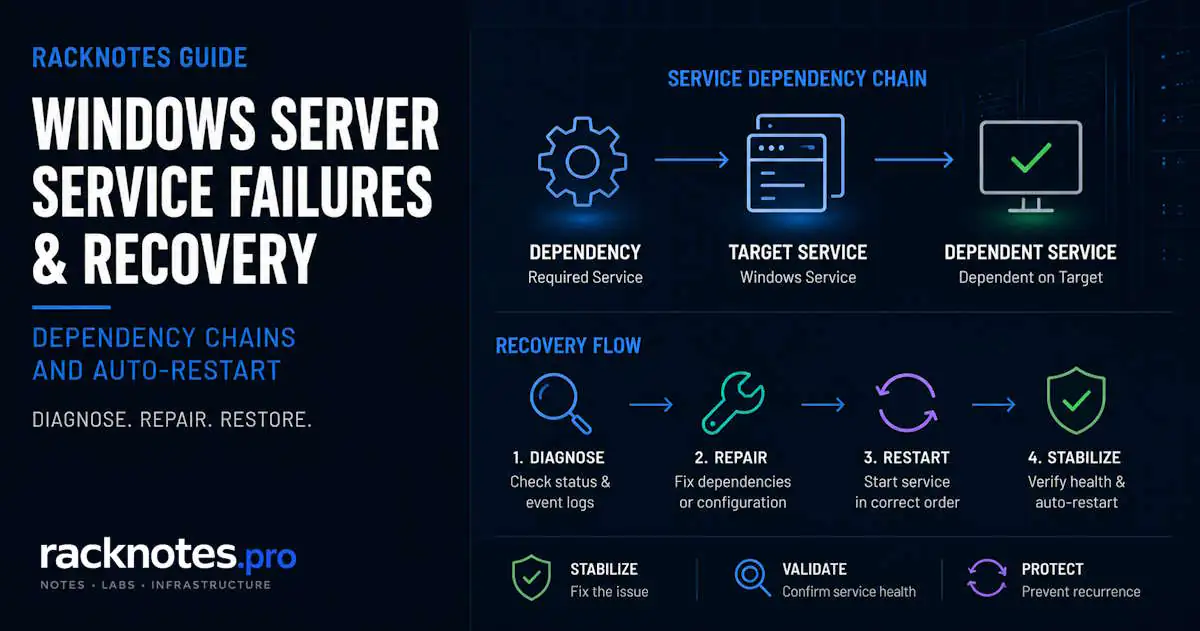
A Service Control Manager error on Windows Server means SCM observed a service fail to start, stop unexpectedly, time out, or encounter a dependency or account-related failure. It often does not contain the underlying application cause. Start with sc.exe queryex, then correlate the exit code with the Service Control Manager event and the Application or service-specific log. If you’re looking at Error 1067 or Event ID 7023 specifically, the SCM message identifies the failure state, but the underlying cause usually comes from the service or application itself.
This guide covers the full diagnostic workflow: Service Control Manager error correlation, Error 1067, Event ID 7023, dependency failures (Error 1068 and Error 1075), Error 1053, service account failures, hung services, and what recovery actions actually do. The lanmanserver / Error 1075 case shows up later as a worked example, not as the whole article.
- Start with
sc.exe queryex <service>and capture the state and Win32 exit code before touching anything else. - Correlate the failure timestamp with Service Control Manager events in the System log.
- Error 1067 means the service process terminated unexpectedly; SCM reports the termination, not the reason.
- Event ID 7023 means the service terminated and returned an error; read the exact error text in the event before doing anything else.
- Error 1053 is a service start/control timeout. Investigate the service or application cause before changing timeout settings.
- Error 1068 and Error 1075 are dependency failures. Verify with
sc.exe qcbefore editing the dependency string. - Event 7038 points toward a service-account logon or credential problem.
- Recovery actions follow specific SCM failure semantics and are not a substitute for diagnosing why the service failed in the first place.
Diagnose the Service Before Changing Anything
Categorize the failure before running commands. The category determines which tool actually gives you useful information.
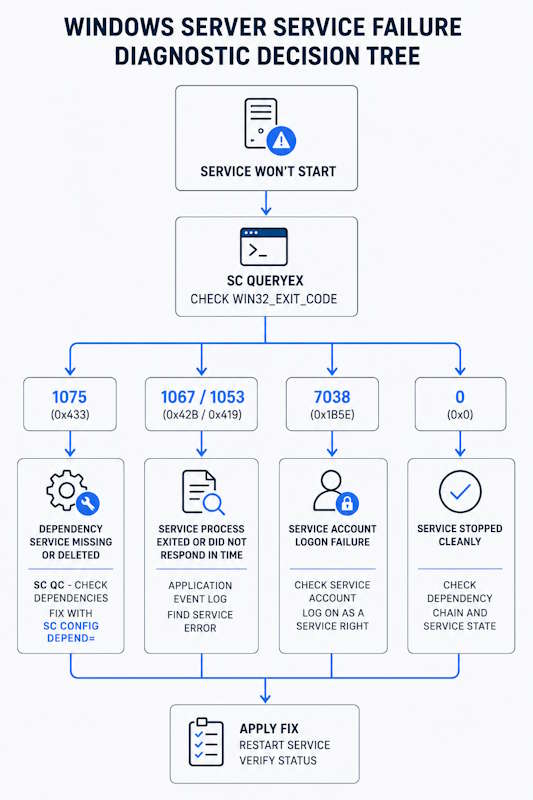
Category 1 – Dependency or configuration failure. A configured dependency is missing or marked for deletion (Error 1075), or a required dependency exists but fails to start (Error 1068). These are different failure states and should be distinguished before editing the dependency list.
Category 2 – Service process or startup failure. The service process terminates unexpectedly, or it fails to respond to a start/control request in time. These conditions commonly surface as Error 1067 or Error 1053. The Application log or service-specific log usually provides the underlying cause.
Category 3 – Account or permissions failure. The service account lacks the “Log on as a service” right, or its password changed without the service being updated. These conditions can produce Event ID 7038.
Category 4 – Environment or application dependency failure. Missing DLL, missing registry key, corrupted binary, full disk. The service’s own log or the Application log has the detail.
These four categories cover most Windows Server service failures, though not every case. Some failures span more than one category, such as a dependency that itself fails to start because of a permissions problem. Identifying the likely category before running the first command narrows the diagnostic path considerably.
First Diagnostic Command: sc.exe queryex
Before opening Services.msc or rebooting, run this on the server:
sc.exe queryex <servicename>Output shows:
SERVICE_NAME: lanmanserver
        TYPE               : 20  WIN32_SHARE_PROCESS
        STATE              : 1  STOPPED
        WIN32_EXIT_CODE    : 1075  (0x433)
        SERVICE_EXIT_CODE  : 0  (0x0)
        CHECKPOINT         : 0x0
        WAIT_HINT          : 0x0
        PID                : 0
        FLAGS              :
WIN32_EXIT_CODE is the key field. Exit codes and what they mean, per Microsoft’s System Error Codes (1000-1299) reference:
| Exit code (hex) | Decimal | Meaning |
|---|---|---|
| 0x0 | 0 | Service stopped cleanly or never started |
| 0x2 | 2 | File not found – service binary missing or path wrong |
| 0xC1 | 193 | Invalid executable format – wrong architecture or corrupted binary |
| 0x422 | 1058 | Service is disabled |
| 0x425 | 1061 | Service cannot accept control at this time |
| 0x42A | 1066 | Service-specific error (check SERVICE_EXIT_CODE) |
| 0x42B | 1067 | Service process terminated unexpectedly |
| 0x42C | 1068 | Dependency service or group failed to start |
| 0x420 | 1056 | An instance is already running |
| 0x433 | 1075 | Dependency service missing or deleted |
| 0x435 | 1077 | No attempts to start the service have been made since the last boot (ERROR_SERVICE_NEVER_STARTED) |
| 0x41D | 1053 | Service did not respond to the start/control request in time |
If WIN32_EXIT_CODE is 1066 (service-specific error), the SERVICE_EXIT_CODE field has the meaningful number. Most diagnostic workflows stop at 1066 without reading the second field.
Service Control Manager Error: Correlate the Failure With Event Logs
A Service Control Manager event tells you how Windows observed the service failure. It often does not contain the underlying application cause. Use the SCM event, sc.exe queryex, and the Application or service-specific log together; none of the three tells the whole story on its own.
- sc.exe queryex – current service state and exit code
- System log – records Service Control Manager events for that service
- Application log (or the service’s own log) – usually has the application-level detail behind the SCM-level error
Pull the System log for the relevant Service Control Manager events, scoped to a specific time window rather than an arbitrary event count:
Get-WinEvent -FilterHashtable @{
    LogName      = 'System'
    ProviderName = 'Service Control Manager'
    Id           = 7000,7001,7009,7011,7023,7031,7034,7038
    StartTime    = (Get-Date).AddHours(-2)
} | Select-Object TimeCreated, Id, Message | Format-List
Adjust StartTime to the incident window. This is not a substitute for a full Event Viewer workflow. For filtering logs broadly, custom views, or retention and export, see Windows Server Event Log Troubleshooting. This section only covers correlating a specific service failure with the SCM events it produces.
Check What Changed
Most service failures follow a change rather than appearing at random. Before going further into a specific error below, check whether:
- a Windows Update installed in the last 24-48 hours
- software was installed or uninstalled
- a GPO applied or changed
- a service account password was rotated
- security hardening was applied (CIS benchmarks, STIG, a custom policy)
- an application upgrade ran
A recent update or configuration change is a useful correlation point, but confirm the actual failure in Service Control Manager and application logs before rolling anything back. A change around the same time is a lead, not a diagnosis. The same caution applies to hardening work: do not assume a hardening session removed “Log on as a service” from the account; verify the resultant policy before assuming.
If nothing changed, or the change is unknown, work through the exact error below instead.
Error 1067: The Process Terminated Unexpectedly
Error 1067 means the service process started or attempted to start, then terminated unexpectedly. Service Control Manager reports the termination, but the underlying reason usually appears in the Application log, a service-specific log, executable exit details, or application configuration. Error 1067 by itself does not identify which of those it is.
Diagnostic sequence:
- Run
sc.exe queryex <service>and captureWIN32_EXIT_CODEandSERVICE_EXIT_CODE. - Inspect the Service Control Manager event at the same timestamp.
- Inspect the Application log or the service’s own log for the same timestamp.
- Verify
ImagePathactually points to a real, correct binary. - Verify the service account and its permissions.
- Verify dependencies are present and started.
- Verify required files and configuration the service depends on.
- Only then repair, reinstall, or change configuration.
Common patterns, not an exhaustive list:
- Missing DLL: the event message mentions “failed to load” or “module not found” – reinstall the component that owns that DLL
- Windows component corruption: if the failed service belongs to Windows itself, run
sfc /scannow, thenDISM /Online /Cleanup-Image /RestoreHealthif SFC reports errors it could not fix. For a third-party service, use that application’s own repair or reinstall procedure instead - Database not ready (SQL-dependent services): if a service requires SQL Server during initialization, verify the application’s supported startup and dependency design first. A vendor-supported service dependency or a delayed start may be appropriate, but do not add a dependency purely to paper over an initialization problem
- Configuration file missing: service-specific – check
%ProgramData%and%SystemRoot%\Logsfor the service’s own log directory
Error 1067 does not necessarily mean the process crashed. Termination can occur through more than one code path, and the log correlation above identifies which one.
Service Control Manager Error 7023
Event ID 7023 is logged by Service Control Manager when a service terminates and returns an error. The event message names the service and typically includes or identifies the error associated with the service termination. Treat that exact message as the next diagnostic clue rather than treating 7023 itself as a single root cause; the same event can appear for many unrelated underlying problems across different services.
To troubleshoot an SCM 7023 event:
- Read the full 7023 event message, not just the event number.
- Identify the affected service from the message.
- Capture the current state with
sc.exe queryex <service>. - Record both
WIN32_EXIT_CODEandSERVICE_EXIT_CODE. - Correlate with Application or service-specific logs at the same timestamp.
- Diagnose the specific error the event reported, not a generic “service terminated” summary.
- Avoid generic registry edits or resets before that specific error is identified.
Event ID 7023 is not tied to one specific Windows service or one universal fix. The same event number can point to a missing dependency, a terminated process, insufficient resources, a bad configuration value, or a third-party application fault, depending on the error reported for that service.
Dependency Failures: Error 1068 and Error 1075
Error 1068 means a dependency service or group failed to start; the dependency is registered and present, but didn’t come up. Error 1075 is more specific: Service Control Manager tried to start a dependency that no longer exists in the services database at all. Error 1075 can follow a botched software uninstall, a manual sc.exe delete on the wrong service, a configuration change that removed a service registration, or an incomplete update or rollback.
The diagnostic workflow is the same regardless of which service is affected:
- Query the current dependency string:
sc.exe qc <service>– look for the DEPENDENCIES line - For each listed dependency, confirm it exists:
sc.exe query <dependency-name>. Missing means that is the problem - Verify the exact service short name; a similar display name in Services.msc does not mean the underlying service is registered
- Compare the dependency list against Microsoft documentation or a healthy server running the same Windows Server version and build
- Only then change the dependency list
A worked example: lanmanserver (Server service) failing with Error 1075 because a dependency it expects is missing. The correct dependency list has varied across Windows versions and installed SMB components. Confirm it on a healthy server running the same Windows Server version and build, or against authoritative product documentation, before changing the affected host – do not paste a generic online default and apply it.
- Verify the current dependency string:
sc.exe qc lanmanserver– look for the DEPENDENCIES line - For each listed dependency, confirm it exists:
sc.exe query <dependency-name>. Missing = the problem - Compare against a healthy server on the same Windows Server version and build, or current Microsoft documentation, before changing anything
- Repair the dependency string only after confirming the correct list:
sc.exe config lanmanserver depend= <verified-list>– note the required space afterdepend= - Start the service:
net start lanmanserver - Verify:
sc.exe queryex lanmanserver– STATE should show RUNNING
For any Error 1075 failure on any service: find the missing dependency in the sc.exe qc output, then either restore the missing service or remove it from the depend string with sc.exe config <service> depend= <corrected-list> – only after confirming the corrected list against documentation or a known-good server.
Registry Paths: Validating Service Configuration Directly
When sc.exe qc output looks suspicious, or you need to confirm what the Service Control Manager is actually reading, check the underlying configuration. Service settings are stored in:
HKLM\SYSTEM\CurrentControlSet\Services\<ServiceName>Key values:
| Registry value | Type | What it controls |
|---|---|---|
| DependOnService | REG_MULTI_SZ | Service names this service depends on (one per line) |
| DependOnGroup | REG_MULTI_SZ | Service group dependencies |
| ImagePath | REG_EXPAND_SZ | Full path to the service binary |
| ObjectName | REG_SZ | Service account (LocalSystem, NT AUTHORITY\NetworkService, or domain\account) |
| Start | REG_DWORD | 0=Boot, 1=System, 2=Auto, 3=Manual, 4=Disabled |
If ImagePath points to a path that does not exist, expect exit code 0x2 (file not found). If DependOnService contains a service name that is not registered under HKLM\SYSTEM\CurrentControlSet\Services\, expect Error 1075, even if something with a similar display name appears in Services.msc.
Prefer sc.exe qc or another supported service-management tool for routine inspection and configuration changes. Treat a direct registry edit here as a validation or recovery step, not the normal way to change a service’s configuration.
Walk Multi-Level Dependency Chains
Some dependency failures involve multi-level chains. Service A depends on Service B, which depends on Service C. If C is missing, both B and A fail, but Event ID 7001 only shows the immediate dependency failure. Walk the full chain instead of stopping at the first one:
function Get-ServiceDependencyTree {
    param([string]$ServiceName, [int]$Depth = 0)
    $svc = Get-Service -Name $ServiceName -ErrorAction SilentlyContinue
    if (-not $svc) {
        Write-Host (" " * $Depth + "MISSING: $ServiceName") -ForegroundColor Red
        return
    }
    Write-Host (" " * $Depth + "$($svc.Name) [$($svc.Status)]")
    foreach ($dep in $svc.ServicesDependedOn) {
        Get-ServiceDependencyTree -ServiceName $dep.Name -Depth ($Depth + 2)
    }
}
Get-ServiceDependencyTree -ServiceName "lanmanserver"
Missing services print in red. Run this before manually walking the dependency list; it finds the broken link in seconds on complex chains.
Error 1053: The Service Did Not Respond in Time
Error 1053 means the service did not respond to the start or control request within the required time. That is all the error code guarantees. The underlying cause can be an application initialization problem, a dependency or resource wait, an issue in the service’s own implementation, Service Control Manager or configuration-database contention, application-specific configuration, or a system or component failure. Microsoft documents multiple distinct causes for Error 1053, so do not reduce it to a single state such as “the process is alive and just slow.”
Query the Application log directly for what actually happened, scoped to a time window rather than a fixed event count:
Get-WinEvent -FilterHashtable @{
    LogName   = 'Application'
    Level     = 2
    StartTime = (Get-Date).AddHours(-2)
} | Select-Object TimeCreated, ProviderName, Id, Message | Format-List
Correlate the timestamp and ProviderName with the SCM failure event. Do not assume a universal provider name; different services and third-party applications log under different providers.
A service that connects to a network share or database during startup can fail with Error 1053 if the target is not reachable yet, even if it becomes reachable seconds later. The default Service Control Manager timeout is 30 seconds. Delayed auto-start (sc.exe config <service> start= delayed-auto) can reduce boot-time contention for services that do not need to start immediately, but it does not guarantee a specific network or database dependency is ready by the time the service starts; applications that depend on one should still implement or use a supported dependency or retry mechanism.
Increasing the ServicesPipeTimeout registry value is sometimes suggested as a fix for Error 1053. Treat it as a last-resort, application-specific option, not a default response: it requires a full restart to take effect, and it can mask the underlying cause instead of fixing it. Microsoft’s own troubleshooting guidance for this timeout documents the setting and recommends researching the underlying problem rather than treating the increase as the fix. Check the logs first.
Service Account and Logon Failures: Event ID 7038
When a service account changes, or its password expires, the failure produces Event ID 7038. Two distinct problems cause the same symptom.
Problem 1: the password changed, and the service still has the old one. Identify the account the service runs under first:
Get-CimInstance Win32_Service -Filter "Name='<servicename>'" | Select-Object Name, StartNameUpdate the credentials through an approved service-management method for the environment – a password or secrets-management process, or a group-managed service account (gMSA) where the service supports one – rather than typing a plaintext password on a command line. This section is about identifying which account and which service are involved, not about the specific credential-rotation tooling in use.
Problem 2: the account is missing the “Log on as a service” right. This happens after account changes, Group Policy changes, or security hardening that touches User Rights Assignments.
Check current assignments:
secedit /export /cfg C:\temp\secconfig.inf
findstr /i "SeServiceLogonRight" C:\temp\secconfig.inf
If the account is not listed, add it via secpol.msc – Local Policies – User Rights Assignment – Log on as a service.
If a GPO controls “Log on as a service” in Replace mode, adding the account locally gets overwritten at the next Group Policy refresh. The failure returns, and the local fix appears to have reverted. The actual fix belongs in the GPO, not on the server. Run gpresult /h C:\Temp\gpresult.html (or gpresult /z for a text report) to inspect the actual resultant policy for User Rights Assignment before making local changes – gpresult /r only lists applied GPO names, not the detailed settings.
Service Recovery Actions: What SCM Actually Triggers
The Recovery tab in Services.msc (or sc.exe failure) configures what the Service Control Manager does when a service fails. The exact trigger condition is more specific than “the service crashed after it finished starting.”
Recovery actions are triggered by how the service process terminates and reports its final status to SCM, not simply by whether the failure happened before or after startup completed. By default, SCM can queue configured failure actions when the service process terminates without reporting SERVICE_STOPPED. If SERVICE_FAILURE_ACTIONS_FLAG is enabled, SCM can also trigger them when the service reports SERVICE_STOPPED with a non-zero Win32 exit code. A process that crashes during initialization can meet the failure condition even though startup never completed. Recovery configuration still does not replace diagnosing the underlying startup or runtime failure.
Failure actions are ordered. SCM uses the first configured action for the first failure, the second for the second failure, and so on. Per Microsoft’s SERVICE_FAILURE_ACTIONS documentation, if the number of failures exceeds the number of configured actions, SCM repeats the last configured action until the failure count resets. Design the sequence for the workload rather than copying a generic restart/reboot pattern, and do not default to an automatic server reboot as a late-stage action unless there is a documented, workload-specific reason to.
Set via command line (space after reset= and actions= is required):
sc.exe failure <servicename> reset= 300 actions= restart/60000/restart/120000With this two-action example, failures after the second continue to use the second restart action (120 second delay) until the reset period of 300 seconds with no failures is reached – not “no action,” as a shorthand summary might otherwise suggest.
View the currently configured actions:
sc.exe qfailure <servicename>sc.exe qfailure reports configured failure actions, reset period, and reboot message – not a live failure count.
SERVICE_FAILURE_ACTIONS_FLAG changes when configured recovery actions fire. It does not create recovery actions by itself and has no effect on a service with no failure actions configured. To extend failure-action triggering to non-crash terminations for a service that already has failure actions configured:
sc.exe failureflag <servicename> 1Check the current setting:
sc.exe qfailureflag <servicename>Set the flag back to 0 to disable it. Per Microsoft’s SERVICE_FAILURE_ACTIONS_FLAG documentation, a change to this flag takes effect the next time the system starts – plan a full system restart, not just a service restart, before relying on the new behavior. failureflag and qfailureflag are documented sc.exe subcommands per Microsoft’s Configuring a Service Using SC reference.
Use PowerShell with sc.exe explicitly (the sc alias in PowerShell maps to Set-Content, not the service control tool):
sc.exe failure Spooler reset= 300 actions= restart/60000/restart/120000
sc.exe qfailure Spooler
Hung Services: When Stop Won’t Work
A service stuck in “Stopping” state is a different problem from one that will not start. The process is running but not responding to Service Control Manager control messages.
- Get the PID:
sc.exe queryex <servicename>– note the PID value - Check what it is doing, and whether other services share the same process:
tasklist /svc /fi "PID eq <PID>" - Check the Application log for errors from that service at the current timestamp
- If hung with no recovery path, force-kill:
taskkill /PID <PID> /F - After killing, SCM marks the service stopped. Verify:
sc.exe queryex <servicename> - Investigate why it hung before restarting – killing the process clears the symptom, not the cause
Many Windows services run inside a shared svchost.exe process alongside other, unrelated services. Before force-killing a PID, check what else tasklist /svc shows running under it. Killing a process that hosts multiple services stops all of them, not just the one that hung – which can take down services nobody intended to touch.
A service stuck in “Starting” state is one condition that can lead to Error 1053. Use the PID and logs to determine whether the process is still initializing, waiting on a dependency or resource, or otherwise unresponsive before deciding whether to terminate it.
Full Windows Service Diagnostic Workflow
When a service fails and the cause is not obvious, follow this order:
- Identify recent changes – Windows Update, software install, GPO change, account password rotation, hardening script
sc.exe queryex <servicename>– get the exit code, confirm the service is actually stopped- System event log – filter for the relevant Service Control Manager Event IDs at the failure timestamp
- Application event log – filter for errors from the service name or related component at the same timestamp
sc.exe qc <servicename>– verify dependency list, start type, and the service binary path (ImagePath)- Verify each dependency –
sc.exe query <dependency>for every service listed in DEPENDENCIES - Verify the service account – confirm “Log on as a service” if the service runs under a custom account
- Verify the binary – if ImagePath points to something that does not exist, reinstall the component
- Only then consider recovery-action configuration, registry changes, or a restart – as the last step, after the above has ruled out the actual cause
Service Control Manager Event IDs to Know
| Event ID | Source | Meaning |
|---|---|---|
| 7000 | Service Control Manager | Service failed to start |
| 7001 | Service Control Manager | Service start failed due to a dependency failure |
| 7009 | Service Control Manager | Service did not respond within the configured timeout |
| 7011 | Service Control Manager | Service did not respond to a control request (hung) |
| 7023 | Service Control Manager | Service terminated with an error |
| 7031 | Service Control Manager | Service terminated unexpectedly; SCM reports the configured corrective action it will take |
| 7034 | Service Control Manager | Service terminated unexpectedly; event does not report a corrective action |
| 7038 | Service Control Manager | Service account logon failure |
| 7040 | Service Control Manager | Start type changed |
| 7045 | Service Control Manager | New service installed |
7009 correlates with a start or control timeout – the same underlying condition behind Error 1053 – but read the exact wording and context in the event itself rather than treating the two as universally interchangeable. Events 7031 and 7034 are post-mortem; they appear after the failure. The actual cause sits in the Application log or the service’s own log at the same timestamp. This table is a reference layer; it doesn’t replace the dedicated Error 1067 and Event 7023 sections above for actually diagnosing a specific failure.
Common Mistakes
Rebooting instead of diagnosing. A reboot does not clear the Windows event logs, but it does restart every service and reset process state, which can make a transient failure much harder to reproduce. Capture sc.exe queryex output and the relevant log entries before rebooting, not after.
Fixing the wrong service. Event ID 7001 points to the service that failed because of a dependency problem, not the dependency that actually broke. Walk the dependency chain to find the real failure.
Changing the service account in Services.msc without checking GPO first. If a GPO controls the service logon account or its rights, a manual change gets overwritten on the next refresh. Check the resultant policy for service accounts or User Rights Assignment before making local changes.
Treating recovery actions as the fix. Recovery actions can respond to some startup-phase crashes as well as runtime failures, depending on how the process terminates and the service’s failure-action flag. They do not explain or fix the root cause, so diagnose the startup failure even if SCM successfully restarts the service.
Using sc in PowerShell instead of sc.exe. In PowerShell, sc is an alias for Set-Content. Use sc.exe explicitly for service control commands in a PowerShell session.
Missing SERVICE_EXIT_CODE when WIN32_EXIT_CODE is 1066. Exit code 1066 means a service-specific error; the real code is in SERVICE_EXIT_CODE, not WIN32_EXIT_CODE. Most diagnostic workflows stop at 1066 without reading the second field.
FAQ
What is a Service Control Manager error?
Service Control Manager (SCM) records service start, stop, termination, timeout, dependency, and account-related failures. The SCM event usually describes the failure state, such as stopped, timed out, terminated, or dependency missing, rather than the underlying application cause. Correlate the SCM event with sc.exe queryex output and the Application or service-specific log to find the actual reason.
What does Error 1067: The process terminated unexpectedly mean?
The service process started or attempted to start, then ended without a clean stop. Service Control Manager reports that the process terminated; it does not report why. The Application log, a service-specific log, or the executable’s own exit details usually contain the actual cause.
How do I fix Error 1067 on Windows Server?
Query the state and exit code with sc.exe queryex, correlate the SCM event timestamp, inspect the Application or service-specific log at that same timestamp, then verify the binary path, service account, and dependencies before changing configuration. See the dedicated Error 1067 section above for the full sequence.
What is Service Control Manager Event ID 7023?
Event 7023 means a service terminated and Service Control Manager logged the error it returned. The event’s exact error text, not the event number, is what determines the next troubleshooting step; the same event ID appears across many unrelated failure causes.
What is the difference between Error 1067 and Error 1053?
Error 1067 means the service process terminated unexpectedly; SCM reports the termination but not the underlying reason. Error 1053 means the service did not respond to the start or control request in a timely fashion. It does not identify the underlying cause by itself – initialization problems, resource waits, service implementation issues, configuration, or component failures can all produce this symptom. Check the Application log before concluding either way.
Why does Error 1075 occur?
Service Control Manager tried to start a dependency that is not registered in the services database at all. It can follow a botched software uninstall, a manual sc.exe delete on the wrong service, a configuration change that removed a service registration, or an incomplete update or rollback. Run sc.exe qc <service> to see the dependency string, then sc.exe query <dependency-name> for each entry to confirm which one is actually missing; a similar display name in Services.msc does not mean the underlying service is registered.
Recovery actions are configured but the service stays down after a crash. Why?
A few common reasons: no failure actions are configured for the service; the failure does not meet the configured failure-trigger semantics, for example SERVICE_FAILURE_ACTIONS_FLAG is not enabled and the service reports SERVICE_STOPPED with a non-zero exit code rather than terminating without reporting it; the configured action itself fails to run; or the reset/action configuration is not what was intended. Run sc.exe qfailure <service> to see the currently configured failure actions and reset period, not a live failure count. Also check whether the System event log shows Event ID 7031, which reports the corrective action SCM intends to take.
What should I check when a service has no dependencies configured but still fails to start?
Then it is not a dependency issue; it is a process, account, or environment problem. Check the Application event log immediately after the failure. SCM logs Event ID 7000, but the service binary itself usually logs the actual cause in the Application log or a service-specific log under %ProgramData% or %SystemRoot%\Logs. For remote-administration services specifically, see the RDP and WinRM recovery guide. For the Windows Update Agent service (wuauserv), see WSUS Client Not Reporting and WSUS Not Downloading Updates.
Windows Server Operations Series
8 articles — Event Logs · Performance · Services · Remote Access · Network · Storage · Backup · Boot Recovery