
A WSUS client not reporting – missing from the console or stuck with a stale Last Status Report / Not Yet Reported status – should be diagnosed by separating detection from reporting. Once WSUS server health is confirmed, work through client policy, connectivity, Windows Update service state, logs, reporting, and identity in that order. A client that fails to detect will not report, so identifying which stage failed first shortens the diagnostic considerably.
- For a WSUS client not reporting, start with three checks: effective policy in the registry, client-to-server reachability, and Windows Update service startability. The client initiates everything – WSUS never contacts the client.
- Default detection runs roughly every 22 hours with a randomized offset – a new or re-pointed client may legitimately be absent for most of a working day. Force detection to confirm a real problem before concluding something is broken.
- Work in order: registry (WUServer + WUStatusServer + UseWUServer), then GPO application, connectivity (ports 8530/8531,
/iuident.cab, ReportingWebService), service startability, logs, and finally forced detection and reporting. - Only reset SusClientId when policy and connectivity are already confirmed healthy AND the cloning fingerprint is present – clones appearing and disappearing in the console. Capture and compare the IDs before deleting anything.
- Microsoft’s guidance on
wuauclt /detectnowis inconsistent – use the documentedIAutomaticUpdates::DetectNow()API as the primary trigger and confirm results in the Windows Update log, not from the silent command return (full explanation in Step 6). - If the log shows
0x8024401C, treat it as an HTTP 408 timeout and determine whether the failure affects one client or many before changing WSUS or resetting the endpoint. If it shows0x80244010, repeat the scan and investigate excessive metadata/server trips only if the error persists.
This article covers a WSUS client not reporting when it is missing from the WSUS console or showing a stale “Last Status Report” / “Not Yet Reported” status while the WSUS server itself is healthy and synchronizing.
Does not cover: server-side sync failures, see WSUS Sync Failed; update files not reaching the WSUS server’s own content store from Microsoft or an upstream server, see WSUS Server Not Downloading Updates (that article covers server-side content acquisition into WsusContent, not endpoint downloads – if a client is reporting correctly but cannot download its approved payloads, that is a separate Windows Update Agent / BITS / Delivery Optimization diagnostic outside this guide’s scope); a slow or crashing WSUS console, see WSUS Console Slow or Crashing; or initial GPO configuration and computer group design, see WSUS Configuration.
Assumed server state for this guide: WSUS is healthy, IIS is running, wsusutil.exe checkhealth reports no errors, and the server is synchronizing with its upstream. If some clients report normally and others don’t, start with the affected clients’ network path instead of the server. If the server itself isn’t syncing, start with WSUS Sync Failed instead (linked above).
Detection vs. Reporting – What the Console Actually Shows
Detection and reporting are separate operations. Identifying the failed stage first prevents unnecessary resets and shortens the diagnostic. A missing or stale client usually fails at one layer, and each layer depends on the one before it.
Detection is the client contacting the WSUS ClientWebService, synchronizing update metadata, and evaluating which approved updates apply to the machine. A client normally appears in the console after it successfully contacts the configured WSUS service, registers, and the server processes the resulting client information – a successful scan request alone isn’t proof that the console record or status report has already been processed. The server never reaches out to the client. Per Microsoft’s Automatic Updates settings documentation, the default detection frequency is 22 hours with a randomized offset to prevent simultaneous client storms. A new or re-pointed client can legitimately be absent for most of a working day.
Reporting is a separate call to the ReportingWebService. The client detects, queues reporting events, and then flushes them to the server, which processes them into the database before they surface in the console. A client can detect and install updates correctly while failing to report status – which produces the “everything installs fine but shows Not Yet Reported / stale date” symptom.
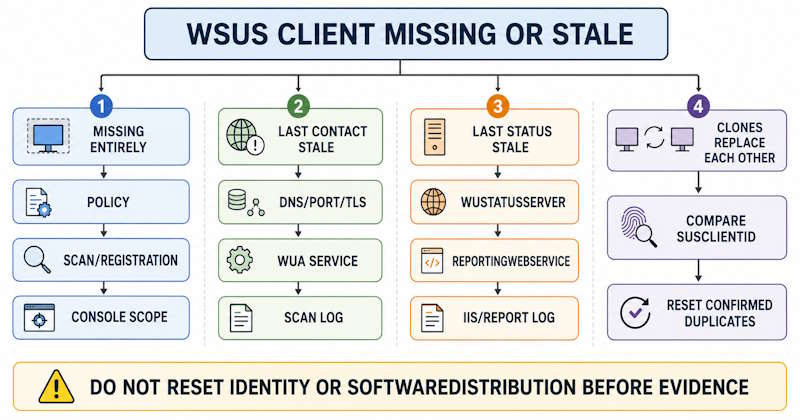
Use the console pattern to choose a starting branch when a WSUS client is not reporting. Treat these as hypotheses, not definitive proof: a missing client can also result from WSUS cleanup removing a stale record, a console filter, wrong group placement, or duplicate identity.
| Console symptom | Most likely starting branch |
|---|---|
| Client missing entirely | Policy registry (Step 1), successful scan/registration, console scope, then duplicate identity |
| Not Yet Reported | Reporting endpoint, initial processing delay, then server load |
| Stale Last Status Report | Service startability, proxy/TLS change, then reporting backlog |
| Clones replacing one another | SusClientId branch (Step 7 below) |
A client that is missing entirely has usually never completed detection, but rule out console scope and stale-record cleanup before assuming that. A client showing “Not Yet Reported” has usually detected but reporting is not landing yet. A stale “Last Status Report” often means a service, connectivity, or proxy change appeared after initial registration. Machines that appear and disappear – or where only one of a cloned group is visible at a time – point to the SusClientId duplication branch in Step 7.
| Console field | What it indicates |
|---|---|
| Last Contact | Recent communication between the client and WSUS |
| Last Status Report | Latest processed status inventory/report |
| Not Yet Reported | Computer record exists, but the expected status report hasn’t been processed yet |
| Missing entirely | Policy, registration, scan/contact, console scope, cleanup, or duplicate identity branch |
Step 1 – Verify WSUS Policy in Registry
For a WSUS client not reporting, the effective WSUS configuration on that client is written under two registry paths. Read both with PowerShell:
Get-ItemProperty -Path 'HKLM:\Software\Policies\Microsoft\Windows\WindowsUpdate'
Get-ItemProperty -Path 'HKLM:\Software\Policies\Microsoft\Windows\WindowsUpdate\AU'
Three values must be present and correct.
WUServer – the WSUS server URL, including the explicit port. For a default HTTP deployment: http://wsus.contoso.local:8530. Omitting the port will not fall back to 8530.
WUStatusServer – the reporting URL. Both WUServer and WUStatusServer must be configured for a managed WSUS client. In a normal single-server deployment, use the same WSUS base URL for both. Microsoft documentation has historically described the registry pair as requiring the same value, while current Group Policy documentation exposes separate detection/download and statistics endpoints. Do not introduce different hosts casually – if the environment intentionally separates those services, validate the exact supported design and both endpoints rather than treating a mismatch itself as the fault.
UseWUServer (under the \AU subkey) – must be 1. In a traditional WSUS-only configuration, UseWUServer = 1 is required for Automatic Updates to use the intranet service; without it, WUServer is not respected and the client goes to public Windows Update. On Windows 10/11 with per-class scan-source policies configured, evaluate UseWUServer together with the effective policy source for each update class rather than assuming it alone determines every class’s behavior.
Configuration notes: prefer an FQDN over a short hostname for predictable DNS and TLS behavior. Avoid a trailing slash in the URL. If these values are absent or wrong, fix the GPO – not the registry directly. On a domain-joined machine, hand-editing these keys is temporary: the next gpupdate overwrites them.
A single filtered summary is easier to read than two unfiltered registry dumps:
$wu = Get-ItemProperty 'HKLM:\Software\Policies\Microsoft\Windows\WindowsUpdate'
$au = Get-ItemProperty 'HKLM:\Software\Policies\Microsoft\Windows\WindowsUpdate\AU'

[pscustomobject]@{
    WUServer       = $wu.WUServer
    WUStatusServer = $wu.WUStatusServer
    UseWUServer    = $au.UseWUServer
}
Windows 10/11: verify the scan source policy
On Windows 10 version 2004 and later, and on Windows 11, also check Specify source service for specific classes of Windows Updates under:
Computer Configuration → Administrative Templates → Windows Components
  → Windows Update → Manage updates offered from Windows Server Update Service
This policy can route Feature, Quality, Driver, and Other Microsoft product updates independently to either WSUS or Windows Update. If it is configured, verify every update class intended for on-premises management points to WSUS. Correct WUServer, WUStatusServer, and UseWUServer values alone do not rule out a conflicting scan-source policy on these client OS versions.
If the setting is deployed through Group Policy, review its effective GPO state. If scan-source values were written directly to the registry, Microsoft also requires UseUpdateClassPolicySource – direct registry configuration is not recommended. For CSP-managed devices, configure all applicable SetPolicyDrivenUpdateSourceFor... policies instead. Do not assume identical behavior on Windows Server based on this Windows 10/11 documentation; validate the specific server version and deployment method in your environment. See Microsoft’s guidance on using Windows Update client policies and WSUS together for the current policy matrix.
Step 2 – Confirm GPO Is Applying
If the registry values are absent or stale, confirm the WSUS policy is actually reaching the client – this is a common reason for a WSUS client not reporting even when the intended GPO looks correct on paper. Dump the resultant set of policy from an elevated shell so computer-side data is included:
gpresult /scope computer /r
gpresult /h "%TEMP%\gpresult.html" /f
Under the computer-side “Applied Group Policy Objects” list, confirm the GPO carrying your WSUS settings appears. If it’s not there at all, or shows as denied, that’s generic GPO territory outside this article’s scope – see Group Policy in Active Directory for processing order and GPO Not Applying for the full diagnostic workflow.
Force a refresh and re-read the registry from Step 1:
gpupdate /forceFor evidence that policy processing completed, open Event Viewer at Applications and Services Logs → Microsoft → Windows → GroupPolicy → Operational. Event 4016 marks the start of processing a client-side extension and lists the applicable GPOs. Event 5016 marks completion and includes elapsed time. These confirm that policy processing ran – they do not by themselves prove that the WSUS-specific values won policy precedence over a conflicting setting elsewhere; treat 4016/5016 as evidence that the infrastructure delivered policy, then verify the actual resulting registry values from Step 1.
Step 3 – Test Client Connectivity to WSUS Server
With policy confirmed, verify that the client can reach the WSUS server. A blocked or misrouted connection is another common cause of a WSUS client not reporting and is quick to test. Start with DNS resolution, then a TCP port test:
Resolve-DnsName wsus.contoso.local

Test-NetConnection -ComputerName wsus.contoso.local -Port 8530 -InformationLevel Detailed
# TLS-enabled deployment - also test 8531
Test-NetConnection -ComputerName wsus.contoso.local -Port 8531 -InformationLevel Detailed
TcpTestSucceeded : True confirms the port is open end to end. For a TLS-enabled deployment, confirm both ports respond before moving to the endpoint tests. If a port test fails, check Windows Firewall on the server, a network-perimeter firewall, a host-based security agent, or VLAN segmentation. Confirm DNS resolves the WSUS hostname to the correct A record from the client before assuming a firewall block.
For the basic WSUS reachability test, Microsoft’s client-agent troubleshooting documentation uses this URL from a browser or HTTP client on the affected machine:
http://wsus.contoso.local:8530/iuident.cabBeing prompted to download the file confirms basic HTTP reachability to that WSUS resource. It does not prove that ClientWebService or ReportingWebService calls succeed. (An older self-update path in some references uses /selfupdate/wuident.cab – do not combine the two paths.)
In a TLS-enabled deployment, test the metadata web service separately:
https://wsus.contoso.local:8531/ClientWebService/client.asmxPer Microsoft’s WSUS TLS configuration guidance, metadata services in a default TLS-enabled deployment use HTTPS/8531, while content and virtual roots that must not require TLS – including ReportingWebService and SelfUpdate – stay reachable through HTTP/8530. Verify the ports and URLs that match the actual IIS and WSUS configuration; don’t assume every request moves to 8531.
For clients with stale status or “Not Yet Reported”: if detection is working but status is not landing, test the reporting endpoint derived from the effective WUStatusServer value:
$wuPolicy    = Get-ItemProperty -Path 'HKLM:\Software\Policies\Microsoft\Windows\WindowsUpdate'
$reportingBase = $wuPolicy.WUStatusServer.TrimEnd('/')
$reportingUrl  = "$reportingBase/ReportingWebService/ReportingWebService.asmx"
Invoke-WebRequest -Uri $reportingUrl -UseBasicParsing
A successful response confirms basic DNS, TCP, proxy, and IIS reachability to the reporting virtual directory. It does not prove that the client’s actual SOAP status submission, event batching, or server-side database insertion succeeds – it is an administrator’s manual GET, not the client’s own reporting operation. If the client still does not report, check the WSUS server IIS logs for requests from the affected client’s IP or hostname to /ReportingWebService/ReportingWebService.asmx and record the HTTP status and substatus.
Proxy check: before any reset, inspect and record the current WinHTTP proxy:
netsh winhttp show proxyCompare the result to the intended network path. Only if direct access is expected and an incorrect proxy is confirmed:
netsh winhttp reset proxyA blanket reset can break clients in environments where an explicit WinHTTP proxy is required. If a specific proxy is the correct configuration, restore it with netsh winhttp set proxy or reapply the enterprise-managed proxy configuration after testing – do not leave a production client on a reset proxy state.
For HTTPS on port 8531, if connectivity tests pass but WSUS-specific operations fail with TrustFailure or certificate errors in the logs, the client does not trust the complete certificate chain. The root CA must be in Trusted Root Certification Authorities and any intermediate CA in Intermediate Certification Authorities in the Local Computer stores. The hostname in the WSUS URL must also match the certificate subject or SAN.
Step 4 – Check Windows Update Service Startability
For a pure reporting symptom – a WSUS client not reporting while everything else looks fine – wuauserv is the service that matters. A stopped wuauserv, however, is not automatically a fault on modern Windows. Service behavior is trigger-driven, and the service can be legitimately stopped when idle. What matters is whether it is disabled and whether it can start successfully.
Get-CimInstance Win32_Service -Filter "Name='wuauserv'" |
    Select-Object Name, State, StartMode, ExitCode

Start-Service wuauserv -ErrorAction Stop
Trigger a scan afterward and check whether the service starts on demand and whether the Windows Update logs record initialization or service-start errors. Do not treat “currently stopped” by itself as evidence of a broken service – only a service that is disabled, that fails to start, or that logs a start error is a confirmed fault. The service can return to an idle stopped state afterward; that alone doesn’t invalidate the test.
BITS (bits) is commonly stopped when idle – that is normal behavior. Treat a stopped BITS service as worth investigating only when payload download or transfer errors are also present alongside the reporting failure; a pure reporting symptom points to wuauserv and the reporting path, not BITS. For deeper service-failure patterns, Windows Server service failures covers the recovery workflow.
To inspect the BITS service configuration without changing it:
sc.exe qc bitsOnly reconfigure the BITS service account if the query returns something other than LocalSystem and there is specific evidence that an account change caused the failure.
Step 5 – Read the Windows Update Logs
If the earlier steps haven’t found the cause, move to the logs. On Windows 10/11 and Windows Server 2016 and later, Windows Update uses Event Tracing for Windows rather than writing a live text log. Per Microsoft’s documentation on Windows Update log files, the ETL traces land in C:\Windows\Logs\WindowsUpdate\. Decode them into a readable file:
Get-WindowsUpdateLogThis produces WindowsUpdate.log on the desktop – a point-in-time snapshot. Re-run to refresh. On Windows 7 and Server 2008 R2/2012 R2, the log at %windir%\WindowsUpdate.log is live.
In the generated log, confirm which server the client is pointing to by searching for the WSUS hostname. Search for ERROR to find failure blocks. Component tags tell you which subsystem is speaking: PT (ProtocolTalker – client-server synchronization), REPORT (reporting events), AGENT (Windows Update agent core).
For a faster read, go directly to the event log at Applications and Services Logs → Microsoft → Windows → WindowsUpdateClient → Operational. Never route a diagnosis solely by Event ID – record the provider, level, full message text, operation, endpoint, and HRESULT alongside it, since event usage can vary by Windows build. Common events to look for:
- Event ID 25 (Error – Check for Updates): a failed scan/check-for-updates operation. The error code is the lead. Routes back to connectivity or registry.
- Event ID 26 (Information – Check for Updates): a successful scan result. Verify the endpoint in the generated log to confirm this scan used the intended WSUS server, not public Windows Update.
- Event ID 16 (Warning – Connection): the client cannot reach the automatic updates service. Routes back to Step 3.
Event IDs are only useful alongside the provider, level, full message, operation, endpoint, and HRESULT. Don’t maintain a fixed table assigning one meaning to every Event ID across Windows builds. Event 31, for example, isn’t a stable cross-version “download failure” mapping; on current systems it can also appear when a download is simply starting. For download problems, use the actual message and error code rather than treating any single Event ID as a guaranteed failure signal. If the client itself can’t retrieve approved payloads, that points to the Windows Update Agent, BITS, Delivery Optimization, or the content URL on this machine, not to server-side WsusContent acquisition.
One common WSUS client communication error is 0x8024401C – see the dedicated section immediately below for the full diagnostic branch.
WSUS Error 0x8024401C: WU_E_PT_HTTP_STATUS_REQUEST_TIMEOUT
WSUS error 0x8024401C is WU_E_PT_HTTP_STATUS_REQUEST_TIMEOUT. It maps to HTTP 408: the server timed out waiting for the request. In a WSUS environment, treat it as a communication timeout first, then determine whether the failure is isolated to one client or affects many clients – the likely cause and the fix are different for each. This is a protocol-level timeout, not specifically a ReportingWebService error; it can surface during detection, reporting, or another WSUS request.
Check first – scope the failure: is it one client, one subnet or site, or many/all clients? That answer determines which branch below applies.
One client (or a few) affected – client-side checks. Use the checks already covered earlier in this guide:
- Confirm
WUServerandWUStatusServerin the registry (Step 1). - Confirm DNS resolution for the WSUS hostname and test the configured port, 8530 or 8531 (Step 3).
- Check the WinHTTP proxy configuration (Step 3).
- If the deployment uses HTTPS, check the TLS trust chain to the WSUS server.
- Review the WindowsUpdate.log / WindowsUpdateClient Operational entry for the specific request that returned
0x8024401C(Step 5, above).
Many or all clients affected at the same time – server-side checks. This guide assumes the WSUS server is generally healthy, so keep this branch focused. Check:
- WsusPool recycling or instability, and request-queue pressure.
- WSUS server memory pressure.
- WSUS metadata scope – excessive products/classifications increase per-request load.
- SUSDB maintenance state and general server health.
- A scan storm – many clients checking in around the same schedule window.
Microsoft’s current WSUS best-practices guidance specifically recommends reviewing WsusPool configuration in high-load environments – queue length, idle timeout, ping, private memory limit, and the regular recycle interval. If many clients show 0x8024401C at once, check WsusPool and server load before resetting any individual client.
Verify: trigger detection again and confirm the new attempt in the Windows Update logs. A silent command return is not proof the timeout is resolved – check the log entry for the retried request.
WSUS Error 0x80244010: WU_E_PT_EXCEEDED_MAX_SERVER_TRIPS
If a WSUS client is not reporting because detection repeatedly stops with 0x80244010, resolve the scan/metadata synchronization problem before troubleshooting ReportingWebService.
0x80244010 is WU_E_PT_EXCEEDED_MAX_SERVER_TRIPS: the number of round trips to the server exceeded the maximum limit. This is not automatically a reporting error, and it does not automatically mean the server is unhealthy. First repeat the scan after a short interval and confirm whether the client is progressively completing metadata synchronization – this code can appear on a newly built or long-unscanned client simply because of a large metadata delta, or on a very broadly scoped WSUS server. If the error persists across repeated scans or affects many clients, then inspect WSUS metadata volume, products/classifications, SUSDB health, WsusPool stability, proxy behavior, and network latency. For event log reading technique, Windows Server event log troubleshooting covers the workflow.
Keep these two codes separate: 0x80244010 means too many protocol round trips during a scan, while 0x8024401C means the request itself timed out. Server health can contribute to either, but neither code by itself proves a specific server-side root cause.
Step 6 – Force a WSUS Client to Detect and Report
Once policy, connectivity, services, and logs check out, skip the 22-hour wait and force the client to check in. The resulting scan and report events show whether the remaining problem is detection, reporting, or neither.
- The internet is full of instructions to run
wuauclt /detectnowwhen a WSUS client stops reporting. - Microsoft documents
IAutomaticUpdates::DetectNow()as supported back to Windows 2000 Professional SP3/Windows XP and Windows 2000 Server SP3/Windows Server 2003. It isn’t a Windows 10/Server 2016+ replacement, so there is no clean modern/legacy cutoff for this workflow. Current WSUS troubleshooting pages still referencewuauclt /detectnowdirectly, while other Windows Server documentation calls it removed and unsupported – the sources disagree, and neither age nor OS version resolves the conflict. - The command may return no useful feedback either way – and the absence of any error message is exactly why operators run it, see nothing happen, and conclude the whole WSUS chain is broken.
- Trigger detection with the documented COM API, then verify the selected update service and result in the logs rather than trusting silent completion either way.
The documented API-based trigger for detection:
$autoUpdates = New-Object -ComObject 'Microsoft.Update.AutoUpdate'
$autoUpdates.DetectNow()
This method is asynchronous – it requests the detection task and returns without waiting for completion. The call returning without an exception confirms only that the task was requested, not that it finished. Wait for a new scan event in the log rather than immediately chaining into /reportnow.
Confirm the scan ran by checking WindowsUpdateClient/Operational for Event ID 25 (failure) or Event ID 26 (success). Per Microsoft’s WSUS client verification guidance, a new client normally appears in the WSUS console within about 20 minutes after a successful scan. Reporting data may take longer to process on a busy server.
After detection has completed and reporting events are queued, request their submission:
wuauclt.exe /reportnowMicrosoft still references /reportnow in current WSUS troubleshooting material, and the legacy utility documentation defines it as sending queued reporting events asynchronously. It produces no reliable console output, so confirm an actual request landed by checking Windows Update logs and, if you have server access, the IIS request log for ReportingWebService – do not treat a silent command return as proof of successful reporting.
On legacy systems (Windows 7, Windows Server 2008 R2 and 2012 R2), wuauclt /detectnow followed by wuauclt /reportnow remains a commonly documented workflow. The COM API also predates modern Windows, so verify whichever trigger you use through the logs rather than relying on silent command completion.
Step 7 – Client Identity Duplication: Imaging and Cloning Branch
Enter this branch only when policy is applying (Step 2), the client can reach the WSUS server (Step 3), and the symptom specifically matches an identity collision after imaging or cloning. Do not lead with this reset.
A “WSUS client reset” can mean resetting the client’s WSUS identity or rebuilding the local Windows Update datastore. They solve different problems, so do not perform either reset until the symptom and logs identify the correct branch.
The cloning fingerprint: out of a group of machines, only one or two appear in the console at a time, and which one is visible changes over time – or freshly imaged machines never appear while the source image did. WSUS uses SusClientId as the unique device identifier; when multiple machines share one, the server keeps overwriting a single computer record with whichever clone checked in most recently. The root cause is a process gap during image preparation: SusClientId is generated the first time a machine contacts any Windows Update service, and Sysprep does not reliably clear one that already existed before capture. The safe workflow is to prevent the reference image from contacting an update service before sealing, or to explicitly clear the WSUS client identity beforehand.
A team deploys a batch of VMs from a single template. Within a day, only one or two appear in the WSUS console and the visible hostname changes with each refresh – the template contacted Windows Update before sealing, so every clone inherited the same SusClientId. The clients are detecting and installing updates correctly; they’re just overwriting each other’s single database record.
Capture evidence before touching anything. Compare the SusClientId across the affected machines to confirm the collision, and record the values before deletion:
Get-ItemProperty `
  -Path 'HKLM:\SOFTWARE\Microsoft\Windows\CurrentVersion\WindowsUpdate' `
  -Name SusClientId, SusClientIDValidation `
  -ErrorAction SilentlyContinue
The identity reset – run only after policy and connectivity are confirmed, and only against the confirmed-affected machines, not as a blanket sweep:
$identityPath = 'HKLM:\SOFTWARE\Microsoft\Windows\CurrentVersion\WindowsUpdate'
$current = Get-ItemProperty -Path $identityPath -ErrorAction Stop
$current | Select-Object SusClientId, SusClientIDValidation

Stop-Service wuauserv -Force

if ($null -ne $current.SusClientId) {
    Remove-ItemProperty -Path $identityPath -Name SusClientId
}
if ($null -ne $current.SusClientIDValidation) {
    Remove-ItemProperty -Path $identityPath -Name SusClientIDValidation
}

Start-Service wuauserv

wuauclt.exe /resetauthorization

$autoUpdates = New-Object -ComObject 'Microsoft.Update.AutoUpdate'
$autoUpdates.DetectNow()
Wait for a new successful scan/registration event (Event ID 26) and confirm the new SusClientId before continuing. The detection request is asynchronous, as in Step 6. Only once detection has completed and reporting events exist, request submission:
wuauclt.exe /reportnowThis removes SusClientId (and SusClientIDValidation when present) and lets the Windows Update Agent generate a fresh unique identity on the next check-in. The identity registry keys live under ...\CurrentVersion\WindowsUpdate (the agent’s hive) – separate from the policy keys at ...\Policies\Microsoft\Windows\WindowsUpdate checked in Step 1. After each affected clone has received a unique SusClientId and checked in – verify the new IDs are actually distinct, confirm the correct hostname and recent Last Contact, and confirm correct group membership – only then remove the stale duplicate computer records from the WSUS console.
What this reset does not do: it does not repair a corrupted Windows Update datastore. If log evidence points to datastore corruption rather than identity duplication, rename the SoftwareDistribution folder as a separate, evidence-driven step – not a routine pairing with every SusClientId repair. This clears the local Windows Update datastore and cache, forces a full metadata re-evaluation, can remove locally displayed update-history entries from the Settings UI, and can trigger significant rescan and redownload activity. Confirm no install or download is actively in progress, and account for any pending reboot, before running it – it can complicate interpretation of the result. Record pending reboot state, free disk space, current client identity, and update history first, and don’t leave the backup folder in place indefinitely once the fix is confirmed:
Stop-Service wuauserv, bits -Force
$backup = "SoftwareDistribution.old-$(Get-Date -Format yyyyMMdd-HHmmss)"
Rename-Item "$env:SystemRoot\SoftwareDistribution" $backup
Start-Service bits, wuauserv
The permanent fix is to ensure the golden image never contacts an update service before it is sealed. Every deployed clone should carry a freshly generated SusClientId from its first boot.
Final Verification Checklist
After working through any of the branches above, confirm the WSUS client not reporting issue is actually resolved rather than assuming success after one clean step:
- Effective policy registry values are correct (Step 1)
- Scan-source routing matches intended design on Windows 10/11 (Step 1)
- DNS and port connectivity succeed to the ports actually in use (Step 3)
- A forced scan completes successfully in the event log, not just silently (Step 6)
- A reporting request actually reaches ReportingWebService – confirmed in logs, not assumed (Step 6)
- The client appears in the correct WSUS computer group, not just anywhere in the console
- Last Contact and Last Status Report are both updating on subsequent cycles
- SusClientId is unique per machine if the identity branch was used (Step 7)
- No new client-side error code has appeared since the fix
WSUS Detection and Reporting Command Reference
Do not use one script across all OS versions when troubleshooting a WSUS client not reporting – detection workflows differ, and a silent command return does not establish success or failure. Verify the result in the logs.
| Task | Preferred workflow | Notes |
|---|---|---|
| Trigger detection | Microsoft.Update.AutoUpdate.DetectNow() |
Documented WUA API, asynchronous; verify in logs |
| Legacy detection trigger | wuauclt /detectnow |
Still referenced by current WSUS troubleshooting docs; silent, and Microsoft’s own documentation is inconsistent about its status |
| Request queued report submission | wuauclt.exe /reportnow |
Verify in Windows Update/IIS logs; silent return is not proof |
| Reset authorization cookie | wuauclt.exe /resetauthorization then trigger detection |
Use for registration/group-membership evidence, not as a generic first step |
| Generate readable modern log | Get-WindowsUpdateLog |
Windows 10/11 and Server 2016+ ETL decode workflow |
| Legacy update log | %windir%\WindowsUpdate.log |
Windows 7, Server 2008 R2/2012 R2 – live text log |
| Check service startability | Get-CimInstance Win32_Service -Filter "Name='wuauserv'" or sc.exe query wuauserv |
Run elevated |
| Test port | Test-NetConnection -ComputerName <wsus> -Port 8530 |
Windows 7/2008 R2 without Test-NetConnection: telnet <wsus> 8530 if installed |
Windows 7, Server 2008 R2, and Server 2012 R2 are no longer under standard support (2008 R2 and 2012 R2 may be covered under Extended Security Updates). Validate support status before applying the legacy rows in production.
FAQ
Why is my WSUS client not reporting status even though updates install correctly?
Detection and reporting must be checked separately. Installing updates confirms detection and download work. Reporting is a distinct operation and can fail independently. If 0x8024401C appears, treat it as an HTTP 408 WSUS communication timeout and use the surrounding Windows Update log entries and IIS request path to determine whether the timeout occurred during detection, reporting, or another WSUS request – the code alone doesn’t identify which one. Start by verifying that WUServer and WUStatusServer are both present and correct for the intended design; in a normal single-server deployment, they use the same WSUS base URL. Then test the ReportingWebService endpoint from the client (Step 3), trigger a forced report with wuauclt.exe /reportnow after running detection, and check WindowsUpdateClient/Operational for the outcome.
How do I fix WSUS error 0x8024401C?
0x8024401C is WU_E_PT_HTTP_STATUS_REQUEST_TIMEOUT – an HTTP 408, the server timed out waiting for the request. First determine scope: if only one client is affected, check registry policy, DNS, the configured port, WinHTTP proxy, and TLS trust, then read the exact request in the Windows Update log. If many clients are affected at the same time, shift to the server side: WsusPool recycling/memory pressure, request-queue load, WSUS metadata scope, and SUSDB/maintenance state before resetting any individual client. Retry detection and confirm the new attempt in the logs rather than trusting a silent command return.
How long should I wait for a new client to appear before investigating?
Before diagnosing a WSUS client not reporting, remember the default detection frequency is roughly 22 hours with a random offset, so a newly pointed client may not appear for several hours after the GPO lands. In an active troubleshooting session, do not wait – trigger detection with Microsoft.Update.AutoUpdate.DetectNow() and verify the result in the event log. After a successful scan, Microsoft states a new client normally appears in the WSUS console within about 20 minutes. The forced method gives you a definitive signal rather than waiting for the scheduled cycle.
Is wuauclt /detectnow still the right way to force a client check-in?
Not reliably – Microsoft’s own documentation is inconsistent about its status. Use the documented IAutomaticUpdates::DetectNow() API as the primary trigger instead, and treat either command only as a request: verify the actual result in the scan event, HRESULT, and WSUS console state, not the silent return. See Step 6 for the full explanation.
Why does Last Contact update but Last Status Report stay old?
The client is contacting and detecting successfully, but the reporting events it queues aren’t landing – or aren’t being processed. Check that WUStatusServer is present and correct, test the ReportingWebService endpoint from the client (Step 3), look for REPORT-tagged entries in the Windows Update log, and check the WSUS server’s IIS logs for the client’s requests to ReportingWebService.asmx. Don’t reset SusClientId for this symptom unless the cloning fingerprint is also present – a reporting-path problem and an identity collision look different in the console.
Should I reset SusClientId when a client is not reporting?
Only when the cloning fingerprint is present. This is the classic imaging-related cause of a WSUS client not reporting: machines appearing and disappearing in the console, or only one of a deployed group visible at a time, with policy and connectivity already confirmed healthy. Compare the SusClientId values across the affected machines first to confirm a genuine collision, and record them before deleting anything. Resetting SusClientId on a machine whose real problem is a blocked port or a missing WUStatusServer value fixes nothing and can leave stale computer records in the WSUS console.
WSUS was deprecated – is troubleshooting this still relevant?
Yes. WSUS is deprecated, not removed – Microsoft announced deprecation on September 20, 2024, meaning no new feature investment. The role remains in Windows Server 2025, and Microsoft continues to support production deployments and ship security and quality fixes on the standard Windows Server 2025 lifecycle. Maintain WSUS safely and plan an appropriate long-term management path, but reporting visibility is still worth fixing for as long as the role is in use. See the WSUS overview for the full deprecation and architecture picture.
WSUS client reporting failures are easiest to isolate when you work through the layers in order. Confirm policy, connectivity, service behavior, logs, and reporting before touching client identity. Trigger detection with the documented API, verify the result through logs rather than the command’s silent return, and reserve SusClientId changes for cases that match the cloning fingerprint.
Official Microsoft Sources
- Troubleshoot issues with WSUS client agents
- How to re-register a Windows client or server in WSUS
- Features removed or no longer developed in Windows Server
- IAutomaticUpdates::DetectNow
- Configure WSUS
- Manage additional Windows Update settings
- Use Windows Update client policies and WSUS together
- Windows Update log files
- Windows Update error code reference
- WSUS overview and deprecation status
WSUS on Windows Server
Installation & Configuration · Maintenance · Sync Failures · Content Download · Client Reporting · Console Recovery