
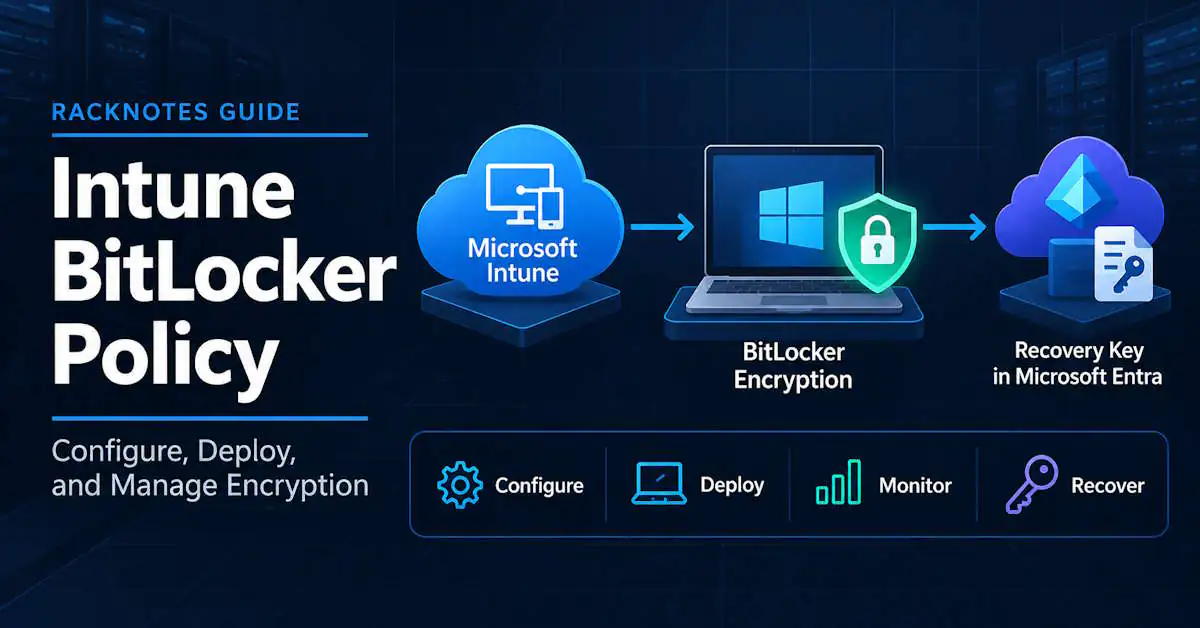
An Intune BitLocker policy lets administrators configure and deploy standard or silent encryption, surface recovery information stored in Microsoft Entra ID, report encryption state, and rotate recovery keys. The recommended configuration path is Endpoint security > Disk encryption > BitLocker. This guide covers that operational lifecycle: configure, assign, encrypt, verify, recover, rotate, and troubleshoot. For BitLocker fundamentals – what it is, how protectors work – see the BitLocker overview; this article assumes that part.
Quick Answer: Configure BitLocker with Intune
- Open the Microsoft Intune admin center.
- Go to Endpoint security > Disk encryption.
- Create a Windows BitLocker policy.
- Configure device encryption and recovery settings.
- Configure startup authentication to match the deployment model.
- Assign the policy to a pilot device group.
- Verify encryption in Intune’s encryption report.
- Confirm the recovery key is available before broad rollout.
For silent deployment specifically: the device needs to meet the silent-encryption requirements, and no startup PIN, startup key, or conflicting encryption policy can require user interaction.
Intune BitLocker Requirements
BitLocker does not universally require a TPM. It can run in configurations without one, although a TPM is recommended and some settings depend on it. Intune’s silent, automatic encryption scenario is stricter: a supported Windows edition, a Microsoft Entra joined or hybrid joined device, a usable TPM 1.2 or later, native UEFI mode, Windows Recovery Environment enabled, and startup-authentication settings that don’t require user interaction. Microsoft’s current Intune deployment guidance lists Secure Boot enabled as part of the silent-encryption device baseline. Treat it as a deployment prerequisite for this workflow, while remembering that Secure Boot is not a universal requirement for BitLocker itself. Microsoft still documents legacy Windows 10 version thresholds for silent BitLocker, but Windows 10 is out of support. Treat Windows 11 as the current deployment baseline unless the organization is explicitly maintaining legacy devices.
Keep this distinction explicit throughout: “BitLocker can encrypt this device” and “Intune can enable BitLocker silently on this device” are two different questions. Windows defaults to not requiring BitLocker, but Microsoft Entra join and Microsoft account registration can trigger automatic encryption at 128-bit even without an explicit Intune policy – which means a device can show up encrypted before any admin-authored BitLocker policy ever touched it. Don’t treat “already encrypted” as proof a policy is working correctly.
Create an Intune BitLocker Policy
The primary path: Microsoft Intune admin center > Endpoint security > Disk encryption > Create Policy, with Platform set to Windows and Profile set to BitLocker.
A broader path exists through a device configuration Endpoint protection profile, but current guidance treats the dedicated Disk encryption policy as the primary path for BitLocker. Settings Catalog is not the recommended primary path here either – as of this writing, it doesn’t expose the TPM startup-authentication controls that reliable silent BitLocker deployment depends on, so use the dedicated Endpoint Security/Endpoint Protection policy path for that workflow instead.
The lifecycle: create the profile, configure its settings, scope it with tags if needed, assign it to a group, review and create, then monitor. Don’t skip the pilot-group step covered later in this guide just because the wizard lets you assign to “All devices” directly.
Intune BitLocker Settings That Matter
This is not a full CSP reference; the BitLocker CSP documentation serves that purpose. These are the settings that most directly determine how a deployment behaves.
Microsoft changed the BitLocker profile’s settings format in June 2023 to match the Settings Catalog, per Microsoft’s disk encryption policy settings reference. The names below are the current Settings Catalog-era labels; older documentation and older profile instances may still show the pre-2023 names.
- Require Device Encryption (CSP:
RequireDeviceEncryption) – the base “turn BitLocker on” setting for the deployment. - Require additional authentication at startup, with sub-settings Configure TPM startup, Configure TPM startup PIN, Configure TPM startup key, and Configure TPM startup key and PIN (CSP:
SystemDrivesRequireStartupAuthentication) – this is where the silent-vs-interactive decision actually lives. Older documentation calls the parent setting “Startup authentication required” and the sub-settings “Compatible TPM startup…” - Allow Warning For Other Disk Encryption, also documented as “Hide prompt about third-party encryption” (CSP:
AllowWarningForOtherDiskEncryption) – covered in detail in the silent-encryption section below. - Save BitLocker recovery information to Microsoft Entra ID and Store recovery information in Microsoft Entra ID before enabling BitLocker – the second of these blocks BitLocker enablement from completing until the recovery key is actually escrowed, which directly prevents one of the most common causes of a missing recovery key later.
- Configure client-driven recovery password rotation – rotates the recovery password after an OS-drive recovery event, for supported Microsoft Entra joined or hybrid joined devices. This is not a scheduled or periodic rotation.
- Fixed-drive and OS-drive recovery options, and encryption method selection (XTS-AES 128-bit is the Windows default and recommended value; 256-bit is available where policy requires stronger encryption). When the OS-drive encryption type isn’t explicitly configured, silent BitLocker uses Used Space Only encryption on Modern Standby devices and Full Disk encryption on non-Modern-Standby devices. If the organization needs to force one encryption type regardless of device class, Intune can explicitly configure the OS-drive encryption-type policy instead of relying on that default.
How to Enable BitLocker with Intune
Five states are easy to conflate: configured (the policy exists with settings), assigned (a device or user is targeted by it), applied (the device actually processed and succeeded on those settings), encrypted (BitLocker’s own state confirms the drive is protected), and escrowed (recovery information is actually stored where it’s supposed to be). Assignment only means the device is targeted. It does not prove the device has checked in, processed the policy, or that BitLocker has encrypted anything.
The real flow: policy assigned -> device checks in and processes the MDM policy -> BitLocker starts or enforces encryption -> recovery data gets stored -> the encryption report confirms the actual state. Verify the last step before calling any deployment complete.
How to Silently Enable BitLocker with Intune
Silent enablement requires more than turning on BitLocker. At minimum: Require Device Encryption configured to require encryption, Require additional authentication at startup configured so that Configure TPM startup PIN, Configure TPM startup key, and Configure TPM startup key and PIN are all set to Blocked – silent scenarios, including Autopilot, won’t succeed if user interaction is required at startup – and Allow Warning For Other Disk Encryption (documented in older material as “Hide prompt about third-party encryption”) set so the BitLocker setup wizard’s third-party-encryption confirmation prompt doesn’t appear.
Hiding the third-party-encryption prompt removes a safety check, not just a nuisance dialog. If BitLocker enables on a device that already has third-party disk encryption active, the device can become unusable, with real data loss and a possible Windows reinstall. Identify and remove incompatible third-party encryption software before enabling this setting broadly. Do not suppress the warning without first checking the fleet for conflicting encryption software.
Once the third-party-encryption prompt is hidden, an additional setting becomes available for standard users: allowing them to complete Microsoft Entra join silent-enable scenarios without local admin rights. Standard non-silent enablement and Windows Autopilot’s interactive-user paths still require local admin to complete the setup wizard normally.
TPM Startup Authentication and Silent Encryption
Startup-authentication settings are one of the first places to check when silent encryption fails. A TPM-only compatible startup can support silent deployment. Requiring a startup PIN or key introduces user interaction and breaks silent deployment; the device can simply wait for input that the deployment never provides. A conflicting security baseline that quietly re-enables one of these requirements can undo an otherwise correct BitLocker profile without anyone touching the BitLocker policy itself.
BitLocker with Intune and Windows Autopilot
BitLocker policy can be part of managed provisioning through Autopilot, and silent enablement is the deployment model that fits zero-touch provisioning. Startup PIN or startup-key requirements introduce user interaction and therefore conflict with zero-touch Autopilot provisioning. Standard-user Autopilot scenarios need the standard-user encryption setting covered above; without it, a standard user can be unable to complete the intended silent-encryption workflow. This isn’t a full Autopilot deployment guide – just the BitLocker-specific pieces that affect it.
Monitor BitLocker Encryption in Intune
Intune’s encryption/device encryption reporting shows encryption readiness, encryption status, available TPM details, and device-level state. Policy status and encryption status are not the same report, and they can disagree. A policy can show as successfully applied while the actual disk sits unencrypted, particularly during the window between policy application and completed conversion, or when a device-side condition blocks BitLocker despite the policy landing correctly. Use the encryption report to confirm that the drive is actually encrypted rather than relying on the policy’s success indicator.
Find a BitLocker Recovery Key in Intune
Devices > All devices > [select the device] > Recovery keys > Show recovery key.
Viewing the key is audited and requires appropriate permissions – it generates an entry under the KeyManagement category of Microsoft Entra audit logs, so treat it as a logged administrative action, not a casual lookup. Intune surfaces recovery information that’s stored in Microsoft Entra ID – it isn’t an independent key store separate from Entra. If the key was never escrowed there, there’s nothing for this screen to show. For the broader retrieval workflow and what a Recovery Key ID actually is, see finding your BitLocker recovery key.
Intune BitLocker Recovery Key Missing or Not Showing
Two different situations can produce this symptom.
Device Is Encrypted, But the Key Isn’t Visible
Check whether the key was backed up to Microsoft Entra ID, whether the recovery-escrow policy is configured as intended, whether the account has sufficient permissions, whether the correct device object is selected, and whether the enrollment or join state matches the expected workflow.
Intune Reports “No BitLocker Key Found for This Device”
This means Microsoft Entra ID does not currently have a usable recovery key on file for that device. Intune cannot regenerate a recovery password that was never escrowed; it can only surface what’s actually stored in Microsoft Entra ID. If the device is still reachable and the key exists locally, that’s a backup task now, not a retrieval one – see backing up a BitLocker recovery key.
Rotate a BitLocker Recovery Key from Intune
Devices > All devices > [select the device] > BitLocker key rotation > Yes to confirm.
This remotely refreshes the recovery key for the OS drive. Typical reasons to use it include a recovery key that was used during recovery, a key that may have been exposed (shared over a support call, for instance), or a device that is being reassigned or serviced. Running it requires the Remote tasks / Rotate BitLockerKeys permission, per Microsoft’s BitLocker key rotation action reference, available through built-in roles such as Help Desk Operator or an Endpoint Security-focused role, or a custom role granted that permission. Rotation also depends on the device’s actual recovery configuration – client-driven recovery password rotation enabled for the scenario, and recovery information already being saved to Microsoft Entra ID in the first place – so a device that never escrowed recovery information correctly won’t necessarily produce a usable new key just because rotation was triggered. This manual action is separate from the automatic client-driven rotation that runs after an OS-drive recovery event under the policy setting mentioned earlier; the two are not the same mechanism.
Intune BitLocker Policy Not Applying
Work through this in order rather than guessing at a fix:
- Confirm the device is actually in the assigned group.
- Confirm the device has checked in and processed the MDM policy recently.
- Check policy status and any per-setting errors in Intune.
- Confirm the device meets the deployment model’s actual requirements (silent vs. interactive).
- Check TPM state and readiness.
- Check the startup environment against what the silent scenario needs.
- Check startup-authentication settings specifically – this is the single most common silent-deployment blocker.
- Look for a conflicting Endpoint Security policy, security baseline, or device configuration profile also touching BitLocker.
- Confirm third-party disk encryption isn’t present and interfering.
- Check BitLocker-related event logs on the device alongside Intune’s own encryption reporting.
Error Code 65000 with Intune BitLocker
65000 is a generic Intune policy-application and reporting error, not a single diagnosis. It typically means Intune expected a setting’s value to land in the device’s policy store and didn’t see it confirmed there. Microsoft previously documented a Windows 11 issue, acknowledged in an August 2023 update, in which the FixedDrivesEncryptionType and SystemDrivesEncryptionType policies could report error 65000 even though encryption itself was working correctly, when set to full encryption or used-space-only. That specific reporting bug was fixed in a later Windows update, so treat it as historical context rather than a current universal explanation for 65000. Treat any 65000 occurrence by checking the specific setting that failed, scanning for conflicting policy, confirming device prerequisites, and reviewing device-side event logs, rather than applying one fix recipe to every instance of the code.
Intune BitLocker Policy Best Practices
- Pilot a new or changed policy on a small device group before broad deployment.
- Verify no third-party disk encryption is present before enabling silent rollout at scale.
- Configure recovery-key escrow requirements before enforcing encryption, not after.
- Confirm recovery-key availability for a sample of devices before depending on the support workflow that assumes it works.
- Grant recovery-key access on least privilege; not every support role needs it.
- Avoid stacking conflicting BitLocker settings across Endpoint Security, Device Configuration, and security baseline policies aimed at the same devices.
- Validate actual encryption status through reporting, not just policy-assignment status.
- Rotate a recovery key that’s been exposed, rather than treating exposure as low-risk because the device is managed.
- Document who owns recovery-key access and what the escalation path is when a device is locked out.
Troubleshooting Matrix
| Problem | Likely area | First check |
|---|---|---|
| Policy assigned but drive not encrypted | Processing / requirements | Check device and encryption status |
| Silent encryption not starting | TPM / startup settings / interaction | Check TPM and startup authentication |
| BitLocker prompts user unexpectedly | Policy configuration | Check silent-enable settings |
| Recovery key missing | Entra escrow / permissions | Check recovery-key storage and device record |
| Policy reports error | Conflict / CSP / requirement | Check per-setting status |
| Error 65000 | Generic policy failure | Identify the specific failed setting |
| Autopilot device not encrypting silently | Silent-encryption prerequisites | Check standard-user and startup settings |
| Encryption state differs from policy state | Reporting vs. actual disk state | Check device encryption status |
FAQ
How do I enable BitLocker with Intune?
Create and assign a BitLocker policy under Endpoint Security > Disk encryption, then verify actual encryption status through Intune reporting rather than trusting assignment status alone.
Can Intune enable BitLocker silently?
Yes, when the device and policy meet the silent-encryption requirements and no startup authentication setting requires user interaction.
Does Intune require TPM for BitLocker?
Not for every possible BitLocker configuration, but TPM is required for the standard Intune silent/automatic encryption scenario.
Where is the BitLocker recovery key in Intune?
For managed devices with recovery information stored in Microsoft Entra ID, open the device under Devices > All devices and view its Recovery keys.
Why is the BitLocker recovery key missing in Intune?
The key may not have been stored in Microsoft Entra ID, permissions may block access, or the wrong device object may be selected.
Why is my Intune BitLocker policy not applying?
Check policy assignment, device check-in, per-setting errors, BitLocker prerequisites, conflicting policies, startup-authentication settings, TPM state, and third-party disk encryption, in that order.
Can Intune rotate a BitLocker recovery key?
Yes, through the BitLocker key rotation device action, provided the account has the required permissions and the device has a working recovery configuration.
Final Thoughts
Intune’s BitLocker workflow is a chain: configured, assigned, applied, encrypted, escrowed, verified. Each link can succeed independently while a later one fails silently, which is why “the policy shows as assigned” and “the drive is actually encrypted” need to be checked as two separate facts. Silent deployment depends heavily on startup-authentication settings. If those settings require user interaction, otherwise-correct policy settings will not produce a silent deployment. Confirm recovery-key escrow before enforcing encryption broadly, not after a device is already locked out with nothing to recover from. Full command-line and PowerShell-based BitLocker management, on-premises AD DS recovery, and Group Policy configuration are covered in their own dedicated guides in this series; this one stays focused on what happens inside Intune specifically.
BitLocker Series
11 of 11 published – Drive Encryption · TPM & Recovery Keys · manage-bde · Disable & Decrypt · Recovery Key Backup · PowerShell · Suspend & Resume · Active Directory · Intune · Group Policy