
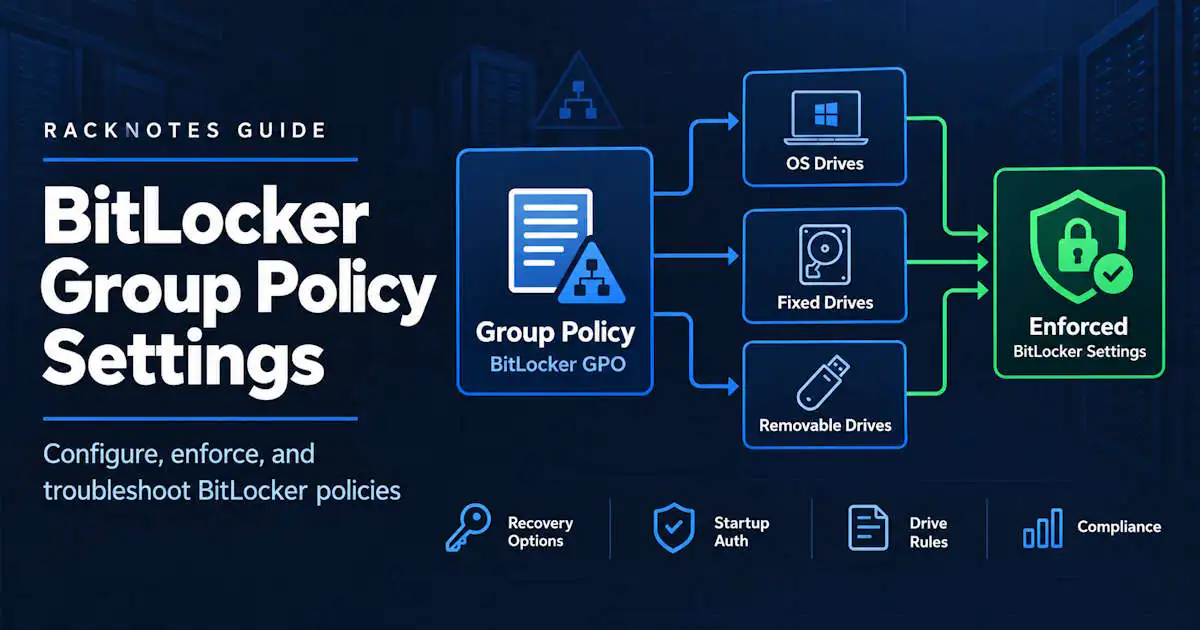
BitLocker Group Policy lets domain administrators standardize encryption, startup authentication, recovery, and drive-access settings across Windows devices. This article covers traditional Active Directory / Group Policy administration: configuring BitLocker policy, deploying it to domain-joined devices, and troubleshooting why policy or encryption isn’t behaving as expected. For BitLocker fundamentals, see the BitLocker overview; this article assumes that background.
Quick Answer: Configure BitLocker Group Policy
- Open Group Policy Management (
gpmc.msc). - Create or edit a GPO linked to the required computer OU.
- Go to Computer Configuration > Administrative Templates > Windows Components > BitLocker Drive Encryption.
- Configure the required OS-drive, fixed-drive, and removable-drive settings.
- Configure recovery-password storage before enabling BitLocker.
- Configure startup authentication and encryption method.
- Apply the GPO to a pilot OU or device group.
- Run a Group Policy update or wait for normal refresh.
- Verify the resultant policy.
- Verify that BitLocker is actually enabled and recovery information is available.
Group Policy defines BitLocker requirements. It doesn’t have a single switch that starts encryption on every existing device.
Where Are BitLocker Group Policy Settings?
Primary path: Computer Configuration > Administrative Templates > Windows Components > BitLocker Drive Encryption. Microsoft’s BitLocker policy reference is the full catalog of settings under this node; this article focuses on the settings that determine whether a typical domain deployment works.
Three child nodes hold most of the settings that matter:
Operating System Drives
Startup authentication, TPM/PIN/startup-key requirements, OS-drive recovery configuration, and preboot behavior.
Fixed Data Drives
Fixed-drive recovery configuration, write-access requirements, and encryption requirements for non-OS local drives.
Removable Data Drives
BitLocker To Go settings, write-access restrictions on unprotected removable drives, and recovery/smart-card options where applicable.
BitLocker Group Policy Settings That Matter Most
Choose drive encryption method and cipher strength. Configures the algorithm and key size per drive type – AES-CBC 128/256-bit, or XTS-AES 128/256-bit. XTS-AES 128-bit is the default if this policy is left disabled or not configured.
Require additional authentication at startup. The core OS-drive setting: TPM-only, TPM+PIN, TPM+startup key, TPM+startup key+PIN, or BitLocker without a compatible TPM. Only one of these should be required at once – requiring an incompatible combination causes a policy error rather than a working configuration.
Configure minimum PIN length for startup and Allow enhanced PINs for startup matter only as supporting settings once TPM+PIN is in use.
Choose how BitLocker-protected operating system drives can be recovered (and the fixed/removable equivalents) is where recovery-password behavior, data recovery agents, and AD DS backup requirements actually get configured. Within that same setting, Do not enable BitLocker until recovery information is stored to AD DS for operating system drives is the sub-option that gates enablement: BitLocker won’t complete enabling until the recovery password has actually been escrowed to Active Directory, which provides a strong safeguard against deploying BitLocker without centrally stored recovery information.
Configure TPM and Startup Authentication with GPO
Path: Computer Configuration > Administrative Templates > Windows Components > BitLocker Drive Encryption > Operating System Drives > Require additional authentication at startup.
TPM only is the simplest managed startup experience and the one that fits automated or unattended startup scenarios.
TPM + PIN adds preboot user authentication, at the cost of requiring someone to actually enter it at every startup.
TPM + startup key requires a USB startup key at boot and adds operational overhead compared with TPM-only or TPM+PIN deployments.
Without a compatible TPM, BitLocker can still run if this policy explicitly allows it, but that path needs its own alternative startup authentication (a password or startup key) since there’s no TPM to anchor to.
Don’t treat TPM as universally required – BitLocker itself can run without one when policy allows it – but do treat the startup-authentication choice as something to lock in deliberately before rollout, not something to leave at defaults and discover later. Mixing incompatible required options in the same policy doesn’t produce a stronger configuration; per Microsoft’s BitLocker CSP reference, requiring more than one additional authentication method at once produces a policy error instead.
Configure BitLocker Recovery Policy in Group Policy
This section is about configuring recovery policy, not retrieving a key that’s already stored – that workflow lives in finding a BitLocker recovery key in Active Directory.
Recovery policy for AD DS-joined devices centers on two settings per drive type: Choose how BitLocker-protected operating system drives can be recovered, which controls whether a recovery password is allowed or required and whether a data recovery agent is permitted, and its sub-option Do not enable BitLocker until recovery information is stored to AD DS for operating system drives, which gates enablement on successful escrow. Configure both before encryption starts, not after. Microsoft’s BitLocker FAQ confirms that a device encrypted before this policy existed doesn’t retroactively get its recovery password backed up just because the policy showed up later, or because the device later joins the domain. The same recovery-before-enable option exists for removable data drives, if the deployment enforces escrow there too. For the full escrow and backup workflow itself, see backing up a BitLocker recovery key.
Microsoft’s centralized-recovery guidance splits by join type: Active Directory Domain Services for domain-joined devices, Microsoft Entra ID for Entra-joined devices. This article focuses on the AD DS side; Entra-managed recovery and Intune-driven policy are covered in the Intune BitLocker policy guide.
Configure BitLocker Encryption Method with GPO
Choose drive encryption method and cipher strength sets the algorithm and key size for fixed data drives, operating system drives, and removable data drives, individually. XTS-AES is Microsoft’s recommended algorithm; choose 128-bit or 256-bit based on organizational requirements, regulatory requirements, and acceptable performance overhead, rather than assuming 256-bit should always replace the default.
Pick one organization-wide standard before deployment starts. Two facts make this worth deciding early rather than adjusting later: changing this policy doesn’t retroactively re-encrypt drives that are already encrypted under the old setting, and depending on what changed, bringing an existing drive into compliance can mean anything from a simple suspend-adjust-resume cycle to a full disable-decrypt-then-reencrypt round trip. Microsoft’s own guidance gives changing the encryption method or cipher strength as exactly the kind of change that forces the second, more disruptive path.
BitLocker Group Policy for Fixed and Removable Drives
Fixed Data Drives
Configure recovery settings the same way as the OS drive, and consider whether write access should be denied to fixed drives that aren’t BitLocker-protected, if the organization wants to enforce encryption before data can land there at all.
Removable Data Drives / BitLocker To Go
Removable-drive policy typically covers denying write access to removable drives not protected by BitLocker, recovery configuration for protected removable drives, and organizational identifiers if the environment needs to distinguish its own encrypted drives from ones encrypted elsewhere. Requiring BitLocker To Go for all removable storage creates additional support and recovery overhead, so scope the policy deliberately rather than enabling it fleet-wide by default.
How to Deploy BitLocker with Group Policy
Five states, not one:
- Configuration – the GPO exists with the intended settings.
- Assignment – the GPO is linked to the right OU or scope.
- Application – the target computer actually receives and processes those settings.
- Activation – BitLocker encryption is actually triggered on the drive.
- Verification – the drive is confirmed encrypted and recovery information actually exists.
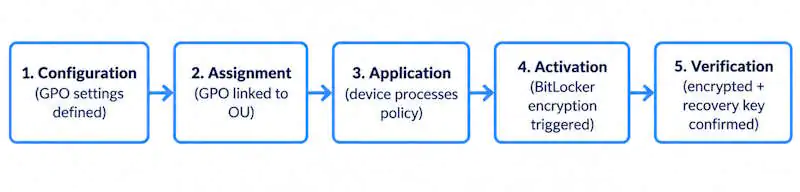
Group Policy reliably handles the first three. The fourth is the gap the next section covers directly.
Does Group Policy Automatically Enable BitLocker?
Not by itself, and there’s a specific reason why. Microsoft’s BitLocker policy documentation lists “Require device encryption” as a setting available only through CSP/MDM management (Intune, for example) – it’s explicitly not available as a Group Policy setting at all. Traditional GPO doesn’t have an equivalent single switch that says “turn BitLocker on now.” What Group Policy does configure – encryption method, startup authentication, recovery requirements, drive-access rules – defines the conditions BitLocker must follow if and when it gets enabled, not the trigger that enables it.
On already-deployed devices, an organization typically still needs a separate activation mechanism: user- or admin-initiated enablement, a provisioning workflow, a login or startup script, PowerShell’s Enable-BitLocker, or manage-bde -on. Which one fits depends on the deployment scenario – see enabling BitLocker with PowerShell or the manage-bde command reference for the activation side specifically; this article stays on the policy side of that boundary.
This doesn’t mean GPO can never be part of an automated BitLocker deployment. Some deployment tooling and provisioning workflows trigger encryption automatically as part of imaging or first-run, using GPO-configured settings as the ruleset that encryption follows once triggered. The distinction is between policy and activation, not a blanket rule for every environment.
Verify BitLocker Group Policy Applied
gpresult /r /scope computer gives a quick summary of applied computer-side GPOs; gpresult /h gpresult.html /scope computer generates a full HTML report, which is more useful when tracking down exactly which GPO set a specific BitLocker setting. The Group Policy Results wizard in Group Policy Management can query resultant policy for a target computer centrally, which is useful when troubleshooting from an admin workstation instead of the device itself.
Many effective BitLocker policy values are represented under HKLM\SOFTWARE\Policies\Microsoft\FVE, which is useful for a quick client-side check. Use gpresult or Group Policy Results to determine which GPO actually supplied the setting when multiple policy sources might be in play.
Verify both the resultant policy and the actual BitLocker state – they answer different questions. A device can show the correct resultant GPO settings while sitting completely unencrypted, because policy application and BitLocker activation are separate events. Confirm actual state with manage-bde -status or Get-BitLockerVolume after confirming policy.
BitLocker Group Policy Not Applying
Work through this in order:
- Confirm the GPO is linked to the correct OU.
- Confirm the computer account is actually inside the intended scope.
- Check security filtering and WMI filtering on the GPO.
- Run and review
gpresult /r /scope computerfor that device. - If the required BitLocker setting is missing from Group Policy Editor rather than just failing to apply, verify the BitLocker ADMX/ADML version in the domain Central Store – this affects policy administration, not whether an already-configured registry policy can apply to the client.
- Check the effective policy under
HKLM\SOFTWARE\Policies\Microsoft\FVE. - Check for a higher-precedence domain or OU GPO overriding the intended settings.
- Check local policy on the device itself.
- Check for MDM/Intune or security-baseline overlap touching the same settings.
- Review BitLocker and Group Policy event logs on the device.
- Confirm the policy actually applies to the Windows version and current drive state involved.
Don’t jump to deleting registry values under the FVE policy path as a first troubleshooting step. That can mask a scoping or precedence problem instead of correcting the actual policy source.
BitLocker Group Policy Conflict
Common sources: multiple domain GPOs configuring the same BitLocker setting differently, a local GPO disagreeing with a domain GPO, a security baseline overriding a custom BitLocker GPO, Group Policy and MDM/Intune both trying to manage the same device, incompatible startup-authentication requirements combined across policies, or an encryption-method change applied after the drive was already encrypted under a different setting. Read the resultant policy to see what actually won, rather than guessing based on which GPO looks more specific.
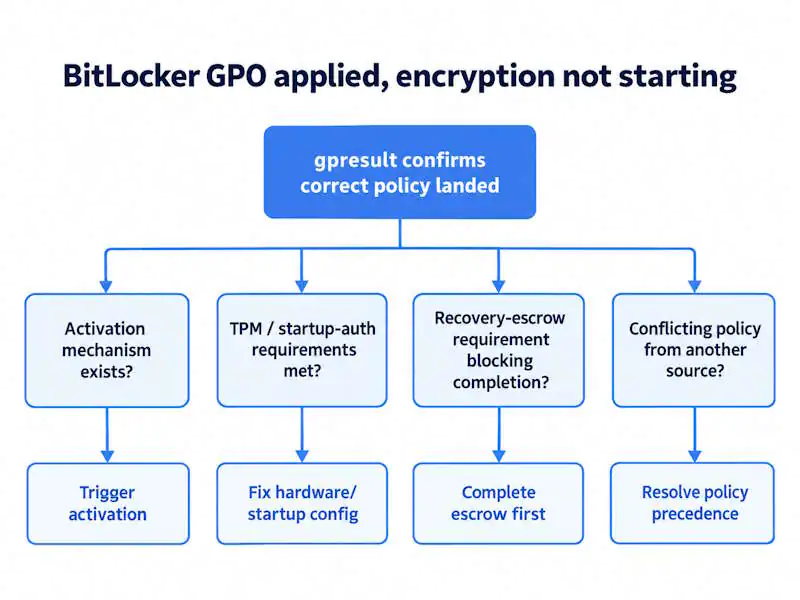
BitLocker GPO Applied but Encryption Does Not Start
If gpresult confirms the correct settings landed but the drive still isn’t encrypting, check the deployment state in order. Confirm that an activation mechanism exists for the device, then check TPM and startup-authentication requirements against its hardware state, determine whether recovery-escrow requirements are blocking completion, and check for conflicting policy from another source. Also verify whether the drive is already in another protection state, and review BitLocker’s event logs alongside the current manage-bde -status or Get-BitLockerVolume output.
BitLocker Group Policy Best Practices
- Configure recovery policy before encryption starts, not after.
- Pilot a new or changed GPO on a small OU before wide deployment.
- Keep OS-drive, fixed-drive, and removable-drive decisions separate and deliberate rather than copying one drive type’s settings onto another.
- Standardize one encryption method organization-wide before rollout.
- Avoid multiple GPOs configuring the same BitLocker setting from different places.
- Use resultant policy, not assumptions, to validate what’s actually in effect.
- Verify recovery passwords are actually landing in AD DS, not just that the policy requiring it exists.
- Verify actual encryption state separately from GPO application state.
- Document TPM/PIN requirements before rollout, not as a response to the first help desk ticket.
- Avoid changing core encryption settings casually once a fleet is already encrypted – know which changes are a simple suspend/resume and which force a full decrypt-and-reencrypt cycle first.
- Where devices are already primarily managed through Intune or another MDM platform, use that platform’s BitLocker policy instead of layering a competing GPO on top.
Troubleshooting Matrix
| Problem | Likely area | First check |
|---|---|---|
| BitLocker GPO not applying | Scope / filtering / precedence | Run gpresult and confirm GPO scope |
| GPO applied but drive not encrypting | Activation mechanism | Check whether BitLocker was actually triggered |
| Recovery key not stored in AD DS | Recovery policy / permissions / timing | Confirm AD DS recovery policy before encryption |
| Startup PIN setting fails | Conflicting authentication requirements | Review OS-drive startup-authentication GPO |
| BitLocker settings conflict | Multiple policy sources | Check resultant policy |
| Fixed/removable drive policy ignored | Wrong policy branch / drive type | Confirm correct GPO node |
| Encryption method differs from policy | Drive encrypted before policy change | Check existing BitLocker state |
| Intune and GPO disagree | MDM/GPO overlap | Identify which platform owns BitLocker policy |
FAQ
Where are BitLocker Group Policy settings?
Under Computer Configuration > Administrative Templates > Windows Components > BitLocker Drive Encryption, with separate nodes for operating system, fixed data, and removable drives.
Can Group Policy automatically enable BitLocker?
Not by itself – traditional GPO has no direct “enable BitLocker” switch. It defines the configuration BitLocker must follow; a separate activation mechanism (user action, script, PowerShell, provisioning workflow) actually starts encryption on existing devices.
How do I store BitLocker recovery keys in Active Directory with GPO?
Configure the recovery policy for the relevant drive type, and enable “Do not enable BitLocker until recovery information is stored to AD DS” for that drive type so enablement is gated on successful escrow.
Why is my BitLocker GPO not applying?
Check GPO scope and OU linking, security/WMI filtering, gpresult output, policy precedence, local policy, MDM/Intune overlap, and the effective policy under HKLM\SOFTWARE\Policies\Microsoft\FVE, in that order.
Why is BitLocker GPO applied but encryption doesn’t start?
Policy application and BitLocker activation are separate states. Confirm an activation mechanism actually exists for the device, then check TPM, startup-authentication, and recovery-escrow requirements.
Can I change the BitLocker encryption method after deployment?
The policy change won’t retroactively re-encrypt an already-encrypted drive. Depending on what changed, bringing it into compliance can require anything from a suspend/resume cycle to a full disable-decrypt-reencrypt round trip.
Does disabling the BitLocker GPO decrypt the drive?
No. Removing or disabling a policy requirement is not the same action as decrypting a BitLocker-protected volume. See disabling BitLocker for the actual decryption workflow.
Final Thoughts
Group Policy configures what BitLocker requires; it doesn’t, by itself, decide when encryption starts on an existing device. That distinction matters before deploying it at scale. Configure recovery policy before encryption, pick one encryption standard organization-wide before rollout, and verify the actual BitLocker state separately from whatever gpresult reports as applied. This closes out the traditional AD/GPO side of the RackNotes BitLocker series; PowerShell activation, manage-bde command-line management, AD DS recovery retrieval, and Intune-managed deployment each have their own dedicated guide in this same cluster.
BitLocker Series
11 of 11 published – Drive Encryption · TPM & Recovery Keys · manage-bde · Disable & Decrypt · Recovery Key Backup · PowerShell · Suspend & Resume · Active Directory · Intune · Group Policy