
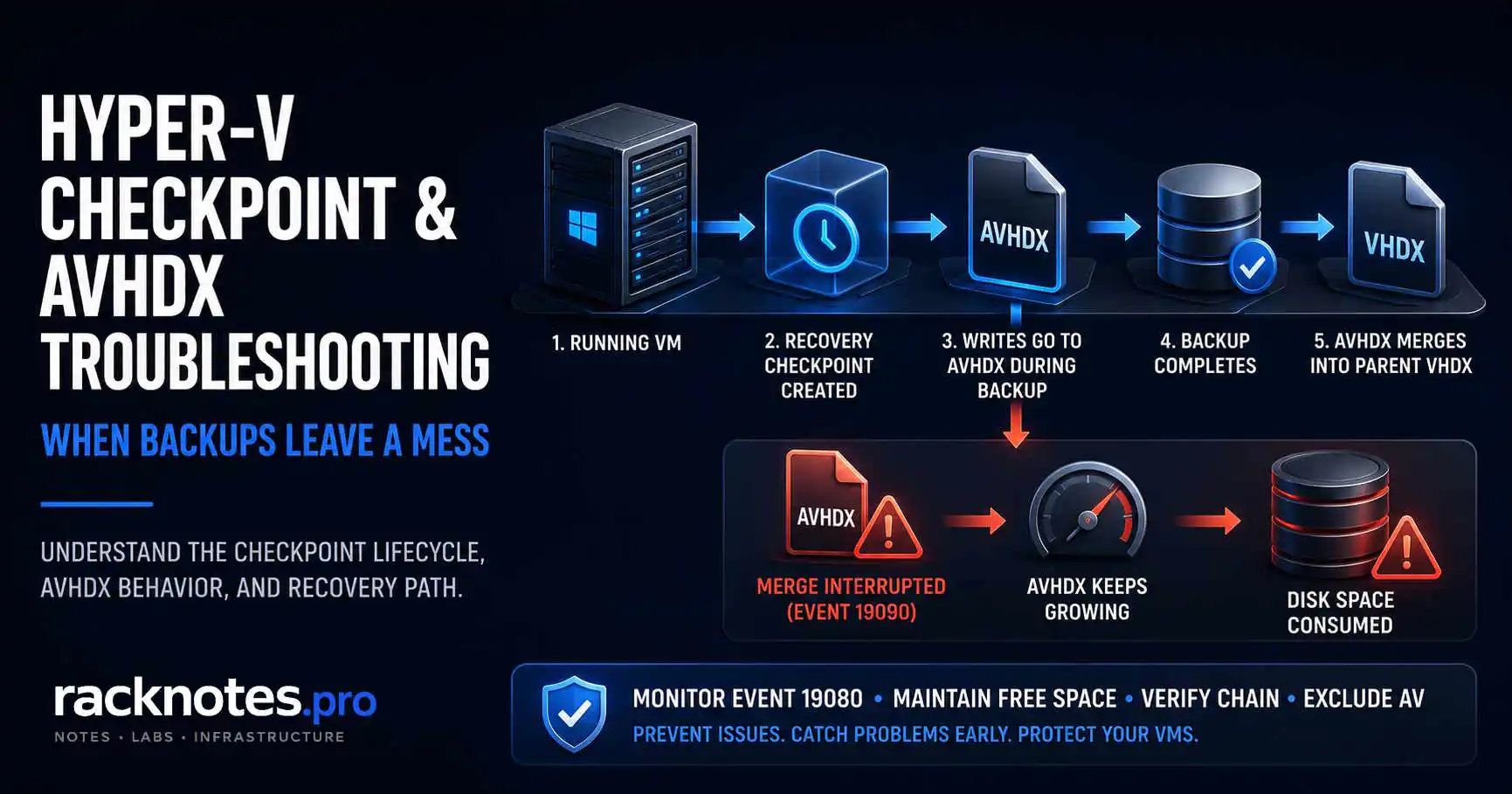
Most Hyper-V checkpoint operation failed errors don’t come from the backup job itself. The backup finishes. The software reports success. Then the AVHDX that was supposed to merge back into the parent disk keeps growing, the VM slows down, and a disk alert fires a day later. Backup success and checkpoint cleanup are not the same success condition — that’s the problem this article addresses.
This is a recovery guide for environments where a Hyper-V checkpoint operation failed during or after backup, an AVHDX file isn’t merging, VSS errors are blocking backup checkpoints, or orphaned files have appeared on disk with no matching checkpoint in Hyper-V Manager. Applies to Windows Server 2019, 2022, and 2025.
If you only have 5 minutes:
- AVHDX growing? → Check Events 19070 / 19080 / 19090 in Hyper-V-VMMS
- Hyper-V checkpoint operation failed? → Run
vssadmin list writerson the host - No checkpoint visible but AVHDX exists? → Verify the active disk chain before touching files
- Storage almost full? → Free space first, troubleshoot second
Quick Answer: What To Do First
If you’re dealing with a Hyper-V checkpoint operation failed error or an AVHDX file that’s still growing after backup:
- Do not delete AVHDX files manually — not yet.
- Check Event Viewer for events 19070, 19080, and 19090 (Hyper-V-VMMS).
- Run
vssadmin list writerson the host — confirm no writers are in a Failed state. - Open Hyper-V Manager and confirm whether a checkpoint is visible for this VM.
- Run
Get-VMHardDiskDriveandGet-VHDto map the full disk chain. - Confirm the storage volume has at least 20–30% free space before any merge attempt.
The diagnostic path splits at step 4: visible checkpoint means the backup software left it behind; no visible checkpoint with AVHDX on disk means an orphaned file. Both are fixable — the steps are different.
How Hyper-V Backup Checkpoints Create AVHDX Files
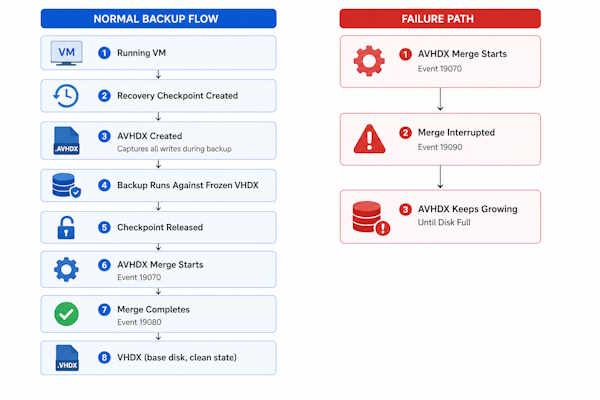
When a backup job runs against a running VM, Hyper-V creates a recovery checkpoint to make the base VHDX consistent for export. All writes during the backup go to a new AVHDX differencing disk. When the backup finishes, Hyper-V deletes the recovery checkpoint and merges the AVHDX back into the parent VHDX.
That merge step runs as a background process after the checkpoint is released. The VM keeps running throughout. This is not the same as a manual checkpoint delete — the timing and state requirements are different.
A Hyper-V checkpoint operation failed error means the process broke somewhere in that chain: during checkpoint creation (VSS failure), during the backup itself (write errors, Replica conflict), or during post-backup merge cleanup (disk full, file lock, broken parent reference).
The AVHDX type depends on checkpoint type. Production checkpoints use VSS inside the guest for an application-consistent snapshot. Standard checkpoints save the VM’s RAM state. For VHDX architecture and checkpoint design, see Hyper-V Storage: VHDX, Fixed vs Dynamic, and Storage Spaces Explained.
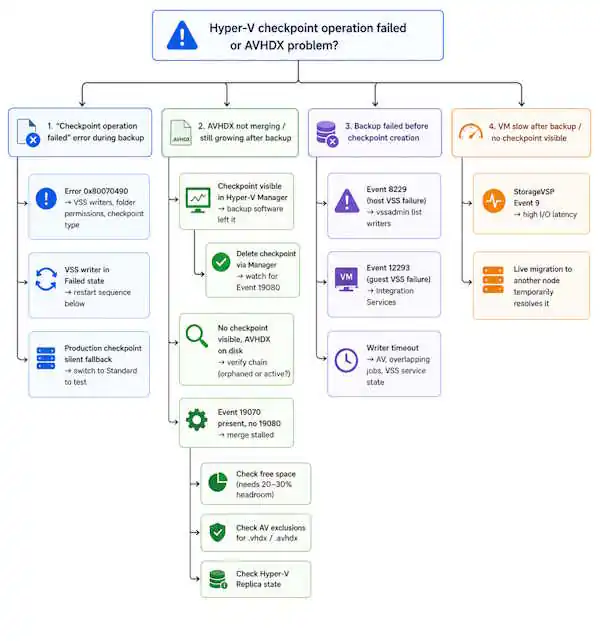
Hyper-V Checkpoint Operation Failed — Troubleshooting Flow
Event ID Reference
Host-side events: Applications and Services Logs → Microsoft → Windows → Hyper-V-VMMS → Admin. StorageVSP events: Hyper-V-StorageVSP → Admin.
| Event ID | Source | Meaning | Action |
|---|---|---|---|
| 19070 | Hyper-V-VMMS | Merge started | Monitor — expect 19080 to follow |
| 19080 | Hyper-V-VMMS | Merge completed successfully | Healthy — no action |
| 19090 | Hyper-V-VMMS | Merge interrupted | Investigate immediately — disk, AV, Replica |
| 8229 | Hyper-V-VMMS | Host VSS writer failure | Run vssadmin list writers |
| 12293 | Hyper-V-VSS | Guest VSS failure | Check Integration Services in guest |
| 9 | StorageVSP | High I/O latency detected | Check storage path, CSV, patch level |
Event 19090 without a subsequent 19080 is an active storage problem, not a completed cleanup process. If you see 19070 followed by 19090 with no 19080 between them — the merge started and was interrupted. The AVHDX is still active and growing. Treat this as an incident, not a background task that will resolve itself.
Healthy merge sequence: 19070 → 19080. Problem sequence: 19070 → 19090 → no 19080.
Hyper-V Checkpoint Operation Failed — Error 0x80070490
Error 0x80070490 means “Element not found.” In checkpoint context, Hyper-V couldn’t locate or access something it needed — a VSS writer, a folder path, or a permissions target. A Hyper-V checkpoint operation failed with this code almost always falls into one of three causes.
Check Folder Permissions
Hyper-V VMs run under a per-VM Virtual Machine account (NT VIRTUAL MACHINE\<VM-GUID>). If the VHDX storage folder was moved, copied, or had permissions reset, that account may have lost access.
# Get the VM's GUID
(Get-VM -Name "VMName").Id

# Check folder ACL
Get-Acl -Path "D:\Hyper-V\VMs\VMName" | Format-List
The NT VIRTUAL MACHINE\<GUID> account needs Full Control on the VHDX folder. Restore it:
$vmId = (Get-VM -Name "VMName").Id.ToString()
$acl = Get-Acl "D:\Hyper-V\VMs\VMName"
$rule = New-Object System.Security.AccessControl.FileSystemAccessRule(
    "NT VIRTUAL MACHINE\$vmId", "FullControl",
    "ContainerInherit,ObjectInherit", "None", "Allow"
)
$acl.AddAccessRule($rule)
Set-Acl "D:\Hyper-V\VMs\VMName" $acl
Check VSS Writers
VSS failures are the most common cause of Hyper-V checkpoint operation failed errors on production checkpoint jobs. Run vssadmin list writers on the host first.
Healthy state:
Writer name: 'Hyper-V Writer'
   Writer Id: {66841cd4-...}
   State: [1] Stable
   Last error: No error
Failed state:
Writer name: 'Hyper-V Writer'
   Writer Id: {66841cd4-...}
   State: [8] Failed
   Last error: Retryable error
If any writer shows Failed or Waiting for completion, restart VSS and its dependencies in order:
net stop vss
net stop swprv
net start swprv
net start vss
Wait 60 seconds, then run vssadmin list writers again. If the Hyper-V Writer stays failed after restart, the likely causes are antivirus intercepting VSS snapshot creation, or a backup agent that didn’t release a writer lock from a previous failed job. Microsoft’s VSS event and error codes reference covers the full writer state machine.
Production Checkpoint vs. Standard Checkpoint
Production checkpoints use VSS inside the guest. If the guest doesn’t have Integration Services current, or the guest OS doesn’t support VSS (some Linux distros, older Windows versions), the production checkpoint fails — and the Hyper-V checkpoint operation failed error surfaces at the host level without clearly indicating the guest is the problem.
# Check current checkpoint type
Get-VM -Name "VMName" | Select-Object Name, CheckpointType

# Switch to Standard temporarily to isolate VSS as the cause
Set-VM -Name "VMName" -CheckpointType Standard
If the checkpoint succeeds after switching to Standard, the guest VSS integration is the issue. Switch back to Production after fixing Integration Services — application-consistent backups matter for SQL, Exchange, and any VSS-aware workload. Microsoft’s Hyper-V checkpoint overview covers checkpoint type behavior and fallback conditions.
AVHDX Not Merging After Backup
This is the highest-volume scenario behind Hyper-V checkpoint and AVHDX searches — and it often follows a Hyper-V checkpoint operation failed event that was dismissed as temporary. The backup finishes. The software reports success. Nobody notices anything wrong for 12–24 hours — until disk alerts fire and the AVHDX is still there, still growing. AVHDX not merging after backup is almost always one of four causes.
Why AVHDX Files Keep Growing
The merge process needs: free space on the target volume (20–30% headroom), no file locks on the AVHDX, an intact parent VHDX chain, and no active Replica conflict.
Common causes:
- Antivirus real-time scanning
.vhdxand.avhdxfiles — intermittent locks interrupt merge and trigger Event 19090. The merge restarts, hits the lock again, stalls again. Microsoft’s recommended antivirus exclusions for Hyper-V hosts explicitly covers these paths. - Overlapping backup jobs — second job starts before the first AVHDX merges. Two levels in the chain. Each job adds another.
- Hyper-V Replica active — Replica has its own checkpoint tracking. Bad sync state can hold the checkpoint open.
- Storage below 20% free — merge needs temporary working space and stalls silently when volume is low.
Do Not Do This
Before any AVHDX work:
- Do not delete
.avhdxfiles from disk because they look old or unused. - Do not merge AVHDX files without verifying the full
ParentPathchain withGet-VHD. - Do not start a new backup job while a merge from the previous job is still pending.
- Do not resume Hyper-V Replica before the checkpoint chain is fully clean.
- Do not trust backup software success status as confirmation that merge completed.
An AVHDX file can be invisible in Hyper-V Manager and still be the active disk the VM is writing to. Deleting it makes the VM unbootable.
Pre-Merge Safety Checklist
Before merging any AVHDX file:
- Verified backup exists — not just “backup ran,” but restore tested
- Storage volume has at least 20–30% free space
- Hyper-V Replica paused or disabled
- AV exclusions confirmed for
.vhdx/.avhdxand the VM storage folder - No backup job scheduled during the merge window
- Full disk chain verified with
Get-VHD— no missing or broken ParentPath entries - VM state confirmed — running or powered off — before choosing merge method
Map the VHDX/AVHDX Chain
Start from the disk currently attached to the VM — not from a file system listing.
# Get the active disk path attached to the VM
$disk = (Get-VMHardDiskDrive -VMName "VMName").Path
Get-VHD -Path $disk | Select-Object Path, ParentPath, VhdType
Read the output:
- Attached disk is
.avhdx→ VM is running from a differencing disk. The parent is inParentPath. ParentPathpoints to another.avhdx→ chain has multiple levels. Follow each one.ParentPathis empty andVhdTypeis Dynamic or Fixed → you’ve reached the base VHDX.
Walk the chain manually:
# Follow each level
Get-VHD -Path "D:\...\VMName_D0B1.avhdx" | Select-Object Path, ParentPath, VhdType
Get-VHD -Path "D:\...\VMName_A3C2.avhdx" | Select-Object Path, ParentPath, VhdType

# Example chain output:
# Path       : D:\...\VMName_D0B1.avhdx    ← newest (attached to VM)
# ParentPath : D:\...\VMName_A3C2.avhdx
#
# Path       : D:\...\VMName_A3C2.avhdx
# ParentPath : D:\...\VMName.vhdx          ← base disk
Merge order: VMName_D0B1.avhdx into VMName_A3C2.avhdx first, then VMName_A3C2.avhdx into VMName.vhdx. Always newest child first.
Merge AVHDX Files Safely
Power off the VM before manual merge work. The VM can run while Hyper-V handles a normal checkpoint delete — but manual recovery steps are safer offline. Do not assume shutdown automatically starts a merge. Verify chain state with Get-VHD first.
Via Edit Disk Wizard: Hyper-V Manager → Edit Disk → select the newest AVHDX → Merge → Into parent disk. Repeat per level toward the base VHDX.
Via PowerShell:
# Merge newest child into its direct parent
Merge-VHD -Path "D:\...\VMName_D0B1.avhdx" -DestinationPath "D:\...\VMName_A3C2.avhdx"
Watch Event Viewer for 19070 (merge started) → 19080 (merge completed). If 19090 fires instead — stop. Check free space and file locks before retrying.
When NOT To Merge
ParentPathinGet-VHDoutput points to a file that doesn’t existGet-VHDreturns an error on any disk in the chain — broken chain- Storage volume is degraded or read-only
- Hyper-V Replica is mid-synchronization
- You don’t have a verified backup
A broken chain cannot be merged into a healthy disk. At that point, restore from backup is the correct path. Attempting a merge on a broken chain produces a corrupt base VHDX.
Hyper-V Checkpoint Won’t Delete: Visible vs. Orphaned Checkpoints
A Hyper-V checkpoint that won’t delete from Manager is usually stuck waiting on a stalled merge — same root causes as above: AV, disk space, Replica. A Hyper-V checkpoint operation failed error at delete time is usually Event 19090 territory. Delete via Manager and watch for Event 19080.
Orphaned checkpoints are different. They exist on disk as AVHDX files but are no longer tracked by Hyper-V. They won’t appear in Manager or Get-VMSnapshot. They consume space indefinitely.
Detecting Orphaned AVHDXs
Do not classify an AVHDX as orphaned based on Hyper-V Manager visibility alone. Verify against all four references before drawing a conclusion:
# 1. Active disk attached to VM
(Get-VMHardDiskDrive -VMName "VMName").Path

# 2. Full VHD chain (follow ParentPath from attached disk)
Get-VHD -Path "<active disk path>" | Select-Object Path, ParentPath

# 3. All tracked snapshots
Get-VMSnapshot -VMName "VMName" | ForEach-Object {
    Get-VHD -VMId $_.VMId -SnapshotId $_.Id
} | Select-Object Path

# 4. All AVHDX files on disk
Get-ChildItem -Path "D:\Hyper-V\VMs\VMName" -Filter "*.avhdx"
An AVHDX is orphaned only if it does not appear in results 1–3 but does appear in the file system listing (result 4).
Safe Removal Sequence
- Power off the VM.
- Confirm the file doesn’t appear in the active chain, snapshot list, or
Get-VHDoutput. - Move the file to a quarantine folder — do not delete yet.
- Start the VM and confirm it boots cleanly.
- Let the VM run through one backup cycle.
- Delete from quarantine only after confirming normal operation.
Long Checkpoint Chains and VM Performance
A chain of 5+ AVHDXs doesn’t just take longer to merge. Every read operation has to traverse the entire chain to find the current version of each sector. On spinning disk this is measurable under moderate I/O. On NVMe it’s less severe, but still present.
Merge time scales with chain depth and total written data — not just the newest AVHDX size.
| AVHDX size (single level) | Typical merge time | Notes |
|---|---|---|
| < 10 GB | Minutes | Light workload, fast storage |
| 10–50 GB | 20–60 min | Typical backup window delta |
| 50–100 GB | 1–2 hours | Heavy write workload or slow storage |
| 100–200 GB | 2–4 hours | Multi-level chain compounds this |
| 200 GB+ | Several hours | Schedule outside peak hours |
Multi-level chains multiply per-level time. A chain of four levels each holding 30 GB of delta doesn’t merge in the same time as a single 120 GB AVHDX. If Get-VMSnapshot returns 3+ entries for a VM that shouldn’t have manual checkpoints, investigate the backup job before the next window.
Common Real-World Scenarios
Scenario 1 — Backup completed, AVHDX still growing 4 hours later
Check Event Viewer for Event 19070. If present with no 19080 — merge stalled. Check free space first, then AV exclusions, then Replica state. If 19070 never appeared, the backup software may not have released the checkpoint cleanly. Check the backup job’s post-job cleanup log.
Scenario 2 — No checkpoint visible in Manager, AVHDX on disk
Run the four-query check before touching anything. Confirm whether it’s truly orphaned or part of the active chain. If confirmed orphaned: quarantine first, boot test, then delete.
Scenario 3 — Disk filled overnight, VM unresponsive
AVHDX grew until the volume hit 100%. VM writes are failing — that’s why the VM is unresponsive. Priority: free space on the volume first, then assess VM state. If the VM entered a saved state due to storage failure, it may resume cleanly once space is available. If the VM won’t start after storage is restored, work through the Hyper-V VM won’t start diagnostic workflow before attempting another merge.
Scenario 4 — Hyper-V backup failed VSS, Hyper-V checkpoint operation failed immediately
No AVHDX was created. Check Event 8229 on the host. Run vssadmin list writers. If the Hyper-V Writer is in a Failed state, run the VSS restart sequence above. If it fails again, check for an active backup agent from another solution holding a writer lock.
Clustered VMs, CSV, and Backup Checkpoints
On clustered hosts, checkpoint behavior depends on CSV ownership at the time of the backup. The CSV owner node handles snapshot creation. If a VM migrates between nodes mid-backup — live migration or failover — the checkpoint process can be interrupted, producing exactly the AVHDX-without-merge pattern this article covers.
CSV redirected access adds another variable. During some backup operations, CSV I/O switches from direct mode to redirected mode through another node. On a loaded cluster, this compounds I/O latency and can trigger the StorageVSP Event 9 scenario. For live migration failures and CSV ownership issues that surface during or after backup, see Hyper-V Cluster Troubleshooting: Live Migration, CSV & Quorum.
- Confirm the VM owner node — run recovery steps from that node only.
- Confirm CSV owner node — verify it matches the VM owner.
- Check Hyper-V Replica state — pause Replica before any manual merge.
- Do not manually merge AVHDX files while the VM is HA-configured and actively running without first draining the node.
- After merge completes, verify Replica resumes cleanly before the next backup window.
For quorum, CSV ownership, and live migration behavior under load, see Hyper-V Failover Clustering Explained: Quorum, CSV, and Live Migration.
StorageVSP Event 9 After Backup
StorageVSP Event 9 is frustrating because the backup job finished successfully and nothing looks obviously wrong until VM performance degrades 10–30 minutes later.
What you’ll see:
- Backup reports success
- VM becomes noticeably slower after the backup window
- High disk latency in perfmon or Resource Monitor
- Live migration to another cluster node temporarily resolves the slowness
- Event 9 in
Hyper-V-StorageVSP → Admin
Event Viewer path: Applications and Services Logs → Microsoft → Windows → Hyper-V-StorageVSP → Admin
The StorageVSP driver monitors storage I/O quality. Under heavy backup I/O — particularly with CSV redirected access or Hyper-V Replica checkpoints active — the driver can enter a latency-compensation state that throttles I/O for the affected VM. The host looks normal. The VM is slow. Live migration resets the driver state on the destination host.
Immediate response: Live migrate the VM. This is a temporary fix, not root cause resolution. Keep hosts on current cumulative updates — this class of storage I/O behavior has had multiple fixes across Windows Server 2019 and 2022 update cycles. Check the Windows Server storage documentation for relevant CU notes.
If the pattern repeats after patching, collect the following before escalating to Microsoft or your backup vendor:
StorageVSP Event 9 — collect before escalation:
- Event 9 timestamps from StorageVSP Admin log
- VM name and host name at time of event
- Backup job start/end time
- CSV owner node at time of backup
- Hyper-V Replica state (enabled, suspended, error)
- Current CU level:
Get-HotFix | Sort-Object InstalledOn -Descending | Select-Object -First 10 - Whether live migration clears the slowness
- Backup filter driver version (from backup vendor’s agent)
Treat it as a storage-path issue first: CSV redirected I/O mode, Replica state, host patch level, storage latency, and backup filter drivers. If those are clean, escalate with the data above.
Prevention
| Issue | Prevention measure |
|---|---|
| Orphaned AVHDX | Monitor for Event 19080 post-backup — not just backup software completion status |
| Merge failure | Maintain 20–30% free space on all VHDX volumes |
| Hyper-V backup failed VSS | Exclude .vhd, .vhdx, .avhdx from AV real-time scanning; monitor writer state weekly |
| StorageVSP Event 9 | Keep hosts on current CUs; review CU release notes for StorageVSP fixes |
| Checkpoint chain growth | Alert on AVHDX files older than 24 hours; limit concurrent backup jobs per host |
| Replica + checkpoint conflict | Pause Replica before manual checkpoint operations; verify Replica health before backup windows |
The single highest-impact step: configure monitoring to verify Event 19080 fires after every backup job. Most backup software doesn’t check this. A Hyper-V checkpoint operation failed or stalled merge gets discovered by disk alerts — not merge failure alerts — in most environments.
Weekly Hyper-V checkpoint health checklist:
- No AVHDX files older than 24 hours on any host
- No failed VSS writers (
vssadmin list writers) - All VHDX volumes above 20% free space
- No stuck checkpoints visible in Hyper-V Manager
- Hyper-V Replica in healthy state
- Current cumulative update installed on all hosts
FAQ
Why are my AVHDX files not merging after backup?
The most common causes: antivirus locking the AVHDX during real-time scanning, storage below 20% free, an overlapping backup job, or Hyper-V Replica blocking the merge. Check Event 19070 in Hyper-V-VMMS logs — if merge started but Event 19080 never appeared, one of those four causes is likely.
What causes Hyper-V checkpoint operation failed?
Usually one of three things: a VSS writer in a failed state, missing folder permissions for the VM’s Virtual Machine account on the VHDX storage path, or a production checkpoint failing because Integration Services aren’t installed or current in the guest. Run vssadmin list writers first — that rules out VSS in under a minute.
How do I fix 0x80070490 element not found in Hyper-V?
Error 0x80070490 in checkpoint context means Hyper-V couldn’t locate a required component — typically a VSS writer or the VM’s VHDX folder ACL. Run vssadmin list writers, then check NTFS permissions on the VHDX storage folder for the NT VIRTUAL MACHINE\<VM-GUID> account. If both are clean, check whether checkpoint type is set to Production and whether the guest supports VSS.
How do I merge AVHDX files manually without corrupting the VM?
Work from newest child to base VHDX — never randomly. Run Get-VHD on each file to map the ParentPath chain. Power off the VM. Confirm free space. Pause Replica. Then use Merge-VHD or the Edit Disk Wizard, one level at a time. Never merge from a file system listing — always verify the chain with Get-VMHardDiskDrive first.
How do I delete a stuck or orphaned checkpoint?
If visible in Hyper-V Manager — right-click → Delete Checkpoint, then watch for Event 19080. If a Hyper-V checkpoint operation failed during delete, check Event 19090 and free space. If orphaned (on disk, not visible in Manager), run the four-query verification: Get-VMHardDiskDrive, Get-VHD chain, Get-VMSnapshot, and file system listing. Only after confirming it’s not referenced anywhere: power off the VM, move the file to quarantine, boot the VM, confirm normal operation, then delete.
Why is my VM disk growing after every backup?
The backup is creating a recovery checkpoint and the AVHDX isn’t merging post-job. Either the merge is stalling (check Event 19090) or the backup software isn’t releasing the checkpoint cleanly. Check AV exclusions and free space first, then review whether backup jobs are overlapping.
Can antivirus block checkpoint merges?
Yes — one of the most commonly missed Hyper-V host configurations. Real-time AV scanning .vhdx and .avhdx extensions locks the file intermittently, interrupts the merge, triggers Event 19090, and the merge restarts in a loop. Exclude Hyper-V storage folders and VM file extensions from real-time scanning. Microsoft’s antivirus exclusion guidance for Hyper-V hosts covers exactly which paths to exclude.
How long should an AVHDX merge take?
Proportional to data written since the checkpoint was created, disk type, and chain depth. A lightly-used VM might merge in minutes. A heavily-written VM on spinning disk with 24 hours of changes can take 1–2 hours. Multi-level chains multiply per-level time. If a merge is still running after 4+ hours with no Event 19080, assume it’s stalled.
Is it safe to delete a recovery checkpoint?
Yes, if the backup it was created for has been verified. A recovery checkpoint is temporary by design. If a failed backup left one behind, the checkpoint may not correspond to a usable backup state — deleting it is safe, but confirm backup validity before relying on it.
Do Hyper-V checkpoints count as backups?
No. A checkpoint captures VM state at a point in time but lives on the same storage as the VM. If that storage fails, both are lost. Checkpoints are a change-tracking mechanism, not a protection mechanism. For backup architecture and VSS strategy, see Hyper-V Backup: VSS, Checkpoints, and Restore Failures Explained.
Final Thoughts
Hyper-V checkpoint operation failed errors are almost always diagnosable — the event log gives you the exact failure point if you know which events to read. The harder problem is the AVHDX growth pattern, because it’s silent: the backup software reports success, the merge stalls in the background, and nothing alerts until a disk fills.
AV exclusions for Hyper-V storage paths are behind a disproportionate number of merge failures in real environments — that single configuration gap is worth verifying before anything else. A recurring Hyper-V checkpoint operation failed pattern after fixing VSS usually points back to AV or Replica state. For clustered hosts, add Replica health verification before backup windows, and CSV I/O mode monitoring during backup jobs if StorageVSP Event 9 is recurring.
Monitor for Event 19080, not just backup job completion.
Hyper-V Series
14 articles – Windows Server 2025 · Requirements · Licensing · Networking · Storage · Backup · Clustering