
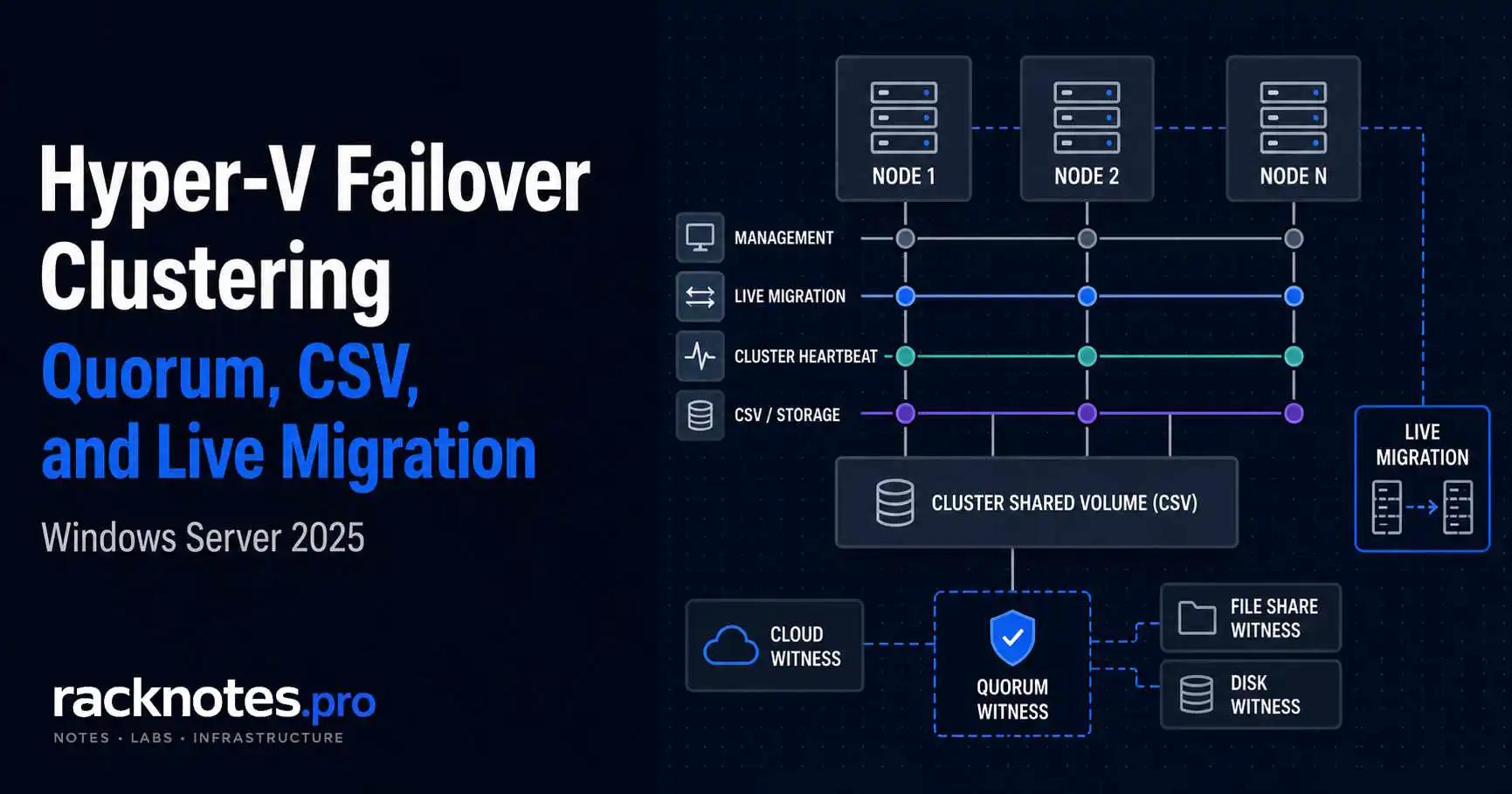
A Hyper-V failover cluster combines two or more Hyper-V hosts into a single Windows Failover Cluster, so virtual machines configured as clustered roles restart automatically on another node after a host failure and move between nodes during planned maintenance. Many cluster failures trace back to designs that were valid at deployment time but weren’t reviewed as nodes, workloads, storage, and network dependencies changed. Quorum, network paths, witness placement, storage dependencies, and failover capacity all need re-review as nodes and workloads are added. Hyper-V failover clustering is not just a feature you enable. It is an architecture you maintain.
This article covers the requirements, core components, and configuration gaps that repeatedly surface during deployment and failure testing.
A production Hyper-V failover cluster needs validated nodes, redundant network and storage paths, enough spare capacity to restart workloads after a node failure, and a configured quorum witness. Windows Server 2022 Hyper-V failover clusters require domain-joined nodes; Windows Server 2025 also supports Hyper-V VMs in a workgroup cluster, with additional identity, DNS, WinRM, storage, and authentication requirements.
- Windows Server 2022 or 2025 Standard or Datacenter on all nodes, domain-joined (or a constrained WS2025 workgroup design)
- AD permissions for the Cluster Name Object (CNO) pre-staged, or granted before cluster creation
- Storage accessible from every node: SAN/shared block storage converted to CSV, Storage Spaces Direct volumes, or a continuously available SMB 3 share from a Scale-Out File Server
- At least two independent network paths for production – adapter count depends on the converged, storage-separated, SET, or RDMA design
- Cluster validation report clean before proceeding – treat it as a blocker, not advisory
- Quorum witness configured before the cluster goes into production
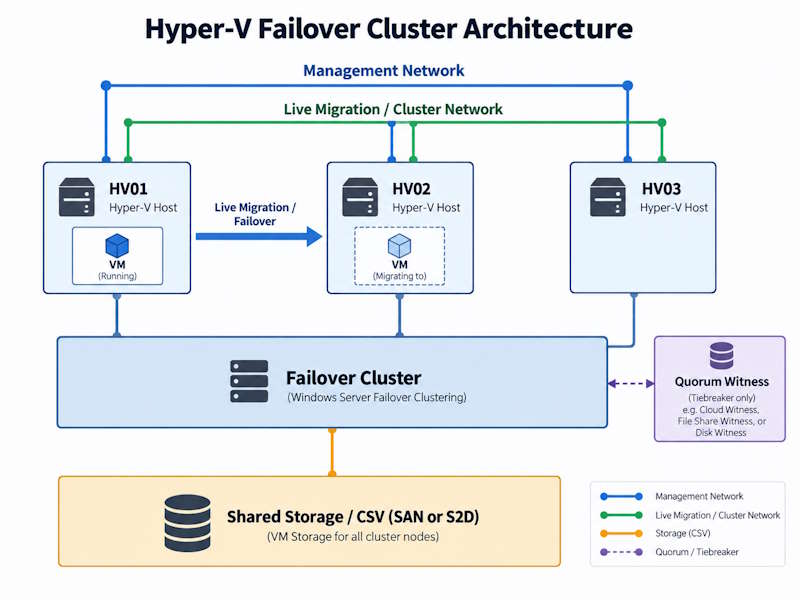
Clustering or Replica: Pick the Right Tool First
Before going further, remember that failover clustering and Hyper-V Replica are both described as “high availability” features, but they solve different problems. Choosing the wrong one wastes significant setup time.
| If you need… | Use |
|---|---|
| Automatic VM restart after host failure | Failover Clustering |
| Disaster recovery to another host or site | Hyper-V Replica |
| No shared storage available | Hyper-V Replica |
| Planned host maintenance without shutting down the guest OS | Failover Clustering with Live Migration |
| Lowest complexity and overhead | Standalone Hyper-V or Replica |
Hyper-V Replica copies a VM to another host asynchronously. If the primary host fails, you manually initiate a failover. The replication interval can be 30 seconds, 5 minutes, or 15 minutes. Actual RPO can be longer if replication falls behind, so monitor replication health and backlog rather than treating the configured interval as a guaranteed recovery point. It requires no shared storage and suits DR scenarios where some downtime is acceptable.
Failover Clustering is automatic. When a node fails, clustered VMs are automatically restarted on surviving nodes. This is not a zero-downtime continuation: the outage includes failure detection, cluster arbitration, VM startup, guest boot, and application recovery. Measure the actual recovery time during controlled failover testing instead of assuming a fixed number of seconds. It requires shared storage, Active Directory (or, on Windows Server 2025, a supported workgroup design), and a properly configured quorum.
What Hyper-V failover clustering provides:
- Automatic VM failover on node failure
- Live Migration – move running VMs between nodes with minimal downtime
- Shared resource pool – nodes share storage, network, and compute capacity
What it does NOT provide:
- Protection against storage failure – that’s RAID, S2D, or SAN redundancy
- Protection against application-level failures inside the VM
- Geographic redundancy without stretch cluster configuration
- Backup replacement – clustered VMs still need a backup strategy. See Hyper-V Backup: VSS, Checkpoints, and Restore Failures Explained
Hyper-V Failover Cluster Requirements
Hardware Requirements
Cluster nodes do not have to be identical server models, but consistency reduces operational risk. Use the same Windows Server version and patch level, the same CPU manufacturer for live migration, compatible firmware and BIOS settings, and a validated storage stack. If you use SET, Microsoft requires the participating NIC adapters, drivers, and firmware to be identical across cluster nodes.
Use processors from the same manufacturer across all nodes. Hyper-V processor compatibility mode can mask feature differences between processor generations from the same vendor, but it does not enable live migration between Intel and AMD hosts. Windows Server 2025 adds Dynamic Processor Compatibility Mode, but the same-manufacturer limitation still applies.
Windows Server and Edition Requirements
Failover Clustering is available in both Windows Server Standard and Datacenter. Under physical-core licensing, a fully licensed Standard host gets rights to run two Windows Server OSEs (plus the physical OSE if it’s used only to host and manage VMs), and you can stack additional full core-license sets for two more OSEs at a time. Datacenter provides unlimited Windows Server OSE rights on a fully licensed host.
Cluster licensing must account for failover placement: each node should be licensed for the maximum number of Windows Server VMs it may run after another node fails or is drained. Linux VMs don’t consume Windows Server guest OSE rights, and per-VM licensing is available only under eligible subscription or Software Assurance terms. Treat this as a starting framework, not a substitute for the Microsoft Product Terms and your organization’s specific licensing agreement – see Windows Server virtualization licensing guidance.
Active Directory or Workgroup Requirements
Windows Server 2022 Hyper-V failover clusters require domain-joined nodes. Windows Server 2025 also supports Hyper-V VMs in a workgroup cluster, but this design requires additional local-account, DNS, WinRM, authentication, and management configuration. Domain-joined nodes remain the simpler default for most production environments.
Windows Server 2025 workgroup prerequisite: use the same local administrator username and password on every node. If you don’t use the built-in Administrator account, configure LocalAccountTokenFilterPolicy as required by Microsoft’s workgroup-cluster procedure. A server that was previously domain-joined must be moved to the workgroup and renamed before it is used as a cluster node, so cached domain identity data isn’t retained.
When a cluster is created, Windows generates a Cluster Name Object (CNO) in Active Directory – a computer account that represents the cluster itself. Some clustered roles also create Virtual Computer Objects (VCOs), though Hyper-V virtual machines themselves do not require a dedicated AD computer object.
For a conventional domain-joined cluster, the account running the wizard must be able to create the CNO in the intended AD container, or the CNO must be prestaged. If neither condition is met, cluster creation normally fails with an Active Directory permissions error rather than completing silently. Later VCO failures are a separate issue: clustered roles that use client access points require the CNO to have permission to create computer objects in the target OU. See Prestage cluster computer objects in AD DS for the full prerequisites.
Two approaches:
Option A – Pre-stage the CNO: Create the computer object in AD manually, disable it, delegate full control to the user account creating the cluster. The wizard picks it up. This is the production pattern – it gives you control over OU placement and avoids mid-wizard permission failures.
Option B – Grant permissions at creation time: The account running New-Cluster needs Create Computer Objects and Read All Properties permissions in the target container, plus local administrative rights on every node.
Storage Requirements
Shared storage options for Hyper-V failover clustering:
- iSCSI SAN – a common SMB option when an external shared-storage array already exists
- Fibre Channel SAN – less common outside larger enterprise deployments
- Continuously available SMB 3 share on a Scale-Out File Server – stores VM configuration and VHDX files for Hyper-V over SMB. The share remains external to the Hyper-V compute cluster; you don’t add it with
Add-ClusterDiskor convert it to a compute-cluster CSV, and it’s designed for transparent file-server failover - Storage Spaces Direct (S2D) – uses local drives across cluster nodes to create distributed CSV storage without an external SAN. Windows Server S2D requires Datacenter edition and validated storage and network hardware
Network Requirements
A single network path can be supported, but it creates a single point of failure. For production, use at least two independent paths and validate the converged or separated design against the selected storage and switching architecture. Full traffic-role separation, NIC layout patterns, and live migration network sizing are covered in the Network Configuration section below.
Cluster Validation
Run the full applicable validation suite before creating the cluster – not as a formality, but to find actual blockers. Limiting the categories tested skips checks the wizard would otherwise catch. The validation report produces warnings and errors. Not all of them matter equally.
Errors that block or should block cluster creation:
- Storage validation failures – nodes can’t see shared storage
- Network validation failures – a required cluster network path is unreachable
- AD, DNS, or domain-connectivity validation failures
Cluster validation does not replace an explicit check that the creation account can create the CNO in the intended OU, or that the CNO was prestaged correctly – the CNO doesn’t exist yet at validation time, so this needs to be confirmed separately, not assumed from a clean validation report.
Warnings that look harmless but aren’t:
- Mixed firmware versions across nodes – doesn’t block creation, can contribute to live migration failures later
- NIC driver version mismatches – doesn’t fail validation, can cause or contribute to intermittent drops under sustained load
Run validation, read the full report, resolve errors before proceeding. Treat unexpected warnings as investigation items, not noise.
Hyper-V Failover Cluster Network Configuration
A Hyper-V failover cluster carries several distinct traffic classes – management, cluster communication, live migration, and CSV storage I/O, plus VM/tenant traffic and, depending on the design, iSCSI/Fibre Channel storage, S2D east-west SMB, backup, and Replica traffic. Running everything on one network works in a lab. In production, it creates contention and makes failures much harder to isolate across management traffic, cluster communication, CSV I/O, and live migration. The goal is not a fixed number of physical networks. It is to separate, prioritize, and make redundant the traffic classes that matter for the design. Microsoft’s network recommendations for a Hyper-V cluster cover the supported role combinations in detail.
Core Cluster Network Roles
Management network – host OS access, RDP, WinRM, general administration. Allow both cluster and client communication on this network; it can also serve as a redundant path for cluster communication if a dedicated path fails.
Cluster communication – heartbeat and cluster-control traffic used to maintain membership. It needs redundant, low-loss paths, but it does not require a dedicated physical adapter in every design. Modern clusters commonly use converged networking with SET, VLANs, QoS, and multiple physical uplinks. Congestion or packet loss can remove a healthy node from cluster membership and trigger failover; quorum prevents both partitions from remaining authoritative.
NIC Layout by Available Adapters
| Physical adapters | Recommended production pattern |
|---|---|
| 2 x 10/25GbE | SET across both adapters; separate management, VM, live migration and cluster/storage traffic with host vNICs, VLANs and QoS |
| 4 x 10/25GbE | Two redundant adapters for converged VM/management traffic and two redundant adapters for storage or S2D traffic |
| iSCSI design | Redundant storage paths with MPIO; do not place both iSCSI paths on one adapter or one switch |
| 2 x 1GbE | Lab or low-demand environment only; preserve redundancy before attempting strict role separation |
If the design uses SMB Direct or S2D with RDMA, validate the SET, RDMA, DCB, switch, and NIC configuration as one supported design rather than applying a generic teamed-NIC pattern to storage adapters. For switch configuration, VLAN design, and SET teaming specifics – see Hyper-V Networking. That article covers the two-NIC converged design in full; keep this table synchronized with it at the next touch.
Live Migration and CSV Network Considerations
Live Migration network – VM memory transfer during live migration. High bandwidth, latency-sensitive. A large VM must transfer its memory working set, and pages dirtied during migration may need to be sent again – a busy 32GB VM can generate more than 32GB of network traffic before the final switchover. Dedicated 10GbE is the practical target for environments where migration speed matters.
CSV coordination and redirected I/O – normal Direct I/O for a SAN-backed CSV travels over the storage fabric (Fibre Channel, iSCSI, or SAS), not through the coordinator node or the Ethernet cluster network. Cluster-enabled networks carry metadata coordination and, when redirection is required, SMB-based redirected I/O. Provide redundant cluster paths and enough bandwidth for the worst-case redirected-I/O load; SMB Multichannel can use multiple eligible networks.
Hyper-V Failover Cluster Quorum and Witness
Quorum is the mechanism that prevents split-brain – the scenario where two parts of a cluster each think the other half has failed, and both try to own the same resources simultaneously. Without quorum enforcement, a network partition between two nodes results in both nodes trying to run the same VMs and write to the same storage. Data corruption follows.
The cluster stays online as long as it holds quorum – more than half the currently active votes. If it loses quorum, Cluster Service takes the clustered roles offline rather than allowing both partitions to remain authoritative. Microsoft’s full quorum model documentation is at Manage cluster quorum – Windows Server.
How Votes Are Assigned
Windows Server uses Dynamic Quorum and Dynamic Witness to adjust the active vote set as cluster membership changes. A node or witness can have its vote dynamically removed or restored, so quorum behavior should not be modeled as a permanently fixed vote count. The cluster still requires a majority of the currently active votes, and it must retain quorum at the moment a failure occurs. See cluster and pool quorum, Dynamic Quorum and Dynamic Witness for the full model.
Quorum Configuration by Node Count
| Nodes | Witness guidance | Practical note |
|---|---|---|
| 2 | Configure a witness | Essential to avoid relying on which node currently owns the effective vote |
| 3 | Configure a witness | Dynamic Witness may not vote while all three nodes are online, but can become relevant after membership changes |
| 4 | Configure a witness | Provides an external tiebreaker and improves failure tolerance |
| 5+ | Configure a witness unless topology guidance says otherwise | Node count alone does not describe site, rack, storage, or simultaneous-failure risk |
Microsoft’s general Failover Clustering guidance recommends configuring a witness on modern Windows Server clusters. For five or more nodes, Microsoft’s storage quorum guidance notes that a witness does not increase basic node-failure tolerance, so fault domains, site topology, storage design, and validation results should drive the final choice for larger clusters. For Windows Server 2012 R2 and later, configure a quorum witness unless a validated workload-specific design explicitly requires another model, and let Dynamic Quorum and Dynamic Witness manage whether that vote is currently active.
Witness Options
Cloud Witness – removes the need to place the witness in either on-premises site and can remain reachable during a local site outage, assuming surviving nodes retain outbound Azure connectivity. It’s a strong default when every node has reliable outbound access to Azure Storage and the organization accepts that dependency, but it only resolves the witness vote – it doesn’t create site resiliency for compute, storage, or networking on its own. Uses an Azure Storage account as the tiebreaker. No on-premises hardware dependency, near-zero cost.
File Share Witness – a UNC share on a server outside the cluster. Works without internet access. The witness server itself becomes a dependency – if it’s unavailable, the cluster loses the witness vote. Don’t put the file share witness on a node that’s in the cluster.
Disk Witness – a small shared disk dedicated to quorum. Oldest option, still functional. Adds a dependency on shared storage availability – if the SAN goes offline, you lose both storage and the witness simultaneously. Less resilient than cloud witness for most failure scenarios.
For environments without Azure connectivity, place a dedicated File Share Witness on an independent Windows server, supported NAS device, or third-site system that remains reachable from every cluster node. Avoid colocating the witness with the same power, rack, storage, or site failure domain as the cluster. For environments with internet access: Cloud Witness is the cleaner option with fewer dependencies. See Deploy a quorum witness for the full setup steps.
Workgroup cluster note: follow the Windows Server 2025 workgroup-cluster witness guidance rather than assuming the domain-based File Share Witness procedure above applies unchanged. Microsoft lists Cloud, Disk, or USB witness options for that design.
- Symptom: A node is unexpectedly removed from active cluster membership. Event ID 1135 in the System log on one or both nodes.
- What’s happening: The node lost cluster communication or the Cluster Service stopped responding, so the cluster removed it from active membership. This is not automatically split-brain – quorum exists specifically to prevent both partitions from remaining authoritative.
- Confirm cluster membership and recent node removals:
Get-ClusterNode - Review cluster network state:
Get-ClusterNetworkandGet-ClusterNetworkInterface - Confirm the Windows Firewall cluster UDP rule:
netsh advfirewall firewall show rule name="Failover Clusters (UDP-In)" verbose– cluster heartbeat uses UDP/DTLS 3343, so a TCP-only test does not fully validate it. - TCP 3343 is still useful for node-join troubleshooting:
Test-NetConnection -ComputerName hv02 -Port 3343 - Check quorum state:
Get-ClusterQuorum– verify witness is reachable and voting. - Review the cluster log for the incident window:
Get-ClusterLog -UseLocalTime -TimeSpan 15 - Recovery: restore node and cluster-network connectivity, then review the cluster log, System events, quorum state, CSV state, and storage-path health before returning the node to service.
Cluster Shared Volumes (CSV)
Regular shared storage in a Windows cluster works with one owner node at a time. Only the node that owns a disk can perform I/O on it. When that node fails, another takes ownership – but during the transition, I/O pauses.
CSV changes the ownership model. All nodes can read and write to a CSV simultaneously. One node acts as coordinator node – responsible for metadata operations – but all other nodes perform direct I/O to storage without routing through the coordinator. This shared namespace lets clustered VMs run on different nodes without transferring exclusive disk ownership for every VM move; storage or path failures can still cause pauses, redirection, or temporary unavailability. The full technical overview is in Use Cluster Shared Volumes in a failover cluster – Microsoft Learn.
CSV Redirection Mode
If a node loses direct access to a CSV, or if a storage operation requires redirection, that node can route I/O over the cluster network to the CSV coordinator. Coordinator ownership can change during node restart, failover, or rebalance – do not treat a coordinator change by itself as evidence of redirected I/O. Verify the actual per-node state instead.
Operators unfamiliar with this behavior chase phantom storage problems. A VM that was fast yesterday is slow today, storage health checks look clean, but a specific node shifted into redirected I/O and nobody checked per-node state.
Check CSV status:
# List CSV resources and coordinator nodes
Get-ClusterSharedVolume | Select-Object Name, State, OwnerNode

# Check direct, redirected, or unavailable I/O state per node
Get-ClusterSharedVolumeState
The state is evaluated per node, so use Get-ClusterSharedVolumeState to identify which node is using direct I/O, redirected I/O, or has no access, and to view the reported reason – Get-ClusterSharedVolume alone shows the CSV and its current coordinator, not each node’s individual I/O state.
For SAN-attached block storage, a CSV that was formatted with ReFS doesn’t use Direct I/O, even when the storage paths are healthy. If Direct I/O is required for a SAN-backed CSV, format the LUN with NTFS before converting it to CSV. This caveat is specific to SAN-backed CSVs and does not mean ReFS is the wrong choice for Storage Spaces Direct.
CSV Layout Recommendations
One CSV per workload tier is a reasonable starting point – not one CSV for everything, not one CSV per VM.
One CSV holds all production VM storage. A storage-path failure or maintenance operation places that CSV into redirected I/O for one or more nodes. I/O is routed over the cluster network through the coordinator, increasing latency and consuming network bandwidth. Because all production VMs use the same CSV, a volume-level problem has a large blast radius. Splitting workloads across validated CSVs can reduce the impact of a single volume or LUN issue, but it does not protect against node-wide, fabric-wide, or array-wide failures.
This is a starting pattern for a small SAN-backed cluster, not a universal sizing rule. Validate CSV count and placement against the storage vendor, backup platform, workload I/O profile, and failover design.
Practical starting layout for a small SAN-backed cluster: 2-3 CSVs organized by workload type (production VMs / dev-test / infrastructure). Each CSV on its own LUN from the SAN. One CSV per VM creates management overhead that scales with VM count without meaningful isolation benefit beyond what per-VM VHDX placement already provides.
For storage decisions, VHDX sizing, and S2D architecture – see Hyper-V Storage: VHDX, Fixed vs Dynamic, and Storage Spaces Explained.
Hyper-V Failover Cluster Setup: Step by Step
GUI vs PowerShell
Failover Cluster Manager and PowerShell configure the same underlying cluster platform. The GUI is useful for a first deployment and report review; PowerShell is better for repeatable builds and exposes parameters that the wizard might not surface.
Cluster Creation Sequence
- Install Failover Clustering feature on all nodes
- Run cluster validation – resolve errors before continuing
- Create the cluster
- Configure quorum and witness
- Add shared storage to the cluster
- Create CSV from cluster storage
- Configure cluster network roles explicitly – allow cluster and client communication on the management network, allow cluster-only communication on dedicated cluster or live migration networks where appropriate, and disable cluster communication only on storage-only networks such as isolated iSCSI paths
- Add VMs as clustered roles
# Install feature on each node
Install-WindowsFeature -Name Failover-Clustering -IncludeManagementTools

# Run the full applicable validation suite before cluster creation
Test-Cluster -Node "hv01", "hv02"

# Targeted follow-up test only - not a replacement for full validation
Test-Cluster -Node "hv01", "hv02" -Include "Storage"

# Create the cluster without automatically adding shared disks (domain-joined example)
New-Cluster -Name "HVCluster01" -Node "hv01", "hv02" -StaticAddress "192.168.1.50" -NoStorage

# Windows Server 2025 workgroup cluster variation - uses a DNS administrative access point
# New-Cluster -Name "HVCluster01" -Node "hv01", "hv02" -AdministrativeAccessPoint DNS -NoStorage

# Configure Cloud Witness - retrieve the key through your approved secret-management
# process. Do not embed a production key in source code or documentation.
Set-ClusterQuorum -CloudWitness -AccountName "<StorageAccountName>" -AccessKey "<StorageAccountAccessKey>"
The creation command above assumes a conventional domain-joined cluster. A Windows Server 2025 workgroup cluster uses a DNS administrative access point instead and requires the workgroup prerequisites described earlier – don’t apply the domain example to a workgroup design unchanged.
SAN or shared-LUN path:
# Review eligible shared disks
Get-ClusterAvailableDisk
Get-ClusterAvailableDisk | Select-Object Number, Name, UniqueId, Size

# Add only the verified LUN - UniqueId is a more reliable production identifier than Number
Get-ClusterAvailableDisk | Where-Object { $_.UniqueId -eq "<VerifiedStorageUniqueId>" } | Add-ClusterDisk

# Equivalent example filtered by disk number, for a quick lab test
Get-ClusterAvailableDisk | Where-Object { $_.Number -eq 3 } | Add-ClusterDisk

# Convert the clustered disk to CSV
Add-ClusterSharedVolume -Name "Cluster Disk 1"
Storage Spaces Direct path:
# Enable S2D after full validation - do not mix this with Add-ClusterDisk
Enable-ClusterStorageSpacesDirect

# Confirm the pool name if multiple storage pools exist in the environment
Get-StoragePool

# Create a volume with an explicit resiliency, filesystem, and size for your node count
New-Volume -StoragePoolFriendlyName S2D* -FriendlyName "Volume01" -FileSystem CSVFS_ReFS -ResiliencySettingName Mirror -Size 1TB
Hyper-V over SMB path: the continuously available share is created on the Scale-Out File Server; the VM’s configuration and VHDX files then use that UNC path instead of a local CSV.
The SMB share and its underlying filesystem must grant the required access to every Hyper-V host computer account and to the Hyper-V cluster computer account. The exact permissions should be configured on the Scale-Out File Server before you create the VM – a valid UNC path alone doesn’t make the storage usable by every cluster node, and missing permissions typically surface as Access Denied (0x80070005) during VM creation, storage migration, or live migration.
# Run on the Scale-Out File Server after creating the applications share.
# Replace the example domain, hosts, cluster account, share, and path.
New-SmbShare -Name "HyperV" -Path "C:\ClusterStorage\Volume1\HyperV" -FullAccess "CONTOSO\HVAdmin","CONTOSO\HV01$","CONTOSO\HV02$","CONTOSO\HVCluster01$"
Set-SmbPathAcl -Name "HyperV"
The command below demonstrates storage placement only – configure memory, processors, networking, firmware, startup behavior, and the guest installation separately.
$vmPath = "\\SOFS01\HyperV\VM01"

New-VM -Name "VM01" -Path $vmPath -NewVHDPath "$vmPath\Virtual Hard Disks\VM01.vhdx" -NewVHDSizeBytes 100GB -Generation 2
This permissions workflow is a domain-oriented Hyper-V over SMB example – don’t treat it as an unchanged procedure for a Windows Server 2025 workgroup cluster.
Workgroup storage note: the Scale-Out File Server permissions example above assumes a domain-joined Hyper-V cluster. For a Windows Server 2025 workgroup cluster, follow Microsoft’s workgroup storage requirements and the NAS or SMB platform’s supported authentication model. Don’t deploy the Scale-Out File Server role inside the workgroup Hyper-V cluster itself – File Server workloads aren’t supported on workgroup clusters.
Do not leave a production Azure Storage access key in a static script, shell history, or ticket – the placeholder above needs to come from your secret-management process or Windows Admin Center, not a saved script. Get-ClusterAvailableDisk is the cluster-aware way to enumerate eligible disks for a SAN-backed cluster; it does not apply to S2D, which uses Enable-ClusterStorageSpacesDirect and New-Volume instead, or to Hyper-V over SMB, which uses a UNC path outside the compute cluster’s CSV storage entirely. Follow the deployment workflow for the storage architecture you selected – if you intentionally combine storage types, validate that mixed design against Microsoft guidance, the storage vendor, backup software, and a full cluster validation run.
Add a Hyper-V VM to the Failover Cluster
A VM that exists on a cluster node is not automatically highly available. You need to explicitly add it as a clustered role – either via Add-ClusterVirtualMachineRole or by right-clicking the VM in Failover Cluster Manager and selecting “Configure as Clustered Role.”
Before adding the role, confirm that the VM configuration, VHDX files, checkpoints, and required ISO paths are stored on storage accessible from every destination node – a CSV, an S2D volume, or the Hyper-V over SMB share. Adding the clustered role before storage is in place does not create a real failover-capable VM.
# Make a VM highly available once its storage is on a cluster-accessible path
Add-ClusterVirtualMachineRole -VMName "VM01"
VMs not added as clustered roles will not fail over automatically. This is a common post-setup gap in Hyper-V failover clustering deployments – the cluster is built and validation passes, but VMs are left as standard Hyper-V VMs rather than clustered roles. The first unplanned node failure reveals it.
Initial setup steps and post-install configuration are covered in Hyper-V Post-Install Checklist: 10 Tasks Before Your First VM.
Live Migration in a Hyper-V Failover Cluster
Live Migration moves a running VM without a planned guest shutdown. The final switchover is normally brief, but applications with strict latency requirements should still be tested rather than assumed to be unaffected.
What Makes It Fail
Live Migration authentication depends on the host version and selected protocol. Windows Server 2022 and earlier commonly use CredSSP for migrations initiated while signed in to the source host. Kerberos supports delegated remote administration when constrained delegation is configured. On Windows Server 2025, Credential Guard is enabled by default on eligible domain-joined servers and blocks CredSSP-based live migration, so use Kerberos constrained delegation. In a Windows Server 2025 workgroup cluster, live migration instead uses matching local accounts and PKU2U-based authentication rather than Kerberos constrained delegation – keep the domain and workgroup procedures clearly separated. See Set up hosts for live migration for the full authentication setup.
Live Migration failures can come from authentication, destination compatibility, virtual switch differences, migration-network problems, or broader cluster/CSV health. For migration-specific error codes, Event ID 21502, authentication failures, vSwitch mismatches, or source/destination errors, use the dedicated Hyper-V Live Migration Failed troubleshooting guide. If the failure coincides with degraded nodes, CSV events, quorum problems, or cluster-resource failures, continue with the cluster diagnostics in this guide.
Live Migration vs Quick Migration vs Storage Migration
The table below describes the common operations for clustered VMs. Hyper-V also supports shared-nothing live migration outside this clustered-storage workflow.
| Type | VM state during move | Requires | Use when |
|---|---|---|---|
| Clustered Live Migration | Running, brief final switchover | Destination access to the VM configuration and storage; configured CredSSP, Kerberos, or PKU2U authentication | Planned host maintenance with no guest shutdown |
| Quick Migration | Saved, then restored; interruption can be seconds or longer | Shared storage accessible to the destination node | Live migration is unavailable and a temporary outage is acceptable |
| Storage Migration | Running, brief storage switchover | Source and destination storage paths | Moving VM files while the VM remains on the same host |
| Shared-nothing Live Migration | Running while VM and storage move | Network path and compatible destination host; no shared storage required | Moving a running VM between nonclustered hosts or storage architectures |
Validate and Test the Hyper-V Failover Cluster
Cluster validation before creation confirms prerequisites. Validation after setup confirms the cluster behaves correctly under failure conditions – which is a different test entirely.
Verification Commands
# Check node status
Get-ClusterNode

# Check all cluster resources
Get-ClusterResource

# Check CSV status and owner, then per-node I/O state
Get-ClusterSharedVolume | Select Name, State, OwnerNode
Get-ClusterSharedVolumeState

# Check quorum configuration
Get-ClusterQuorum

# Check live migration settings on every node, not just the local host
Get-VMHost -ComputerName "hv01", "hv02" | Select-Object ComputerName, VirtualMachineMigrationEnabled, MaximumVirtualMachineMigrations

# Confirm VMs are configured as clustered roles
Get-ClusterResource | Where-Object {$_.ResourceType -eq "Virtual Machine"}
Planned Maintenance Test
Suspend-ClusterNode -Drain pauses the node and moves clustered roles away from it. Healthy clustered VMs should normally use live migration, but verify the actual move type and investigate any VM that enters a saved state or fails to move. This is planned-maintenance behavior, not a failover test – test the two scenarios separately.
Suspend-ClusterNode -Name "hv01" -Drain
Resume-ClusterNode -Name "hv01"- Confirm all target VMs are running as clustered roles (command above)
- Drain the node:
Suspend-ClusterNode -Name "hv01" -Drain - Observe how each clustered VM moves. Confirm that planned maintenance uses live migration where expected rather than assuming the drain completed without interruption
- Resume the node:
Resume-ClusterNode -Name "hv01" - Verify VMs are rebalanced or move them back manually
Controlled Unplanned-Failure Test
- Confirm an actual, current backup exists before testing
- Confirm failover capacity on the surviving nodes
- Record the start time
- Power off or hard-stop one node in a maintenance window, not through drain
- Measure detection time, VM restart, and application recovery
- Check CSV state during and after:
Get-ClusterSharedVolume | Select Name, StateandGet-ClusterSharedVolumeState - Verify Event Log, CSV, quorum, and resource state afterward
Document what you observe from both tests. Cluster behavior under failure should not be a surprise at 2 AM.
Operational Complexity Budget
Hyper-V failover clustering adds ongoing maintenance overhead that doesn’t exist in standalone Hyper-V:
- Cluster-aware patching – nodes can’t be patched independently without planning. Use Cluster-Aware Updating (CAU) or manually drain one node at a time
- Quorum monitoring – witness availability needs periodic verification, especially cloud witness where Azure storage account key rotation can silently break the witness
- CSV health checks – monitor for redirected I/O mode, which can persist silently while VMs continue running with degraded storage performance
- Active Directory dependency – a domain-joined cluster can continue running existing workloads during a temporary domain controller outage, but Kerberos-based management, live migration delegation, DNS registration, CNO/VCO operations, and creation of new client access points can fail until AD connectivity is restored
- Live migration debugging – when migration fails, diagnosis spans Hyper-V event logs, authentication configuration, and network validation
Before committing to clustering, consider whether the workload actually requires automatic failover or just fast recovery.
When Hyper-V Replica is enough:
- Acceptable RTO of several minutes
- No shared storage available or in budget
- DR scenario – protecting against site failure, not individual node failure
- Smaller workloads where brief downtime is tolerable
When failover clustering is worth it:
- Workloads that need automatic restart and a shorter, tested RTO than manual host recovery can provide – if the application can’t tolerate even a VM reboot, add application-level high availability rather than relying on host clustering alone
- Environments where manual failover isn’t operationally feasible – off-hours incidents, small teams
- Shared storage already exists or is budgeted
- Team has capacity to maintain cluster health on an ongoing basis
A two-node Hyper-V failover cluster with a cloud witness, properly configured quorum, and two CSVs is a manageable system. A four-node cluster with Storage Spaces Direct, stretched across two sites, with Cluster-Aware Updating and custom quorum logic is a materially larger operational commitment that requires formal ownership, monitoring, patching, and tested recovery procedures. Match the architecture to the operational capacity of the team that will maintain it – not to what’s theoretically possible.
Final Thoughts
Hyper-V failover clustering rewards careful pre-work. The cluster validation report, quorum witness, CNO permissions, and network role separation are not optional steps to revisit later – they determine whether the cluster behaves correctly under the conditions it was built for.
A common failure pattern in production Hyper-V failover clustering isn’t hardware. It’s a two-node cluster without a witness, a CSV in redirected I/O mode that nobody noticed, or a live migration that’s never been tested because it “should work.” Clusters don’t reveal their configuration gaps during normal operation. They reveal them during an unplanned node failure.
Build it correctly, test failure scenarios before they’re real, and the operational overhead is manageable. For the complete Hyper-V foundation – from installation through networking, storage, and backup – see What Is Hyper-V? How Microsoft’s Hypervisor Actually Works.
FAQ
How many nodes do you need for a Hyper-V failover cluster?
Minimum two. A Hyper-V failover cluster supports up to 64 nodes, with a maximum of 8,000 running virtual machines per cluster – practical limits are usually determined earlier by storage, network, management, backup, and failover-capacity constraints. Two nodes is the most common SMB configuration – functional, but requires a quorum witness so Dynamic Quorum has a tiebreaker available. Three nodes tolerates one node failure without a witness, though a witness is still commonly configured.
What is quorum in Hyper-V failover clustering and why does it matter?
Quorum is the vote-based mechanism that determines whether the cluster has enough active members to operate safely. Votes are not a fixed count – Dynamic Quorum and Dynamic Witness adjust the active vote set as membership changes. Without a majority of currently active votes, Cluster Service takes clustered roles offline to prevent split-brain data corruption, which is why configuring a witness is the standard recommendation for Windows Server 2012 R2 and later.
Do you need shared storage for Hyper-V failover clustering?
Yes. Every potential owner node must be able to access the VM files through one of the supported architectures: shared block storage such as iSCSI or Fibre Channel presented as CSV, Storage Spaces Direct volumes (Datacenter edition), or a supported continuously available SMB 3 share from a Scale-Out File Server.
What is a Cluster Shared Volume (CSV) and how is it different from regular shared storage?
Regular cluster storage has one owner node at a time – only that node can perform I/O. CSV allows all nodes to read and write simultaneously through a shared namespace, without transferring exclusive disk ownership for every VM move. One node acts as coordinator for metadata operations, but I/O goes directly from each node to storage without routing through the coordinator. Storage or path failures can still cause pauses, redirection, or temporary unavailability even with CSV in place.
What happens to VMs when a cluster node fails?
VMs configured as clustered roles are automatically restarted on surviving nodes – not instantaneously, so measure your actual recovery time rather than assuming a fixed window. VMs not configured as clustered roles do not fail over. If quorum is maintained, the process requires no operator intervention. The cluster selects the destination node based on available resources and configured placement policies.
Can Windows Server 2025 run a workgroup Hyper-V failover cluster?
Yes – Windows Server 2025 adds support for Hyper-V virtual machines as a workload in a workgroup failover cluster, which Windows Server 2022 does not support. It requires matching local administrative accounts and passwords across nodes, a common DNS suffix, TrustedHosts and WinRM configuration, and PKU2U-based live migration authentication instead of Kerberos constrained delegation. When a non-built-in local administrator account is used, Microsoft’s procedure also requires the LocalAccountTokenFilterPolicy registry setting, and nodes that were previously domain-joined must be moved to the workgroup and renamed before cluster deployment. For most production environments, a domain-joined cluster is still the simpler default on either version.
What network adapters does a Hyper-V failover cluster need?
There is no universal requirement for one physical adapter per traffic role. A practical production baseline is two independent high-speed network paths, often implemented with SET and separate host vNICs, VLANs, and QoS – see the NIC layout table above. Storage designs such as iSCSI, SMB Multichannel, or S2D can require additional adapters or paths.
How is Hyper-V failover clustering different from Hyper-V Replica?
Different tools for different problems. Failover clustering provides automatic failover within a cluster, requires shared storage and (typically) AD, and protects against node-level failures – but restart time is not zero, so measure it. Hyper-V Replica copies VMs asynchronously to another host, requires manual failover initiation, supports replication intervals from 30 seconds to 15 minutes, and needs no shared storage – it protects against site-level failures. Many production environments run both: clustering for node-level HA, Replica for off-site DR.
Does Storage Spaces Direct work on Windows Server Standard?
No. Storage Spaces Direct requires Windows Server Datacenter edition. Failover Clustering itself is available on both Standard and Datacenter, but if the design depends on S2D specifically, Datacenter licensing is a prerequisite, not an option to evaluate later.
Hyper-V Series
14 articles – Windows Server 2025 · Requirements · Licensing · Networking · Storage · Backup · Clustering